BlogScreenshots on your device
How to Take Screenshots in a UWP App
Capture a display or app window in UWP with Windows.Graphics.Capture, handle consent, frame lifetimes, resizing, HDR, saving, and common errors.
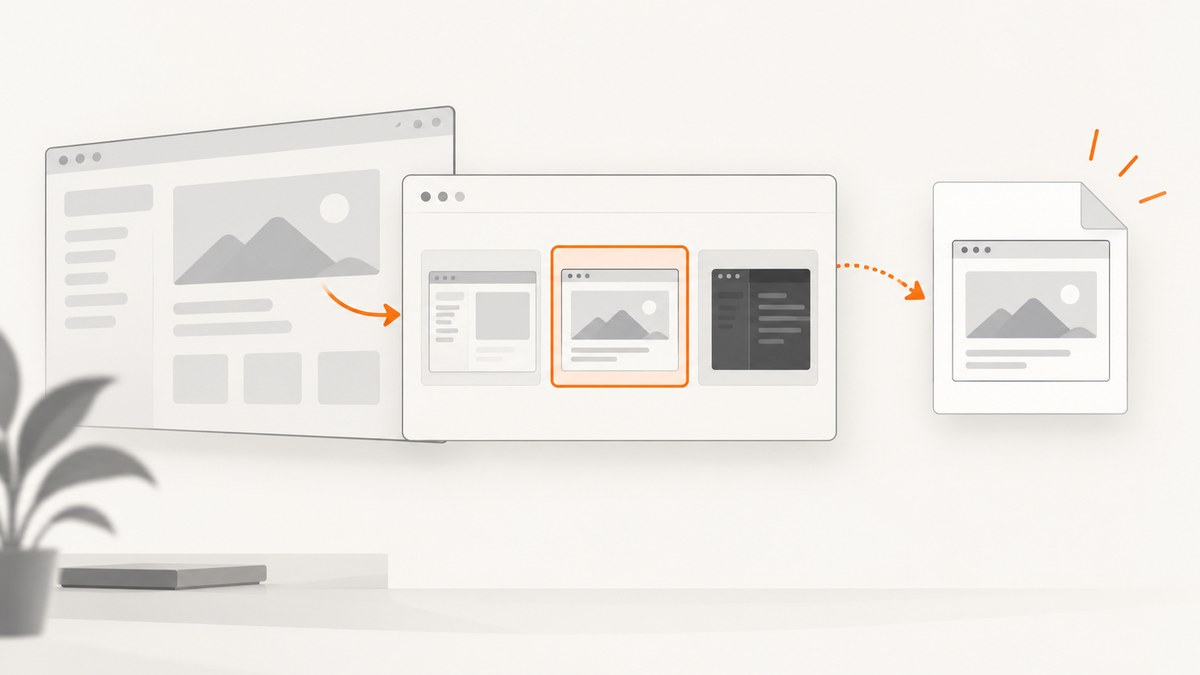
Use Windows.Graphics.Capture. Check support, let the user select a display or application window with GraphicsCapturePicker, create a Direct3D frame pool, capture one frame, copy only the current content area, and save it as a bitmap. The picker is the consent step: a UWP app should not imply that it can silently capture any window.
Microsoft describes Windows.Graphics.Capture as APIs for acquiring frames from a display or application window and producing snapshots or streams. See the official screen-capture guide and the namespace reference.
1. Prerequisites and project setup
- Use a Windows desktop device (or a supported Windows Mixed Reality immersive headset).
- Target a Windows SDK that contains
Windows.Graphics.Capture. - Add the Graphics Capture capability to the UWP manifest. The capability is required by the namespace.
- Create a Direct3D 11 device and reference a bitmap library such as Win2D if you want the shortest PNG-saving path.
In Visual Studio, open Package.appxmanifest, switch to the Capabilities tab, and enable the graphics-capture capability exposed by your SDK. If the capability is missing, picker or frame-pool creation can fail even when the code compiles.
2. Complete UWP example: capture one selected window or display
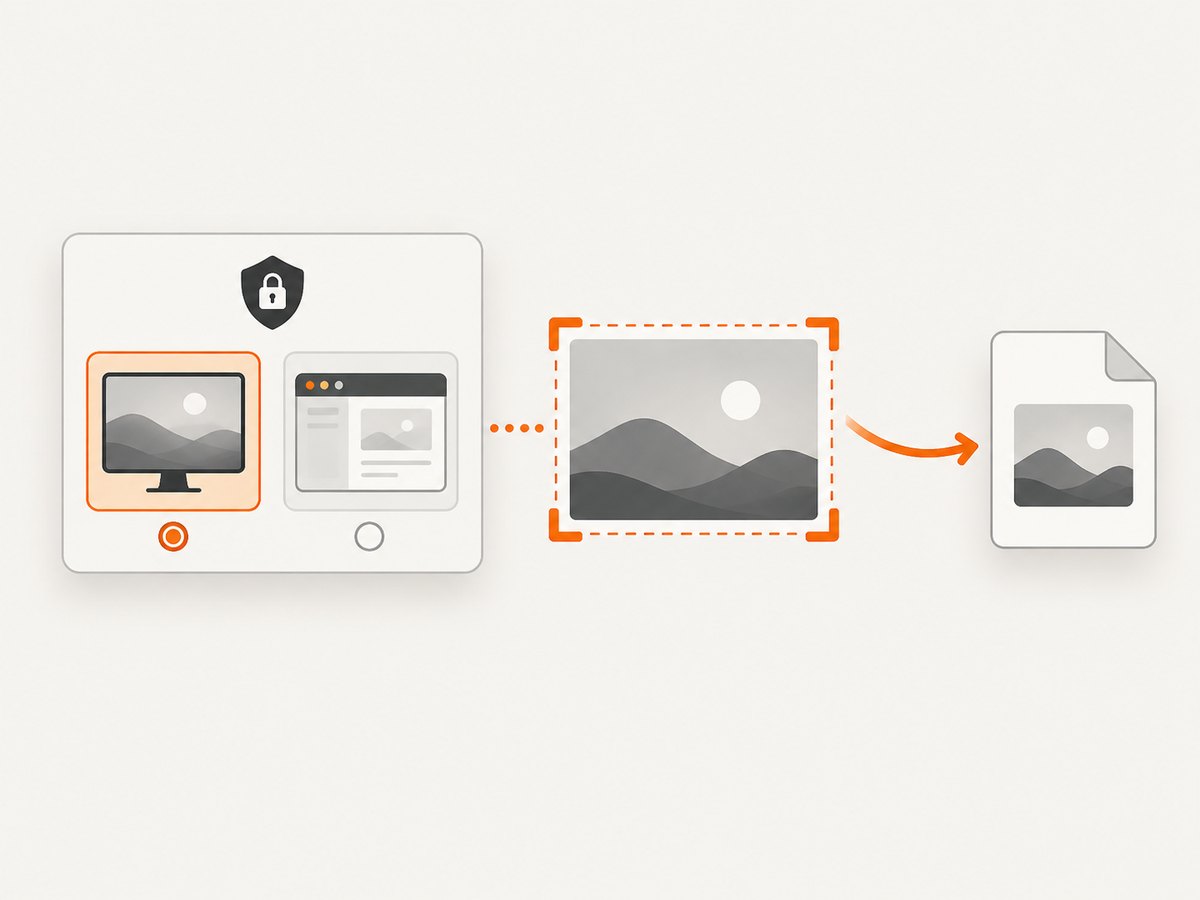
The following example follows the documented one-image flow. It checks support, opens system selection UI, captures one frame, copies the valid content rectangle, and writes a PNG with Win2D.
using System;
using System.Numerics;
using System.Threading.Tasks;
using Windows.Graphics.Capture;
using Windows.Graphics.DirectX;
using Windows.Graphics.DirectX.Direct3D11;
using Windows.Storage;
using Windows.Storage.Pickers;
using Windows.UI.Xaml;
using Microsoft.Graphics.Canvas;
using Microsoft.Graphics.Canvas.UI.Composition;
using SharpDX.Direct3D11;

public sealed partial class MainPage : Windows.UI.Xaml.Controls.Page
{
    private IDirect3DDevice _device;

    public MainPage()
    {
        InitializeComponent();
        _device = Direct3D11Helpers.CreateDevice();
    }

    private async void CaptureButton_Click(object sender, RoutedEventArgs e)
    {
        if (!GraphicsCaptureSession.IsSupported())
        {
            await ShowMessageAsync("Graphics capture is not supported on this device.");
            return;
        }

        var picker = new GraphicsCapturePicker();
        GraphicsCaptureItem item = await picker.PickSingleItemAsync();
        if (item == null)
            return; // The user cancelled selection.

        var file = await PickOutputFileAsync();
        if (file == null)
            return;

        await CaptureOneFrameAsync(item, file);
    }

    private async Task CaptureOneFrameAsync(GraphicsCaptureItem item, StorageFile file)
    {
        var size = item.Size;
        using var framePool = Direct3D11CaptureFramePool.Create(
            _device,
            DirectXPixelFormat.B8G8R8A8UIntNormalized,
            1,
            size);
        using var session = framePool.CreateCaptureSession(item);

        session.StartCapture();

        // TryGetNextFrame waits for the first available frame in this example.
        using Direct3D11CaptureFrame frame = await WaitForFrameAsync(framePool);
        var contentSize = frame.ContentSize;

        using CanvasBitmap bitmap = await CanvasBitmap.CreateFromDirect3D11SurfaceAsync(
            CanvasDevice.GetSharedDevice(), frame.Surface);

        // ContentSize is the valid area. A surface can be larger than the content.
        await using var output = await file.OpenAsync(
            Windows.Storage.FileAccessMode.ReadWrite);
        await bitmap.SaveAsync(output, CanvasBitmapFileFormat.Png,
            1.0f, new Windows.Foundation.Rect(0, 0,
                contentSize.Width, contentSize.Height));

        session.Dispose();
    }

    private static async Task<Direct3D11CaptureFrame> WaitForFrameAsync(
        Direct3D11CaptureFramePool pool)
    {
        var tcs = new TaskCompletionSource<Direct3D11CaptureFrame>();
        TypedEventHandler<Direct3D11CaptureFramePool,
            object> handler = null;
        handler = (sender, args) =>
        {
            var frame = sender.TryGetNextFrame();
            if (frame != null)
            {
                sender.FrameArrived -= handler;
                tcs.TrySetResult(frame);
            }
        };
        pool.FrameArrived += handler;
        return await tcs.Task;
    }

    private static async Task<StorageFile> PickOutputFileAsync()
    {
        var picker = new FileSavePicker();
        picker.SuggestedFileName = "capture";
        picker.FileTypeChoices.Add("PNG image", new[] { ".png" });
        return await picker.PickSaveFileAsync();
    }

    private Task ShowMessageAsync(string text)
    {
        // Replace with your app's ContentDialog implementation.
        return Task.CompletedTask;
    }
}
Direct3D11Helpers.CreateDevice() is project-specific boilerplate that creates a Direct3D 11 device and wraps it as an IDirect3DDevice. Use the helper from Microsoft’s sample or your existing DirectX interop layer. The capture sequence and lifetime rules are the important parts.
Picker behavior and consent
PickSingleItemAsync() displays Windows system UI. The user chooses a display or application window, and the returned GraphicsCaptureItem identifies that selection. If the user cancels, the result is null; treat cancellation as a normal outcome.
Windows shows a yellow border around the actively captured item. If multiple capture sessions are active, each selected item can show a border.
3. Capturing continuously with FrameArrived
For recording, streaming, or repeated snapshots, subscribe to FrameArrived and drain frames with TryGetNextFrame(). Keep the event handler short: copy or enqueue the surface, then perform encoding and file I/O away from the UI thread.
private void StartContinuousCapture(GraphicsCaptureItem item)
{
    _framePool = Direct3D11CaptureFramePool.Create(
        _device,
        DirectXPixelFormat.B8G8R8A8UIntNormalized,
        2,
        item.Size);
    _session = _framePool.CreateCaptureSession(item);
    _framePool.FrameArrived += OnFrameArrived;
    _session.StartCapture();
}

private void OnFrameArrived(Direct3D11CaptureFramePool sender, object args)
{
    using var frame = sender.TryGetNextFrame();
    if (frame == null)
        return;

    // Copy or process the surface here. Do not retain frame or Surface after
    // disposing the frame; enqueue your own copy for slow work.
    var size = frame.ContentSize;
    EnqueueSurfaceCopy(frame.Surface, size);
}
A checked-out frame owns a buffer from the pool. Dispose the managed Direct3D11CaptureFrame as soon as your copy is complete. Do not retain the frame or its underlying Direct3D surface after disposal.
4. Size changes, content bounds, and pool recreation
Use ContentSize, not the surface dimensions
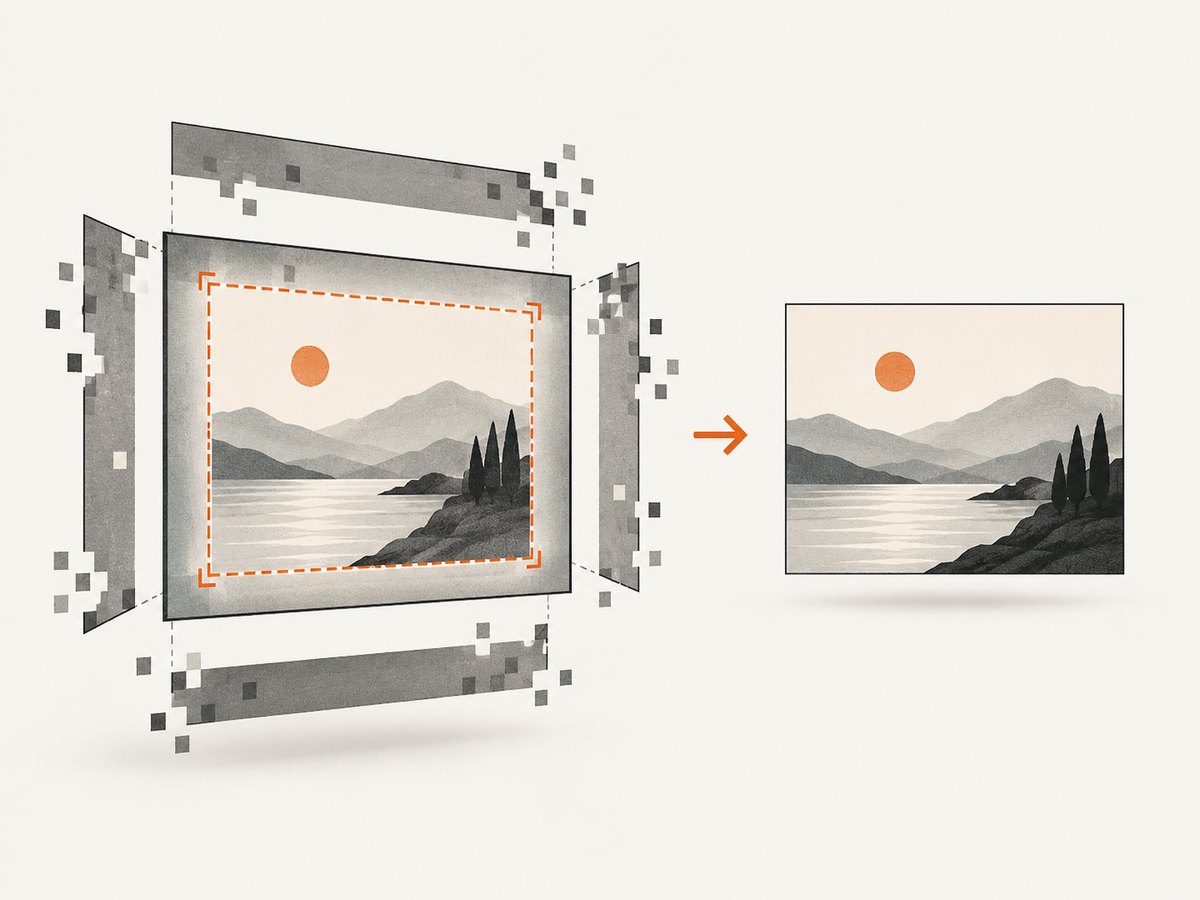
The Direct3D surface can be larger than the current content. Pixels outside frame.ContentSize are undefined and must not be written to the output. If the content is larger than the frame, it is clipped. Always use the current frame’s content size when copying or encoding.
Recreate when the item or device changes
When the selected item resizes, or when the Direct3D device or pool configuration changes, call Direct3D11CaptureFramePool.Recreate() with the new device, format, buffer count, and size. Recreate discards existing frames, so finish or cancel pending processing before recreation.
private void OnItemSizeChanged(GraphicsCaptureItem item)
{
    var newSize = item.Size;
    _framePool.Recreate(
        _device,
        DirectXPixelFormat.B8G8R8A8UIntNormalized,
        2,
        newSize);
}
Coordinate resize notifications with your frame queue. A simple policy is to stop accepting new work, drain or drop queued frames, recreate the pool, then resume capture.
5. Pixel formats and HDR displays
The SDR example uses DXGI_FORMAT_B8G8R8A8_UNORM, represented by DirectXPixelFormat.B8G8R8A8UIntNormalized. HDR content may not be represented correctly in SDR BGRA8: highlights can clip and colors can look washed out.
For HDR workflows, consider DXGI_FORMAT_R16G16B16A16_FLOAT through the capture pipeline. Saving HDR output or tone-mapping to SDR requires additional processing and an encoder that supports your chosen output.
6. Saving formats and processing choices
- PNG: lossless and suitable for UI screenshots, but larger files.
- JPEG: smaller photographs and previews; compression can blur text.
- WebP: efficient for web delivery when your decoder and target platform support it.
Encode after copying the frame to an owned buffer. Avoid synchronous disk writes in FrameArrived; they can cause pool starvation and dropped frames. For a single screenshot, one buffer is sufficient. For video, use a bounded queue and define whether overload drops the newest or oldest frame.
7. UWP and WinUI 3 migration notes
The capture namespace remains Windows.Graphics.Capture, but WinUI 3 requires window-handle initialization for GraphicsCapturePicker and FileSavePicker. Composition surface updates must be dispatched to the UI thread, and WinUI 3 projects use the corresponding Microsoft.UI composition, hosting, and dispatching namespaces. These are migration considerations, not extra UWP requirements.
8. Troubleshooting
| Symptom | Likely cause | Fix |
|---|---|---|
IsSupported() is false |
Unsupported Windows device, headset, hardware, or driver | Disable the feature gracefully and explain that this device cannot provide graphics capture. |
| Picker never appears or capture creation fails | Graphics Capture capability is missing from the manifest | Add the capability, rebuild, reinstall, and test again. |
| Black, stretched, or garbage pixels | Reading outside valid content or using stale dimensions | Use frame.ContentSize; recreate the pool after size changes. |
| Frames stop arriving | Frame references are retained, processing blocks the event thread, or the pool is exhausted | Dispose every frame promptly, copy surfaces for slow work, and keep a bounded queue. |
| Crash after resize | Pool dimensions no longer match the capture item | Recreate the frame pool with the item’s new size after pending work is handled. |
| Washed-out HDR screenshot | HDR content forced through SDR BGRA8 | Use an FP16 format such as R16G16B16A16_FLOAT, or tone-map deliberately to SDR. |
| No file is written | User cancelled FileSavePicker or the app lacks a writable destination |
Check for null, request a new destination, and report I/O errors. |
| UI freezes during capture | Encoding or disk I/O runs on the UI thread | Copy the surface quickly and process it on a worker thread. |
9. Performance, reliability, and privacy checklist
- Check
GraphicsCaptureSession.IsSupported()before showing capture controls. - Use the smallest buffer count that meets your latency target; increase it only when processing routinely falls behind.
- Dispose frames deterministically and never hold a Direct3D surface beyond its frame lifetime.
- Use
ContentSizefor every copy and recreate on size or device changes. - Keep capture and encoding off the UI thread.
- Show clear state while capture is active; Windows’ yellow border also signals the selected target.
- Stop sessions when the page or feature is closed, and unsubscribe from
FrameArrived. - For sensitive content, explain where files are saved and avoid uploading screenshots without an explicit user action.
10. Or skip the browser setup
If your goal is a screenshot of a public web page rather than the UWP window itself, ScreenshotNeo provides a single HTTP request. Its API accepts a URL and returns PNG, JPEG, WebP, or PDF. The complete API options are in the ScreenshotNeo documentation.
curl -G "https://api.screenshotneo.com/v1/shot" -d access_key=YOUR_API_KEY --data-urlencode url=https://stripe.com -o shot.webpimport requests
r = requests.get("https://api.screenshotneo.com/v1/shot", params={"access_key": "YOUR_API_KEY", "url": "https://stripe.com"}, timeout=90)
open("shot.webp", "wb").write(r.content)const q = new URLSearchParams({ access_key: 'YOUR_API_KEY', url: 'https://stripe.com' });
const res = await fetch(`https://api.screenshotneo.com/v1/shot?${q}`);Cookie and consent banners are accepted and removed before the shot, along with more than 60 known consent platforms, newsletter popups, and chat widgets. Bot checks, blank pages, timeouts, failed loads, and cache hits are not billed; response headers report the page verdict and whether the shot was billed. An MCP server provides take_screenshot, get_page_info, and capture_pdf tools for Claude, Cursor, and other MCP clients. The Free plan includes 1,000 screenshots per month with no card, and paid plans start at $5 for 3,000 shots. Create a free ScreenshotNeo account.
11. FAQ
Can a UWP app capture another window without asking?
The documented flow uses GraphicsCapturePicker, where the user selects the display or application window in system UI. Design around that explicit consent step.
Should I use a screenshot API for a local UWP window?
No. Use Windows.Graphics.Capture for local display or application-window capture. A screenshot API is useful when the target is a web page you can identify by URL.
Why does my screenshot include empty pixels?
The capture surface may exceed the current content. Crop or copy to ContentSize for the frame you received.
How do I capture HDR correctly?
Use an HDR-capable pixel format such as R16G16B16A16_FLOAT and choose whether to preserve HDR or tone-map to SDR before encoding.
What happens when the user resizes the selected window?
Recreate the frame pool with the new size after handling pending frames. Existing frames in the pool are discarded by recreation.


