BlogScreenshots on your device
How to Take and Send Screenshots on Windows
Use Windows shortcuts and Snipping Tool to capture, edit, save, and send screenshots, with fixes for common problems.
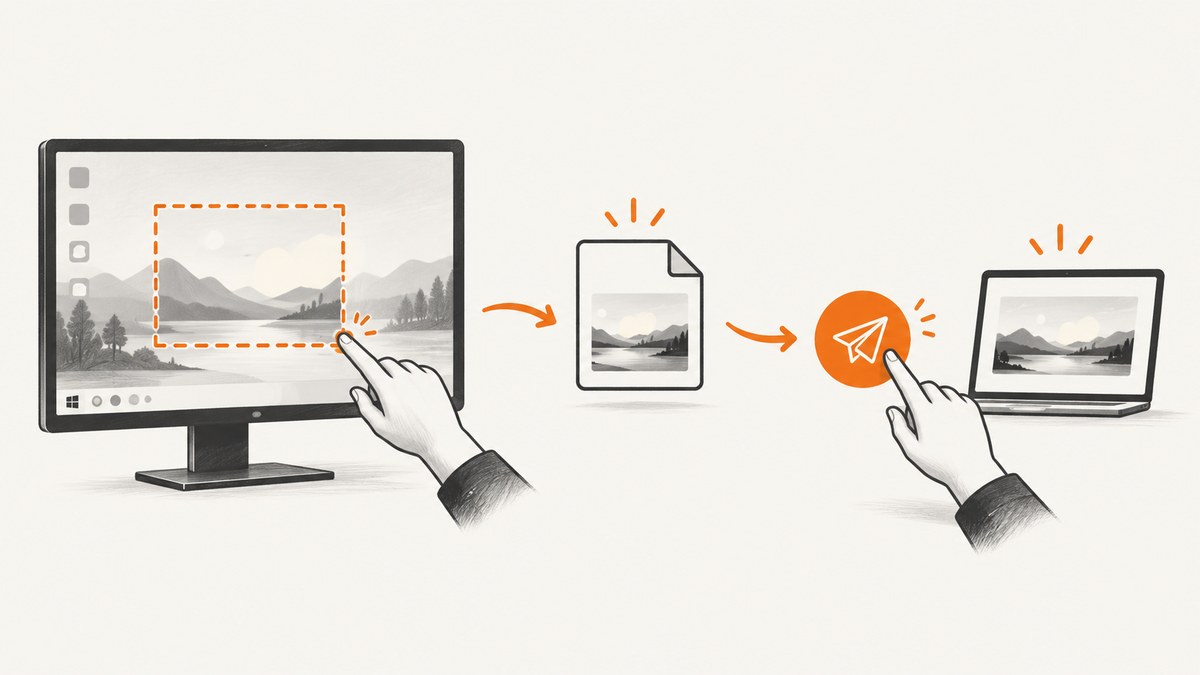
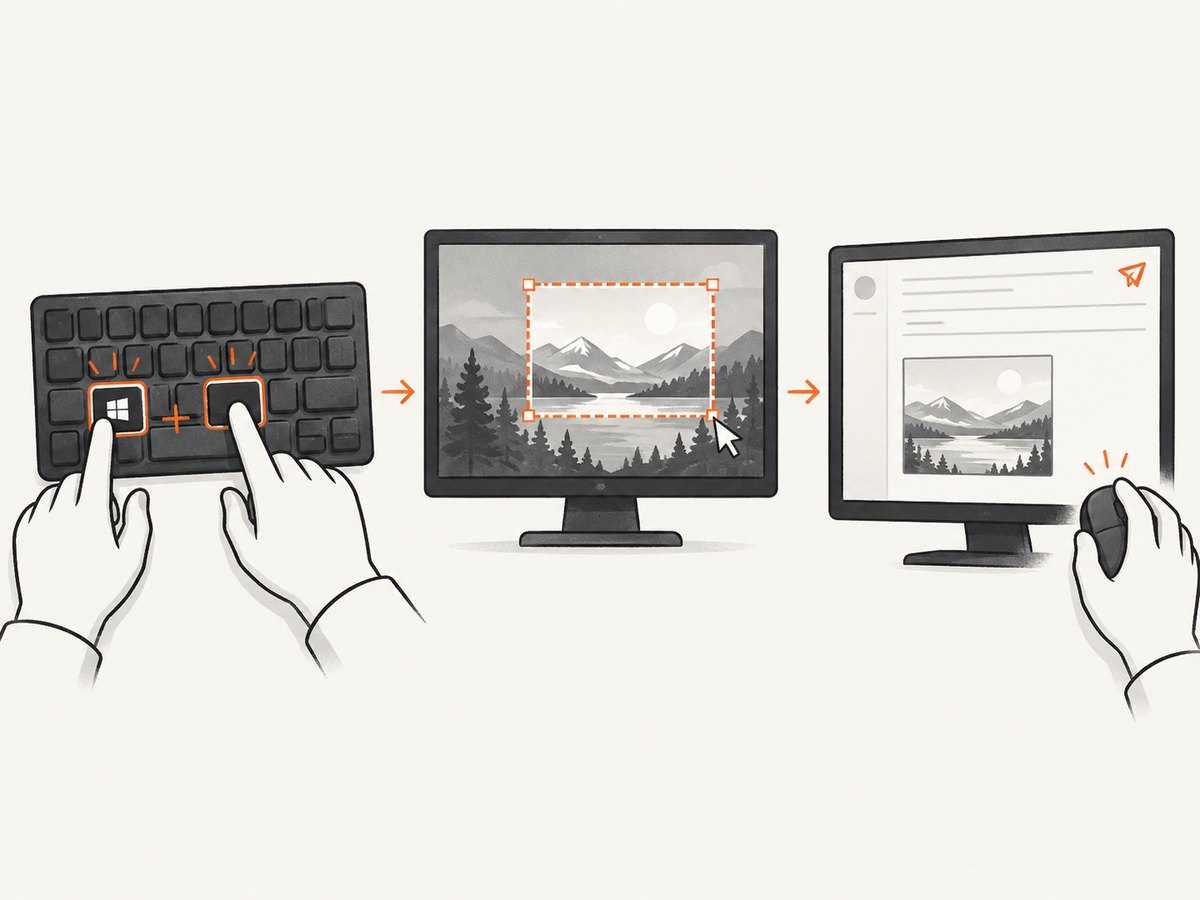
Quick answer: Press Windows logo key + Shift + S, select an area, then paste the capture with Ctrl + V into an email, document, or chat that accepts images. To save a full-screen file immediately, press Windows logo key + Print Screen; Windows stores it in Pictures\Screenshots. For editing, open the Snipping Tool notification, add markup or crop, save the image, and use the app’s Share option.
Choose the shortcut that matches your goal
| What you need | Shortcut | Result |
|---|---|---|
| A selected region | Windows + Shift + S | Selection overlay; the snip is copied to the clipboard. |
| The entire screen in the clipboard | Print Screen | Full-screen image copied to the clipboard. |
| The entire screen as a file | Windows + Print Screen | File saved in Pictures\Screenshots. |
| Only the active window | Alt + Print Screen | Focused window copied to the clipboard. |
| A menu that disappears when clicked | Snipping Tool delay | Choose a 1–5 second delay, then capture the menu. |
Key labels vary: your keyboard may say PrtSc, PrtScn, or PrntScrn. These instructions apply to Windows 10 and Windows 11. Microsoft documents the shortcuts in its Windows keyboard-shortcut reference.
Capture part of the screen
- Press Windows + Shift + S.
- When the screen dims, choose rectangular, freeform, window, or full-screen snip from the toolbar.
- Drag over the content you want. Release the mouse or trackpad.
- The image is copied to the clipboard. Select the notification to open it in Snipping Tool for markup, cropping, saving, or sharing.
This is the best default for a bug report, a single dialog, or a sensitive screen where you do not want to include the whole desktop. See Microsoft’s Snipping Tool guide for the capture modes.
Capture the full screen
Copy it for immediate pasting
Press Print Screen, switch to the destination app, and press Ctrl + V. This keeps the image in the clipboard until another copy operation replaces it.
Save it directly as a file
Press Windows + Print Screen. Open File Explorer and browse to Pictures\Screenshots. Use this method when you need an attachment, an archive, or a file you can rename before sending.
Capture one application window
- Click the window you want so it is active.
- Press Alt + Print Screen.
- Open the destination and press Ctrl + V, or paste into Snipping Tool and save it.
The capture contains the active window rather than every monitor. If the wrong window appears, focus the target first and repeat the shortcut.
Edit, annotate, save, and share with Snipping Tool
Open the capture notification or launch Snipping Tool from the Start menu. A still capture can be marked up, cropped, saved, and shared. Save a file when the recipient needs an attachment or when you may need the image again. Use Share when the destination is already available through Windows’ share interface. Microsoft also documents a delay from one to five seconds, useful for menus and hover states.
- Crop: remove unrelated content before sending.
- Markup: draw an arrow, highlight a control, or add a handwritten note.
- Save: choose a known folder and a descriptive filename such as
checkout-error-2026-10-01.png. - Share: select the app offered by Windows, then confirm the recipient and message there.
Snipping Tool also includes video snips; use those only when a still image cannot explain the problem. Some newer enhancements, including Perfect screenshot and Color picker, are limited to Windows 11 Copilot+ PCs and are not required for ordinary screenshots.
Send the screenshot
Paste the clipboard capture
- Take a capture with Windows + Shift + S, Print Screen, or Alt + Print Screen.
- Open an email composer, document, or messaging app that accepts images.
- Press Ctrl + V.
- Check the preview before sending. Confirm that private tabs, notifications, or account details are not visible.
Attach a saved image
- Save the capture from Snipping Tool, or use Windows + Print Screen.
- In the destination app, choose its attachment or insert-image command.
- Browse to the saved file, select it, and wait for the upload to finish.
- Send only after the attachment name and preview are correct.
Exact attachment controls differ between mail and messaging applications. Microsoft documents the clipboard and paste workflow in Copy the window or screen contents.
If your keyboard has no Print Screen key
Microsoft lists Fn + Windows logo key + Space Bar as a fallback on devices without a PrtScn button. Laptop manufacturers can remap the Fn layer, so consult the device documentation if that combination does nothing. You can always use Windows + Shift + S directly.
Why Print Screen may behave differently
On some Windows setups, Print Screen is configured to open screen snipping instead of copying the full screen. If you expect the clipboard capture and do not get it, use Windows + Shift + S, or review the keyboard accessibility setting that controls Print Screen behavior. Do not assume every PC has the same mapping.
Or skip the browser setup
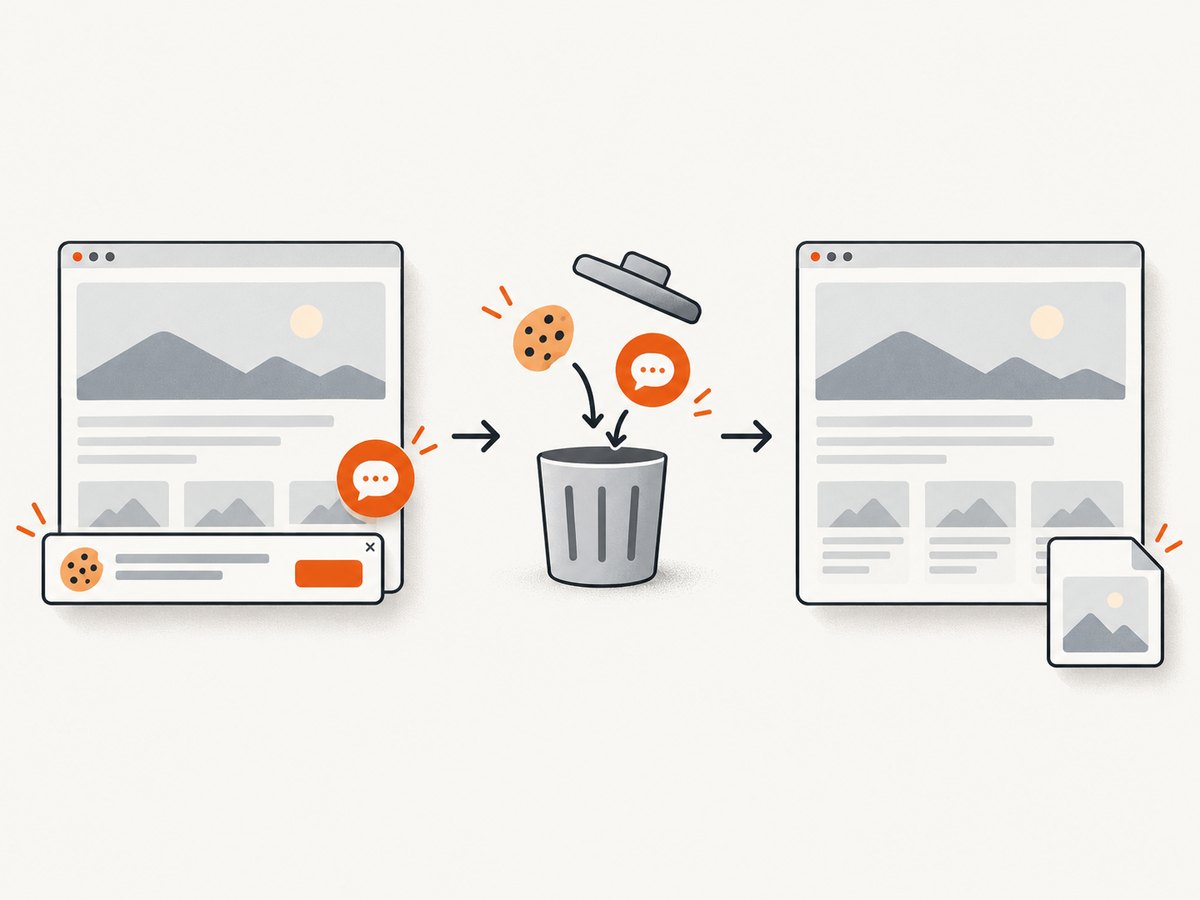
If you need a screenshot of a web page rather than your physical Windows desktop, ScreenshotNeo returns a PNG, JPEG, WebP, or PDF from one request. It accepts consent banners before capture and removes more than 60 known consent platforms, newsletter popups, and chat widgets; each step can be disabled. Bot checks, blank pages, timeouts, failed loads, and cache hits are not billed, and response headers identify the page verdict and billing status. Its MCP server lets Claude, Cursor, and other MCP clients call take_screenshot, get_page_info, and capture_pdf.
See the ScreenshotNeo API documentation for all options, including full-page capture, CSS-element capture, device presets, custom CSS and JavaScript, waits, request blocking, cookies, headers, geolocation, caching, signed links, asynchronous jobs, bulk capture, and the usage API.
curl -G "https://api.screenshotneo.com/v1/shot" -d access_key=YOUR_API_KEY --data-urlencode url=https://stripe.com -o shot.webpimport requests
r = requests.get("https://api.screenshotneo.com/v1/shot", params={"access_key": "YOUR_API_KEY", "url": "https://stripe.com"}, timeout=90)
open("shot.webp", "wb").write(r.content)const q = new URLSearchParams({ access_key: 'YOUR_API_KEY', url: 'https://stripe.com' });
const res = await fetch(`https://api.screenshotneo.com/v1/shot?${q}`);The Free plan includes 1,000 screenshots each month with no card. Paid plans start at $5 for 3,000 shots; every feature is included on every plan. Create a free ScreenshotNeo account.
Reliability, performance, and cost notes
- Desktop reliability: Clipboard captures are temporary. Save the image when you need a durable copy, and verify the destination preview before sending.
- Large images: Full-screen captures can be larger than a selected snip. Crop irrelevant areas before attaching if upload speed or mailbox limits matter.
- Multiple monitors: Windows + Print Screen and Print Screen can include the display arrangement or active display depending on the setup. Use Windows + Shift + S to select exactly what should be sent.
- Web-page automation: ScreenshotNeo supports caching with a TTL you choose, asynchronous jobs with signed webhooks, and bulk capture of up to 100 URLs per call. Use those options when repeated or high-volume captures make one-by-one browser automation slow or costly.
- Billing: Only clean ScreenshotNeo shots are billed; failed loads, bot checks, blank pages, timeouts, and cache hits cost nothing.
Troubleshooting
| Problem | Cause | Fix |
|---|---|---|
| Nothing happens with Print Screen | The key is remapped, requires Fn, or is configured for another action. | Press Windows + Shift + S. On a keyless laptop try Fn + Windows + Space Bar, then check the device manual. |
| The image is not where expected | Print Screen copies to the clipboard; it does not automatically create a file. | Paste with Ctrl + V, or use Windows + Print Screen for Pictures\Screenshots. |
| Only part of a window was captured | A region snip was selected. | Use Alt + Print Screen for the active window or choose Window snip in Snipping Tool. |
| A menu closes before capture | The menu loses focus during selection. | Set a 1–5 second Snipping Tool delay, open the menu, and capture it. |
| Paste does nothing | The destination does not accept image data or the clipboard was replaced. | Try another image-capable app, recapture, or save a PNG and attach it. |
| ScreenshotNeo returns an error | The URL, API key, or page load may be invalid. | Check the URL and key, use a generous timeout, inspect X-Page-Verdict and X-Billed, and retry transient failures. |
FAQ
Where did my Windows screenshot save?
Windows + Print Screen saves it in Pictures\Screenshots. Print Screen and Windows + Shift + S normally place the image in the clipboard until you save it.
What is the fastest way to screenshot one part of the screen?
Press Windows + Shift + S, drag over the area, then Ctrl + V in the destination.
Can I screenshot a single window?
Yes. Focus it, press Alt + Print Screen, and paste or save the result.
How do I capture a web page without browser chrome?
Use a page capture service such as ScreenshotNeo, which renders the URL and can remove consent banners, popups, and chat widgets before producing the image.
Do I need to buy software for ordinary Windows screenshots?
No. Windows shortcuts and Snipping Tool cover region, window, and full-screen still captures, plus editing, saving, and sharing.


