Why TestCafe Elements Are Visible but Cannot Be Clicked
A visible TestCafe selector can still be blocked, ambiguous, out of context, or not ready. Diagnose the exact cause and fix clicks reliably.
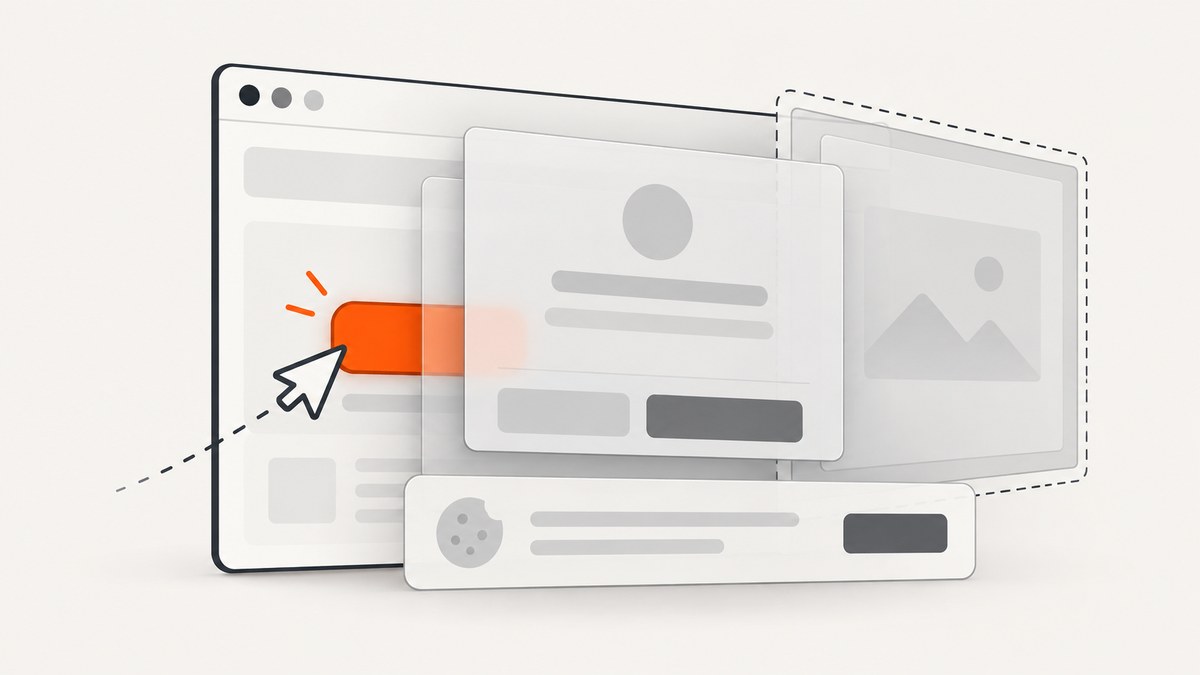
TestCafe can report that an element is visible while t.click still fails. Visibility is only one part of actionability. For a click to succeed, TestCafe must find the intended element in the active page or iframe, confirm that it has usable dimensions, and find a point that is not covered by another element. A broad selector can also resolve to the wrong duplicate.
This guide gives a repeatable diagnosis: identify the exact node, inspect its geometry and styles, discover what is on top of it, verify the browsing context, and wait for the application state that makes the control genuinely clickable.
What “visible” means in TestCafe
TestCafe’s selector visibility rules are narrower than “I can see something in the browser.” An element is treated as invisible when it or a relevant ancestor has display: none, visibility: hidden or visibility: collapse, or when its width or height is zero. Opacity, z-index, and position alone do not make a selector invisible. A fully transparent element can still be visible to TestCafe’s visibility check and can still intercept a click.
The click action also requires an active browser window or iframe and an unobstructed cursor point. TestCafe scrolls an off-screen target into view, then checks the target’s geometry and overlap. The official t.click documentation describes the automatic wait for a target to appear and become visible; interaction with a background element is not allowed.
| Check | What must be true | Typical failure |
|---|---|---|
| Selector | The selector identifies the intended node | First match is a hidden duplicate |
| CSS visibility | Display, visibility, width, and height are usable | Collapsed menu or zero-size wrapper |
| Geometry | At least one click point is exposed | Modal backdrop or sticky header overlaps it |
| Context | The target is in the active page or iframe | Selector is evaluated in the main document |
| Readiness | The application has finished its state change | Spinner is still present or button is disabled |
1. Confirm which element your selector matches
Actions operate on the first element returned by a selector when several nodes match. This is a frequent cause of “visible but cannot click”: the duplicate you see is not the duplicate TestCafe selected. Start by measuring the selector and printing a snapshot.
import { Selector } from 'testcafe';

fixture('diagnostics').page('https://example.test');

test('inspect the target', async t => {
  const buttons = Selector('[data-testid="save"]');

  console.log('count:', await buttons.count);
  console.log('text:', await buttons.nth(0).innerText);
  console.log('class:', await buttons.nth(0).getAttribute('class'));
  console.log('disabled:', await buttons.nth(0).hasAttribute('disabled'));
  console.log('html:', await buttons.nth(0).outerHTML);

  await t.expect(buttons.count).eql(1);
  await t.click(buttons);
});
Replace a broad class or text selector with a stable identifier, a role-like attribute, or a compound selector that expresses the intended instance. If a list contains repeated controls, scope the selector to the row or card that owns the action, then select the button inside that scope. An assertion on count turns a silent first-match error into a useful failure.
2. Inspect visibility, size, and ancestors
Use a browser-side diagnostic to capture computed styles and the bounding rectangle. TestCafe selectors expose properties through getStyleProperty, getBoundingClientRectProperty, and related APIs.
const target = Selector('[data-testid="save"]');

await t.expect(target.exists).ok();
console.log({
  display: await target.getStyleProperty('display'),
  visibility: await target.getStyleProperty('visibility'),
  opacity: await target.getStyleProperty('opacity'),
  width: await target.getBoundingClientRectProperty('width'),
  height: await target.getBoundingClientRectProperty('height'),
  top: await target.getBoundingClientRectProperty('top'),
  left: await target.getBoundingClientRectProperty('left')
});
Check the target’s parents as well. A child can have normal dimensions while a wrapper is hidden or collapsed. If the application uses an animated menu, inspect the final state rather than clicking during the transition. Do not “fix” a zero-size target with an offset; an offset changes the cursor point but cannot make a hidden element actionable.
3. Find the element that is actually on top
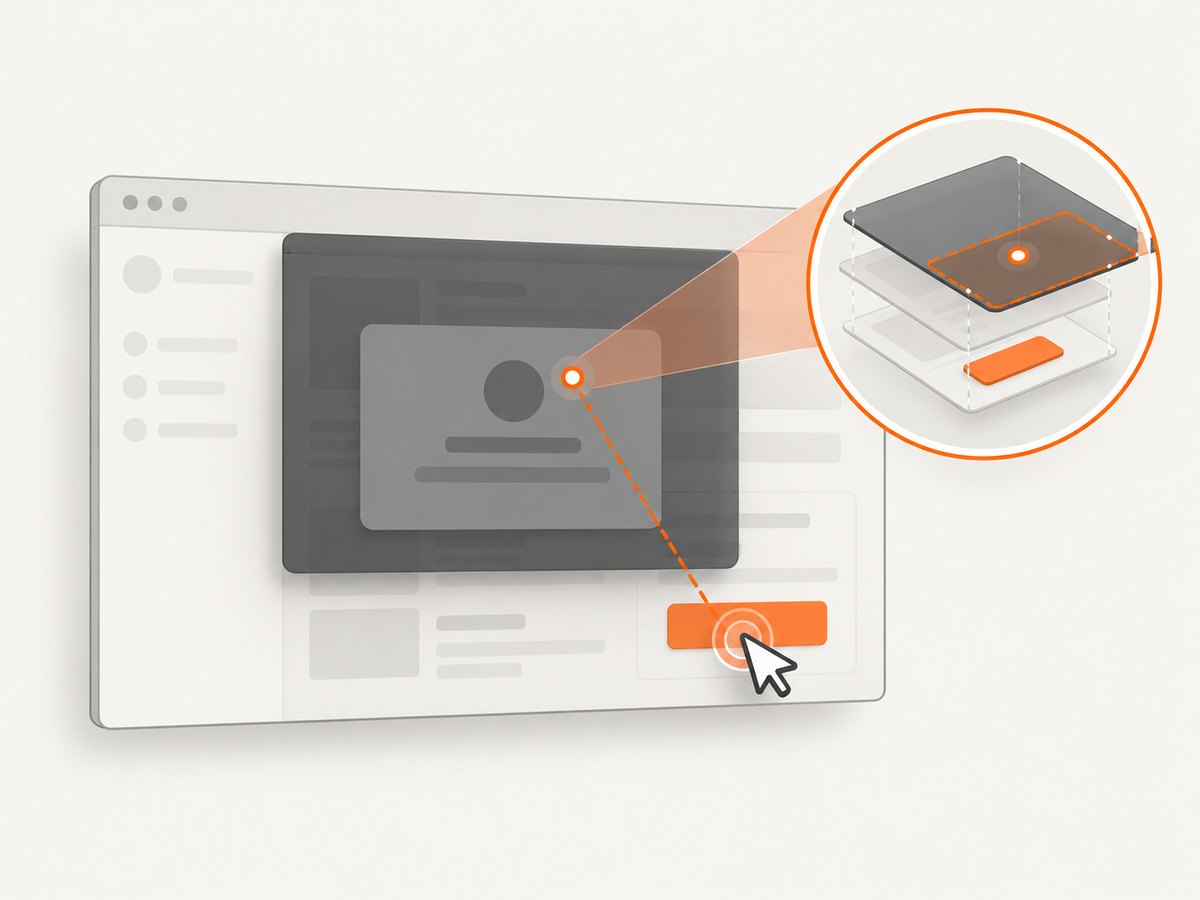
Overlap is a first-class click failure. Common blockers include modal backdrops, loading spinners, cookie consent banners, newsletter prompts, chat launchers, sticky headers, transparent layers, and an invisible element left behind by an animation.
At the intended point, run document.elementFromPoint. The following helper returns the topmost node at the center of the target:
const topAtCenter = ClientFunction(selector => {
  const node = document.querySelector(selector);
  if (!node) return { found: false };
  const rect = node.getBoundingClientRect();
  const x = rect.left + rect.width / 2;
  const y = rect.top + rect.height / 2;
  const top = document.elementFromPoint(x, y);
  return {
    found: true,
    target: node.outerHTML.slice(0, 300),
    topTag: top?.tagName,
    topClass: top?.className,
    topId: top?.id,
    x,
    y
  };
}, { dependencies: { selector: '[data-testid="save"]' } });

console.log(await topAtCenter());
If the returned node is a backdrop or spinner, wait for the state that removes it. If it is another legitimate control, your selector or intended interaction is wrong. TestCafe starts near the center and searches for an unobstructed point. When the selector timeout expires, its overlap handling can fall back to the topmost element at the original center, which explains errors saying that another element received the click. See the interaction guide for the actionability model.
4. Wait for a state change instead of sleeping
TestCafe automatically waits for a selector to appear and become visible, but it cannot infer every application-specific ready state. A visible button may still be covered while an overlay fades out, or it may be disabled until a request completes.
const overlay = Selector('[data-testid="loading-overlay"]');
const save = Selector('[data-testid="save"]');

await t
  .expect(overlay.exists).notOk('loading overlay should be removed')
  .expect(save.hasAttribute('disabled')).notOk('save should be enabled')
  .click(save);
For an animation, assert the property or class that represents the settled state. For a network-driven screen, wait for the content or status element that proves the request completed. A short delay can mask a race on a fast machine and fail on a busy one; use t.wait only when the application has no observable state to assert.
5. Switch into the correct iframe
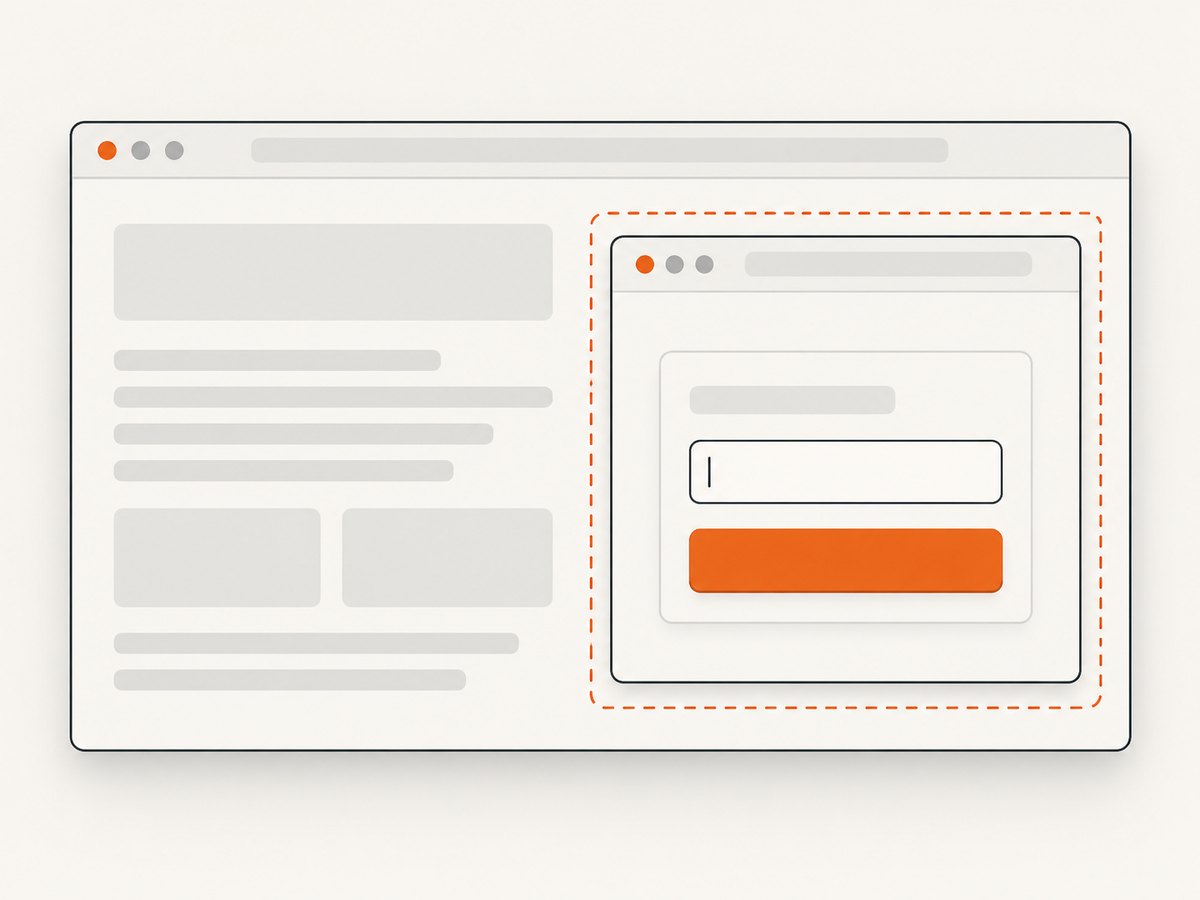
Selectors run in the current browsing context. A control inside an iframe is not part of the main document, even when it is visibly rendered on the same page. Locate the frame, switch into it, interact, and switch back when necessary.
import { Selector } from 'testcafe';

const paymentFrame = Selector('iframe[title="Payment form"]');
const cardNumber = Selector('[name="cardnumber"]');

await t
  .switchToIframe(paymentFrame)
  .expect(cardNumber.visible).ok()
  .typeText(cardNumber, '4242424242424242')
  .switchToMainWindow();
If the iframe itself is replaced during navigation, wait for a stable attribute or reacquire the frame before switching. A selector that works in one frame may fail after the application mounts a second frame with the same title.
6. Handle shadow DOM correctly
Shadow DOM creates another boundary that can make a visible control seem absent. TestCafe can traverse a shadow tree with shadowRoot(), but the shadow root object is not a click target. Select a descendant control.
const host = Selector('checkout-widget');
const submit = host.shadowRoot().find('button[type="submit"]');

await t.expect(submit.visible).ok().click(submit);
When the component is recreated, avoid caching assumptions about its old node. Use a selector that resolves the current host and descendant at action time.
7. Use offsets only when the geometry is genuinely safe
offsetX and offsetY move the simulated cursor within the target. They are appropriate when the center is covered but a different point on the same element is exposed, such as a button with a decorative child extending over its center.
await t.click(Selector('[data-testid="menu"]'), {
  offsetX: 8,
  offsetY: 8
});
Before using an offset, verify that elementFromPoint at that coordinate returns the target or one of its descendants. An offset cannot bypass a modal, select a different duplicate, or make a disabled control work. If the layout changes across viewport sizes, a coordinate workaround is fragile; fix the overlay or selector instead.
A complete diagnostic test
The following example combines the durable checks into one test. Adapt the selectors to your application.
import { Selector, ClientFunction } from 'testcafe';

fixture('save flow').page('https://example.test/editor');

test('click the settled save button', async t => {
  const save = Selector('[data-testid="save"]');
  const overlay = Selector('[data-testid="loading-overlay"]');
  const centerOwner = ClientFunction(() => {
    const el = document.querySelector('[data-testid="save"]');
    if (!el) return null;
    const r = el.getBoundingClientRect();
    const top = document.elementFromPoint(r.left + r.width / 2, r.top + r.height / 2);
    return top?.outerHTML.slice(0, 200) || null;
  });

  await t.expect(save.count).eql(1);
  await t.expect(save.visible).ok();
  await t.expect(save.getBoundingClientRectProperty('width')).gt(0);
  await t.expect(save.getBoundingClientRectProperty('height')).gt(0);
  await t.expect(save.hasAttribute('disabled')).notOk();
  await t.expect(overlay.exists).notOk();
  console.log('center owner:', await centerOwner());
  await t.click(save);
});
Troubleshooting checklist
| Symptom | Likely cause | Fix |
|---|---|---|
| “The element is not visible” | Hidden ancestor, collapsed style, or zero dimensions | Inspect computed styles and rectangle; wait for the open state |
| Another element receives the click | Overlay, banner, spinner, or sticky layer | Use elementFromPoint; remove or wait for the blocker |
| Click targets the wrong item | Selector matches multiple nodes | Assert count and scope to a unique container |
| Works outside the test but not in it | Wrong iframe or shadow DOM context | Use switchToIframe or shadowRoot() |
| Intermittent timeout | Race with animation, request, or hydration | Assert a meaningful ready state instead of adding a long sleep |
| Offset works at one size only | Responsive layout changed the geometry | Fix the layout or use a stable semantic selector |
| Button looks enabled but click does nothing | Application-level disabled state or event guard | Check ARIA/data state, pending requests, and browser console errors |
Performance and reliability
Most click failures are cheaper to prevent than to retry. Stable selectors reduce DOM queries and eliminate first-match ambiguity. Assertions on a specific overlay or status element finish as soon as the state is ready, while a fixed delay makes every run slower. Keep the selector timeout long enough for the slowest supported environment, but use a shorter, targeted wait for transient UI where possible.
Test at the viewport sizes your users run. A sticky header may overlap a target only at a small height; a responsive menu may create duplicate desktop and mobile controls; and a browser zoom or device scale can change the available click points. Capture the exact error, selector count, rectangle, computed styles, and topmost element in CI logs so a failure is diagnosable without replaying the run.
If an overlay is part of the product experience, test its dismissal as a separate step. For example, accept the cookie banner, assert that it no longer exists, then click the underlying control. This makes the test’s intent explicit and prevents an unrelated consent change from breaking every test.
Or skip the browser setup
If your goal is to obtain a page image for a test artifact, visual review, or documentation rather than exercise a user interaction, ScreenshotNeo provides a single HTTP request. It accepts the cookie or consent banner like a visitor and removes more than 60 known consent platforms, newsletter popups, and chat widgets before capture; each step can be turned off. Bot checks, CAPTCHAs, blank pages, timeouts, failed loads, and cache hits are not billed, and response headers identify the page verdict and billing status.
See the ScreenshotNeo API documentation for all options, including full-page capture with lazy images, element selectors, device presets, custom CSS and JavaScript, waits, blocked resources, headers, cookies, authentication, timezone, geolocation, transparent backgrounds, resizing, caching, signed links, asynchronous jobs, webhooks, bulk capture, usage, and PDF output.
cURL
curl -G "https://api.screenshotneo.com/v1/shot" \
  -d access_key=YOUR_API_KEY \
  --data-urlencode url=https://stripe.com \
  -o shot.webp
Python
import requests

r = requests.get(
    "https://api.screenshotneo.com/v1/shot",
    params={"access_key": "YOUR_API_KEY", "url": "https://stripe.com"},
    timeout=90,
)
r.raise_for_status()
open("shot.webp", "wb").write(r.content)
Node.js
const q = new URLSearchParams({ access_key: 'YOUR_API_KEY', url: 'https://stripe.com' });
const res = await fetch(`https://api.screenshotneo.com/v1/shot?${q}`);
if (!res.ok) throw new Error(`Screenshot failed: ${res.status}`);
const fs = await import('node:fs/promises');
await fs.writeFile('shot.webp', Buffer.from(await res.arrayBuffer()));
ScreenshotNeo also has an MCP server with take_screenshot, get_page_info, and capture_pdf tools for Claude, Cursor, and other MCP clients. The Free plan includes 1,000 shots per month with no card; paid plans start at $5 for 3,000 shots. Every feature is available on every plan. Create a free ScreenshotNeo account.
Cost and operational notes
For TestCafe, the main cost is runtime: browser startup, navigation, waits, and retries. Keep diagnostic logging behind a debug flag in large suites, and avoid taking full-page artifacts for every passing test. For ScreenshotNeo, cache with a TTL when the same URL is captured repeatedly, use bulk capture for up to 100 URLs per call, and use asynchronous jobs with signed webhooks for long or high-volume work. The response’s X-Page-Verdict and X-Billed headers let a pipeline distinguish a clean billed image from a failed or non-billed result.
FAQ
Does opacity: 0 make an element invisible to TestCafe?
No. Opacity alone does not satisfy TestCafe’s invisibility conditions. A transparent element can still cover the click point and intercept the action.
Should I increase the selector timeout?
Only after identifying the missing state. A longer timeout helps a genuinely slow render, but it does not fix a wrong selector, iframe context, or permanent overlay.
Why does TestCafe click the first duplicate?
Actions use the first matching node. Assert that the selector count is one or narrow it to the intended container.
Can an offset solve an overlap?
Only when another point on the same target is truly exposed. It cannot bypass a modal or turn a hidden or disabled control into a usable one.
How do I prove an iframe is the problem?
Inspect the page for the frame, call switchToIframe, and assert the inner selector there. Switch back with switchToMainWindow before interacting with the parent page.
Final diagnostic sequence
- Assert the selector exists and matches exactly one node.
- Inspect computed display and visibility, dimensions, and hidden ancestors.
- Use
elementFromPointto identify the topmost element at the click coordinate. - Wait for the overlay, animation, request, or enabled state that defines readiness.
- Switch into the correct iframe or traverse the correct shadow root.
- Use an offset only after verifying a stable, unobstructed point.
- Record the exact TestCafe error and diagnostic values in CI.
Once these checks are part of the test, “visible but not clickable” stops being a vague browser complaint and becomes a specific selector, geometry, context, or readiness defect that you can fix.


