BlogScreenshots on your device
Tools to Capture Screenshots: Built-In, Browser and API Options
A practical guide to Windows, Mac, browser and API screenshot tools, with capture choices, troubleshooting and runnable ScreenshotNeo examples.
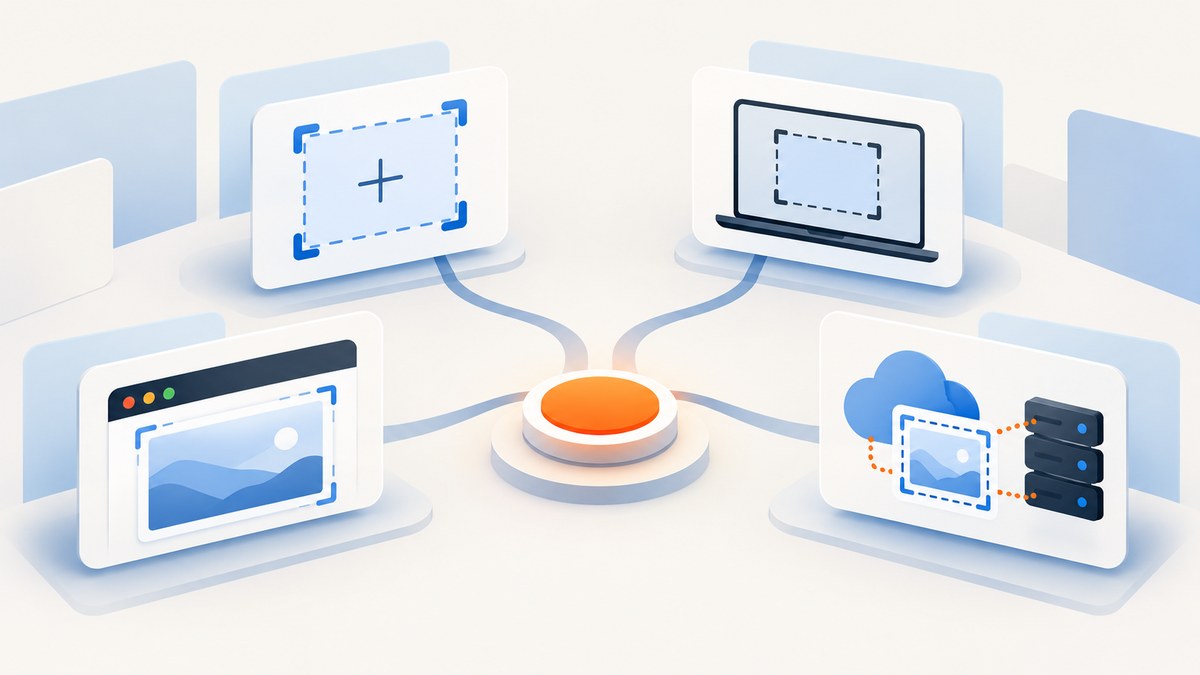
Direct answer: for an ordinary computer screenshot, use the capture feature already built into your operating system. On Windows, press Windows logo key + Shift + S to open Snipping Tool; on macOS, use the Screenshot controls and keyboard shortcuts. Choose a full screen, window, region or browser capture based on what you need, then save the image or copy it to the clipboard. For repeatable website captures in code, use a browser automation script or a screenshot API such as ScreenshotNeo.
1. Choose the right screenshot tool
Start with the capture scope and destination. A whole-display image is useful for documenting a bug across several windows. A window capture keeps unrelated content out. A rectangular or freeform selection is better for a small UI detail. Browser viewport and full-page captures answer a different need: they capture web content rather than the pixels currently visible on your desktop.
| Need | Good starting tool | Check before you capture |
|---|---|---|
| One region or window | Windows Snipping Tool or Mac Screenshot | Whether the pointer, notifications and sensitive data are visible |
| Copy into an email or chat | Clipboard capture | The destination accepts image paste and the image is at the required scale |
| Browser viewport | Browser extension or automation | Extension permissions and whether capture is local |
| Entire long web page | Browser automation or ScreenshotNeo | Lazy-loaded images, sticky headers and cookie banners |
| Scheduled or bulk captures | Screenshot API | Authentication, retries, billing rules and output format |
Microsoft describes Snipping Tool as taking a snapshot of all or part of a PC screen and supports freeform, rectangular, window and full-screen snips. Apple’s Screenshot controls provide comparable screen, window and selection workflows. The official guides are the best place to confirm shortcuts for your exact OS version: Microsoft Snipping Tool documentation and Apple’s Screenshot guide.
2. Windows: Snipping Tool and Print Screen
Capture a selected area
- Press Windows logo key + Shift + S.
- Choose rectangular, freeform, window or full-screen mode.
- Drag or select the area. The result is copied and a notification opens it in Snipping Tool.
- Annotate if needed, then save the file or share it.
Print Screen (PrtSc) takes a static image of the entire screen and places it on the clipboard. Paste it into an image editor, document or chat, then save it in the format your workflow requires. If you need a capture of a browser page as HTML, Microsoft documents an option that can show the page URL below the snip; the same settings let you turn that display off.
Developer sidebar: launching Snipping Tool
Windows also documents a URI scheme that applications can use to launch the Snipping Tool capture overlay for image or video capture. Treat this as an integration detail: packaged app callers have security considerations, and it is not a replacement for the normal keyboard shortcut. See Microsoft Learn’s launch documentation before shipping an integration.
3. Mac: Screenshot controls and shortcuts
- Open the Screenshot app or use the keyboard controls documented by Apple.
- Select the entire screen, a window or a selected portion.
- Choose where to save the result, or use the thumbnail’s contextual menu to copy it to the clipboard.
- Open the saved image in Preview or another editor to crop or annotate.
Apple states that supported Mac models running macOS Tahoe 26 or later can choose the capture format. That format choice is qualified by both the model and OS; do not assume it appears on every Mac. Apple also cautions that some applications, including Apple TV, may not allow screenshots of their windows. If a window capture is blank or refused, check the application’s restrictions and use an allowed view or ask the administrator of the device.
4. Browser extensions and browser capture APIs
A browser extension can add viewport capture, crop-and-save, keyboard shortcuts, clipboard copying or high-density display handling. One Chrome Web Store listing advertises those capabilities and PNG/JPG output, but its permission and privacy statements are vendor claims. Review the current listing yourself before installing.
Use this checklist for any extension:
- Read every requested permission and ask why it needs access to tabs or page content.
- Read the current privacy disclosure and update history.
- Determine whether pixels stay on your computer or are uploaded.
- Check whether it captures only the active tab, the visible viewport or a complete page.
- Test it on a page without secrets before using it on internal systems.
Chrome’s desktopCapture API can request capture of the screen, an individual window or an individual tab. The cited reference is the Manifest V2 API documentation, so it should not be treated as proof that every current extension uses that API or that it is the only browser capture method. See Chrome’s desktopCapture reference.
5. Capture a website in code
Desktop shortcuts capture what a person can see. A repeatable website capture needs a browser context, a viewport, navigation and a wait strategy. A minimal Playwright example is:
import { chromium } from 'playwright';

const browser = await chromium.launch();
const page = await browser.newPage({ viewport: { width: 1440, height: 900 } });
await page.goto('https://example.com', { waitUntil: 'networkidle' });
await page.screenshot({ path: 'page.png', fullPage: true });
await browser.close();
Install Playwright with your project’s package manager and install its supported browser binaries. In production, make navigation timeouts explicit, close the browser in a finally block, and record the target URL and capture options with the output. For a single element, replace the page screenshot with:
await page.locator('[data-testid="checkout-summary"]').screenshot({ path: 'summary.png' });Common automation edge cases include cookie dialogs that cover content, lazy images that load after the first paint, animations that create inconsistent pixels, pages that require authentication, and bot checks that never expose the intended page. Use a consent step, wait for a meaningful selector, disable animations with injected CSS, and supply test credentials through a secret store rather than source code.
6. Or skip the browser setup
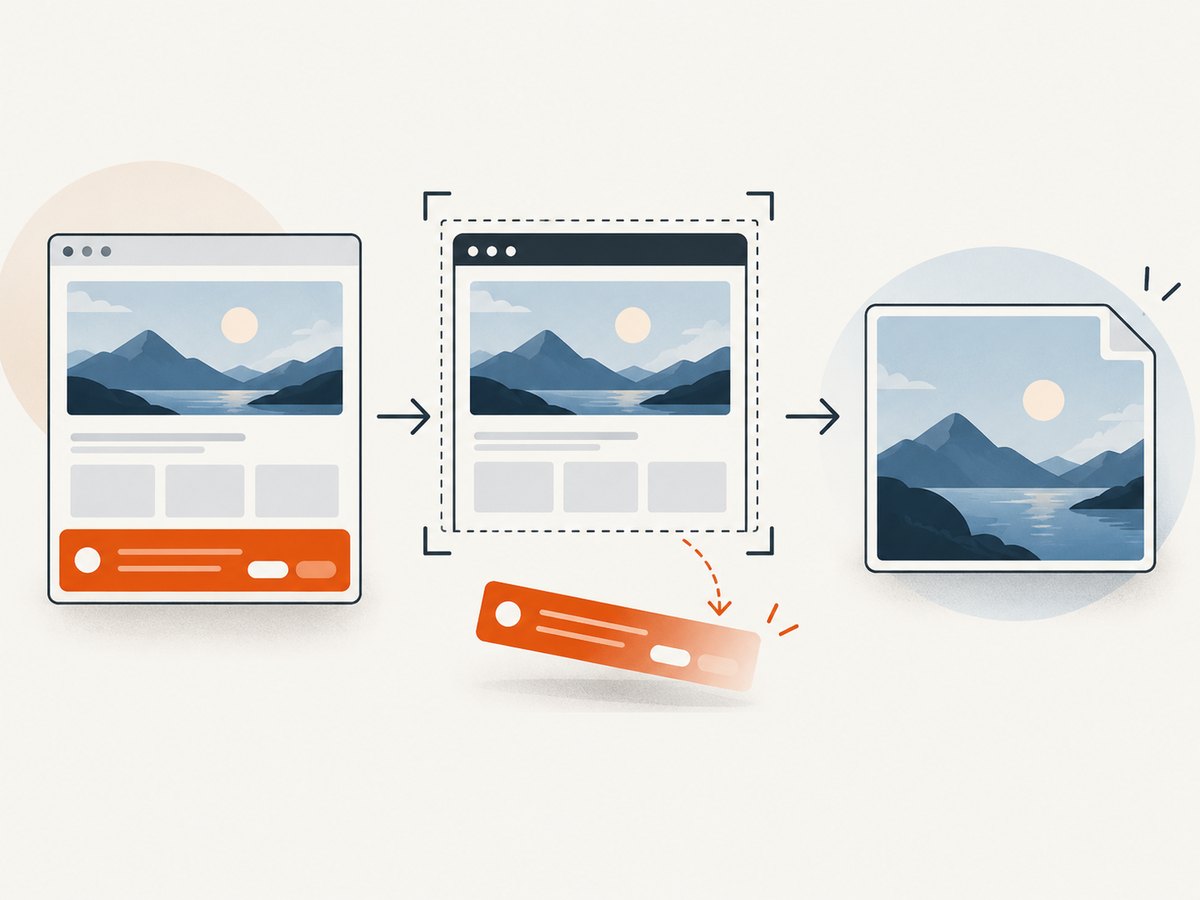
ScreenshotNeo is a website screenshot API and MCP server. One GET request returns PNG, JPEG, WebP or a PDF. Before capture it can accept cookie and consent banners and remove more than 60 known consent platforms, newsletter popups and chat widgets; each step can be turned off. Bot checks or CAPTCHAs, blank pages, timeouts, failed loads and cache hits cost nothing, and the response identifies the result with X-Page-Verdict and X-Billed headers.
See the ScreenshotNeo API documentation for the complete option list. The basic calls below are runnable as written after replacing the key and URL.
cURL
curl -G "https://api.screenshotneo.com/v1/shot" \
  -d access_key=YOUR_API_KEY \
  --data-urlencode url=https://stripe.com \
  -o shot.webp
Python
import requests

r = requests.get(
    "https://api.screenshotneo.com/v1/shot",
    params={"access_key": "YOUR_API_KEY", "url": "https://stripe.com"},
    timeout=90,
)
r.raise_for_status()
open("shot.webp", "wb").write(r.content)
Node.js
const q = new URLSearchParams({ access_key: 'YOUR_API_KEY', url: 'https://stripe.com' });
const res = await fetch(`https://api.screenshotneo.com/v1/shot?${q}`);
if (!res.ok) throw new Error(`HTTP ${res.status}`);
const bytes = Buffer.from(await res.arrayBuffer());
require('fs').writeFileSync('shot.webp', bytes);
Options that replace custom browser code
- Page and device: full-page capture with lazy images loaded, one element by CSS selector, dark mode, 12 device presets, arbitrary viewport sizes and retina scale.
- Output: PNG, JPEG, WebP, PDF with paper size, margins, landscape and page ranges; image resizing and transparent backgrounds.
- Page control: custom CSS and JavaScript, click an element, hide selectors, wait for a selector, delay or network idle.
- Network and identity: block ads, trackers, requests or resource types; send custom headers, cookies, user agent and Authorization; set timezone and geolocation.
- Delivery: choose a cache TTL, create signed links for public
<img>tags, submit asynchronous jobs with signed webhooks, capture up to 100 URLs per bulk call, and read usage through the usage API. An OpenAPI specification is available, and parameter names used by other screenshot APIs also work to ease migration. - AI workflows: the MCP server provides
take_screenshot,get_page_infoandcapture_pdftools for Claude, Cursor and other MCP clients.
7. Troubleshooting checklist
| Symptom | Likely cause | Fix |
|---|---|---|
| Shortcut does nothing | Managed Chrome screenshot prevention or a system shortcut conflict | Check administrator policy and keyboard settings. Do not try to bypass a work or school policy; ask the administrator. See Chrome Enterprise screenshot prevention. |
| Wrong window or region | Capture mode was set incorrectly | Reopen the overlay and choose window, rectangular, freeform or full-screen mode deliberately. |
| Browser image contains a popup | Consent, newsletter or chat overlay appeared after navigation | Dismiss it in automation, hide its selector, or use ScreenshotNeo’s consent and cleanup controls. |
| Long page is cut off | Viewport capture was used instead of full-page capture, or content is lazy-loaded | Use full-page mode and wait for the relevant selector or network idle; ensure lazy images are loaded. |
| Blank or partial API image | Bot check, timeout, failed load or an application restriction | Inspect HTTP status and X-Page-Verdict. For ScreenshotNeo, these failed outcomes are not billed; adjust waits, authentication or headers and retry within a bounded policy. |
| Automation is flaky | Animations, changing data or race conditions | Freeze animations with CSS, wait for a stable selector, set a deterministic viewport and use retries with backoff. |
| Image is blurry | Low device scale or an image resized too far down | Use retina scale or a larger viewport, then resize once to the delivery dimensions. |
| Private page returns login screen | Missing cookies, Authorization or user agent | Provide them through secure headers/cookies and verify access without logging secrets. |
8. Performance, reliability and cost
For local screenshots, the operating system is usually the shortest path because there is no browser startup or network dependency. For automation, browser launch time, page JavaScript and third-party resources dominate. Reuse a browser process for batches, block unnecessary resource types, set a sensible timeout and cache stable pages. Full-page captures cost more time and memory than a viewport, especially on image-heavy pages.
For an API, choose synchronous calls when a user is waiting for one image. Use asynchronous jobs and signed webhooks for slow pages or scheduled batches. A cache TTL avoids repeating identical work when the source has not changed. Record the response verdict and billed status so accounting matches actual clean captures. ScreenshotNeo’s plans are: Free, 1,000 shots/month with no card; Starter, $5 for 3,000; Growth, $15 for 15,000; Pro, $39 for 60,000; Scale, $99 for 250,000; and Business, $249 for 1,000,000. Yearly billing gives two months free, and every feature is on every plan.
Reliability improves when captures are deterministic: pin viewport and timezone, wait for a selector that represents readiness, handle HTTP failures, retry transient network errors, and keep a record of the source URL and options. Never treat a successful HTTP response alone as proof that the intended page was captured; inspect the image and, for ScreenshotNeo, the verdict headers.
9. Short FAQ
Do I need a physical capture device?
No. The Windows and Mac workflows are software features. Hardware is relevant to a different task, such as recording another device’s video output.
Can I capture a browser tab without installing an extension?
Yes. Use browser automation or an API. Extensions are optional and should be reviewed for permissions and privacy.
Why is my work computer blocking screenshots?
Chrome Enterprise policies can prevent screenshots on managed Windows and Mac devices, including keyboard shortcuts and capture APIs. Contact the administrator.
Which format should I use?
PNG is suited to sharp UI text and lossless editing; JPEG is smaller for photographic content; WebP often gives a compact web asset. Use PDF when the deliverable is a paginated document.
Can AI agents take screenshots?
Yes. ScreenshotNeo’s MCP server exposes take_screenshot, get_page_info and capture_pdf for Claude, Cursor and other MCP clients.
10. Start with a free API key
When you need repeatable website images, ScreenshotNeo removes cookie banners, popups and chat widgets before the shot; bot checks, blank pages and failed loads are never billed; an MCP server lets AI agents take screenshots; and 1,000 screenshots each month are free with no card. Create a free ScreenshotNeo account.


