5 Ways to Transform Automation Data with a Formatter
Learn five practical ways to clean, split, convert, normalize, and map data with Formatter by Zapier, with setup steps and fixes for common errors.

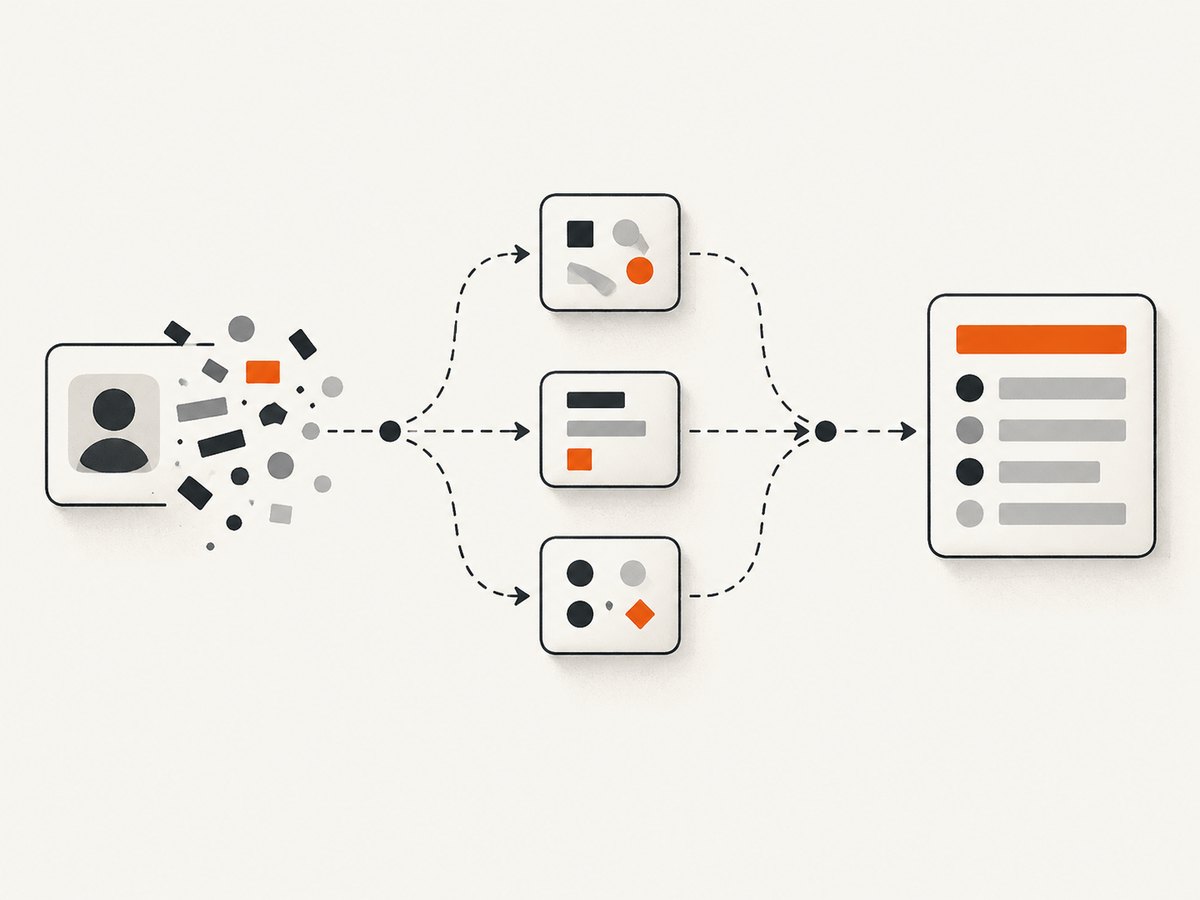
Formatter by Zapier transforms data between a trigger and a later action in a Zap. Add a Formatter step, choose a transform that matches the kind of value you have, map the trigger field into it, and then map Formatter’s output into the destination action. The five useful patterns are cleaning text, splitting or extracting fields, converting dates, normalizing numbers and phone values, and mapping or reshaping values with Utilities. Zapier describes Formatter as its built-in utility for transforming text, numbers, and other data.
1. Add Formatter between the trigger and action
- Open the Zap and identify the trigger field that needs changing and the destination field’s expected format.
- Add an action step between the trigger and the destination. Search for Formatter by Zapier.
- Choose an event such as Text, Date/Time, Numbers, or Utilities, then choose the transform within that event.
- Map the input from the trigger, configure the transform, and test it with representative data.
- In the later action, map the Formatter step’s output. Do not map the original value if the destination needs the transformed value.
Use the simplest transform that fits the input structure. A stable delimiter makes splitting predictable; irregular text is usually better handled by an extraction transform. Before building, check whether the destination expects text, a number, a date in a specific format, or a list of line items.
2. Clean and standardize text
Text transforms can change letter case, remove unwanted characters or HTML, trim whitespace, truncate long values, replace text, and convert among plain text, HTML, Markdown, and ASCII. They are useful when a source app provides values that are nearly right but inconsistent with the receiving app.
Choose the transform from the symptom
- Extra spaces at either end: trim whitespace before mapping.
- Inconsistent capitalization: use the appropriate case transform, such as title case for display names or lowercase for case-insensitive identifiers.
- Long input rejected by the destination: truncate to the destination’s allowed length, and consider whether losing the remaining text is acceptable.
- HTML markup shown as text: remove or convert HTML according to the destination’s requirements.
- Known unwanted phrase or character: replace it explicitly.
Test with empty input, leading and trailing spaces, punctuation, accented characters, and a value at the destination’s length limit. Cleaning is not validation: removing characters can make two distinct values identical, so do not normalize keys or identifiers unless that behavior is safe.
3. Split a value or extract a field
Use Split Text when a consistent delimiter separates the parts. For example, a full name such as “Alex Johnson” can be split on a space; a slash-delimited URL can be split to obtain its final segment; and a comma-separated tag string can become line items. Zapier documents Split Text as a way to break data into segments. See Zapier’s Split Text guide.
- Select Formatter by Zapier and the Text event, then select Split Text.
- Map the source text and enter the delimiter exactly as it appears.
- Choose which segment or output to use, and test with a typical example.
- Map the resulting segment into the correct destination field.
A delimiter split assumes the data follows a pattern. A person might have a middle name, a single name, or a compound family name; a URL may end in a slash; a field may be blank. Those cases can shift segment positions or produce empty results. Test realistic variations before relying on “first segment” and “last segment” as semantic first and last names.
For irregular text, use a purpose-built extraction transform such as Extract Email Address, Extract Phone Number, Extract URL, or Extract Pattern with a regular expression. Extraction is more appropriate than splitting when the value’s location varies but its shape is recognizable. Test both matching and non-matching inputs; a missing match needs a deliberate workflow response.
4. Convert dates and times
Use Date/Time > Format when the trigger sends a date convention the next app does not accept. Set the input format explicitly whenever possible, choose the output format required by the destination, and set the timezone when the intended local time matters. Zapier supports custom format tokens: MMMM D, YYYY produces a month-name date, and X represents a Unix timestamp. Zapier’s Formatter documentation covers its date and time transformations.
- Input format: tell Formatter how to interpret the incoming value, especially for ambiguous dates such as
03/04/2026. - Output format: match the exact representation accepted by the destination, such as an ISO-like date or a human-readable date.
- Timezone: choose the source or destination timezone intentionally. A timestamp and a wall-clock time are not interchangeable.
- Missing timezone: determine what timezone the source value implies before conversion; otherwise, the same displayed time may be interpreted differently.
Check daylight-saving transitions, dates near midnight, and values with an explicit UTC offset. Test a date where the calendar day changes after conversion. If the downstream app expects a timestamp, confirm its units and representation rather than assuming a formatted string will be accepted.
5. Normalize numbers and phone values
Number transforms can convert numeric strings into numbers, reformat currency, and run spreadsheet-style formulas. The right output depends on the destination field: some fields require a numeric value for calculations, while others require formatted text for display. Zapier’s Formatter help describes the available transformation families; consult the relevant event configuration when choosing a specific transform.
- Identify whether the input is a number, a numeric string, or formatted currency containing symbols and separators.
- Choose the Number transform that matches the task: conversion, formatting, or formula.
- Set the needed precision and currency representation where applicable.
- Test negatives, zero, decimals, and values with thousands separators.
- Map the output and verify that the destination field accepts its resulting type.
Use Format Phone Number when the recipient expects a standardized phone representation such as E.164. Include the country context when the source number does not carry it. A local number without a country code can be ambiguous; do not assume the transform can infer a user’s country reliably. Check extensions and malformed values separately.
6. Map and reshape values with Utilities
Utilities handle transformations that are more about structure than individual characters. Use Lookup Table to translate internal values into readable labels—for example, a product ID into a product name. Use line-item transforms to create or join lists, and CSV import when a workflow receives tabular text. Zapier’s Formatter help is the starting point for the available utility transforms.

Lookup table workflow
- Select Formatter by Zapier and the Utilities event, then choose Lookup Table.
- Map the incoming key, such as a product ID.
- Add the known key-to-label pairs and decide what should happen for an unknown key.
- Test both a known key and an unknown key.
- In the next action, map the Formatter step’s Output field rather than the original trigger field.
Lookup tables are useful for a small, stable mapping maintained in the Zap. If values change often or the mapping is large, maintaining the pairs in a dedicated source may be easier than editing the Zap. For lists, check that each item remains associated with the correct item in parallel fields; mismatched line-item lengths can lead to incorrect records or rejected actions.
7. Pick the right approach
| Need | Use | Watch for |
|---|---|---|
| Consistent pieces separated by a known character | Split Text | Missing or repeated delimiters; optional segments |
| Email, URL, or phone embedded in irregular text | Purpose-built extraction | No match, multiple matches, country context |
| Change a date representation or timezone | Date/Time > Format | Ambiguous input formats and timezone assumptions |
| Convert, format, or calculate with a numeric value | Numbers | Text versus number type, precision, separators |
| Translate IDs or reshape a list or CSV | Utilities | Unknown keys and item alignment |
For any choice, compare the input structure, destination type and formatting rules, timezone needs, and the consequences of missing or malformed data. Decide whether an invalid value should stop the Zap, use a fallback, or be routed for correction. Test a normal value and the edge cases that matter to the workflow.
8. Troubleshoot common problems
| Symptom | Likely cause | Fix |
|---|---|---|
| Output is blank | Input field was not mapped, source value is empty, or extraction found no match. | Inspect the trigger sample, remap the field, and test a populated and empty case. Define a fallback or stop path. |
| Split returns the wrong part | Delimiter differs from the real data, appears more than once, or optional pieces change positions. | Use an exact delimiter and test varied examples. Switch to extraction if structure is irregular. |
| Date moves to a different day or hour | Timezone conversion or ambiguous input interpretation. | Specify input format and timezone; test a value near midnight and a daylight-saving boundary. |
| Destination rejects a number | Formatter output is text, contains display punctuation, or has unsupported precision. | Confirm the destination field type and output representation; use a numeric result for calculation fields. |
| Lookup gives no friendly label | Incoming key is absent from the table or does not match exactly. | Add the key, correct whitespace or type differences, and set a deliberate unknown-key result. |
| Later action still receives the raw value | The destination maps the trigger field rather than Formatter output. | Replace the mapping with the corresponding Formatter output field and retest the action. |
| CSV or list data is misaligned | Rows, separators, or parallel line-item lengths differ. | Validate the tabular input and confirm each related list has matching item positions before sending. |
9. Reliability, performance, and maintenance
A Formatter step is only as dependable as the data shape it receives and the assumptions encoded in its configuration. Keep transforms narrow and understandable: one step should have an obvious input, purpose, and output. When a workflow depends on a fragile positional split or a small lookup, add examples to the Zap’s internal notes so future edits preserve those assumptions.
Use representative test records before publishing changes. Include blank values, malformed input, multiple delimiters, long text, ambiguous dates, unexpected IDs, and list-size mismatches where those are possible. Recheck the destination action after changing a transform because a field can accept a preview value yet reject another type or edge case during the live workflow.
Do not assume that adding a transform fixes invalid source data. If the workflow must not silently lose information, route malformed values to an alert or review step, or use a deliberate fallback that remains distinguishable from a valid result. Keep date formats and lookup values aligned with the systems that own them.
Or skip the browser setup
If the job is to capture a webpage as part of an automation, ScreenshotNeo can return an image or PDF from one GET request. It also works alongside workflow tools when a capture URL is the value being passed between steps. See the ScreenshotNeo API documentation for request options.
curl -G "https://api.screenshotneo.com/v1/shot" -d access_key=YOUR_API_KEY --data-urlencode url=https://stripe.com -o shot.webpimport requests
r = requests.get(
"https://api.screenshotneo.com/v1/shot",
params={"access_key": "YOUR_API_KEY", "url": "https://stripe.com"},
timeout=90,
)
open("shot.webp", "wb").write(r.content)const q = new URLSearchParams({ access_key: 'YOUR_API_KEY', url: 'https://stripe.com' });
const res = await fetch(`https://api.screenshotneo.com/v1/shot?${q}`);ScreenshotNeo accepts cookie and consent banners like a visitor and removes more than 60 known consent platforms, newsletter popups, and chat widgets before capture; each step can be turned off. Bot checks and CAPTCHAs, blank pages, timeouts, failed loads, and cache hits cost nothing, and response headers identify the page verdict and billing status. Its MCP server provides take_screenshot, get_page_info, and capture_pdf for Claude, Cursor, and other MCP clients. The free plan includes 1,000 shots each month without a card; paid plans start at $5 for 3,000. All features are on every plan. Learn more at ScreenshotNeo, then sign up for 1,000 free screenshots a month with no card.
FAQ
Can one Formatter step apply multiple transformations?
Choose the transform that produces the needed output. If a value needs distinct operations, use additional clear steps and test the value after each change.
Should I split a full name on a space?
Only when your data rules make that split reliable. Names with middle names, compound surnames, or a single name can make positional splitting incorrect.
How should unknown lookup IDs be handled?
Choose an explicit fallback, a review path, or a stop condition based on whether the later action can safely proceed without a label.
What should I verify before turning on a changed Zap?
Confirm the trigger sample, Formatter input and output, destination field mapping, and behavior for missing or malformed values.