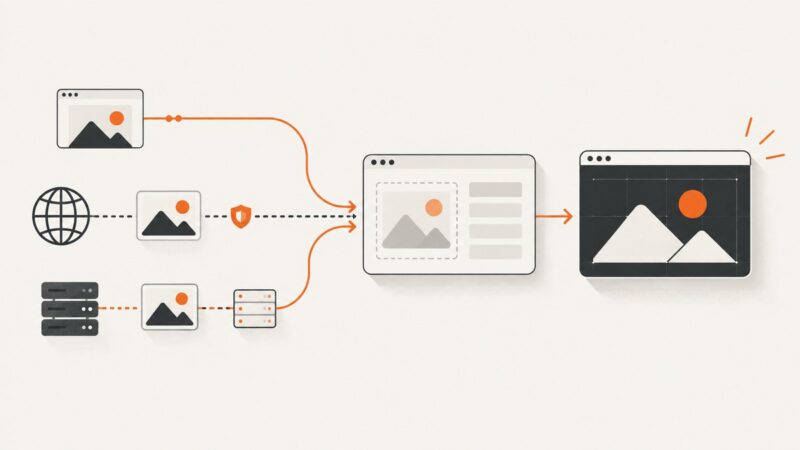
Why Twitter Open Graph Images Are Not Showing and How to Fix Them
Fix missing X/Twitter link images by checking Open Graph tags, image access, crawler rules, duplicates, and the HTML your server actually returns.

A missing image on an X (formerly Twitter) link preview usually comes from one of three places: the page does not send the intended Open Graph metadata in its initial HTML, X cannot fetch the image URL, or another tag takes precedence. Fix the problem by inspecting the raw response, testing the image as an unauthenticated request, and checking robots, firewall, CDN, and duplicate-tag rules.
This guide gives you a complete diagnostic path, working metadata examples, command-line checks, server-side rendering guidance, and fixes for common CMS and CDN configurations.
What X needs to find an image
Open Graph metadata belongs in the document <head>. The protocol defines four basic properties: og:title, og:type, og:image, and og:url. It also defines image fields for a secure URL, MIME type, dimensions, and alternative text. See the Open Graph protocol for the property definitions.
<head>
  <meta property='og:title' content='Example product page'>
  <meta property='og:type' content='website'>
  <meta property='og:url' content='https://example.com/products/widget'>
  <meta property='og:image' content='https://example.com/images/widget-share.jpg'>
  <meta property='og:image:secure_url' content='https://example.com/images/widget-share.jpg'>
  <meta property='og:image:type' content='image/jpeg'>
  <meta property='og:image:width' content='1200'>
  <meta property='og:image:height' content='630'>
  <meta property='og:image:alt' content='The Widget product on a desk'>

  <meta name='twitter:card' content='summary_large_image'>
  <meta name='twitter:title' content='Example product page'>
  <meta name='twitter:description' content='A short description of the page.'>
  <meta name='twitter:image' content='https://example.com/images/widget-share.jpg'>
</head>
The Twitter-specific tags provide card presentation and fallback values. Keep the Open Graph tags correct even when you include them. If several og:image values are sent, the first value has preference when values conflict, so an unintended earlier tag can explain why the wrong image appears.
Step 1: Inspect the HTML your server returns
Do not rely only on the browser’s Elements panel. A browser may add tags after JavaScript runs, while a crawler can consume the original HTTP response. Fetch the page without a login session and inspect the returned source.
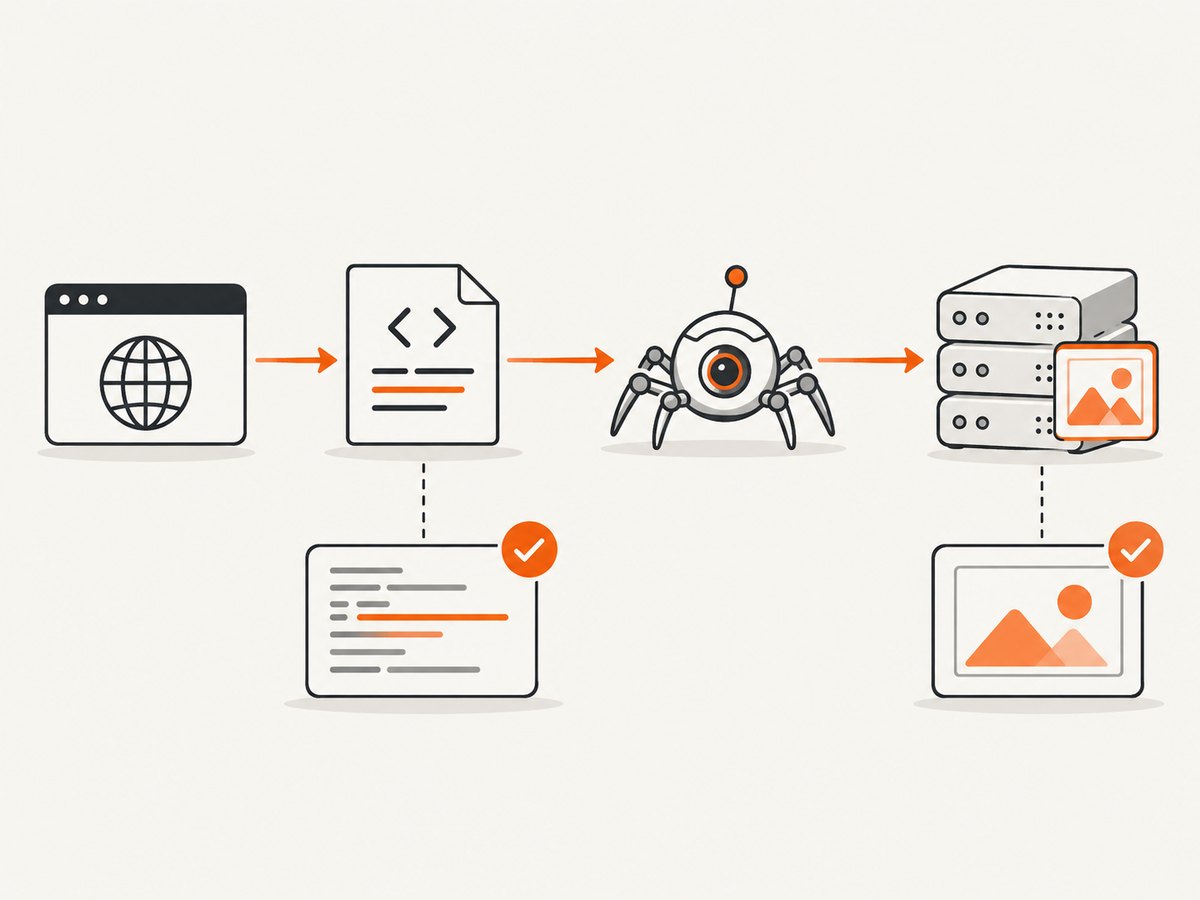
curl -L --compressed -sS https://example.com/products/widget \
  -o page.html

rg -n "og:(title|type|url|image)|twitter:(card|title|description|image)" page.html
For headers and redirects, use:
curl -I -L https://example.com/products/widgetCheck all of the following:
- The response is the intended page, not a login form, bot challenge, error document, or redirect loop.
- The tags appear inside
<head>in the initial response. og:imagecontains the exact absolute URL you intend to share.og:title,og:type, andog:urlidentify the same page.- There is no earlier plugin-generated
og:imagethat wins ordering. - The image URL uses HTTPS and does not depend on a browser cookie or session.
Step 2: Fetch the image independently
A correct tag cannot produce a preview if the image request fails. Request the image URL directly, without your browser’s cookies or authentication headers.
curl -L -sS -D image.headers \
  -o share-image.bin \
  https://example.com/images/widget-share.jpg

file share-image.bin
cat image.headers
Confirm that the final response is an image, not HTML. Look for a successful status, a suitable Content-Type such as image/jpeg, and a URL that does not redirect to a protected area. Also test from outside your corporate network if your CDN or WAF uses IP reputation rules.
Archived X troubleshooting guidance lists crawler blocks, robots.txt, server access-denial rules, and an image that is too large to download as possible causes. Treat that material as historical guidance rather than a current guarantee about X limits. The practical test is whether an unauthenticated crawler can retrieve the page and image reliably.
Step 3: Check robots, WAF, CDN, and hotlink rules
Access can fail at several layers even when the page works for you:
| Layer | What to inspect | Typical fix |
|---|---|---|
| robots.txt | Rules that disallow the shared page or image path | Permit the paths required for public previews, then verify the deployed file |
| WAF or bot protection | Challenge pages, 403 responses, rate limits, or user-agent blocks | Allow legitimate fetches for public content and exempt image paths from interactive challenges |
| CDN access control | Signed URLs, referer checks, country restrictions, or expiring tokens | Use a stable public image URL or configure a preview-safe delivery rule |
| Origin server | IP deny rules, authentication middleware, or incorrect MIME types | Return the image directly with a success status and image content type |
| Hotlink protection | Requests without your normal browser referer are denied | Do not require a browser referer for the public share image |
Review access logs for both the HTML request and the image request. A page may be allowed while its image directory is denied. Conversely, the image may load but the page may be blocked before the crawler can discover its URL.
Step 4: Remove duplicate or conflicting metadata
CMS themes and SEO plugins often emit their own social tags. View the raw response and search for every occurrence:
rg -n "property=['\"]og:image|name=['\"]twitter:image" page.htmlIf more than one value exists, fix the component that generates the unwanted first value. Editing a template while leaving a plugin active can create a duplicate. Also check that the canonical URL, Open Graph URL, and the URL you share use the same scheme and hostname where possible.
Step 5: Make server-rendered frameworks emit tags early
For server-rendered applications, generate metadata from the route data before sending the response. For client-only applications, add an HTML shell or server-side rendering layer that includes the tags for each URL. A browser-side script that inserts og:image after load is a practical failure mode because the initial crawler response may never contain it.
Example: minimal Express response
app.get('/products/:slug', async (req, res) => {
  const product = await loadProduct(req.params.slug);
  const title = escapeHtml(product.title);
  const image = escapeAttribute(product.shareImageUrl);
  const url = `https://example.com/products/${encodeURIComponent(product.slug)}`;

  res.type('html').send(`<!doctype html>
<html><head>
  <meta property='og:title' content='${title}'>
  <meta property='og:type' content='website'>
  <meta property='og:url' content='${url}'>
  <meta property='og:image' content='${image}'>
  <meta name='twitter:card' content='summary_large_image'>
  <meta name='twitter:image' content='${image}'>
</head><body>...</body></html>`);
});
Escape values before placing them in HTML attributes, and validate that the stored image URL is an allowed HTTPS URL. Never allow a user-controlled value to become arbitrary markup.
Step 6: Recheck after deployment
- Deploy the metadata and access-rule change.
- Fetch the page and image again with
curlfrom an unauthenticated environment. - Compare the response with the intended URL, title, and image.
- Share the corrected URL again and inspect the resulting card.
Cached scrapes can make a corrected page appear unchanged for a while. The available X material does not establish a current official cache interval or a guaranteed refresh command, so avoid promising a particular waiting period or relying on query-string tricks. If the issue persists, verify the live response and consult current X-owned documentation for platform-specific behavior.
Common errors and fixes
| Symptom | Likely cause | Fix |
|---|---|---|
| No image, plain URL | No usable og:image, inaccessible image, or crawler block |
Inspect raw HTML, fetch the image directly, and review access logs and robots rules |
| Wrong image | An earlier duplicate og:image wins |
Remove the duplicate or reorder generated metadata so the intended value is first |
| Image works while logged in only | Authentication, signed URL, or cookie requirement | Publish a stable public image URL for previews |
| Image request returns HTML | WAF challenge, error page, or redirect to login | Allow direct image retrieval and verify the final content type |
| Tags visible in DevTools but not curl | Tags are injected by client-side JavaScript | Render them in the initial server response or use server-side rendering |
| Intermittent results | Rate limiting, expiring URLs, or inconsistent CDN cache | Use a stable URL, inspect edge logs, and remove crawler-hostile challenges from public assets |
| Preview remains old | Cached scrape or an unchanged upstream response | Confirm the live source first, then allow for cache behavior without assuming a fixed interval |

Testing checklist for releases
- Request every important page with redirects followed and no cookies.
- Assert exactly one intended
og:imageappears before any fallback. - Check that the image returns an image MIME type and does not require authentication.
- Test a page with a long title, a missing optional description, and a changed image.
- Review robots.txt, WAF events, CDN rules, and origin logs after deployment.
- Repeat checks for staging and production hostnames so environment-specific rules do not diverge.
Or skip the browser setup
If you need a visual check of what a public page actually renders, ScreenshotNeo can capture it through one HTTP request. Its clean-shot process accepts consent banners and removes more than 60 known consent platforms, newsletter popups, and chat widgets before capture; each step can be turned off. Bot checks, blank pages, timeouts, failed loads, and cache hits are not billed, and the response identifies the page verdict and billing status with X-Page-Verdict and X-Billed headers. An MCP server provides take_screenshot, get_page_info, and capture_pdf tools for Claude, Cursor, and other MCP clients.
See the ScreenshotNeo API documentation for all options. This basic call captures the rendered page, which is useful for checking whether a consent layer or client-side layout is hiding the content you expect to share:
cURL
curl -G 'https://api.screenshotneo.com/v1/shot' \
  -d access_key=YOUR_API_KEY \
  --data-urlencode url=https://example.com/products/widget \
  -o shot.webp
Python
import requests

r = requests.get(
    'https://api.screenshotneo.com/v1/shot',
    params={
        'access_key': 'YOUR_API_KEY',
        'url': 'https://example.com/products/widget'
    },
    timeout=90,
)
r.raise_for_status()
open('shot.webp', 'wb').write(r.content)
Node.js
const q = new URLSearchParams({
  access_key: 'YOUR_API_KEY',
  url: 'https://example.com/products/widget'
});
const res = await fetch(`https://api.screenshotneo.com/v1/shot?${q}`);
if (!res.ok) throw new Error(`Screenshot failed: ${res.status}`);
const fs = await import('node:fs/promises');
await fs.writeFile('shot.webp', Buffer.from(await res.arrayBuffer()));
Useful capture controls for this diagnosis
- Wait conditions: wait for a CSS selector, a delay, or network idle when the page renders content asynchronously.
- Custom headers, cookies, user agent, and Authorization: reproduce a permitted application state when your page needs controlled access. Do not expose secrets in client-side code.
- Hide selectors and custom JavaScript: remove a temporary overlay or click consent controls before capture.
- Block requests or resource types: reduce noise from ads and trackers while diagnosing page behavior.
- Full-page or element capture: capture the whole landing page or isolate the section containing the share artwork.
- Dark mode, device presets, viewport, and retina scale: reproduce the conditions under which your layout changes.
- Caching with a chosen TTL: avoid repeated work while iterating on a stable URL; cache hits are identified and not billed.
ScreenshotNeo has a free plan with 1,000 screenshots per month and no card. Paid plans start at $5 for 3,000 shots; yearly billing gives two months free, and every feature is available on every plan. Create a free ScreenshotNeo account.
Performance, reliability, and cost notes
For your own metadata checks, keep image URLs stable and serve them from a cacheable CDN path. Avoid generating a new signed URL for every request unless the signing policy explicitly permits crawlers and the URL remains valid long enough for retrieval. Monitor origin and edge logs for failed image requests rather than judging success from a logged-in browser.
When using a screenshot service for visual verification, wait only for the condition your page needs. A selector wait is usually more deterministic than an arbitrary long delay; network-idle waits can be slow on pages with persistent analytics connections. Use element capture when a full page is unnecessary, and use caching when the target has not changed. ScreenshotNeo’s asynchronous jobs, signed webhooks, bulk capture of up to 100 URLs per call, usage API, OpenAPI specification, image resizing, PDF options, and signed links are available when a diagnostic workflow grows into a production pipeline.
FAQ
Do I need both Open Graph and Twitter tags?
Use Open Graph tags as the page’s core sharing metadata and include the Twitter card tags for card presentation and fallback behavior. Keep their title, description, and image values consistent.
Why does the browser show the image but the shared link does not?
Your browser may have cookies, credentials, a cached image, or JavaScript-generated metadata. Test the initial HTML and image URL with an unauthenticated request.
Can a robots.txt rule break the image while the page remains public?
Yes. The page and image are separate requests and can be governed by different rules. Check both paths and the relevant CDN or WAF configuration.
Should I add several og:image tags as fallbacks?
Only when you deliberately control their order. The first value has preference when Open Graph values conflict, so accidental duplicates commonly produce the wrong image.
Are old image-size limits from Twitter documentation still current?
The available guidance is archived and the research did not verify current X thresholds. Do not publish historical numbers as current requirements; use current X documentation when a specific limit matters.
How can I prove what a crawler sees?
Save the raw HTTP response, inspect the metadata in that file, fetch the image separately, and review access logs. A rendered browser screenshot can complement those checks but cannot replace them.