BlogScreenshots on your device
How to Take Screenshots on Ubuntu Server with npm desktop-screenshot
Use npm desktop-screenshot on Ubuntu Server with scrot, X11 or Xvfb, plus fixes for display errors and a hosted API alternative.
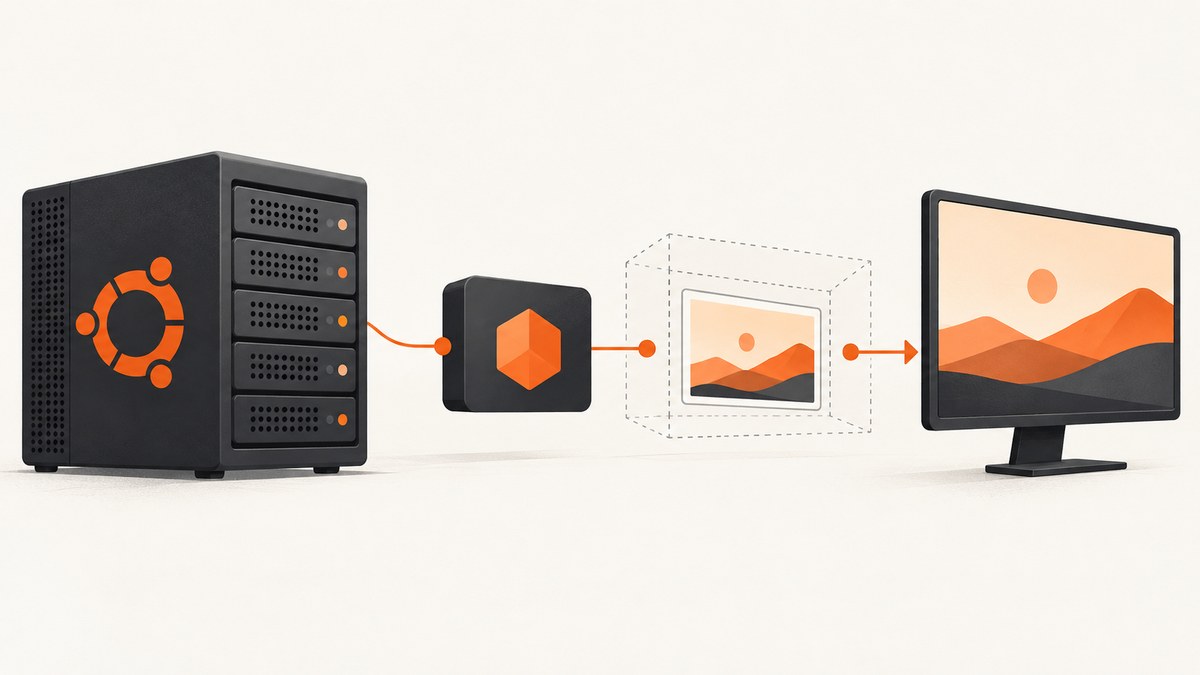
Yes, but only when the Node.js process can reach an X display. The npm package desktop-screenshot captures the computer screen through platform-specific external tools. On Linux its README specifies scrot. A minimal Ubuntu Server installation usually has no graphical session, so you must either expose an existing X display or start a virtual display such as Xvfb.
This package captures the desktop framebuffer. It does not open a URL in a browser, wait for a page, or render a website independently. If you need website screenshots from a server, skip to ScreenshotNeo.
1. Check that you installed the right package
Two npm names are easy to confuse:
| Package | Linux dependency documented by its README | API style |
|---|---|---|
desktop-screenshot |
scrot |
Callback-based example that writes a named file |
screenshot-desktop |
ImageMagick | Different package and different options |
The commands below are for desktop-screenshot. Confirm your package.json and import statement before troubleshooting.
2. Install Node.js, scrot and the package
sudo apt update
sudo apt install -y nodejs npm scrot
mkdir -p ~/desktop-shot
cd ~/desktop-shot
npm init -y
npm install desktop-screenshot
Run the install and the capture as the same Linux account used by your service. A package installed for one user is not automatically available to another service account.
3. Capture the current display
Create capture.js:
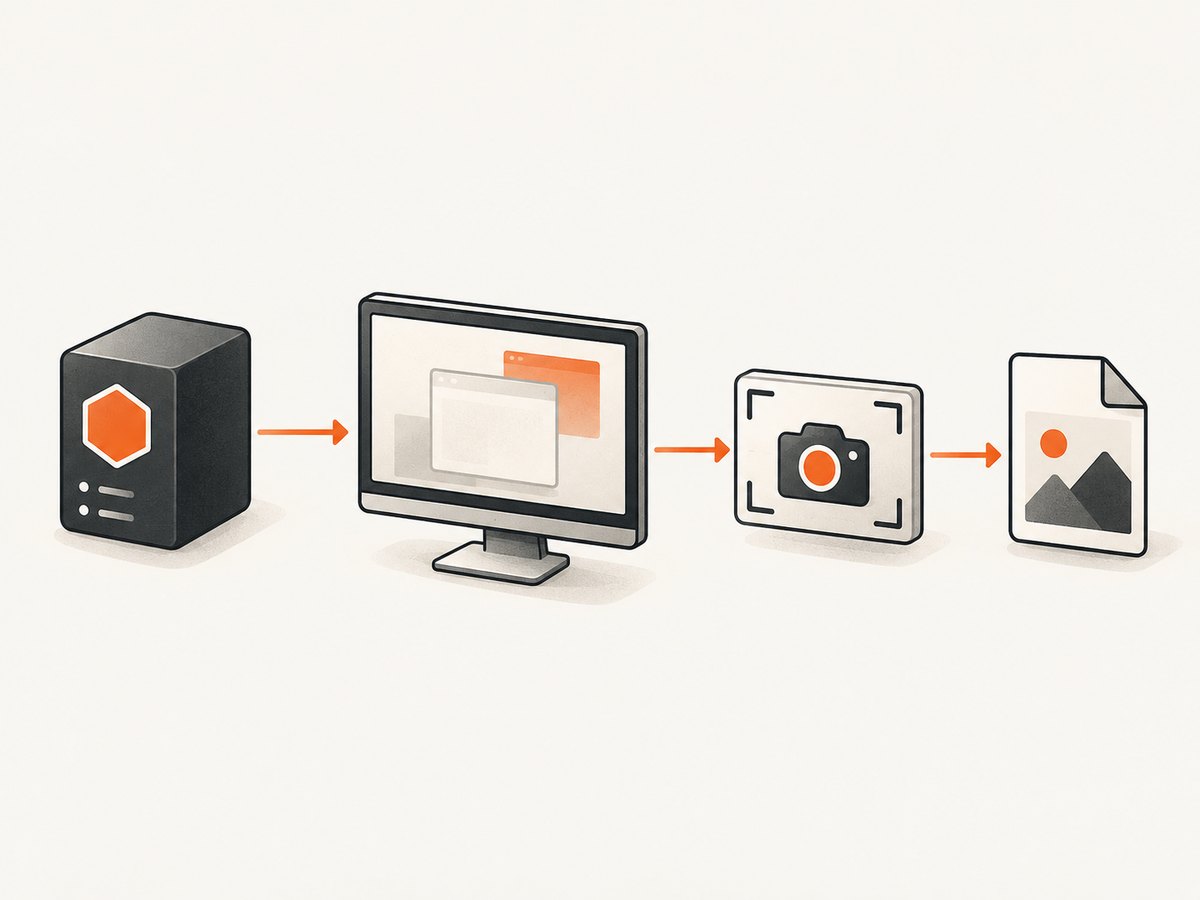
const screenshot = require('desktop-screenshot');

const output = '/tmp/ubuntu-screen.png';

screenshot(output, (error, complete) => {
  if (error) {
    console.error('Screenshot failed:', error);
    process.exitCode = 1;
    return;
  }

  console.log('Screenshot written:', output, complete);
});
Start it from a shell that already has a graphical display:
echo "$DISPLAY"
node capture.js
file /tmp/ubuntu-screen.png
If DISPLAY is empty, Node has no display to capture. Logging in over SSH does not create a desktop session.
4. Resize the output or set JPEG quality
The package README shows optional width, height and JPEG quality settings. Keep the callback error check even when using options. A typical call is:
const screenshot = require('desktop-screenshot');

const options = {
  width: 1280,
  height: 720,
  quality: 85
};

screenshot('/tmp/ubuntu-screen.jpg', options, (error) => {
  if (error) {
    console.error(error);
    process.exitCode = 1;
    return;
  }
  console.log('JPEG saved');
});
Check the installed package README if your version reports an options-signature error. The exact available values can vary with the package version and the underlying capture utility.
5. Run it on a server with an existing X session
If a desktop session is already running, identify its display and authorization cookie:
echo "$DISPLAY"
who
ps -ef | grep -E 'Xorg|Xwayland' | grep -v grep
Launch the Node process under the account that owns that session, or configure the service with the correct DISPLAY and X authority environment. Merely setting DISPLAY=:0 is insufficient if the account cannot authenticate to that display.
6. Use a virtual display for a headless Ubuntu Server
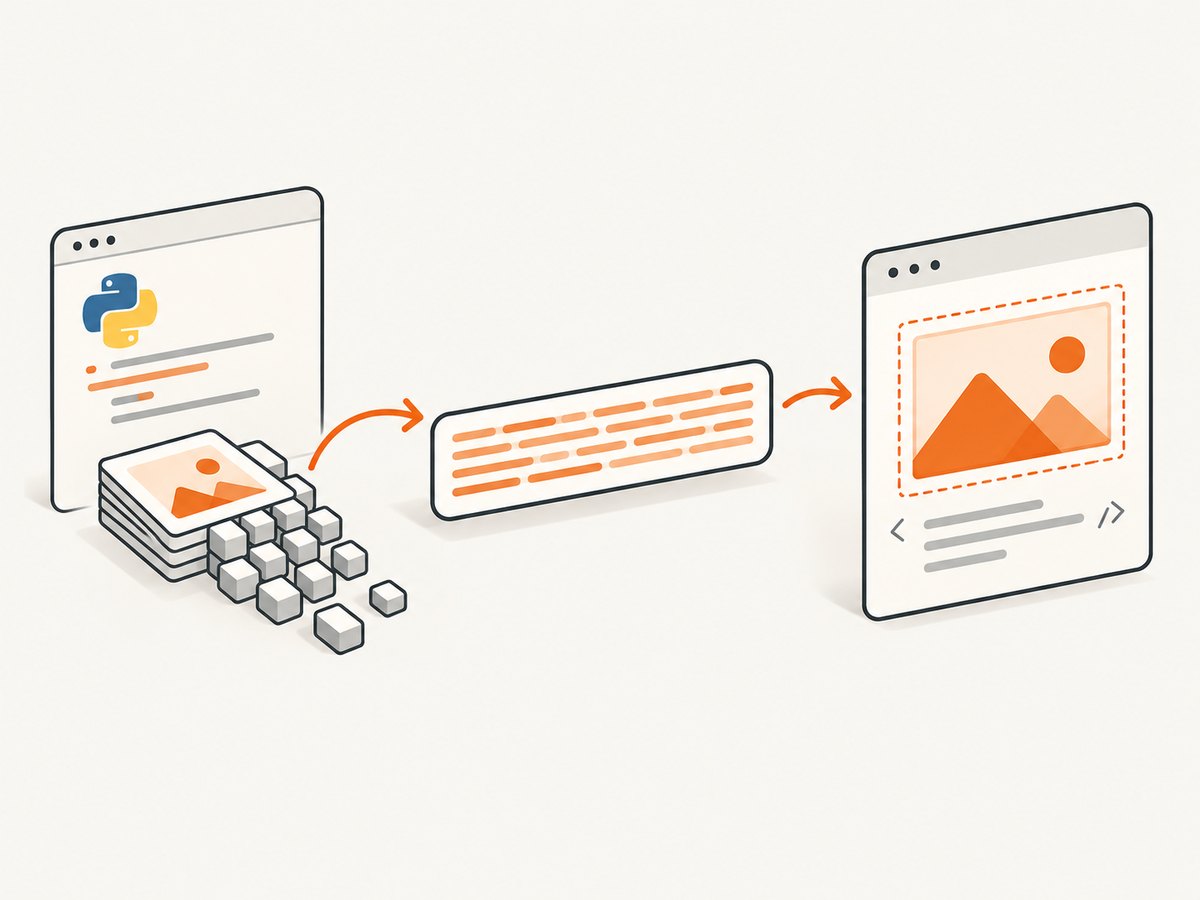
When no physical desktop is available, Xvfb can provide a virtual X server. This is a general headless pattern documented for screenshot utilities; the research available for this article does not establish a package-specific desktop-screenshot and xvfb-run compatibility test. Verify the command in your own Ubuntu image.
sudo apt update
sudo apt install -y xvfb scrot
xvfb-run --auto-servernum --server-args='-screen 0 1280x720x24' node capture.js
The virtual screen is initially empty. It is useful for programs that draw into X, but it will not reproduce a user’s physical desktop unless you also start the graphical application inside that display. For a browser, start the browser and the capture process within the same Xvfb invocation or session.
7. A production-friendly wrapper
const fs = require('node:fs');
const path = require('node:path');
const screenshot = require('desktop-screenshot');

const output = path.resolve(process.env.OUTPUT || '/var/tmp/desktop-shot.png');
fs.mkdirSync(path.dirname(output), { recursive: true });

screenshot(output, (error) => {
  if (error) {
    console.error(JSON.stringify({ ok: false, output, error: String(error) }));
    process.exit(1);
  }

  if (!fs.existsSync(output)) {
    console.error(JSON.stringify({ ok: false, output, error: 'Output file was not created' }));
    process.exit(1);
  }

  console.log(JSON.stringify({ ok: true, output, bytes: fs.statSync(output).size }));
});
Use a writable absolute path, avoid exposing screenshots through a public temporary directory, and set a timeout at the process-supervisor level if the external utility can hang.
8. Troubleshooting
| Symptom | Likely cause | Fix |
|---|---|---|
Cannot open display or an empty DISPLAY |
No X server is available to the process | Use the existing session’s display or run through Xvfb. |
| It works in SSH but not as a service | The service has different environment variables or X authority | Run under the same account and explicitly configure DISPLAY and authorization. |
scrot: command not found |
The Linux capture utility is missing | Install it with sudo apt install scrot. |
| Permission denied writing the image | The output directory is not writable by the service account | Choose a writable absolute path or fix ownership and permissions. |
| Blank or black image under Xvfb | No application is drawing in the virtual display | Start the target application inside the same Xvfb display and wait for it to render. |
| Options argument causes a type error | Wrong package or a version-specific API difference | Check that the dependency is desktop-screenshot and read the installed README before changing the call signature. |
| Capture hangs | External tool, display connection or application is blocked | Reproduce the scrot command manually, add a supervisor timeout, and inspect process logs. |
9. Reliability, performance and cost
- Reliability: success depends on the X server, X authorization,
scrot, filesystem permissions and the application being visible in that display. Treat the callback error as authoritative and verify the output file. - Performance: screen size, image format, JPEG quality and the startup cost of Xvfb affect runtime and file size. Keep a long-lived virtual display for repeated captures instead of starting a new server for every request when your process model allows it.
- Isolation: a shared display can expose other windows or desktop data. Use a dedicated account and display for automated work.
- Cost: the npm approach consumes your server’s CPU, memory and storage. Xvfb adds another process; it does not provide browser rendering or hosting.
10. When desktop-screenshot is the wrong tool
Use this package when you specifically need the pixels of an X desktop on the machine running Node. Choose a browser screenshot API when the input is a URL and you need page loading, full-page output, cookie handling, responsive viewports, PDFs or repeatable server-side rendering.
Or skip the browser setup
ScreenshotNeo takes a URL and returns a PNG, JPEG, WebP or PDF without configuring X11, scrot or Xvfb. See the ScreenshotNeo API documentation.
curl -G "https://api.screenshotneo.com/v1/shot" -d access_key=YOUR_API_KEY --data-urlencode url=https://stripe.com -o shot.webpimport requests
r = requests.get("https://api.screenshotneo.com/v1/shot", params={"access_key": "YOUR_API_KEY", "url": "https://stripe.com"}, timeout=90)
open("shot.webp", "wb").write(r.content)const q = new URLSearchParams({ access_key: 'YOUR_API_KEY', url: 'https://stripe.com' });
const res = await fetch(`https://api.screenshotneo.com/v1/shot?${q}`);Before the capture, ScreenshotNeo accepts cookie and consent banners and removes more than 60 known consent platforms, newsletter popups and chat widgets. Bot checks, blank pages, timeouts, failed loads and cache hits are not billed, and response headers identify the page verdict and billing status. Its MCP server lets Claude, Cursor and other MCP clients call take_screenshot, get_page_info and capture_pdf. The free plan includes 1,000 screenshots each month with no card; paid plans start at $5 for 3,000.
Create a free ScreenshotNeo account and start with 1,000 screenshots per month at no charge.
FAQ
Does desktop-screenshot take a screenshot of a URL?
No. It captures the desktop visible to the X display. Use a browser automation tool or ScreenshotNeo for URL-based captures.
Can I run it without installing a desktop environment?
Usually yes, with a virtual X server such as Xvfb, but start and test the target application inside that display.
Is Xvfb required on every Ubuntu Server?
No. If the process already has access to a suitable running X display, Xvfb is unnecessary.
Why is screenshot-desktop mentioned?
It is a different npm package with different Linux requirements. Installing or configuring it does not validate a desktop-screenshot setup.
Where should I investigate first when a capture fails?
Check the exact package name, scrot installation, DISPLAY, X authorization, output permissions and the callback error in that order.


