How to Use Agent-Browser with Python
Learn the two Agent-Browser products, install each one, automate the CLI from Python, use the hosted SDK, and capture reliable screenshots.
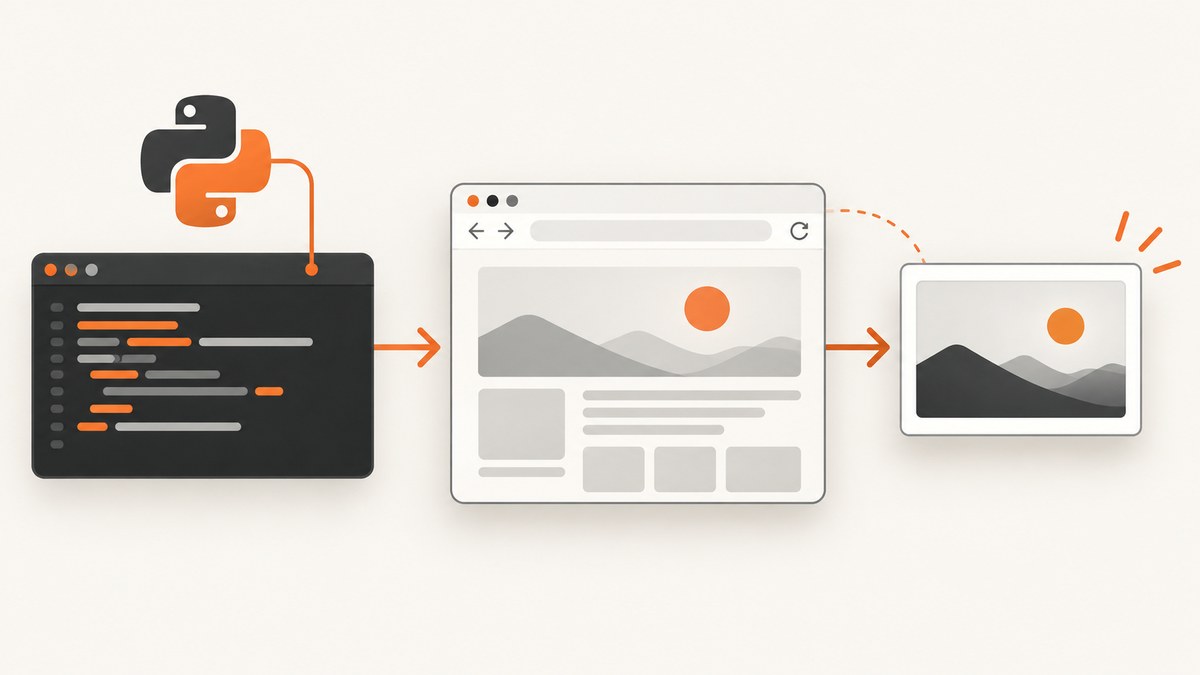
There are two products commonly called Agent-Browser. The vercel-labs agent-browser is a native Rust command-line browser automation tool for AI agents. AgentBrowser is a hosted browser service with a credential vault and an official Python client. They are installed and controlled differently.
If you want Python objects and a hosted browser, use the official agent-browser-control SDK. If your project already uses the vercel-labs CLI, run its commands from Python with subprocess. The examples below show both paths, including installation, snapshots, transient element references, screenshots, error handling, and operational guidance.
Which Agent-Browser should Python use?
| Question | Hosted AgentBrowser | vercel-labs agent-browser |
|---|---|---|
| Where does Chrome run? | In the hosted AgentBrowser service. | On the machine where the CLI and Chrome for Testing are installed. |
| Python interface | Official Python SDK with AgentBrowser objects. |
No documented Python SDK; call the CLI from Python. |
| Install | pip install agent-browser-control |
npm install -g agent-browser, then agent-browser install |
| Credentials | API key and the service’s credential-vault features. | Your local browser environment and command configuration. |
| Best fit | Python-first hosted automation and CDP access. | Local control, shell-based workflows, and existing agent-browser scripts. |
The similarly named PyPI agentbrowser package is a separate Playwright-based project. Do not install it when you mean either product above.
Option A: use the hosted AgentBrowser Python SDK
The official SDK is standard-library-only and supports Python 3.8 and newer. Install it in the environment that will run your automation:
python -m pip install agent-browser-controlThe import name is agentbrowser. A complete screenshot example is:
from agentbrowser import AgentBrowser

ab = AgentBrowser(api_key="gbk_...")

with ab.session(url="https://example.com", record=True) as s:
    png = s.screenshot()  # bytes (PNG)
    with open("example.png", "wb") as f:
        f.write(png)
The context manager closes the hosted session even when the body raises an exception. Keep the API key in an environment variable in real applications:
import os
from agentbrowser import AgentBrowser

api_key = os.environ["AGENTBROWSER_API_KEY"]
ab = AgentBrowser(api_key=api_key)

with ab.session(url="https://example.com") as session:
    image_bytes = session.screenshot()

with open("example.png", "wb") as output:
    output.write(image_bytes)
Use Playwright through the hosted session’s CDP endpoint
When the Python program needs Playwright’s page APIs, connect Playwright to the session’s cdp_url. AgentBrowser still manages the hosted browser session:
import os
from agentbrowser import AgentBrowser
from playwright.sync_api import sync_playwright

ab = AgentBrowser(api_key=os.environ["AGENTBROWSER_API_KEY"])

with ab.session(url="https://example.com") as session:
    with sync_playwright() as p:
        browser = p.chromium.connect_over_cdp(session.cdp_url)
        context = browser.contexts[0]
        page = context.pages[0] if context.pages else context.new_page()
        page.wait_for_load_state("domcontentloaded")
        page.screenshot(path="playwright.png", full_page=True)
        browser.close()
This pattern is useful when you need selectors, page evaluation, network events, or other Playwright APIs while keeping the browser hosted. Playwright Python is a separate library with synchronous and asynchronous APIs for Chromium, Firefox, and WebKit; its API is documented at playwright.dev.
Option B: run the vercel-labs CLI from Python
Install the CLI and Chrome
Use the documented npm installation channel and download the browser binary:
npm install -g agent-browser
agent-browser install
The repository also documents Homebrew and Cargo installation. Building from source requires Node.js 24 or newer, pnpm 11 or newer, and Rust. Check the repository before pinning an installation command because these requirements can change.
Understand the snapshot workflow
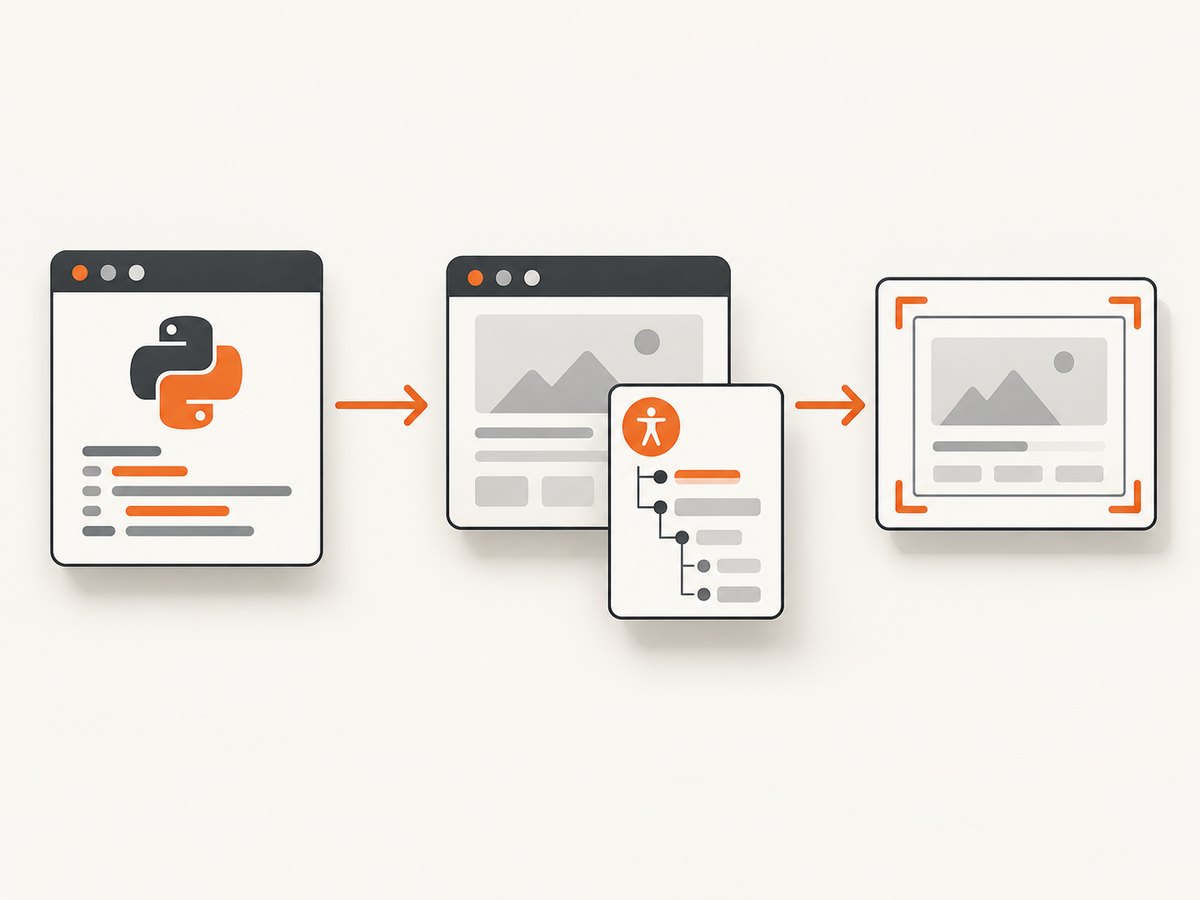
The CLI is snapshot-driven. Open the page, take an accessibility snapshot, interact using the current references, take a fresh snapshot after the page changes, extract data or capture a screenshot, and close the browser:
agent-browser open https://example.com
agent-browser snapshot -i
agent-browser click @e2
agent-browser snapshot -i
agent-browser get text @e1
agent-browser screenshot page.png
agent-browser close
References such as @e1 describe the current accessibility tree. A navigation, click, modal dismissal, or major DOM update can invalidate them. Always create a new snapshot before using a reference after a page change. CSS selectors and semantic role locators are also available when a stable selector is more appropriate.
Orchestrate the CLI with Python
This is an integration pattern inferred from the documented CLI, rather than a vendor-supplied Python API:
import subprocess
from typing import Iterable


def run_agent_browser(*args: str) -> str:
    result = subprocess.run(
        ["agent-browser", *args],
        check=True,
        text=True,
        capture_output=True,
    )
    return result.stdout


run_agent_browser("open", "https://example.com")
snapshot = run_agent_browser("snapshot", "-i")
print(snapshot)

# Inspect the snapshot and choose a reference from this snapshot.
run_agent_browser("get", "text", "@e1")
run_agent_browser("screenshot", "page.png")
run_agent_browser("close")
For production code, capture stderr and include the command in error logs without exposing secrets. A small wrapper can add timeouts and a guaranteed close:
import subprocess


def run_agent_browser(*args: str, timeout: int = 90) -> str:
    completed = subprocess.run(
        ["agent-browser", *args],
        check=True,
        text=True,
        capture_output=True,
        timeout=timeout,
    )
    return completed.stdout


try:
    run_agent_browser("open", "https://example.com")
    current = run_agent_browser("snapshot", "-i")
    print(current)
    run_agent_browser("screenshot", "page.png")
finally:
    subprocess.run(
        ["agent-browser", "close"],
        check=False,
        text=True,
        capture_output=True,
    )
Build a reliable Python automation loop
- Open one URL and wait for the command to finish.
- Capture a snapshot immediately before choosing a reference.
- Use the reference for one action or extraction.
- After navigation, a click that changes the DOM, or a modal change, take another snapshot.
- Save screenshots and extracted values with a request identifier.
- Close the browser in a
finallyblock.
Do not cache element references across navigation or major DOM updates. If a click is blocked by a consent banner or modal, follow the CLI’s reported target, dismiss the obstruction, and take a fresh snapshot before retrying.
Waiting for dynamic content
Prefer an explicit page condition or a selector-based wait when the target content is asynchronous. A fixed delay can be useful as a last resort, but it increases latency and still may be too short for a slow page. For the hosted SDK, use the session’s documented browser controls; for the CLI, use the waiting commands and selectors supported by the installed version.
Choosing selectors
- Use a fresh snapshot reference for short, agent-driven interactions.
- Use a stable CSS selector for repeated automation against a known site.
- Use semantic roles when the site’s accessibility tree is stable.
- Re-check the target after a consent dialog, route change, or client-side render.
Common errors and fixes
| Error or symptom | Likely cause | Fix |
|---|---|---|
ModuleNotFoundError: agentbrowser |
The SDK is not installed in the active Python environment, or a different PyPI project was installed. | Run python -m pip install agent-browser-control in that environment and verify the import name is agentbrowser. |
| API-key or session authentication failure | The hosted SDK received a missing, malformed, or expired key. | Read the key from the expected environment variable, check its prefix and account status, and do not paste it into source control. |
agent-browser: command not found |
The global npm bin directory is not on PATH. |
Check the npm global bin path, add it to PATH, or invoke the binary from the package manager’s configured location. |
| Browser executable missing | The CLI was installed but Chrome for Testing was not downloaded. | Run agent-browser install and ensure the process can write to the configured browser cache. |
Click reports an invalid @eN reference |
The accessibility tree changed after the snapshot. | Run agent-browser snapshot -i again and use a reference from the new output. |
| Click is intercepted by a banner or modal | A consent dialog, newsletter popup, or chat widget covers the target. | Dismiss the covering element, then take a fresh snapshot before retrying. |
| Screenshot is blank or incomplete | The page is still loading, content is rendered after a delay, or the capture was taken before the target became visible. | Wait for a specific selector or page condition, then capture again. Check the URL and browser logs. |
| CDP connection fails | The session ended before Playwright connected, or the wrong endpoint was used. | Connect while the session context is open and use the session’s current cdp_url. |
| Subprocess hangs | The command is waiting on a page, browser prompt, or network operation. | Set a subprocess timeout, capture stderr, close stale sessions, and add explicit waits for known page states. |
Performance, reliability, and cost
Performance
- Reuse a hosted session when several actions belong to one workflow instead of creating a new session for every step.
- Keep snapshots close to the action that uses them; stale snapshots cause retries and wasted time.
- Wait for the smallest condition that proves the content is ready rather than sleeping for a large fixed interval.
- Capture only the screenshot or text you need. Full-page images and complex pages generally require more browser work than a viewport capture.
- For local CLI jobs, account for Chrome startup time and disk space used by downloaded browser binaries.
Reliability
- Pin versions in reproducible environments and check the official repository or package page before upgrading.
- Use timeouts around Python subprocesses and close sessions in cleanup handlers.
- Log URLs, commands, durations, and sanitized error output so failures can be replayed.
- Treat websites as changing dependencies: refresh snapshots after DOM changes and avoid selectors tied to generated class names.
Cost and operational choice
The hosted path trades local Chrome maintenance for an API key and hosted-session usage. The CLI path avoids a hosted browser account but requires local installation, browser downloads, and your own machine or runner capacity. Choose based on where execution, credentials, and browser state should live.
Or skip the browser setup
For a screenshot without installing Chrome or coordinating snapshots, ScreenshotNeo accepts one GET request and returns a PNG, JPEG, WebP, or PDF. Its clean-shot pipeline accepts cookie and consent banners like a visitor, then removes more than 60 known consent platforms, newsletter popups, and chat widgets before capture. Each step can be turned off.
Only clean shots are billed. Bot checks and CAPTCHAs, blank pages, timeouts, failed loads, and cache hits cost nothing, and the response reports the result in X-Page-Verdict and X-Billed headers. ScreenshotNeo also provides an MCP server with take_screenshot, get_page_info, and capture_pdf tools for Claude, Cursor, and other MCP clients.
See the ScreenshotNeo API documentation for all options. This basic call captures Stripe as a WebP:
curl -G "https://api.screenshotneo.com/v1/shot" -d access_key=YOUR_API_KEY --data-urlencode url=https://stripe.com -o shot.webpThe equivalent Python request is:
import requests

r = requests.get(
    "https://api.screenshotneo.com/v1/shot",
    params={"access_key": "YOUR_API_KEY", "url": "https://stripe.com"},
    timeout=90,
)
r.raise_for_status()
open("shot.webp", "wb").write(r.content)
Node.js:
const q = new URLSearchParams({ access_key: 'YOUR_API_KEY', url: 'https://stripe.com' });
const res = await fetch(`https://api.screenshotneo.com/v1/shot?${q}`);
if (!res.ok) throw new Error(`Screenshot failed: ${res.status}`);
const image = Buffer.from(await res.arrayBuffer());
require('fs').writeFileSync('shot.webp', image);
Options include full-page capture with lazy images loaded, CSS-element capture, dark mode, 12 device presets or any viewport, retina scale, PDF paper size and page ranges, custom CSS and JavaScript, pre-capture clicks, hidden selectors, selector or network-idle waits, request blocking, headers, cookies, user agents, authorization, timezone, geolocation, transparent backgrounds, resizing, TTL caching, signed links, asynchronous jobs with signed webhooks, bulk capture of up to 100 URLs per call, and a usage API. Every feature is available on every plan. The Free plan includes 1,000 shots per month with no card; paid plans start at $5 for 3,000 shots.
Create a free ScreenshotNeo account to get 1,000 screenshots each month with no card.
FAQ
Is agent-browser a Python package?
The vercel-labs project is a CLI. The hosted AgentBrowser service has an official Python package named agent-browser-control, imported as agentbrowser.

Can Python control the local CLI?
Yes. Use subprocess.run to invoke commands, capture output, set timeouts, and refresh snapshots after page changes.
Do snapshot references stay valid?
No. References describe the current accessibility tree and should be refreshed after navigation or major DOM updates.
Does the hosted SDK require Playwright?
No. The basic SDK is standard-library-only. Add Playwright only when you need to connect through the session’s CDP endpoint.
Where should version information be checked?
Check the official GitHub repository, quick start, hosted documentation, and package page before pinning versions. Package versions and installation requirements change.


