How to Use AI Agent Browser MCP
Connect an AI assistant to Playwright MCP, choose the right browser session, run tasks safely, and capture clean screenshots with ScreenshotNeo.

AI agent browser MCP connects an AI assistant to browser automation tools through the Model Context Protocol (MCP). The most documented implementation is Playwright MCP. You install its server, register it with an MCP client, and give the assistant a bounded task such as navigating to a URL, filling a form, or checking a page. Playwright MCP describes page structure with accessibility snapshots, so the assistant can locate and operate elements without requiring a vision model for the documented workflow.
This guide covers installation, the first task, browser and session choices, capabilities, remote connections, reliability, security boundaries, troubleshooting, and a screenshot-only alternative.
What browser MCP does
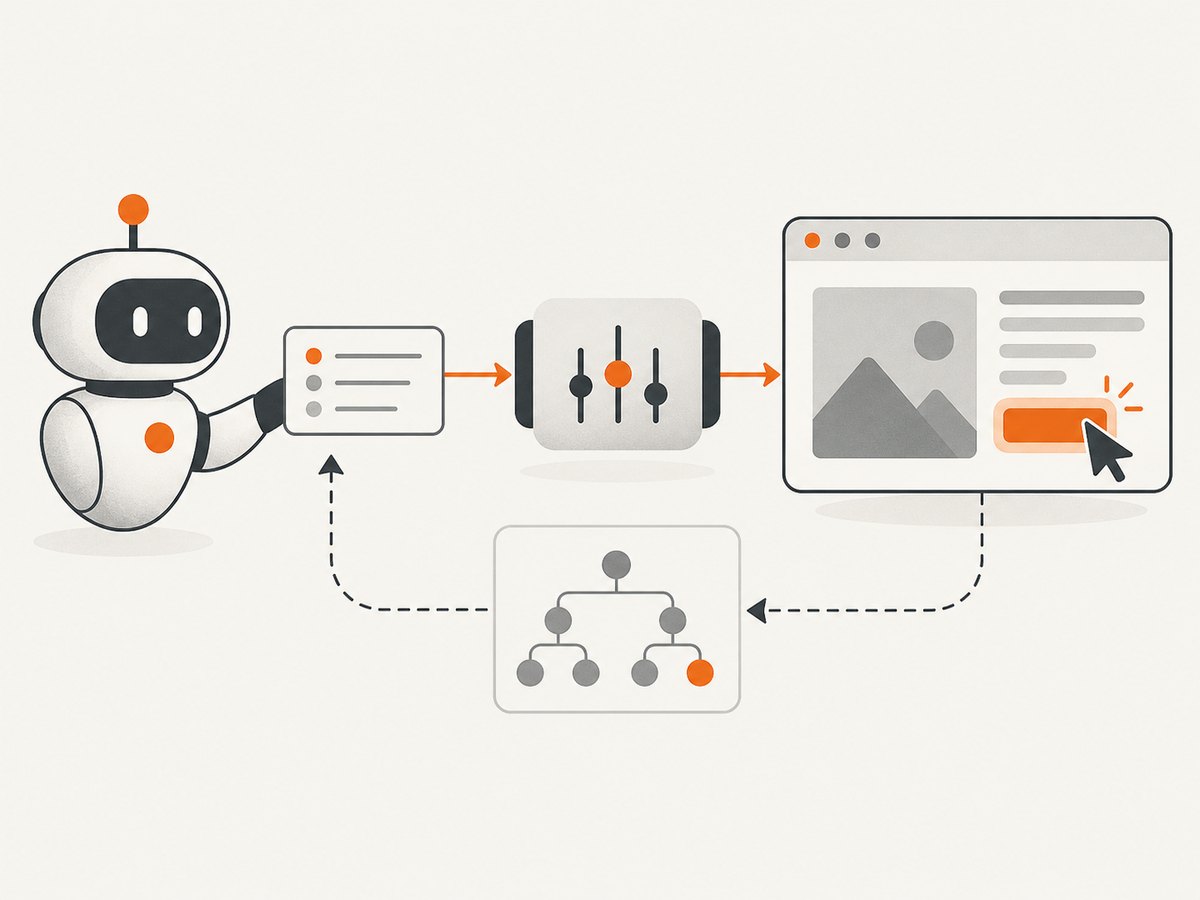
MCP is the connection layer. Your AI client starts an MCP server, discovers the tools it exposes, and sends tool calls as the assistant works. Playwright MCP uses Playwright to control a browser and returns structured accessibility snapshots after navigation and other actions. The assistant can then refer to elements in those snapshots when it clicks, types, or submits forms.
The documented prerequisites are Node.js 20 or newer and an MCP client such as VS Code, Cursor, Windsurf, Claude Desktop, Claude Code, or another compatible client. The browser downloads automatically on first use. See the official installation guide and Playwright MCP guide for client-specific instructions.
Install Playwright MCP
1. Check Node.js
node --versionUse Node.js 20 or newer. If your version is older, install a current Node.js release before configuring the server.
2. Add the server to your MCP client
Many clients accept this mcpServers shape:
{
  "mcpServers": {
    "playwright": {
      "command": "npx",
      "args": ["@playwright/mcp@latest"]
    }
  }
}
Put the object in the location your client documents for MCP servers. Configuration-file locations differ by client. Restart or reconnect the client if it requires that after changing its configuration, then check that Playwright tools appear.
Client-specific commands
Playwright documents these examples:
# Claude Code
claude mcp add playwright npx @playwright/mcp@latest

# VS Code
code --add-mcp '{"name":"playwright","command":"npx","args":["@playwright/mcp@latest"]}'
In Cursor, add a server from Cursor Settings → MCP → Add new MCP Server with command type and npx @playwright/mcp@latest. For other clients, use their MCP setup guide with the standard JSON configuration.
Run your first browser task
1. Give the agent a bounded request
After the server is connected, ask for a URL and a specific action:
Navigate to https://demo.playwright.dev/todomvc and add three todo items:
"Read documentation", "Check the build", and "Publish the report".
Then tell me which items are visible.
The assistant should navigate, inspect the accessibility snapshot, identify the todo input, enter each item, and report the resulting state. The official guide uses the same TodoMVC demonstration and explains that the assistant navigates and interacts through structured accessibility snapshots.
2. Make requests observable
For production workflows, ask the assistant to describe each major action and stop when a page or value differs from the expected state. A useful prompt includes:
- The exact URL or allowed host.
- The action sequence and the expected result after each important step.
- Whether the task may submit, delete, purchase, or otherwise change data.
- A stopping rule for login prompts, bot checks, unexpected redirects, or missing elements.
Keep destructive actions behind an explicit confirmation step. An agent can follow a page’s instructions, but your prompt and client permissions should define what it is allowed to change.
Choose a browser and session mode
Session choice determines whether cookies, login state, and extensions are reused. Choose it before automating a workflow.
| Mode | Behavior | Use it when |
|---|---|---|
| Persistent (default) | Preserves login state and cookies between sessions. | You want a repeatable project profile with retained authentication. |
| Isolated | Starts a fresh session; optional initial storage state can be loaded. | You need clean, independent runs or parallel test-like jobs. |
| Browser extension | Attaches to existing tabs and reuses that browser profile’s sessions, cookies, and installed extensions. | The task depends on an existing SSO/2FA login, open tab, or installed extension. |
Persistent profiles
The default profile is stored in a Playwright-managed cache path. You can override its location with --user-data-dir. Keep separate directories for unrelated projects so their cookies and login state do not mix.
Isolated sessions
Add --isolated when each run must start clean. If a workflow needs preloaded authentication or preferences, provide an initial storage state with --storage-state. Treat storage-state files as credentials: keep them out of source control and restrict their file permissions.
Attach to an existing browser
For an existing Chromium-compatible browser, use a Chrome DevTools Protocol endpoint:
{
  "mcpServers": {
    "playwright": {
      "command": "npx",
      "args": [
        "@playwright/mcp@latest",
        "--cdp-endpoint=http://localhost:9222"
      ]
    }
  }
}
Extension mode is configured with --extension. The extension attaches to existing tabs and reuses the selected profile. This is convenient for authenticated flows, but it also gives the agent access to that active browser context. Use a dedicated profile when possible.
Select a browser
Playwright MCP documents chrome, firefox, webkit, and msedge as browser values:
{
  "mcpServers": {
    "playwright": {
      "command": "npx",
      "args": ["@playwright/mcp@latest", "--browser=firefox"]
    }
  }
}
Verify supported flags against the current Playwright MCP documentation when you publish or upgrade.
Enable only the capabilities you need
Core browser automation is always available. Optional capability groups expose additional tools. The documented groups include network, storage, testing, vision, pdf, devtools, and config. Start with the smallest set that supports your task.
{
  "mcpServers": {
    "playwright": {
      "command": "npx",
      "args": [
        "@playwright/mcp@latest",
        "--caps=network,storage"
      ]
    }
  }
}
You can also set capabilities with PLAYWRIGHT_MCP_CAPS=network,storage or a configuration file. The capabilities reference lists the current tools in each group. Capabilities can add powerful operations such as cookie management, request mocking, tracing, PDF generation, and visual interaction, so expose them only when the workflow requires them.
Run MCP as a standalone HTTP server
If the browser must run headed on a machine without a display in the MCP client process, start Playwright MCP separately:
npx @playwright/mcp@latest --port 8931Point the client at the MCP endpoint:
{
  "mcpServers": {
    "playwright": {
      "url": "http://localhost:8931/mcp"
    }
  }
}
HTTP sessions use a heartbeat timeout. If a client or proxy does not answer server pings, set PLAYWRIGHT_MCP_PING_TIMEOUT_MS to a longer value in milliseconds, or set it to 0 to disable the heartbeat. Keep this endpoint private unless you have added your own network access controls.
Reliable task design
Use stable instructions
- Prefer accessible names, labels, and roles in your request: “click the Submit order button.”
- State the expected URL after navigation and the expected confirmation text.
- Ask the agent to take a fresh snapshot after a page transition or modal opens.
- Use a bounded list of URLs rather than letting the agent discover arbitrary sites.
Handle dynamic pages
Ask the agent to wait for a specific selector or visible text when content loads asynchronously. For network-heavy pages, enable the documented network capability only when needed and define a clear timeout or stopping condition in the task.
Separate credentials from prompts
Do not paste passwords, session cookies, API keys, or storage-state contents into prompts. Use a dedicated browser profile or your client’s secret-management mechanism. Review the URL before allowing an authenticated action, especially when redirects are possible.
Common errors and fixes
| Error or symptom | Likely cause | Fix |
|---|---|---|
npx cannot find the package |
Node.js is missing, too old, or the environment cannot reach the package registry. | Confirm node --version is 20 or newer, then retry in an environment with registry access. |
| Browser launch fails on first run | The browser download was blocked or interrupted. | Run the client again with network access and inspect the client/server logs for the download error. |
| No Playwright tools appear | The client has not reloaded its MCP configuration. | Restart or reconnect the client, then verify the JSON structure and the npx command. |
| Login disappears between runs | You used isolated mode or a different profile directory. | Use the same persistent profile, or load the intended storage state explicitly. |
| Agent cannot see an element | The page has not finished rendering, the element is inside a frame, or its accessible name differs from the prompt. | Ask for a new accessibility snapshot, wait for the relevant content, and refer to the visible label or role. |
| Existing browser is not reachable | The CDP endpoint or remote debugging port is wrong, blocked, or attached to another profile. | Start the browser with the documented remote-debugging setup, confirm the endpoint, and use a dedicated profile. |
| HTTP server disconnects | The client or proxy misses the MCP heartbeat. | Increase PLAYWRIGHT_MCP_PING_TIMEOUT_MS or set it to 0, then check proxy idle timeouts. |
| Unexpected data changes | The request did not define a stopping rule or confirmation before a mutating action. | Split navigation and mutation into separate prompts and require confirmation before submission. |
Performance, reliability, and cost considerations
- Startup: the first run may spend time downloading a browser. Keep a warm, long-lived server for repeated work when your client supports it.
- Context size: accessibility snapshots and long page text consume model context. Narrow the task, avoid unnecessary navigation, and request only the information needed.
- Isolation: clean sessions improve repeatability; persistent sessions reduce repeated logins. Choose per workflow rather than globally.
- Browser choice: test the browser engine that matches your users or application. Browser support and flags can change, so check the current Playwright documentation after upgrades.
- Cost: Playwright MCP itself is software configuration. Any model, browser-hosting, CI, or infrastructure charges come from the client and environment you choose; the research sources do not provide a universal price or performance benchmark.

When you only need a screenshot
Full browser MCP is useful when an agent must inspect and interact with a live page. If your task is simply to produce a clean screenshot or PDF, an API removes browser installation and session management.
Or skip the browser setup
ScreenshotNeo is a website screenshot API and MCP server. Its one-call API returns PNG, JPEG, WebP, or PDF output. Before capture it accepts consent banners and removes more than 60 known consent platforms, newsletter popups, and chat widgets; each step can be turned off. Bot checks, blank pages, timeouts, failed loads, and cache hits are not billed, and responses identify the result with X-Page-Verdict and X-Billed headers. Its MCP server provides take_screenshot, get_page_info, and capture_pdf tools for Claude, Cursor, and other MCP clients.
curl -G "https://api.screenshotneo.com/v1/shot" \
  -d access_key=YOUR_API_KEY \
  --data-urlencode url=https://stripe.com \
  -o shot.webp
import requests
r = requests.get(
"https://api.screenshotneo.com/v1/shot",
params={"access_key": "YOUR_API_KEY", "url": "https://stripe.com"},
timeout=90,
)
r.raise_for_status()
open("shot.webp", "wb").write(r.content)const q = new URLSearchParams({
access_key: 'YOUR_API_KEY',
url: 'https://stripe.com'
});
const res = await fetch(`https://api.screenshotneo.com/v1/shot?${q}`);
if (!res.ok) throw new Error(`HTTP ${res.status}`);
const body = Buffer.from(await res.arrayBuffer());
await import('node:fs/promises').then(fs => fs.writeFile('shot.webp', body));ScreenshotNeo also supports full-page captures with lazy images loaded, CSS-selector element capture, dark mode, device presets, custom viewports, retina scale, PDF paper and margin controls, custom CSS and JavaScript, clicks, selector or network-idle waits, request blocking, headers, cookies, user agents, authorization, timezone, geolocation, transparent backgrounds, resizing, selectable cache TTLs, signed image links, asynchronous jobs with signed webhooks, bulk capture for up to 100 URLs per call, usage reporting, and an OpenAPI specification.
There is a free plan with 1,000 screenshots per month and no card. Paid plans start at $5 for 3,000 shots; yearly billing gives two months free, and every feature is available on every plan. Create a free ScreenshotNeo account.
FAQ
Do I need a vision model?
For the documented Playwright MCP interaction, no. The assistant uses accessibility snapshots to locate and operate page elements. Vision capability is optional for workflows that specifically need visual interaction.
Can MCP reuse my existing login?
Yes. Persistent profiles retain state, and browser extension mode attaches to existing tabs and reuses that profile’s cookies and extensions. Use a dedicated profile and review the active tab before allowing an authenticated task.
Which browser should I choose?
Use the engine that matches your target environment. Playwright MCP documents Chrome, Firefox, WebKit, and Microsoft Edge; verify current support when upgrading.
Is browser MCP the same as a screenshot API?
No. MCP gives an agent interactive browser tools. A screenshot API is better when you need a rendered image or PDF without maintaining a browser session.
Where can I check changed flags and capabilities?
Use the current capabilities reference, configuration options, and browser connection guide.


