How to Use Cursor with MCP
Connect Cursor to local or remote MCP servers, configure authentication, approve tools, and troubleshoot missing integrations with this complete guide.
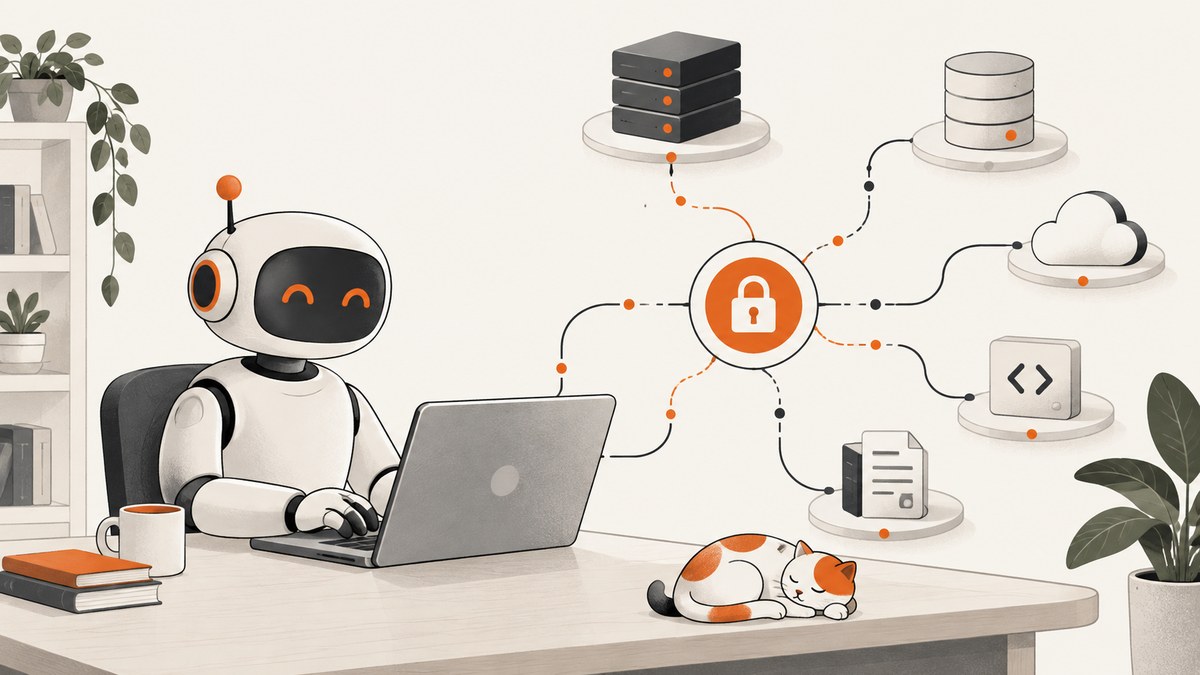
Short answer: Cursor connects to MCP servers through .cursor/mcp.json in a project or ~/.cursor/mcp.json globally. Add a local server with command and args, or a remote server with url and authentication settings. After saving, reload Cursor, inspect MCP Logs, and enable the discovered tools in Agent.
Cursor’s MCP documentation describes MCP (Model Context Protocol) as the connection layer between Cursor Agent and external tools or data sources. MCP servers expose callable tools and data; Cursor Agent can select those tools during a chat.
What MCP adds to Cursor
Without MCP, Cursor Agent can work with the files and terminal available in your workspace. With MCP, it can call capabilities hosted by another process or service, such as repository operations, databases, issue trackers, browser automation, or screenshot APIs.
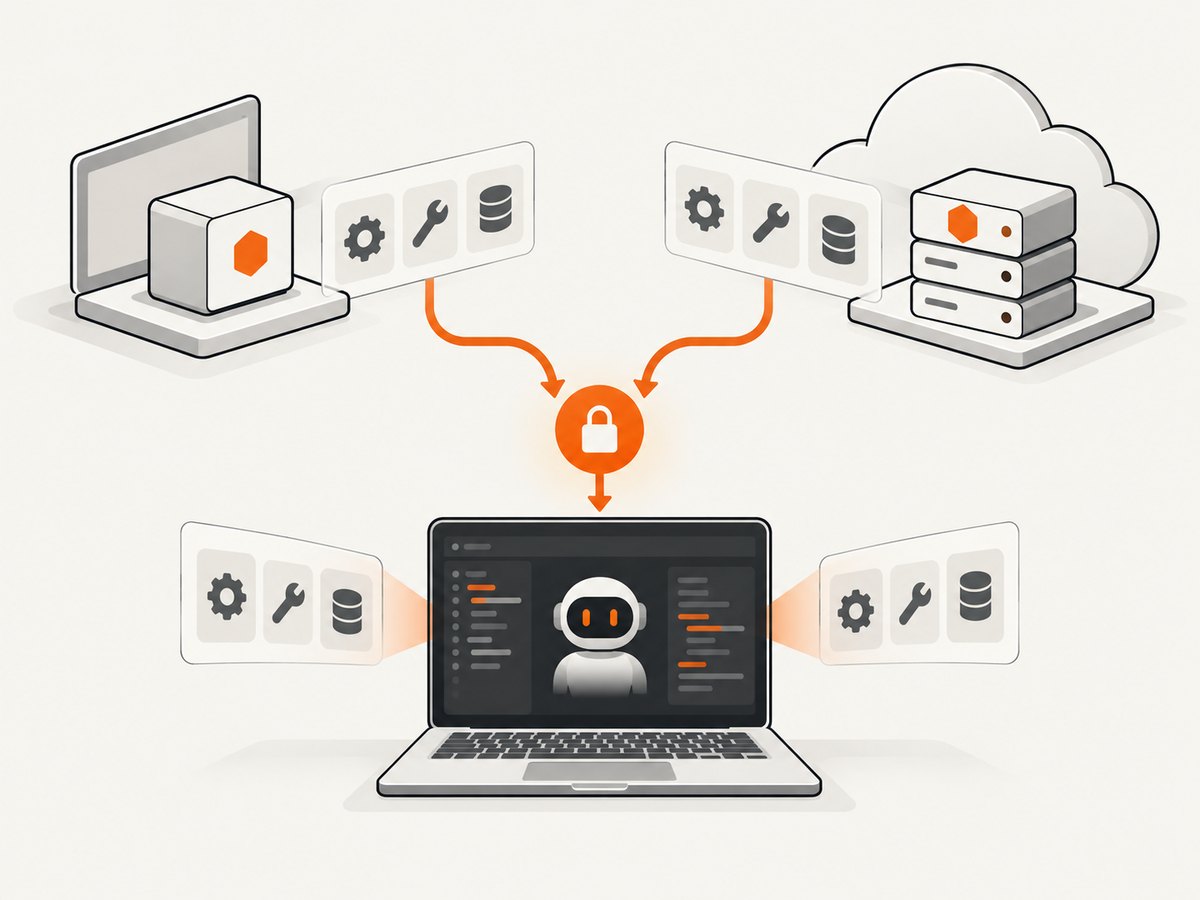
- Local stdio: Cursor starts a command on your computer and communicates over standard input/output.
- Remote SSE: Cursor connects to a server that exposes an HTTP-based event stream.
- Streamable HTTP: Cursor connects to a remote HTTP MCP endpoint.
The transport affects deployment and authentication. A local process is easy to run privately but must be installed on every developer machine. A remote server is easier to share with a team, but it needs network access, authentication, and server-side access controls.
Choose a configuration scope
| Location | Scope | Typical use |
|---|---|---|
.cursor/mcp.json |
Project | A repository-specific integration shared with collaborators |
~/.cursor/mcp.json |
Global | Tools you want in every project |
Cursor merges both scopes. If a server has the same name in both files, the project configuration takes priority. Keep secrets out of a project file that may be committed.
Fastest setup: add a server from Cursor
- Open Cursor and choose Customize > MCP.
- Select a server and click Add to Cursor.
- Complete the requested authentication flow.
- Open an Agent chat and check Available Tools.
- Enable the tools you want Agent to use and approve a call when Cursor asks.
This path avoids hand-editing JSON. Use manual configuration when you need a custom command, environment variable, project-specific server, or team-managed setup.
Manual local MCP configuration
Create .cursor/mcp.json at the project root, or edit ~/.cursor/mcp.json for a global server. The top-level key must be mcpServers.
{
  "mcpServers": {
    "my-server": {
      "command": "npx",
      "args": ["-y", "mcp-server"],
      "env": {
        "API_KEY": "${env:API_KEY}"
      }
    }
  }
}
command is the executable Cursor starts. Put command-line arguments in args. Use env or envFile for runtime configuration. The example uses environment interpolation so the key is not written into JSON.
Useful interpolation variables
${env:NAME}reads an environment variable.${workspaceFolder}resolves to the current project folder.${userHome}resolves to the user’s home directory.
Confirm that the command is installed and available on Cursor’s process path. A command that works in an interactive shell can still fail if Cursor was launched with a different environment.
Manual remote MCP configuration
A remote server uses a url. Depending on the service, add documented headers or OAuth-related settings.
{
  "mcpServers": {
    "remote-tools": {
      "url": "https://example.invalid/mcp",
      "headers": {
        "Authorization": "Bearer ${env:MCP_TOKEN}"
      }
    }
  }
}
Replace the placeholder URL and header with the values documented by the server provider. Do not put a long-lived token directly in a committed project configuration. Prefer environment variables, OAuth, or Cursor’s supported authentication settings.
Use MCP tools in Agent
- Save the configuration and reload or restart Cursor.
- Open an Agent chat.
- Expand Available Tools and confirm the server’s tools appear.
- Toggle individual tools on or off as needed.
- Ask Agent for a task that requires the tool and review Cursor’s approval prompt.
Tool discovery and execution are separate. A server may connect successfully while a tool is disabled, blocked by an allowlist, or restricted by team policy. Cursor can request approval before execution; Auto-review and allowlist controls may also affect whether a call runs.
Worked example: a GitHub MCP server
GitHub provides an official GitHub MCP Server installation path for Cursor. Use Cursor’s install flow when available, or place the server definition in the global ~/.cursor/mcp.json. Complete the server’s authentication flow, then confirm that repository, issue, or pull-request tools appear under Available Tools.
Give Agent the narrowest permissions that match the job. Read-only repository access is enough for code search and issue lookup; write operations should remain disabled until you need them and have reviewed the approval prompt.
Connect ScreenshotNeo to Cursor through MCP
ScreenshotNeo is a website screenshot API and MCP server. Its MCP tools include take_screenshot, get_page_info, and capture_pdf, so Cursor Agent can inspect a page or create an image and PDF during a coding workflow.

Follow the ScreenshotNeo documentation at https://screenshotneo.com/docs/ for the current MCP server configuration and authentication values, then add that server through Cursor’s MCP screen or its JSON configuration. Keep the access key in an environment variable.
Or skip the browser setup
If your task is simply to capture a website, a direct ScreenshotNeo request avoids installing and maintaining a browser automation stack.
curl -G "https://api.screenshotneo.com/v1/shot" \\
  -d access_key=YOUR_API_KEY \\
  --data-urlencode url=https://stripe.com \\
  -o shot.webp
import requests
r = requests.get(
"https://api.screenshotneo.com/v1/shot",
params={"access_key": "YOUR_API_KEY", "url": "https://stripe.com"},
timeout=90,
)
r.raise_for_status()
open("shot.webp", "wb").write(r.content)const q = new URLSearchParams({
access_key: 'YOUR_API_KEY',
url: 'https://stripe.com'
});
const res = await fetch(`https://api.screenshotneo.com/v1/shot?${q}`);
if (!res.ok) throw new Error(`HTTP ${res.status}`);
const image = Buffer.from(await res.arrayBuffer());
await import('node:fs/promises').then(fs => fs.writeFile('shot.webp', image));ScreenshotNeo removes cookie and consent banners, newsletter popups, and chat widgets before capture. Bot checks, blank pages, failed loads, timeouts, and cache hits are not billed; response headers identify the page verdict and whether the request was billed. Its MCP server lets AI agents take screenshots. The Free plan includes 1,000 screenshots per month with no card, and paid plans start at $5 for 3,000 shots. Create a free ScreenshotNeo account.
Authentication and secret handling
- Store API keys in environment variables or an approved OAuth configuration.
- Reference secrets with
${env:NAME}rather than writing values into JSON. - Do not commit tokens to
.cursor/mcp.json, shell history, or example code. - Use separate credentials for local development and team or production servers.
- Review the permissions requested by an MCP server before enabling write-capable tools.
Permissions, approvals, and team controls
Cursor supports MCP tool and terminal allowlists. Server-specific entries use server:tool syntax. A tool can therefore be unavailable because it is toggled off, awaiting approval, excluded by an allowlist, or restricted by an organization’s administrative policy. Ask an administrator to update the policy when a team-managed restriction is intentional.
Troubleshooting Cursor MCP
| Symptom | Likely cause | Fix |
|---|---|---|
| No server appears | Invalid JSON or wrong file path | Validate the JSON, ensure the file is exactly .cursor/mcp.json or ~/.cursor/mcp.json, and confirm the server is nested under mcpServers. |
| Server fails to start | Missing command or incorrect arguments | Run the command manually, install the required package, and verify that Cursor can find the executable on its PATH. |
| Remote server will not connect | Unreachable URL, expired credential, or blocked network | Check the endpoint, authentication settings, proxy or firewall rules, and the server’s status. |
| Tools are missing | Discovery failed or tools are disabled | Reload Cursor, inspect MCP Logs, then check Available Tools and allowlist settings. |
| Authentication error | Environment variable is unset or misspelled | Check the variable name without printing the secret, restart Cursor after changing it, and confirm the provider’s required scope. |
| Tool call is blocked | Approval, Auto-review, or administrative policy | Review the approval prompt and Cursor permissions; ask the team administrator if policy controls the integration. |
| Project server overrides global server | Same server name in both files | Rename one entry or update the project definition, which has precedence. |
The Output panel’s MCP Logs is the first place to investigate startup, connection, and tool-discovery errors. Check it after every configuration change.
Performance and reliability considerations
- Local startup: package downloads and process startup add latency. Pin dependencies where your team needs repeatable environments.
- Remote latency: network distance, authentication, and server queueing affect tool-call time. Keep requests focused and avoid unnecessary sequential calls.
- Failure isolation: a failed MCP call should not be treated as a successful mutation. Ask Agent to summarize the returned error before retrying.
- Approvals: approval prompts improve control but add a human step. Use allowlists for low-risk, well-understood tools.
- Scope: project configuration makes onboarding consistent; global configuration reduces duplication for personal utilities.
Security checklist
- Use least-privilege credentials.
- Keep secrets outside source-controlled JSON.
- Prefer HTTPS for remote servers.
- Review tools that can write files, modify repositories, send messages, or access production data.
- Keep server packages and runtime dependencies updated according to your organization’s process.
- Check MCP Logs for accidental secret exposure before sharing diagnostics.
FAQ
Where is Cursor’s MCP configuration file?
Use .cursor/mcp.json in a project for project-specific tools, or ~/.cursor/mcp.json for global tools.
Can one project use several MCP servers?
Yes. Add multiple named entries under the same mcpServers object.
Does MCP require a remote server?
No. Cursor supports local stdio servers as well as remote SSE and Streamable HTTP servers.
Why can Agent see a server but not use a tool?
The tool may be toggled off, awaiting approval, blocked by an allowlist, or restricted by team policy.
Should credentials go in mcp.json?
Keep credential values out of committed files. Use environment variables, supported authentication settings, or OAuth.
What should I check first when MCP breaks?
Validate the JSON, confirm the command or URL, verify authentication, reload Cursor, and inspect MCP Logs.


