How to Use the Docker Desktop MCP Toolkit
Enable Docker’s MCP Toolkit, build profiles, add servers, connect Claude or Cursor, and troubleshoot the most common setup problems.
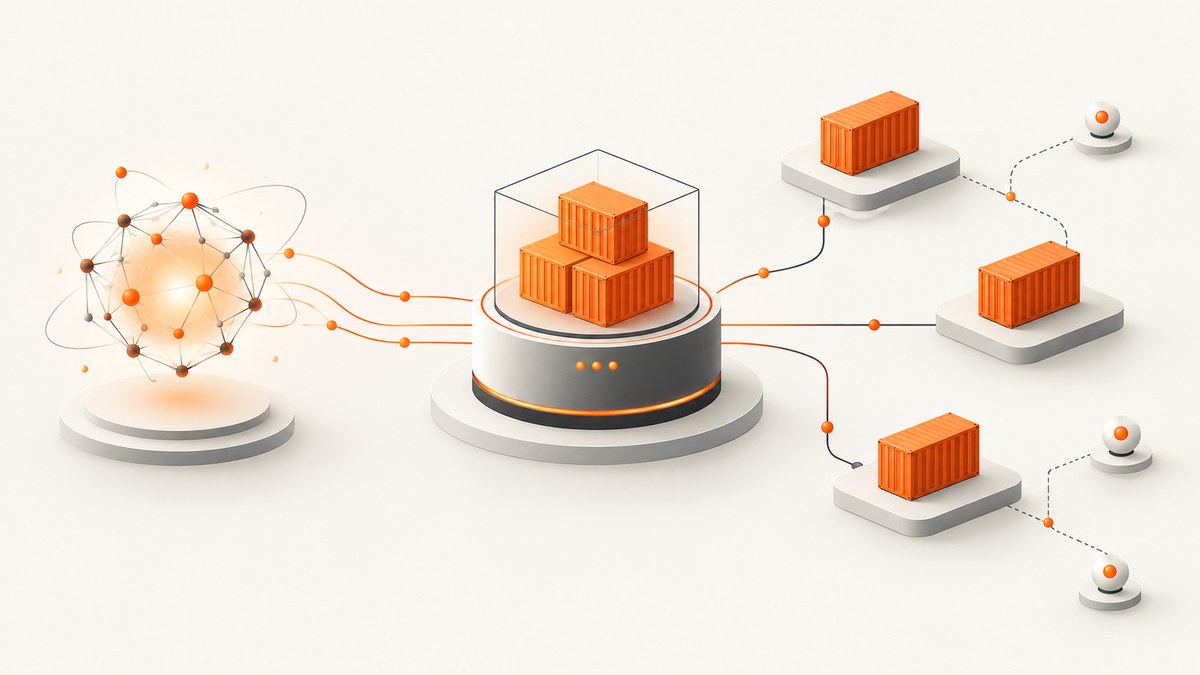
Docker Desktop’s MCP Toolkit lets you run containerized Model Context Protocol servers, organize them into profiles, and connect them to AI clients such as Claude or Cursor. The current workflow for Docker Desktop 4.62 and later is:
- Enable Docker MCP Toolkit in Docker Desktop Beta features.
- Create a profile for your project or environment.
- Add servers from the MCP Catalog to that profile.
- Connect a supported AI client, or configure an unlisted client with the Docker MCP gateway.
- Verify the connection by invoking an installed server.
Docker documents the Toolkit as a way to set up, manage, and run containerized MCP servers in profiles and connect them to AI agents. See the official Docker MCP Toolkit documentation for release-specific details.
What the Docker Desktop MCP Toolkit does
MCP servers expose tools and resources that an AI client can call. The Toolkit packages those servers as containers and gives you a graphical catalog, profiles, authentication flows, and a gateway command that presents selected servers to an MCP client.
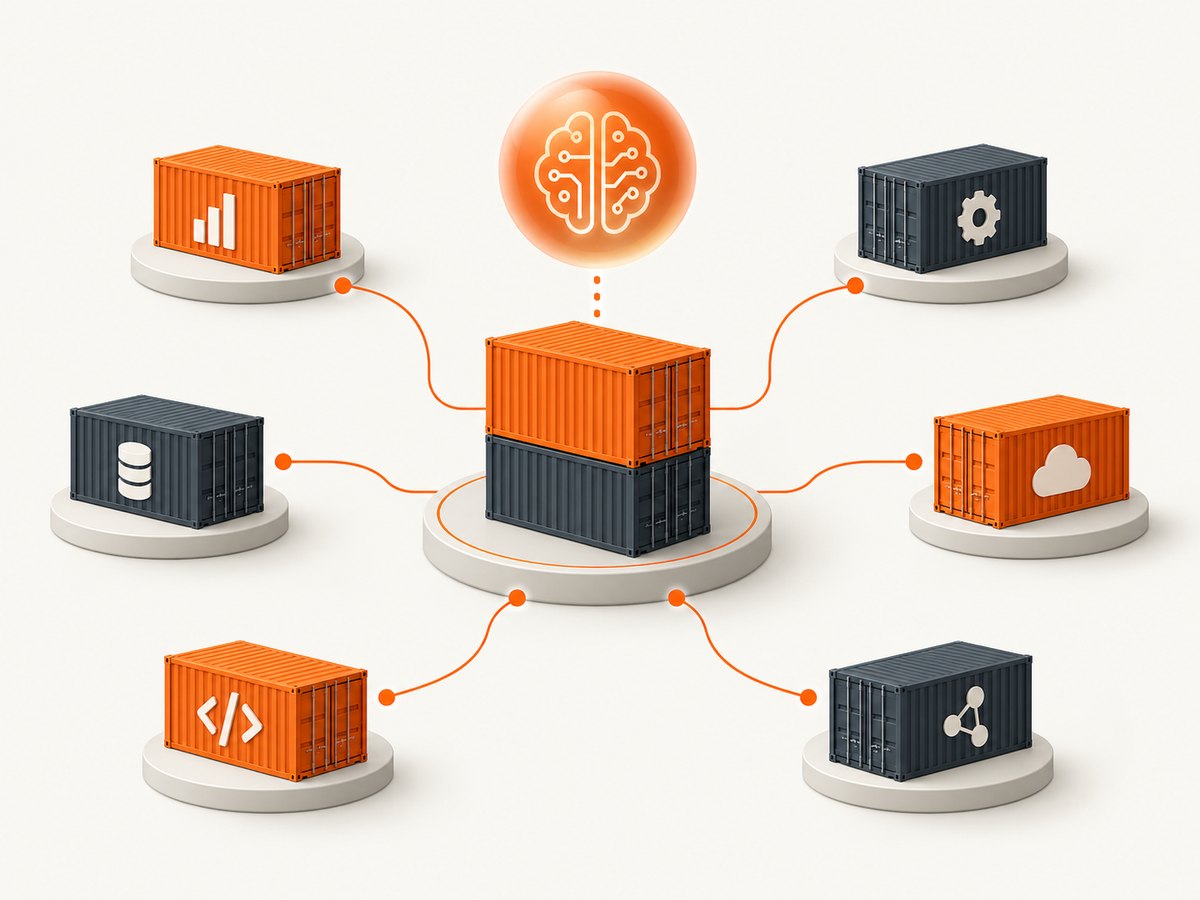
A profile is a named collection of servers. You can keep separate profiles for work, personal projects, staging, or different permission sets. When you connect a client to a profile, the client sees the servers enabled in that profile.
Prerequisites and version differences
- Install or update Docker Desktop. Docker’s current UI instructions target version 4.62 and later.
- Have an MCP-compatible client, such as Claude Desktop, Cursor, or another client that supports an MCP server over stdio.
- Have credentials ready for servers that require authentication.
Docker says the documented docker mcp profile commands require Docker Desktop 4.62 or later. Earlier releases may show a different interface and may not include every command. If a menu or command in this guide is missing, check your Docker Desktop version first.
Enable the MCP Toolkit
- Open Docker Desktop.
- Open Settings.
- Select Beta features.
- Enable Docker MCP Toolkit.
- Select Apply.
The Toolkit is labeled beta, so expect UI and command changes between Docker Desktop releases.
Create a profile
Using Docker Desktop
- Open MCP Toolkit in the Docker Desktop sidebar.
- Open Profiles.
- Create a profile and give it a descriptive name, such as
project-devorresearch.
If you upgraded from an earlier Toolkit version, Docker says existing configuration is placed in a default profile.
Using the CLI
docker mcp profile create project-dev
docker mcp profile list
docker mcp profile show project-dev
Use list to see available profiles and show to inspect the servers and configuration associated with one profile.
Add MCP servers from the Catalog
Using the Catalog UI
- Open MCP Toolkit > Catalog.
- Select a server.
- Choose Add to.
- Select an existing profile or create a new one.
- If the server displays Configuration Required, complete its required fields.
Authentication and required settings vary by server. Read the server’s catalog entry and documentation before enabling it, especially when it can access files, source code, cloud accounts, or production systems.
Using the CLI
docker mcp profile server add project-dev catalog://mcp/docker-mcp-catalog/github-official
docker mcp profile server add project-dev catalog://mcp/docker-mcp-catalog/playwright
docker mcp profile server list project-dev
The common catalog URI format is catalog://<catalog-ref>/<server-id>. Confirm the exact catalog reference and server ID in Docker’s Catalog or the server’s documentation; names and configuration fields are server-specific.
To remove a server:
docker mcp profile server remove project-dev <server-id>Removing a server stops its container, but Docker says the image remains on the system. Credentials also remain stored until you remove them manually.
Configure server credentials and settings
Some servers use browser-based OAuth. For supported servers, authorize the service through the Toolkit and review or revoke authorizations in the Toolkit’s OAuth tab.
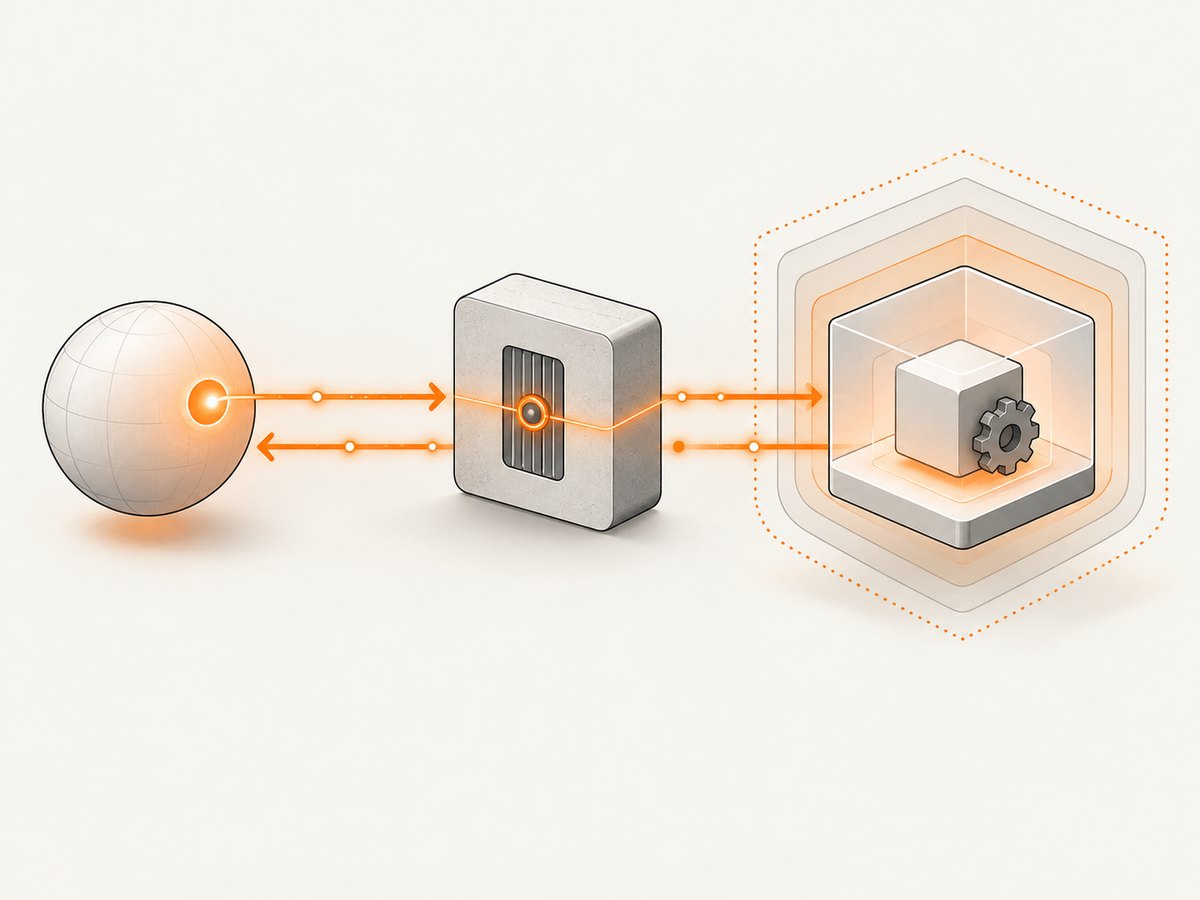
For servers that expose configuration through the CLI, inspect the server’s documented fields and then set them for the profile. The exact subcommand and key names depend on the server version, so use the command help and catalog entry rather than guessing:
docker mcp profile --help
docker mcp profile server --help
docker mcp profile server <configuration-command> --help
Keep secrets out of shell history where possible. Prefer the Toolkit’s supported OAuth or configuration UI and grant only the scopes the server needs.
Connect Claude, Cursor, or another MCP client
Connect a listed client
- Open MCP Toolkit > Clients.
- Find your AI application.
- Select Connect.
- Choose the profile to expose, if Docker asks you to select one.
- Restart or reload the client if it does not immediately discover the server.
Docker provides client-specific verification steps. For Claude, one documented check is:
claude mcp listThe connected entry commonly appears as MCP_DOCKER. The exact display depends on the client and its current integration.
Connect an unlisted client with stdio
Docker documents running the gateway with a profile:
docker mcp gateway run --profile project-devConfigure the client to launch Docker as a stdio server. The generic server entry is:
{
  "mcpServers": {
    "MCP_DOCKER": {
      "command": "docker",
      "args": ["mcp", "gateway", "run", "--profile", "project-dev"],
      "type": "stdio"
    }
  }
}
The location of this JSON depends on the client. Use that client’s MCP configuration documentation for the correct file and reload procedure.
Verify the connection safely
- Confirm that the client lists the gateway or server.
- Ask the client to list available tools.
- Invoke a low-risk operation from a server you recognize.
- Check the result and the server logs if the call fails.
For example, if you installed a GitHub server, use a read-only repository operation first. Do not begin with a write, delete, deployment, or account-changing operation.
Profiles for projects and teams
Use one profile per trust boundary. A profile for local documentation work should not automatically include a production database or deployment server. Useful profile patterns include:
| Profile | Typical servers | Reason |
|---|---|---|
docs |
GitHub read access, browser tools | Research and documentation |
app-dev |
Issue tracker, database read access | Development tasks |
release |
CI or deployment tools | Keep powerful tools isolated |
For teams that need a controlled selection, Docker documents custom OCI catalogs that can be curated, pushed, and imported. A curated catalog lets administrators define which server images and versions are available.
Security and permissions
Docker says catalog images under the mcp/ namespace are built by Docker, signed, and shipped with software bills of materials. Docker also documents runtime controls including a one-CPU and 2 GB memory limit for MCP tools, no default host filesystem access unless you explicitly grant mounts, and interception of requests containing sensitive information such as secrets.
These controls do not replace review. Before adding a server:
- Read its permissions and required environment variables.
- Check whether it can read local files, make network requests, or modify external services.
- Use a separate profile for higher-risk credentials.
- Grant the smallest OAuth scope that completes the task.
- Remove unused servers and revoke unused OAuth authorizations.
Docker’s MCP Gateway offering under AI Governance is described as invite-only. Do not confuse that offering with the ordinary local MCP Toolkit workflow in Docker Desktop. Dynamic MCP is described as experimental.
CLI workflow for repeatable setup
A scripted setup is useful when several developers need the same profile. The exact server IDs and configuration fields must come from the Catalog:
docker mcp profile create project-dev
docker mcp profile server add project-dev catalog://mcp/docker-mcp-catalog/github-official
docker mcp profile server add project-dev catalog://mcp/docker-mcp-catalog/playwright
docker mcp profile show project-dev
docker mcp gateway run --profile project-dev
Check the result after each add operation. If a server requires OAuth or mandatory configuration, complete that step before starting client work.
Docker Engine without Docker Desktop
Docker documents a separate installation path for Docker Engine users. The MCP Gateway must be installed separately, with platform-specific plugin paths described in the Docker documentation. After installation, the workflow still uses the docker mcp command, but Desktop’s UI is not available.
Troubleshooting
The MCP Toolkit menu is missing
Cause: The feature is disabled, Docker Desktop is too old, or the feature is unavailable in the installed build.
Fix: Update Docker Desktop, open Settings > Beta features, enable Docker MCP Toolkit, and apply the change. Reopen Docker Desktop if the menu does not appear.
A documented CLI command is unknown
Cause: The command set differs on an older Docker Desktop release.
Fix: Check docker version, update to Docker Desktop 4.62 or later for the documented profile workflow, and run docker mcp --help.
A server is missing from Catalog
Cause: The local catalog may be outdated.
Fix: Run:
docker mcp catalog updateThen refresh the Catalog view. If it is still absent, check whether the server belongs to a custom catalog or whether its catalog entry changed.
The client cannot start MCP_DOCKER
Cause: The client’s JSON points to the wrong executable, profile, or argument list.
Fix: Run the gateway directly:
docker mcp gateway run --profile project-devThen verify that the client uses command equal to docker and passes mcp gateway run --profile project-dev as separate arguments. Confirm the profile exists with docker mcp profile list.
The server appears but tool calls fail
Cause: Required configuration, OAuth, permissions, or service-side access is missing.
Fix: Reopen the Catalog entry, complete every required field, authorize the service if needed, and test a read-only operation. Check the server’s own documentation for required scopes and account roles.
OAuth authorization is stale
Cause: The token may be expired, revoked, or tied to a different account.
Fix: Open the Toolkit OAuth tab, inspect the authorized service, revoke the stale authorization, and authorize it again with the intended account.
Removing a server did not free disk space
Cause: Docker leaves the image on the system after removing the profile entry.
Fix: Treat server removal and image cleanup as separate operations. Review local Docker images and remove only images you no longer need, using your normal Docker image cleanup process.
Performance, reliability, and cost considerations
- Startup: A server may need to start its container before the first tool call. Keep frequently used servers in a stable profile and avoid enabling large unused collections.
- Resources: Docker documents a one-CPU and 2 GB memory limit for MCP tools. Multiple active tools still compete for the host’s available resources.
- Reliability: OAuth expiry, service rate limits, catalog changes, and client reload behavior can interrupt calls. Keep a read-only verification command for each critical profile.
- Reproducibility: Record the profile name, catalog reference, server ID, and required configuration in project documentation. Custom catalogs can help teams control available versions.
- Cost: Docker Desktop Toolkit setup does not require dedicated hardware. Any external service accessed by an MCP server can have its own account, usage, or API charges; check that service’s pricing separately.
Or skip the browser setup
If your goal is simply to capture website screenshots for an AI workflow, ScreenshotNeo provides a hosted screenshot API and MCP server. It removes cookie and consent banners, newsletter popups, and chat widgets before capture. Bot checks, blank pages, timeouts, failed loads, and cache hits are not billed, and responses identify the result with X-Page-Verdict and X-Billed headers. Its MCP server works with Claude, Cursor, and other MCP clients through take_screenshot, get_page_info, and capture_pdf.
Use the API directly:
curl -G "https://api.screenshotneo.com/v1/shot" -d access_key=YOUR_API_KEY --data-urlencode url=https://stripe.com -o shot.webpimport requests
r = requests.get("https://api.screenshotneo.com/v1/shot", params={"access_key": "YOUR_API_KEY", "url": "https://stripe.com"}, timeout=90)
open("shot.webp", "wb").write(r.content)const q = new URLSearchParams({ access_key: 'YOUR_API_KEY', url: 'https://stripe.com' });
const res = await fetch(`https://api.screenshotneo.com/v1/shot?${q}`);See the ScreenshotNeo API documentation for options such as full-page capture, CSS selectors, device presets, dark mode, custom JavaScript, waits, blocked resources, headers, cookies, geolocation, PDFs, signed links, async jobs, bulk capture, and caching. The Free plan includes 1,000 screenshots per month with no card; paid plans start at $5 for 3,000 shots.
Create a free ScreenshotNeo account and get 1,000 screenshots each month with no card.
FAQ
Is the Docker MCP Toolkit stable?
Docker labels the Toolkit beta. Pin your Docker Desktop version in team documentation and recheck the official instructions after upgrades.
Can one client use multiple profiles?
Yes. Start or configure a gateway for the profile whose servers you want the client to access. Use separate client configurations when you need simultaneous, isolated profiles.
Do all Catalog servers use OAuth?
No. Authentication requirements vary by server. Some use OAuth, while others require API keys or other configuration.
Can I use a custom MCP server?
Docker documents custom OCI catalogs for curated team selections. Follow the catalog and server packaging requirements in the official documentation.
What should I do before granting filesystem access?
Review the server code or image provenance, mount only the required directories, and put the server in a profile isolated from unrelated credentials.


