How to Use the Docker MCP Gateway
Connect AI clients to containerized MCP servers with Docker Desktop or the CLI. Set up profiles, configure servers, and troubleshoot Gateway connections.

Docker’s MCP Gateway connects MCP clients to configured MCP servers through a central broker. For most users, the quickest setup is Docker Desktop’s MCP Toolkit: enable it, choose a profile, add the servers you need, connect a client, and verify that client can see the tools. For a terminal workflow or a client that is not listed in Docker Desktop, create a profile with the Docker CLI and configure the client to launch docker mcp gateway run --profile <profile-id> over stdio.
The current Toolkit UI and documented CLI workflow apply to Docker Desktop 4.62 and later. Docker marks MCP Toolkit as beta, so check the current documentation and your installed CLI help if a command or screen differs. Docker MCP Toolkit · CLI guide
1. Understand what the Gateway does
The Gateway is the broker between MCP clients—such as AI applications—and MCP servers that provide tools. A profile selects which servers are available. When a client calls a tool, the Gateway routes the request to the responsible server, starts its container if needed, applies configured restrictions, provides required credentials, and relays the result back to the client. Docker describes the Gateway as a centralized proxy for configuration, credentials, access control, routing, and server lifecycle. Docker’s Gateway overview
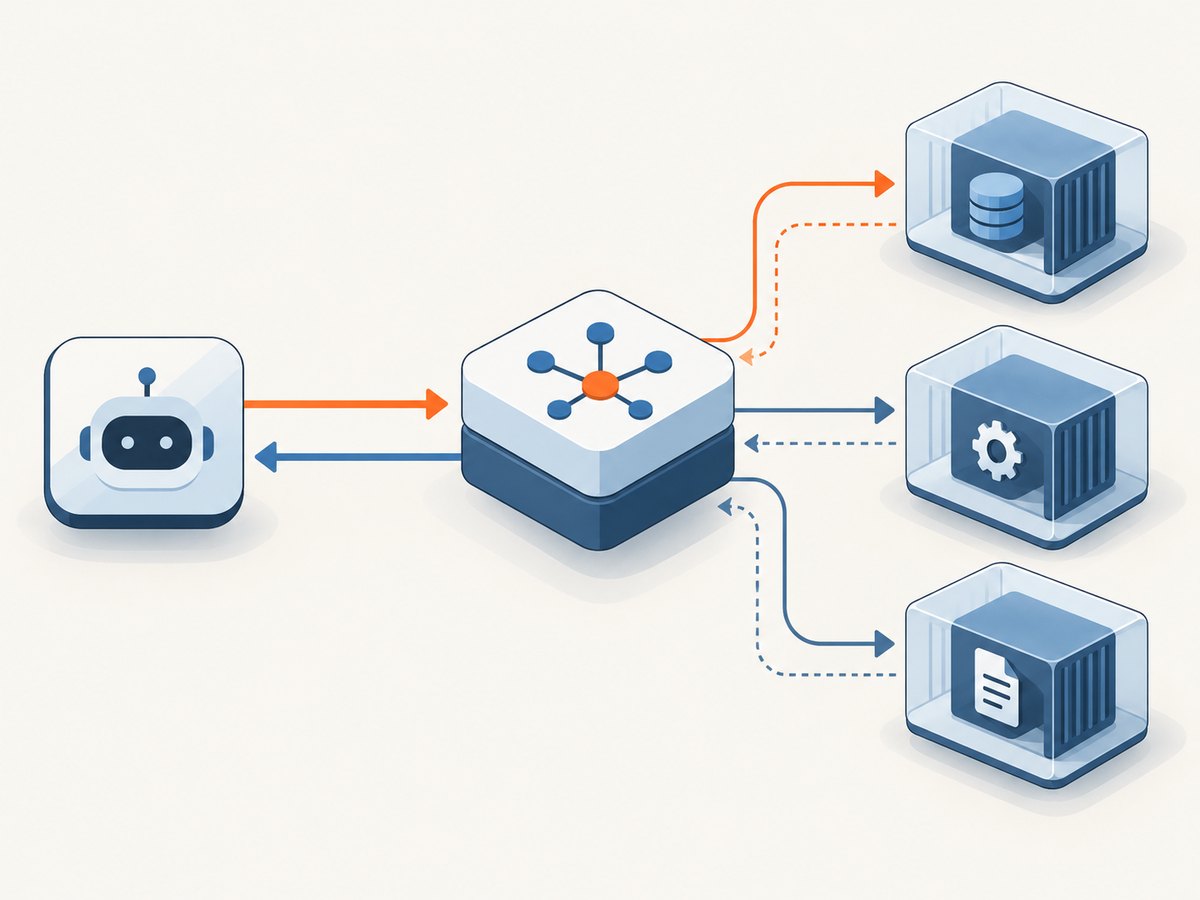
With Docker Desktop and MCP Toolkit enabled, the Gateway runs in the background; you generally do not need to start it yourself. Running gateway run directly is useful for clients you configure manually and other advanced workflows. Profiles let you keep different server sets for different projects or environments, such as a web development profile with browser tools and a separate backend profile.
2. Set it up in Docker Desktop
- Use Docker Desktop 4.62 or later. The Toolkit screens described here may differ in earlier versions.
- In Docker Desktop, open Settings > Beta features, enable MCP Toolkit, and select Apply.
- Open MCP Toolkit. Choose an existing profile or create one for the project or environment you are working on.
- Open the Catalog and add the MCP servers you need to that profile. Start with a small set so your client has access only to relevant tools.
- If a server displays Configuration Required, open its configuration and provide the values it requests. The server’s documentation or the Toolkit configuration view defines the required keys and formats.
- Open the Clients tab and connect your AI application. Follow the displayed client-specific instructions.
- In the client, inspect its available MCP tools or follow its connection instructions to verify the setup.
OAuth-based servers need an additional authorization step in Docker Desktop after they have been added. Complete that authorization before diagnosing a missing tool as a Gateway problem. Docker’s getting started guide describes the current UI flow.
3. Create a profile and add servers with the CLI
The CLI is useful when you want a named profile, prefer terminal configuration, or need to connect a client manually. Run these commands with Docker Desktop 4.62 or later:
docker mcp profile create --name web-dev
docker mcp catalog server ls mcp/docker-mcp-catalog
docker mcp profile server add web-dev \
  --server catalog://mcp/docker-mcp-catalog/github-official \
  --server catalog://mcp/docker-mcp-catalog/playwright
docker mcp profile server ls --filter profile=web-dev
docker mcp gateway run --profile web-dev
The catalog listing command helps you find available server identifiers. Replace the example servers with the ones you actually need. The final command runs the Gateway for the selected profile in the foreground; stop it with your terminal’s interrupt key when you are finished.
Server reference formats
Docker documents several ways to identify a server when adding it to a profile:
catalog://<catalog-ref>/<server-id>for a catalog entry.docker://<image>:<tag>for a container image.https://<url>/v0/servers/<uuid>for a community registry server.file://<path>for a local YAML or JSON server definition.
For example, a profile can be configured with a server-specific value using the documented profile config command:
docker mcp profile config web-dev --set <server-id>.<key>=<value>Use the server’s own documentation or its Catalog configuration view to determine valid keys and values. Do not assume one server’s configuration names apply to another server. See Docker’s CLI reference guide for command details and the installed version’s help for current options.
4. Connect an MCP client
For clients integrated with Docker Desktop, connect through the Toolkit’s Clients tab and follow its instructions. For an unlisted client that supports a JSON stdio server configuration, use an entry like this and adapt the JSON property names to that client’s format:
{
  "servers": {
    "MCP_DOCKER": {
      "command": "docker",
      "args": ["mcp", "gateway", "run", "--profile", "web-dev"],
      "type": "stdio"
    }
  }
}
Some clients use a different top-level property or omit "type": "stdio". Docker’s Claude Desktop example, for instance, uses an mcpServers property. Follow the target client’s own configuration format; the important part is launching Docker with the Gateway command and the intended profile.
If your client has a documented Docker-specific connect command, use its instructions instead of hand-editing a config. For example, Docker documents connecting VS Code to a profile with docker mcp client connect vscode --profile web-dev. That command creates a project-specific .vscode/mcp.json; Docker advises adding that user-specific file to .gitignore if it should not be committed. See the Toolkit client examples.
5. Choose Gateway runtime and security options
The Gateway run command exposes runtime and security controls. The available flags depend on the installed version, so check docker mcp gateway run --help before copying a production command. Docker’s current gateway run reference documents these options:
| Option or behavior | What to consider |
|---|---|
| Transport | stdio is the default; SSE and streaming transports are also documented. Choose a transport supported by the client and deployment you use. |
| Secret blocking | --block-secrets=true is documented as the default. Docker Desktop’s secrets API is the default secrets source. Check how credentials are supplied and protected for your server and client. |
| Call logging | --log-calls=true is documented as the default. Consider the information tool calls may contain when deciding how to handle logs. |
| Network restrictions | The Gateway offers controls to block tools from forbidden network resources. Configure restrictions in line with the servers’ required destinations. |
| Image signature verification | A signature verification option is available. Use it according to the provenance and verification requirements for the images you run. |
| Resource limits | Per-server CPU and memory limits are available. Set them based on the needs of the selected servers and your environment. |
| Dry run and static mode | These modes are documented for specialized workflows; consult the installed command’s help and the Gateway reference for their current behavior. |
Container isolation and Gateway controls can reduce exposure, but they do not make every server or configuration automatically safe. Review each server’s permissions, credentials, network needs, image source, and client access. Docker’s Gateway overview explains its isolation model; the actual controls depend on the server and how you configure the Gateway.
6. Install the CLI plugin without Docker Desktop
For Docker Engine without Docker Desktop, Docker documents installing the Gateway binary as a Docker CLI plugin. Download the latest binary from Docker’s linked GitHub releases and place it in the CLI plugin directory for your operating system:
- Linux and macOS:
~/.docker/cli-plugins/docker-mcp - Windows:
%USERPROFILE%\.docker\cli-plugins
On Linux or macOS, make the binary executable and confirm the CLI recognizes it:
chmod +x ~/.docker/cli-plugins/docker-mcp
docker mcp --help
Follow the release’s platform-specific instructions and check the current Gateway documentation before installation, since binary releases and platform steps can change. Docker’s Gateway installation section documents this route.
7. Troubleshoot common connection problems
| Symptom | Likely cause | What to do |
|---|---|---|
docker mcp is not recognized |
Docker Desktop may be older than 4.62, or the Gateway CLI plugin may not be installed or located in the plugin directory. | Check the Docker Desktop version. Without Desktop, install the plugin in the documented OS-specific directory, then run docker mcp --help. |
| The client cannot start the Gateway | The client’s command, argument list, or configuration schema may be wrong; it may also lack access to the Docker CLI. | Run the exact docker mcp gateway run --profile web-dev command in a terminal first. Then confirm the client uses its documented stdio configuration format and can invoke docker. |
| The client connects but shows no tools | The wrong or empty profile may be selected, the server may not have been added, or its setup may be incomplete. | List servers with docker mcp profile server ls --filter profile=web-dev, check the client’s profile argument, and complete any Configuration Required steps. |
| An OAuth server is unavailable | The server has been added but not authorized. | Complete the server’s authorization in Docker Desktop, then reconnect or refresh the client as its instructions require. |
| A server fails during startup | Its image reference, configuration, credentials, or required network access may be incorrect or unavailable. | Verify the reference and server-specific values, check Docker’s output and Gateway logs, and confirm required resources are reachable under the configured restrictions. |
| Commands or screens in the guide do not match | The guide’s documented workflow targets Docker Desktop 4.62 and later; earlier releases have a different UI, and flags may vary by CLI version. | Use the current Docker documentation and inspect docker mcp --help and docker mcp gateway run --help for the installed version. |
8. Performance, reliability, and cost considerations
The Gateway manages server lifecycle, including starting a server container when a requested tool needs it. A first call can therefore include server startup, while a running server may already be available for subsequent calls. The exact delay depends on the server, image availability, machine resources, and network; Docker’s cited documentation does not provide a general latency benchmark.
Keep profiles focused: fewer servers make the set of tools available to a client easier to reason about and can avoid starting servers that a task does not need. For resource planning, consider the selected servers’ CPU and memory use and the documented per-server limits. Reliability also depends on the server image, credentials, external services, network restrictions, and Docker environment. There is no universal cost figure in the supplied Docker documentation; account for the compute and infrastructure where containers and any external services run.
9. Or skip the browser setup
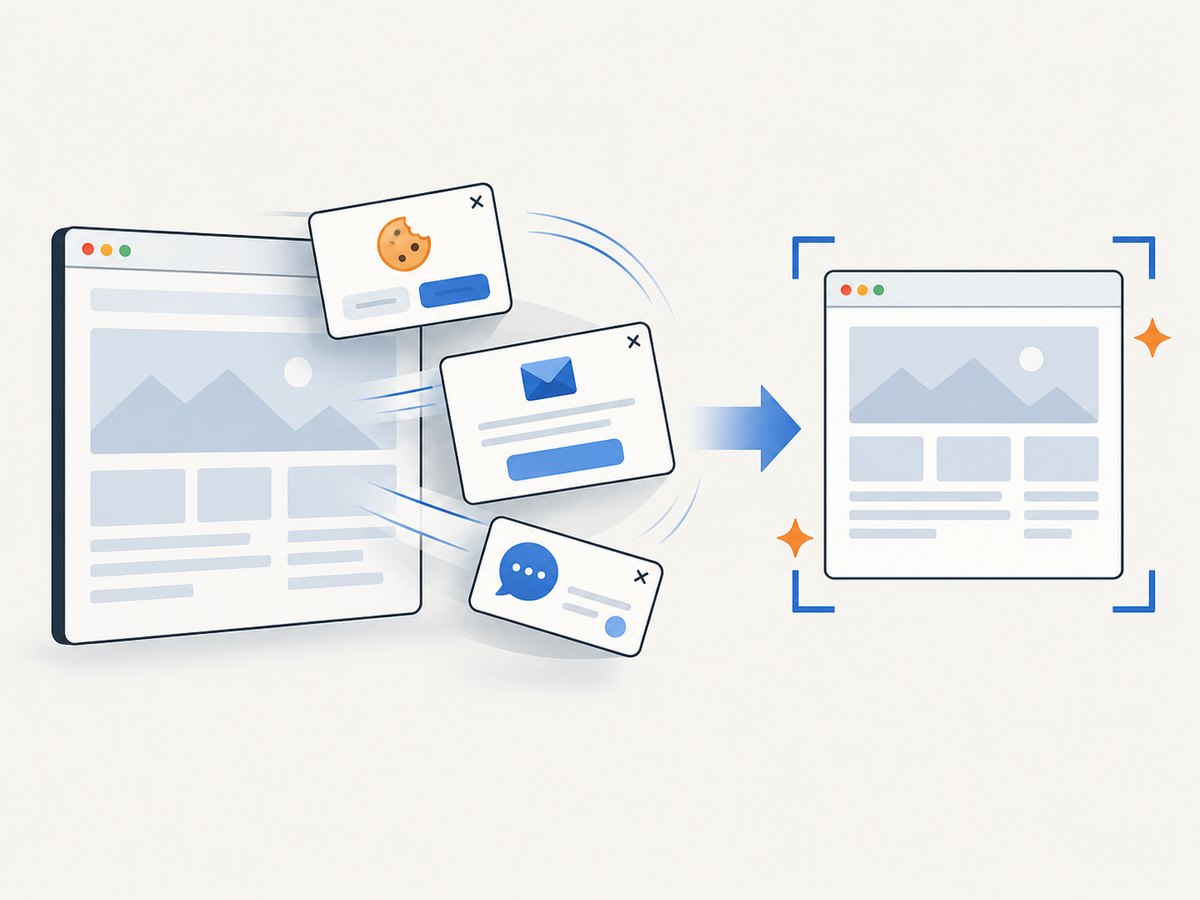
If the MCP task is to capture a web page, ScreenshotNeo offers a screenshot API and MCP server. A single GET request returns an image or PDF. Its browser capture removes cookie and consent banners, newsletter popups, and chat widgets before the shot; bot checks, blank pages, timeouts, failed loads, and cache hits are not billed. Its MCP server exposes take_screenshot, get_page_info, and capture_pdf for Claude, Cursor, and other MCP clients. See the API documentation.
Here is a runnable cURL example:
curl -G "https://api.screenshotneo.com/v1/shot" \
  -d access_key=YOUR_API_KEY \
  --data-urlencode url=https://stripe.com \
  -o shot.webp
Python:
import requests

r = requests.get(
    "https://api.screenshotneo.com/v1/shot",
    params={"access_key": "YOUR_API_KEY", "url": "https://stripe.com"},
    timeout=90,
)
open("shot.webp", "wb").write(r.content)
Node.js:
const q = new URLSearchParams({
  access_key: 'YOUR_API_KEY',
  url: 'https://stripe.com'
});
const res = await fetch(`https://api.screenshotneo.com/v1/shot?${q}`);
if (!res.ok) throw new Error(`Screenshot request failed: ${res.status}`);
const bytes = new Uint8Array(await res.arrayBuffer());
await (await import('node:fs/promises')).writeFile('shot.webp', bytes);
ScreenshotNeo includes full-page and element capture, viewport and device settings, PDF options, custom CSS and JavaScript, waits, request blocking, cookies and headers, caching, async jobs, bulk capture, signed image links, and a usage API. Plans include 1,000 shots per month free with no card; paid plans start at $5 for 3,000 shots. Sign up for 1,000 free screenshots a month, with no card required.
10. FAQ
Does Docker Desktop need a separate Gateway process?
When Docker Desktop has MCP Toolkit enabled, the Gateway runs automatically in the background. You usually only run the Gateway command directly for manual or advanced client configurations.
Can profiles be used across more than one client?
Profiles define the server set available through the Gateway, and clients connect to a profile. Use the same profile where appropriate, or create separate profiles when projects or environments need different server access.
Does the CLI workflow work on every Docker Desktop version?
The current Toolkit and CLI guides specify Docker Desktop 4.62 and later. Earlier versions may have different screens or may not support all documented commands.
Is the Gateway the same as an MCP server?
No. The Gateway routes between MCP clients and the servers that provide tools. The profile determines which configured servers are exposed to the client.


