How to Use an MCP Server to Explore a Codebase
Connect an MCP-compatible client, inspect its capabilities, and safely use server tools to explore a codebase.

Direct answer: configure an MCP-compatible client with the repository server’s documented endpoint or launch command, inspect the server’s advertised tools and resources, verify authentication and access scope, then use the narrowest read operation that answers your question. MCP provides the connection and capability-discovery protocol; it does not guarantee that a server indexes an entire repository or supports every codebase operation.
An MCP server can expose callable tools, resources, prompts, and instructions. Your client discovers those capabilities, sends schema-shaped arguments to a selected tool, and displays the returned result. The exact interface depends on the client and server implementation.
1. Understand what the MCP server actually provides
Before asking questions about a project, inspect the server’s declared capabilities. Look for:
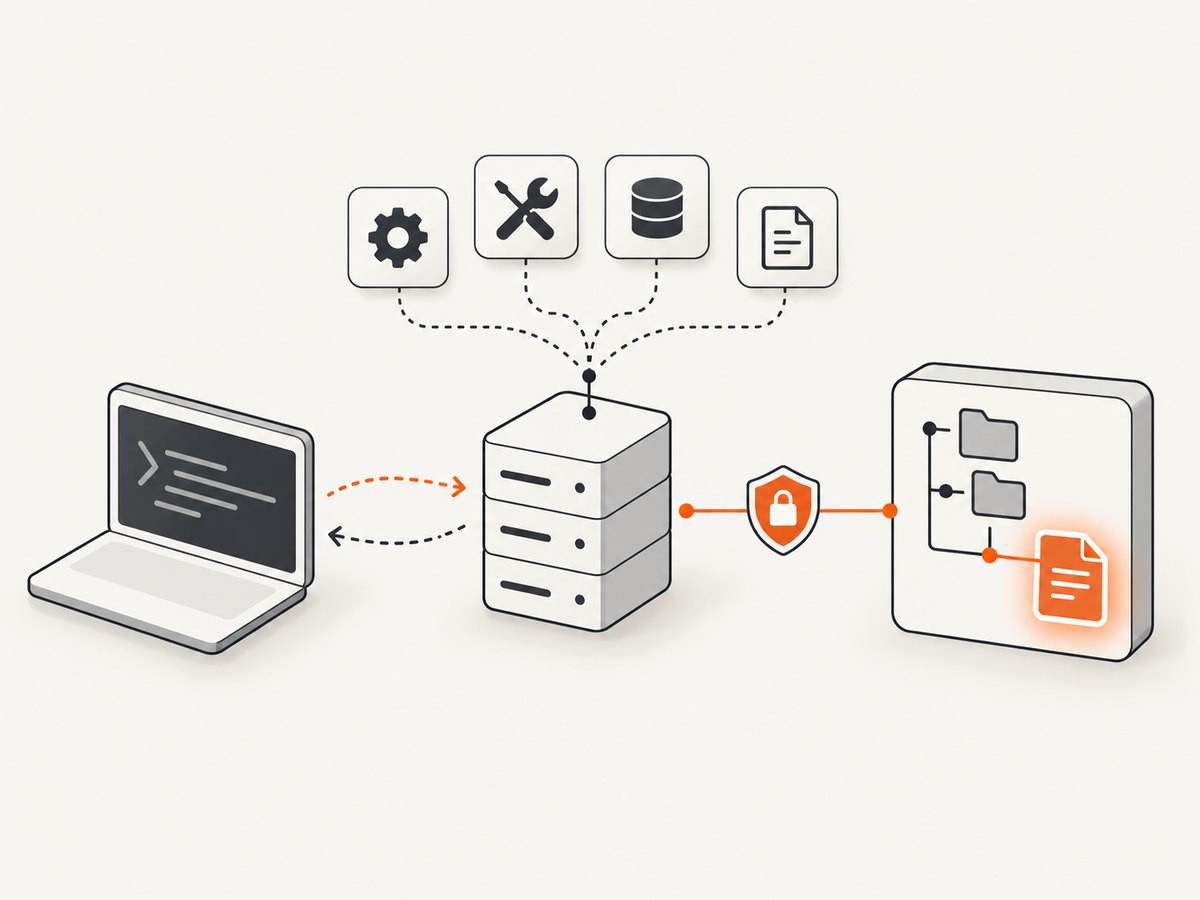
- Tools: callable functions with names, descriptions, and input schemas. A codebase server might offer project-tree, file-content, symbol-search, or test-running tools, but you must confirm these in its tool list.
- Resources: addressable data or content that a client can read.
- Prompts: reusable prompt templates supplied by the server.
- Instructions: server-provided guidance that explains intended use.
MCP itself does not define a universal codebase browser. A server may index a repository, expose selected files, provide read-only context, or perform write actions. Client presentation and support also vary. See OpenAI’s MCP server concepts for the protocol model.
2. Review trust, permissions, and configuration
Treat an MCP connection as an access decision. A local server can run code on your machine, and a remote server may receive repository data. Before connecting:
- Identify who operates the server and read its documentation.
- Check which directories, network services, credentials, and commands it can access.
- Determine whether it is read-only or can modify files, run commands, or create external side effects.
- Confirm its authentication method and whether private repository data is protected.
- Review workspace configuration files before trusting a repository’s MCP settings.
VS Code documents workspace MCP configuration and trust behavior for .vscode/mcp.json and .mcp.json. OpenAI’s server guidance recommends stable HTTPS with streamable HTTP for production services and authorization for private data or actions: VS Code MCP servers and Build an MCP server.
3. Connect a server in an MCP client
Codex CLI example
The OpenAI Docs MCP setup demonstrates the syntax for adding a remote server:
codex mcp add openaiDeveloperDocs --url https://developers.openai.com/mcp
codex mcp list
This server provides OpenAI documentation search and page content. It is a configuration example, not a codebase server and not a way to inspect a local repository.
Codex configuration file
You can also define a server in ~/.codex/config.toml:
[mcp_servers.openaiDeveloperDocs]
url = "https://developers.openai.com/mcp"
For a repository server, replace the name and URL with the endpoint documented by that server. If it is a local process, use the client’s documented command and transport fields instead of guessing them.
Other clients
Claude, Cursor, VS Code, and other MCP clients use their own settings screens or configuration formats. Follow the selected client’s documentation for:
- remote streamable HTTP URLs versus local process commands;
- environment variables and secret storage;
- workspace-scoped versus user-scoped configuration;
- approval prompts for tools that write files or execute commands.
Do not copy a Codex configuration block into another client without checking its schema.
4. Discover and inspect capabilities
After connecting, open the client’s server or tool list. Record each relevant tool’s name, description, required parameters, optional parameters, and return shape. Start with a harmless read operation, such as listing the repository root or retrieving one known file.
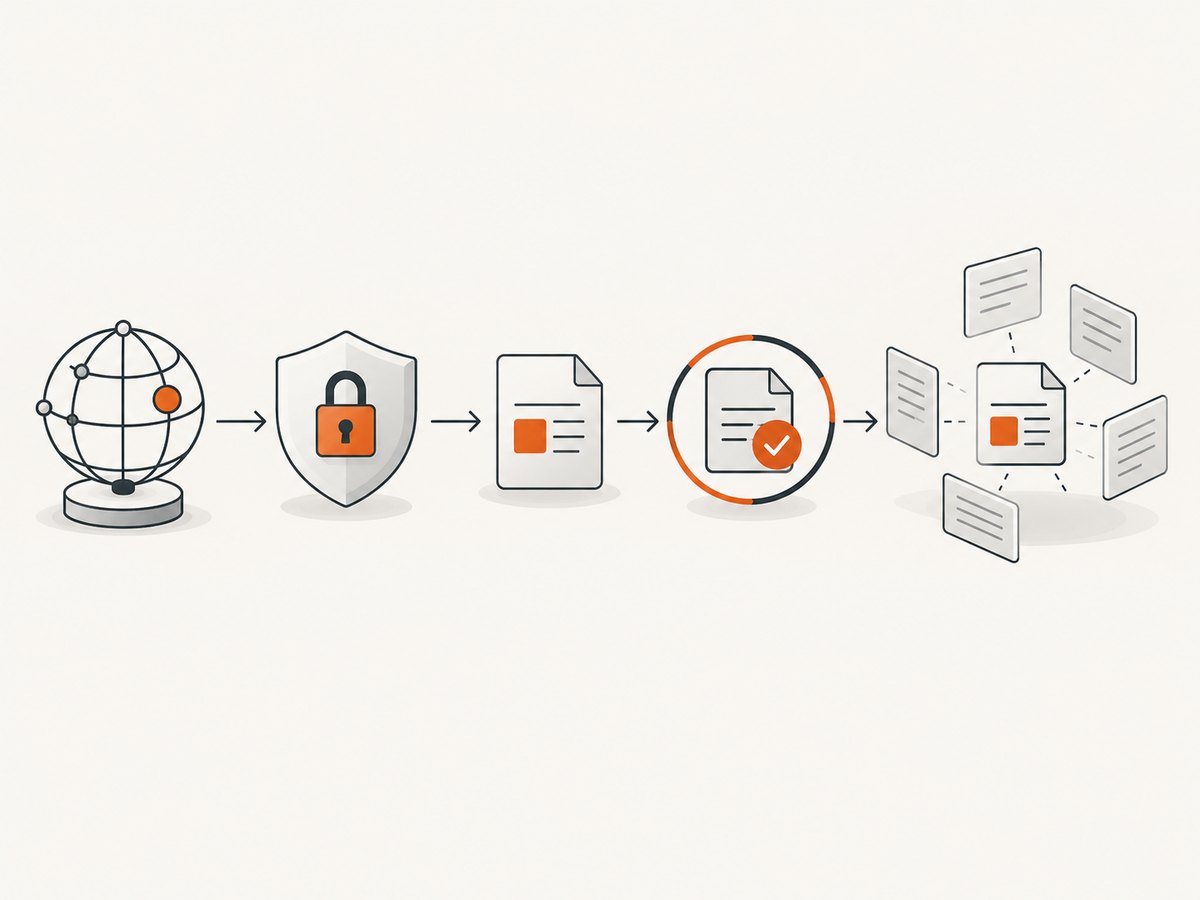
A useful exploration sequence is:
- Initialize: confirm the client completes the MCP handshake.
- List capabilities: inspect tools, resources, prompts, and server instructions.
- Choose a narrow operation: request one directory, file, symbol, or documentation resource.
- Validate the result: check paths, revision, generated output, and error details.
- Expand gradually: move from a small context window to related files only when needed.
Use MCP Inspector while developing or evaluating a server
OpenAI’s build guide recommends MCP Inspector for checking a streamable HTTP endpoint, commonly exposed at /mcp. Use it to test:
- successful initialization and server instructions;
- advertised tools and their input schemas;
- representative valid inputs and deliberately invalid inputs;
- result formats, errors, and annotations;
- authorization for private data and write-capable operations.
Inspector is a verification aid for an MCP server; it does not turn an arbitrary server into a repository index.
5. Ask focused codebase questions
Once you know the available capabilities, phrase requests around those capabilities. For example:
- “List the top-level directories and identify the application entry point.”
- “Read
src/auth/session.tsand summarize how refresh tokens are validated.” - “Find callers of
buildQueryand show the files that define them.” - “Compare the configuration keys used by the development and production startup paths.”
Give the client a path, symbol, or bounded question when possible. Ask it to identify the files and revision behind an answer so you can verify the context. If the server exposes only resources, retrieve those resources directly; if it exposes tools, use the tool whose schema matches the operation.
6. A practical exploration checklist
| Check | What to verify |
|---|---|
| Identity | Server owner, endpoint, version, and repository scope |
| Transport | Client supports the server’s local or streamable HTTP transport |
| Capabilities | Actual tool/resource names, descriptions, schemas, and instructions |
| Access | Authentication, workspace trust, directory permissions, and secret handling |
| Safety | Whether tools can write, execute commands, or affect external systems |
| Evidence | Returned paths, revisions, errors, and source context are visible |
7. Troubleshooting MCP codebase exploration
| Symptom | Likely cause | Fix |
|---|---|---|
| Server does not appear after configuration | Malformed client config, wrong scope, or unsupported transport | Run the client’s server-list command, validate the configuration syntax, and use the server’s documented transport. |
| Initialization fails | Endpoint is wrong, server is unavailable, or protocol versions are incompatible | Check the URL, TLS/network access, server logs, and client/server compatibility. |
| No repository tools are listed | The server exposes documentation or generic capabilities rather than codebase operations | Inspect the advertised list and install or configure a server that documents repository tools. |
| Tool call is rejected | Arguments do not match the input schema or required authentication is missing | Read the schema, supply required fields with correct types, and refresh credentials. |
| Results omit files | Workspace root, ignore rules, permissions, or server indexing scope limit visibility | Confirm the configured root and access policy; ask the server for its visible scope. |
| Private files are exposed unexpectedly | Overbroad directory permissions or an untrusted server | Disconnect, reduce the allowed scope, rotate exposed credentials, and review server ownership and authorization. |
| Answers cite stale code | Cached index or a different checkout/revision | Check the reported revision and refresh or rebuild the server’s index if supported. |
| Write action happened unexpectedly | The selected tool is not read-only or approval settings are too permissive | Stop using the tool, inspect its schema and annotations, and require explicit approvals for write operations. |
8. Performance, reliability, and cost considerations
- Bound context: retrieve the smallest relevant files or symbols first. Large directory dumps increase latency and can crowd out useful context.
- Prefer stable identifiers: include repository path, branch or revision, and symbol names when the server supports them.
- Handle failures: distinguish authentication, transport, schema-validation, permission, and repository errors so retries do not hide a configuration problem.
- Use safe retries: retry idempotent reads after transient network failures; require confirmation before retrying writes or commands.
- Watch server-side limits: indexing time, file-size limits, ignored paths, rate limits, and maximum result sizes are implementation-specific.
- Control spend: MCP has no universal price. Check the chosen server, hosting, model, and client billing terms. Local servers may avoid service fees while still using CPU, storage, and network resources.
9. Or skip the browser setup
If your workflow also needs clean website captures for documentation, issue reports, or visual regression context, ScreenshotNeo provides an MCP server that AI agents such as Claude, Cursor, and other MCP clients can use. Its capture tools remove cookie banners, newsletter popups, and chat widgets before the shot; bot checks, blank pages, timeouts, failed loads, and cache hits are not billed. You can use take_screenshot, get_page_info, and capture_pdf through the MCP server.
For a direct API call, see the ScreenshotNeo API documentation:
curl -G "https://api.screenshotneo.com/v1/shot" -d access_key=YOUR_API_KEY --data-urlencode url=https://stripe.com -o shot.webpimport requests
r = requests.get("https://api.screenshotneo.com/v1/shot", params={"access_key": "YOUR_API_KEY", "url": "https://stripe.com"}, timeout=90)
open("shot.webp", "wb").write(r.content)const q = new URLSearchParams({ access_key: 'YOUR_API_KEY', url: 'https://stripe.com' });
const res = await fetch(`https://api.screenshotneo.com/v1/shot?${q}`);Every plan includes the features: full-page and element capture, device and retina settings, dark mode, custom CSS and JavaScript, waits, request blocking, headers and cookies, geolocation, PDFs, caching, signed links, async jobs, bulk capture, and usage reporting. Clean shots are billed only when a page succeeds, with verdict and billing information in response headers. Sign up free for 1,000 screenshots a month with no card; paid plans start at $5 for 3,000.
10. FAQ
Does MCP automatically index my whole repository?
No. Indexing and repository coverage are server capabilities. Confirm them in the server’s advertised tools, resources, and documentation.
Can I use an MCP server with a private repository?
Yes, if the server and client support the required authentication and permissions. Review access scope and authorization before sharing private code.
Is the OpenAI Docs MCP a codebase explorer?
No. It is a read-only documentation service. Its Codex configuration is useful as a connection example.
What should I test first?
Initialize the connection, list capabilities, and perform one narrow read against a harmless path before asking broad questions or enabling actions.
Which MCP client should I choose?
Choose one that supports the server’s transport, authentication, approval controls, and result presentation. The sources do not establish a universal best client.


