How to Use an MCP Server for Web Browsing
Learn how to choose, configure, verify, and secure an MCP web browsing server, with fetch and live-browser examples.

How do I use an MCP server for web browsing? Choose a server that matches the job, add it to your MCP host using that server’s documented transport and configuration, inspect its tools and schemas, then test a harmless URL before using private data. A fetch server retrieves page content as text or Markdown. A live-browser server connects an agent to a running browser so it can inspect and interact with pages.
MCP is the connection pattern between an AI host and a server. It does not guarantee that every client supports the same transport, configuration file, authentication method, or tool set. The steps below use documented examples from the Model Context Protocol project, OpenAI, Google Cloud, and Chrome DevTools. Check the current documentation for your exact host and server before deploying.
1. Decide whether you need fetching or a live browser
Start with the result you need:
| Need | Best fit | What you receive |
|---|---|---|
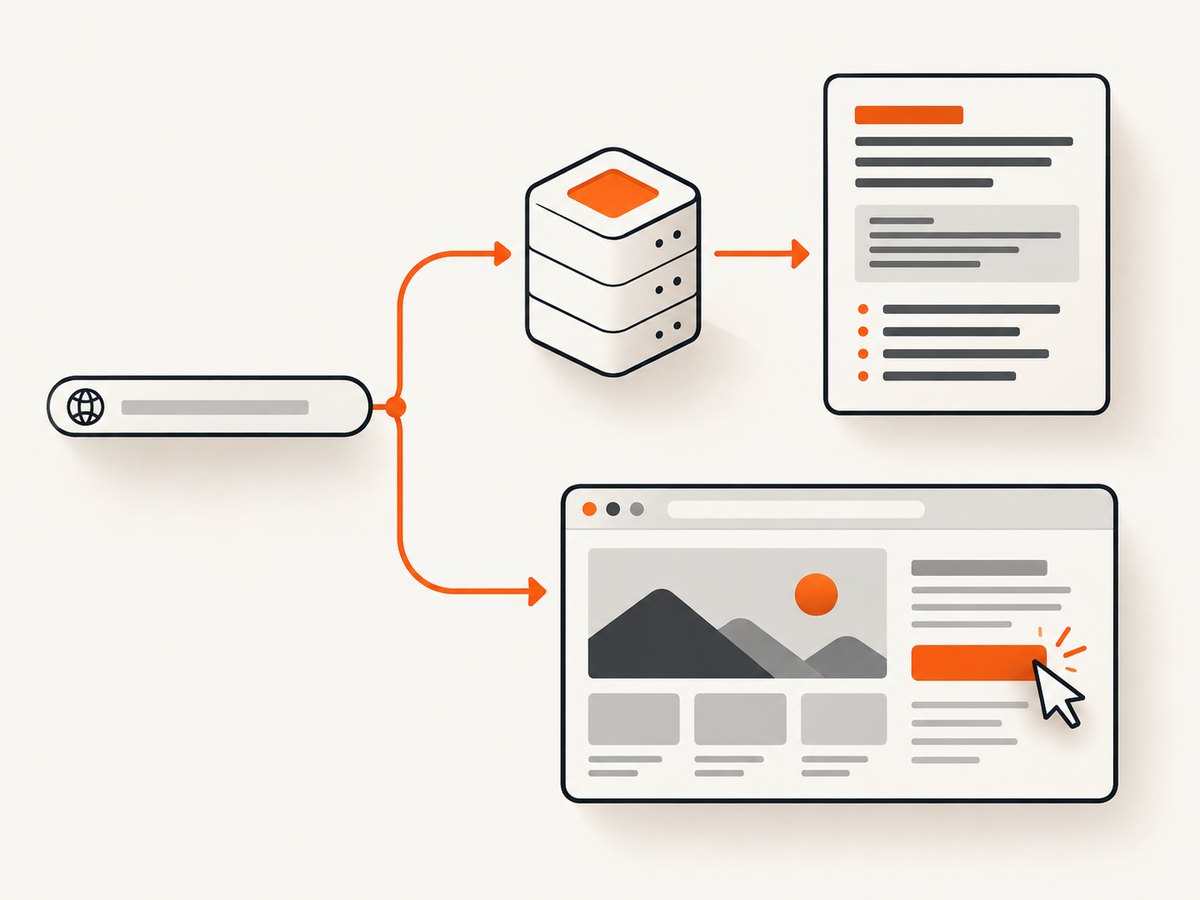
| Read an article, extract facts, or summarize a known URL | Fetch MCP server | HTML converted to readable Markdown or text |
| See content rendered by JavaScript, click controls, inspect a DOM, or debug behavior | Live-browser MCP server | Access to a connected browser and its live page state |
| Capture a stable visual of a page or PDF | ScreenshotNeo MCP server | Screenshot or PDF through tools such as take_screenshot, get_page_info, and capture_pdf |
The MCP Fetch server exposes a fetch tool. It accepts a URL and optional response-length and start-index parameters, and converts HTML to Markdown. Its README also documents robots.txt and user-agent behavior.
Chrome DevTools for agents describes a live-browser MCP server that connects an agent to Chrome. The agent can access live pages and perform inspection, debugging, and modification tasks. A browser connection is therefore a much broader grant than retrieving text from one URL.
2. Pick a transport and understand the host boundary
Local MCP servers commonly communicate over stdio: the host starts a process and exchanges messages through standard input and output. Remote servers commonly expose an HTTP endpoint, often using Streamable HTTP. These are patterns, not interchangeable commands. The host and server must support the same transport.
For example, the Fetch server documents running through uvx or Python. OpenAI’s Docs MCP guide shows a remote endpoint configured in Codex. Google Cloud’s MCP overview explains local and remote connection patterns. Use those as product-specific examples rather than assuming the same JSON works everywhere.
3. Configure a fetch server
Run it locally
Install the prerequisites listed by the server, then run the documented command. A typical Fetch server invocation uses uvx:
uvx mcp-server-fetchThe exact package name and arguments can change. Use the command in the current Fetch server README, and keep the process attached to the MCP host so stdio remains open.
Add it to an MCP host
Every host has its own configuration location and schema. A generic stdio entry has this shape:
{
  "mcpServers": {
    "fetch": {
      "command": "uvx",
      "args": ["mcp-server-fetch"]
    }
  }
}
Do not paste this blindly into a host that expects a different key. For instance, the Fetch README includes examples for Claude and VS Code, while OpenAI’s documentation provides a Codex command for a remote server. Follow your host’s current instructions for the file path, command name, environment variables, and transport.
Fetch a page and handle truncation
Ask your agent to call fetch with a fully qualified URL. If the returned content is truncated, request the next segment with start_index. Use a suitable response-length value when the server supports it.
{
  "url": "https://example.com/article",
  "response_length": 12000,
  "start_index": 0
}
For a long page, repeat with a later start index and preserve enough overlap to avoid losing a sentence at the boundary. A fetch server reads the response it can retrieve; it does not automatically become a JavaScript-capable browser.
4. Configure a live-browser MCP server
Use a live-browser server when the task depends on rendering or interaction: opening a menu, checking computed layout, observing a client-side error, or stepping through a workflow. Chrome for Developers documents the Chrome DevTools MCP package and its configuration options in its getting-started guide and configuration reference.
The general process is:
- Install the package and the supported Chrome version described by the documentation.
- Start Chrome in the mode required by the server.
- Add the server to your MCP host using the documented command or configuration file.
- Connect to a disposable browser profile first.
- Ask the agent to list or describe its tools before navigating to an important account.
A live browser may expose cookies, local storage, open tabs, page content, DevTools data, and authenticated actions. Chrome’s documentation warns that an agent connected to an active authenticated session can view and interact with pages and effectively act on your behalf. Use a separate profile and sign out of accounts that the task does not require.
5. Verify the connection before trusting it
Successful startup is not enough. OpenAI’s MCP server guidance recommends checking initialization, the advertised tool list, schemas, representative inputs, invalid inputs, results, errors, and annotations. MCP Inspector is a practical way to perform these checks.
- Confirm that the host reports the server as connected.
- List tools and record their names, descriptions, required fields, and optional fields.
- Call a harmless public URL.
- Try an invalid URL and confirm that the error is clear and contained.
- Check whether the result is text, structured data, a browser action, or an image/PDF.
- Confirm that the server does not receive credentials unless the task requires them.
For a remote server, also verify TLS, authentication, endpoint ownership, and logging behavior. Google Cloud’s authentication guidance recommends granting an agent identity only the minimum permissions it needs.
6. Secure the network and browser access
Review access before giving an MCP server production credentials:
- Network destinations: the Fetch server README explicitly warns that it can access local or internal IP addresses and may represent a security risk. Restrict outbound network access where possible, and do not let an agent fetch arbitrary user-supplied URLs without validation.
- Browser state: a connected browser can expose authenticated pages and may modify data. Use a clean profile, a dedicated account, and a narrow task scope.
- Authorization: enforce authorization at the server for every request that accesses private data or takes action. Do not rely on the model to decide whether a request is allowed.
- Secrets: keep API keys in environment variables or the host’s secret store. Avoid placing them in prompts, URLs, screenshots, or logs.
- Network policy: allow only the domains needed for the workflow when your environment supports egress controls.
Authentication depends on the endpoint. Some local servers need no login; remote services may require tokens, OAuth, or client certificates. Read the selected server’s documentation and rotate credentials if they appear in a transcript.
7. Add ScreenshotNeo when the result is a visual capture
If your browsing workflow ends with a repeatable screenshot or PDF, ScreenshotNeo provides an MCP server alongside its HTTP API. Its MCP tools include take_screenshot, get_page_info, and capture_pdf, so Claude, Cursor, or another MCP client can request captures without you maintaining a browser process.
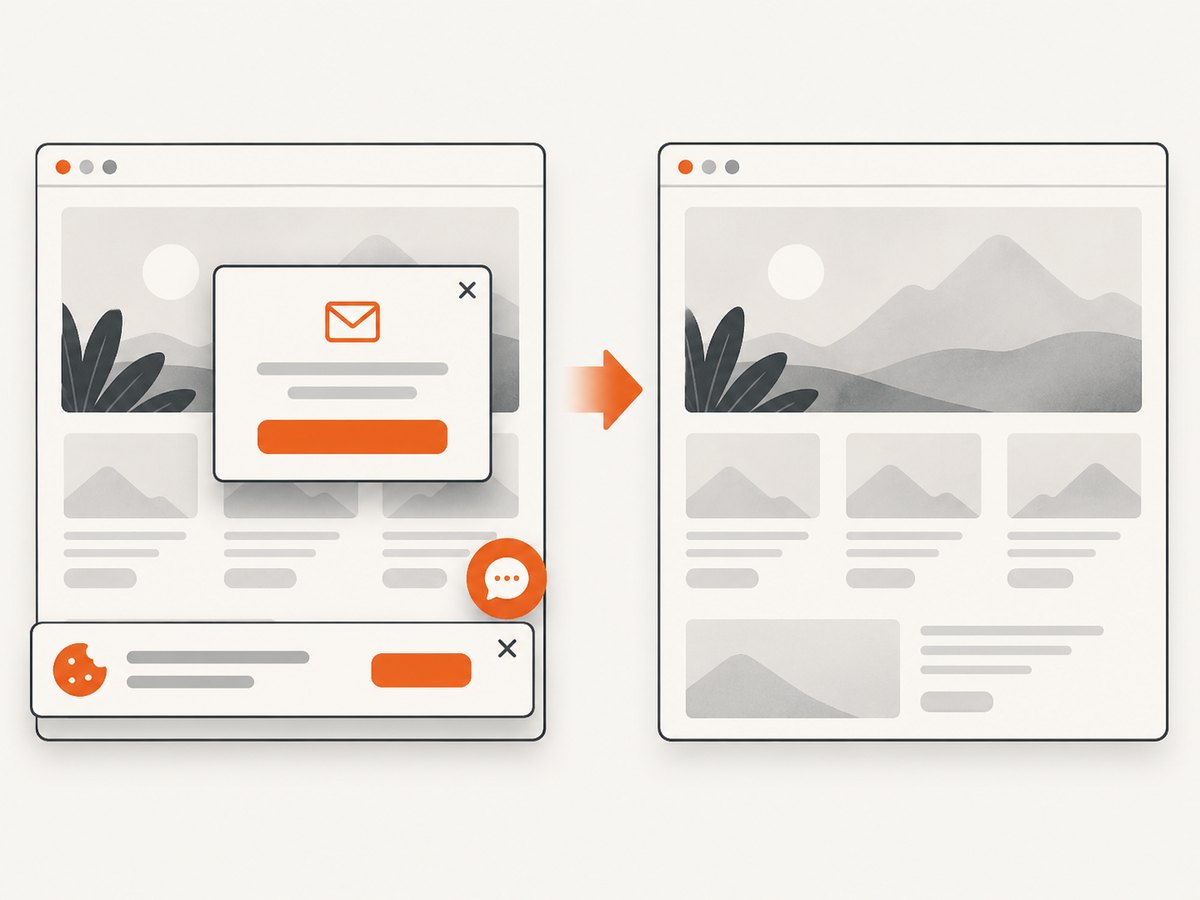
ScreenshotNeo removes cookie and consent banners, newsletter popups, and chat widgets before capture. Each step can be turned off. Bot checks or CAPTCHAs, blank pages, timeouts, failed loads, and cache hits are not billed; the response identifies the result with X-Page-Verdict and X-Billed headers. It supports full-page and element captures, dark mode, device presets, custom viewports, retina scale, PDF options, custom CSS and JavaScript, clicks, waits, request blocking, headers, cookies, user agents, authorization, timezone, geolocation, transparent backgrounds, resizing, TTL caching, signed links, asynchronous jobs, bulk capture, usage reporting, and an OpenAPI specification.
Or skip the browser setup
Use the API directly when you need one clean capture. See the ScreenshotNeo documentation for the complete option list.
curl -G "https://api.screenshotneo.com/v1/shot" -d access_key=YOUR_API_KEY --data-urlencode url=https://stripe.com -o shot.webpimport requests
r = requests.get("https://api.screenshotneo.com/v1/shot", params={"access_key": "YOUR_API_KEY", "url": "https://stripe.com"}, timeout=90)
open("shot.webp", "wb").write(r.content)const q = new URLSearchParams({ access_key: 'YOUR_API_KEY', url: 'https://stripe.com' });
const res = await fetch(`https://api.screenshotneo.com/v1/shot?${q}`);Cookie banners, popups, and chat widgets are removed before the shot. Bot checks, blank pages, and failed loads are never billed. An MCP server lets AI agents take screenshots. The Free plan includes 1,000 screenshots a month with no card, and paid plans start at $5 for 3,000 shots. Create a free ScreenshotNeo account.
8. Reliability and performance practices
Fetch workflows
- Fetch the smallest useful page or section and use
start_indexfor continuation. - Cache stable documents in your own application when policy permits.
- Set timeouts in the host and handle errors as data, not as successful page content.
- Respect robots.txt and the server’s user-agent behavior.
Browser workflows
- Reuse a browser session only when its state is intentional; reset it between unrelated tasks.
- Wait for a selector or network idle instead of guessing a fixed delay.
- Capture only the element or viewport needed when a full page is unnecessary.
- Limit concurrent tabs and navigation loops to reduce resource pressure.
Screenshot workflows
- Use a chosen TTL cache for repeated URLs, and check verdict headers so a cache hit is handled separately.
- Use asynchronous jobs and signed webhooks for slow pages or batches.
- Use bulk capture for up to 100 URLs per call when the workflow is independent per URL.
- Choose WebP or JPEG for smaller files; use PNG when lossless pixels or transparency matter.
MCP itself does not provide a universal latency or uptime guarantee. Measure the server, network, target sites, and browser startup behavior in your own workload. For cost control, avoid recapturing unchanged pages, use caching, and inspect billing headers. ScreenshotNeo’s plans are Free (1,000 shots/month), Starter ($5 for 3,000), Growth ($15 for 15,000), Pro ($39 for 60,000), Scale ($99 for 250,000), and Business ($249 for 1,000,000); yearly billing gives two months free, and every feature is available on every plan.
9. Troubleshooting common errors
| Symptom | Likely cause | Fix |
|---|---|---|
| Server never appears in the host | Wrong config path, command, or transport | Copy the current server example, restart the host, and check its logs. |
| Process exits immediately | Missing dependency or malformed argument | Run the command directly in a terminal and install the documented prerequisites. |
| Fetch output is cut off | Response limit reached | Request a later start_index and continue in chunks. |
| Timeout or encoding error on Windows | Implementation-specific console encoding issue | Try the Fetch README’s documented PYTHONIOENCODING=utf-8 setting. |
| Browser tool cannot connect | Unsupported Chrome version, profile, or startup mode | Use the documented package and configuration, then test with a fresh profile. |
| Agent sees a login page | Browser is not authenticated or cookies were excluded | Authenticate in the dedicated profile, or provide only the required server-side credential. |
| Screenshot contains a banner | Consent-removal or popup step was disabled or unsupported | Enable the relevant ScreenshotNeo cleanup option, or hide the selector with custom CSS. |
| Screenshot is blank or billed unexpectedly | Target failed, timed out, or returned a bot check | Inspect X-Page-Verdict and X-Billed, then adjust waits, headers, or access controls. |
10. Short FAQ
Can an MCP fetch server click buttons?
Usually no. Fetch returns retrieved content. Use a live-browser server or a purpose-built capture workflow when interaction is required.
Do all MCP clients use the same configuration file?
No. Configuration is host- and server-specific. Confirm the required transport, command, arguments, and authentication in current documentation.
Is a remote MCP server automatically safer than a local one?
No. Safety depends on network reach, authentication, authorization, logging, and permissions. Review the server and scope credentials either way.
Can I browse an internal URL?
Some fetch implementations can reach local or internal IP addresses. Treat that as a security-sensitive capability and restrict destinations before enabling it.
When should I use ScreenshotNeo’s MCP server?
Use it when an AI agent needs screenshots, page information, or PDFs and you want a hosted capture service with cleanup, verdict headers, caching, and configurable capture options.
11. A repeatable checklist
- Define whether you need text retrieval, browser interaction, or a visual artifact.
- Choose a server whose transport your host supports.
- Configure it from the current vendor documentation.
- Inspect tools, schemas, annotations, and error behavior.
- Test a public URL before granting private access.
- Use a dedicated browser profile and least-privilege credentials.
- Set timeouts, continuation logic, caching, and concurrency limits.
- Log verdicts and errors without logging secrets.
- Recheck configuration after client or protocol upgrades.
With those controls in place, an MCP server becomes a practical bridge between an AI host and web data or browser state. The important design choice is matching the server’s capability and access boundary to the exact browsing task.


