How to Use MCP Servers in Agent Mode
Connect MCP servers to Codex, ChatGPT, the Responses API, and Agents API with approvals, security controls, runnable examples, and troubleshooting.
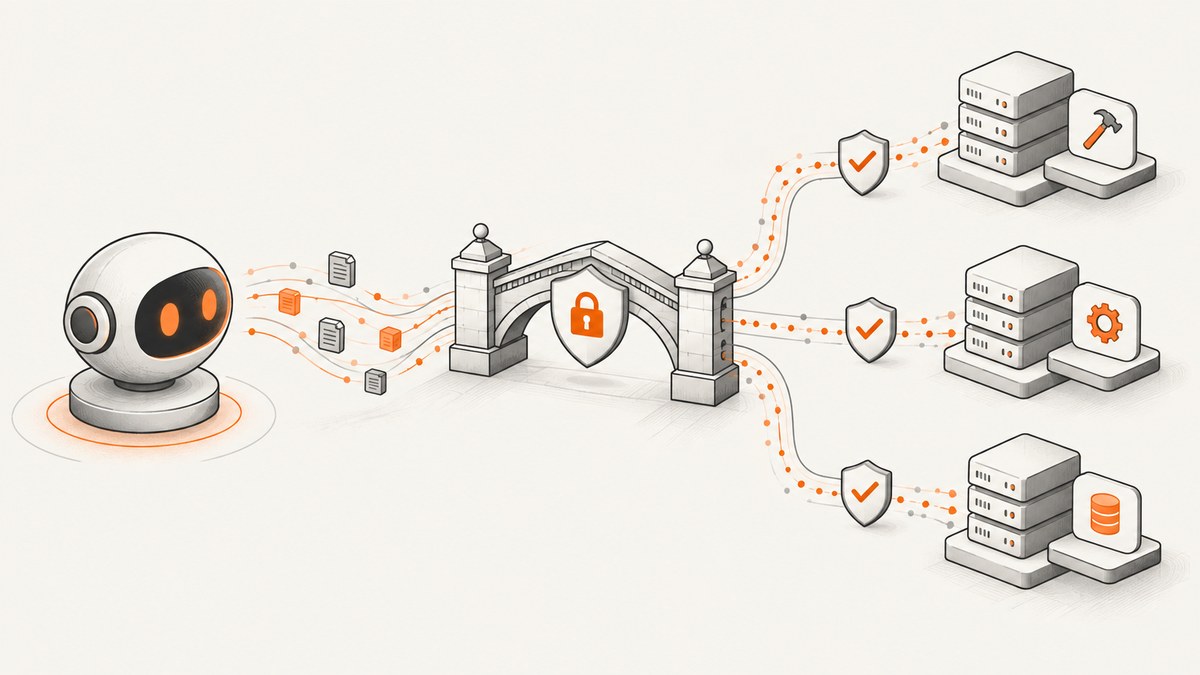
Direct answer: An MCP server publishes tools that an agent can discover and call. In agent mode, connect it over remote HTTP, HTTP from the session environment, or local stdio; then control which tools are exposed and whether each call needs approval. Codex, ChatGPT developer mode, the Responses API, and the Agents API use different connection settings, so choose the pattern that matches where your server runs.
What MCP does in agent mode
The Model Context Protocol (MCP) defines how a server publishes tool definitions and executes tool calls. The agent first discovers the available tools, then selects and invokes them when they help complete a task. A tool may read data, search a system, create a file, or perform another action defined by the server.
Think of an MCP connection as four decisions:
- Reachability: Is the server public remote HTTP, reachable only from the session environment, available through a private tunnel, or a local stdio process?
- Execution location: Does OpenAI reach the server, or does your session environment run the process?
- Action scope: Which tools can the agent see? Read-only tools are easier to evaluate than write or modify tools.
- Approval: Should each call require confirmation, or have you deliberately configured automatic approval?
These choices determine your trust boundary and what data can leave your environment. OpenAI’s MCP guide explains the remote-server request shape and approval controls in detail: MCP servers guide.
Choose a connection pattern
| Pattern | Where it runs | Use it when |
|---|---|---|
| Remote HTTP | OpenAI reaches a public server | The provider hosts a stable, reachable MCP endpoint. |
| Environment HTTP | Your session environment reaches the server | The endpoint is private but available to the environment running the agent. |
| Local stdio | Your session environment starts an executable | The server must stay on your machine or inside a private runtime. |
| Private tunnel | A tunnel exposes a local server securely | ChatGPT or a remote API must reach a developer-machine server without directly publishing it. |
The Agents API documents the distinction between transport and connection origin: HTTP can use connection_origin: "service" (OpenAI) or "environment" (your session), while stdio requires an executable command and an absolute working directory. See the Agents SDK MCP documentation.
Connect an MCP server to Codex
Codex shares MCP configuration between its supported CLI and IDE surfaces. Add the official OpenAI Developer Docs server, then verify that Codex can see it.
codex mcp add openaiDeveloperDocs --url https://developers.openai.com/mcp
codex mcp list
You can also edit ~/.codex/config.toml directly:
[mcp_servers.openaiDeveloperDocs]
url = "https://developers.openai.com/mcp"
After adding the server, start an agent task that requires documentation lookup. Codex discovers the server’s tools and can call them when relevant. The official setup instructions are in the Codex MCP documentation.
Local stdio configuration
For a local MCP server, configure the executable command and an absolute cwd. Arguments are optional. The exact configuration format depends on the Codex version and server, so use the current Codex MCP documentation as the source of truth for the command you install.
Keep local servers isolated and review their source or package before granting access to files, credentials, databases, or network services.
Use MCP with ChatGPT
ChatGPT connects to remote MCP servers. A private or developer-machine server needs Secure MCP Tunnel so ChatGPT can reach it without directly exposing the local process. The Help Center states: “Not directly. ChatGPT connects to remote MCP servers.”
Custom MCP apps and full MCP support are rolling out in beta for ChatGPT Business and Enterprise/Edu workspaces. Administrators can enable developer mode and control publication and access. ChatGPT agent mode does not use custom apps; deep research can use custom apps for read and fetch actions. Check the current ChatGPT MCP Help Center article before publishing workspace instructions because availability and permissions can change.
Connect a remote server with the Responses API
Add an MCP tool to the Responses API request. The request identifies the server with type: "mcp", server_label, and server_url. Use allowed_tools to narrow the exposed tool set and require_approval to control confirmation behavior.
import OpenAI from "openai";

const client = new OpenAI({ apiKey: process.env.OPENAI_API_KEY });

const response = await client.responses.create({
  model: "<current-compatible-model>",
  tools: [{
    type: "mcp",
    server_label: "dmcp",
    server_url: "https://dmcp-server.deno.dev/mcp",
    require_approval: "never",
    allowed_tools: ["roll"]
  }],
  input: "Roll 2d4+1"
});

console.log(response.output);
The API first lists the server’s tools and returns an mcp_list_tools output item. It can then issue tool calls. During evaluation, keep approval enabled and inspect the data sent to the server. The guide recommends provider-hosted official servers, such as an official Stripe server, instead of an untrusted proxy.
For models released after September 1, 2026, connector_id is deprecated in this flow. Use server_url for remote MCP or tunnel_id for local MCP through Secure MCP Tunnel where applicable. Recheck the live guide before relying on this compatibility detail.
Approval settings
require_approvalconfigured for confirmation keeps a human in the loop before data is shared or an action runs.- An automatic setting such as
"never"removes that pause. Use it only after reviewing the server, tool list, inputs, and write behavior. allowed_toolslimits the tool surface even when the server publishes more tools.
OpenAI’s default is explicit: “By default, OpenAI will request your approval before any data is shared with a connector or remote MCP server.”
Use MCP with the Agents API
The Agents API separates connection origin from transport. For HTTP with connection_origin: "service", OpenAI must be able to reach the server. With connection_origin: "environment", the session environment must be able to reach it. A stdio connection runs an executable in the session environment and requires an absolute cwd; arguments are optional.
| Setting | Meaning | Typical failure |
|---|---|---|
service |
OpenAI-managed service reaches HTTP endpoint | Private firewall or localhost URL is unreachable. |
environment |
Session runtime reaches HTTP endpoint | Environment has no route, DNS, or credentials. |
stdio |
Session starts a local process | Relative cwd, missing executable, or bad arguments. |
Start with a read-only tool and a narrow permission set. Add write tools only after observing several successful runs.
Or skip the browser setup
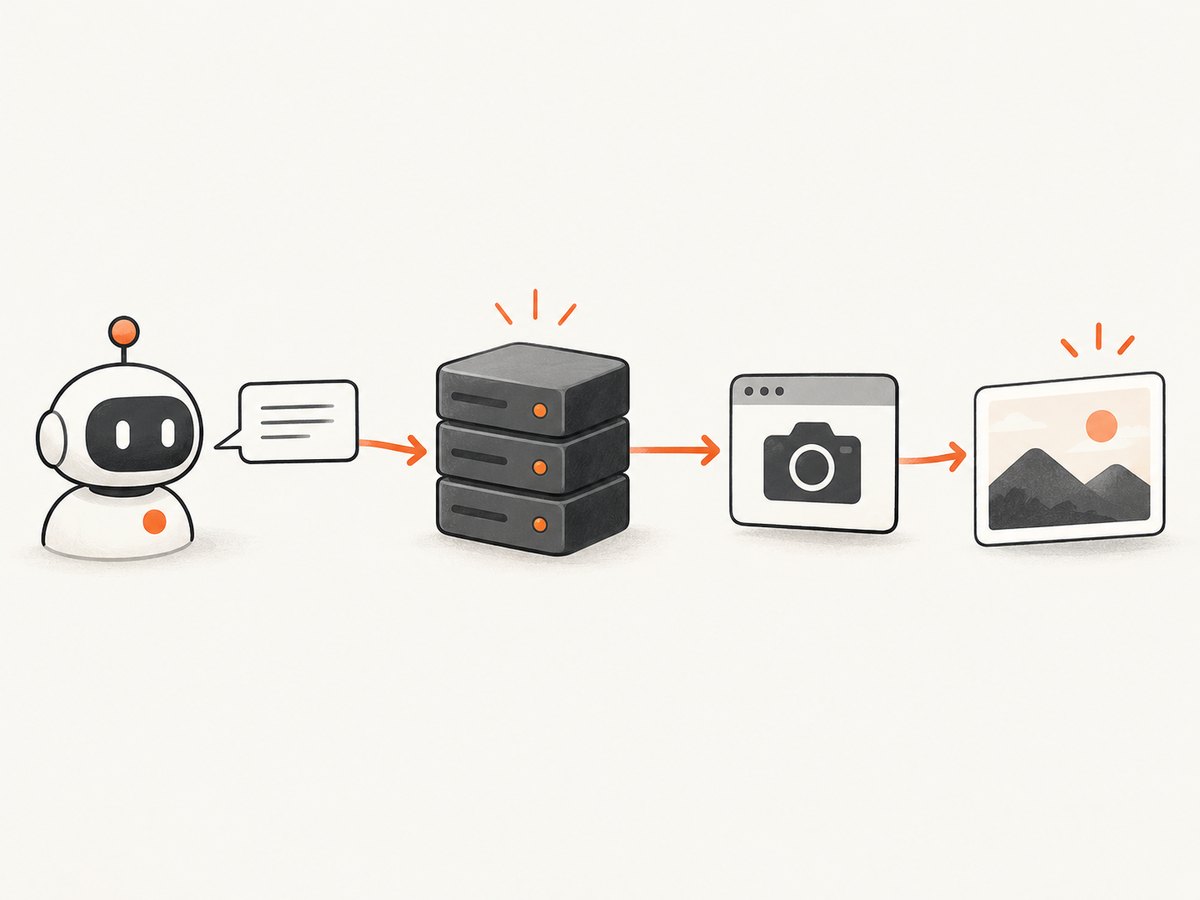
If your agent needs screenshots, ScreenshotNeo provides an MCP server with take_screenshot, get_page_info, and capture_pdf for Claude, Cursor, and other MCP clients. You can connect its tools to an agent, or call its HTTP API directly.
One GET request returns a PNG, JPEG, WebP, or PDF. The API accepts cookie and consent banners like a visitor, removes more than 60 known consent platforms plus newsletter popups and chat widgets, and lets you turn each step off. Bot checks, blank pages, timeouts, failed loads, and cache hits are not billed; response headers report the page verdict and whether the request was billed.
See the complete option list and MCP instructions in the ScreenshotNeo documentation.
cURL
curl -G "https://api.screenshotneo.com/v1/shot" \
  -d access_key=YOUR_API_KEY \
  --data-urlencode url=https://stripe.com \
  -o shot.webp
Python
import requests

r = requests.get(
    "https://api.screenshotneo.com/v1/shot",
    params={"access_key": "YOUR_API_KEY", "url": "https://stripe.com"},
    timeout=90,
)
r.raise_for_status()
open("shot.webp", "wb").write(r.content)
Node.js
const q = new URLSearchParams({
  access_key: 'YOUR_API_KEY',
  url: 'https://stripe.com'
});
const res = await fetch(`https://api.screenshotneo.com/v1/shot?${q}`);
if (!res.ok) throw new Error(`Screenshot failed: ${res.status}`);
const bytes = new Uint8Array(await res.arrayBuffer());
await Bun.write('shot.webp', bytes);
ScreenshotNeo also supports full-page capture with lazy images loaded, CSS-element capture, dark mode, 12 device presets or custom viewports, retina scale, PDF paper and page-range options, HTML/CSS rendering, custom JavaScript and CSS, clicks, selector or network-idle waits, ad/tracker/request blocking, headers, cookies, user agents, authorization, timezone, geolocation, transparent backgrounds, resizing, configurable caching TTLs, signed image links, async jobs with signed webhooks, bulk capture for 100 URLs per call, usage reporting, and an OpenAPI specification. Parameter names used by other screenshot APIs also work to ease migration.
Plans include 1,000 screenshots per month free with no card; paid plans start at $5 for 3,000 screenshots. Create a free ScreenshotNeo account.
Permissions and security checklist
- Prefer an official server hosted by the service provider over an unknown proxy.
- Read every tool description and identify tools that write, delete, send, or publish.
- Use
allowed_toolsor equivalent allowlists to expose only what the task needs. - Keep approval prompts enabled while evaluating a server. Inspect the exact data that will be shared.
- Do not place API keys, cookies, private documents, or customer data in prompts unless the server is trusted and the transfer is required.
- Use a tunnel for a private local server instead of opening an inbound firewall port.
- Log tool names, arguments, approvals, and results without storing secrets in plaintext.
- Review for prompt injection: untrusted page content or tool output can attempt to redirect the agent.
ChatGPT’s documentation warns that unsafe or untrusted MCP servers can increase exposure to prompt injection and other security risks.
Performance, reliability, and cost
Performance
- Expose only the tools required for the task so discovery and tool selection stay small.
- Prefer one purpose-built tool call over a chain of broad exploratory calls.
- For screenshots, use caching with a TTL when the page does not change often; use async jobs and webhooks for large batches.
- Use bulk capture for up to 100 URLs per call when processing a collection.
Reliability
- Set explicit timeouts in your client and handle retries with backoff for transient network errors.
- Keep tool calls idempotent where possible. For writes, pass an idempotency key if the server supports one.
- Check MCP discovery output before assuming a tool name or argument exists.
- For ScreenshotNeo, inspect
X-Page-VerdictandX-Billedheaders so your pipeline can distinguish a clean capture from a bot check, blank page, timeout, failed load, or cache hit.
Cost
Remote MCP usage can incur provider, model, hosting, and tunnel costs; check each provider’s current pricing. ScreenshotNeo bills only clean shots. Its free plan includes 1,000 shots per month without a card; Starter is $5 for 3,000, Growth $15 for 15,000, Pro $39 for 60,000, Scale $99 for 250,000, and Business $249 for 1,000,000. Yearly billing gives two months free, and every feature is available on every plan.

Troubleshooting
| Symptom | Likely cause | Fix |
|---|---|---|
| Server does not appear in the tool list | Bad URL, failed discovery, or the process did not start. | Run the server’s health check, verify the MCP path, inspect startup logs, and retry discovery. |
| Connection works locally but not in the API | The server is private, on localhost, or blocked by a firewall. | Use a publicly reachable provider endpoint, set the Agents API origin to environment, or use Secure MCP Tunnel. |
| stdio server exits immediately | Missing executable, wrong arguments, or relative working directory. | Use an absolute executable path and absolute cwd; run the command manually in the same environment. |
| Approval appears for every call | Approval is enabled by default or the server is not trusted. | Review each request. Narrow tools first; only configure automatic approval after a documented review. |
| Agent calls the wrong tool | Too many similarly named tools are exposed. | Use allowed_tools, clearer server descriptions, and a narrower prompt. |
| ChatGPT cannot use a local server | ChatGPT needs a remote MCP endpoint. | Expose it through Secure MCP Tunnel and verify workspace developer-mode availability. |
| Screenshot response is not an image | The target returned a bot check, blank page, timeout, or failed load. | Inspect X-Page-Verdict, wait for a selector or network idle, set headers/cookies, or handle the page as unavailable. |
| Screenshot costs more than expected | Repeated uncached captures or a large batch. | Choose a cache TTL, use bulk or async jobs, and monitor the usage API and X-Billed header. |
FAQ
Can an MCP server run entirely on my laptop?
Yes, when the agent runs in the same session environment and starts the server through stdio. A remote client such as ChatGPT needs a reachable remote endpoint or Secure MCP Tunnel.
Does the agent automatically trust every tool?
No. The agent can discover published tools, but approval settings and allowlists determine what can run. Keep approvals enabled while evaluating a server.
Should I use one MCP server for every task?
Use the smallest set of trusted servers that covers the task. Separate servers by data boundary and risk when tools perform writes or handle sensitive information.
Can I restrict an MCP server to read-only operations?
Yes, if the server publishes separate read and write tools. Expose only the read tools with allowed_tools and enforce authorization on the server itself.
What is the simplest way to give an AI agent screenshot tools?
Connect ScreenshotNeo’s MCP server, or call its single GET endpoint from your own tool wrapper. It handles consent banners, popups, chat widgets, waits, device settings, and image or PDF output.


