How to Use the Official Playwright MCP Server
Connect Microsoft’s Playwright MCP server to an MCP client, choose a browser mode, and make a first browser interaction safely.
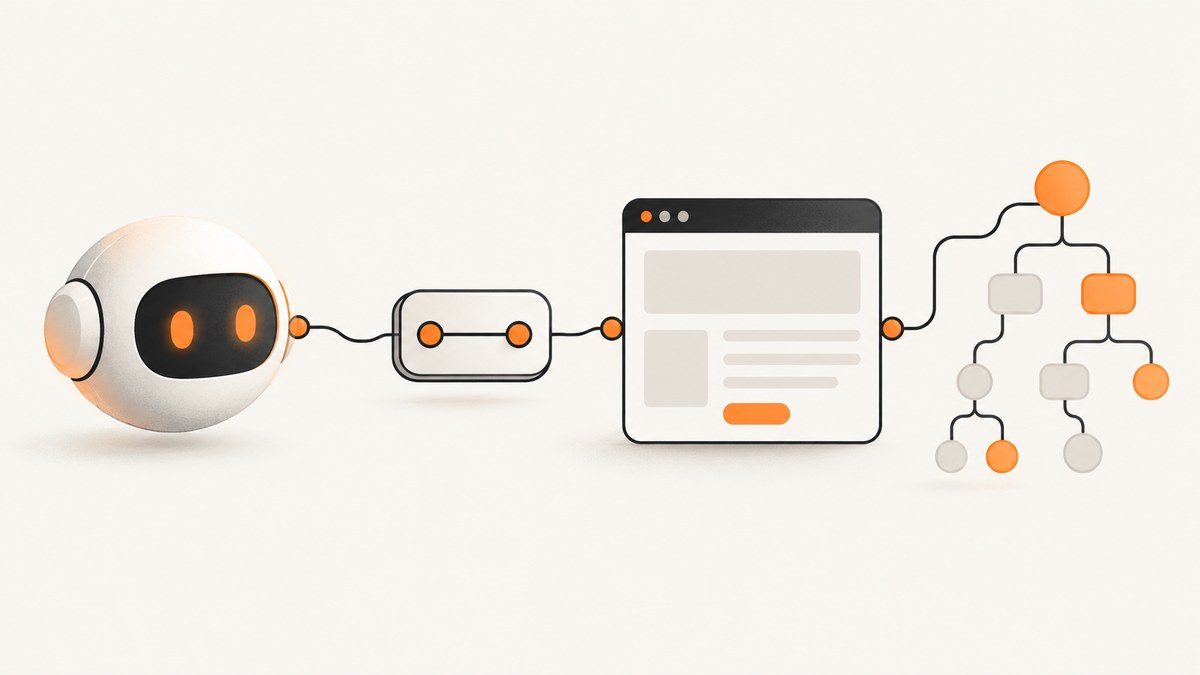
The official Playwright MCP server lets an MCP client control a browser through Playwright. It represents pages with structured accessibility snapshots, so an assistant can inspect and interact with page structure instead of relying on screenshots or a vision model. To get started, install Node.js 20 or newer, configure your MCP client to launch @playwright/mcp@latest with npx, and ask the connected assistant to navigate to a page. The configuration location depends on the client; follow that client’s MCP setup instructions. Microsoft’s getting-started guide and the official Playwright MCP repository are the primary references.
1. What the Playwright MCP server does
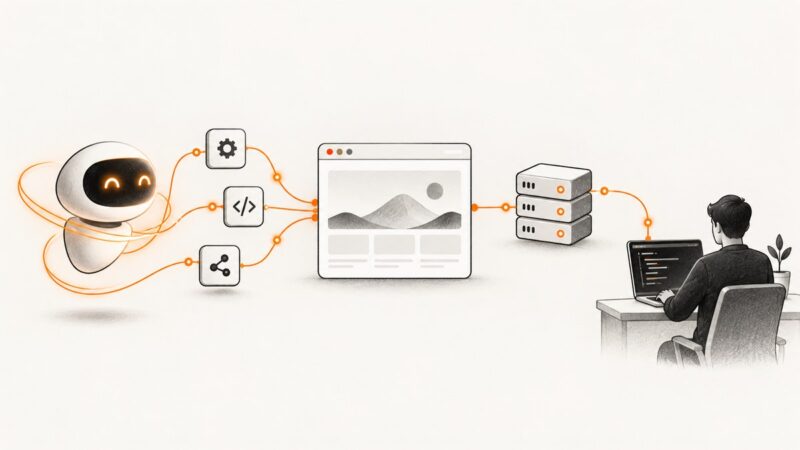
Playwright MCP connects browser automation to the Model Context Protocol (MCP). The MCP client starts or connects to the server, then exposes its browser tools to the assistant. The assistant can navigate pages and interact with them through Playwright, using accessibility snapshots to understand page structure at each step. This is useful for browser tasks that require repeated inspection and action, such as exploring a page or completing a form.
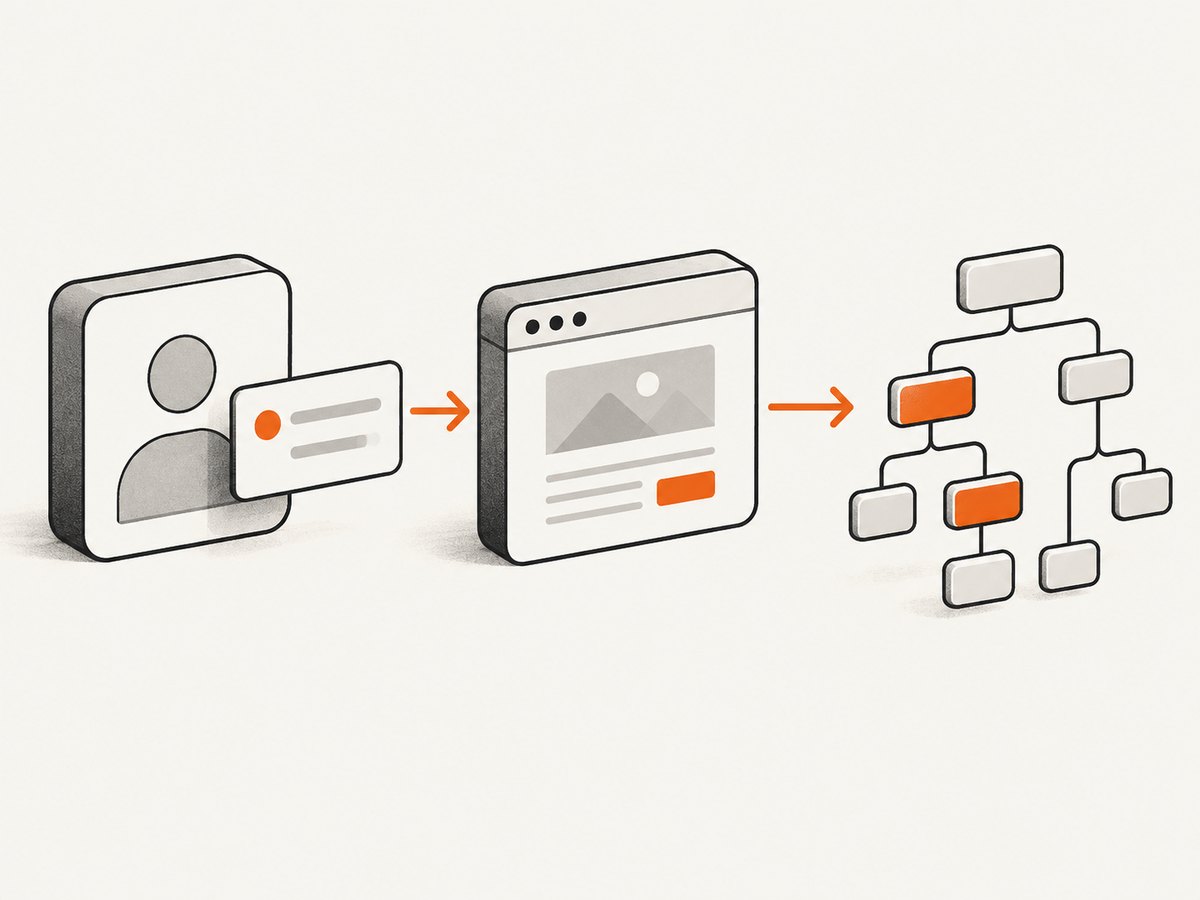
This setup is different from writing a standalone Playwright script. You configure a server once in an MCP client, then ask the assistant to carry out a task using the connected browser tools. The server is maintained by Microsoft’s Playwright project. The guide covers the official server; package names and configuration examples can change, so check the linked docs when you install.
2. Prerequisites
- Node.js 20 or newer. The server is launched with
npx. Confirm the version in the same environment that runs your MCP client. - An MCP client. Use a client that supports MCP servers. The client’s own documentation determines where and how its server configuration is stored.
- A network connection for first use. The browser downloads automatically on first use, according to the official installation guide. Allow time for that initial setup.
Check Node.js from a terminal with:
node --version
npx --version
If node is missing or reports an older version, install or select a compatible Node.js runtime before configuring the server. Some desktop clients and IDEs inherit a different environment from your interactive terminal, so verify the runtime where the client is actually launched if setup fails.
3. Add the server to an MCP client
The standard configuration names the server playwright, launches npx, and passes the package name as its argument. Add this JSON to the location your client uses for MCP server definitions:
{
  "mcpServers": {
    "playwright": {
      "command": "npx",
      "args": ["@playwright/mcp@latest"]
    }
  }
}
Do not assume that every client reads the same file or accepts exactly the same configuration shape. The official guide directs users to the client’s documentation for the configuration location. The repository also lists client-specific routes, including a Codex CLI command and a ~/.codex/config.toml example; follow those instructions if you use Codex rather than copying the generic JSON into an unrelated file.
- Open the MCP or tool-server setup instructions for your client.
- Add the server entry using the generic configuration above, adapting only the placement or syntax required by that client.
- Save the configuration and restart or reload the client if its documentation requires it.
- Confirm that the client reports the Playwright server as connected before asking the assistant to use it.
The package argument uses @latest, which follows the moving latest release. That keeps the example simple, but it does not pin the server to a fixed release. If your workflow requires a repeatable version, check the official package instructions and choose a version deliberately; this guide does not specify a pinned release.
4. Make your first browser interaction
Once the client shows the server as connected, give the assistant a small, explicit task. The official guide’s example uses the TodoMVC demo. Try a prompt such as: “Open https://demo.playwright.dev/todomvc and add three todo items: buy milk, review the release notes, and book a dentist appointment.”
The assistant should use browser tools to navigate and interact with the page. Playwright MCP returns structured accessibility snapshots so the assistant can inspect available page elements and the result of its actions. Check the browser and the page state after the task completes. For a first run, choose a public demo rather than a page containing sensitive account data.
For more reliable results, write prompts that name the destination and desired outcome. If a task includes a choice or a destructive action, state the intended choice precisely and ask the assistant to stop for confirmation before submitting. MCP connects the assistant to browser actions; it does not make an ambiguous instruction safe or precise by itself.
5. Choose a browser mode and session behavior
The official getting-started guide documents several configuration choices. Add the relevant option to the args array in the server entry. Keep the package argument and option as separate array values.

| Choice | Configuration | When to use it |
|---|---|---|
| Headed (visible) | Default; omit --headless |
Use when you want to see the browser window while the assistant works. |
| Headless | --headless |
Use when you do not want a visible browser window. |
| Chrome | --browser=chrome |
Select Chrome explicitly. |
| Firefox | --browser=firefox |
Run browser work in Firefox. |
| WebKit | --browser=webkit |
Run browser work in WebKit. |
| Microsoft Edge | --browser=msedge |
Select Edge explicitly. |
For example, to select Firefox and run headless:
{
  "mcpServers": {
    "playwright": {
      "command": "npx",
      "args": ["@playwright/mcp@latest", "--browser=firefox", "--headless"]
    }
  }
}
Browser choice matters when the task depends on browser-specific behavior. If you are investigating a problem users report in one browser, select that browser rather than assuming another engine behaves identically. Browser downloads happen on first use, so an unavailable browser can indicate that its initial download has not completed.
Persistent or isolated profile
A persistent profile preserves login state and cookies between sessions. Use it when your workflow needs an existing session. An isolated profile starts fresh and can discard in-memory state when it closes; use it when you want a clean session that does not carry prior cookies or login state into the next run. The exact lifecycle and configuration details are client and server dependent, so consult the current official guide before relying on a profile for sensitive or repeatable workflows.
These modes have different consequences: persistence is convenient but retains browser state; isolation starts clean but may require you to sign in again. Consider which behavior fits the task before allowing an assistant to browse a site where you are already logged in.
6. Run the server separately over HTTP
The standard configuration asks the MCP client to start the server locally. The official guide also documents a standalone HTTP transport for situations such as a headed browser on a machine without a display or a server started from an IDE worker process.
Start the server in a terminal:
npx @playwright/mcp@latest --port 8931Then configure the MCP client to connect to the local endpoint:
{
  "mcpServers": {
    "playwright": {
      "url": "http://localhost:8931/mcp"
    }
  }
}
The server and client must be able to reach the same local endpoint. Keep the server process running while the client uses it. HTTP sessions use a five-second heartbeat timeout. If a client or proxy does not answer server-initiated pings, the official guide says to increase PLAYWRIGHT_MCP_PING_TIMEOUT_MS or set it to 0 to disable the heartbeat. Prefer the documented default unless your connection setup gives you a reason to change it.
7. Security: treat JavaScript execution as a serious capability
The official documentation warns that the JavaScript execution tool runs arbitrary JavaScript in the Playwright server process and is equivalent to remote code execution. Microsoft Playwright’s instruction is: “only enable it for trusted MCP clients.” Read the official security warning before enabling or exposing that capability.
In practice, connect only MCP clients you trust to this server, and be careful about what tasks you delegate when the browser has access to logged-in sessions. Persistent profiles can preserve cookies and login state, so browser access may reach accounts associated with that profile. Avoid treating an MCP server as a harmless read-only page viewer: browser interaction and arbitrary JavaScript execution are powerful capabilities.
For a local setup, use the client’s documented local server configuration and do not make the HTTP endpoint reachable to parties you do not trust. The source material for this guide does not establish a particular network exposure or deployment model beyond the documented localhost example, so use the official documentation for any remote deployment decisions.
8. Common errors and fixes
| Symptom | Likely cause | What to check |
|---|---|---|
| Client says the server failed to start | The client cannot find or run npx, or the configured JSON does not match the client’s expected format. |
Run node --version and npx --version in the client’s environment. Recheck the client-specific configuration location and syntax. |
| Node.js prerequisite is not met | The selected runtime is older than Node.js 20 or the client is using a different Node installation. | Install/select Node.js 20 or newer and verify the version in the environment that launches the client. |
| Server connects but the browser does not launch | The first-use browser download may be incomplete, or the selected browser is unavailable. | Allow the initial browser download to finish, then retry. Confirm that the configured browser choice is one of the documented values: chrome, firefox, webkit, or msedge. |
| Assistant cannot use browser tools | The client may not have loaded the server configuration, or the server may not be connected. | Reload or restart the client as its docs instruct, then confirm the connection status before prompting. |
| HTTP connection drops while idle | The client or proxy may not answer the documented five-second heartbeat. | Check the standalone server’s heartbeat behavior. Set PLAYWRIGHT_MCP_PING_TIMEOUT_MS to a longer timeout, or to 0 to disable it, as documented. |
| A task behaves differently in another browser | The server is using a different browser engine than the one you intended to inspect. | Set the relevant --browser=... argument and repeat the task in that browser. |
| A fresh session is unexpectedly signed in | A persistent profile retained prior cookies or login state. | Choose isolated mode for a fresh session, or review which profile the server is using before continuing. |
When troubleshooting, change one configuration choice at a time. This helps distinguish a runtime problem from a client config issue, a browser download issue, or a transport connection problem.
9. Performance, reliability, and cost considerations
The Playwright MCP flow is designed around structured accessibility snapshots rather than screenshot interpretation. That gives the assistant a structured representation of page elements for interaction. It still depends on the site loading and exposing useful page structure, and it can require several interactions for a multi-step task. Keep browser prompts focused and break longer tasks into clear steps so the assistant can inspect the page state as it proceeds.
Browser mode and profile choice are operational tradeoffs, not performance guarantees. Headless mode removes the visible browser window; headed mode lets you observe what is happening. Persistent profiles preserve session state; isolated profiles begin fresh. Choose based on the task and the state you need, and do not infer speed or reliability figures from these options: the reviewed official materials provide no topic-specific benchmark.
The dossier and linked official setup sources do not state a price for using the Playwright MCP server. Your practical costs may include the Node.js environment, browser downloads, and whatever costs apply to your MCP client or infrastructure. Check the relevant providers’ current terms for those costs rather than assuming the server itself determines them.
10. When the task is just a website screenshot
Playwright MCP is a fit when an MCP assistant needs to explore a page and interact with it through a browser. If you only need an image or PDF of a URL, setting up a browser server may be more machinery than the capture requires.
Or skip the browser setup
ScreenshotNeo is a website screenshot API and MCP server from Yorker Media. One GET request with a URL returns a PNG, JPEG, WebP, or PDF. Cookie and consent banners are accepted as a visitor, and 60+ known consent platforms, newsletter popups, and chat widgets are removed before capture; each step can be turned off. Bot checks, blank pages, timeouts, failed loads, and cache hits cost nothing, and each response reports the page verdict and billing status in headers. Its MCP server gives AI agents tools for screenshots, page information, and PDF capture.
Here is the documented cURL call; replace the target URL and API key with your own values. See the ScreenshotNeo docs for request options.
curl -G "https://api.screenshotneo.com/v1/shot" \
  -d access_key=YOUR_API_KEY \
  --data-urlencode url=https://stripe.com \
  -o shot.webp
Python:
import requests

r = requests.get(
    "https://api.screenshotneo.com/v1/shot",
    params={"access_key": "YOUR_API_KEY", "url": "https://stripe.com"},
    timeout=90,
)
open("shot.webp", "wb").write(r.content)
Node.js:
const q = new URLSearchParams({
  access_key: 'YOUR_API_KEY',
  url: 'https://stripe.com'
});
const res = await fetch(`https://api.screenshotneo.com/v1/shot?${q}`);- Cookie banners, popups, and chat widgets are removed before the shot.
- Bot checks, blank pages, and failed loads are never billed.
- An MCP server lets AI agents take screenshots.
- 1,000 screenshots a month are free with no card; paid plans start at $5 for 3,000.
Sign up for ScreenshotNeo’s free plan: 1,000 screenshots a month, no card required.
11. FAQ
How do I install Playwright MCP?
Install Node.js 20 or newer, then add the documented npx configuration with @playwright/mcp@latest to an MCP client. Follow that client’s instructions for where server definitions belong.
How do I connect Playwright MCP to Codex?
The official repository provides Codex CLI and ~/.codex/config.toml setup routes. Use the current Codex-specific instructions in the Playwright MCP repository; the generic JSON example may not be the right syntax for that config file.
How do I run Playwright MCP headless?
Add --headless to the server’s args array. Headed mode is the default described by the getting-started guide.
How do I choose Firefox or WebKit?
Add --browser=firefox or --browser=webkit to args. The guide also lists chrome and msedge.
Does Playwright MCP use screenshots to understand a page?
The documented interaction model uses structured accessibility snapshots rather than relying on vision models or screenshot interpretation.