How to Use Plugins with Agent-Browser
Install, configure, inspect, and safely invoke Agent-Browser plugins by capability, with runnable commands, troubleshooting, and a ScreenshotNeo alternative.
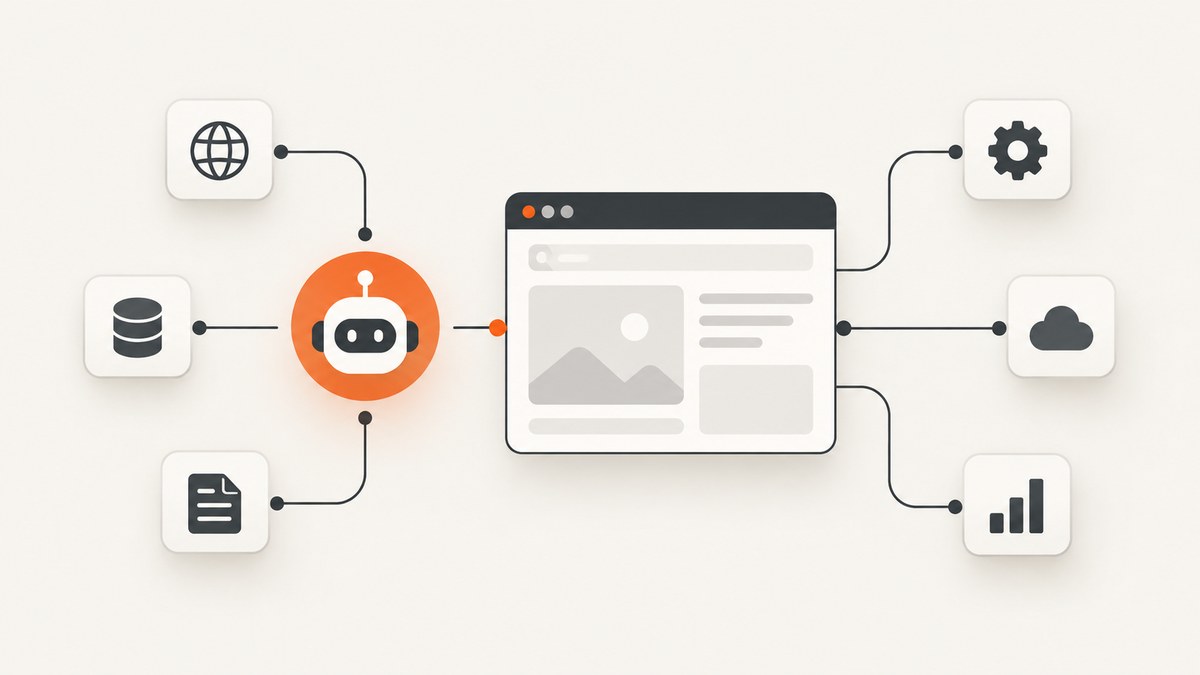
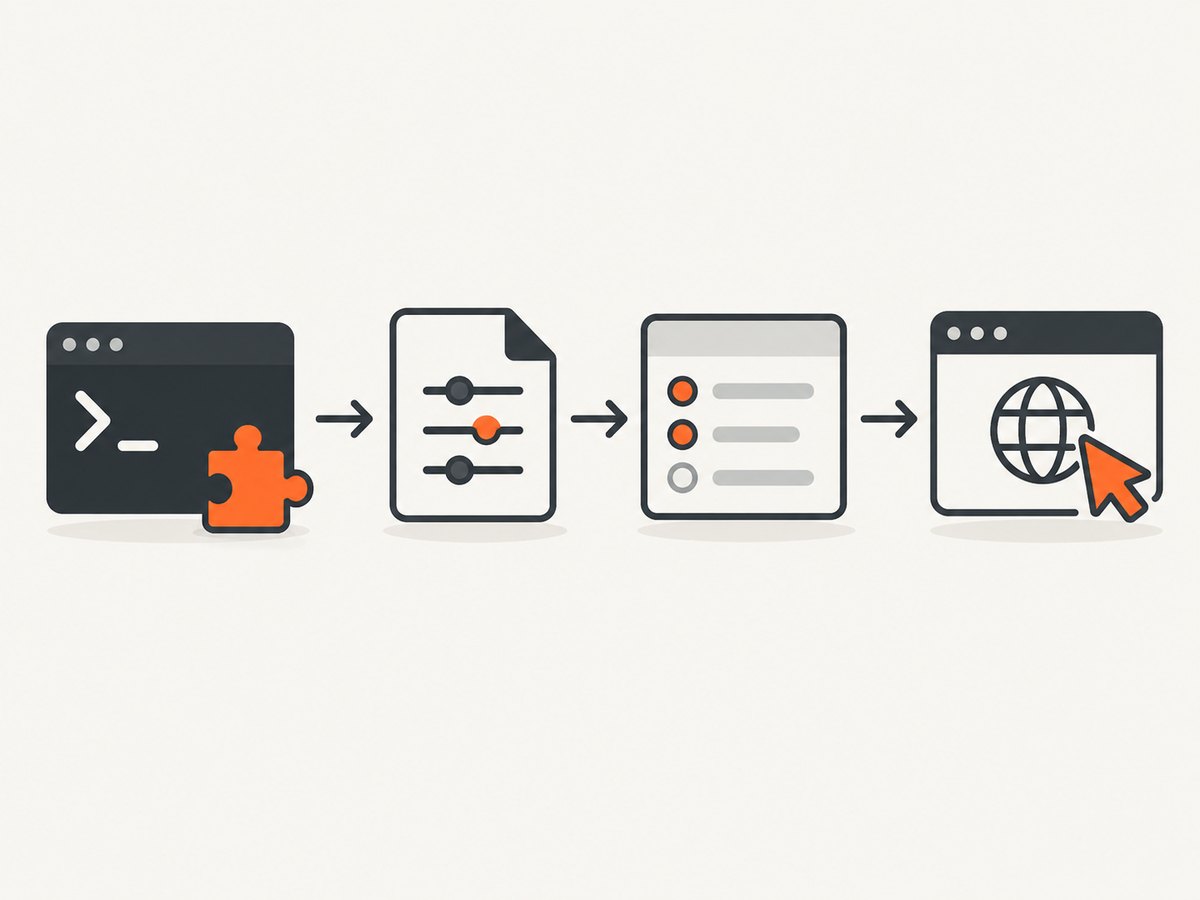
Agent-Browser plugins extend the CLI through separate executables. The reliable workflow is: add a package or repository reference, inspect the generated configuration, identify the plugin capability, and invoke it through that capability’s command path.
This guide shows how to install npm and GitHub plugins, choose project or user scope, inspect configuration, use credential and browser providers, run generic commands, add confirmation gates, and diagnose common failures. The examples follow the official Agent-Browser configuration, commands, and security documentation.
1. Install a plugin
Use agent-browser plugin add <ref>. A plain package name or an @scope/name reference resolves from npm. An owner/repo reference resolves from GitHub.
# npm package by name
agent-browser plugin add agent-browser-plugin-vault --name vault

# Scoped npm package
agent-browser plugin add @company/agent-browser-plugin-vault --name vault

# GitHub repository
agent-browser plugin add org/agent-browser-plugin-cloud-browser
Project configuration is the default. Add --global when you want the plugin available to your user account across projects:
agent-browser plugin add agent-browser-plugin-vault --name vault --globalIf the package publishes a plugin.manifest, Agent-Browser can discover its name and capabilities. If it does not, declare a capability while adding it:
agent-browser plugin add vendor/package --name custom --capability command.runPackage names in the examples are documentation references. Check the package’s source, maintainer, release history, and requested permissions before installing it.
2. Understand where configuration is stored
Agent-Browser combines user and project configuration:
| Location | Scope | Typical use |
|---|---|---|
~/.agent-browser/config.json |
User | Plugins and defaults shared across projects |
./agent-browser.json |
Project | Repository-specific plugins and settings |
AGENT_BROWSER_PLUGINS |
Environment | Replace normal plugin discovery with a JSON array |
| CLI flags | One command | Highest-priority override |
Project values override user values. Project plugin entries append after user entries; if the same plugin name appears in both, the later project entry resolves.
A minimal project file looks like this:
{
  "plugins": [
    {
      "name": "vault",
      "command": "agent-browser-plugin-vault",
      "capabilities": ["credential.read"]
    }
  ]
}
Use --global for a personal tool you intentionally share across repositories. Keep project configuration explicit when a repository depends on a particular plugin, provider, or capability.
3. Inspect the installed plugin before invoking it
Always inspect the resolved entry and declared capabilities:
agent-browser plugin list
agent-browser plugin show vault
The capability determines the invocation path. A credential provider, browser provider, launch mutator, and generic command are different integration types. plugin run is not a universal replacement for the dedicated commands.
4. Invoke a credential provider
A plugin declaring credential.read supplies credentials to an authentication flow. Agent-Browser resolves the credentials for the login and does not save the returned credentials locally.
agent-browser auth login work --credential-provider vault

# Select a particular vault item when the provider supports it
agent-browser auth login work --credential-provider vault --item "acme-prod"
When the page is already prepared—for example, after a link click, challenge clearance, or consent dismissal—preserve it with --no-navigate:
agent-browser auth login work \
  --credential-provider vault \
  --no-navigate
--no-navigate requires an active top-level HTTP(S) page. Agent-Browser checks that the page and effective credential URL have the same scheme, host, and effective port. Paths, query strings, and fragments may differ. Submitting the login form can still navigate the page.
If automatic selectors do not match the site, use the per-login selector overrides documented by Agent-Browser’s authentication reference.
5. Invoke a browser provider
A plugin declaring browser.provider supplies a CDP WebSocket URL. Select it with --provider on the normal Agent-Browser command:
agent-browser --provider cloud-browser open https://example.comThe configuration documentation lists provider integrations such as AgentCore, Browser Use, Browserbase, Browserless, Kernel, and Remote Agent Browser. Their presence in the documentation describes supported integration points; it is not a quality ranking or endorsement of each service.
6. Use a launch mutator
A plugin with launch.mutate can append local Chrome launch arguments, extensions, or initialization scripts before the browser starts. Invoke it through the regular launch workflow. Do not call it with plugin run unless the plugin also declares a separate generic command capability.
7. Run a generic or custom capability
Use plugin run for command.run or another custom capability:
agent-browser plugin run captcha captcha.solve \
  --payload '{"siteKey":"...","url":"https://example.com"}'
This demonstrates the request shape only. It does not mean that a CAPTCHA plugin is installed, available, appropriate, or permitted for a particular website. Validate the plugin’s documentation and the site’s rules before using a capability.
8. Add confirmation gates for sensitive capabilities
Plugins execute outside the core Agent-Browser process and may handle credentials, alter browser startup, or connect to hosted infrastructure. For sensitive operations, require an explicit confirmation policy:
agent-browser --confirm-actions plugin:vault:credential.read ...
agent-browser --confirm-actions plugin:cloud-browser:browser.provider ...
agent-browser --confirm-actions plugin:stealth:launch.mutate ...
Use the exact plugin name and capability declared by plugin show. Confirmation gates are especially useful in unattended agents where a plugin could otherwise run without a human checkpoint.
9. Protect authentication data
- Do not put vault tokens, passwords, or other secrets in plugin command arguments. Use the vault vendor’s login or session mechanism, or an environment mechanism outside Agent-Browser configuration.
- Saved authentication profiles are encrypted with AES-256-GCM.
- If
AGENT_BROWSER_ENCRYPTION_KEYis unset, Agent-Browser generates a key on first use at~/.agent-browser/.encryption-key. - Back up that key if encrypted profiles must be portable, or set
AGENT_BROWSER_ENCRYPTION_KEYexplicitly. - Keep the key file and configuration permissions restrictive.
10. A complete setup example
The following sequence installs a project plugin, verifies it, and then selects the invocation based on its capability:
# From the project directory
agent-browser plugin add agent-browser-plugin-vault --name vault

# Verify registration and capabilities
agent-browser plugin list
agent-browser plugin show vault

# If the output includes credential.read:
agent-browser auth login work --credential-provider vault

# If the output includes command.run or another custom capability:
agent-browser plugin run vault custom.operation --payload '{"mode":"read"}'
Replace the final command with the path required by the capability shown in your plugin’s configuration. A successful installation does not guarantee that every capability is available or that the executable can reach its external dependency.
11. Troubleshooting
The plugin does not appear in plugin list
Cause: It was added in a different directory, written to user scope, or overridden by AGENT_BROWSER_PLUGINS.
Fix: Run agent-browser plugin list from the intended project, inspect ./agent-browser.json and ~/.agent-browser/config.json, and check whether AGENT_BROWSER_PLUGINS is set.
plugin show reports the wrong command or capability
Cause: A project entry with the same name resolves after the user entry, or the package has no manifest and was added without --capability.
Fix: Remove the duplicate or correct the later project entry. Re-add a manifest-less package with its explicit capability.
A credential login starts on the wrong page
Cause: The normal login flow navigates before the existing browser state is used.
Fix: Use --no-navigate only after navigating to the intended top-level HTTP(S) page. Confirm that the page origin matches the effective credential URL in scheme, host, and port.
--no-navigate is rejected
Cause: There is no active top-level HTTP(S) page, or the origin check fails.
Fix: Open the login page first, remove unsupported schemes, and correct the credential URL or login profile. A different path, query, or fragment is allowed; a different origin is not.
The command fails because the executable is missing
Cause: The configured command is not installed, is not on PATH, or has different permissions in the agent’s runtime.
Fix: Run the command directly in the same environment, verify its path and execute permission, and compare the configured command in plugin show with the package’s installation instructions.
A generic command returns an unsupported capability error
Cause: The plugin expects a dedicated path such as auth login, --provider, or launch-time mutation.
Fix: Match the invocation to the declared capability. Reserve plugin run for command.run and custom capabilities.
An agent uses a plugin without asking
Cause: No confirmation policy covers that capability.
Fix: Add a --confirm-actions rule such as plugin:vault:credential.read or plugin:cloud-browser:browser.provider.
12. Performance, reliability, and cost considerations
- Startup: External executables and hosted browser providers add process startup or network latency. Reuse a browser session when the provider supports it instead of reconnecting for every action.
- Reliability: Check the plugin’s executable separately from Agent-Browser. A registered plugin can still fail because its service, credentials, CDP endpoint, or local runtime is unavailable.
- Scope: Project configuration makes dependencies reproducible for a repository; user configuration reduces setup for personal tools. Review both when behavior differs between machines.
- Security: Treat a plugin as code with the permissions declared by its capabilities. Give sensitive capabilities confirmation gates and keep secrets out of arguments.
- Cost: Agent-Browser itself does not define a universal plugin price. A hosted browser provider or credential service may charge separately; check that provider’s current terms.
13. Or skip the browser setup
If your goal is simply to obtain a clean screenshot, ScreenshotNeo provides a website screenshot API and MCP server without installing a browser plugin. One GET request returns PNG, JPEG, WebP, or PDF output. Cookie and consent banners are accepted and removed before capture, along with 60+ known consent platforms, newsletter popups, and chat widgets. Bot checks, blank pages, timeouts, failed loads, and cache hits are not billed; the response identifies the result with X-Page-Verdict and X-Billed headers.
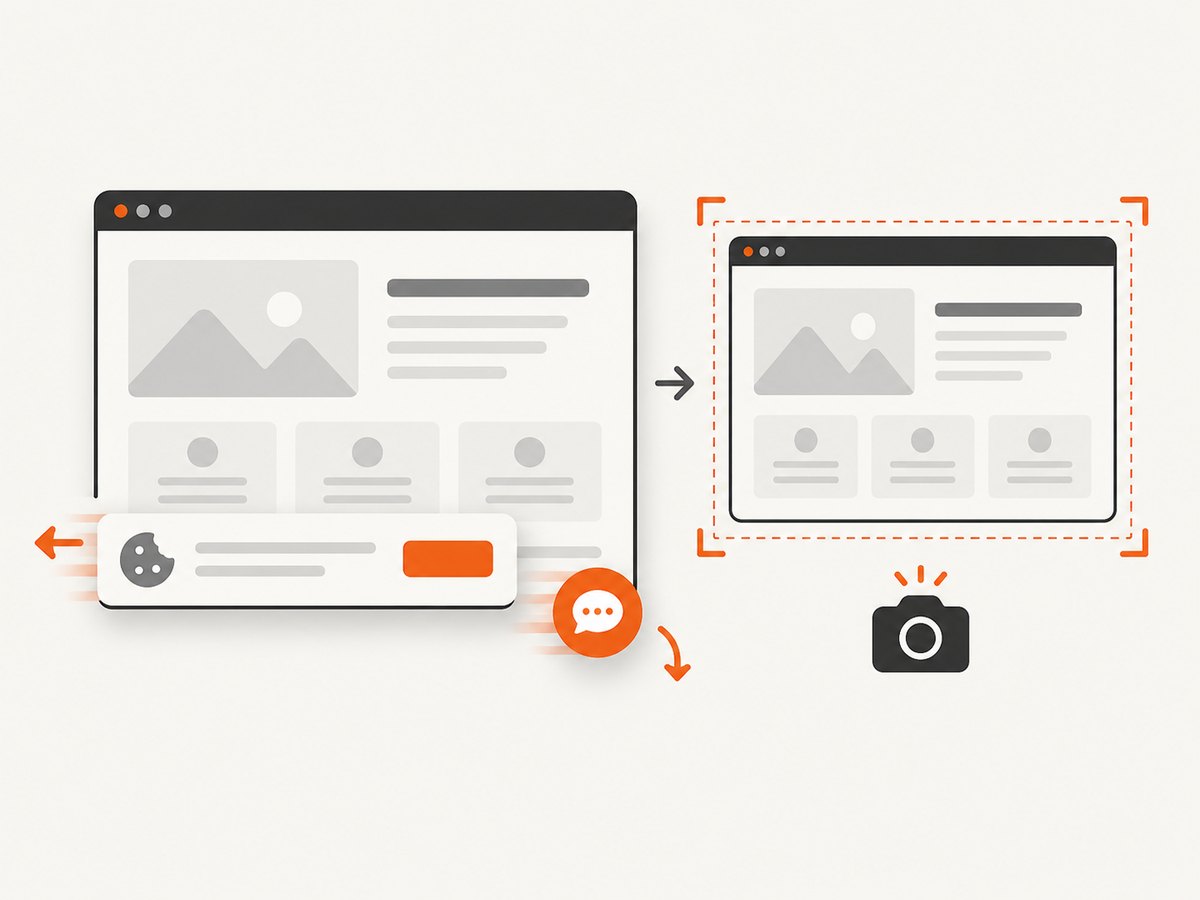
See the ScreenshotNeo API documentation for all options.
cURL
curl -G "https://api.screenshotneo.com/v1/shot" -d access_key=YOUR_API_KEY --data-urlencode url=https://stripe.com -o shot.webpPython
import requests

r = requests.get(
    "https://api.screenshotneo.com/v1/shot",
    params={"access_key": "YOUR_API_KEY", "url": "https://stripe.com"},
    timeout=90,
)
r.raise_for_status()
open("shot.webp", "wb").write(r.content)
Node.js
const q = new URLSearchParams({ access_key: 'YOUR_API_KEY', url: 'https://stripe.com' });
const res = await fetch(`https://api.screenshotneo.com/v1/shot?${q}`);
if (!res.ok) throw new Error(`Screenshot failed: ${res.status}`);
const fs = await import('node:fs/promises');
await fs.writeFile('shot.webp', Buffer.from(await res.arrayBuffer()));
ScreenshotNeo also supports full-page captures with lazy images, CSS selector element capture, dark mode, device presets and custom viewports, retina scale, PDF options, custom CSS and JavaScript, clicks, selector hiding, selector or network-idle waits, request blocking, headers, cookies, user agents, Authorization, timezone, geolocation, transparent backgrounds, resizing, configurable caching, signed links, asynchronous jobs with signed webhooks, bulk capture of up to 100 URLs per call, a usage API, and an OpenAPI specification. Its MCP server exposes take_screenshot, get_page_info, and capture_pdf to Claude, Cursor, and other MCP clients.
There are 1,000 free screenshots per month with no card. Paid plans start at $5 for 3,000 screenshots, and every feature is included on every plan. Create a free ScreenshotNeo account.
14. FAQ
Can I install a plugin only for one repository?
Yes. Run agent-browser plugin add from the repository without --global; it writes project configuration.
Does every plugin use plugin run?
No. Use the dedicated authentication, provider, or launch workflow when the capability requires it. Use plugin run for generic and custom capabilities.
Can project configuration override a user plugin?
Yes. Project values take precedence, and a later project entry with the same plugin name resolves.
Does --no-navigate disable all navigation?
No. It preserves the prepared page for the initial login step. Submitting the form can still navigate.
Where should I put plugin secrets?
Do not put passwords or vault tokens in command arguments or Agent-Browser configuration. Use the provider’s login/session mechanism or an external environment mechanism.


