How to Use Web MCP with Claude Code
Connect a web-capable MCP server to Claude Code, verify its tools, choose the right scope, and fix common connection problems.

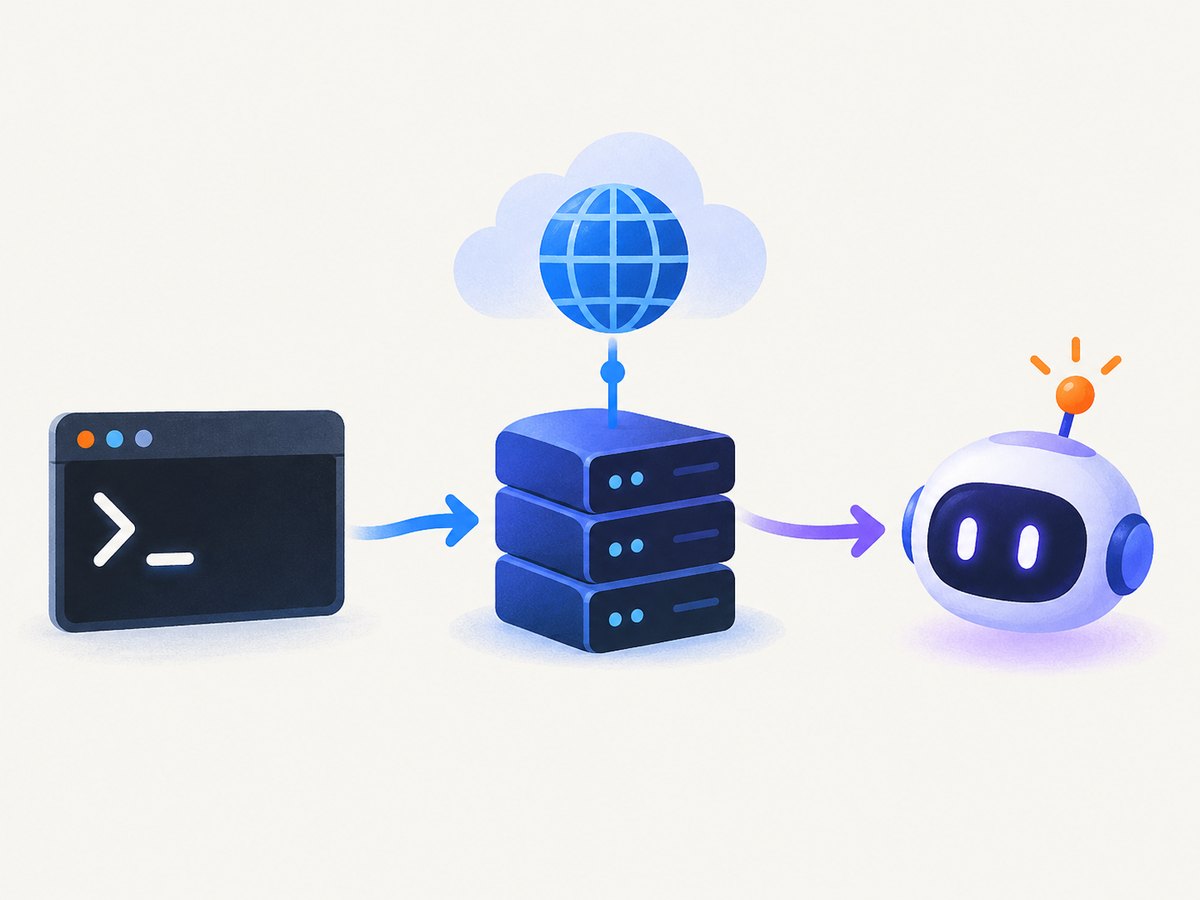
Direct answer: “Web MCP” is a general description for a web-capable Model Context Protocol server connected to Claude Code. It is not one universal provider or endpoint. Choose a server for the capability you need—search, page retrieval, browser automation, or a provider-specific combination—then add its documented HTTP or local process configuration with claude mcp add. Verify it with claude mcp list and /mcp, ask Claude to perform a task that requires the server, and confirm the tool call shows the expected server name.
What Web MCP means in Claude Code
MCP servers give Claude Code tools outside its built-in set. The official Claude Code documentation describes examples such as searching an issue tracker, querying a database, or controlling a browser. A web MCP server may expose search, fetch, browser, or other tools, but the exact endpoint, authentication, pricing, freshness, and tool behavior come from that server’s current documentation.
Keep these integrations separate:
- Claude Code MCP: the CLI connects to an external MCP server over a supported transport.
- Anthropic platform web tools: Anthropic documents web search and web fetch as API tool types. Their existence does not mean a particular web-search MCP server is bundled with Claude Code.
- Anthropic MCP connector: the API connector has its own
mcp_serversandmcp_toolsetconfiguration and requires a publicly exposed HTTP server. That is different from adding a server to the Claude Code CLI.
See the primary references: Claude Code’s MCP quickstart, the MCP reference, Anthropic’s tool reference, and the MCP connector guide.
1. Choose the web capability and read its server documentation
Before running a command, decide what Claude must do:
| Need | Look for in the server documentation |
|---|---|
| Web search | Search tool names, result fields, freshness limits, and citation behavior |
| Read a known page | Fetch or URL-reading tools, redirects, authentication, and content limits |
| Interact with a site | Browser automation, JavaScript support, sessions, downloads, and runtime requirements |
| Provider-specific web data | Provider endpoint, account setup, rate limits, and supported operations |
Record the server’s current transport (HTTP, SSE, stdio, or another transport supported by the current Claude Code reference), URL or process command, required environment variables, authentication flow, and tool names. Do not copy the Claude Code documentation endpoint and present it as a general search engine: it is an official documentation-search example.
2. Add a hosted HTTP MCP server
The official hosted example connects Claude Code to its documentation server:
claude mcp add --transport http claude-code-docs https://code.claude.com/docs/mcpThis command has three important parts:
--transport httptells Claude Code to use a hosted HTTP server.claude-code-docsis the local name you will see in status output and tool calls.- The final URL is the server endpoint.
For a real web MCP provider, replace both the name and URL with the exact values in that provider’s documentation. If it uses OAuth, complete sign-in when Claude Code prompts you through /mcp. If it uses a static token, follow the provider’s documented environment-variable or credential method; do not guess a header, query parameter, or token name.
Hosted server checklist
- Confirm the URL is the MCP endpoint, not a marketing or dashboard URL.
- Confirm whether the server requires OAuth, an API key, or additional headers.
- Check whether your network, proxy, or firewall permits the connection.
- Read the provider’s tool list so your prompt matches its actual capabilities.
3. Add a local stdio server
The official quickstart uses Playwright to demonstrate a local browser-automation server:
claude mcp add playwright -- npx -y @playwright/mcp@latestThe -- separates Claude Code options from the local process command. Claude Code starts the process and communicates over standard input and output. The quickstart states that this Playwright example requires Node.js 18 or later. It demonstrates browser automation, not a universal web-search service.
For another local server, substitute its documented executable and arguments:
claude mcp add SERVER_NAME -- COMMAND ARGUMENTS...Install every documented runtime and browser dependency before troubleshooting Claude Code. A local process can fail before registering any tools if its package, runtime, browser, or environment variable is missing.
4. Select the configuration scope
Claude Code supports three useful scopes:
| Scope | Where it applies | When to use it |
|---|---|---|
local |
Current project for your user; this is the default | Personal experiments or project-specific access |
user |
All projects for your user | A server you use repeatedly across repositories |
project |
Project root via .mcp.json |
Sharing a reviewed server configuration with teammates |
The default local configuration is stored in ~/.claude.json under the project entry. User-scoped servers are stored under the top-level mcpServers entry in that file. Project scope writes .mcp.json in the project root and requires project approval.
For example, the official hosted sample at user scope is:
claude mcp add --scope user --transport http claude-code-docs https://code.claude.com/docs/mcpReview a project-scoped file before committing it. Teammates will be asked to approve project servers, and the file may expose commands, URLs, or settings that deserve review. Claude Code reads .mcp.json at session start, so start a new session after editing it.
5. Verify that the server is connected
First inspect the configured servers from your terminal:
claude mcp listFor details about one server, use:
claude mcp get SERVER_NAMEThen start Claude Code and run:
/mcpLook for a connected status and the discovered tool list. A different status may indicate missing authentication, a failed connection, tool discovery failure, or pending project approval.
Finally, exercise the server with a task that clearly requires it. For the official documentation example:
Use the
claude-code-docsserver to look up how MCP server scopes work.
For an actual web server, ask a web-relevant question within its documented capability. Confirm in Claude’s output that the tool call is labeled with the expected server name. Naming the server is useful when another built-in tool could answer the same request.
6. Make Claude use the right tool
A connected server does not make every prompt a web request. Write prompts that specify the source and the operation:
Use the <server-name> MCP server to search for the current documentation on <topic>.
Return the page URL, summarize the relevant sections, and identify anything the server could not access.
Adjust the wording to the server’s actual tool names and output fields. Do not promise search-engine coverage, citations, page access, or freshness unless the selected server documents those features. If multiple MCP servers expose similar tools, name the intended server explicitly.
Hosted HTTP versus local stdio
| Choice | Hosted HTTP example | Local stdio example |
|---|---|---|
| Where it runs | Remote hosted service | Local process started by Claude Code |
| Configuration | --transport http plus a server URL |
Process command after -- |
| Official example | Claude Code documentation search | Playwright browser automation |
| Main dependencies | Network reachability and service authentication | Local runtime, package, browser, and environment setup |
| Scope choices | local, user, or project | local, user, or project |
Common errors and fixes
“No MCP servers configured”
Cause: The add command ran in another project, or the configuration was written to a path Claude Code does not read.
Fix: Run claude mcp list from the intended project. Check ~/.claude.json and the project-root .mcp.json. Re-add the server with the desired scope.
“Failed to connect”
Cause: The endpoint or process command is wrong, the network is blocked, credentials are invalid, or a required environment variable is absent.
Fix: Run claude mcp get SERVER_NAME, compare every value with the provider’s current instructions, confirm network reachability, and complete authentication through /mcp if required.
Connected, but no tools are listed
Cause: Tool discovery failed or the server started without required settings. Missing API keys are a common cause for local servers.
Fix: Open /mcp, inspect the tool list, then check the server’s environment variables and startup output. Restart Claude Code after correcting them.
Edits to .mcp.json do not appear
Cause: Claude Code reads project MCP configuration when the session starts.
Fix: End the current session and start a new one, then run /mcp again.
Local startup times out
Cause: The process needs longer than the default startup window to install packages, launch a browser, or initialize.
Fix: The official guide documents a 30-second default startup timeout and the MCP_TIMEOUT setting in milliseconds. Increase it only as needed, and verify the current reference because command behavior can change.
Claude answers without calling the server
Cause: The prompt can be answered from existing context, or it does not identify the required operation.
Fix: Name the server and request a task that requires its documented tool, such as retrieving a specific URL or searching for current information. Check the transcript for the server-labeled tool call.
Reliability, performance, and cost considerations
- Latency: Hosted servers add network and authentication latency. Local servers add process startup and browser startup time. Keep long-running sessions alive when the server supports it.
- Timeouts: Set timeouts according to the provider’s documentation. Browser automation generally needs more startup time than a simple HTTP request.
- Rate limits: Search and fetch quotas, concurrency limits, and pricing are provider-specific. Read the selected server’s current terms before automating large jobs.
- Failures: Treat tool output as fallible. Ask Claude to report inaccessible pages, authentication failures, and incomplete results instead of silently filling gaps.
- Scope and secrets: Prefer local or user scope for private credentials. Share project configuration only after reviewing commands and settings; never commit static secrets.
- Reproducibility: Pin package versions where the provider recommends it, document required runtimes, and record the server name and scope used by your team.

Or skip the browser setup
If your goal is to give an agent clean website screenshots rather than general search or browser control, ScreenshotNeo provides a website screenshot API and MCP server. Its MCP tools—take_screenshot, get_page_info, and capture_pdf—work with Claude, Cursor, and other MCP clients.
One GET request returns a PNG, JPEG, WebP, or PDF. The service accepts the cookie or consent banner like a visitor, then removes more than 60 known consent platforms, newsletter popups, and chat widgets before capture; each step can be turned off. Bot checks, CAPTCHAs, blank pages, timeouts, failed loads, and cache hits are not billed, and responses identify the result with X-Page-Verdict and X-Billed headers.
See the ScreenshotNeo API documentation for all options. These runnable examples use the required access_key and target URL parameters.
cURL
curl -G "https://api.screenshotneo.com/v1/shot" -d access_key=YOUR_API_KEY --data-urlencode url=https://stripe.com -o shot.webpPython
import requests
r = requests.get("https://api.screenshotneo.com/v1/shot", params={"access_key": "YOUR_API_KEY", "url": "https://stripe.com"}, timeout=90)
open("shot.webp", "wb").write(r.content)
Node.js
const q = new URLSearchParams({ access_key: 'YOUR_API_KEY', url: 'https://stripe.com' });
const res = await fetch(`https://api.screenshotneo.com/v1/shot?${q}`);
ScreenshotNeo supports full-page capture with lazy images loaded, CSS-selector element capture, dark mode, device presets and custom viewports, retina scale, PDF paper and page settings, custom CSS and JavaScript, clicks, selector or network-idle waits, request and resource blocking, headers, cookies, user agents, Authorization, timezone, geolocation, transparent backgrounds, resizing, chosen-TTL caching, signed image links, asynchronous jobs with signed webhooks, bulk capture for up to 100 URLs per call, a usage API, and an OpenAPI specification. Parameter names used by other screenshot APIs also work, which helps when switching.
There is a free plan with 1,000 screenshots per month and no card. Paid plans start at $5 for 3,000 shots; every feature is available on every plan. Create a free ScreenshotNeo account.
FAQ
Is Web MCP one specific product?
No. It describes an MCP server that gives Claude web-related tools. The provider, endpoint, authentication, and capabilities vary.
Does the Claude Code docs server search the whole web?
No. The official hosted example is a Claude Code documentation server. Use a separately documented web-search or page-reading server for those capabilities.
Should I use HTTP or stdio?
Use HTTP when the provider hosts the server and gives you a URL. Use stdio when Claude Code is expected to start a local command such as the official Playwright example.
What does project scope change?
Project scope stores the configuration in .mcp.json for sharing and requires user approval. Restart Claude Code after changing that file.
How can I prove Claude used the MCP server?
Inspect /mcp for connection and tools, then run a task that requires the server and confirm the resulting tool call carries the server name.


