Validating Clip and Full-Page Screenshots
Compare screenshots reliably with Playwright: choose the right capture scope, stabilize rendering, set sensible thresholds, and review visual diffs.
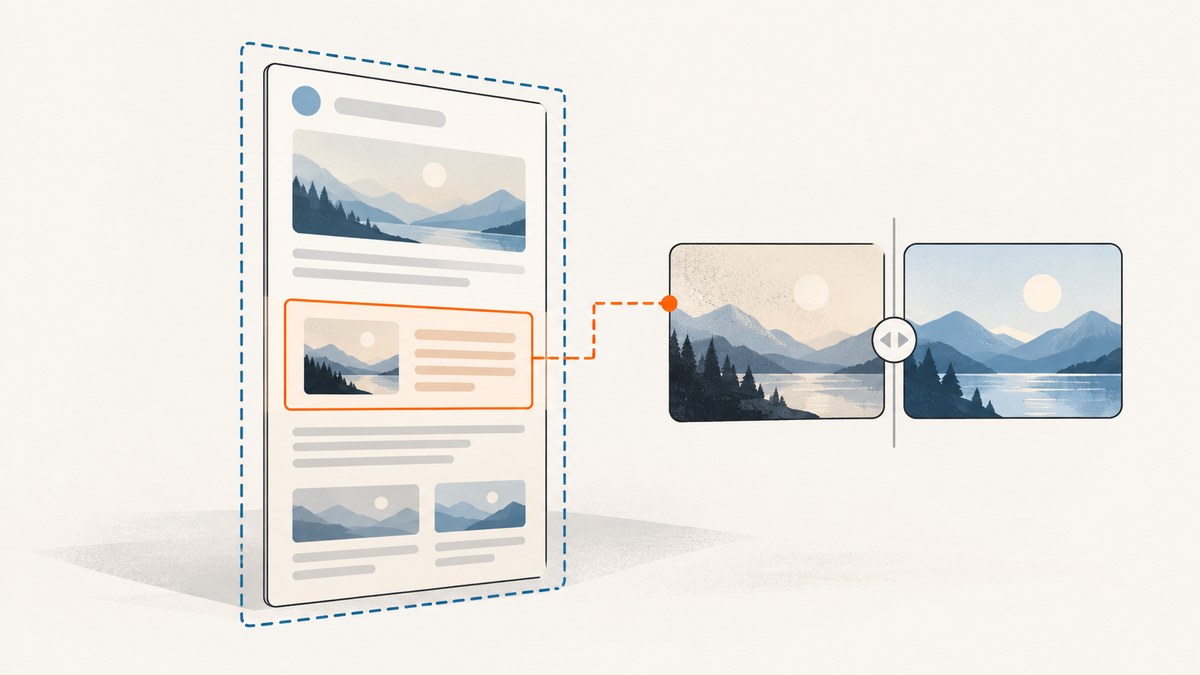
Validate a clipped or full-page screenshot by capturing the same page state under the same rendering conditions as an approved reference, then comparing the resulting image. In Playwright Test, use expect(page).toHaveScreenshot({ clip }) for a coordinate rectangle, expect(page).toHaveScreenshot({ fullPage: true }) for the full scrollable page, or a locator screenshot assertion to validate one component. Keep browser, operating system, viewport, data, and page state stable; only add masks or pixel tolerances for differences your team has explicitly decided to ignore.
This guide covers Playwright visual assertions, direct screenshot capture, reproducibility, failure diagnosis, and complementary semantic checks. For the full option reference, see the official PageAssertions API and visual comparisons guide.
1. Choose what part of the page to validate
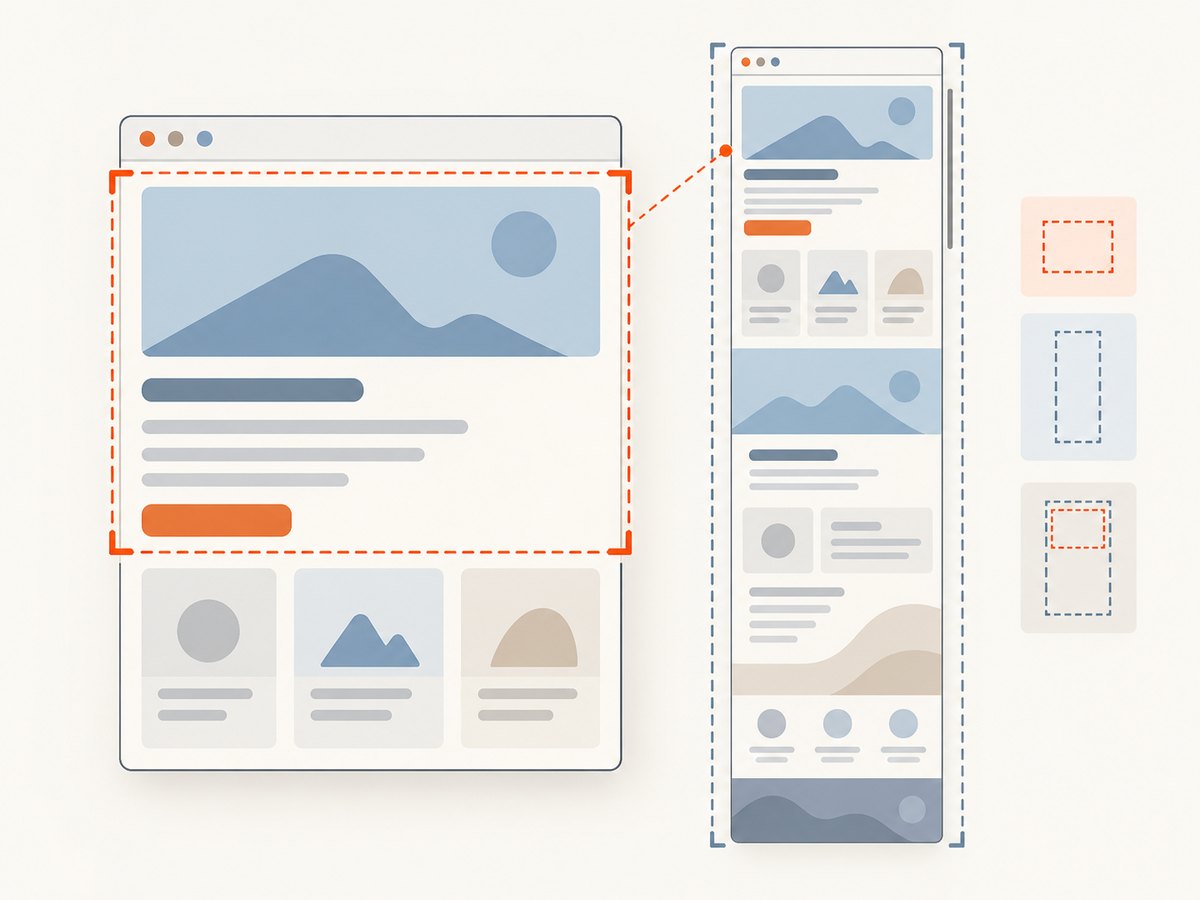
The capture scope defines what a passing test means. Pick the smallest scope that includes the visual risk you care about.
| Scope | What it captures | Use it when | Watch for |
|---|---|---|---|
| Clip | A rectangle defined by x/y coordinates, width, and height | A known region such as a chart, hero, or navigation area is the target | Coordinates depend on the viewport and page layout. A shifted region can capture the wrong content. |
| Element | The bounding image of a locator or element | A reusable component should be tested independently | The locator must uniquely identify the intended component and the surrounding layout is excluded. |
| Viewport | The visible browser viewport | Above-the-fold composition or a specific responsive breakpoint matters | It says nothing about content below the fold. |
| Full page | The full scrollable page | Below-the-fold content, total vertical structure, or page-wide regressions matter | More content and dynamic regions enter the comparison, increasing noise and making diffs harder to diagnose. |
Clip rectangles and full-page capture are different modes. A clip is a fixed rectangle; full-page capture extends to the page’s scrollable height. Do not combine them as if full-page meant “apply this rectangle to the whole document.” When only a component matters, an element screenshot usually produces a more focused test than a full-page image. Playwright documents page, locator, and full-page capture in its screenshots guide.
2. Set up a repeatable Playwright project
Install Playwright Test, create one spec, and run it in a controlled environment. The first run creates the reference image; subsequent runs compare against it. Commit reviewed snapshots alongside the test so CI has the same baseline.
npm init -y
npm install --save-dev @playwright/test
npx playwright install chromium
Create playwright.config.ts:
import { defineConfig } from '@playwright/test';

export default defineConfig({
  testDir: './tests',
  use: {
    browserName: 'chromium',
    viewport: { width: 1280, height: 800 },
    colorScheme: 'light',
    locale: 'en-US',
    timezoneId: 'UTC',
  },
  expect: {
    toHaveScreenshot: {
      animations: 'disabled',
      caret: 'hide',
      // Set a project-wide tolerance only if it matches your review policy.
      // maxDiffPixels: 0,
    },
  },
});
This pins several inputs, but it does not make any machine identical to another. Browser build, operating system, installed fonts, headless mode, hardware, and other environment details can still change rendered pixels. Use the same CI image or execution environment for baseline generation and comparison. If intentionally supporting different renderers, keep separate references for those environments instead of mixing their output.
3. Write clip, full-page, and element assertions
Make a test page and state deterministic before you capture. The example below assumes the application is served locally at http://127.0.0.1:3000, includes a .hero region and a [data-testid="pricing-card"] component. Replace those paths and locators with your app’s stable test fixtures.
import { test, expect } from '@playwright/test';

test('landing page visual scopes', async ({ page }) => {
  await page.goto('http://127.0.0.1:3000/pricing', {
    waitUntil: 'networkidle',
  });
  await expect(page.getByRole('heading', { name: 'Pricing' })).toBeVisible();

  // Fixed region in viewport CSS pixels.
  await expect(page).toHaveScreenshot('pricing-hero-clip.png', {
    clip: { x: 0, y: 0, width: 1280, height: 420 },
  });

  // Every scrollable section, including content below the fold.
  await expect(page).toHaveScreenshot('pricing-full-page.png', {
    fullPage: true,
  });

  // One component without unrelated page regions.
  await expect(page.getByTestId('pricing-card'))
    .toHaveScreenshot('pricing-card.png');
});
Run the test with npx playwright test. On its first execution, Playwright reports that the snapshot does not exist and writes the actual image as the initial reference. Inspect the file before committing it. A later run compares the current capture with that reference. Update intended changes using npx playwright test --update-snapshots, then review the changed image in version control; snapshot updating should be a deliberate approval step, not a way to clear a failure without inspection.
4. Capture and compare images outside the assertion helper
Sometimes a test needs to save an image for a custom comparison or diagnostic artifact. Playwright’s screenshot API can return a buffer as well as write a file. This example performs a direct clipped capture with Node.js and the Playwright library:
import { chromium } from 'playwright';
import { writeFile } from 'node:fs/promises';

const browser = await chromium.launch({ headless: true });
const page = await browser.newPage({ viewport: { width: 1280, height: 800 } });
try {
  await page.goto('http://127.0.0.1:3000/pricing', {
    waitUntil: 'networkidle',
  });
  await page.locator('h1').waitFor({ state: 'visible' });
  const png = await page.screenshot({
    type: 'png',
    clip: { x: 0, y: 0, width: 1280, height: 420 },
  });
  await writeFile('pricing-hero-actual.png', png);
} finally {
  await browser.close();
}
Install the matching package and browser with npm install playwright and npx playwright install chromium. Use page.screenshot({ fullPage: true }) for a full-page image or page.locator('.hero').screenshot() for an element. This saves a capture; it does not by itself compare it to an approved baseline. For retrying image assertions integrated with snapshot management, use Playwright Test’s toHaveScreenshot.
5. Make screenshot state deterministic
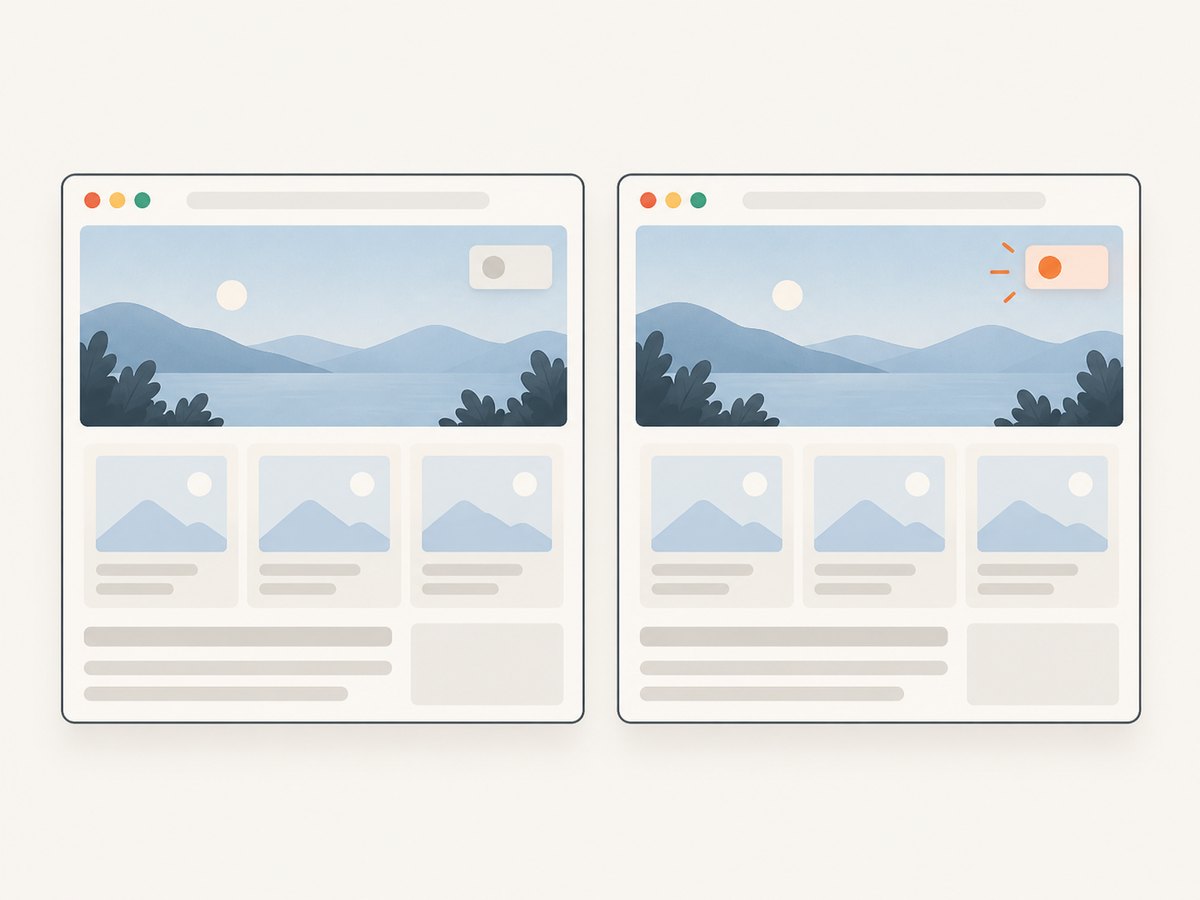
A screenshot is a rendering result, so its inputs need to be controlled. Start from a known route and test data. Wait for a meaningful readiness condition, such as a heading becoming visible or an application-specific “ready” marker appearing, rather than assuming that navigation completion means every asynchronous widget is finished.
- Fonts: ensure web fonts have loaded before capture; a fallback font changes glyph widths and line wrapping.
- Images: wait for relevant images to load. Full-page captures may expose lazy-loaded content; trigger the app’s expected scroll/loading behavior where necessary, then return to the required position.
- Animation: Playwright screenshot assertions disable animations by default; direct screenshots can set
animations: 'disabled'. If animation is what you are testing, allow it and synchronize to a known frame or state. - Dynamic data: use fixed fixtures for clocks, randomized values, rotating promotions, avatars, and personalized content. Masking is a last-mile policy for intentionally variable areas.
- Network: prefer controlled test services or stable fixtures. A broad
networkidlewait can be unsuitable for pages with long polling or persistent connections, so wait on the application signal that matters. - Viewport and scale: preserve viewport dimensions and screenshot scale. A viewport change can alter breakpoints, wrapping, and clip coordinates.
Playwright’s assertion retries until two consecutive screenshots produce the same result, then compares the final capture with the expectation. That settling behavior helps with transient rendering, but it cannot repair fundamentally unstable page data or mismatched execution environments. See the official visual comparison guidance for its warning about platform and execution differences.
6. Configure thresholds, masks, and capture options as policy
Screenshot assertions expose options to define the comparison and capture contract. Defaults can vary with Playwright version, so consult the API reference for the version installed in your project.
| Option | What it controls | Good policy |
|---|---|---|
clip |
Rectangle with x, y, width, and height |
Use stable coordinates and document why this crop represents the risk. |
fullPage |
Captures full scrollable page instead of viewport | Use when below-fold changes are in scope; pair with readiness for lazy content. |
maxDiffPixels |
Maximum number of differing pixels allowed | Use a small, justified count when antialiasing noise is acceptable. |
maxDiffPixelRatio |
Maximum differing pixel proportion | Can scale tolerance with image size; ensure a small defect does not disappear in a large image’s allowance. |
threshold |
Per-pixel perceived color difference threshold | Raise only when small color variation is expected and not meaningful. |
mask, maskColor |
Locator regions to cover and the cover color | Mask only known volatile content, and keep the excluded area reviewable. |
stylePath / stylesheet |
CSS applied during screenshot capture | Hide or normalize a specific unstable visual when that difference is outside test intent. |
animations, caret |
Animation handling and text caret appearance | Keep stable defaults unless motion or caret rendering is part of the requirement. |
scale |
Screenshot pixel density choice, where supported by the assertion API | Use the same scale for baseline and current images. |
For example, a focused test can mask a timestamp that is intentionally generated at runtime:
await expect(page).toHaveScreenshot('dashboard.png', {
  mask: [page.getByTestId('updated-at')],
  maskColor: '#777777',
  maxDiffPixels: 12,
});
The sample value is illustrative, not a recommended universal tolerance. A threshold or mask can make a flaky test pass while hiding a real defect. Record why the excluded area varies, who owns the policy, and what visual behavior remains covered. Do not mask entire sections merely because a comparison is inconvenient.
7. Review failures and update baselines safely
When an assertion fails, inspect the expected, actual, and diff images together. First establish whether the rendered page changed intentionally. Then determine whether the cause is an application regression, changed test inputs, or environment drift. Review the full image when the crop seems suspicious: a clip can pass while an important change sits just outside its boundary.
- Re-run the failing test in the baseline environment and check whether the output repeats.
- Compare viewport, browser version, fonts, locale, color scheme, timezone, and test data.
- Inspect whether the diff aligns with a meaningful boundary or appears as widespread pixel noise.
- Fix the page or stabilize inputs when the difference is accidental.
- Update the reference only after approving the visual change; include the snapshot diff in code review.
A screenshot validates appearance, not behavior or meaning. A button can look correct and still be inert; text can be present but incorrect. Pair visual checks with web-first assertions for labels, roles, URLs, and interactions. Playwright’s guidance distinguishes screenshots for visual layout and canvas/chart content from accessibility snapshots for page structure, text, and interaction references; see its screenshot guidance.
8. Troubleshooting common failures
| Symptom | Likely cause | Fix |
|---|---|---|
| Screenshot differs on every run | Animation, changing data, clock, font load, or asynchronous content | Use stable fixtures, wait for an app readiness signal, disable animations, and mask only a narrowly defined volatile locator. |
| Passes locally but fails in CI | Different OS, browser build, fonts, headless mode, hardware, or browser settings | Generate and compare references in the same CI image and pinned browser installation. |
| Clip is blank or captures the wrong region | Coordinates are outside the intended viewport, wrong dimensions, or layout shifted before capture | Confirm viewport size, validate the page state before capture, and use an element locator where a rectangle is fragile. |
| Full-page image omits lower content | Lazy-loaded sections were not triggered or content was not ready | Exercise the page’s loading behavior and wait for the relevant content before the screenshot. |
| Assertion says snapshot is missing | This is the initial reference-generation run or the snapshot path/name changed | Inspect the generated image, then commit it. Verify snapshot naming and test location if the absence is unexpected. |
| Failure persists after snapshot update | The changed image was not reviewed/committed, or another project/environment owns a different baseline | Check version control status, project name, snapshot directory, and the exact command used to update references. |
| Too many unrelated differences | Full-page scope includes changing content outside the risk being tested | Use a clip or element assertion for the relevant component, while keeping a separate broad page test if warranted. |
9. Performance, reliability, and maintenance
Capture and image comparison add work to a test run. Full-page images are often taller than viewport shots and cover more rendering surface; use them when page-wide coverage has value, not as the default for every component. Clipped and element assertions reduce irrelevant comparison surface, though overly narrow crops can miss layout context. Start with a few high-value visual contracts and expand where regressions justify the maintenance.
Reliability comes mainly from repeatable conditions and sensible failure handling. A retrying assertion reduces sensitivity to momentary rendering instability, but repeated screenshots consume time and cannot make a changing API response deterministic. Keep baseline updates reviewable, separate browser/platform baselines only when those differences are intentional, and make tolerance changes visible in code review.
Cost includes CI execution time, storage and review effort for references, and the engineering time spent diagnosing diffs. There is no universal runtime or percentage threshold that fits every page; measure in your own pipeline and scope tests according to user impact. Treat a too-generous tolerance as lost detection coverage, not a free speed optimization.
10. Or skip the browser setup
If you need a clean website capture without maintaining a local browser installation, ScreenshotNeo is a website screenshot API and MCP server. One GET request returns an image or PDF. For this workflow, a screenshot can still serve as a visual artifact; Playwright Test remains the option for an in-test assertion against committed reference images.
Example API call, using the required URL parameter encoding:
curl -G "https://api.screenshotneo.com/v1/shot" \
  -d access_key=YOUR_API_KEY \
  --data-urlencode url=https://stripe.com \
  -o shot.webp
See the ScreenshotNeo API documentation for request options. ScreenshotNeo removes cookie/consent banners, newsletter popups, and chat widgets before capture; each step can be turned off. Bot checks/CAPTCHAs, blank pages, timeouts, failed loads, and cache hits cost nothing, and response headers identify the page verdict and billing status. Its MCP server exposes screenshot, page information, and PDF capture tools for AI agents. The free plan includes 1,000 shots a month with no card; paid plans start at $5 for 3,000, and every feature is on every plan.
Create a free ScreenshotNeo account for 1,000 screenshots a month, with no card required.
Frequently asked questions
Should I compare the whole page or just one element?
Use the narrowest scope that includes the visual behavior under test. Choose full-page when vertical layout and below-the-fold content matter; choose an element when the component itself is the contract.
Can I validate screenshots without Playwright Test?
Yes. Playwright’s regular screenshot APIs save a file or return image bytes, which you can compare using a separate image-diff process. The retrying toHaveScreenshot assertion and its snapshot workflow require the Playwright Test runner.
Should I update snapshots automatically in CI?
Only when the workflow includes review of the generated image changes. An automatically accepted baseline can turn a visual regression into the new expected result without anyone noticing.
Do screenshot assertions prove accessibility?
No. Screenshots show rendered pixels. Use accessible roles, names, text, keyboard behavior, and accessibility-focused checks for those requirements.
Why does the same HTML produce different screenshots?
Rendering also depends on browser and host environment, fonts, settings, hardware, headless execution, page data, and timing. Keep those inputs aligned with the baseline or intentionally maintain distinct references.


