How to Use the Vercel Agent Browser MCP Server for Website Screenshots
Set up Vercel’s agent-browser MCP server, connect it to an MCP client, and capture reliable viewport or full-page website screenshots.
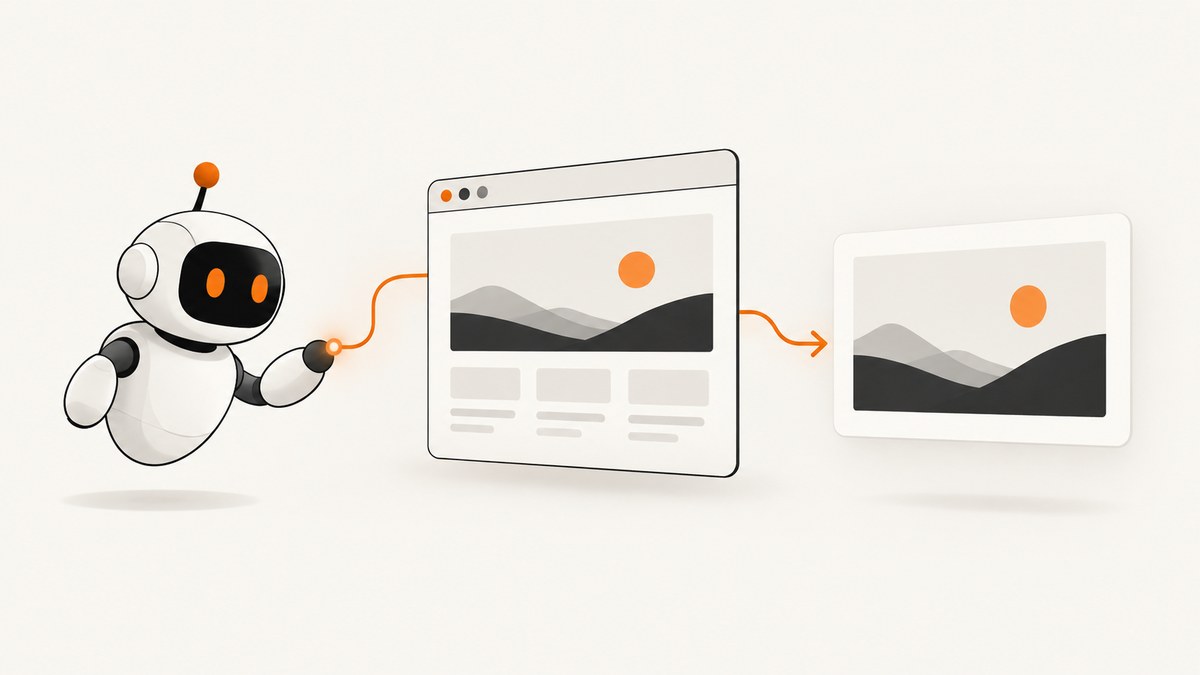
Short answer: install Vercel Labs’ agent-browser CLI and Chrome runtime, start its stdio MCP server with agent-browser mcp, then configure your MCP client to launch that command. In the client, navigate with the browser tools and call agent_browser_screenshot. The default core profile includes the screenshot tool.
agent-browser is the browser automation project described here. It is separate from Vercel’s remote OAuth service at mcp.vercel.com, which provides Vercel project, deployment, log and analytics tools rather than this local browser screenshot server.
What you are setting up
The command agent-browser mcp starts a Model Context Protocol server over stdio. Your MCP client launches the process, discovers its tools and sends browser actions to it. A typical screenshot flow is:
- Install the CLI and its Chrome for Testing runtime.
- Register
agent-browserwith the MCP client using themcpargument. - Open the target URL.
- Wait for content or interactions to settle.
- Call
agent_browser_screenshotfor a viewport or full-page image. - Close the browser session.
Install agent-browser and Chrome
Global installation
npm i -g agent-browser
agent-browser install
On Linux, install the documented system dependencies together with Chrome for Testing:
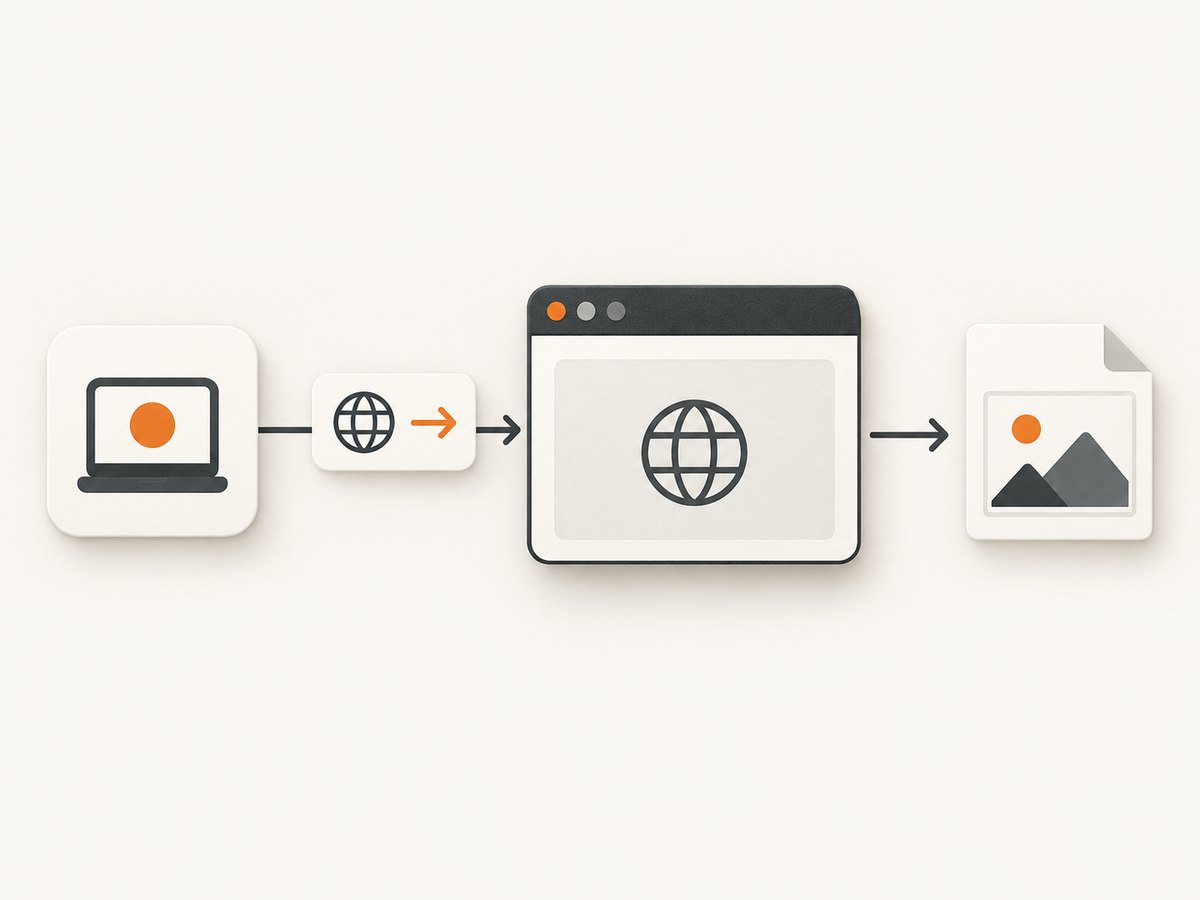
agent-browser install --with-depsProject-local installation
npm install agent-browser
npx agent-browser install
Use the project-local executable when your team pins dependencies in a repository. The global installation is convenient for a personal MCP configuration.
Check the executable
agent-browser --help
agent-browser mcp --help
If these commands are not found, check that npm’s global bin directory is on PATH, or invoke the project-local binary through npx.
Configure an MCP client
Add a server entry whose command is agent-browser and whose argument is mcp:
{
  "mcpServers": {
    "agent-browser": {
      "command": "agent-browser",
      "args": ["mcp"]
    }
  }
}
The server communicates over standard input and output, so the MCP client must launch it as a local process. If you installed it locally, point command at the repository’s executable or use an equivalent npx command supported by your client.
Choose the tool profile
The default profile is core, which includes the screenshot capability. To expose the complete typed CLI surface:
agent-browser mcp --tools allYou can also combine named profiles, for example:
agent-browser mcp --tools core,network,reactUse the smallest profile that covers your workflow. A client may paginate tool discovery, so load additional tool pages when the screenshot tool is not visible immediately.
Take your first screenshot
After the MCP server is connected, ask the client to open a page and then call agent_browser_screenshot. The equivalent CLI sequence is:
agent-browser open https://example.com
agent-browser screenshot page.png
agent-browser close
With no output path, the command saves the image in a temporary directory. A named path makes the result easier to consume in a build or review step.
Viewport versus full-page capture
# Capture the current viewport
agent-browser screenshot viewport.png

# Capture the complete scrollable page
agent-browser screenshot --full full-page.png
Use a viewport capture for a browser-state check or visual regression at a fixed screen size. Use --full for documentation, content review and long pages.
Useful screenshot options
| Option | Use |
|---|---|
[path] |
Write the image to a specific file. Without it, use a temporary location. |
--full |
Capture the full page instead of only the viewport. |
--annotate |
Add numbered labels to interactive elements for agent-driven follow-up. |
--screenshot-dir |
Choose the directory used for screenshots. |
| JPEG and quality flags | Choose JPEG output and its quality when a smaller lossy file is preferable. |
--if-changed and --threshold |
Save only when the visual change passes the selected threshold. |
Headless Chromium hides native scrollbars by default. If scrollbars are part of the visual you need, launch with --hide-scrollbars false.
A reliable MCP screenshot workflow
1. Open the page
Navigate to the exact URL, including the path and query parameters that define the state you want to capture.
2. Wait for the page to settle
Wait for the main content, a known selector or the result of an interaction before capturing. A screenshot taken while a layout is still shifting can include loading placeholders or incomplete images.
3. Handle consent and overlays
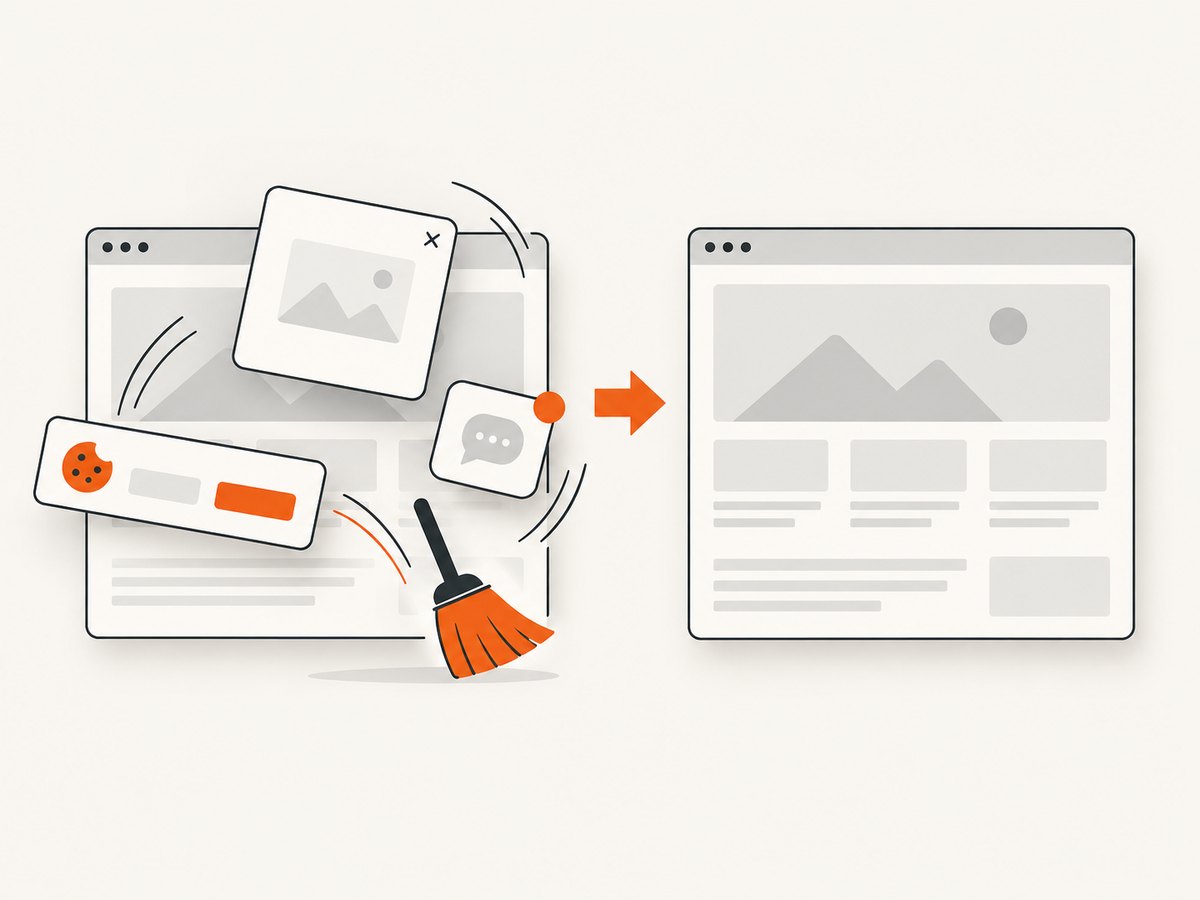
If a cookie dialog, newsletter modal or chat widget covers the target, dismiss it through the browser interaction tools. After any click that changes the page, take a fresh snapshot before using element references again.
4. Capture
Call agent_browser_screenshot for the current viewport, or request a full-page capture when the entire document is required. Use annotation only when numbered targets help a later agent action; annotations change the pixels.
5. Close the session
Close the browser after the capture so a long-running agent does not leave processes or state behind.
Sessions, permissions and domain limits
Isolate browser state
The unnamed default browser session is shared and persists across conversations. Use a named browser session, or pass the MCP tool’s session argument, when cookies, local storage or open pages must be isolated between tasks. Close named sessions when complete.
Restrict allowed domains
For a controlled workflow, provide allowedDomains in the MCP tool arguments. The project maps this to the CLI’s allowed-domain restrictions and applies containment and launch-mode restrictions to the relevant fresh controllable context. Include every domain the page genuinely needs, such as an authentication or asset host, or navigation may fail.
Automation patterns
Full-page documentation capture
agent-browser open https://example.com/docs
agent-browser screenshot --full docs.png
agent-browser close
Annotated interaction planning
agent-browser open https://example.com
agent-browser screenshot --annotate targets.png
Use the numbered labels to identify controls, then perform the click or form action. Because the interaction changes the document, take another snapshot before relying on element references.
Change-sensitive captures
agent-browser open https://example.com
agent-browser screenshot --if-changed --threshold 0.02 review.png
agent-browser close
Select a threshold appropriate to your review process. The documentation describes these flags as change-sensitive capture controls; it does not provide a universal threshold that works for every site.
Troubleshooting
| Symptom | Cause | Fix |
|---|---|---|
agent-browser: command not found |
The global npm bin directory is not on PATH, or the package is only installed locally. |
Use the project-local executable or fix npm’s PATH; verify with agent-browser --help. |
| Chrome will not start | The browser runtime or Linux system libraries are missing. | Run agent-browser install; on Linux use agent-browser install --with-deps. |
| The MCP client cannot launch the server | The command or argument is wrong, or the client cannot resolve the executable. | Use command: "agent-browser" with args: ["mcp"], then run the same command in a terminal to verify it starts. |
| The screenshot tool is missing | Tool discovery is paginated, or a profile without the core tools was selected. | Load the next tool page, use the default core profile, or start with --tools all. |
| A click target is covered | A consent banner, modal or chat widget is above the target. | Dismiss the covering element, take a fresh snapshot and retry the interaction. |
| Element references no longer work | The page changed after a click, navigation or asynchronous update. | Take a new snapshot and use the new references. |
| Navigation is blocked | The requested host is outside the allowed-domain list. | Add the host to allowedDomains or remove the restriction for a trusted workflow. |
| Full-page output is incomplete | Content or lazy images had not loaded when capture started. | Wait for the main content and lazy sections to settle, then capture again. |
| Scrollbars are absent | Headless Chromium hides native scrollbars by default. | Launch with --hide-scrollbars false when visible scrollbars are required. |
Performance, reliability and cost considerations
- Startup: browser startup and page navigation are fixed overhead. Reuse a named session for a related sequence, then close it when the sequence ends.
- Page readiness: waiting for content to settle improves completeness but increases latency. Choose a stable selector or page condition instead of an unnecessarily long delay.
- Full pages: full-page captures read and render more content than viewport captures, so they generally require more time and produce larger files.
- Tool scope: the
coreprofile keeps discovery focused;allis useful when you need typed parity across the CLI but exposes more tools to the client. - Isolation: named sessions prevent state collisions, which improves repeatability when multiple agents or conversations run concurrently.
- Cost: agent-browser itself is a local CLI and browser workflow. Your practical costs are compute, storage and any network or CI resources used to run it; the cited documentation does not publish a per-screenshot service price.
Or skip the browser setup
If you only need a clean website image, ScreenshotNeo provides a single HTTP request instead of a browser installation and MCP configuration. Its API accepts a URL and returns PNG, JPEG, WebP or PDF. Read the ScreenshotNeo API documentation for the complete option list.
curl -G "https://api.screenshotneo.com/v1/shot" -d access_key=YOUR_API_KEY --data-urlencode url=https://stripe.com -o shot.webpimport requests
r = requests.get("https://api.screenshotneo.com/v1/shot", params={"access_key": "YOUR_API_KEY", "url": "https://stripe.com"}, timeout=90)
open("shot.webp", "wb").write(r.content)const q = new URLSearchParams({ access_key: 'YOUR_API_KEY', url: 'https://stripe.com' });
const res = await fetch(`https://api.screenshotneo.com/v1/shot?${q}`);- Cookie and consent banners are accepted and removed before the shot, along with more than 60 known consent platforms, newsletter popups and chat widgets; each cleanup step can be turned off.
- Bot checks and CAPTCHAs, blank pages, timeouts, failed loads and cache hits are not billed. The response identifies the result with
X-Page-VerdictandX-Billedheaders. - An MCP server lets Claude, Cursor and other MCP clients call
take_screenshot,get_page_infoandcapture_pdf. - The Free plan includes 1,000 screenshots per month with no card. Paid plans start at $5 for 3,000 screenshots; every feature is available on every plan.
Create a free ScreenshotNeo account and start with the 1,000 monthly screenshots.
FAQ
Is this the same as Vercel’s MCP server at mcp.vercel.com?
No. mcp.vercel.com is Vercel’s remote OAuth service. The screenshot workflow here uses the local Vercel Labs agent-browser project.
Can I save JPEG instead of PNG?
Yes. The screenshot command documents JPEG output and quality flags. Choose JPEG when a smaller lossy file is acceptable.
Do I need the all profile for screenshots?
No. The default core profile includes the screenshot tool. Use all or named profiles only when you need additional capabilities.
Should I use a shared default session in CI?
Use a named session or the MCP session argument in CI and parallel jobs so cookies and pages do not collide.
Can ScreenshotNeo capture PDFs?
Yes. Its API supports PDF output, including paper size, margins, landscape mode and page ranges.


