BlogScreenshots on your device
Why Vivaldi Full-Page Capture Fails and How to Fix It
Fix missing, truncated, or misplaced Vivaldi full-page screenshots on desktop and Android, including the 30,000-pixel limit and storage settings.

Short answer: Vivaldi full-page capture can fail because the wrong capture command was used, the page exceeds desktop Vivaldi’s documented 30,000-pixel maximum, an extension or content blocker interferes, or the capture was saved somewhere unexpected. On Android, use Menu > Capture Page > Full page; the Share menu’s screenshot is a separate flow.
Start by identifying the platform and symptom. Is the command missing, does it hang, does it capture only the visible viewport, does it stop partway down, or does it finish but you cannot find the file? Each symptom has a different check.
Desktop Vivaldi: use the correct full-page command
On desktop, open the camera icon in the Status Bar and choose Full Page. A Full Page capture is intended to cover the site’s full length, with a documented maximum of 30,000 pixels. Vivaldi documents the behavior in Capture a screenshot in Vivaldi.
If the camera icon is not visible, you can start capture through any of these routes:
- A configured keyboard shortcut.
- Quick Commands: press F2 on Windows/Linux or ⌘E on macOS, then search for Capture.
- The Capture integration in Notes.
Choose Full Page, rather than Selection or a visible-area option. Selection mode deliberately captures only the region you draw.
Android Vivaldi: distinguish Capture Page from Share screenshots
Android has a full-page capture option, but it is not the same as the screenshot command in the Android Share menu. In Vivaldi, open the browser menu, choose Capture Page, and then select the full web page option. Vivaldi’s Android documentation notes that some page-length restrictions may apply, without giving a numeric threshold; see Capture a screenshot on Android.
The Share menu can expose a screenshot or long-screenshot flow. That flow captures the visible browser area, may include browser UI, and lets you manually choose a region. It does not provide the same page capture as Capture Page. If you need a clean page without browser controls, return to Vivaldi’s Capture Page command.
Why a full-page result is incomplete
Desktop’s 30,000-pixel ceiling
Vivaldi states: “A Full Page capture is a screenshot of the full length of a website (max 30 000 pixels).” If the document is taller than that, a result that ends near the limit may be explained by the documented ceiling. Do not assume every partial image has this cause: layout scripts, blocked resources, and browser setup can also affect a capture.
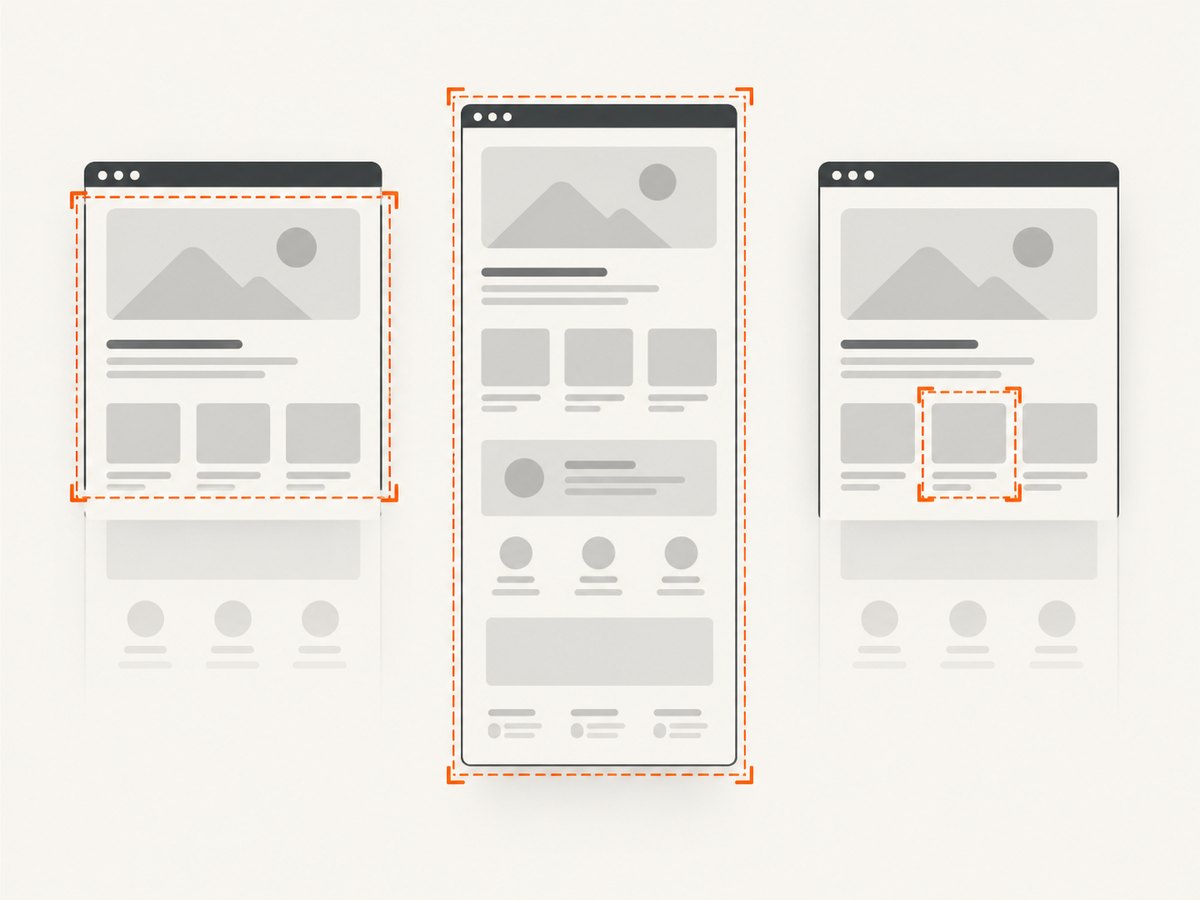
For a very tall page, capture logical sections separately, reduce the page’s content before capturing, or use an automated screenshot service that supports full-page rendering and element-specific captures.
Lazy-loaded and dynamically changing content
Long pages may load images, charts, or text only as you scroll. A capture can therefore differ from what you see after manually reaching the bottom. Let the page finish loading, scroll through it once, and retry. If the page continuously changes height, freeze the state where possible by dismissing overlays and waiting for asynchronous content to settle.
Desktop troubleshooting checklist
- Restart and update Vivaldi. Confirm the browser is current, then restart it and reload the page.
- Test a clean profile. Open a Guest window or create a new user profile and retry the same URL.
- Disable extensions temporarily. Test with extensions off, especially tools that modify pages, inject scripts, manage tabs, or capture screenshots.
- Turn off tracker and ad blocking for the test. Blocked scripts or resources can change page behavior. Re-enable protection after isolating the cause.
- Pause a VPN as a diagnostic. A network path or policy can prevent resources from loading. Change one variable at a time and reload before each retry.
- Match the fix to the symptom. Vivaldi’s general troubleshooting guidance covers these isolation steps, but it does not claim each one is a capture-specific fix. See Vivaldi’s desktop troubleshooting guide.
Hardware acceleration belongs in a narrower check. Vivaldi discusses it for video/media problems and interface appearance or responsiveness. Consider that setting only when your capture problem appears together with those symptoms; changing it is not a universal full-page-capture fix.
When the capture succeeded but you cannot find it
Desktop Vivaldi can output a capture as PNG or JPG, copy it to the clipboard, or create a Note. Check the configured destination under Settings > Webpages > Image Capture > Capture Storage Folder. If you selected clipboard output, paste into an image editor or document. If you created a Note, open Notes Manager; Vivaldi attaches the capture with its webpage link and creation date. The Notes documentation is available at Notes Manager.
Diagnose the failure by symptom
| Symptom | Likely checks |
|---|---|
| Capture command is missing | Show the Status Bar camera icon, use Quick Commands, verify a shortcut, or open Notes capture. |
| Only the visible viewport is saved | Use desktop Full Page or Android Capture Page > Full page; do not use the Share-menu screenshot. |
| Image stops at a consistent height | On desktop, compare the document height with the 30,000-pixel maximum. On Android, account for undocumented page-length restrictions. |
| Capture hangs or shows a blank result | Reload, wait for the page, test a clean profile, disable extensions/blocking, and pause VPN as an isolation step. |
| File is not where expected | Check Capture Storage Folder, clipboard output, or Notes Manager. |
Escalate a repeatable problem
If the issue remains after the relevant checks, record the Vivaldi version, operating system, device, URL (if shareable), capture mode, and exact symptom. Reproduce it in a clean profile, then discuss it on the Vivaldi Forum and follow Vivaldi’s bug-report guidance. Do not treat a repeatable symptom as proof of a known bug until an official issue or release note confirms it.
Or skip the browser setup
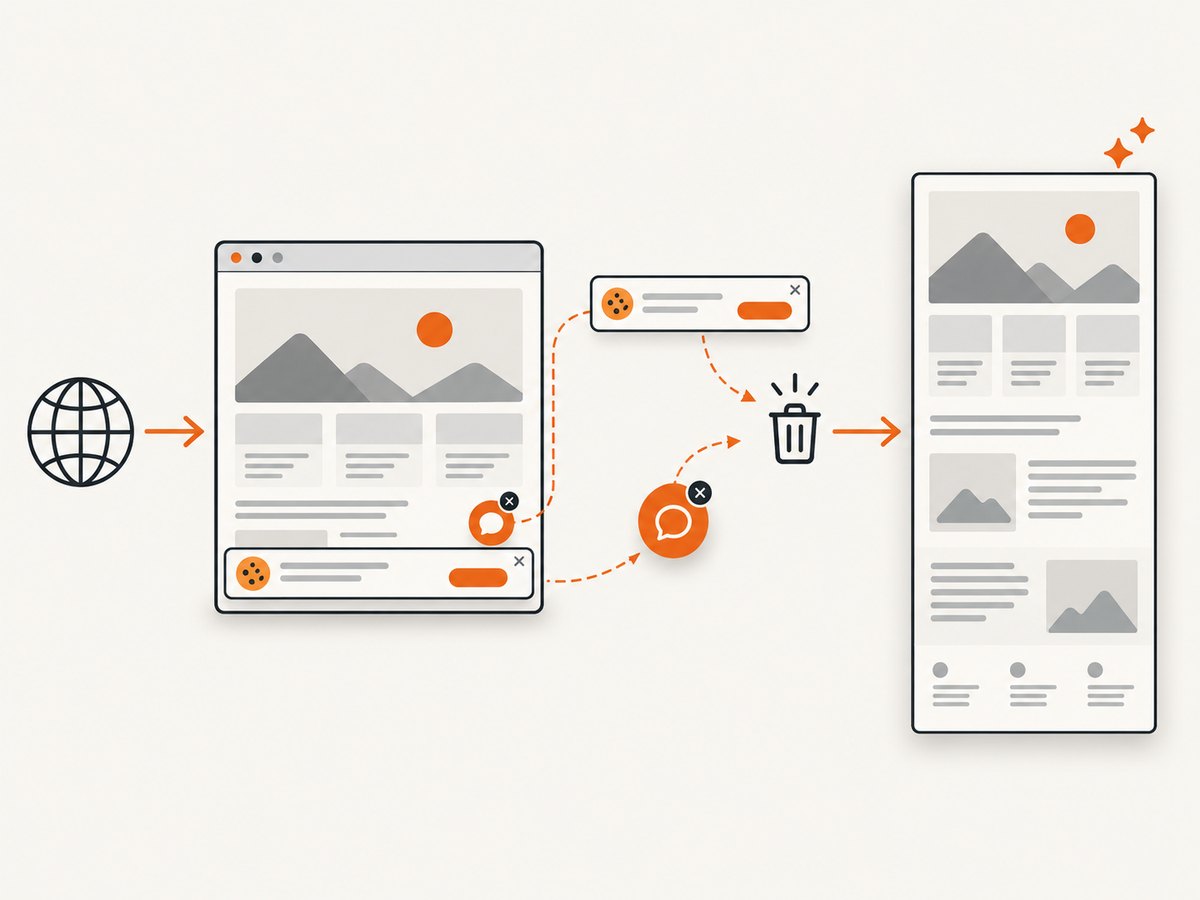
If you need repeatable screenshots in a build, script, or backend job, ScreenshotNeo provides a GET request that returns PNG, JPEG, WebP, or PDF. It removes cookie and consent banners, newsletter popups, and chat widgets before capture; bot checks, blank pages, failed loads, timeouts, and cache hits are not billed. Each response identifies the result with X-Page-Verdict and X-Billed headers. An MCP server provides take_screenshot, get_page_info, and capture_pdf tools for Claude, Cursor, and other MCP clients.
See the ScreenshotNeo API documentation for authentication and options. The minimal calls below use the same target URL and save the returned bytes.
cURL
curl -G "https://api.screenshotneo.com/v1/shot" -d access_key=YOUR_API_KEY --data-urlencode url=https://stripe.com -o shot.webpPython
import requests
r = requests.get("https://api.screenshotneo.com/v1/shot", params={"access_key": "YOUR_API_KEY", "url": "https://stripe.com"}, timeout=90)
open("shot.webp", "wb").write(r.content)
Node.js
const q = new URLSearchParams({ access_key: 'YOUR_API_KEY', url: 'https://stripe.com' });
const res = await fetch(`https://api.screenshotneo.com/v1/shot?${q}`);
For production captures, relevant options include full-page mode with lazy images loaded, CSS-selector element capture, dark mode, device presets or custom viewport, retina scale, custom CSS and JavaScript, click-before-capture actions, selector hiding, waits for a selector, delay, or network idle, request/resource blocking, custom headers and cookies, user agent and Authorization, timezone and geolocation, transparent backgrounds, resizing, a chosen cache TTL, signed public image links, asynchronous jobs with signed webhooks, bulk capture for up to 100 URLs per call, PDF paper size/margins/orientation/page ranges, usage reporting, and an OpenAPI specification. Parameter names used by other screenshot APIs also work, which can simplify migration.
ScreenshotNeo has 1,000 shots per month free with no card. Paid plans start at $5 for 3,000 shots; yearly billing gives two months free, and every feature is included on every plan. Create a free ScreenshotNeo account.
Performance, reliability, and cost considerations
- Browser capture: best for a one-off manual image, but results depend on the page state, extensions, blockers, network, and device.
- Repeatability: scripted API requests make viewport, waits, headers, cookies, and output format explicit.
- Large pages: desktop Vivaldi’s 30,000-pixel maximum is a hard documented boundary; split oversized pages or use a workflow designed for long captures.
- Billing behavior: ScreenshotNeo bills only clean shots. Failed loads, bot checks, blank pages, timeouts, and cache hits are free, with the verdict exposed in response headers.
- Caching: choose a TTL when repeated requests can reuse the same result; disable or shorten it when the page changes frequently.
FAQ
Does Vivaldi have one universal fix for full-page capture failures?
No. The correct fix depends on whether the command is unavailable, the image is partial, the capture hangs, or the file is simply stored elsewhere.
Is Android’s Share screenshot the same as Capture Page?
No. Share screenshots are a separate flow and can include browser UI. Capture Page provides the page-oriented full-page option.
What should I do when a page is taller than 30,000 pixels?
On desktop, split the page into sections or use an automated capture service. Vivaldi documents 30,000 pixels as the desktop Full Page maximum.
Can extensions cause a capture problem even when the page looks normal?
Yes. Extensions and content-blocking settings can change scripts and resources. A clean profile is the fastest way to isolate that variable.


