BlogScreenshots on your device
How to Capture a WebBrowser Control Screenshot Without Full Screen
Capture only a WinForms browser view: why DrawToBitmap fails, the supported WebView2 approach, timing rules, printing limits, and an API alternative.
Direct answer: If this is the legacy WinForms WebBrowser control, do not use Control.DrawToBitmap. Microsoft documents WebBrowserBase.DrawToBitmap as unsupported, and the .NET reference source says it does not work for this control. The documented capture route is to move the page to WebView2 and call CoreWebView2.CapturePreviewAsync after the relevant ContentLoading event. That writes an image of the WebView to a stream without taking a full desktop screenshot.
The legacy control is a managed wrapper around the ActiveX WebBrowser control and uses the browser version installed on the user’s computer. Microsoft recommends WebView2 for new Windows Forms projects. See the WebBrowser control overview, DrawToBitmap API reference, and CapturePreviewAsync documentation.
Choose the right route
| Goal | Recommended route | What it produces |
|---|---|---|
| Image of a browser viewport or rendered WebView | WebView2 CapturePreviewAsync |
PNG or JPEG bytes written to a stream |
Existing legacy WebBrowser with no migration option |
No Microsoft-documented direct screenshot API | Any lower-level workaround must be treated as implementation-specific and validated on your exact OS, .NET Framework, browser version, DPI and page |
| Printed document or print export | WebBrowser.Print() |
Print output using current print and page settings, not a bitmap of the control |
| Screenshot of an arbitrary URL outside the desktop app | ScreenshotNeo or another browser-rendering service | Image or PDF returned by an HTTP request |
Why DrawToBitmap returns a blank or incomplete image
DrawToBitmap works for many Windows Forms controls, but WebBrowserBase is an explicit exception. The Microsoft API reference marks the method unsupported for this control, and the framework source contains a comment that it does not work. A blank bitmap, missing page content, or an image of only the surrounding WinForms surface is therefore not a reliable signal that your rectangle or bitmap code is wrong.
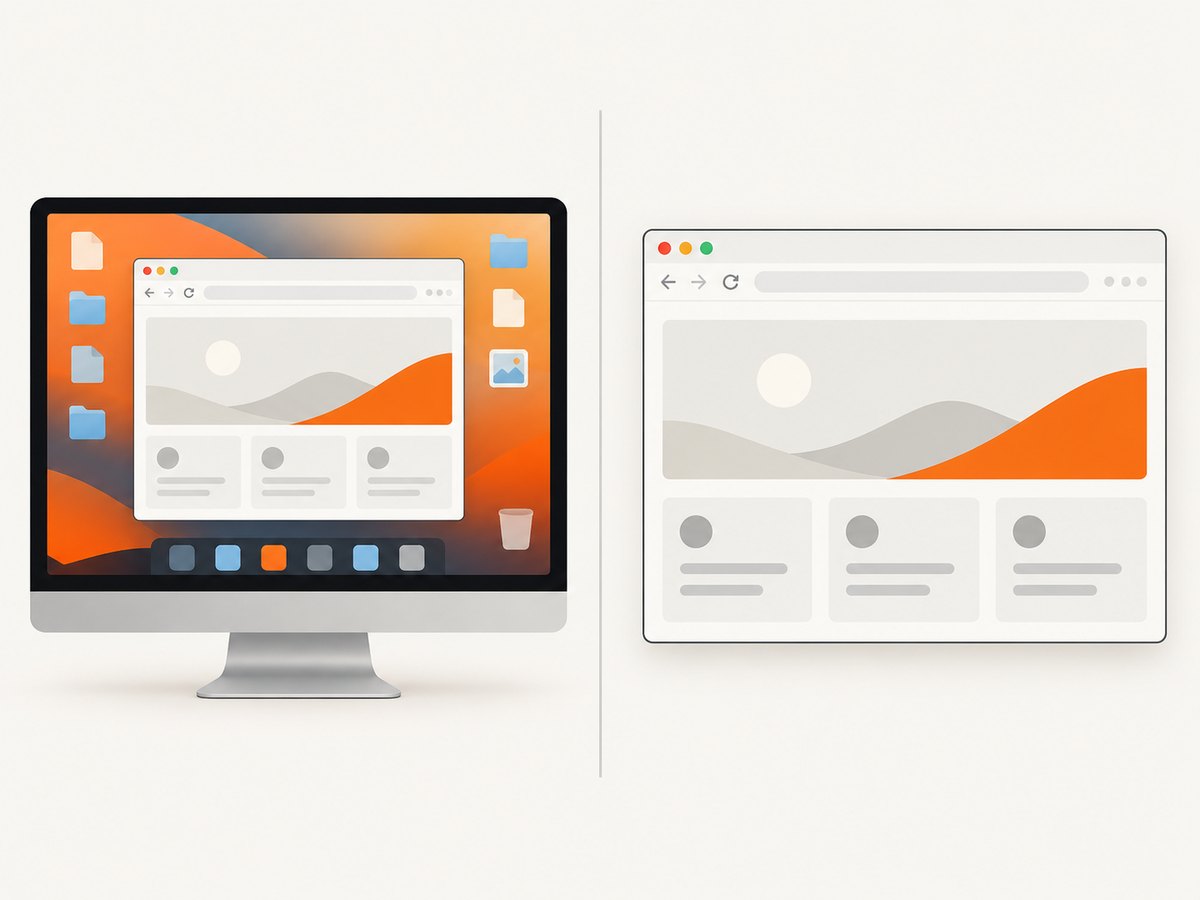
A full-screen approach such as CopyFromScreen is a different operation: it captures pixels currently visible on a monitor, including other windows, occlusion, taskbars and desktop scaling. It also fails for minimized, off-screen or headless scenarios. It is not a control-level browser capture API.
Supported implementation with WebView2
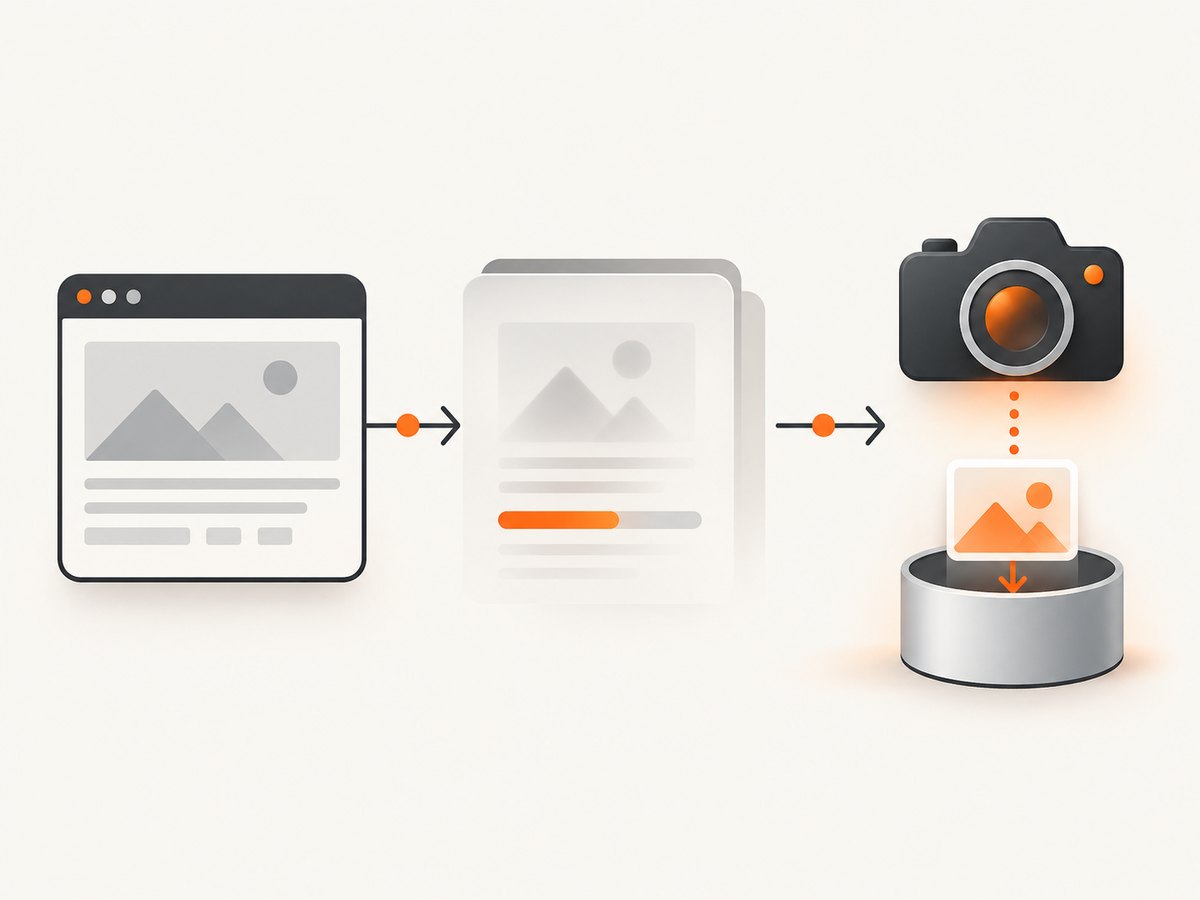
Install the Microsoft.Web.WebView2 package, place a WebView2 control on the form (or create one in code), navigate, wait for ContentLoading, then await CapturePreviewAsync. The method captures what WebView is displaying and writes it to the supplied stream.
Complete C# WinForms example
using Microsoft.Web.WebView2.Core;
using Microsoft.Web.WebView2.WinForms;
using System;
using System.IO;
using System.Threading.Tasks;
using System.Windows.Forms;

public partial class MainForm : Form
{
    private readonly WebView2 webView = new WebView2 { Dock = DockStyle.Fill };
    private TaskCompletionSource<bool>? contentLoaded;

    public MainForm()
    {
        InitializeComponent();
        Controls.Add(webView);
        Shown += async (_, _) => await CaptureAsync("https://example.com", "webview.png");
    }

    private async Task CaptureAsync(string url, string outputPath)
    {
        await webView.EnsureCoreWebView2Async();

        contentLoaded = new TaskCompletionSource<bool>(
            TaskCreationOptions.RunContinuationsAsynchronously);
        void OnContentLoading(object? sender, CoreWebView2ContentLoadingEventArgs e)
        {
            contentLoaded.TrySetResult(true);
        }

        webView.CoreWebView2.ContentLoading += OnContentLoading;
        try
        {
            webView.CoreWebView2.Navigate(url);
            await contentLoaded.Task.WaitAsync(TimeSpan.FromSeconds(60));

            await using var file = File.Create(outputPath);
            await webView.CoreWebView2.CapturePreviewAsync(
                CoreWebView2CapturePreviewImageFormat.Png, file);
        }
        finally
        {
            webView.CoreWebView2.ContentLoading -= OnContentLoading;
        }
    }
}
The example captures PNG. Use CoreWebView2CapturePreviewImageFormat.Jpeg for JPEG output. The API writes to a writable .NET stream, so a MemoryStream can be used when you need to upload or process the bytes instead of saving a file.
Capturing an already loaded page
If navigation has already completed, call capture from a UI action or after your own readiness condition. For a first navigation, Microsoft says calling before the first ContentLoading event fails. During later navigations, an early call can capture the page being navigated away from. Waiting for ContentLoading prevents that race.
private async Task<byte[]> CaptureCurrentPageAsync()
{
    await using var stream = new MemoryStream();
    await webView.CoreWebView2.CapturePreviewAsync(
        CoreWebView2CapturePreviewImageFormat.Png, stream);
    return stream.ToArray();
}
Make readiness more useful than a single event
ContentLoading establishes the documented minimum timing point; it does not promise that client-side rendering, fonts, images or data requests have finished. For dynamic pages, combine it with an application-specific signal such as a known DOM element, a short delay, or a page message. Keep a timeout so a broken page cannot block your capture queue forever.
Legacy WebBrowser: what you can and cannot claim
For a project that must keep the legacy control, the official documentation reviewed here does not identify a supported direct screenshot method. Do not ship webBrowser.DrawToBitmap(bitmap, webBrowser.ClientRectangle) as a supported solution. Some developers investigate OLE or COM rendering interfaces, but those techniques are implementation-specific and were not established by the Microsoft sources used for this guide.
If you evaluate such a workaround, record the exact target .NET Framework, Windows version, installed browser engine, control visibility, clipping, DPI mode, navigation state and page type. Test pages with plugins, cross-origin frames, animation, large images and script-generated content. Treat results as a compatibility decision for your deployment rather than a guarantee of the control API.
When WebBrowser.Print is the right tool
WebBrowser.Print() sends the current document through the print pipeline using current print and page settings. It is useful for a paper or print-to-PDF workflow, but it is not a bitmap screenshot of the visible control.
private void PrintLoadedPage()
{
    using var browser = new WebBrowser();
    browser.DocumentCompleted += (_, _) =>
    {
        browser.Print();
        browser.Dispose();
    };
    browser.Url = new Uri("https://example.com");
}
Microsoft’s printing example waits for DocumentCompleted before calling Print(). Printing and image capture have different pagination, margins, scale and device settings, so select the operation based on the artifact you need.
Capture requirements and edge cases
- Viewport versus full page:
CapturePreviewAsynccaptures the WebView display. It is not a documented full-page scrolling capture API. - Hidden or minimized windows: WebView2 capture is browser-rendering based; do not substitute a monitor screenshot when the app may be occluded.
- DPI: Validate output dimensions under per-monitor DPI and Windows display scaling. Do not assume physical pixels equal WinForms logical units.
- Animation: Pause or wait for a stable application state if deterministic pixels matter.
- Navigation races: Associate the
ContentLoadinghandler with the navigation you requested and remove the handler after capture. - Large pages: Use a file or stream destination and avoid retaining many full-resolution byte arrays at once.
- Threading: Keep WebView2 operations on the UI thread that owns the control; marshal UI updates back to that thread.
Troubleshooting checklist
| Symptom | Likely cause | Fix |
|---|---|---|
Blank bitmap from DrawToBitmap |
The legacy control does not support the method | Migrate to WebView2 or document and validate a deployment-specific workaround |
CapturePreviewAsync fails immediately |
Called before the first ContentLoading |
Await EnsureCoreWebView2Async, navigate, then await ContentLoading |
| Previous page appears | Capture started too early during a later navigation | Wait for that navigation’s ContentLoading event |
| Image is valid but content is unfinished | Client-side rendering or network work continues after content loading | Wait for a page-specific ready signal, selector or bounded delay |
| Only print output is available | Print() was used for a screenshot requirement |
Use WebView2 image capture for pixels; reserve Print() for document output |
| Capture differs between machines | Legacy WebBrowser uses the installed browser version; DPI and page state vary | Prefer WebView2, pin the runtime policy appropriate to your deployment, and test target environments |
Performance, reliability and cost
A control capture avoids the privacy and composition problems of a desktop screenshot, but page loading and rendering remain the dominant costs. Reuse one initialized WebView2 instance when capturing several pages, serialize navigations per instance, bound every wait with a timeout, and dispose streams promptly. For reproducible output, control viewport size, zoom, timezone, fonts and page state in your application.
Legacy WebBrowser behavior depends on the installed ActiveX browser version, so reliability varies with the machine. WebView2 gives you a dedicated capture contract, but the page can still change after ContentLoading; add an application-level readiness check for dynamic sites.
Or skip the browser setup
If your input is a URL rather than an in-process control, ScreenshotNeo returns a screenshot or PDF from one GET request. Read the API documentation for the full option set.
curl -G "https://api.screenshotneo.com/v1/shot" -d access_key=YOUR_API_KEY --data-urlencode url=https://example.com -o shot.webpimport requests
r = requests.get("https://api.screenshotneo.com/v1/shot", params={"access_key": "YOUR_API_KEY", "url": "https://example.com"}, timeout=90)
open("shot.webp", "wb").write(r.content)const q = new URLSearchParams({ access_key: 'YOUR_API_KEY', url: 'https://example.com' });
const res = await fetch(`https://api.screenshotneo.com/v1/shot?${q}`);ScreenshotNeo can accept cookie or consent banners before capture and remove more than 60 known consent platforms, newsletter popups and chat widgets. Bot checks, blank pages, failed loads and cache hits are not billed, and response headers identify the page verdict and billing status. Its MCP server provides take_screenshot, get_page_info and capture_pdf tools for Claude, Cursor and other MCP clients. The free plan includes 1,000 screenshots per month without a card; paid plans start at $5 for 3,000 shots.
Create a free ScreenshotNeo account and start with 1,000 screenshots a month at no charge.
FAQ
Can I capture only the WebBrowser control while it is partially covered?
Not with a supported legacy WebBrowser bitmap API. A monitor screenshot is affected by occlusion; use WebView2’s rendering capture instead.
Does ContentLoading mean every image is loaded?
No. It is the documented minimum event for CapturePreviewAsync. Dynamic pages may need an additional readiness signal.
Can WebBrowser.Print create a PNG?
It is a print operation, not the documented bitmap capture API. Use WebView2 for an image stream.
Is WebView2 required for an old .NET Framework application?
The migration details depend on the project and runtime, but the capture API belongs to WebView2. If migration is impossible, there is no supported direct legacy screenshot method identified in the Microsoft documentation used here.


