BlogScreenshots on your device
Why WebBrowser.DrawToBitmap Produces Blank Images and How to Fix It
WebBrowser.DrawToBitmap is unsupported and commonly returns a blank bitmap. Learn why, what to use for printing or pixels, and how to migrate safely.
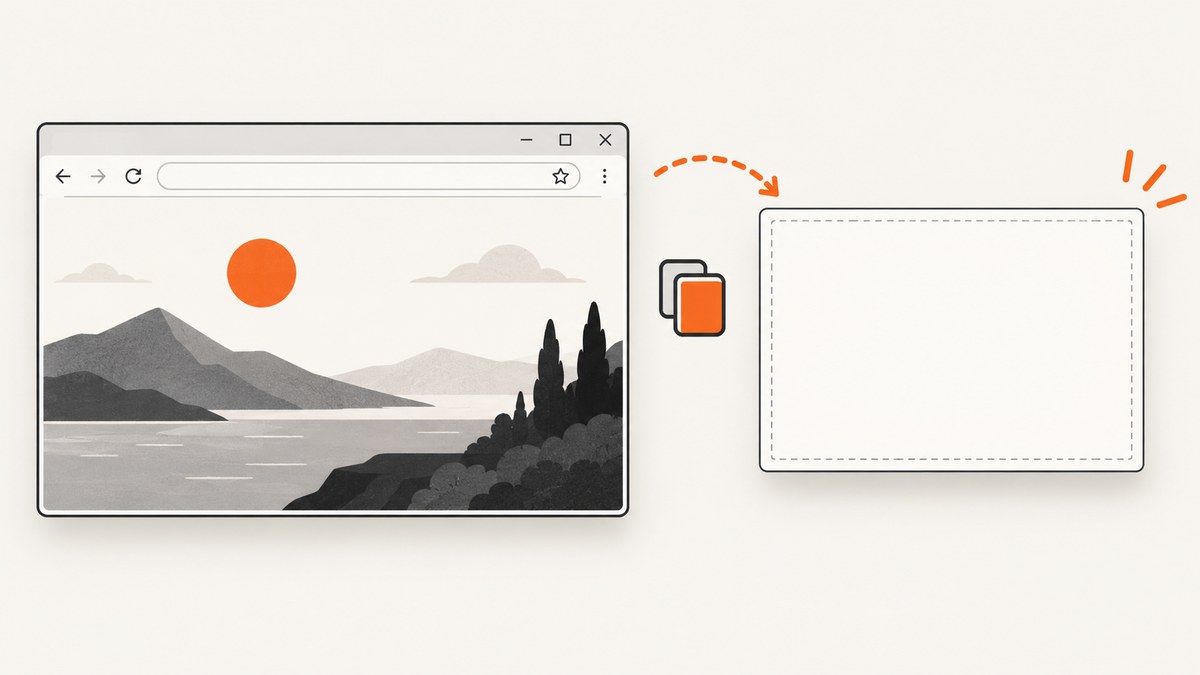
Short answer: WebBrowser.DrawToBitmap returns a blank image because the WinForms WebBrowser control does not support that rendering path. Microsoft documents that WebBrowserBase.DrawToBitmap is unsupported, and the WinForms source says that DrawToBitmap does not work for this control. The page can be visible in the window while the bitmap remains empty.
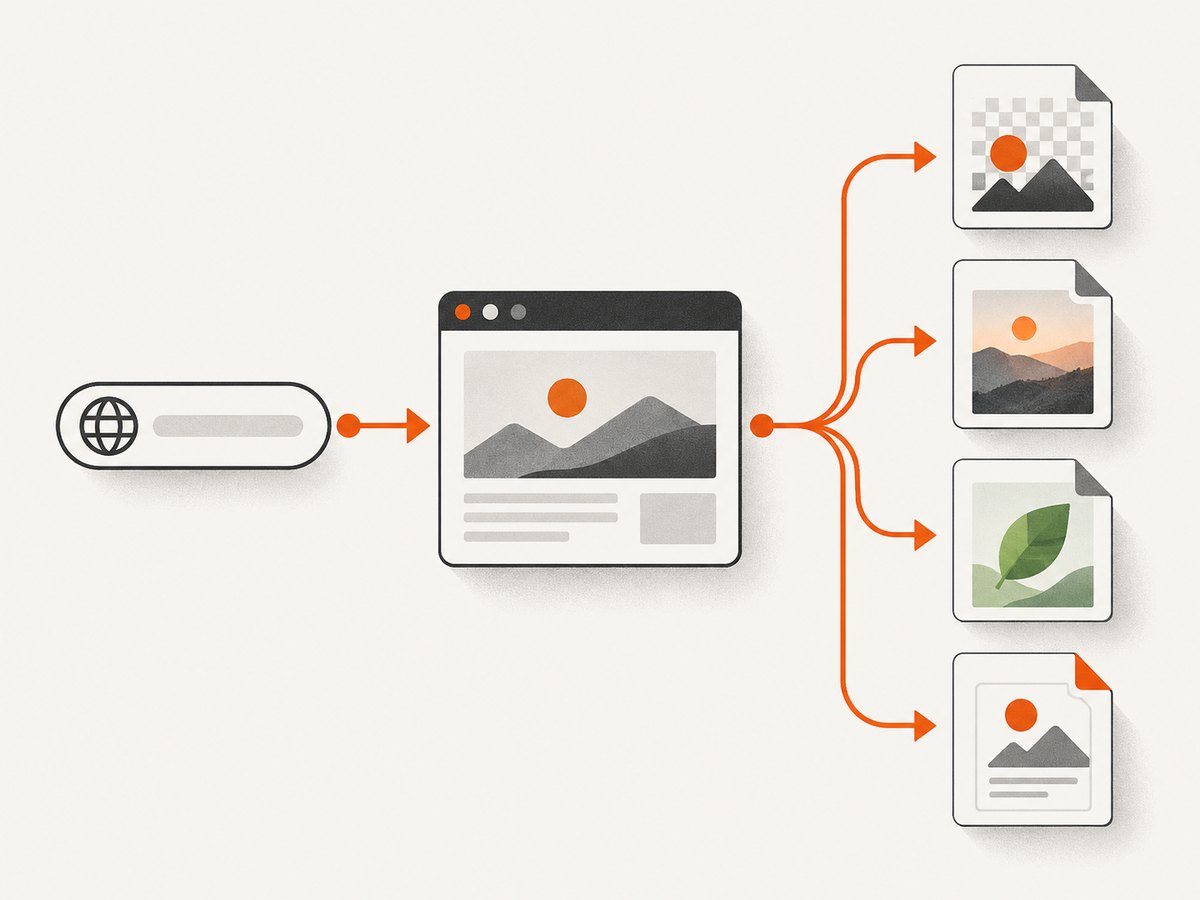
Do not keep adjusting bitmap dimensions, DPI, or delays to fix this specific failure. Choose an API that matches the output you need: use Print() for printed output, DOM APIs for text or data, and a supported browser capture API such as WebView2 or a rendering service for pixel screenshots.
Why the bitmap is blank
Control.DrawToBitmap is designed for ordinary WinForms controls. Its rendering path relies on a Windows paint/print request and a device-context copy. The legacy WebBrowser hosts Internet Explorer/MSHTML through an ActiveX surface, which does not participate in that path. Microsoft therefore marks WebBrowserBase.DrawToBitmap as unsupported. The general Control.DrawToBitmap documentation also lists ActiveX controls among its limitations.
This explains the misleading symptoms:
- The browser displays the page normally, but the copied bitmap is transparent or solid white.
- The same call works for labels, panels, and other ordinary controls.
- Calling it after
DocumentCompleteddoes not make it supported. - Increasing the control size, forcing focus, hiding scrollbars, or adding a longer delay does not change the underlying limitation.
Choose the right output
| What you need | Use | Do not use |
|---|---|---|
| Printed pages | WebBrowser.Print() after DocumentCompleted |
DrawToBitmap |
| HTML source | DocumentText or DocumentStream |
Rasterizing the control |
| Structured page data | Document and DOM APIs |
OCR on a screenshot |
| Pixel screenshot | WebView2 capture or a rendering service | WebBrowser.DrawToBitmap |
Fix 1: print the document instead of creating a bitmap
If the requirement is paper or a printer job, use the documented navigation lifecycle and call Print() when the document has loaded. Microsoft’s example follows this sequence: load a URL, handle DocumentCompleted, print, then dispose the control.
using System;
using System.Windows.Forms;

public sealed class WebBrowserPrinter
{
    public void LoadForPrint(Uri uri)
    {
        var browser = new WebBrowser();
        browser.DocumentCompleted += Browser_DocumentCompleted;
        browser.Url = uri;
    }

    private void Browser_DocumentCompleted(
        object? sender,
        WebBrowserDocumentCompletedEventArgs e)
    {
        var browser = (WebBrowser)sender!;
        browser.Print();
        browser.Dispose();
    }
}
See Microsoft’s WebBrowser.Print documentation and the WebBrowser printing example. Printing is not a pixel screenshot: printer margins, scaling, headers, footers, and pagination are controlled by the browser and printer settings.
Fix 2: extract HTML, text, or DOM data
When the consumer needs content rather than pixels, read the document directly.
private void Browser_DocumentCompleted(
    object? sender,
    WebBrowserDocumentCompletedEventArgs e)
{
    var browser = (WebBrowser)sender!;

    string html = browser.DocumentText;
    string visibleText = browser.Document?.Body?.InnerText ?? string.Empty;

    // Use browser.Document for elements, attributes, and DOM traversal.
    Console.WriteLine(visibleText);
}
Use DocumentText for source text, DocumentStream when a stream is more convenient, and Document for structured elements. These APIs avoid the unsupported rasterization path.
Fix 3: migrate pixel capture to WebView2
For new Windows Forms projects, Microsoft recommends the Microsoft Edge WebView2 control instead of the legacy WebBrowser control. WebView2 uses a maintained Chromium-based runtime and exposes a documented preview capture API. Confirm the WebView2 runtime and SDK versions used by your application before depending on a particular capture option.
Minimal WebView2 PNG capture
using System;
using System.IO;
using System.Threading.Tasks;
using System.Windows.Forms;
using Microsoft.Web.WebView2.WinForms;
using Microsoft.Web.WebView2.Core;

public sealed class WebView2Capture
{
    public async Task CaptureAsync(
        WebView2 view,
        Uri uri,
        string outputPath)
    {
        await view.EnsureCoreWebView2Async();
        view.CoreWebView2.Navigate(uri.ToString());

        var ready = new TaskCompletionSource(
            TaskCreationOptions.RunContinuationsAsynchronously);

        void OnNavigationCompleted(
            object? sender,
            CoreWebView2NavigationCompletedEventArgs args)
        {
            if (args.IsSuccess)
                ready.TrySetResult(true);
            else
                ready.TrySetException(
                    new InvalidOperationException(
                        $"Navigation failed: {args.WebErrorStatus}"));
        }

        view.CoreWebView2.NavigationCompleted += OnNavigationCompleted;
        try
        {
            await ready.Task;
            await using var file = File.Create(outputPath);
            await view.CoreWebView2.CapturePreviewAsync(
                CoreWebView2CapturePreviewImageFormat.Png,
                file);
        }
        finally
        {
            view.CoreWebView2.NavigationCompleted -= OnNavigationCompleted;
        }
    }
}
NavigationCompleted means navigation finished; it does not guarantee that every image, font, animation, or late API request has settled. For dynamic pages, wait for an application-specific DOM condition or page callback before calling CapturePreviewAsync. Also validate hidden-window, off-screen, DPI, viewport, and GPU behavior in the exact environment where the application will run.
Readiness and asynchronous content
DocumentCompleted is the documented navigation-completion event for the legacy control, but modern pages can continue changing afterward. A reliable capture pipeline should define readiness explicitly:
- Navigate to the URL.
- Wait for the browser’s navigation-complete event.
- Wait for a known DOM element, application callback, or other page-specific condition.
- Apply a short fallback delay only when necessary.
- Capture or print.
Do not treat a fixed delay as a universal solution. It slows fast pages and still misses slow third-party requests.
Or skip the browser setup
ScreenshotNeo provides a website screenshot API when you need a clean image or PDF without maintaining a desktop browser. See the API documentation.

curl -G "https://api.screenshotneo.com/v1/shot" -d access_key=YOUR_API_KEY --data-urlencode url=https://stripe.com -o shot.webpimport requests
r = requests.get("https://api.screenshotneo.com/v1/shot", params={"access_key": "YOUR_API_KEY", "url": "https://stripe.com"}, timeout=90)
open("shot.webp", "wb").write(r.content)const q = new URLSearchParams({ access_key: 'YOUR_API_KEY', url: 'https://stripe.com' });
const res = await fetch(`https://api.screenshotneo.com/v1/shot?${q}`);Before capture, ScreenshotNeo accepts cookie and consent banners and removes more than 60 known consent platforms, newsletter popups, and chat widgets. Bot checks, blank pages, failed loads, timeouts, and cache hits are not billed; response headers identify the page verdict and billing result. It also offers an MCP server for AI agents, with take_screenshot, get_page_info, and capture_pdf tools. The free plan includes 1,000 screenshots per month with no card, and paid plans start at $5 for 3,000 shots.
Create a free ScreenshotNeo account.
Common errors and fixes
| Symptom | Cause | Fix |
|---|---|---|
| Blank bitmap, no exception | DrawToBitmap is unsupported for WebBrowserBase. |
Use printing, DOM APIs, WebView2 capture, or a rendering service. |
| Bitmap works for a Panel but not WebBrowser | Ordinary controls support the paint path; the ActiveX browser surface does not. | Do not generalize Control.DrawToBitmap behavior to browser controls. |
Capture is blank after DocumentCompleted |
Unsupported API, or a different browser capture path is being called before readiness. | Replace DrawToBitmap; for WebView2, wait for navigation and page-specific readiness. |
| Print output is empty or partial | Printing started before navigation or page resources completed. | Handle DocumentCompleted, then account for dynamic content and print settings. |
| Screenshot differs on a server | DPI, viewport, fonts, GPU, permissions, or hidden-window behavior differ from the desktop. | Pin the runtime and validate the deployment environment with representative pages. |
| Only part of a long page is captured | Viewport capture is not full-page capture. | Use a capture API that explicitly supports full-page output, or stitch controlled sections. |
Performance, reliability, and cost considerations
- Performance: Browser startup, navigation, JavaScript, fonts, images, and third-party requests dominate capture time. Reuse a browser instance when appropriate, but isolate pages and clear state when cookies or authentication could leak between jobs.
- Reliability: Set navigation and capture timeouts, record the URL and readiness condition, and retain the browser error status or service response headers for diagnosis.
- Dynamic pages: Prefer a deterministic DOM signal over a large fixed sleep. Animations and rotating content can still produce different pixels between captures.
- Security: Treat custom headers, cookies, authorization values, and page JavaScript as sensitive. Do not log secrets or load untrusted URLs in a privileged desktop context.
- Cost: Self-hosted WebView2 consumes your own compute and maintenance time. A hosted API adds per-capture usage; ScreenshotNeo bills only clean shots and exposes billing status in response headers.
Decision checklist
- Need printer output? Handle
DocumentCompletedand callPrint(). - Need HTML or data? Read
Document,DocumentText, orDocumentStream. - Need pixels from a Windows desktop app? Migrate to WebView2 and validate its capture API.
- Need repeatable remote captures, cleanup of consent UI, PDFs, or agent access? Use a screenshot service.
- Need to fix a blank
DrawToBitmapresult specifically? Stop tuning that call; it is unsupported for this control.
FAQ
Is the bitmap rectangle or DPI usually the problem?
No. A blank result is expected when the unsupported WebBrowser rendering path is used. Geometry and DPI changes do not make the API supported.
Can I make WebBrowser.DrawToBitmap work by showing the form?
Visibility can affect some browser automation techniques, but it does not remove the documented support limitation. Use a supported capture path instead.
Does DocumentCompleted mean the screenshot is ready?
It marks navigation completion. Scripts, images, fonts, and later network requests may still change the page, so define an additional readiness condition for dynamic content.
Should I use WebBrowser.Print for a PNG?
No. Print() targets printed output. Use WebView2 capture or a screenshot service for pixels.
What is the simplest hosted alternative?
ScreenshotNeo accepts one GET request for a URL and returns PNG, JPEG, WebP, or PDF, with cleanup and billing status included in the response behavior.


