Why WebDriver Screenshots Fail When the Machine Is Locked
Locked desktops can remove the framebuffer WebDriver needs. Learn why screenshots turn blank or black and how to build reliable headless capture.
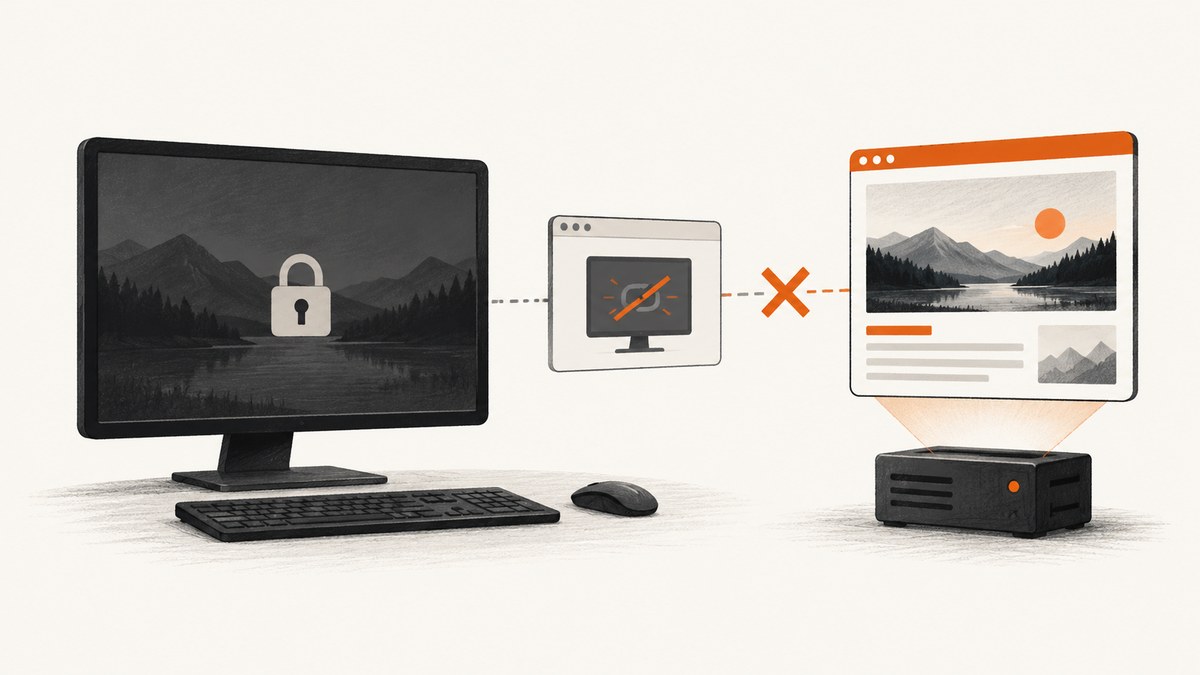
Short answer: WebDriver screenshots capture the browser’s rendered visual viewport, not the HTML or DOM. A headed browser that loses its interactive desktop after Windows locks, an RDP session disconnects, a user switches sessions, or a service account starts without a display can lose the usable framebuffer required for that visual capture. The result may be a blank, black, stale, or otherwise invalid image. The dependable fix for unattended work is to run a fresh browser session in headless mode, set the viewport explicitly, and remove any dependency on an attached desktop.
This behavior is defined by the capture model. The W3C WebDriver specification describes the Take Screenshot command as a capture of the top-level browsing context’s visual viewport. Element screenshots are also rendered from the framebuffer after the element is scrolled into view. A DOM that exists in memory does not guarantee that a headed browser still has a usable display surface.
What changes when a machine is locked
A visible browser normally renders through a window, compositor, GPU path, and operating-system display session. Locking the workstation, disconnecting RDP, switching users, or running under a service session can change that chain. Depending on the operating system, browser version, graphics driver, and session type, the browser may:
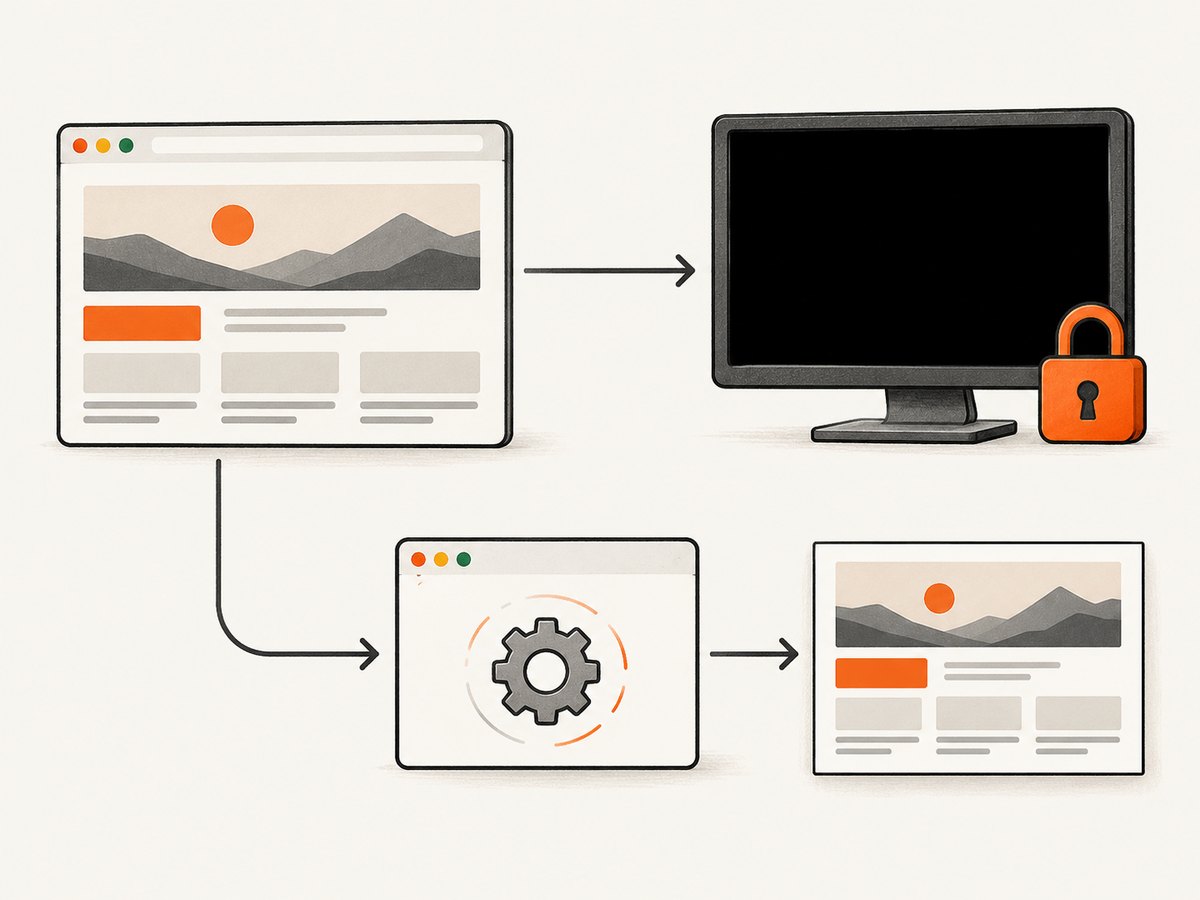
- Continue rendering and return a normal image.
- Return a solid black or white image.
- Return the last frame that was rendered before the lock or disconnect.
- Fail the command with a WebDriver or browser error.
- Produce an image with the expected dimensions but no page pixels.
These outcomes are session-specific. A screenshot that works over RDP is not proof that the same headed configuration will work after RDP disconnects. Google Cloud’s VM screenshot guidance, for example, distinguishes display-adapter and local-console choices from remote-desktop sessions and calls out the privacy implications of capturing a local console. Test the exact session type used by your worker.
How to build a reliable capture worker
1. Use headless Chrome for unattended jobs
Chrome documents headless mode as an unattended browser with no visible UI. Since Chrome 112, headless Chrome creates platform windows but does not display them, while retaining normal browser functions. This avoids relying on an unlocked desktop or an attached RDP session.
google-chrome \
  --headless=new \
  --disable-gpu \
  --window-size=1440,900 \
  --screenshot=page.png \
  https://example.com
Use --headless or --headless=new according to the Chrome version installed on the worker. The --screenshot option writes an image file, and --window-size fixes the viewport used for the render. The --disable-gpu flag can simplify older Linux environments, but do not add flags blindly: GPU behavior and supported options vary by Chrome release and operating system.
2. Set the viewport in WebDriver capabilities
ChromeDriver supports capabilities such as window-size and start-maximized. Prefer a numeric size in automation so output dimensions do not depend on a desktop manager.
from selenium import webdriver
from selenium.webdriver.chrome.options import Options

options = Options()
options.add_argument("--headless=new")
options.add_argument("--window-size=1440,900")

driver = webdriver.Chrome(options=options)
try:
    driver.get("https://example.com")
    driver.save_screenshot("page.png")
finally:
    driver.quit()
The viewport setting makes a healthy session reproducible. It cannot create a missing display session for a headed browser, and it cannot repair a compositor that has stopped producing frames.
3. Start a fresh automated session
ChromeDriver warns that attaching to an existing Chrome process through debuggerAddress can leave commands unsupported because the automation extension is loaded only at startup. A fresh ChromeDriver session loads the automation support from the beginning and removes a common source of inconsistent behavior.
from selenium import webdriver
from selenium.webdriver.chrome.options import Options

options = Options()
options.add_argument("--headless=new")
options.add_argument("--window-size=1280,800")
# Do not set debuggerAddress when you need full ChromeDriver support.
driver = webdriver.Chrome(options=options)
4. Wait for pixels, not only for the DOM
driver.get() returning means navigation reached its configured completion point; it does not prove that fonts, images, animations, or application data are visually settled. Add an explicit readiness condition for the page you capture.
from selenium.webdriver.common.by import By
from selenium.webdriver.support.ui import WebDriverWait

wait = WebDriverWait(driver, 30)
driver.get("https://example.com/dashboard")
wait.until(lambda d: d.execute_script("return document.readyState") == "complete")
wait.until(lambda d: d.find_element(By.CSS_SELECTOR, "[data-capture-ready='true']"))
driver.save_screenshot("dashboard.png")
For pages without a readiness marker, wait for a stable selector, a short delay, or application-specific network-idle logic. Keep the condition deterministic; arbitrary long sleeps increase job time without guaranteeing a complete render.
Headless versus headed capture
| Concern | Headed browser | Headless browser |
|---|---|---|
| Interactive desktop required | Often yes; lock and RDP transitions can change behavior | No visible desktop is required |
| Unattended CI | Needs a persistent display/session design | Designed for unattended execution |
| Viewport control | Can inherit desktop dimensions unless explicitly set | Set through command-line or capabilities |
| Pop-ups and multiple windows | May behave like a user desktop, but session changes are risky | Supported within browser limits; test your workflow |
| Extensions and downloads | Often easier to observe interactively | Validate each extension and download flow in your Chrome version |
| GPU/compositor dependence | Depends on display adapter and session | Still renders through Chrome, without requiring a visible UI |
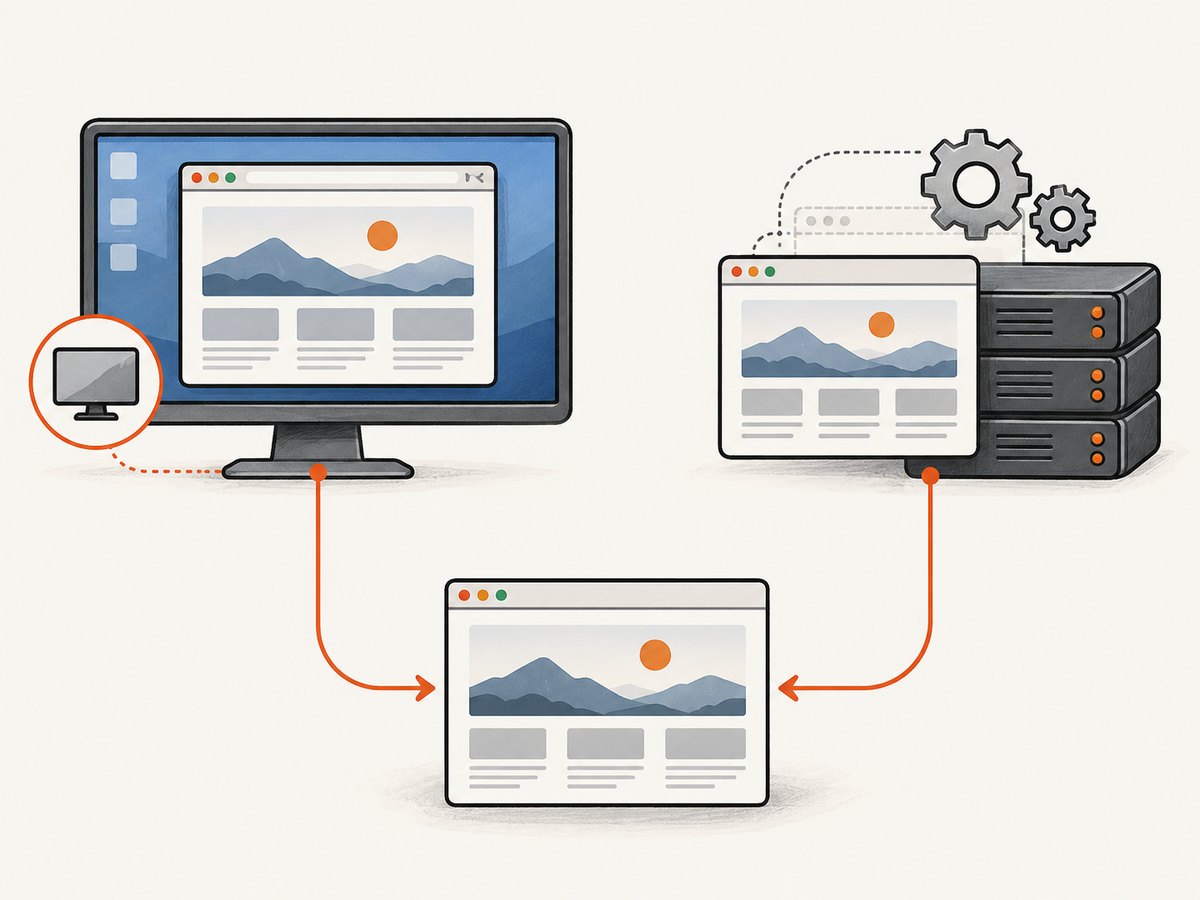
Headless is the default architecture for screenshot workers. Keep headed mode only when a workflow genuinely depends on a visible desktop, a legacy extension, or behavior you have verified cannot run headlessly.
If headed mode is mandatory
- Run the browser under a dedicated worker account.
- Keep the worker session persistent instead of tying it to a human’s RDP login.
- Test lock, unlock, RDP disconnect, user switch, reboot, and service-account startup separately.
- Record the operating system, Chrome version, ChromeDriver version, graphics driver, and session type with every failure.
- Set a fixed window size and capture a diagnostic screenshot after startup.
- Restart the browser after a display-session transition rather than reusing a possibly stale compositor.
A physical monitor or HDMI dummy plug may change how an operating system exposes a display, but the research does not establish either as a universal WebDriver fix. Treat hardware workarounds as environment-specific experiments, not as a substitute for a headless design.
Hosted browser infrastructure
Managed desktop-browser services can move display and browser lifecycle concerns out of your worker. AWS Device Farm documents desktop browser testing with browser-specific WebDriver capabilities. Its documentation also warns that multi-window or multi-session interaction is unsupported, so check those constraints before moving a screenshot pipeline. Compare providers on rendering fidelity, desktop-session dependence, pop-up and download support, viewport and GPU determinism, startup isolation, and total cost.
Troubleshooting checklist
| Symptom | Likely cause | Fix |
|---|---|---|
| Blank image after Windows lock | Headed browser lost a usable framebuffer | Run Chrome headless and set an explicit window size. |
| Works over RDP, fails after disconnect | RDP changed or removed the interactive display session | Use headless mode, or keep a persistent worker session and test the target OS. |
| Black image with correct dimensions | Compositor or GPU path produced no visible frame | Compare headless output; test with and without GPU-related flags; update browser and driver as a matched pair. |
| Old page appears repeatedly | Capture happened before navigation or rendering completed | Wait for document.readyState, a page-specific selector, and any required data request. |
| Element screenshot is empty | Element was off-screen, hidden, or not painted | Wait for visibility, scroll it into view, and verify its bounding rectangle before capture. |
| Some commands fail only with remote debugging | Existing Chrome was not started with ChromeDriver’s automation extension | Launch a fresh ChromeDriver session without debuggerAddress. |
| Different dimensions between runs | Desktop manager or monitor configuration changed | Set window-size or an equivalent viewport capability. |
| Timeouts on a locked server | Browser startup, display initialization, or page load stalled | Capture startup logs, use a fresh headless process, and separate browser timeout from page readiness timeout. |
Performance, reliability, and cost
Performance
- Reuse a browser only when you can prove that state isolation and compositor health remain reliable; otherwise, a fresh process gives more reproducible startup behavior.
- Use a fixed viewport and avoid unnecessary full-page captures when a component screenshot is sufficient.
- Wait for the smallest reliable readiness condition. A long fixed sleep slows every job and still misses slow resources.
- Record navigation, readiness, screenshot, and shutdown times separately so a slow page is not confused with a slow capture.
Reliability
- Persist the URL, viewport, browser versions, session type, and error text with each failed job.
- Retry browser startup separately from page navigation. Repeating a broken headed session usually repeats the same framebuffer failure.
- Use a watchdog to terminate browsers that stop responding, then start a clean process.
- Validate image dimensions and file size before publishing a screenshot. A successful WebDriver command can still produce an unusable visual result.
Cost
Self-hosted Selenium costs include compute, browser updates, driver compatibility, display-session maintenance, and engineering time. Hosted browser testing trades some infrastructure work for service charges and provider limits. Estimate cost from capture volume, average browser lifetime, retries, concurrency, and the operational cost of diagnosing display failures.
Or skip the browser setup
ScreenshotNeo provides a website screenshot API and MCP server. One GET request returns a PNG, JPEG, WebP, or PDF without your team maintaining Chrome, ChromeDriver, a display adapter, or an RDP session. Before capture it accepts cookie and consent banners like a visitor and removes more than 60 known consent platforms, newsletter popups, and chat widgets; each cleanup step can be turned off. Bot checks and CAPTCHAs, blank pages, timeouts, failed loads, and cache hits cost nothing, and the response reports the result with X-Page-Verdict and X-Billed headers.
See the ScreenshotNeo API documentation for all options. This minimal call captures Stripe:
curl -G "https://api.screenshotneo.com/v1/shot" -d access_key=YOUR_API_KEY --data-urlencode url=https://stripe.com -o shot.webpimport requests
r = requests.get("https://api.screenshotneo.com/v1/shot", params={"access_key": "YOUR_API_KEY", "url": "https://stripe.com"}, timeout=90)
open("shot.webp", "wb").write(r.content)const q = new URLSearchParams({ access_key: 'YOUR_API_KEY', url: 'https://stripe.com' });
const res = await fetch(`https://api.screenshotneo.com/v1/shot?${q}`);ScreenshotNeo also supports full-page capture with lazy images loaded, CSS-selector element capture, dark mode, 12 device presets and custom viewports, retina scale, PDFs with paper size, margins, landscape, and page ranges, HTML/CSS-to-image, custom CSS and JavaScript, pre-capture clicks, hidden selectors, selector or delay waits, network-idle waits, blocked ads and trackers, blocked resource types, custom headers, cookies, user agents and Authorization, timezone and geolocation, transparent backgrounds, resizing, configurable caching, signed links, asynchronous jobs with signed webhooks, bulk capture of up to 100 URLs per call, a usage API, and an OpenAPI specification. Common parameter names used by other screenshot APIs also work, which reduces migration changes.
An MCP server exposes take_screenshot, get_page_info, and capture_pdf to Claude, Cursor, and other MCP clients. The Free plan includes 1,000 shots per month with no card. Starter is $5 for 3,000 shots, Growth is $15 for 15,000, Pro is $39 for 60,000, Scale is $99 for 250,000, and Business is $249 for 1,000,000; yearly billing gives two months free, and every feature is available on every plan.
Create a free ScreenshotNeo account and start with 1,000 screenshots a month without adding a card.
FAQ
Does locking Windows always break Selenium screenshots?
No. The result depends on the operating system, browser, graphics path, and session type. Locking can remove or change the framebuffer a headed browser uses, so the same test may work in one environment and fail in another.
Can JavaScript or a DOM dump replace a screenshot?
A DOM dump records structure, not the rendered visual viewport. It cannot reproduce pixels, fonts, layout, compositing, or visual state by itself.
Will setting window-size fix a black screenshot?
It makes dimensions reproducible after the browser is healthy. It does not create a display session or restore a missing framebuffer.
Should I keep using an existing Chrome process?
Use a fresh ChromeDriver session when you need the complete automation command set. ChromeDriver documents limitations when attaching to an existing process through remote debugging.
When is headed mode justified?
Use it when a verified workflow depends on a visible desktop, a legacy extension, or a feature that does not work headlessly. Keep the session persistent and test every lock and disconnect transition used in production.


