BlogScreenshots on your device
Webpage Screenshot Safari Extension
Compare Safari screenshot extensions, capture full pages, fix access problems, and automate reliable webpage screenshots with ScreenshotNeo.
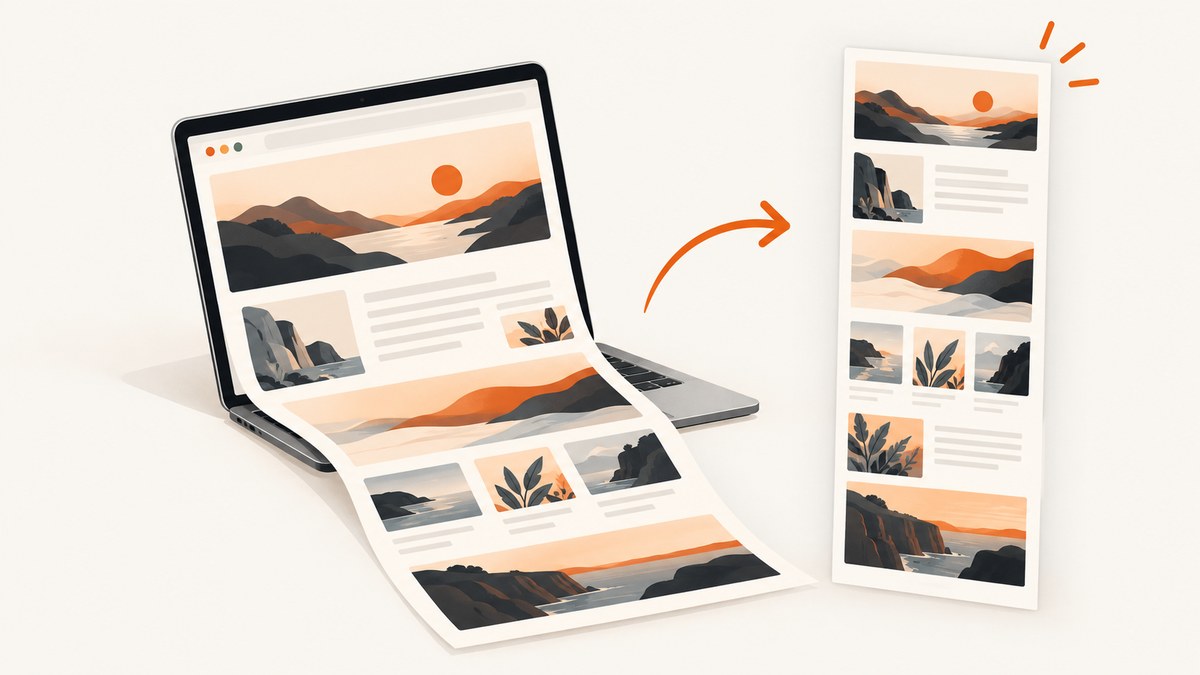
Short answer: a webpage screenshot Safari extension adds capture controls to Safari so you can save the visible viewport or an entire scrolling page. Extensions differ in whether they export PNG, PDF, or JPEG, whether they include annotation tools, how they handle very long pages, and which Apple platforms they support. For repeatable captures in code, CI, or AI workflows, use an API such as ScreenshotNeo instead of installing a browser extension.
What a Safari screenshot extension does
Safari extensions are software distributed through Apple’s App Store Extensions category. Apple describes them as a way to enhance and customize Safari on Mac, iPhone, and iPad, with App Store review applied to distributed extensions. A Safari web extension is packaged as part of a macOS or iOS app extension; its manifest, scripts, and toolbar popup define what it can do on a page.
For screenshot work, the important distinction is capture scope:
- Visible-area capture: saves only the portion currently displayed in the Safari window.
- Full-page capture: scrolls or snapshots the document and combines the page into one tall image or a PDF.
- Element capture: saves a selected component such as an article, card, or hero section when the extension supports it.
WebKit exposes a snapshot API that can take an image of the current webpage in a web-extension context. That platform capability does not mean every extension uses the same API or produces identical output.
How to choose a webpage screenshot Safari extension
Start with the format and capture mode you actually need. App Store descriptions are the developer’s claims, so verify the current listing, supported operating-system version, permissions, and privacy disclosure before installing.
| Decision | What to check | Why it matters |
|---|---|---|
| Page scope | Visible area, full page, or both | A viewport image cannot document content below the fold. |
| Export | PNG, PDF, JPEG | PNG preserves sharp text; PDF is useful for sharing; JPEG is smaller but can show compression. |
| Editing | Crop, arrows, blur, highlights, annotations | Built-in editing avoids opening another application. |
| Platform | macOS, iOS, iPadOS, or a combination | An extension available on Mac may not be available on iPhone or iPad. |
| Long pages | Maximum length, memory warnings, scaling controls | Very tall pages can exceed Safari’s practical memory limits. |
| Data handling | On-device processing and developer privacy statement | Privacy disclosures are useful signals, but they are not independent audits. |
Examples found in App Store listings
FullPage Screenshot for Safari advertises full-page and visible-area capture, a built-in image editor, PNG download, and PDF export. Its listing says “No data collection”; treat that as the developer’s stated privacy position.
Screenshot | Web describes full-page capture, local on-device processing, and an advertised maximum length of 40,000 pixels. The same listing warns that very long pages at high quality may fail because of Safari memory limits. The 40,000-pixel figure is a listing claim, not a universal Safari limit.
Page Screenshot for Safari advertises full-website and visible-area screenshots with JPEG export. Its listing cautions that scaling and previewing JPEG captures on a computer can cause pixelation. The developer says the extension accesses webpages to do its job and does not collect or transmit browser information; that is developer-provided information.
Install and use an extension in Safari
- Open the App Store and search for the extension by its current name.
- Check the supported Apple platforms, required OS version, export formats, permissions, and privacy disclosure.
- Install the extension’s containing app if the listing requires one.
- In Safari, open Safari → Settings → Extensions (or the equivalent Extensions pane on your OS) and enable it.
- Grant website access. Choose the narrowest permission that still covers the pages you need.
- Open the target page, click the extension button, and select visible-area or full-page capture.
- Choose the output format and save the file. If an editor is included, annotate or crop before exporting.
For a long page, wait until images and embedded content finish loading before starting. If the extension offers a delay, use it for pages that render content after the initial load. Keep the Safari window open while the extension scrolls and stitches the result.
Full-page versus visible-area screenshots
Visible area
Use visible-area capture for bug reports, a single chart, or a quick record of what a user sees. It is fast and produces a predictable canvas size, but it excludes content outside the viewport.
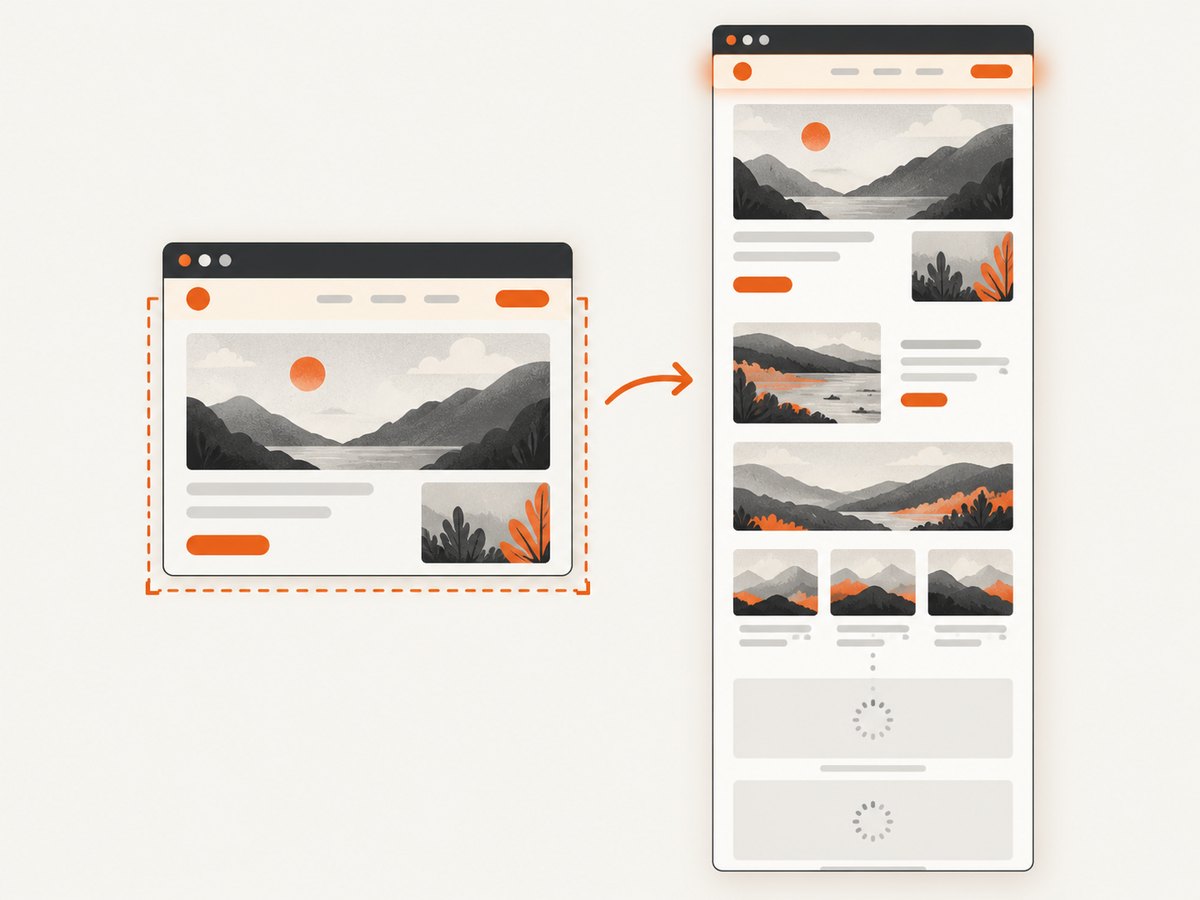
Full page
Use full-page capture for documentation, visual regression references, receipts, and design reviews. Full-page implementations generally capture successive viewport slices and join them, or ask WebKit for a document snapshot. Sticky headers, fixed chat buttons, animations, lazy-loaded images, and virtualized lists can create repeated or missing content.
Permissions and pages that do not capture
Apple’s troubleshooting guidance says that when a web extension works on one page but not another, check the extension’s website-access permissions and allowed domain patterns. Review the extension entry in Safari Settings and allow access for the current site. Pages such as browser-internal settings, App Store screens, or sites that impose restrictive policies may not expose the same extension hooks as ordinary webpages.
After changing permissions, reload the page and try again. If only one domain fails, test a simple page on another domain to separate a site-specific problem from an installation problem.
Common problems and fixes
| Symptom | Likely cause | Fix |
|---|---|---|
| Extension button is missing | Extension is installed but disabled | Enable it in Safari Settings → Extensions, then add the button to the toolbar. |
| Works on one site, not another | Website access is limited | Open the extension’s permissions and allow the target domain; reload the page. |
| Only the viewport is saved | Visible-area mode selected | Choose full-page or long capture before starting. |
| Images are blank | Lazy loading has not run, or the page is still rendering | Scroll through the page first, wait for images, disable aggressive content blocking temporarily, and retry. |
| Sticky header repeats | Fixed elements appear in every stitched slice | Hide the header if the extension supports element exclusion, or capture the page in sections. |
| Capture stops on a very long page | Safari memory pressure or an extension length limit | Lower scale or quality, capture sections, close other tabs, or export to PDF if available. |
| JPEG text looks soft | Lossy compression or scaling | Use PNG for text-heavy pages or export at a larger size. |
| Popup closes before saving | Page navigation, memory pressure, or a background extension error | Keep the tab active, retry after closing tabs, and check Safari’s extension controls for an error. |
Making captures consistent
- Set a consistent browser window size and zoom level.
- Wait for fonts, images, and client-rendered components to settle.
- Disable animations where the extension provides a setting; otherwise pause the page before capture.
- Use PNG for UI comparisons and text. Use JPEG only when a smaller file is more important than lossless detail.
- Record the URL, capture date, viewport size, and extension version with important evidence.
- For pages with cookie dialogs, newsletter popups, or chat widgets, dismiss them before capture or use a tool that can remove them automatically.
When a Safari extension is the wrong tool
A browser extension depends on a person, a Safari session, and permissions for each site. That is appropriate for occasional manual captures. It is less suitable when you need hundreds of URLs, scheduled jobs, server-side rendering, reproducible options, webhooks, or screenshots from an environment without Safari.

For automated work, define the URL, viewport, wait strategy, output format, and failure handling in code. Store the response and metadata together so a missing page is distinguishable from a successful blank image.
Or skip the browser setup
ScreenshotNeo is a website screenshot API and MCP server. One GET request returns PNG, JPEG, WebP, or a PDF. It can accept consent banners before capture and remove more than 60 known consent platforms, newsletter popups, and chat widgets; each step can be turned off. Bot checks or CAPTCHAs, blank pages, timeouts, failed loads, and cache hits cost nothing, and the response reports the result in X-Page-Verdict and X-Billed headers.
See the ScreenshotNeo documentation for the complete parameter reference. This one-call example captures Stripe as a WebP file:
curl -G "https://api.screenshotneo.com/v1/shot" -d access_key=YOUR_API_KEY --data-urlencode url=https://stripe.com -o shot.webpimport requests
r = requests.get("https://api.screenshotneo.com/v1/shot", params={"access_key": "YOUR_API_KEY", "url": "https://stripe.com"}, timeout=90)
open("shot.webp", "wb").write(r.content)const q = new URLSearchParams({ access_key: 'YOUR_API_KEY', url: 'https://stripe.com' });
const res = await fetch(`https://api.screenshotneo.com/v1/shot?${q}`);ScreenshotNeo supports full-page captures with lazy images loaded, CSS-selector element capture, dark mode, 12 device presets or any viewport, retina scale, PDF paper sizes and margins, landscape mode and page ranges, HTML/CSS to image, custom CSS and JavaScript, clicks, selector waits, delays, network-idle waits, ad and tracker blocking, custom headers, cookies, user agents, Authorization, timezone, geolocation, transparent backgrounds, resizing, selectable cache TTLs, signed image links, asynchronous jobs with signed webhooks, bulk capture of up to 100 URLs per call, a usage API, and an OpenAPI specification. Parameter names used by other screenshot APIs also work, which makes migration easier.
An MCP server provides take_screenshot, get_page_info, and capture_pdf tools for Claude, Cursor, and other MCP clients. Free accounts include 1,000 screenshots per month with no card; paid plans start at $5 for 3,000 shots. Create a free ScreenshotNeo account.
Performance, reliability, and cost planning
Manual extensions are bounded by the local Mac’s memory, Safari’s current tab, and the page’s behavior. Long pages, large images, and animated or virtualized content increase the chance of a partial result. Split very long captures when the output is evidence rather than a single archival image.
For API jobs, use explicit timeouts, retry transient network failures with backoff, and inspect verdict headers before storing a result as successful. Cache stable pages with a TTL when repeated captures are acceptable. Use asynchronous jobs and signed webhooks for slow pages or large batches, and bulk capture for up to 100 URLs per call. ScreenshotNeo bills only clean shots; failed loads, blank pages, bot checks, timeouts, and cache hits are not billed. Plans are Free (1,000/month), Starter ($5/3,000), Growth ($15/15,000), Pro ($39/60,000), Scale ($99/250,000), and Business ($249/1,000,000); yearly billing gives two months free, and every feature is on every plan.
Checklist before choosing an extension
- Does it capture the full page as well as the visible area?
- Is the required export PNG, PDF, or JPEG?
- Will it work on your macOS, iOS, or iPadOS version?
- What permissions does it request for websites?
- Does the developer disclose local processing or data collection?
- How does it behave with lazy images, fixed headers, popups, and very long pages?
- Do you need repeatable automation, bulk URLs, or scheduled captures?
FAQ
Is a Safari screenshot extension built into Safari?
Safari has platform snapshot capabilities, but full-page capture controls are commonly supplied by installed extensions or apps.
Can I capture a webpage on iPhone or iPad?
Some extensions target iOS or iPadOS and others target macOS. Check the current App Store listing and Safari extension settings for your device.
Why is my full-page image incomplete?
Common causes are delayed rendering, lazy-loaded content, virtualized lists, memory pressure, or insufficient website permission. Wait for the page, grant access, reduce scale, or capture sections.
Which format is best for text?
PNG is usually the clearest raster format for text and interface screenshots. PDF is useful when the recipient needs a document, while JPEG trades detail for smaller files.
Can an extension remove cookie banners automatically?
That depends on the extension. If automatic cleanup is central to your workflow, ScreenshotNeo can accept consent banners and remove more than 60 known consent platforms, plus newsletter popups and chat widgets, before capture.
When should I use an API instead?
Use an API when captures must run without a browser, be repeated consistently, process many URLs, or integrate with CI, scripts, webhooks, or AI agents.


