BlogScreenshots on your device
How to Capture Website Screenshots Without the Snipping Tool
Capture a visible area, browser window, or an entire scrolling webpage with Edge, Firefox, macOS shortcuts, or one API request.
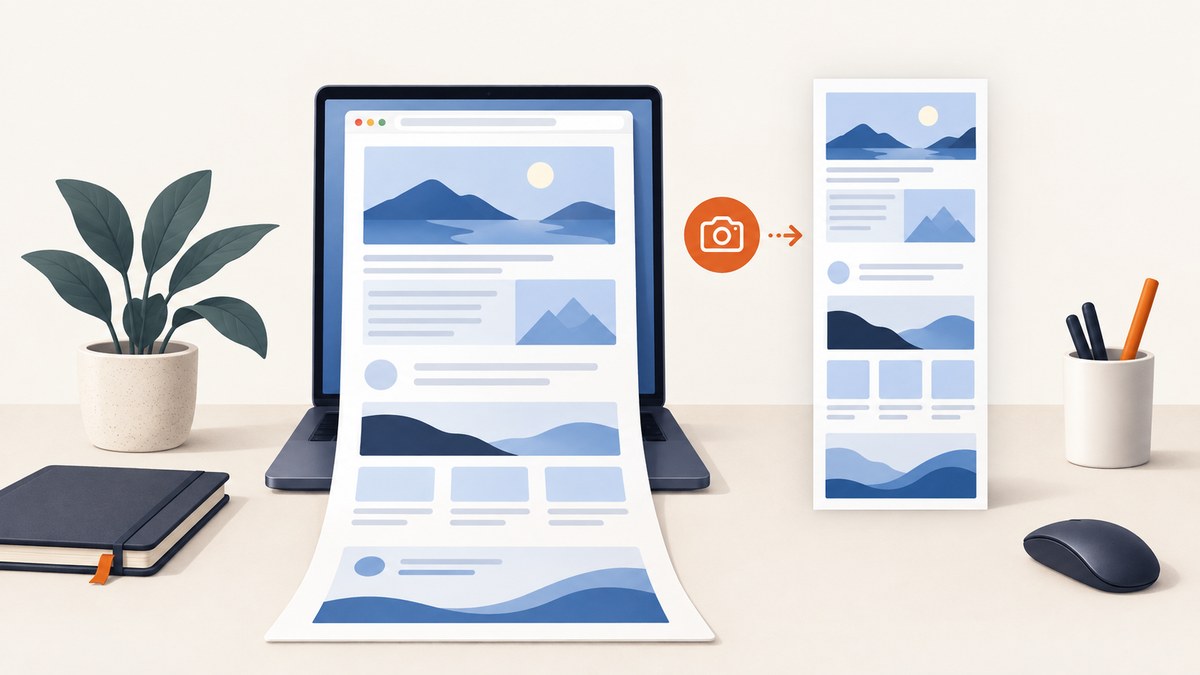
Yes—you can capture a website without the Snipping Tool. For a full scrolling webpage, use Microsoft Edge’s built-in Screenshot command or Firefox’s Take Screenshot command. On a Mac, the built-in Screenshot utility captures the whole screen, a region, or a window, while the browser tools are better for content that continues below the fold.
Choose Edge or Firefox when you need a quick manual capture. Use macOS shortcuts when you need a picture of the screen itself. For repeatable captures, private pages, PDFs, or automation, use a screenshot API such as ScreenshotNeo.
1. Capture a full webpage in Microsoft Edge
Edge includes a Screenshot command that can capture a selected region or an entire webpage, including content below the fold. You can mark up the result before copying or saving it.
Steps
- Open the webpage in Microsoft Edge and wait for the content you need to appear.
- Right-click an empty part of the page and choose Screenshot. You can also press Ctrl+Shift+S.
- Choose a selected area or the full webpage option.
- Use the pen or markup tools if you need to call out a detail.
- Copy the result to the clipboard or save it as an image.
Edge’s full-page mode is the simplest choice for a long article, landing page, or documentation page. It captures content below the visible viewport rather than only the pixels currently on screen.
If the command is missing
- Make sure you opened the page in Edge rather than another browser.
- Try the browser’s Settings menu, where Screenshot is also available.
- Browser commands and shortcuts can vary by version, device, and market. Check the visible menu name if Ctrl+Shift+S does nothing.
2. Capture a full webpage in Firefox
Firefox provides region, visible-page, and full-page captures. The result can be downloaded as a PNG or copied to the clipboard.
Steps
- Open the page in Firefox.
- Right-click an empty area and select Take Screenshot.
- Alternatively, press Ctrl+Shift+S on Windows or Linux, or Command+Shift+S on macOS.
- Select a region, an automatically detected page part, Save full page, or Save visible.
- Choose Download to save a PNG or Copy to place it on the clipboard.
Save full page is the Firefox equivalent of a scrolling screenshot. Save visible is useful when you only need the current viewport and want to avoid capturing content below it.
When Firefox captures the wrong height
Pages that load content as you scroll can change size during capture. Let the page finish loading first, close overlays, and retry. If the page uses an internal scroll panel, the browser may capture the document but not the panel’s hidden contents; capture that panel separately or use an element-aware API.
3. Use macOS Screenshot shortcuts
macOS has built-in shortcuts for the screen, a selected rectangle, and a window. These shortcuts capture what is rendered on your display; they do not provide the same browser-style full-page webpage command described for Edge and Firefox.
| What you need | Shortcut | Result |
|---|---|---|
| Entire screen | Shift-Command-3 | Saves a screenshot of every display area. |
| Selected area | Shift-Command-4 | Drag a rectangle, then release. |
| Window or menu | Shift-Command-4, then Space | Click the window to capture it. |
| Screenshot controls | Shift-Command-5 | Opens the Screenshot app on macOS Mojave 10.14 or later. |
By default, screenshots are saved to the desktop. Open the Screenshot app with Shift-Command-5 to change the save location and other options, or to set a timer.
Mac shortcut tips
- After pressing Shift-Command-4, hold Space to switch from rectangle selection to window capture.
- Use the selection crosshair for a precise crop instead of capturing the browser chrome.
- For a webpage longer than the viewport, use Firefox’s Save full page or Edge’s full-page Screenshot command.
4. Pick the right capture method
| Method | Full webpage below the fold | Visible screen or window | Markup | Best for |
|---|---|---|---|---|
| Edge Screenshot | Yes | Yes | Yes | Fast browser-native captures with annotation. |
| Firefox Take Screenshot | Yes | Yes | Basic copy/download workflow | Choosing between region, visible, and full page. |
| macOS Screenshot | No documented browser-style full-page mode | Yes | Markup after capture | Screen, window, menu, or selected-area images. |
| ScreenshotNeo API | Yes | Yes, with a chosen viewport | Custom CSS and scripting | Automated, repeatable, server-side captures. |
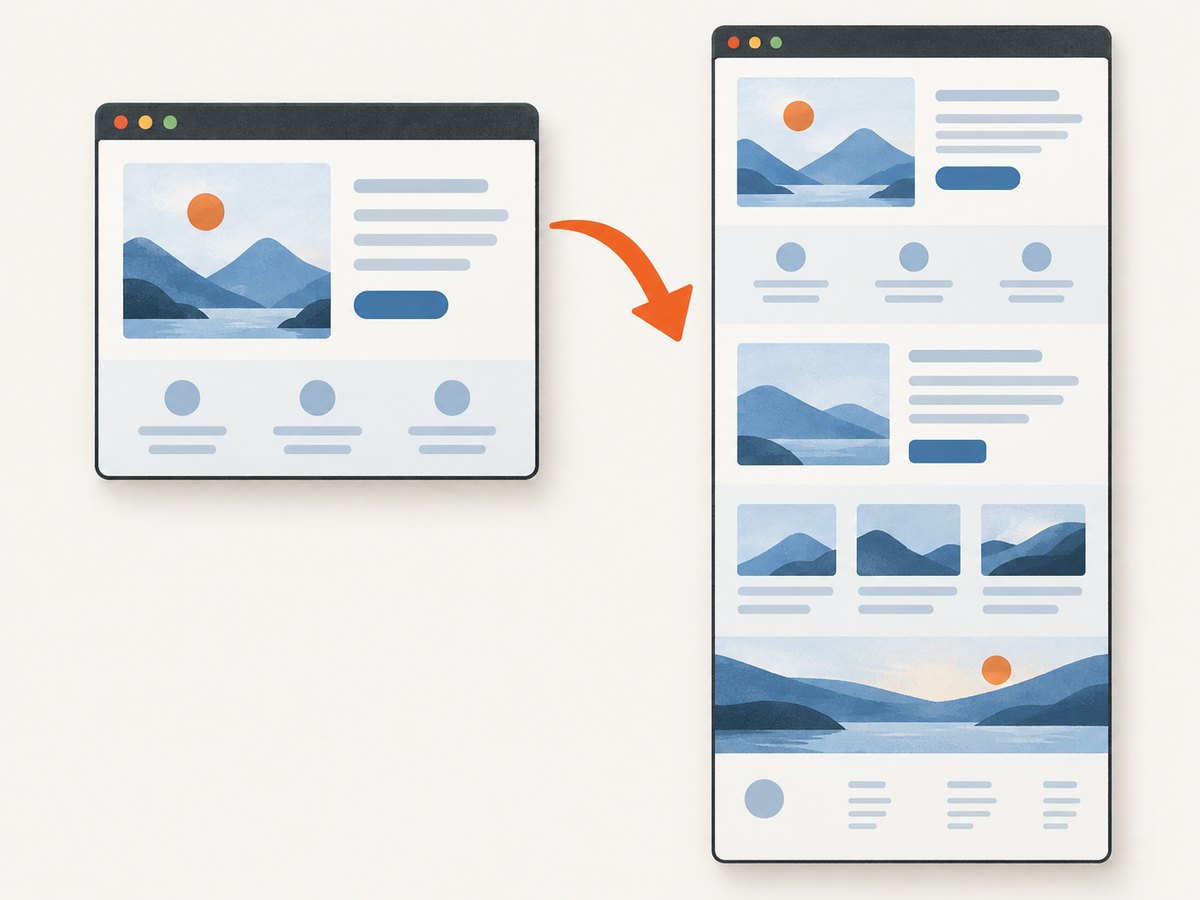
5. Make a scrolling screenshot reliable
Long pages are harder to capture because their height may change while assets load. Use this checklist before retrying:
- Wait for fonts, images, and client-rendered sections to finish loading.
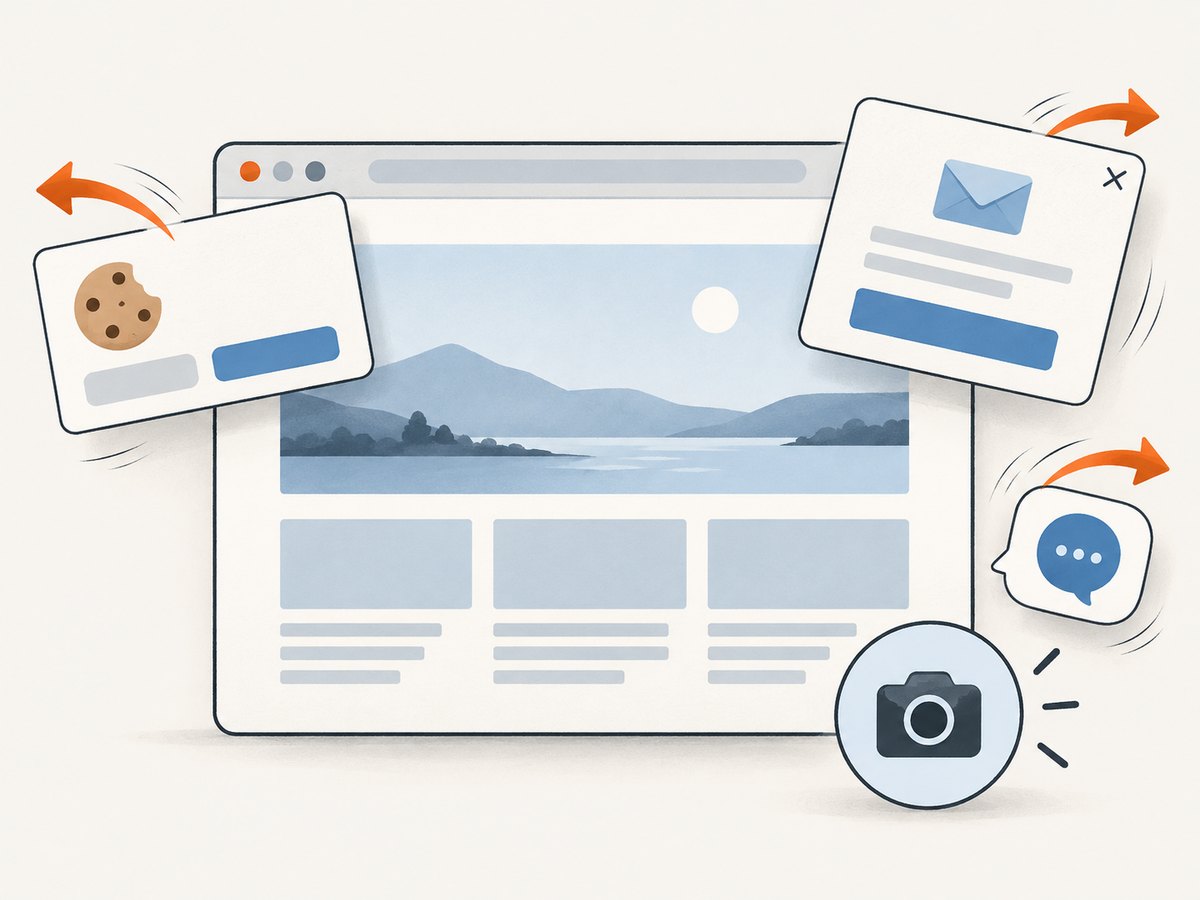
- Dismiss cookie banners, newsletter dialogs, chat bubbles, and video overlays.
- Scroll once through the page if it lazy-loads images only after they enter the viewport.
- Close sticky headers when they obscure content between stitched sections.
- Capture the page at a consistent browser zoom, usually 100%.
- For a page with a nested scroll area, capture the element separately or use a tool that supports CSS selectors.
If a full-page image is extremely tall, consider a PDF or several section captures. Huge raster images are difficult to open, upload, and compare in version control.
6. Automate captures with a browser script
Manual browser commands are ideal for occasional work. For scheduled documentation, visual regression checks, or a catalog of URLs, automation gives you a repeatable viewport and filename. A browser automation library can open a URL, wait for the page, and save a full-page image.
import { chromium } from 'playwright';

const browser = await chromium.launch();
const page = await browser.newPage({ viewport: { width: 1440, height: 900 } });
await page.goto('https://example.com', { waitUntil: 'networkidle' });
await page.screenshot({ path: 'example-full.png', fullPage: true });
await browser.close();
This approach requires a browser runtime and its dependencies. Pages behind authentication need a login flow or cookies. Consent dialogs, bot checks, and unstable third-party widgets can also make two runs produce different images.
7. Or skip the browser setup
ScreenshotNeo returns a PNG, JPEG, WebP, or PDF from one GET request. See the ScreenshotNeo API documentation for the complete parameter reference.
cURL
curl -G "https://api.screenshotneo.com/v1/shot" \
  -d access_key=YOUR_API_KEY \
  --data-urlencode url=https://stripe.com \
  -o shot.webp
Python
import requests

r = requests.get(
    "https://api.screenshotneo.com/v1/shot",
    params={"access_key": "YOUR_API_KEY", "url": "https://stripe.com"},
    timeout=90,
)
r.raise_for_status()
open("shot.webp", "wb").write(r.content)
Node.js
const q = new URLSearchParams({
  access_key: 'YOUR_API_KEY',
  url: 'https://stripe.com'
});
const res = await fetch(`https://api.screenshotneo.com/v1/shot?${q}`);
if (!res.ok) throw new Error(`HTTP ${res.status}`);
const fs = await import('node:fs/promises');
await fs.writeFile('shot.webp', Buffer.from(await res.arrayBuffer()));
Useful ScreenshotNeo options
You can configure the capture without maintaining a browser server:
- Scope and output: full-page capture with lazy images loaded, a single element by CSS selector, PNG/JPEG/WebP output, PDF output, image resizing, transparent backgrounds, and retina scale.
- Viewport and device: 12 device presets or any custom viewport, plus dark mode and timezone or geolocation settings.
- Page control: custom CSS, custom JavaScript, click an element before capture, hide selectors, and wait for a selector, delay, or network idle.
- Network and identity: block ads, trackers, requests, or resource types; send custom headers, cookies, a user agent, and Authorization credentials.
- PDF: paper size, margins, landscape orientation, and page ranges.
- Operations: caching with a TTL you choose, signed links for public
<img>tags, asynchronous jobs with signed webhooks, bulk capture for up to 100 URLs per call, a usage API, and an OpenAPI specification.
ScreenshotNeo accepts the parameter names used by other screenshot APIs, which can reduce changes when switching providers. Before capture it accepts cookie and consent banners like a visitor and removes more than 60 known consent platforms, newsletter popups, and chat widgets; each step can be turned off.
Only clean shots are billed. Bot checks or CAPTCHAs, blank pages, timeouts, failed loads, and cache hits cost nothing. Every response identifies the result with X-Page-Verdict and X-Billed headers, so your application can record what happened.
ScreenshotNeo also provides an MCP server with take_screenshot, get_page_info, and capture_pdf tools for Claude, Cursor, and other MCP clients. The free plan includes 1,000 screenshots per month without a card; paid plans start at $5 for 3,000 screenshots. Plans include every feature, with yearly billing giving two months free. Create a free ScreenshotNeo account.
8. Troubleshooting common screenshot problems
| Symptom | Likely cause | Fix |
|---|---|---|
| Only the visible area is saved | The visible or region mode was selected. | Choose Edge full webpage or Firefox Save full page. |
| Ctrl+Shift+S does nothing | Different browser version, device, or shortcut conflict. | Open the right-click menu and select Screenshot or Take Screenshot. |
| Cookie dialog covers the result | The overlay appeared after the capture began. | Dismiss it manually, wait for the page to settle, or use a configured automation/API flow. |
| Images are missing | Lazy loading, blocked resources, or a slow connection. | Wait longer, scroll through the page, or wait for a selector/network idle. |
| Content repeats or overlaps | A sticky header was stitched repeatedly. | Hide the fixed selector or capture the page with custom CSS. |
| ScreenshotNeo returns a non-image response | The page timed out, was blank, or triggered a bot check. | Inspect X-Page-Verdict and X-Billed; adjust waits, headers, cookies, or user agent. |
| API request times out | The target page or a third-party resource is slow. | Use a longer client timeout, block unnecessary resource types, and wait for a specific selector instead of every request. |
| Private page is empty | Authentication was not supplied. | Pass the required cookies, Authorization header, or custom headers securely. |
9. Performance, reliability, and cost notes
Performance
Visible-area captures are usually faster than full-page captures because they render less content. Full-page images, high retina scales, PDFs, and pages with many fonts or third-party scripts take longer and produce larger files. Block ads, trackers, and unneeded resource types when they are not part of the page you are documenting.
Reliability
Use a stable viewport, explicit waits, and deterministic test data. For automation, save the URL, timestamp, viewport, and verdict with each artifact. If you use caching, choose a TTL that matches how often the source changes. For asynchronous jobs, verify signed webhooks and retry safely.
Cost
Desktop shortcuts and browser commands have no API charge. ScreenshotNeo’s Free plan includes 1,000 shots per month with no card. Paid plans are Starter $5 for 3,000, Growth $15 for 15,000, Pro $39 for 60,000, Scale $99 for 250,000, and Business $249 for 1,000,000; yearly billing gives two months free. Failed loads, blank pages, bot checks/CAPTCHAs, timeouts, and cache hits are not billed.
10. Frequently asked questions
How do I screenshot an entire webpage without Snipping Tool?
In Edge, right-click and choose Screenshot, then select the full webpage option. In Firefox, choose Take Screenshot and then Save full page.
What is the shortcut for a website screenshot on Mac?
Use Shift-Command-4 for a selected area, or Shift-Command-4 followed by Space for a window. For a complete scrolling webpage, use the browser’s full-page capture command.
Can I capture a webpage that is longer than my screen?
Yes. Edge and Firefox can capture the page below the fold. macOS’s built-in Screenshot shortcuts capture the displayed screen or window, so use a browser full-page command for scrolling content.
Can I capture just one element?
Firefox can detect page parts, and browser automation can target an element. ScreenshotNeo can capture one element by CSS selector and can hide other selectors.
What file format should I use?
PNG is useful for crisp interface text, JPEG for smaller photographic images, WebP for a compact modern image, and PDF for printable documents or page ranges.
Why is my full-page screenshot blank?
The page may still be loading, require authentication, or have triggered a bot check. Wait for the content, provide the required session data, and inspect the capture result before saving it.


