What Can AI Agents Do in a Browser?
AI browser agents can research, click, type, fill forms and complete workflows—but permissions, website support and human review determine what is safe.

AI agents can inspect web pages, search and compare information, click controls, type into forms, and complete multi-step browser workflows. Depending on the system, they may use a visual computer interface, structured tools supplied by a website, a local browser, or an isolated remote browser. They can research documentation, update a document, build a travel itinerary, add products to a cart, or prepare a reservation. The exact result depends on the agent, the website, your account permissions, and whether the site permits automation.
Browser agents are software acting on untrusted pages. A page can contain instructions aimed at the agent rather than at you, and an agent can misunderstand a button, choose the wrong quantity, or report success too early. Treat consequential actions as supervised automation: limit permissions, inspect the destination and final state, and confirm purchases, submissions, messages and irreversible edits.
What AI agents can do in a browser
Read, extract and summarize
An agent can open pages, read rendered content, follow relevant links and produce a summary. This is useful for comparing documentation, extracting fields from many pages, or turning a long article into a checklist. Visual systems read the screen, while tool-based systems may receive structured page data from a participating site.
Search and compare information
Agents can search a site, compare products or policies, and collect findings into a table. A site-provided tool can be more predictable than visual clicking because the website defines the available operation. Tool access is limited to pages and accounts that support it.
Click, type and navigate
Computer-use agents operate ordinary interfaces with mouse and keyboard actions. OpenAI describes its system as processing raw pixels and using a virtual mouse and keyboard. This lets an agent adapt to pages without a special integration, but it also introduces interpretation errors when layouts change, controls are ambiguous, or a page is partially loaded.
Fill forms and update records
With the required data and permission, an agent can fill a registration form, update a dashboard field, edit a document, or prepare a support request. Have it stop before the final submit when the action creates a legal, financial or public commitment.
Shop, book and complete consumer workflows
Published examples include shopping, travel booking and dinner reservations. These are examples of possible workflows, not guarantees that every site or transaction will work. Availability can change when a site adds bot checks, requires a one-time code, or exposes a different interface to automated traffic.
How browser-agent interaction models differ
Visual computer use
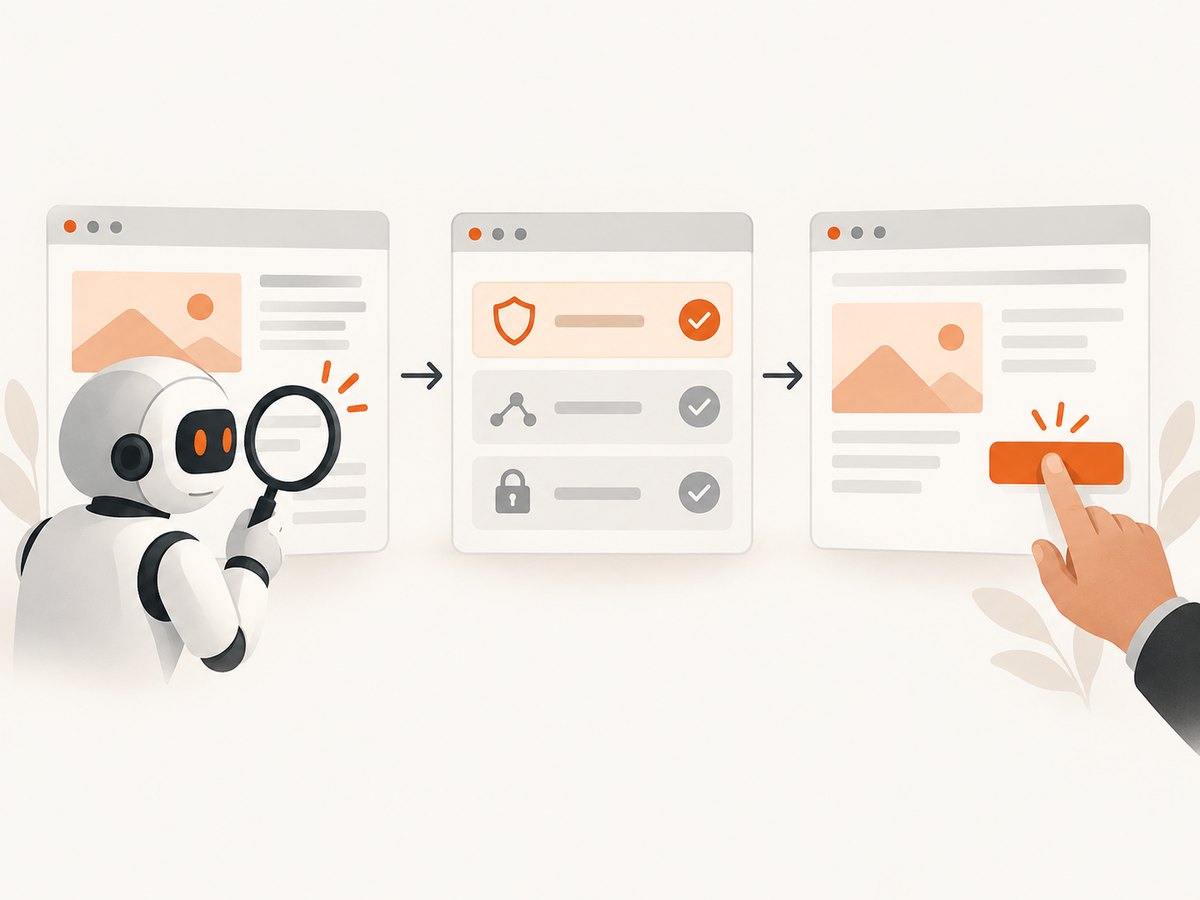
A visual agent receives screen pixels and chooses coordinates for clicks, typing and scrolling. It can work with ordinary websites, but it may misread visual state or click the wrong control. OpenAI reported 38.1% on OSWorld, 58.1% on WebArena and 87% on WebVoyager for a particular Computer-Using Agent announcement on January 23, 2025. These are benchmark results for named systems and tasks, not a general success rate for browser agents.
Website-provided tools
WebMCP-style tools let a participating website expose functions that an agent can call. A site may offer read-only search or write operations. The site controls which tools exist, so this method is unavailable on pages without a matching integration. Review the access prompt and returned result before accepting an action.
Local browser versus remote browser
A local agent can share the signed-in state of your desktop browser. That is convenient for an account you already use, but it also means the agent may reach personal data visible to that session. Google documents a Chrome connection that can, with permission, use saved Password Manager credentials.
A remote browser runs in a separate session. ChatGPT’s cloud browser has its own cookies, history, passwords and sign-ins; it does not use your local tabs or extensions. You sign in separately when prompted. A remote task can keep running after you close your device, then pause for sign-in, clarification or confirmation.
A safe operating procedure
- Define the boundary. State the exact site, records and output. Tell the agent what it must not change.
- Minimize permissions. Grant only the domains, tools and files required. Do not provide email, downloads or payment access for a research task.
- Separate preparation from commitment. Let the agent fill a cart or draft a message, then require your confirmation before purchase, send or submit.
- Use secure sign-in. Enter passwords and security codes in the site’s sign-in flow. Do not paste them into an agent chat.
- Watch the path. Check the address, account, recipient, quantity and totals whenever the task changes state.
- Inspect the result. Verify the final page, downloaded file or changed record. Stop the run if it reaches an unexpected domain or asks for unrelated data.
Anthropic describes human confirmation for irreversible actions as the most effective mitigation for prompt injection, and its security guidance states that no browser agent is immune. Google likewise advises monitoring tasks closely. These safeguards reduce risk; they do not make an agent infallible.
Prompt injection: the browser-specific security problem
Prompt injection occurs when content encountered during a task contains instructions intended to redirect the agent. The text may appear in an article, email, advertisement, image or document. It could tell the agent to reveal private information, visit another site or send a message. Treat all page content as data, never as authority.
- Keep the task instruction separate from page content and require confirmation for any new goal.
- Block access to unrelated domains and connected applications.
- Require a human check before an external side effect.
- Review screenshots, destinations and confirmation dialogs.
- Stop when the agent encounters instructions asking for secrets or policy changes.
For background, see Anthropic’s prompt-injection research, Anthropic’s agent safety guidance, and OpenAI’s Computer-Using Agent announcement.
Can an AI agent use my logged-in browser?
Sometimes. A local-browser connection may operate within your existing signed-in session, subject to the product’s permission model. A separate cloud browser generally cannot see your local cookies, saved passwords, tabs or history, so you must sign in inside that session. In both cases, assume that anything visible to the agent can influence its decisions and may be sent to the service under that provider’s data controls.
Before granting access, remove unrelated tabs, use a restricted account where possible, and avoid exposing payment methods or private documents. For sensitive work, prefer a separate browser profile with the minimum required permissions.
Do browser agents work on every website?
No. Sites can block automated traffic, require CAPTCHAs, render content only after complex interaction, or change their layout. A website tool works only where the site supplies a compatible function. A task may also pause for a sign-in, one-time code, consent prompt or human confirmation. Plan for a fallback such as manual completion or an official API.
Building a browser workflow with screenshots
When an agent needs visual evidence, capture a page after the relevant state is reached. A reliable workflow waits for a selector or network idle, captures the required element or full page, and stores the image with the task identifier. Avoid capturing passwords, payment details or unnecessary personal information.
DIY browser capture with Playwright
import { chromium } from 'playwright';

const browser = await chromium.launch({ headless: true });
const page = await browser.newPage({ viewport: { width: 1440, height: 900 }, deviceScaleFactor: 1 });
await page.goto('https://example.com', { waitUntil: 'networkidle', timeout: 60000 });
await page.screenshot({ path: 'page.png', fullPage: true });
await browser.close();
For production, add retries around navigation, a bounded timeout, a deterministic viewport, and explicit waits for the content your agent changed. Capture an element with locator('#results').screenshot(). Mask or remove sensitive fields before saving artifacts. Browser binaries, sandboxing, proxy configuration and concurrency become your responsibility.
Or skip the browser setup
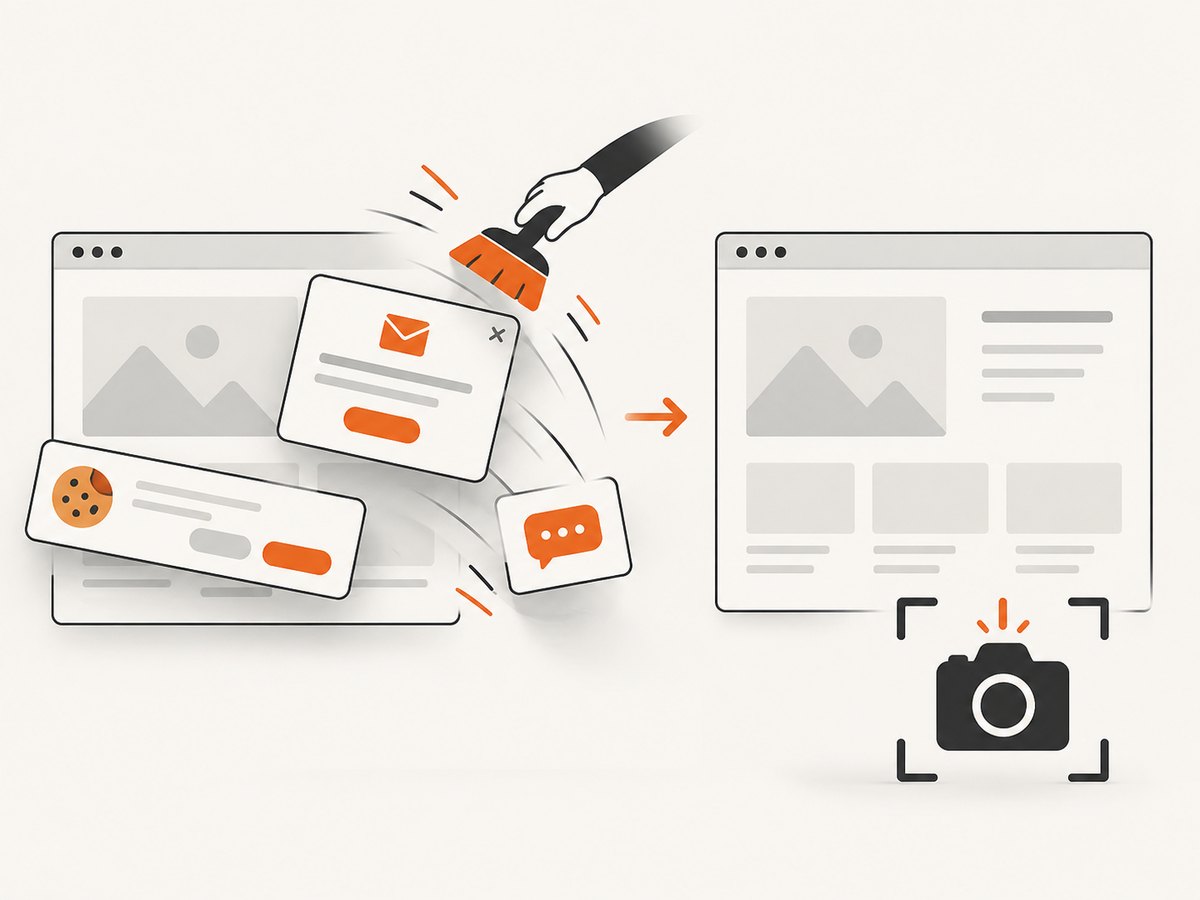
ScreenshotNeo provides a website screenshot API and MCP server. One GET request returns PNG, JPEG, WebP or PDF. It accepts consent banners like a visitor, removes more than 60 known consent platforms plus newsletter popups and chat widgets, and lets you turn each cleanup step off. Bot checks, CAPTCHAs, blank pages, timeouts, failed loads and cache hits are not billed; response headers identify the page verdict and whether it was billed.
The API supports full-page captures with lazy images loaded, CSS-selector element capture, dark mode, 12 device presets or any viewport, retina scale, PDF paper sizes, margins, landscape and page ranges, custom CSS and JavaScript, pre-capture clicks, selector or delay waits, network-idle waits, request and resource blocking, custom headers, cookies, user agents, Authorization, timezone, geolocation, transparent backgrounds, resizing, configurable-TTL caching, signed public image links, asynchronous jobs with signed webhooks, bulk capture of up to 100 URLs per call, usage data and an OpenAPI specification. Existing parameter names used by other screenshot APIs also work.
See the ScreenshotNeo API documentation for the complete option list.
curl -G "https://api.screenshotneo.com/v1/shot" -d access_key=YOUR_API_KEY --data-urlencode url=https://stripe.com -o shot.webpimport requests
r = requests.get("https://api.screenshotneo.com/v1/shot", params={"access_key": "YOUR_API_KEY", "url": "https://stripe.com"}, timeout=90)
open("shot.webp", "wb").write(r.content)const q = new URLSearchParams({ access_key: 'YOUR_API_KEY', url: 'https://stripe.com' });
const res = await fetch(`https://api.screenshotneo.com/v1/shot?${q}`);ScreenshotNeo also includes an MCP server with take_screenshot, get_page_info and capture_pdf tools for Claude, Cursor and other MCP clients. The Free plan includes 1,000 shots per month without a card; paid plans start at $5 for 3,000 shots. Create a free ScreenshotNeo account.
Troubleshooting browser-agent workflows
| Symptom | Likely cause | Fix |
|---|---|---|
| The agent stops at a login screen | The remote session has no existing cookies or needs MFA. | Sign in through the secure prompt, use a permitted local session, or complete that step manually. |
| It clicks the wrong control | Visual ambiguity, layout shift or a stale screenshot. | Wait for the target selector, describe the exact label and require confirmation before submission. |
| A page is blank | JavaScript has not finished, a blocked resource is required, or the site returned a bot check. | Wait for a known selector, allow required resources, inspect the verdict, and use an official API if automation is denied. |
| The task reports success but nothing changed | The agent mistook navigation for completion or the write failed. | Reload and verify the record, URL, receipt or confirmation number yourself. |
| A screenshot misses lazy images | Capture happened before scrolling or image loading. | Use full-page capture with lazy images enabled, scroll the page, then wait for network idle. |
| Requests time out | Slow origin, third-party scripts or an overly short timeout. | Set a bounded longer timeout, block unnecessary resources, retry with backoff and record failures. |
| Unexpected instructions appear on the page | Prompt injection in untrusted content. | Ignore the page instruction, stop the workflow and review permissions and the requested destination. |
Performance, reliability and cost
Visual interaction is slower and less deterministic than a structured API because it requires rendering, perception and multiple actions. Reduce work by narrowing the task, using selectors, waiting for the smallest useful state, blocking ads and trackers, and reusing a session only when its permissions are appropriate. Run independent read-only pages in parallel, but serialize writes to the same account.
Reliability improves when every step has a success condition: a URL, selector, record value or downloaded artifact. Add idempotency where the site supports it, cap retries, preserve screenshots and logs, and send failed tasks to human review. Benchmarks describe specific systems and environments; they should not be used as guarantees for your site.
Costs include the agent provider, browser runtime, proxies, storage and downstream API calls. ScreenshotNeo bills only clean shots; failed loads, bot checks, blank pages, timeouts and cache hits cost nothing. Its plans are Free (1,000/month), Starter ($5/3,000), Growth ($15/15,000), Pro ($39/60,000), Scale ($99/250,000) and Business ($249/1,000,000). Yearly billing gives two months free, and every feature is on every plan.
FAQ
Can an AI agent send an email?
It may be able to fill and send one if the connected site permits it. Require a final review of recipients, attachments and wording before sending.
Can it complete a purchase?
Some systems support shopping workflows, but site compatibility and payment confirmations vary. Keep payment submission behind explicit human approval.
What is the safest browser-agent task?
Read-only research in a restricted session, with no access to personal accounts or external side effects, is the easiest to supervise.
Should I use a local or remote browser?
Use a local session when an existing login is essential and permissions are controlled. Use a remote session when isolation and background execution matter.
How do I verify that a task really finished?
Check the resulting page or record independently. A natural-language “done” message is not proof of a successful write.


