BlogScreenshots on your device
What Is a Screenshot? Definition, Uses, and How to Capture One
A screenshot is a still image of a display. Learn what screenshots are, where they are saved, and how to capture them on Windows, Mac, iPhone, Android, and the web.
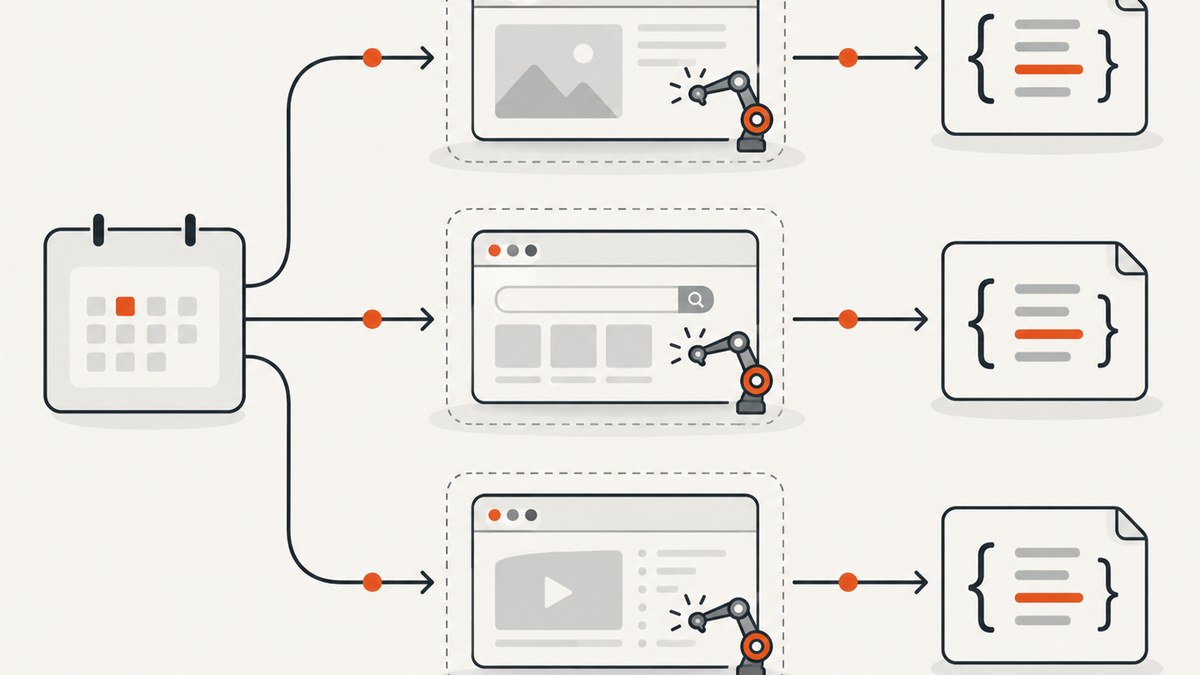
A screenshot is a still digital image that records what a device display shows at one moment. It is also called a screen capture. A screenshot can show an entire display, one application window, a selected rectangle, or a long webpage. Unlike a screen recording, it does not record motion or sound.
People use screenshots to preserve conversations, webpages, error messages, app states, photos, and design details. They are useful for bug reports, documentation, accessibility reviews, translation checks, support requests, tutorials, and app-store submissions. The best capture method depends on how much of the screen you need, where you want the file saved, and whether you need to mark it up or share it immediately.
What a screenshot contains
A screenshot is a rendered picture of pixels at capture time. It normally includes visible content such as text, images, controls, status bars, and notifications. It does not automatically preserve the underlying HTML, source code, links, application state, or later changes to the page.
The capture may represent:
- The full display: everything visible on one monitor or device screen.
- A window: one application or browser window.
- A region: a rectangle or free-form selection.
- Scrolling content: a complete webpage or document longer than the viewport, when the operating system or tool supports it.
Common image formats include PNG, JPEG, and WebP. PNG is usually best for interface text and sharp edges. JPEG is smaller for photographs but can introduce compression artifacts. WebP often provides a small file while retaining good quality. The file format does not change what a screenshot means; it changes how the pixels are stored.
Screenshot versus screen recording
A screenshot is one still image. A screen recording is a video that captures activity over time, often with audio. Use a screenshot when one state explains the issue or preserves the information. Use a recording when timing, animation, scrolling, gestures, or a sequence of actions matters.
| Question | Screenshot | Screen recording |
|---|---|---|
| Output | One image | Video, usually with optional audio |
| Best for | Error messages, visual review, documentation, sharing a state | Reproducing a bug, demonstrating a workflow, showing animation |
| Storage | Usually a small image file | Larger video file |
| Timing detail | Only the instant captured | Events across a period of time |
Android Help describes taking a picture and recording a video as separate actions, and Apple’s Device Hub documentation likewise separates screenshots from video capture. See Google’s Android instructions and Apple’s developer documentation.
How to take a screenshot on Windows 10 and 11
Windows includes Snipping Tool, which can capture all or part of your PC screen. Microsoft’s documented shortcut is Windows logo + Shift + S.
- Press Windows + Shift + S.
- Choose rectangular, free-form, window, or full-screen mode from the capture bar.
- Select the area or window.
- Use the notification that appears to open the image in Snipping Tool, where you can draw, crop, copy, save, or share it.
The capture is copied to the clipboard immediately. If you only need to paste it into an email, issue tracker, or document, press Ctrl + V. To keep a file, open the notification and choose Save. The Print Screen key is another built-in option; on some keyboards it copies the full screen, while on others it opens Snipping Tool depending on Windows settings and device firmware. Microsoft’s overview is available at Snipping Tool support.
Windows scrolling pages and menus
Snipping Tool is designed for visible screen regions. For a webpage longer than the viewport, use the browser’s built-in full-page capture when available, or an automation tool that renders and stitches the page. Menus can disappear when focus changes, so open the menu first and use a timed shortcut or a camera utility that does not steal focus.
How to take a screenshot on macOS
macOS provides keyboard shortcuts and the Screenshot app. Press:
- Shift + Command + 3 for the entire screen.
- Shift + Command + 4 to select a rectangular area.
- Shift + Command + 4, then press Space, to capture a window.
- Shift + Command + 5 to open the Screenshot app, which also offers screen recording and options.
After a capture, macOS can show a thumbnail for quick markup and sharing. By default, screenshots are saved to the desktop, although the Screenshot app lets you choose another destination, such as Documents, Clipboard, Mail, or Messages. The Screenshot app is available on macOS Mojave 10.14 and later. Apple’s instructions are in Take a screenshot on Mac.
How to take a screenshot on iPhone
The button combination depends on whether the iPhone has Face ID or a Home button.
- Face ID models: quickly press and release the side button and the volume-up button together.
- Touch ID models: quickly press and release the side or top button and the Home button together.
A thumbnail appears in the lower-left corner. Tap it to crop, draw, add text, or share. Swipe it away to dismiss the editor. To find saved captures later, open Photos and choose the Screenshots media type. If a physical button is difficult to use, AssistiveTouch can provide an on-screen screenshot action. Apple’s current steps are at Take a screenshot on iPhone.
How to take a screenshot on Android
On most current Android phones, press and hold the power and volume-down buttons together briefly. The screen flashes and a preview or toolbar appears. From there you can crop, annotate, share, or delete the image.
On Android 12 and later, supported screens may offer Capture more for a scrolling screenshot. Start with the normal button combination, then tap Capture more and extend the selection down the page. The option depends on the app; protected or specially rendered screens may disable it.
Open Google Photos and choose Collections > On this device > Screenshots, or use the phone’s Gallery app and its Screenshots album. Hardware combinations vary on some Samsung, Pixel, and tablet models, so check the device manufacturer’s guide if power plus volume-down does not work. Google’s overview is at Take a screenshot on Android.
Where screenshots are saved
| Platform | Typical first destination | How to find the file |
|---|---|---|
| Windows | Clipboard for Snipping Tool; a file after you save it | Open the notification, choose Save, or paste with Ctrl+V |
| macOS | Desktop by default | Change the destination in Screenshot options |
| iPhone | Photos | Photos > Screenshots |
| Android | Google Photos or Gallery | Collections > On this device > Screenshots, or the Screenshots album |
Cloud backup can make a screenshot appear on other devices, but that is separate from the local capture. If you cannot find one, check the app’s recent items, the clipboard, the selected save location, and whether a work or school profile redirects files.
Capturing a webpage as a developer
A desktop shortcut captures what is visible to a person. Automated webpage capture needs a browser that can load the URL, wait for content, set a viewport, and save the rendered result. Playwright is a practical example in Node.js:
import { chromium } from 'playwright';

const browser = await chromium.launch();
const page = await browser.newPage({ viewport: { width: 1440, height: 900 }, deviceScaleFactor: 1 });
await page.goto('https://example.com', { waitUntil: 'networkidle' });
await page.screenshot({ path: 'page.png', fullPage: true });
await browser.close();
For a stable capture, select the exact viewport, wait for a meaningful selector instead of relying only on a fixed delay, and disable animations where possible. A page may change because of cookie banners, rotating content, personalized data, lazy-loaded images, ads, font loading, or a bot check. A full-page screenshot can also be very tall; consider capturing a key element or resizing the output when a downstream system has image-dimension limits.
Or skip the browser setup
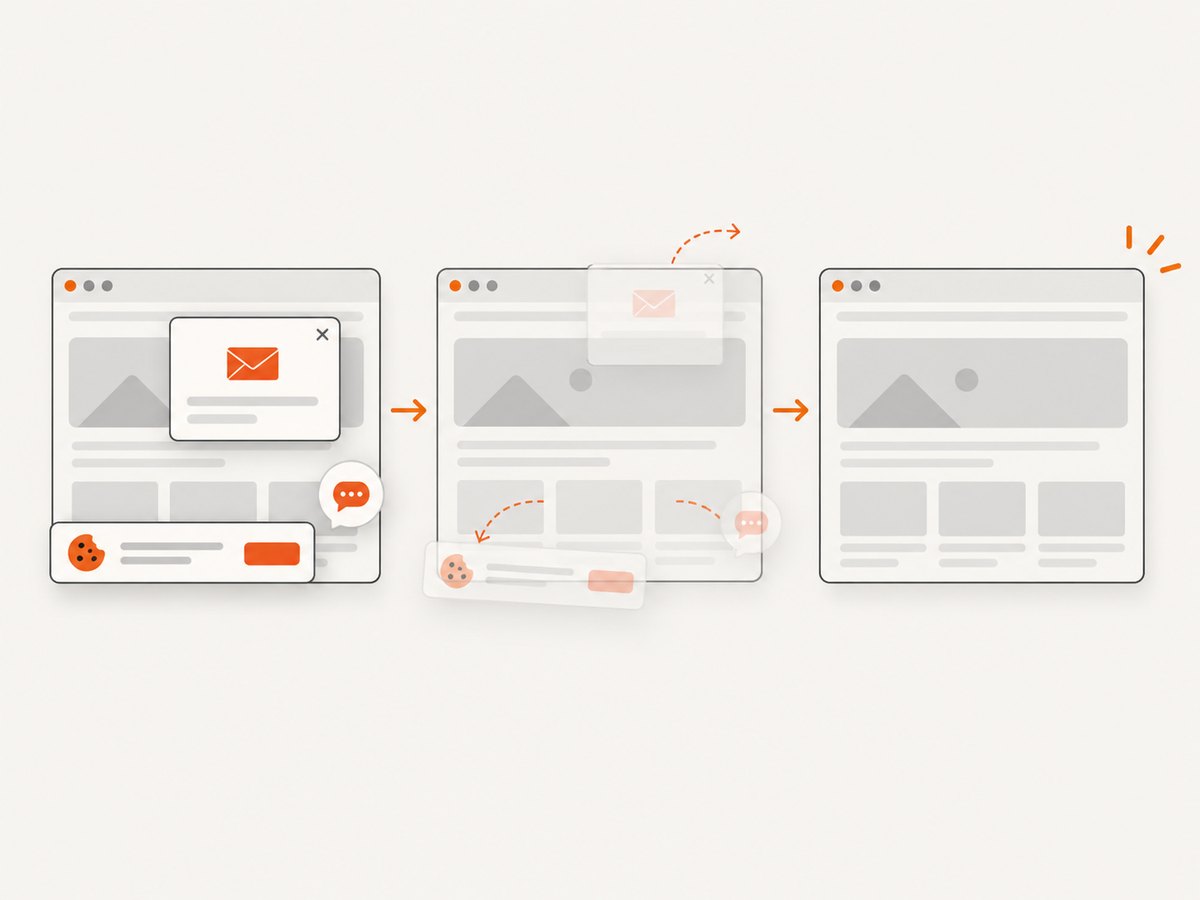
ScreenshotNeo is a website screenshot API and MCP server. One GET request returns a PNG, JPEG, WebP, or PDF. Before capture, it accepts the cookie or consent banner like a visitor and removes more than 60 known consent platforms, newsletter popups, and chat widgets. Each cleanup step can be turned off. Bot checks or CAPTCHAs, blank pages, timeouts, failed loads, and cache hits cost nothing, and response headers identify the page verdict and whether the request was billed.
See the ScreenshotNeo API documentation for all options. The same parameter names used by other screenshot APIs also work, which makes migration simpler.
cURL
curl -G 'https://api.screenshotneo.com/v1/shot' \
  -d access_key=YOUR_API_KEY \
  --data-urlencode url=https://stripe.com \
  -o shot.webp
Python
import requests

r = requests.get(
    'https://api.screenshotneo.com/v1/shot',
    params={'access_key': 'YOUR_API_KEY', 'url': 'https://stripe.com'},
    timeout=90,
)
r.raise_for_status()
open('shot.webp', 'wb').write(r.content)
Node.js
const q = new URLSearchParams({ access_key: 'YOUR_API_KEY', url: 'https://stripe.com' });
const res = await fetch(`https://api.screenshotneo.com/v1/shot?${q}`);
if (!res.ok) throw new Error(`HTTP ${res.status}`);
const fs = await import('node:fs/promises');
await fs.writeFile('shot.webp', Buffer.from(await res.arrayBuffer()));
Useful ScreenshotNeo capture options
- Full-page capture with lazy images loaded, or one element selected by CSS selector.
- Dark mode, 12 device presets, custom viewport sizes, and retina scale.
- PDF output with paper size, margins, landscape mode, and page ranges.
- HTML/CSS to image, custom CSS and JavaScript, clicks before capture, hidden selectors, and waits for a selector, delay, or network idle.
- Blocking for ads, trackers, requests, or resource types.
- Custom headers, cookies, user agent, Authorization, timezone, and geolocation.
- Transparent backgrounds, image resizing, and caching with a TTL you choose.
- Signed links for public image tags, asynchronous jobs with signed webhooks, bulk capture for up to 100 URLs per call, a usage API, and an OpenAPI specification.
For reliability, inspect the X-Page-Verdict and X-Billed response headers, retry transient network failures with a bounded backoff, and choose a cache TTL when the page does not change often. Keep API keys on the server; do not expose them in browser JavaScript or public HTML.
ScreenshotNeo has 1,000 shots per month free with no card. Paid plans start at $5 for 3,000 shots; higher plans are Starter $5/3,000, Growth $15/15,000, Pro $39/60,000, Scale $99/250,000, and Business $249/1,000,000. Yearly billing gives two months free, and every feature is available on every plan. Its MCP server provides take_screenshot, get_page_info, and capture_pdf tools for Claude, Cursor, and other MCP clients.
Create a free ScreenshotNeo account to get 1,000 screenshots a month without adding a card.
Troubleshooting screenshots
The shortcut does nothing
Another application or keyboard utility may have claimed the shortcut. Try the platform’s Screenshot or Snipping Tool app directly, disconnect a remote-desktop session, and test an external keyboard. On laptops, a Function key may be required for Print Screen.
The screenshot is blank or black
Protected video, banking applications, remote desktops, and hardware-accelerated surfaces may block capture. Capture a permitted window, disable hardware acceleration only if your organization allows it, or ask the application owner for an export.
A webpage screenshot misses images
Images may be lazy-loaded, blocked by a consent dialog, or still downloading. Wait for a specific image selector, scroll before capture, use full-page loading, or use an API option that loads lazy images. Check that the URL is publicly reachable from the capture environment.
The page contains a cookie banner, popup, or chat bubble
Dismiss it before a manual capture. In automation, click the consent control, hide known selectors, or use ScreenshotNeo’s cleanup steps, which accept consent banners and remove supported popups and chat widgets before the shot.
The image is too large or blurry
Reduce the viewport or output dimensions, choose JPEG or WebP for photographic pages, or increase device scale for sharper text. A retina capture improves detail but increases bytes and processing work.
The API request returns an error
Check the HTTP status, URL encoding, access key, and timeout. Confirm that the target is not private unless you supplied the required headers or cookies. For a page that fails to load, inspect X-Page-Verdict; failed loads and blank pages are not billed by ScreenshotNeo.
Privacy, accessibility, and sharing checks
A screenshot can contain passwords, personal messages, email addresses, tokens, location data, or private customer information. Crop or redact sensitive material before sending it to a ticket, chat, or public repository. Treat screenshots as copies of the data on screen and apply the same retention and access rules.
For accessibility review, capture focus indicators, zoom levels, high-contrast modes, translated text, and error states. Add a written description when the image is part of documentation so a reader who cannot see it can still understand the result. Do not rely on a screenshot as the only copy of important text; keep the underlying text searchable and editable.
FAQ
Is a screenshot a photo?
It is a digital image, but it is generated from display pixels rather than a camera photographing a physical scene.
Can I edit a screenshot?
Yes. Built-in tools can crop, annotate, draw, and share. Editing changes the copy you distribute, not the original screen state.
Why is my scrolling screenshot unavailable?
The operating system or app may not support scrolling capture for that screen. Use a browser full-page capture or automated webpage renderer instead.
What is the best format for text?
PNG or WebP usually keeps interface text crisp. JPEG is useful when a smaller file matters more than perfect sharpness.
Can a screenshot prove what happened?
It documents what was visible at one instant, but it does not prove when the image was created or preserve the underlying application state. Keep logs, URLs, timestamps, and original files when evidence matters.
A screenshot is therefore a simple still image with many uses: a quick record for a person, a precise artifact for a bug report, or an automated rendering of a webpage. Choose the capture scope and destination first, then use the platform shortcut or a browser/API workflow that waits for the content you actually need.


