What Is Docker MCP? Catalog, Toolkit, Profiles, and Gateway Explained
Docker MCP combines a catalog, Desktop toolkit, profiles, and gateway so AI clients can use MCP servers in isolated containers.
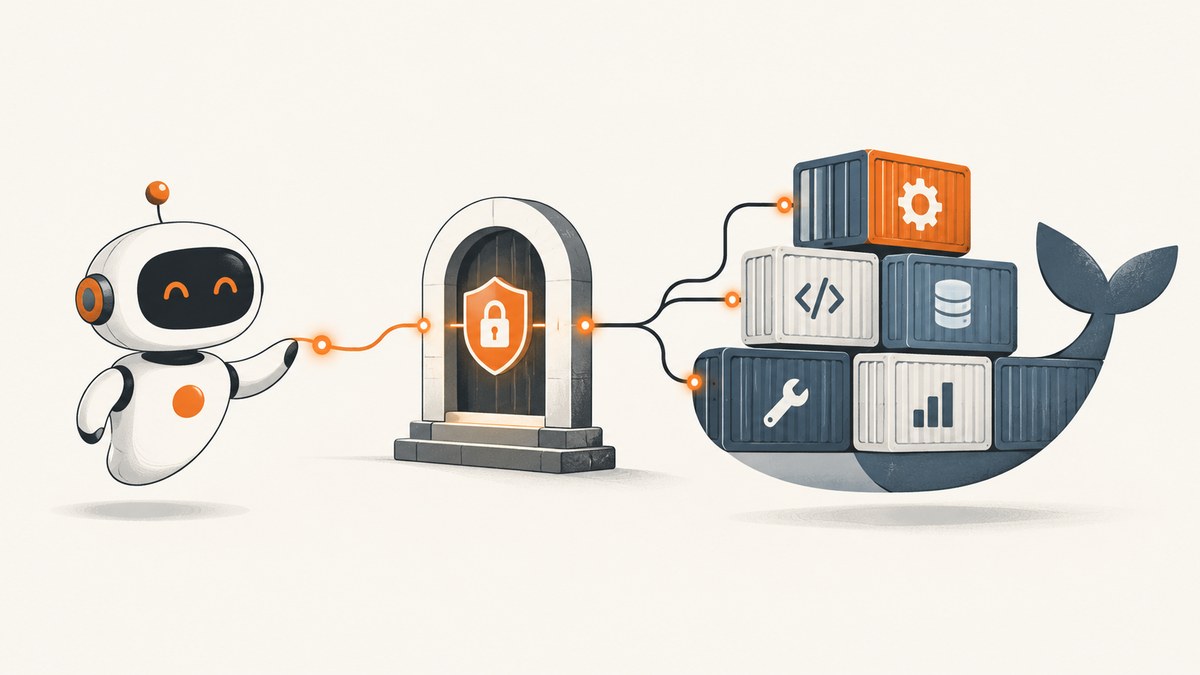
Docker MCP is Docker’s collection of tools for discovering, configuring, running, and connecting Model Context Protocol (MCP) servers to AI applications. It is an ecosystem rather than one MCP server. The main pieces are the Docker MCP Catalog, Docker Desktop MCP Toolkit, profiles, and the MCP Gateway.
MCP is an open standard that lets an AI application (the MCP client) call tools and access resources supplied by MCP servers. Docker packages those servers in containers, provides a curated catalog, gives you a Desktop management interface, and routes client requests through the Gateway.
Docker MCP at a glance
| Part | What it does | Where it runs |
|---|---|---|
| MCP | Protocol that standardizes how AI clients connect to tools and data | Client and server implementations |
| MCP Catalog | Library of server definitions and container images; Docker’s current overview lists 300+ verified servers | Docker’s catalog service |
| MCP Toolkit | Discover, add, configure, group, and connect servers from Docker Desktop | Docker Desktop (currently Beta) |
| Profiles | Named sets of servers for a project, team, or environment | Docker Desktop configuration |
| MCP Gateway | Proxy and orchestrator that routes calls, manages credentials and server lifecycle, and applies access controls | Background service with Desktop, or a separately installed component with Docker Engine |
Docker’s documentation is the authoritative reference for current Toolkit behavior and version requirements; the documented interface applies to Docker Desktop 4.62 and later. See the Docker documentation before following UI instructions because the Toolkit is still labeled Beta.
How MCP itself works
An AI application contains an MCP client. An MCP server exposes tools or resources, such as a database query, file operation, browser action, or API call. The client sends a structured request; the server performs the operation and returns a structured result.
- You select a server and provide its required settings or credentials.
- The Gateway starts the server and keeps it available to the connected client.
- The AI client discovers the server’s tools.
- When the model chooses a tool, the Gateway routes the request to that server and returns the result.
Docker’s model puts catalog servers in isolated containers with restricted privileges, network access, and resource usage. Isolation limits what a server can reach; it does not make every server or every returned result trustworthy.
The Docker MCP Catalog
The Catalog is the discovery layer. It contains server definitions and container images that can be added to a Toolkit profile. Docker currently describes it as containing more than 300 verified servers. “Verified” refers to Docker’s catalog process, not a guarantee that a server is harmless or that its output is correct.
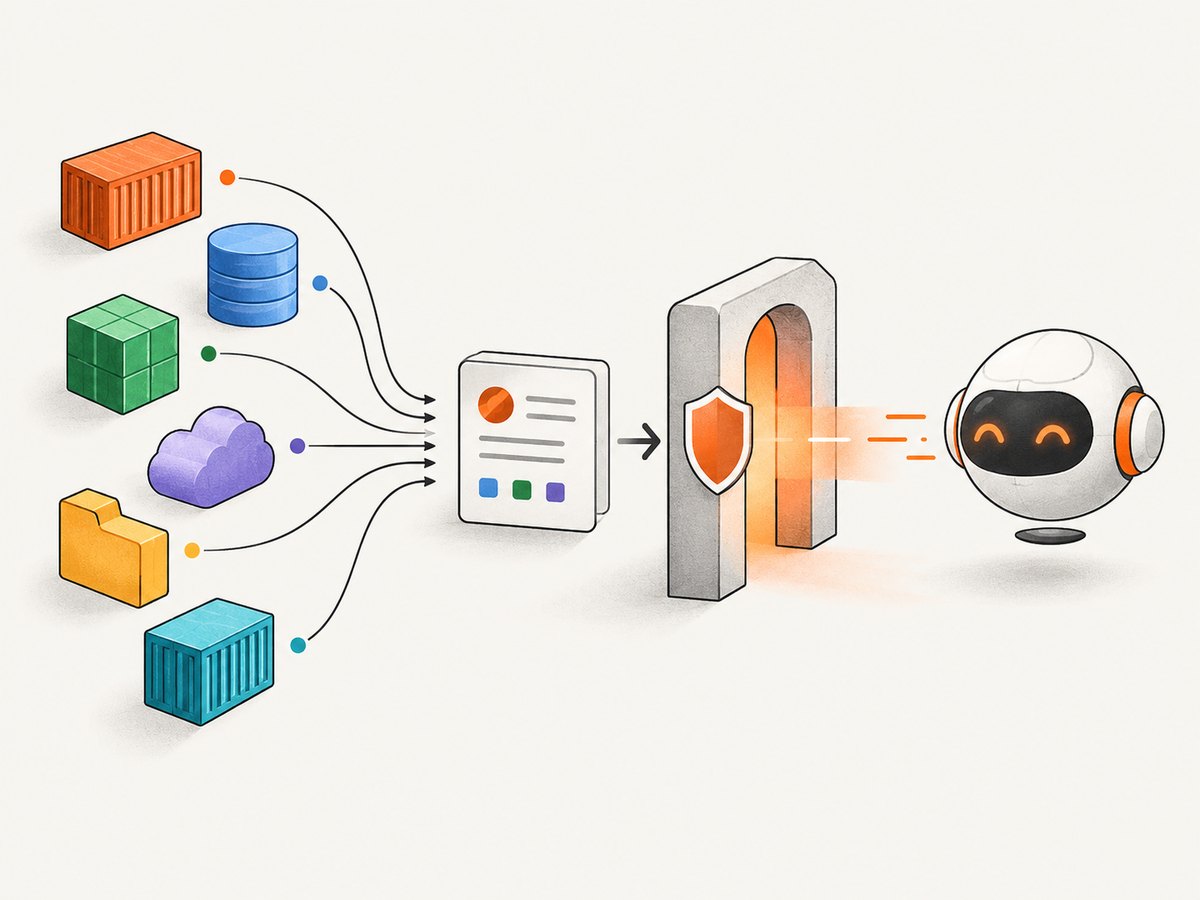
Catalog entries can include configuration fields, authentication requirements, image metadata, and the tools the server provides. Treat those details as inputs to your review process:
- Check which network destinations the server needs.
- Grant only the credentials and scopes required for the task.
- Review the tool list and expected side effects.
- Prefer immutable image references or digests where your deployment requires them.
- Keep a profile limited to the servers needed by that workflow.
The Docker Desktop MCP Toolkit
The Toolkit is the Docker Desktop interface for working with the Catalog and Gateway. It lets you find a server, add it, configure credentials or environment values, group servers into profiles, and connect an MCP-compatible client.
A typical Desktop workflow
- Open Docker Desktop and the MCP Toolkit.
- Browse or search the Catalog for the server you need.
- Add the server and complete its configuration, including OAuth or other credentials when required.
- Place the server in a named profile such as
analytics,support, orlocal-development. - Connect your MCP client to the profile through the Gateway.
- Ask the client to list tools, then run a low-risk operation before enabling write actions.
OAuth-supported services can open a browser authorization flow. Docker says credentials are stored in the Docker Desktop VM starting with Desktop 4.43.0. Removing a server does not automatically remove stored credentials; remove or revoke those credentials separately.
Profiles: the boundary between available and enabled
A common source of confusion is the difference between the Catalog and a profile. The Catalog is the library of available servers. A profile is the selected set made available to a particular workflow.
| Question | Catalog | Profile |
|---|---|---|
| Purpose | Find what exists | Define what this workflow can use |
| Scope | Global library | Project, team, or environment |
| Security effect | Does not itself grant a client access | Controls which configured servers are exposed |
| Typical change | Search for another server | Add, remove, or reconfigure a server |
Use separate profiles for development and production, and for unrelated jobs. Smaller profiles make tool selection clearer and reduce accidental access.
The MCP Gateway
The Gateway is the runtime path between the MCP client and servers. It acts as a proxy and orchestrator, handling routing, configuration, credentials, server startup and shutdown, and access control. With the Toolkit enabled in Docker Desktop, it runs in the background. Docker Engine users without Desktop can install the open-source Gateway separately.
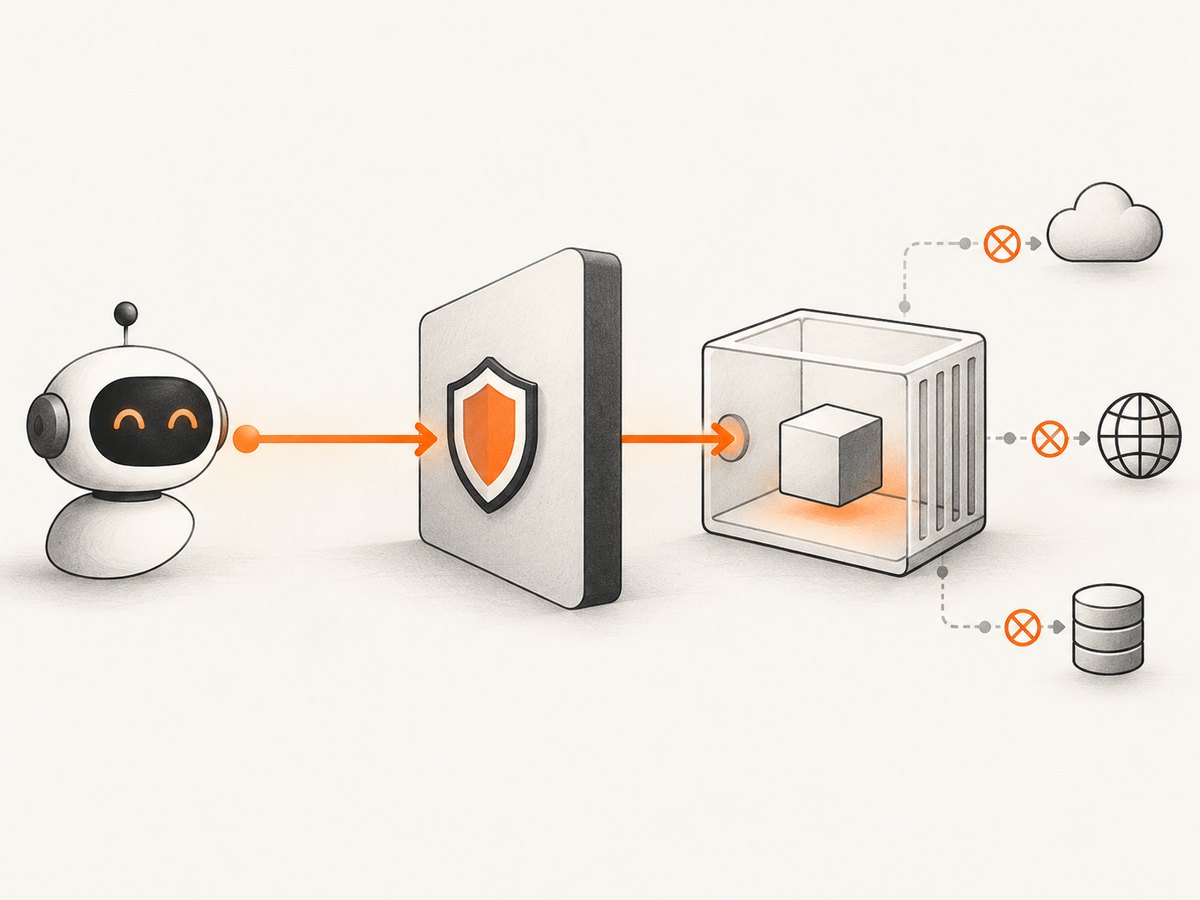
In a request flow, the client addresses the Gateway; the Gateway identifies the selected profile and server, starts or reuses the server container, forwards the tool call, and sends the result back. This central point makes it possible to apply consistent limits and credential handling without embedding every server’s process details in each AI client.
Security controls and their limits
Docker documents several layers of control:
- Container isolation: Catalog servers run with restricted privileges, network access, and resource usage.
- Runtime limits: The Toolkit documentation describes a one-CPU limit, a two-GB memory limit, no host-filesystem access by default, and interception of requests that contain sensitive information.
- Image provenance: Docker-built catalog images can include signatures, attestations, and software bills of materials. Images in Docker Hub’s
mcp/namespace have signature verification enabled by default in the Gateway security model and must be referenced by digest when verification is enabled. - Build checks: Docker says most catalog servers are built by Docker; selected third-party servers are built in ephemeral environments and checked for initialization, functionality, and tool listing.
These measures have clear limits. Docker’s MCP Toolkit FAQ describes its security approach as best effort and says automated testing, scanning, and metadata extraction are not exhaustive. Isolation and provenance do not automatically stop prompt injection or malicious content returned by a tool, README, remote service, or upstream API. Review the server, the permissions you grant, and the data it can send or receive.
Docker Desktop versus Docker Engine
| Environment | Setup model | Best fit |
|---|---|---|
| Docker Desktop | Toolkit provides the management UI and starts the Gateway in the background | Developers who want visual discovery, profiles, and integrated credential handling |
| Docker Engine | Install and operate the Gateway separately, then connect your MCP client | Servers, CI systems, or hosts where Docker Desktop is not installed |
The two environments use the same conceptual pieces, but installation, updates, logs, and client connection details differ. Follow the documentation for your Docker version and host rather than copying Desktop instructions to an Engine server.
Connecting an AI client safely
- Choose the smallest profile that contains the required server.
- Confirm the client is connecting to the Gateway and can list only the expected tools.
- Run a read-only call first.
- For write-capable tools, require explicit confirmation in your client workflow.
- Inspect returned content for untrusted instructions before allowing a second tool call.
- Rotate or revoke credentials when a server, profile, or workstation is retired.
Client compatibility depends on the client and its MCP transport support. The Gateway manages server routing; it does not turn a client that lacks MCP support into an MCP client.
Common errors and fixes
| Symptom | Likely cause | Fix |
|---|---|---|
| The server is visible in the Catalog but unavailable to the client | It was not added to the active profile, or the client is connected to another profile | Add it to the intended profile and reconnect the client. |
| OAuth repeatedly asks for authorization | Authorization did not complete, expired, or the stored credential is stale | Complete the browser flow again; if the server was removed, separately remove or revoke its stored credential. |
| Tool calls fail immediately | Required environment values, headers, or API credentials are missing | Open the server configuration, fill every required field, and verify the credential’s scopes. |
| Gateway cannot start a server | Image pull failure, invalid configuration, or a resource limit | Check Docker Desktop or Gateway logs, verify the image reference, and reduce unnecessary servers in the profile. |
| A tool returns suspicious instructions | Untrusted content from the tool or upstream service | Stop the chain, treat the content as data, and review the server and requested permissions. Gateway isolation does not guarantee prompt-injection protection. |
| Desktop instructions do not match your screen | Older Docker Desktop version | Update when appropriate or use the documentation matching your installed version; the current detailed guide targets Desktop 4.62 and later. |
Performance, reliability, and cost considerations
- Startup latency: A server may need to be pulled and started before its first tool call. Reusing a running server avoids repeated startup work.
- Resource ceilings: The documented one-CPU and two-GB memory limits can affect heavy servers. Keep profiles focused and monitor container behavior.
- Network dependence: OAuth, image pulls, and upstream APIs can fail independently of the Gateway. Design retries in the client and make write operations idempotent where possible.
- Credential lifecycle: Removing a server does not remove its stored credentials. Include credential revocation in offboarding.
- Cost: Docker MCP software does not establish the price of an upstream API or hosted MCP service. Budget separately for Docker infrastructure, model usage, image storage, and each service your servers call.
Using MCP for website screenshots
If your agent needs visual evidence from a web page, you can run a screenshot MCP server from your Docker MCP profile and let the client call it. A do-it-yourself flow is: add a screenshot server from the Catalog, configure its URL and browser settings, expose it through the Gateway, then ask your MCP client to capture the page. Keep browser credentials and private URLs in the server configuration, not in prompts.
Or skip the browser setup
ScreenshotNeo is a website screenshot API and MCP server. One request returns a PNG, JPEG, WebP, or PDF, and its MCP tools (take_screenshot, get_page_info, and capture_pdf) work with Claude, Cursor, and other MCP clients.
cURL:
curl -G "https://api.screenshotneo.com/v1/shot" -d access_key=YOUR_API_KEY --data-urlencode url=https://stripe.com -o shot.webpPython:
import requests
r = requests.get("https://api.screenshotneo.com/v1/shot", params={"access_key": "YOUR_API_KEY", "url": "https://stripe.com"}, timeout=90)
open("shot.webp", "wb").write(r.content)
Node.js:
const q = new URLSearchParams({ access_key: 'YOUR_API_KEY', url: 'https://stripe.com' });
const res = await fetch(`https://api.screenshotneo.com/v1/shot?${q}`);
See the ScreenshotNeo API documentation for the complete option set. Cookie and consent banners, newsletter popups, and chat widgets are removed before the shot. Bot checks, blank pages, failed loads, timeouts, and cache hits are not billed, and response headers report the page verdict and billing status. You can also use custom CSS and JavaScript, full-page or element capture, device presets, dark mode, PDF settings, blocking rules, headers, cookies, geolocation, caching, signed links, async webhooks, bulk capture, and usage reporting.
There is an MCP server for AI agents, 1,000 screenshots per month are free with no card, and paid plans start at $5 for 3,000 shots. Create a free ScreenshotNeo account.
FAQ
Is Docker MCP one server?
No. It is the combination of the Catalog, Toolkit, profiles, and Gateway used to run and connect many MCP servers.
Does a verified Catalog server guarantee safety?
No. Verification describes Docker’s catalog checks. Docker says its security measures are best effort and not exhaustive.
What is the difference between a profile and the Catalog?
The Catalog is the available library; a profile is the selected, configured set exposed to a workflow.
Do I need Docker Desktop?
No. Desktop integrates the Toolkit and Gateway. Docker Engine users can install and operate the Gateway separately.
Can the Gateway stop prompt injection?
Not by itself. It can constrain containers, resources, credentials, and routing, but untrusted tool output still requires review by the client and operator.
Why did Docker’s server count change from 100+ to 300+?
The 100+ figure was from the May 2025 launch announcement. Current documentation reports 300+; they describe different points in time.


