BlogScreenshots on your device
What Is Web Capture and How Do Developers Use It?
Learn how browser web capture works with getDisplayMedia(), permissions, recording, WebRTC, privacy controls, and production troubleshooting.
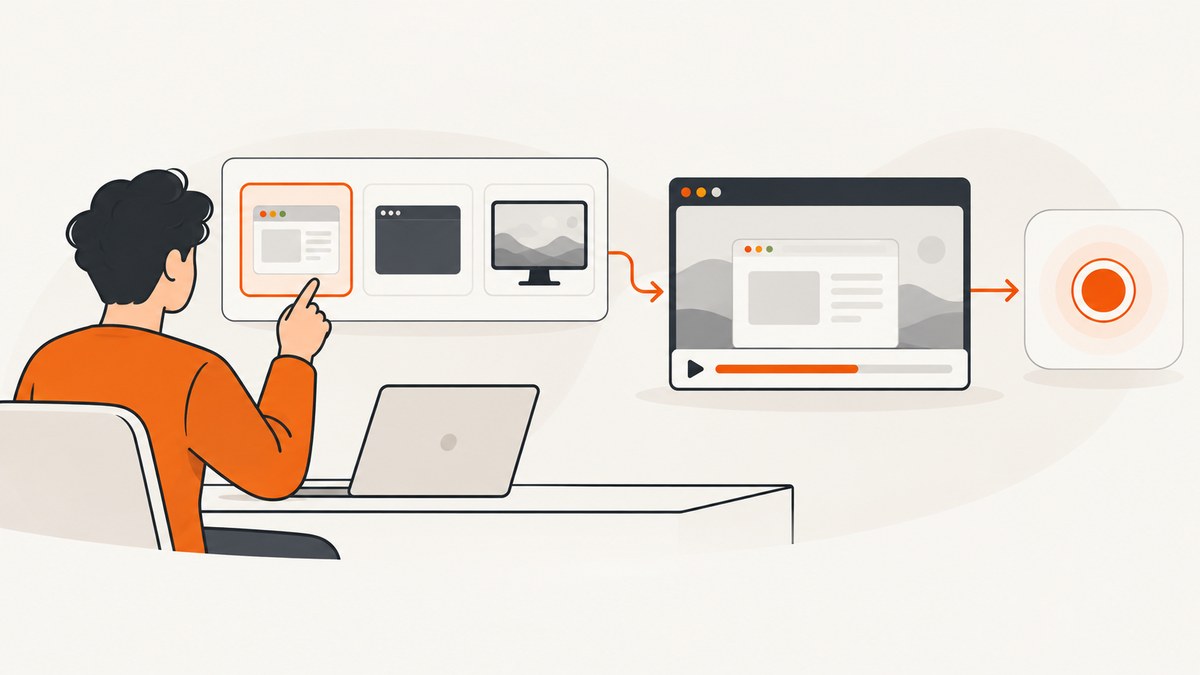
Web capture is the browser feature that lets a user choose a tab, window, or monitor and give a website a live MediaStream of that display surface. The main entry point is navigator.mediaDevices.getDisplayMedia(). The browser shows its own picker and permission prompt; your code cannot silently select a source.
After permission, the returned stream can drive a preview in a <video> element, a local recording through MediaRecorder, or a remote screen-share session over WebRTC. Captured video is the normal result. Audio is optional and depends on the browser, operating system, and source the user chooses.
How web capture works
The workflow has five stages:
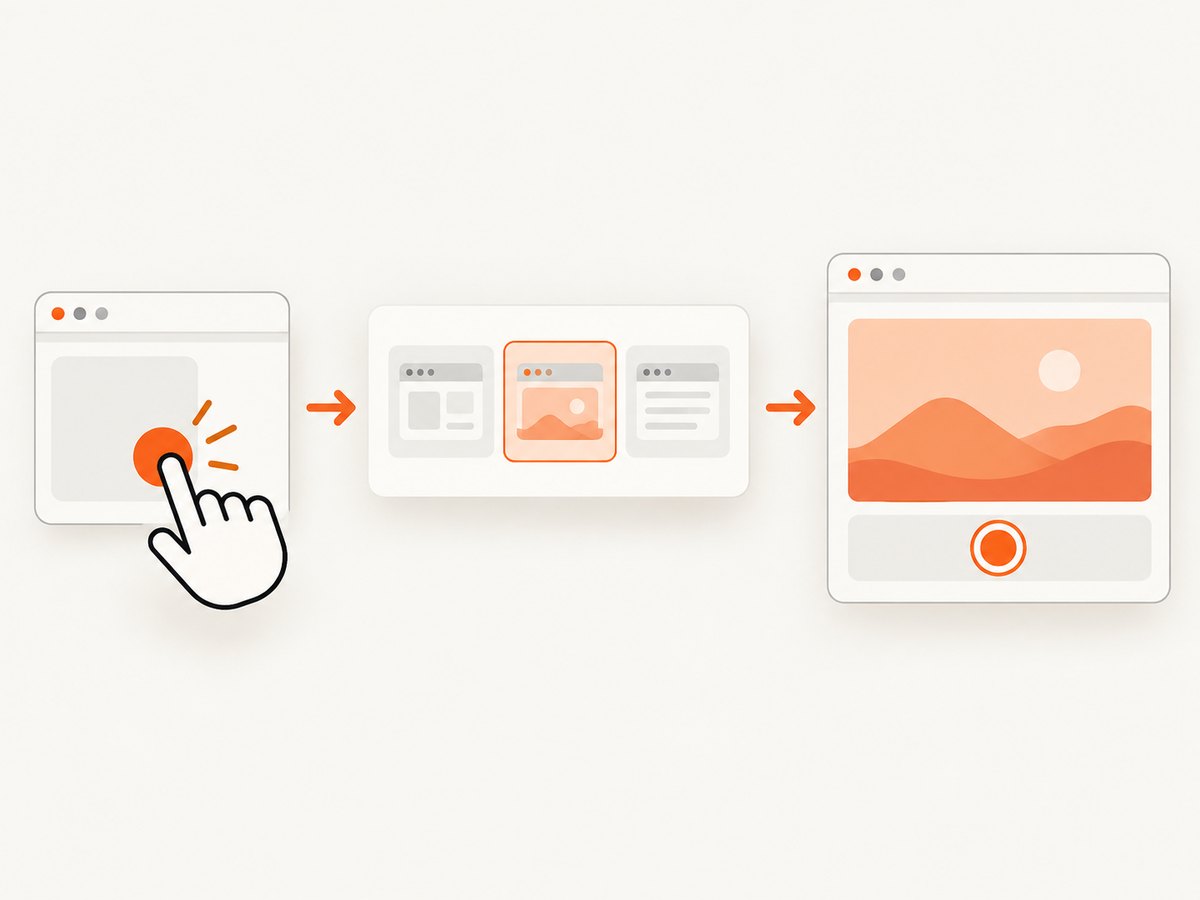
- A user gesture, such as a button click, calls
getDisplayMedia(). - The browser opens a source picker for a tab, window, or entire screen and asks for permission.
- The promise resolves to a
MediaStreamcontaining a video track and, when available and selected, an audio track. - Your application attaches the stream to a video preview, records it, or sends it to another peer.
- Your UI reports that sharing is active and stops every track when the user finishes.
MDN describes getDisplayMedia() as prompting the user to select and grant permission to capture a display or portion of it as a MediaStream (MDN reference). The W3C Screen Capture specification describes the same model for using a user’s display as a media-stream source (W3C draft).
Minimal browser example
Save this as an HTML file and serve it from https:// or http://localhost. A secure context and a recent user interaction are required in supporting browsers.
<!doctype html>
<html lang='en'>
<meta charset='utf-8'>
<title>Web capture demo</title>
<button id='start'>Share a screen</button>
<button id='stop' disabled>Stop sharing</button>
<video id='preview' autoplay muted playsinline style='max-width: 100%'></video>
<p id='status'>Not sharing</p>
<script>
const start = document.querySelector('#start');
const stop = document.querySelector('#stop');
const preview = document.querySelector('#preview');
const status = document.querySelector('#status');
let stream;

start.addEventListener('click', async () => {
  try {
    stream = await navigator.mediaDevices.getDisplayMedia({
      video: { frameRate: { ideal: 30, max: 60 } },
      audio: true,
      preferCurrentTab: false,
      selfBrowserSurface: 'exclude',
      surfaceSwitching: 'include'
    });
    preview.srcObject = stream;
    start.disabled = true;
    stop.disabled = false;
    status.textContent = 'Sharing is active';
    stream.getVideoTracks()[0].addEventListener('ended', stopSharing);
  } catch (error) {
    status.textContent = `${error.name}: ${error.message}`;
  }
});

function stopSharing() {
  if (!stream) return;
  stream.getTracks().forEach(track => track.stop());
  preview.srcObject = null;
  stream = undefined;
  start.disabled = false;
  stop.disabled = true;
  status.textContent = 'Not sharing';
}
stop.addEventListener('click', stopSharing);
</script>
</html>
The picker remains under browser control even when you pass constraints. Treat options as preferences, not a way to force a particular monitor or tab. The ended event handles the user pressing the browser’s stop-sharing control.
Options and constraints
Common options include:
| Option | Purpose | Practical note |
|---|---|---|
video |
Required video constraints | Use frame-rate or resolution preferences; the selected source still wins. |
audio |
Request shared audio | May be ignored when the platform or selected surface cannot provide it. |
preferCurrentTab |
Suggest the current tab in supporting browsers | Do not assume the user will choose it. |
selfBrowserSurface |
Include or exclude the current browser surface | Excluding it helps prevent accidental hall-of-mirrors capture. |
surfaceSwitching |
Allow switching the shared tab or window while active | Availability varies by browser. |
monitorTypeSurfaces |
Suggest whether full monitors appear in the picker | It is a hint, not an enforcement mechanism. |
After capture starts, inspect the actual track settings rather than assuming your requested values were accepted:
const [videoTrack] = stream.getVideoTracks();
console.log(videoTrack.getSettings());
console.log(videoTrack.getCapabilities?.());
Use applyConstraints() only for adjustments supported by the active track. A rejected constraint raises an error, and some browsers expose few capabilities for display tracks.
Previewing and recording a captured stream
A preview is simply a video element whose srcObject is the stream. For a local recording, pass the stream to MediaRecorder. Select a MIME type that the browser supports:
const types = [
  'video/webm;codecs=vp9,opus',
  'video/webm;codecs=vp8,opus',
  'video/webm'
];
const mimeType = types.find(type => MediaRecorder.isTypeSupported(type));
if (!mimeType) throw new Error('No supported recording format');

const chunks = [];
const recorder = new MediaRecorder(stream, { mimeType, videoBitsPerSecond: 4_000_000 });
recorder.ondataavailable = event => {
  if (event.data.size) chunks.push(event.data);
};
recorder.onstop = () => {
  const blob = new Blob(chunks, { type: mimeType });
  const url = URL.createObjectURL(blob);
  const link = document.createElement('a');
  link.href = url;
  link.download = 'web-capture.webm';
  link.click();
  setTimeout(() => URL.revokeObjectURL(url), 1000);
};
recorder.start(1000); // emit data every second
// recorder.stop() when the user ends the recording
Timeslice chunks reduce the amount of data held in memory. For long recordings, upload chunks to your server or write them to a durable client-side store instead of retaining an unbounded array.
Sending web capture with WebRTC
For a remote screen-share call, add the tracks to an RTCPeerConnection. Signaling is application-specific: exchange the offer, answer, and ICE candidates through your existing WebSocket or HTTP channel.
const peer = new RTCPeerConnection({
  iceServers: [{ urls: 'stun:stun.l.google.com:19302' }]
});

for (const track of stream.getTracks()) {
  peer.addTrack(track, stream);
}

peer.onicecandidate = event => {
  if (event.candidate) sendSignal({ type: 'ice', candidate: event.candidate });
};
const offer = await peer.createOffer();
await peer.setLocalDescription(offer);
sendSignal({ type: 'offer', sdp: peer.localDescription });
The receiving peer handles the remote stream:
const remoteVideo = document.querySelector('#remote');
peer.ontrack = event => {
  remoteVideo.srcObject = event.streams[0];
};
Use the connection’s stats to observe packet loss, round-trip time, frame rate, and resolution. If quality drops, reduce the sender’s encoding parameters or ask the user to share a tab instead of a high-resolution monitor.
Security, permissions, and privacy
- Require a user gesture. Start capture from a click or similar recent interaction. A timer, page load, or background task should not call it.
- Use a secure context. Production pages should use HTTPS; localhost is generally treated as secure for development.
- Explain the scope. Tell users whether they should choose a tab, a window, or a full monitor and whether audio is needed.
- Show a preview and stop control. The browser also displays a sharing indicator. Keep your own visible state synchronized with it.
- Stop all tracks. Call
stream.getTracks().forEach(track => track.stop())on completion, navigation, or cancellation. - Minimize disclosure. A monitor can expose password managers, private chats, customer records, notifications, or other windows. Logical surfaces can also contain content outside the currently visible area.
Never treat screen capture as a background surveillance API. The picker, permission prompt, and active-sharing indicator are intentional safeguards.
Browser support and audio behavior
Screen capture has limited availability across browsers. Feature-detect before rendering your share button:
const canCapture = !!navigator.mediaDevices?.getDisplayMedia;
shareButton.hidden = !canCapture;
Video is the dependable part of the workflow. Tab audio, system audio, and window audio depend on browser and operating-system support. Test every target combination, and design the call so it remains useful when stream.getAudioTracks() is empty.
The Screen Capture Working Draft published on 16 July 2026 is explicitly incomplete and may change. Treat newer proposals such as Region Capture, Element Capture, and Captured Surface Control as progressive enhancements, not baseline requirements.
Capturing a still image from the stream
If you need one frame rather than a recording, draw the video to a canvas after metadata is available:
await preview.play();
const canvas = document.createElement('canvas');
canvas.width = preview.videoWidth;
canvas.height = preview.videoHeight;
canvas.getContext('2d').drawImage(preview, 0, 0);
const pngBlob = await new Promise(resolve => canvas.toBlob(resolve, 'image/png'));
const download = URL.createObjectURL(pngBlob);
// upload pngBlob or assign download to a link
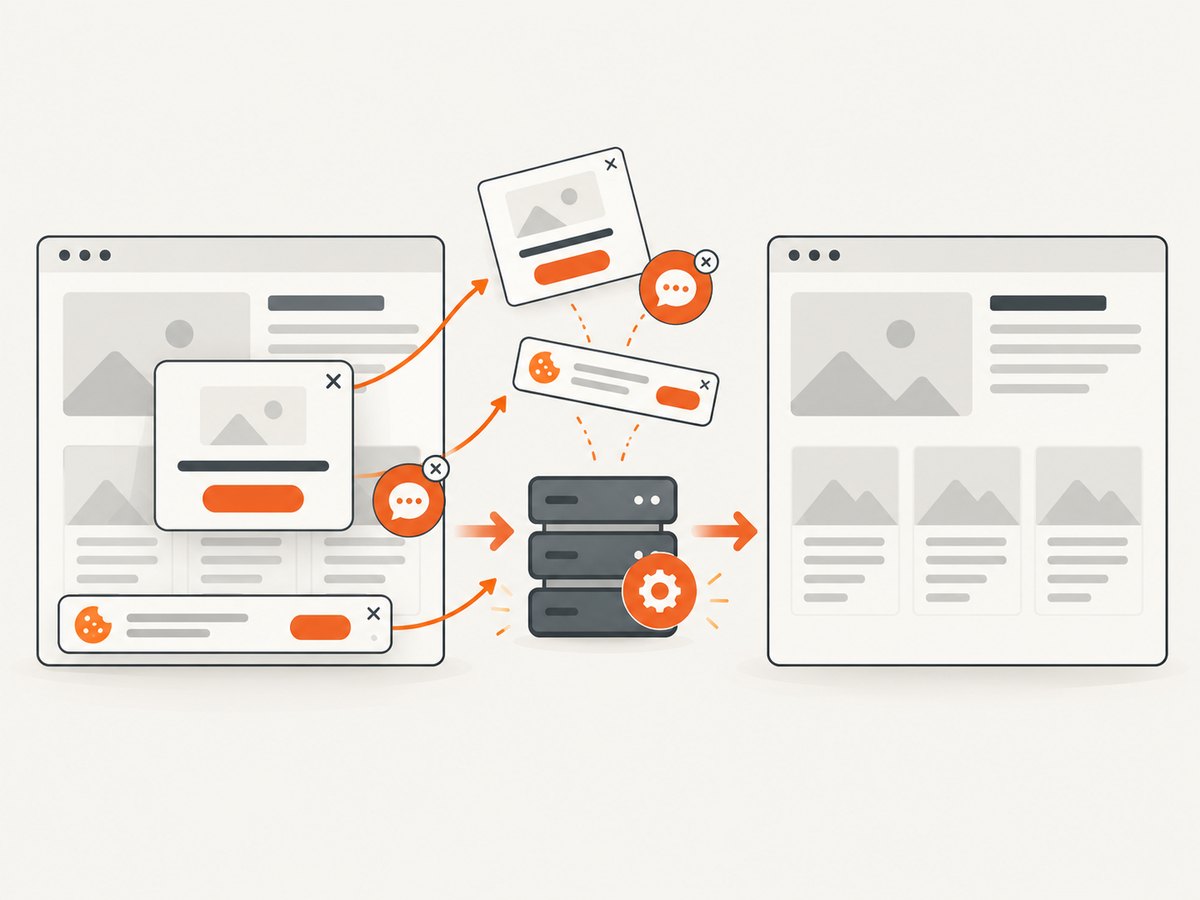
Wait for loadedmetadata or a nonzero videoWidth; otherwise the canvas may be blank. Canvas output is local to the browser and does not remove consent banners, popups, or chat widgets from the captured surface.
Or skip the browser setup
When the goal is a server-side screenshot of a URL rather than a user-authorized live screen share, ScreenshotNeo provides a single HTTP request. Its capture flow accepts cookie and consent banners like a visitor, removes more than 60 known consent platforms plus newsletter popups and chat widgets, and lets you turn each cleanup step off. Only clean shots are billed: bot checks or CAPTCHAs, blank pages, timeouts, failed loads, and cache hits cost nothing. The response identifies the result with X-Page-Verdict and X-Billed headers.
See the full parameter list in the ScreenshotNeo API documentation.
cURL
curl -G 'https://api.screenshotneo.com/v1/shot' \
  -d access_key=YOUR_API_KEY \
  --data-urlencode url=https://stripe.com \
  -o shot.webp
Python
import requests

r = requests.get(
    'https://api.screenshotneo.com/v1/shot',
    params={'access_key': 'YOUR_API_KEY', 'url': 'https://stripe.com'},
    timeout=90,
)
r.raise_for_status()
open('shot.webp', 'wb').write(r.content)
Node.js
const q = new URLSearchParams({
  access_key: 'YOUR_API_KEY',
  url: 'https://stripe.com'
});
const res = await fetch(`https://api.screenshotneo.com/v1/shot?${q}`);
if (!res.ok) throw new Error(`HTTP ${res.status}`);
const fs = await import('node:fs/promises');
await fs.writeFile('shot.webp', Buffer.from(await res.arrayBuffer()));
ScreenshotNeo supports PNG, JPEG, WebP, and PDF output; full-page capture with lazy images loaded; CSS-selector element shots; dark mode; 12 device presets or any viewport; retina scale; PDF paper size, margins, landscape, and page ranges; custom CSS and JavaScript; clicks; selector, delay, and network-idle waits; blocking ads, trackers, requests, or resource types; custom headers, cookies, user agents, Authorization, timezone, geolocation, transparent backgrounds, resizing, TTL caching, signed links, asynchronous jobs with signed webhooks, bulk capture of up to 100 URLs per call, a usage API, and an OpenAPI specification. Parameter names used by other screenshot APIs also work to ease migration.
It also includes an MCP server with take_screenshot, get_page_info, and capture_pdf tools for Claude, Cursor, and other MCP clients. Pricing is Free for 1,000 shots per month with no card, then Starter $5 for 3,000, Growth $15 for 15,000, Pro $39 for 60,000, Scale $99 for 250,000, and Business $249 for 1,000,000; yearly billing gives two months free and every feature is on every plan.
Start with 1,000 free screenshots per month—no card required.
Troubleshooting
| Symptom | Cause | Fix |
|---|---|---|
NotAllowedError |
User cancelled, no recent activation, or the page is not allowed to request capture. | Call from a click, use HTTPS or localhost, and explain the picker before opening it. |
InvalidStateError |
The document is not fully active or another capture request is in progress. | Prevent double-clicks and start only while the page is active. |
TypeError |
Invalid constraints, missing video, or an unsupported option. | Start with {video: true}, then add options one at a time. |
| Black or blank preview | Playback has not started, dimensions are zero, or the track ended. | Use autoplay playsinline, await metadata, inspect track.readyState, and handle ended. |
| No audio | The selected surface or browser does not provide audio. | Check getAudioTracks(); tell users which tab or OS combinations support audio. |
| Recording fails | The MIME type is unsupported or memory grows too large. | Check MediaRecorder.isTypeSupported() and emit short timeslice chunks. |
| Remote video freezes | Packet loss, congestion, or a stalled sender. | Inspect WebRTC stats, lower bitrate, and listen for connectionstatechange. |
| Screenshot API returns a non-clean result | The page showed a bot check, blank document, timeout, or failed load. | Read X-Page-Verdict; adjust waits, headers, cookies, or blocking rules before retrying. |
Performance, reliability, and cost
- Capture scope: A tab usually needs less bandwidth than a full 4K monitor. Offer a lower-resolution or lower-frame-rate mode for weak uplinks.
- Encoding: Choose a supported codec and set a sensible bitrate. Recording and WebRTC encoding both consume CPU.
- Lifecycle: Stop tracks promptly, remove event listeners, revoke object URLs, and close peer connections.
- Network resilience: Monitor WebRTC connection state, reconnect signaling, and show a clear degraded state instead of silently presenting a stale frame.
- Privacy: Keep sensitive content out of the selected surface and avoid logging captured pixels or URLs that contain secrets.
- Server screenshots: Cache repeated captures with a chosen TTL, use asynchronous jobs and signed webhooks for slow pages, and use bulk capture for up to 100 URLs per call. ScreenshotNeo does not bill cache hits or failed, blank, timed-out, or bot-blocked captures.
Choosing the right capture approach
| Requirement | Best fit |
|---|---|
| User selects a tab, window, or monitor and shares it live | getDisplayMedia() plus a preview and WebRTC or MediaRecorder |
| Record a local demonstration | getDisplayMedia() plus MediaRecorder |
| Send a live screen to another person | WebRTC with the captured tracks |
| Generate repeatable screenshots or PDFs from URLs | ScreenshotNeo’s HTTP API or MCP tools |
| Capture one DOM element without asking a user to share a surface | A server screenshot API with selector capture |
FAQ
Can a website capture my screen without asking?
No. The browser must show a source picker and permission flow, and the call normally requires a recent user interaction. Browsers also show an active-sharing indicator.
Does web capture include microphone audio?
getDisplayMedia() requests audio from the selected display surface. Microphone capture is a separate getUserMedia() request, with its own permission.
Can I select a specific window in code?
No. You can provide preferences, but the browser controls the picker and the user chooses the surface.
What is the difference between web capture and a screenshot?
Web capture is a live, user-authorized MediaStream. A screenshot is a still image generated from a frame or rendered page. The two workflows have different permission, privacy, and automation requirements.
How do I know when the user stops sharing?
Listen for the video track’s ended event and stop every remaining track. This catches the browser’s stop-sharing control as well as your own button.
Is the Screen Capture specification finished?
The 16 July 2026 W3C Working Draft says it is incomplete and may change. Build against the browser behavior you support and feature-detect newer controls.


