BlogScreenshots on your device
Where Snagit Saves Screenshots and How to Find Them
Find Snagit screenshots on Windows and Mac, distinguish Library files from exports, and recover captures from older Snagit versions.
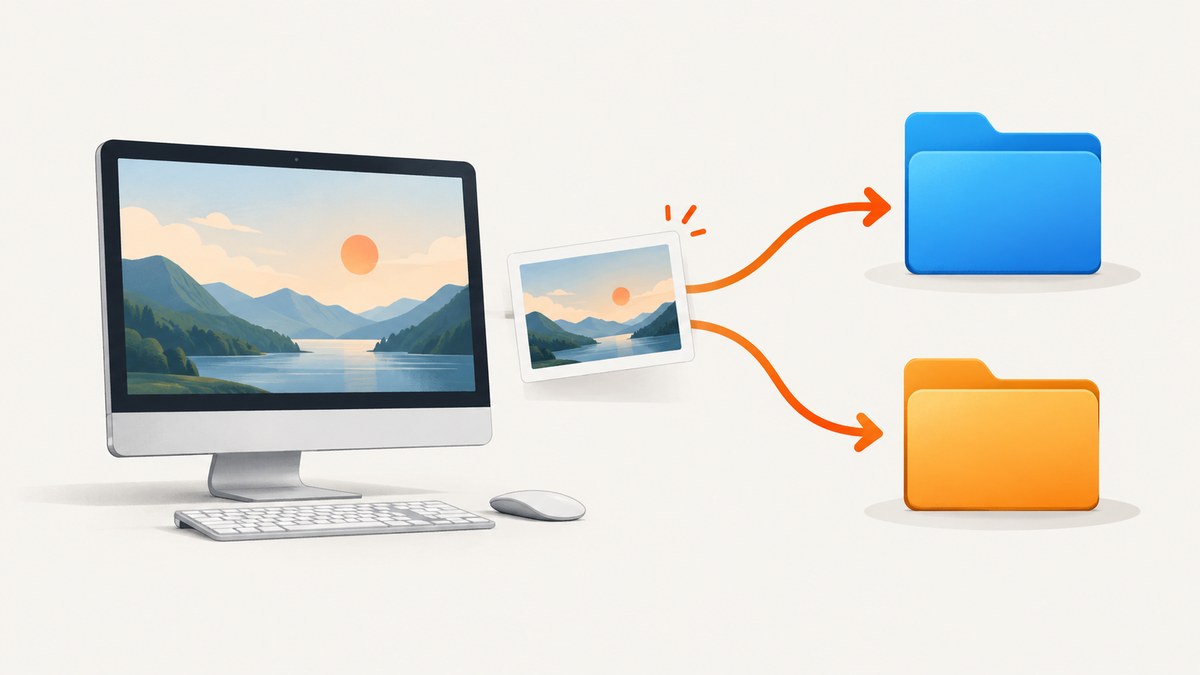
Short answer: Snagit saves automatically retained captures in the folder configured as its Library. That folder can differ by operating system, Snagit version, user settings, and whether the folder is local or cloud-backed. On Windows, open Snagit Editor and choose Edit > Editor Preferences > Library to see the active location. On Mac, Snagit 2022 and newer normally use ~/Pictures/Snagit; older releases may use an Autosaved Captures folder under Pictures or Documents.
A screenshot you exported or saved manually may be somewhere else because Snagit can ask you for a destination and file type. Start with the Library setting, then check the save destination used by the capture workflow or preset that created the image.
Find the active Snagit folder on Windows
- Open Snagit Editor.
- Choose Edit > Editor Preferences.
- Open the Library tab.
- Read the folder shown as the Library location. This is the folder Snagit displays in the Library.
- If necessary, select Choose location… to point Snagit at a different folder.
The path shown in your installation is authoritative. Do not assume every Windows computer uses the same directory: a user, administrator, migration, or cloud-storage setup may have changed it. Open that location in File Explorer and search by the capture date, file extension, or a distinctive part of the filename.
If the Library is stored in OneDrive, Box, Dropbox, or another synchronized folder, verify that the folder is available offline. A file that exists only in the cloud, or a sync client that is paused or throttled, can make the Library appear incomplete even when the path is correct.
Find the active Snagit folder on Mac
For Snagit 2022 and newer, TechSmith documents ~/Pictures/Snagit as the default Autosaved Captures folder. In Finder, choose Go > Go to Folder…, enter that path, and press Return.
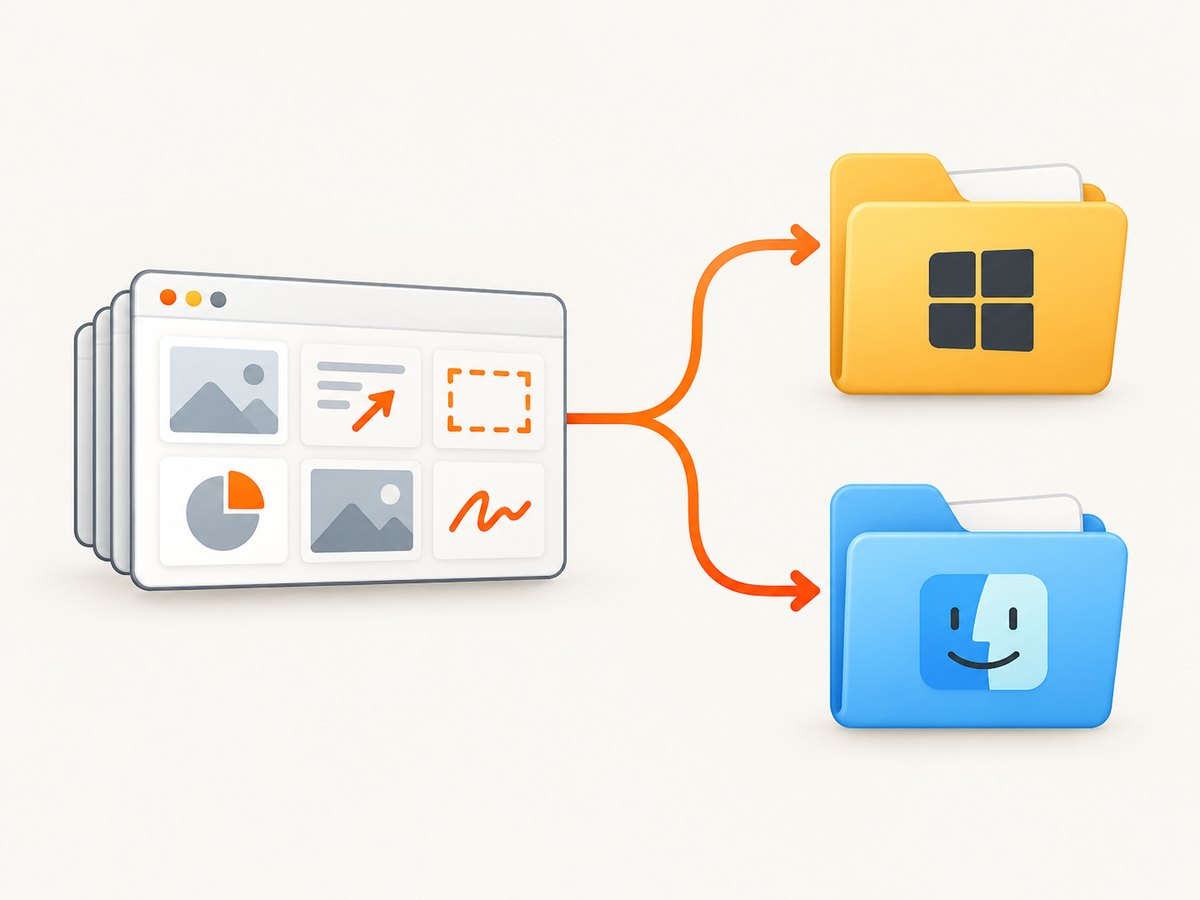
Snagit 2021 and earlier may use one of these older defaults:
~/Pictures/Snagit/Autosaved Captures~/Documents/Snagit/Autosaved Captures
Because the location can be changed, confirm it in Snagit settings rather than relying only on a default path. If neither folder contains the image, check whether the capture was saved manually, exported by a preset, or moved after capture.
Library captures versus manually saved images
The Snagit Library is a view of files in the configured folder. It is not a separate database that stores an independent copy of every image. TechSmith describes the Windows Library as pulling files from Windows File Explorer for viewing.
This distinction explains many “missing screenshot” reports:
| How the image was created | Where to look | What can change the location |
|---|---|---|
| New image capture saved automatically | The configured Library folder | Library preference, version, user or administrator changes, cloud sync |
| Save As or Export | The destination selected in the save dialog | Last-used folder, file type, application or operating-system dialog |
| Capture preset with a save action | The folder configured in that preset | Preset edits, format settings, automation rules |
| Copied or moved file | The new folder chosen in File Explorer or Finder | Manual file management or backup software |
To make future captures predictable, open the capture preset you use most often and inspect its output action. If automatic saving is disabled, Snagit can prompt for a format and destination for each image.
Search when you do not know the filename
Windows
- Copy the Library path from Editor Preferences.
- Open it in File Explorer.
- Sort by Date modified and look around the time of the capture.
- Search for common image extensions such as
.png,.jpg, or.webpif your workflow creates them. - Check the Recycle Bin if the file was visible previously and then disappeared.
Mac
- Open the configured folder in Finder.
- Use Finder search with the folder selected as the search scope.
- Filter by kind, date created, or date modified.
- Check the Trash and any cloud provider’s recovery area if synchronization removed the file.
When the capture was copied to another application, search that application’s attachment or export folder too. A screenshot pasted into a document is not necessarily still present in the Snagit Library folder.
Snagit 2021 and earlier: the legacy Windows Datastore
Snagit 2021 and earlier used a Datastore for unsaved captures. The documented default was:
C:\Users\username\AppData\Local\TechSmith\Snagit\DataStoreBeginning with Snagit 2022, Snagit no longer uses that Datastore folder. Do not present it as the current location for a modern installation.
If an old Datastore was moved outside Snagit without being exported through the application, its captures may not automatically appear in the Library. TechSmith provides restoration instructions, but restoration replaces captures in the existing Library; it does not merge two Datastores. Make a backup before attempting recovery and avoid restoring over a current Library merely to locate one image.
What to do when the Library is empty
- Verify the configured path. A Library that points to a new or empty folder will show no captures even if the old files still exist elsewhere.
- Open the path outside Snagit. Use File Explorer or Finder to confirm that files are physically present.
- Check cloud availability. Mark the folder for offline use and allow synchronization to finish.
- Check version history. If you upgraded from Snagit 2021 or earlier, determine whether you are looking for a legacy Datastore capture.
- Review save settings and presets. A manually exported image may never have been written to the Library.
- Search backups. Use your normal backup or cloud version history rather than overwriting the current Library.
Common errors and fixes
| Symptom | Likely cause | Fix |
|---|---|---|
| The Library is empty after an update | The Library path changed | Check Edit > Editor Preferences > Library and open the displayed folder directly. |
| Files appear in Explorer but not in Snagit | Snagit is pointed at a different folder, or the files are unsupported/filtered | Confirm the exact path and file type; reopen Snagit after correcting the location. |
| A cloud folder shows only some captures | Files are online-only or sync is incomplete | Make the folder available offline and wait for synchronization. |
| An exported image cannot be found | Export used a different destination from the Library | Repeat the export and note the destination; search recent folders by modification time. |
| An old capture vanished after moving folders | A legacy Datastore was moved without Snagit’s export/restore workflow | Back up the current Library, then follow the version-specific restoration process carefully. |
| Restoration would overwrite current captures | Snagit restores a Datastore in place rather than merging it | Stop and create a complete backup before restoring; preserve both sets separately. |
Reliability and organization practices
- Keep the Library in a folder included in your normal backup plan.
- Use a stable local path if you need captures immediately while offline.
- If you use cloud storage, confirm the folder is available offline on every computer that runs Snagit.
- Use descriptive filenames or capture presets when screenshots are part of a repeatable workflow.
- Export important images to a project folder so they are not tied to one Snagit Library configuration.
- Before changing the Library location, copy or back up the existing folder.
Or skip the browser setup
If you need new screenshots of web pages rather than a capture that already exists in Snagit, ScreenshotNeo returns an image or PDF from one GET request. Its capture pipeline accepts cookie and consent banners like a visitor, then removes more than 60 known consent platforms along with newsletter popups and chat widgets before the shot. Each step can be turned off when you need the original page state.

Only clean shots are billed. Bot checks and CAPTCHAs, blank pages, timeouts, failed loads, and cache hits cost nothing, and the response identifies the result with X-Page-Verdict and X-Billed headers. ScreenshotNeo also provides an MCP server with take_screenshot, get_page_info, and capture_pdf tools for Claude, Cursor, and other MCP clients.
See the ScreenshotNeo API documentation for all options. A minimal request looks like this:
cURL
curl -G "https://api.screenshotneo.com/v1/shot" \
  -d access_key=YOUR_API_KEY \
  --data-urlencode url=https://stripe.com \
  -o shot.webp
Python
import requests

r = requests.get(
    "https://api.screenshotneo.com/v1/shot",
    params={"access_key": "YOUR_API_KEY", "url": "https://stripe.com"},
    timeout=90,
)
r.raise_for_status()
open("shot.webp", "wb").write(r.content)
Node.js
const q = new URLSearchParams({
  access_key: 'YOUR_API_KEY',
  url: 'https://stripe.com'
});
const res = await fetch(`https://api.screenshotneo.com/v1/shot?${q}`);
if (!res.ok) throw new Error(`HTTP ${res.status}`);
const fs = await import('node:fs/promises');
await fs.writeFile('shot.webp', Buffer.from(await res.arrayBuffer()));
For repeatable jobs, ScreenshotNeo supports full-page captures with lazy images loaded, CSS-element capture, dark mode, device presets, custom viewports, retina scale, PDF paper settings and page ranges, custom CSS and JavaScript, clicks, selector waits, delays, network-idle waits, request blocking, headers, cookies, user agents, authorization, timezone, geolocation, transparent backgrounds, resizing, selectable cache TTLs, signed image links, asynchronous jobs with signed webhooks, bulk capture of up to 100 URLs per call, a usage API, and an OpenAPI specification. Parameter names used by other screenshot APIs also work, which can simplify migration.
The Free plan includes 1,000 screenshots per month with no card. Paid plans start at $5 for 3,000 shots; higher plans are $15 for 15,000, $39 for 60,000, $99 for 250,000, and $249 for 1,000,000. Yearly billing gives two months free, and every feature is available on every plan. Create a free ScreenshotNeo account to start.
FAQ
Does Snagit store screenshots inside the application?
The Library displays files from its configured folder. It is a file view, so the folder path determines where the files live.
What is the current Mac default?
Snagit 2022 and newer use ~/Pictures/Snagit by default. Older releases may use an Autosaved Captures folder under Pictures or Documents.
Should I search the Windows Datastore?
Only for Snagit 2021 and earlier. Snagit 2022 and newer no longer use that Datastore.
Why is an exported screenshot missing from the Library?
Export and Save As can write to a user-selected folder, separate from the Library location. Search the destination recorded by the save dialog or preset.
Can I merge two old Snagit Datastores?
TechSmith’s restoration process replaces the existing Library captures rather than merging Datastores. Back up both locations before attempting recovery.


