BlogScreenshots on your device
Which Function Key Takes a Screenshot?
There is no universal screenshot function key. Find the correct shortcut for Windows, Mac, Chromebook, and keyboards without a Print Screen key.
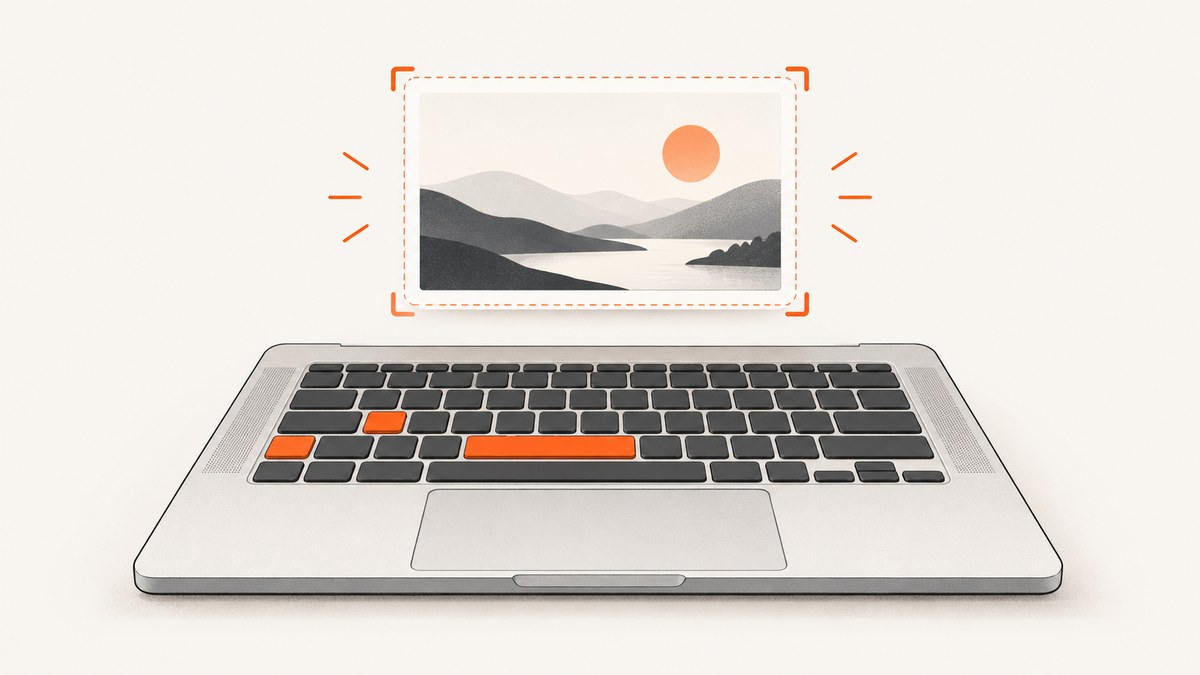
There is no universal function key for screenshots. On Windows, use Print Screen (PrtSc or PrtScn) for the full screen, or Windows + Shift + S for the Snipping Tool. On Mac, use Shift + Command + 3. On Chromebook, use the dedicated Screenshot key or the Show windows key with Ctrl. F11 is not the general screenshot key.
Quick answer by operating system
| Platform | Shortcut | Result |
|---|---|---|
| Windows full screen | Print Screen (PrtSc/PrtScn) | Copies the entire screen to the clipboard. Depending on settings, it may open screen snipping instead. |
| Windows selected area | Windows + Shift + S | Opens Snipping Tool so you can select a region, window, or full screen. |
| Windows active window | Alt + Print Screen | Copies the active window to the clipboard. |
| Windows keyboard without Print Screen | Fn + Windows + Space on some devices | Microsoft-documented alternative; hardware support varies. |
| Mac full screen | Shift + Command + 3 | Saves a full-screen screenshot. |
| Mac selected area | Shift + Command + 4 | Turns the pointer into a crosshair for selecting an area. |
| Mac window or menu | Shift + Command + 4, then Space | Captures a selected window or menu. |
| Mac screenshot controls | Shift + Command + 5 | Opens Screenshot controls on macOS Mojave 10.14 and later. |
| Chromebook with Screenshot key | Screenshot | Opens capture controls. |
| Chromebook without Screenshot key | Ctrl + Show windows | Captures the screen. |
| Chromebook partial capture | Shift + Ctrl + Show windows | Opens capture options for a partial screenshot. |
| Chromebook external keyboard without Show windows | Ctrl + Shift + F5 | Google’s documented fallback. |
Windows: use Print Screen or Snipping Tool
The Windows screenshot key is usually labeled PrtSc, PrtScn, or PrntScrn. Microsoft says it is normally in the upper-right area of the keyboard. On compact laptops, it may share another key and require Fn. See Microsoft’s Windows keyboard shortcut documentation.
Capture the entire screen
- Press Print Screen.
- Open Paint, an image editor, or a document.
- Press Ctrl + V to paste the clipboard image.
Some Windows configurations open screen snipping when Print Screen is pressed. If that happens, select the capture mode in the overlay and save the result.
Capture a region, window, or full screen
Press Windows + Shift + S. The Snipping Tool overlay lets you choose rectangular, free-form, window, or full-screen capture. The result is copied to the clipboard; select the notification to annotate or save it.
Capture only the active window
Focus the window and press Alt + Print Screen. Paste it with Ctrl + V. This is useful when you do not want the taskbar or other windows included.
Mac: use Shift-Command shortcuts
macOS does not use one Print Screen function key. Apple’s shortcuts are documented on its Mac screenshot support page.
- Shift + Command + 3: capture the entire screen.
- Shift + Command + 4: select an area.
- Press Space after Shift + Command + 4: capture a window or menu.
- Shift + Command + 5: open Screenshot controls on macOS Mojave 10.14 or later.
By default, screenshots are saved to the desktop. Hold Control with a shortcut to copy the image to the clipboard instead of saving it as a file. The Screenshot controls can change the save location, timer, and whether the pointer appears.
Chromebook: use Screenshot or Show windows
Chromebooks vary by keyboard layout. The Screenshot key may show a camera or rectangle icon. If it is missing, Google documents the Show windows key (the rectangle with two lines) as the alternative. See Google Chromebook Help.
- Press Ctrl + Show windows for a screenshot.
- Press Shift + Ctrl + Show windows for capture options and a partial screenshot.
- With an external keyboard that has neither Screenshot nor Show windows, press Ctrl + Shift + F5.
Chromebook captures are copied to the clipboard and saved in Downloads by default. Open the Files app to rename or move them.
Why F11 is not the screenshot key
F11 commonly maximizes or restores a window. Microsoft’s shortcut list assigns screenshot actions to Print Screen and Windows + Shift + S. Google’s Chromebook documentation uses Screenshot, Show windows, and Ctrl + Shift + F5 for external keyboards. F11 may have another function on your device, but it is not the universal screenshot shortcut.
What to check when the shortcut does not work
| Symptom | Likely cause | Fix |
|---|---|---|
| Nothing happens after Print Screen | The image was copied silently to the clipboard. | Open Paint or another editor and press Ctrl + V. |
| Print Screen opens a snipping overlay | Windows is configured to launch Snipping Tool. | Select the required capture mode, then click the notification to save. |
| The laptop has no visible PrtSc key | The key is shared with another function. | Look for a secondary label and try Fn; on some Windows devices use Fn + Windows + Space. |
| Mac shortcut saves somewhere unexpected | The save destination was changed in Screenshot options. | Press Shift + Command + 5 and check Options. |
| Chromebook shortcut does not work | Your keyboard lacks Show windows or uses a different layout. | Use the dedicated Screenshot key, then try Ctrl + Shift + F5 with an external keyboard. |
| Only part of the window appears | A region or window mode was selected. | Choose full-screen mode in Snipping Tool, Screenshot, or Chromebook capture controls. |
| The screenshot contains private information | Notifications, tabs, or other windows were visible. | Use active-window or region capture, close notifications, and review the image before sharing. |
Choosing the right capture target
- Full screen: best for a complete desktop record or support ticket.
- Active window: best for documenting one application without surrounding content.
- Selected region: best for a control, error message, or page section.
- Window or menu capture: best for preserving a clean application boundary and shadow.
Before capturing, close sensitive tabs, hide notifications, and confirm that the pointer or selection outline is not obscuring the detail you need.
Or skip the browser setup
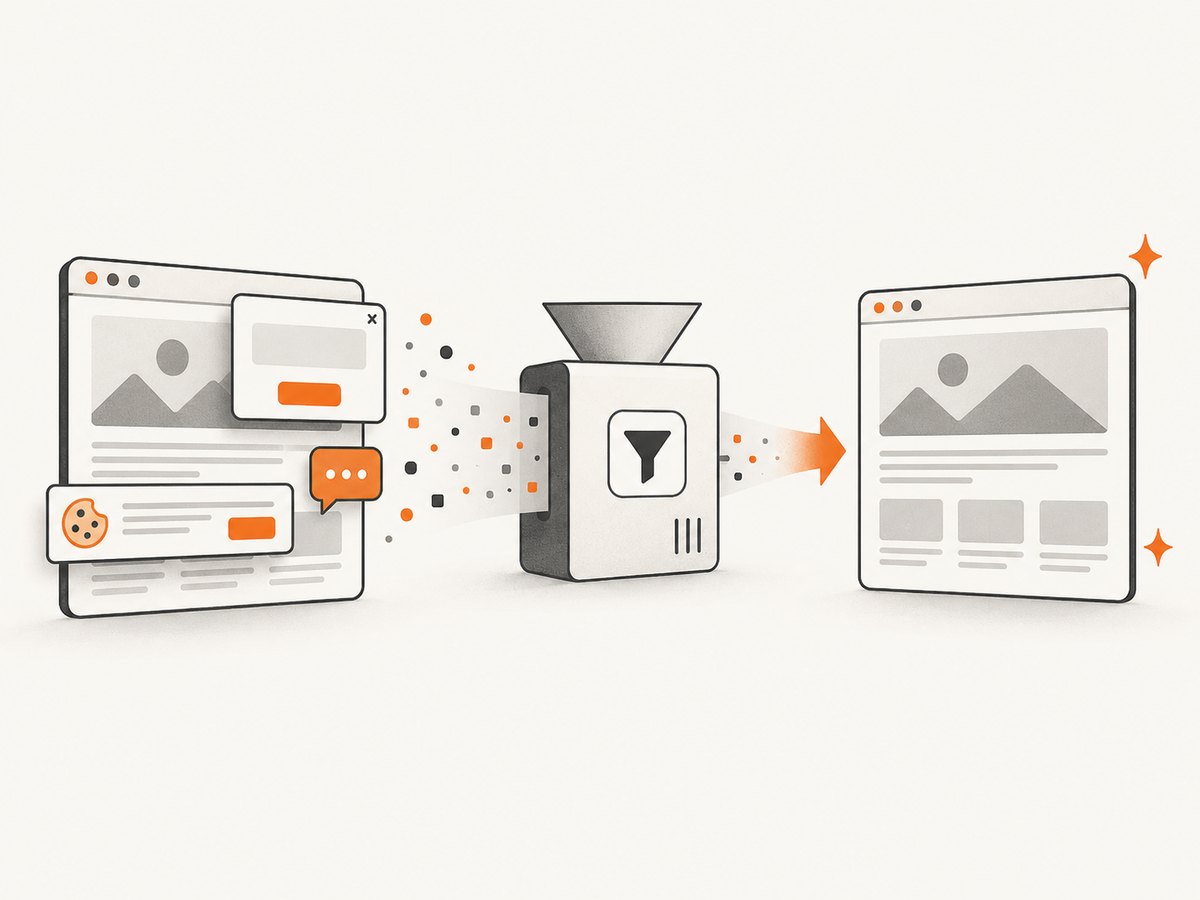
Keyboard shortcuts are ideal for a quick view of your local desktop. For repeatable website captures from code, use ScreenshotNeo, a website screenshot API and MCP server. One request returns a PNG, JPEG, WebP, or PDF. Cookie and consent banners, newsletter popups, and chat widgets are removed before the shot; bot checks, blank pages, timeouts, failed loads, and cache hits are not billed.
See the ScreenshotNeo API documentation for all options. This minimal request captures a webpage:
curl -G "https://api.screenshotneo.com/v1/shot" -d access_key=YOUR_API_KEY --data-urlencode url=https://stripe.com -o shot.webpimport requests
r = requests.get("https://api.screenshotneo.com/v1/shot", params={"access_key": "YOUR_API_KEY", "url": "https://stripe.com"}, timeout=90)
open("shot.webp", "wb").write(r.content)const q = new URLSearchParams({ access_key: 'YOUR_API_KEY', url: 'https://stripe.com' });
const res = await fetch(`https://api.screenshotneo.com/v1/shot?${q}`);ScreenshotNeo also provides an MCP server with take_screenshot, get_page_info, and capture_pdf tools for Claude, Cursor, and other MCP clients. Responses identify billing and page status through X-Page-Verdict and X-Billed headers. One thousand screenshots per month are free with no card; paid plans start at $5 for 3,000 shots. Create a free ScreenshotNeo account.
Performance, reliability, and cost notes
- Local shortcuts are immediate and free, but they require a person to operate the keyboard.
- For automated captures, wait for the page state you need rather than assuming the first paint is complete.
- ScreenshotNeo supports waits for selectors, delays, and network idle, plus lazy-image loading for full-page captures.
- Use caching with a chosen TTL when the same page is requested repeatedly. Cache hits are not billed.
- For many URLs, use bulk capture, which accepts up to 100 URLs per call, or asynchronous jobs with signed webhooks.
- Use the response verdict and billing headers to distinguish a clean billed capture from a failed or non-billable result.
FAQ
Is Print Screen an F key?
No. It is a dedicated keyboard key, although laptops may place it behind an Fn layer.
Can I screenshot without a Print Screen key?
Yes. Windows has Windows + Shift + S, macOS has Shift + Command shortcuts, and Chromebook supports Show windows combinations or Ctrl + Shift + F5 with some external keyboards.
Where does a Windows screenshot go?
Print Screen and Alt + Print Screen normally copy the image to the clipboard. Snipping Tool lets you save it after capture.
Does F12 take a screenshot?
There is no general F12 screenshot shortcut. Function-row behavior depends on the keyboard and operating system.
Can a screenshot capture a webpage without showing browser controls?
Yes. Use a website capture tool such as ScreenshotNeo when you need an automated page image rather than a picture of your desktop.


