BlogScreenshots on your device
How to Take a Screenshot of the Whole Screen With a Keyboard Shortcut
Use the right whole-screen shortcut for Windows, Mac or Chromebook, fix common failures, and automate webpage captures with ScreenshotNeo.
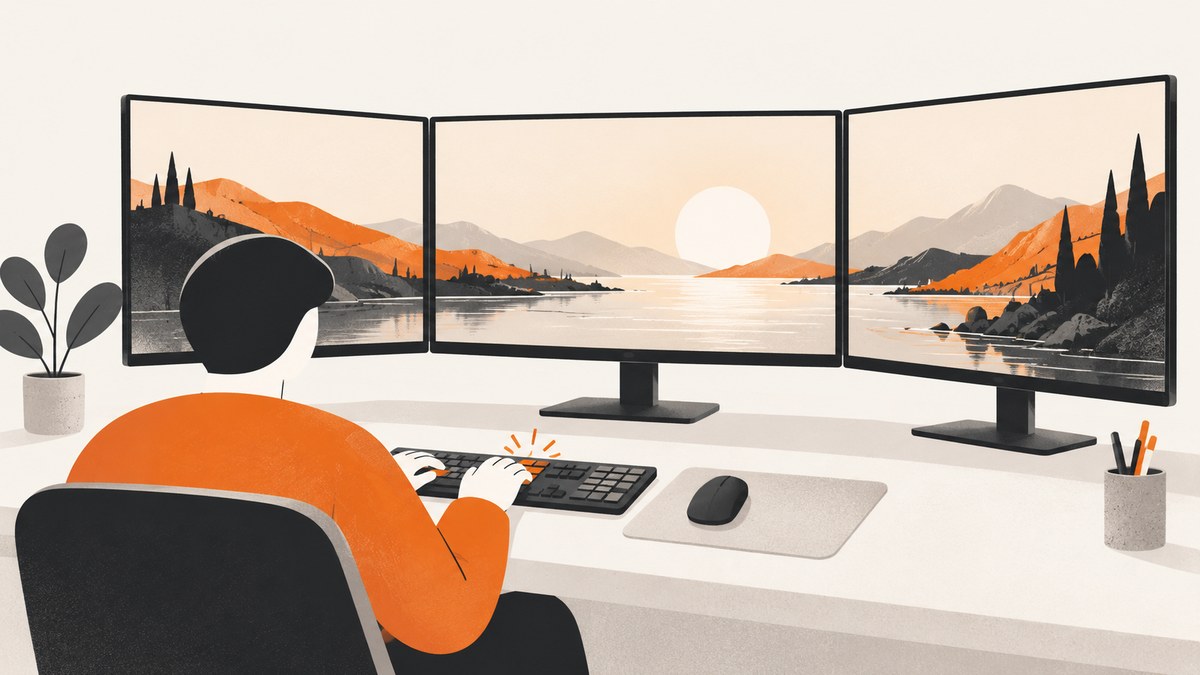
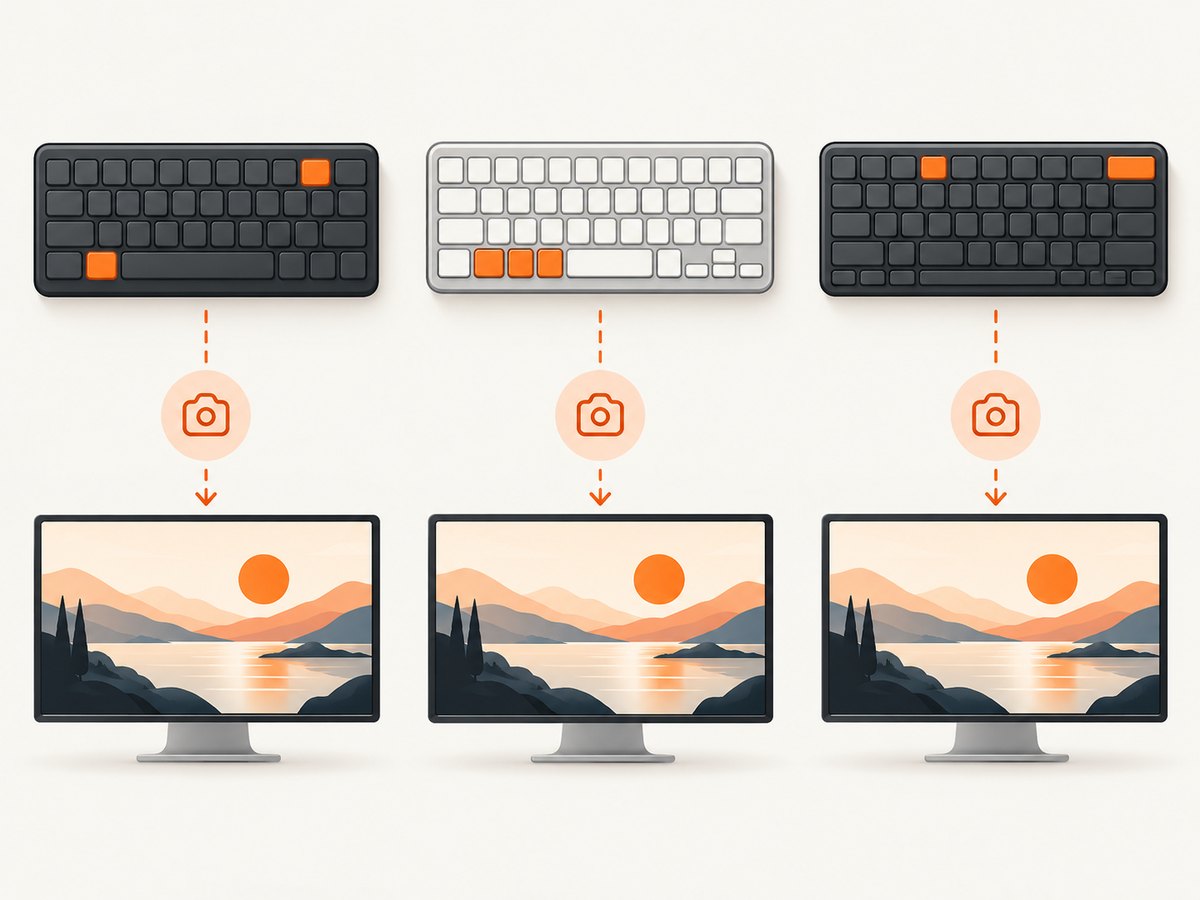
The whole-screen shortcut depends on your operating system:
| Computer | Shortcut | Result |
|---|---|---|
| Windows | PrtScn | Copies the entire screen to the clipboard. Paste it into Paint, an editor, document, or message. Microsoft documents this as the whole-screen shortcut. |
| macOS | Shift-Command-3 | Saves the capture to the desktop by default. Add Control to copy it: Control-Shift-Command-3. See Apple’s screenshot guide. |
| ChromeOS | Ctrl-Show windows | Takes a screenshot. Ctrl-Shift-Show windows opens the capture toolbar, where you can choose full-screen, window, or partial capture. See Google Chromebook Help. |
There is no universal shortcut. Identify the operating system first, then use the matching row.
Windows: capture the entire display
Use PrtScn for an immediate whole-screen copy
- Press PrtScn, also labeled Print Screen, PrtSc, or PrtScn.
- Windows copies an image of the complete desktop to the clipboard.
- Open Paint, Photos, Word, Slack, or another destination and press Ctrl+V.
- Save or send the pasted image from that application.
PrtScn normally does not create a file by itself. If you expected a PNG in a folder, paste the clipboard image into an application and save it.
When Windows+Shift+S is useful
Windows+Shift+S opens screen snipping. It lets you select a region, window, or full-screen mode from the toolbar; it is not the direct whole-screen shortcut. Choose the full-screen icon when you want a capture through the snipping interface.
Why PrtScn opens a selector instead
Windows can assign the Print Screen key to launch screen snipping. Open Settings → Accessibility → Keyboard and review Use the Print Screen key to open screen snipping. Turn it off if you want PrtScn to copy the whole screen again. Organization policies and keyboard utilities can also remap the key.
Laptop and multi-monitor notes
- Many laptops require Fn+PrtScn because the key shares another function.
- With multiple monitors, the image includes the desktop arrangement Windows exposes. Check the pasted image if displays use different scaling.
- Protected video, remote-desktop policies, and some applications can produce a black area. The shortcut cannot bypass an application’s capture restriction.
macOS: save or copy the whole screen
Save a file to the desktop
- Press Shift-Command-3.
- macOS captures every visible display and normally saves the image to the desktop.
- Click the thumbnail, if shown, to mark up or share it, or open the file in Preview.
Copy instead of saving
Hold Control with the same keys: Control-Shift-Command-3. The capture goes to the clipboard, so paste with Command+V.
Change destination, format, or timer
Press Shift-Command-5 to open Screenshot controls. Under Options, choose a destination such as Documents or Clipboard, set a timer, and decide whether to show the pointer or floating thumbnail. The panel also offers full-screen, window, and selected-area modes.
Mac-specific edge cases
- Shift-Command-6 captures the Touch Bar, not the whole display.
- Some protected-content applications, including Apple TV, may block screenshots of their windows.
- If a shortcut is intercepted, check System Settings → Keyboard → Keyboard Shortcuts → Screenshots.
- For multiple displays, verify whether the selected mode created one image or separate images for each display.
ChromeOS: direct capture and the capture toolbar
Take the full screen immediately
- Press Ctrl+Show windows. The Show windows key resembles a rectangle with two vertical lines and is usually above the number row.
- Open the notification or Files app to view and share the image.
Choose full-screen, window, or partial capture
Press Ctrl+Shift+Show windows to open capture controls. Select the full-screen icon for the entire display, the window icon for one application, or the partial icon and drag a region.
External keyboards and missing keys
If an external keyboard has no Show windows key, Google documents Ctrl+Shift+F5 for opening the capture interface. Some Chromebook models include a dedicated Screenshot key. If nothing happens, try the built-in keyboard, disconnect remapping software, and check whether an administrator has disabled capture.
What gets captured, and what does not
A whole-screen shortcut captures the pixels currently rendered on the display. It does not capture content below a webpage’s scroll position, browser tabs that are not visible, another virtual desktop, or a window hidden behind another window. For a webpage longer than the viewport, use a browser full-page feature or an automated screenshot service.
System notifications, cursor position, display scaling, and window overlap affect the pixels. Close private notifications, set the intended display scale, and move the pointer away from important content. Respect application and media DRM restrictions; a black rectangle is often deliberate.
A reliable screenshot workflow
- Identify the OS. Windows, macOS, and ChromeOS use different keys.
- Decide whether you need a file or clipboard. Windows PrtScn copies; Mac Shift-Command-3 saves; Mac Control-Shift-Command-3 copies; Chromebook shortcuts open or create a capture.
- Prepare the desktop. Close sensitive windows, hide notifications, and arrange displays.
- Press the direct shortcut. Use the toolbar only when you need a region, window, or full-screen choice.
- Confirm the result. Paste on Windows, check the desktop on Mac, or open the Chromebook notification or Files app.
- Save appropriately. PNG preserves text and transparency; JPEG is smaller for photographs.
Troubleshooting checklist
| Symptom | Cause | Fix |
|---|---|---|
| Nothing happens on Windows | Function-layer key or remapped shortcut | Try Fn+PrtScn, inspect Accessibility → Keyboard, and test the on-screen keyboard. |
| Windows opens a snipping overlay | Print Screen is configured to launch snipping | Disable that setting for clipboard-only PrtScn, or choose full-screen mode in the overlay. |
| Mac image is missing | It was copied, saved elsewhere, or blocked | Search Recent files, review Screenshot options, and test Control-Shift-Command-3. Protected apps may remain black. |
| Chromebook shortcut fails | No Show windows key, policy restriction, or external keyboard mapping | Use Ctrl+Shift+F5, the built-in keyboard, or a dedicated Screenshot key. |
| Only one window or a region appears | A chooser mode was selected | Repeat the direct shortcut or select the full-screen icon in the toolbar. |
| Capture is black | DRM, protected content, or remote-session policy | Capture permitted UI around it or request an authorized export. |
Automating webpage screenshots with ScreenshotNeo
Keyboard shortcuts are ideal for the desktop in front of you. Developers who need repeatable captures of URLs, full-page scrolling, a specific CSS element, dark mode, or PDF output can use ScreenshotNeo, a website screenshot API and MCP server from Yorker Media. One GET request returns PNG, JPEG, WebP, or PDF.
Options include lazy-image loading, CSS selectors, 12 device presets, arbitrary viewports, retina scale, custom CSS and JavaScript, clicks, selector or network-idle waits, ad/tracker/request blocking, custom headers, cookies, user agents, Authorization, timezone, geolocation, transparent backgrounds, resizing, TTL caching, signed links, asynchronous jobs with signed webhooks, bulk capture of up to 100 URLs per call, usage reporting, and an OpenAPI specification. Parameter names used by other screenshot APIs also work.
Or skip the browser setup
Use the API documented at ScreenshotNeo docs:
curl -G "https://api.screenshotneo.com/v1/shot" -d access_key=YOUR_API_KEY --data-urlencode url=https://stripe.com -o shot.webpimport requests
r = requests.get("https://api.screenshotneo.com/v1/shot", params={"access_key": "YOUR_API_KEY", "url": "https://stripe.com"}, timeout=90)
open("shot.webp", "wb").write(r.content)const q = new URLSearchParams({ access_key: 'YOUR_API_KEY', url: 'https://stripe.com' });
const res = await fetch(`https://api.screenshotneo.com/v1/shot?${q}`);Before capture, ScreenshotNeo accepts cookie and consent banners and removes more than 60 known consent platforms, newsletter popups, and chat widgets; each step can be disabled. Bot checks or CAPTCHAs, blank pages, timeouts, failed loads, and cache hits cost nothing, and response headers report the page verdict and billing status through X-Page-Verdict and X-Billed. An MCP server exposes take_screenshot, get_page_info, and capture_pdf to Claude, Cursor, and other MCP clients.
The Free plan includes 1,000 screenshots each month with no card. Paid plans start at $5 for 3,000 shots; yearly billing gives two months free, and every feature is available on every plan. Create a free ScreenshotNeo account and start with the 1,000 monthly shots.
Performance, reliability, and cost considerations
- Interactive shortcuts: immediate and free, but require a person, visible desktop, and manual file handling.
- Automation: wait for a selector or network idle when pages render asynchronously. Use a fixed viewport and device preset for repeatable output.
- Speed: block unnecessary ads, trackers, or resource types, and use a cache TTL for pages that do not change often.
- Reliability: inspect
X-Page-VerdictandX-Billed. Async jobs and signed webhooks separate long captures from request timeouts. - Cost: cache hits and failed or unusable pages are not billed by ScreenshotNeo. Bulk capture supports up to 100 URLs per call.

FAQ
Is there one shortcut that works everywhere?
No. Use PrtScn on Windows, Shift-Command-3 on Mac, or Ctrl-Show windows on ChromeOS.
How do I capture a webpage longer than the screen?
A whole-screen shortcut cannot include off-screen content. Use a browser full-page tool or an automated service configured for full-page capture.
Why did Windows copy an image instead of saving one?
That is the documented PrtScn behavior. Paste the clipboard into an app and save it, or use the snipping toolbar’s save action.
Can I capture a page without cookie banners?
Yes. ScreenshotNeo removes supported consent banners, newsletter popups, and chat widgets before capture, then reports the page verdict and billing status in headers.
Does ScreenshotNeo charge for a CAPTCHA page?
No. Bot checks, CAPTCHAs, blank pages, timeouts, failed loads, and cache hits are not billed.


