BlogScreenshots on your device
How to Take a Whole-Screen Screenshot on a PC
Capture your entire PC screen, save it automatically, copy it to the clipboard, or edit it with Snipping Tool.
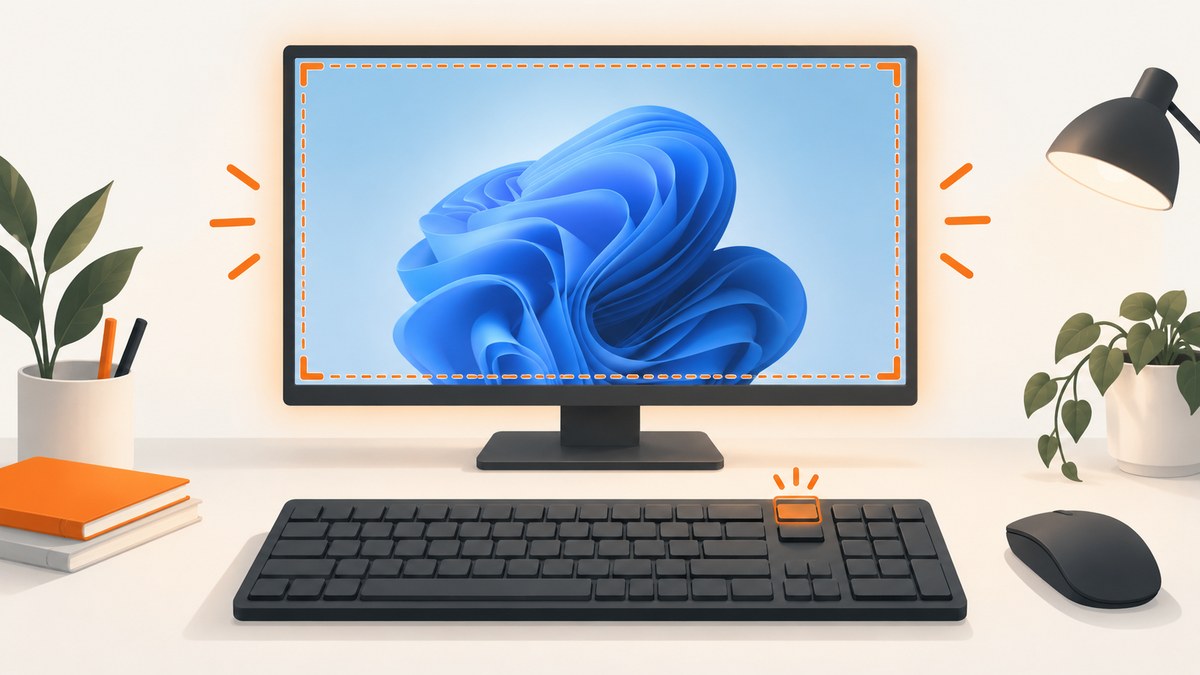
Fast answer: On Windows 10 and Windows 11, press Windows + PrtScn to capture the entire screen and save it automatically in Pictures\Screenshots. Press PrtScn by itself to copy the full screen to the clipboard. For editing or choosing a capture mode, press Windows + Shift + S and choose Full screen in Snipping Tool.
Choose the right whole-screen method
| What you need | Use this | Where the result goes |
|---|---|---|
| Save the complete desktop immediately | Windows + PrtScn | Pictures\Screenshots |
| Paste the screen into an app | PrtScn | Clipboard until you paste or replace it |
| Edit, annotate, crop, or delay the capture | Windows + Shift + S → Full screen | Snipping Tool, then save or share |
| Capture only the active window | Alt + PrtScn | Clipboard |
Method 1: Windows + PrtScn saves a full-screen file
- Arrange every monitor and window exactly as you want them to appear.
- Press Windows + PrtScn at the same time.
- Open File Explorer and select Pictures → Screenshots.
- Open the newest image to verify the capture.
Windows saves the image automatically, so you do not need Paint or another editor. The shortcut captures the full display. On a multi-monitor setup, the result can include the combined desktop area across displays; check the image dimensions if you need a specific monitor only.
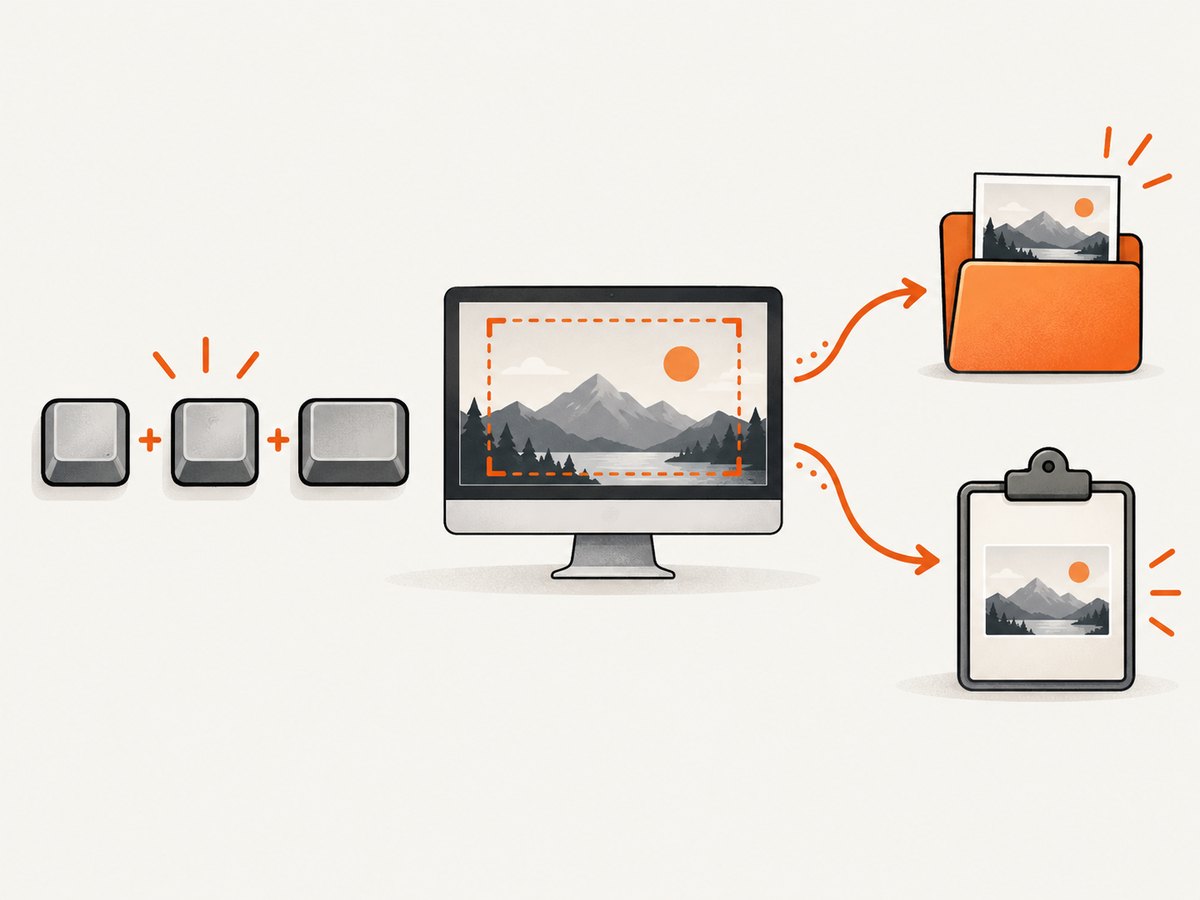
Find the saved screenshot quickly
Press Windows + E to open File Explorer, then select Pictures and Screenshots. If your Pictures folder is redirected to OneDrive, look under the OneDrive Pictures folder instead. You can also search File Explorer for Screenshot and sort by Date modified.
Method 2: PrtScn copies the entire screen
- Press PrtScn. The complete screen is copied to the Windows clipboard.
- Open Paint, Word, an email, a chat, or another app that accepts images.
- Press Ctrl + V to paste it.
- Use that app’s Save or Export command to create a PNG or another image file.
This shortcut does not normally create a file by itself. The clipboard holds the image temporarily; copying another item or restarting can replace it. Paste and save it before doing more clipboard work.
Method 3: Snipping Tool full-screen capture
- Press Windows + Shift + S, or open Snipping Tool from the Start menu.
- Choose the Full screen capture mode.
- After the capture, select the Snipping Tool notification or window.
- Annotate, crop, copy, share, or save the image.
Snipping Tool also offers freeform, rectangle, window, and video snip modes. Use its delay option when a menu or tooltip must be visible: set the delay, prepare the screen, and start the capture before the menu closes.
Keyboard variations and laptop keys
- The key may be labeled
PrtSc,PrtScn, orPrntScrn, and is usually near the upper-right of a standard keyboard. - On some laptops, hold Fn as well: try Fn + PrtScn or Fn + Windows + PrtScn.
- If your keyboard has no accessible Print Screen key, use Snipping Tool from Start or its Windows + Shift + S shortcut.
- A compact or external USB keyboard with a Print Screen key is optional; Windows already includes the capture tools.
Whole screen versus one window
Use Alt + PrtScn when you need only the currently active window. Click the target window first, press the shortcut, then paste with Ctrl + V. Use Windows + PrtScn when the task requires the desktop, taskbar, other windows, or multiple displays.
Capture checklist before you press the shortcut
- Close private messages, passwords, and unrelated windows.
- Move the pointer away from important content if it appears in your capture mode.
- Set the display arrangement and zoom level you need.
- For multiple monitors, decide whether the combined desktop or one window is the intended result.
- Use Snipping Tool’s delay for menus, hover states, or other timed UI.
- Save clipboard captures immediately so they are not overwritten.
Troubleshooting
Nothing appears in Pictures\Screenshots
PrtScn alone copies the image to the clipboard; it does not automatically save a file. Use Windows + PrtScn, or paste the clipboard image into Paint and save it. Also check whether Pictures is redirected to OneDrive.

Print Screen opens Snipping Tool instead
Windows can be configured so the Print Screen key opens screen snipping. Use the Snipping Tool overlay and select Full screen, or use Windows + PrtScn for direct file saving.
The shortcut does nothing on a laptop
Try holding Fn with the Print Screen key. If the key is combined with another function, use the on-screen Snipping Tool shortcut instead.
The pasted image is blank or old
Capture again, then paste immediately. Clipboard contents can be replaced by another copy operation. If an application refuses the paste, use Snipping Tool and save the capture as a file first.
I need a menu or tooltip in the image
Open Snipping Tool, set a delay, arrange the menu, and use Full screen. A direct shortcut may capture after the menu has disappeared.
I need only one monitor
Click a window on that monitor and use Alt + PrtScn for the active window. For a custom rectangle, use Snipping Tool’s rectangular mode and drag over the monitor area.
Or skip the browser setup
The Windows methods above capture the physical desktop. If what you need is a repeatable screenshot of a web page, ScreenshotNeo captures a URL with one request and returns PNG, JPEG, WebP, or PDF. Its API can remove cookie banners, newsletter popups, and chat widgets before the shot. Bot checks, blank pages, failed loads, timeouts, and cache hits are not billed, and response headers identify the page verdict and billing result.
See the ScreenshotNeo API documentation for all capture options. This cURL example saves a WebP response:
curl -G "https://api.screenshotneo.com/v1/shot" -d access_key=YOUR_API_KEY --data-urlencode url=https://stripe.com -o shot.webpPython:
import requests
r = requests.get("https://api.screenshotneo.com/v1/shot", params={"access_key": "YOUR_API_KEY", "url": "https://stripe.com"}, timeout=90)
open("shot.webp", "wb").write(r.content)
Node.js:
const q = new URLSearchParams({ access_key: 'YOUR_API_KEY', url: 'https://stripe.com' });
const res = await fetch(`https://api.screenshotneo.com/v1/shot?${q}`);
ScreenshotNeo also provides an MCP server so Claude, Cursor, and other MCP clients can take screenshots, inspect pages, and capture PDFs. There are 1,000 free screenshots each month with no card; paid plans start at $5 for 3,000. Create a free ScreenshotNeo account.
Performance, reliability, and cost notes
- Windows shortcuts are local and immediate; the image is limited by your display resolution and the application’s ability to paste or save it.
- Clipboard captures are temporary. File-saving with Windows + PrtScn is safer for a record you must keep.
- Snipping Tool adds editing and delay controls but requires an extra save step.
- For automated web captures, ScreenshotNeo supports full-page shots, lazy-image loading, selectors, custom waits, device presets, caching, bulk requests, and asynchronous jobs. Choose those options when you need repeatable page output rather than a live desktop view.
- ScreenshotNeo bills only clean captures; failed loads, bot checks, blank pages, timeouts, and cache hits cost nothing.
FAQ
What is the fastest way to save my whole screen?
Press Windows + PrtScn. The file is placed in Pictures\Screenshots.
Does PrtScn save a file?
By itself, it copies the full screen to the clipboard. Paste it into an image-capable app and save it.
Can I capture a full web page instead of the visible desktop?
Use a web capture service such as ScreenshotNeo, which can render and capture the page, including full-page content that requires scrolling.
How do I annotate a whole-screen screenshot?
Use Windows + Shift + S, choose Full screen, then edit and save it in Snipping Tool.


