BlogScreenshots on your device
How to Take a Screenshot of a Whole Web Page in Chrome
Capture an entire web page in Chrome with DevTools, automate full-page images with CDP, and handle lazy loading, tall pages, and tricky layouts.
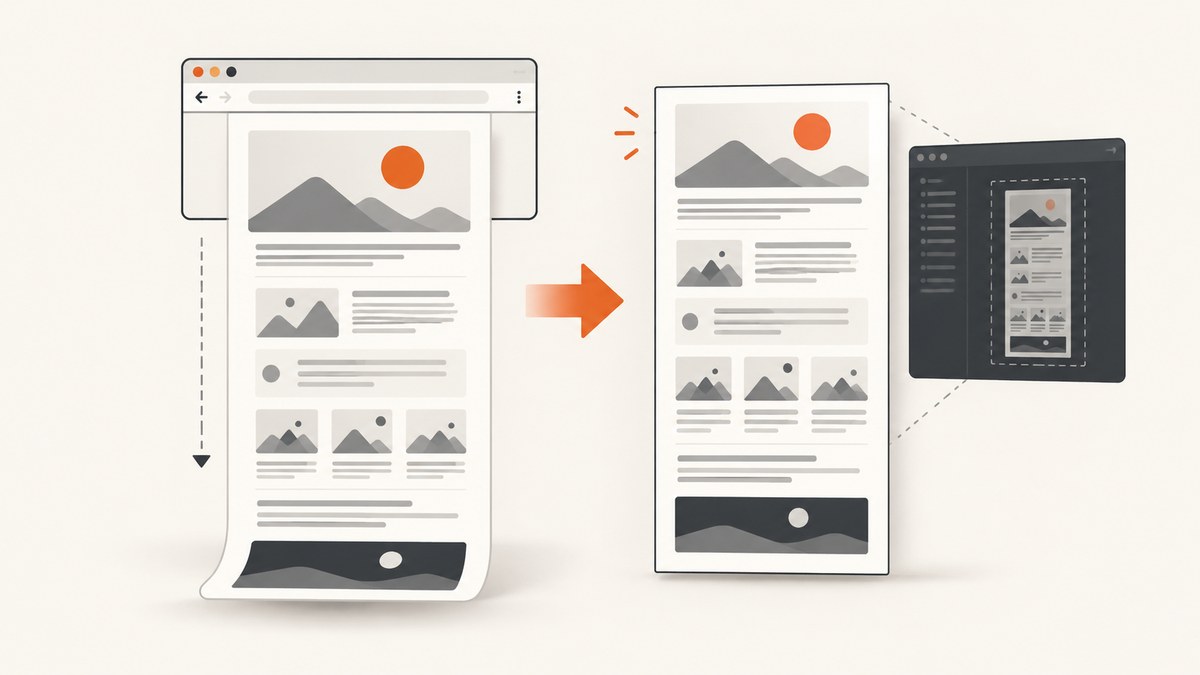
Fast answer: On desktop Chrome, open the page, open DevTools, enable the device toolbar, open its three-dot menu, and choose Capture a full size screenshot. Chrome renders the document beyond the visible viewport and downloads one image. Chrome documents this command as capturing “the whole page including the content that isn’t currently visible in the viewport.” Chrome for Developers
Choose the right capture command
| Command | Result | Use it when |
|---|---|---|
| Capture screenshot | Visible viewport only | You need what is currently on screen |
| Capture full size screenshot | The full rendered document | You need one image of the whole page |
| Capture area screenshot | A rectangle you select | You need a specific region |
| Capture node screenshot | A selected DOM element | You need one component or section |
Desktop Chrome: step-by-step
- Navigate to the page you want to capture.
- Open DevTools. Use your platform’s usual DevTools shortcut, or open Chrome’s menu and choose More tools → Developer tools.
- If the device toolbar is hidden, click the phone-and-tablet icon in DevTools.
- In the device toolbar, open the More options three-dot menu.
- Select Capture a full size screenshot.
- Wait for Chrome’s normal download to finish, then open the Downloads folder or the download shown in Chrome.
The device toolbar’s emulated viewport does not limit this command to the visible area. The resulting file is a rendered PNG, so its text is not editable or selectable like HTML.
Find the command with the Command Menu
- Open DevTools.
- Open the DevTools Command Menu using the shortcut for your operating system.
- Type
screenshot. - Choose the full-size screenshot command.
The exact keyboard shortcut differs between Windows, Linux, ChromeOS, and macOS, so searching for screenshot is the dependable part of this workflow.
Prepare a page before capturing it
A full-size command captures what Chrome has rendered. Prepare dynamic pages first:

- Wait until the main content and images finish loading.
- Scroll through the page once if images are lazy-loaded only when they approach the viewport.
- Expand accordions or tabs whose content must appear in the image.
- Dismiss cookie banners, newsletter prompts, chat bubbles, and other overlays.
- Pause carousels or animations when a deterministic frame matters.
- Close DevTools panels that cover the page if they alter the layout you want to capture.
Take a second capture after preparation. A screenshot is a rendered result, not an export of the page’s source.
Automate full-page screenshots with Chrome DevTools Protocol
For repeatable captures, use the Chrome DevTools Protocol (CDP). Its Page.captureScreenshot method captures a page; captureBeyondViewport controls content outside the current viewport, and PNG, JPEG, and WebP are supported. Read the Page.captureScreenshot reference.
Node.js with Puppeteer
import puppeteer from 'puppeteer';
import fs from 'node:fs/promises';

const url = process.argv[2] || 'https://example.com';
const browser = await puppeteer.launch({headless: true});
try {
  const page = await browser.newPage();
  await page.setViewport({width: 1440, height: 900, deviceScaleFactor: 1});
  await page.goto(url, {waitUntil: 'networkidle2', timeout: 90000});

  // Trigger common lazy-loaded images.
  await page.evaluate(async () => {
    window.scrollTo(0, document.body.scrollHeight);
    await new Promise(resolve => setTimeout(resolve, 500));
    window.scrollTo(0, 0);
  });

  await page.screenshot({path: 'full-page.png', fullPage: true, type: 'png'});
} finally {
  await browser.close();
}
Install and run it with npm install puppeteer, then node capture.mjs https://example.com. Puppeteer’s fullPage option calculates the document dimensions for you. For unusual pages, inspect the result and set an explicit viewport or clip.
Python with Playwright
from playwright.sync_api import sync_playwright
import sys

url = sys.argv[1] if len(sys.argv) > 1 else "https://example.com"
with sync_playwright() as p:
    browser = p.chromium.launch(headless=True)
    page = browser.new_page(viewport={"width": 1440, "height": 900}, device_scale_factor=1)
    page.goto(url, wait_until="networkidle", timeout=90_000)
    page.evaluate("window.scrollTo(0, document.body.scrollHeight)")
    page.wait_for_timeout(500)
    page.evaluate("window.scrollTo(0, 0)")
    page.screenshot(path="full-page.png", full_page=True, type="png")
    browser.close()
Install the package and browser with pip install playwright followed by playwright install chromium. Use a finite wait condition on applications that keep long-polling, because networkidle may never be reached.
Direct CDP sizing for very tall documents
const metrics = await page.evaluate(() => ({
  width: Math.max(document.documentElement.scrollWidth, document.body.scrollWidth),
  height: Math.max(document.documentElement.scrollHeight, document.body.scrollHeight)
}));
const client = await page.target().createCDPSession();
const {data} = await client.send('Page.captureScreenshot', {
  format: 'png',
  captureBeyondViewport: true,
  fromSurface: true,
  clip: {x: 0, y: 0, width: metrics.width, height: metrics.height, scale: 1}
});
await fs.writeFile('full-page-cdp.png', Buffer.from(data, 'base64'));
This approach gives you explicit dimensions and format control. A browser, image decoder, or operating-system memory limit can still make an exceptionally tall image fail; split the page into sections when necessary.
Headless Chrome command line
chrome --headless --disable-gpu --screenshot=https://www.chromestatus.com/The official headless documentation shows the basic --screenshot flow and writes an image in the current directory. A basic flag is not a complete solution for every long page: use CDP or explicit sizing when you need reliable full-document output.
Handling difficult layouts
Lazy-loaded images
Lazy content may not exist until it is scrolled into view. Scroll in automation, wait for image requests, or interact with the page before capturing. Verify that placeholders have been replaced.
Sticky headers and fixed banners
A fixed header can appear repeatedly or cover content in stitched captures. Hide it temporarily with CSS in your automation, or capture sections and remove the fixed element for the capture run.
Nested scroll containers
A page can have a short document with a tall element that scrolls internally. The normal full-size command follows the document, not necessarily every inner scroller. Capture that element separately or temporarily set its height to its scroll height.
Carousels and animations
Animations can produce inconsistent frames or duplicated slides. Pause animation and choose a known carousel position before taking the image.
Virtualized and infinite-scroll lists
Virtualized lists remove off-screen rows from the DOM, so there may be no single rendered document to capture. Infinite feeds have no natural endpoint. Define a stopping rule, load a bounded number of items, and capture that state.
Extremely tall pages
One very tall bitmap consumes memory proportional to its pixel dimensions. Use WebP or JPEG when lossless PNG is unnecessary, reduce the device scale factor, or capture page sections and combine them in a separate image-processing step.
Or skip the browser setup
ScreenshotNeo provides a one-request website screenshot API for PNG, JPEG, WebP, or PDF output. Its full-page capture loads lazy images and supports custom CSS and JavaScript, device presets or any viewport, retina scale, wait conditions, hidden selectors, dark mode, cookies, headers, geolocation, caching, and more. See the ScreenshotNeo API documentation for the complete options.
curl -G "https://api.screenshotneo.com/v1/shot" -d access_key=YOUR_API_KEY --data-urlencode url=https://stripe.com -o shot.webpimport requests
r = requests.get("https://api.screenshotneo.com/v1/shot", params={"access_key": "YOUR_API_KEY", "url": "https://stripe.com"}, timeout=90)
open("shot.webp", "wb").write(r.content)const q = new URLSearchParams({ access_key: 'YOUR_API_KEY', url: 'https://stripe.com' });
const res = await fetch(`https://api.screenshotneo.com/v1/shot?${q}`);Cookie banners, newsletter popups, and chat widgets are removed before the shot. Bot checks, blank pages, failed loads, timeouts, and cache hits are never billed; response headers identify the page verdict and billing status. An MCP server lets Claude, Cursor, and other MCP clients call take_screenshot, get_page_info, and capture_pdf. The free plan includes 1,000 screenshots each month with no card, and paid plans start at $5 for 3,000.
Create a free ScreenshotNeo account and start with 1,000 screenshots a month at no charge.
Performance, reliability, and cost considerations
- Capture time: Waiting for network idle is more complete but can be slow or impossible on sites with persistent requests. Prefer a known selector or bounded delay when you control the page.
- Output size: Full-page PNGs are lossless and often large. JPEG or WebP can reduce storage and transfer size when photographic detail or transparency is not required.
- Repeatability: Fix viewport, device scale, timezone, locale, authentication state, and animation state for comparable images.
- Reliability: Retry navigation failures with a limit, record the URL and viewport, and validate that the output has nonzero dimensions before publishing it.
- Privacy: Built-in DevTools keeps capture in Chrome. Browser extensions and hosted services introduce separate permission and data-handling questions; review them for sensitive pages.
- Hosted API billing: ScreenshotNeo reports whether a response was billed in its headers and does not bill failed loads, bot checks, blank pages, timeouts, or cache hits.

Troubleshooting
| Symptom | Likely cause | Fix |
|---|---|---|
| The full-size option is missing | Device toolbar is off | Click the device-toolbar icon, then reopen More options. |
| Only the visible viewport is captured | The viewport command was selected | Choose Capture a full size screenshot or use CDP with captureBeyondViewport. |
| Images are blank or placeholders | Lazy loading has not run | Scroll through the page, wait for image loads, then capture. |
| Content is duplicated or clipped | Sticky elements or nested scrollers | Temporarily hide fixed elements and capture inner scroll regions separately. |
| The script times out | Persistent requests or a slow page | Use a selector-based wait, increase the timeout, and avoid waiting forever for network idle. |
| Browser crashes on capture | Image dimensions exceed memory limits | Lower scale, use JPEG/WebP, or split the document into sections. |
| An infinite feed never finishes | No defined end | Set a maximum scroll distance or item count before capture. |
| Screenshot differs between runs | Animations, ads, time, or responsive layout | Freeze animations, set a fixed viewport and timezone, and control external content where possible. |
Optional Chrome extensions
For layouts with nested scrolling, carousels, or lazy-loaded regions, a Chrome Web Store full-page screenshot extension can be a fallback. One researched listing, FullPageShot, claims single-PNG capture across scrolling height and support for lazy-loaded images, carousels, and inner-scroll layouts, while warning that virtualized or infinite-scroll feeds may not produce one image. Treat those as vendor claims, and review current permissions and privacy practices before installing any extension.
FAQ
Can Chrome save a whole web page as one image?
Yes. On desktop Chrome, use DevTools’ Capture a full size screenshot. It saves a rendered image rather than editable page content.
Does full-page capture include content below the fold?
It includes rendered document content beyond the current viewport. Content that is lazy-loaded only after scrolling may need to be triggered first.
What format does DevTools use?
The built-in download is an image, normally PNG. CDP also supports JPEG and WebP through Page.captureScreenshot.
Can I capture only one element?
Use DevTools’ node screenshot command for a selected DOM element, or automate that element with a selector and an element screenshot API.
Why is my page too tall to capture?
Large dimensions can exceed browser or image-decoder memory. Reduce scale, choose a compressed format, or capture bounded sections.


