Why Is Creating PDF and Word Documents in an App So Difficult?
DOCX and PDF generation are hard because structure, layout, fonts, rendering, and accessibility all interact. Here’s how to choose an approach and make output more reliable.
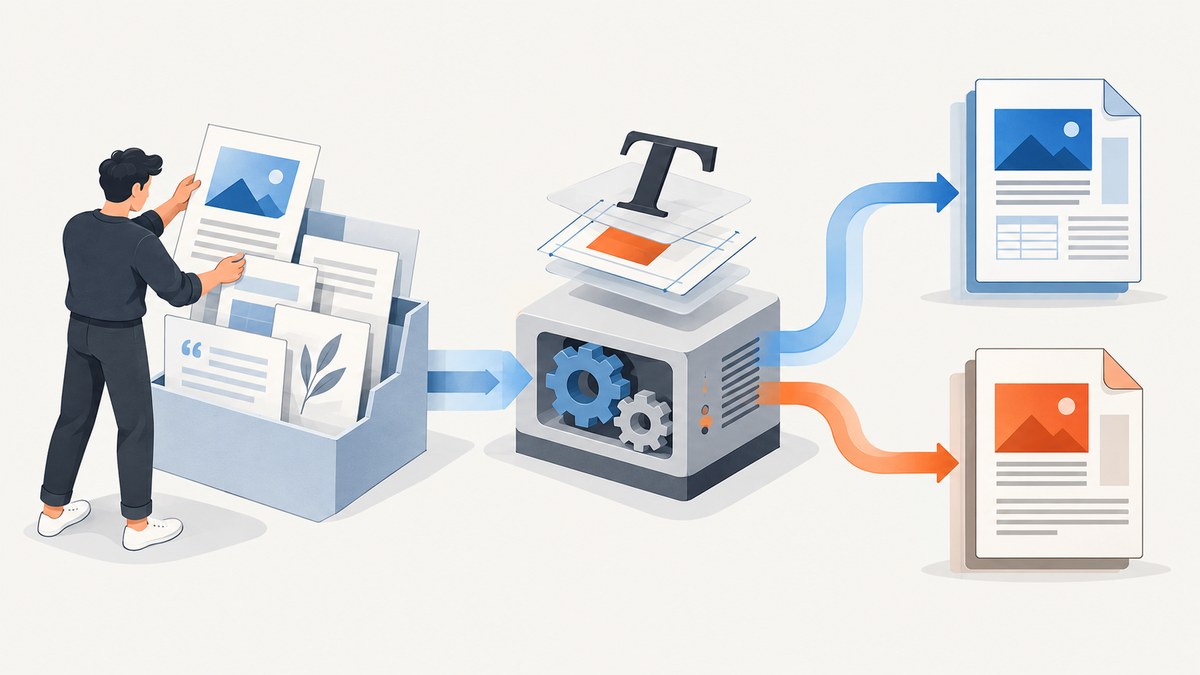
Creating PDF and Word documents in an app is difficult because they are different output models, and neither is just formatted text. A DOCX is a structured Open XML package with document parts, styles, relationships, and possibly media. A PDF is a fixed-page representation whose pagination and accessibility structure must be correct at export time. Fonts, layout engines, and the environment that opens the file can change the result.
The practical answer is to decide first whether your users need an editable DOCX, a fixed PDF, or both. Then choose an API or document-generation path that supports that contract, control the fonts and rendering environment, and validate representative files in the environments your users will actually use. If you only need a visual record of a web page, use a screenshot or PDF capture path instead of building a Word document pipeline.
1. DOCX and PDF solve different problems
Word documents and PDFs may look alike on screen, but their internal models differ. A DOCX is an editable document built from structured content and formatting instructions. A PDF is organized around pages: it preserves a chosen visual arrangement for viewing and printing.
| Question | DOCX | |
|---|---|---|
| What is the output contract? | Editable content with structure and formatting | Fixed-page appearance, often for sharing or printing |
| What can change when opened elsewhere? | Formatting, unsupported features, fonts, and pagination | Usually less reflow, but export quality and tags still matter |
| What must a generator manage? | Package parts, relationships, styles, media, and document features | Page layout, export, fonts, and accessibility semantics |
Microsoft describes .docx as an Open XML formatted Word document and notes that an application may read only part of another format, potentially changing or losing unsupported content. Open XML is a package format, not one text stream: a working document must keep its parts and relationships coherent. [Microsoft Open XML SDK overview; Open XML formats and extensions]
PDF export adds a separate concern: accessibility. Microsoft says PDF/UA tags carry semantic information used to preserve accessibility. A page that looks right can still lack meaningful reading order, headings, or other semantics. [Microsoft Learn: ExportAsFixedFormat]
2. Why inserting HTML does not produce a perfect Word file
HTML is useful when the content is naturally web-like: paragraphs, headings, lists, and simple tables. But HTML and Word do not have identical formatting models. A browser lays out content according to browser rules; Word applies its own document structure and layout behavior. A conversion path may support common markup while handling positioning and advanced formatting differently.
Microsoft documents HTML coercion and simpler APIs for limited add-in cases, while identifying OOXML as the escalation path for more complex content and precise formatting. Open XML can represent the kinds of content users add in Word, but that flexibility comes with responsibility: the package may need document XML, styles, themes, settings, fonts, media, and relationship definitions. A missing relationship or asset can break display or alter the result. [Microsoft Learn: Create better Word add-ins with Office Open XML]
For example, putting an image in a document is not just inserting an image tag. The package needs the image data and a relationship from the document part to that data, plus the markup that positions it. A table may need its own structure and style references. Headers, footers, fields, comments, tracked changes, and section breaks each add rules that a generator must preserve.
3. A DOCX is a package with coordinated parts
The Open XML SDK’s basic example creates a WordprocessingDocument, then adds a document, body, paragraph, run, and text. Each layer has a role. Real templates add more: styles, tables, section settings, headers, footers, hyperlinks, images, numbering, and properties.
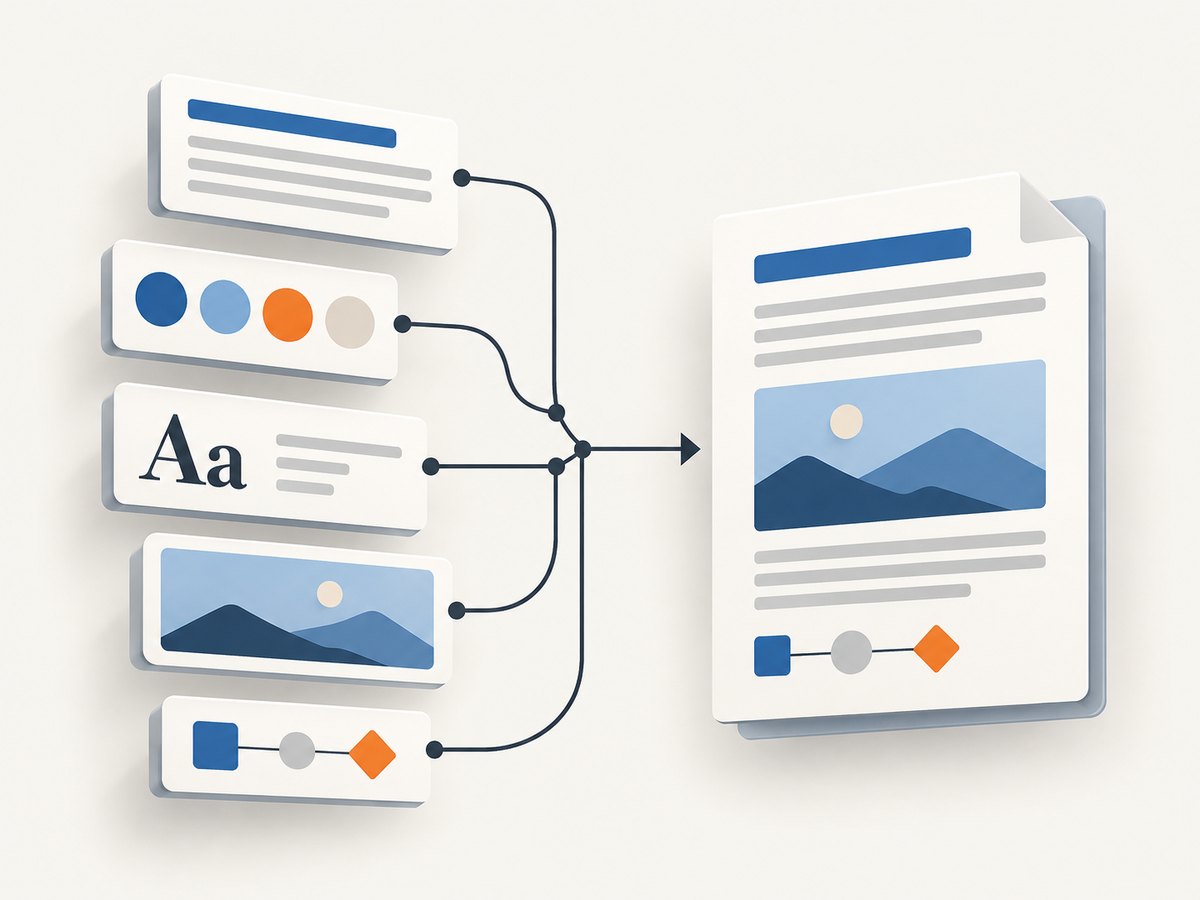
Think of generation as building a small document system:
- Content: paragraphs, runs, tables, and other elements.
- Presentation rules: styles, themes, numbering, and section layout.
- Assets: images and possibly embedded fonts.
- Connections: relationship records that let parts refer to one another.
- Validation: checks that the package is structurally sound and that the target renderer displays it as intended.
The SDK can help construct and validate packages, but validation of package structure does not guarantee identical appearance in every Word version or conversion service. Microsoft’s sample illustrates the nested document elements needed even for a simple paragraph. [Microsoft Learn: Create a word processing document]
4. Fonts turn small differences into page changes
Font metrics affect how much text fits on each line. If a recipient or server does not have the intended font, a substitute may use different glyph widths. One changed line break can move text down the page; that can move a heading, table, or signature to the next page. The result can have a different page count even though the document content is unchanged.
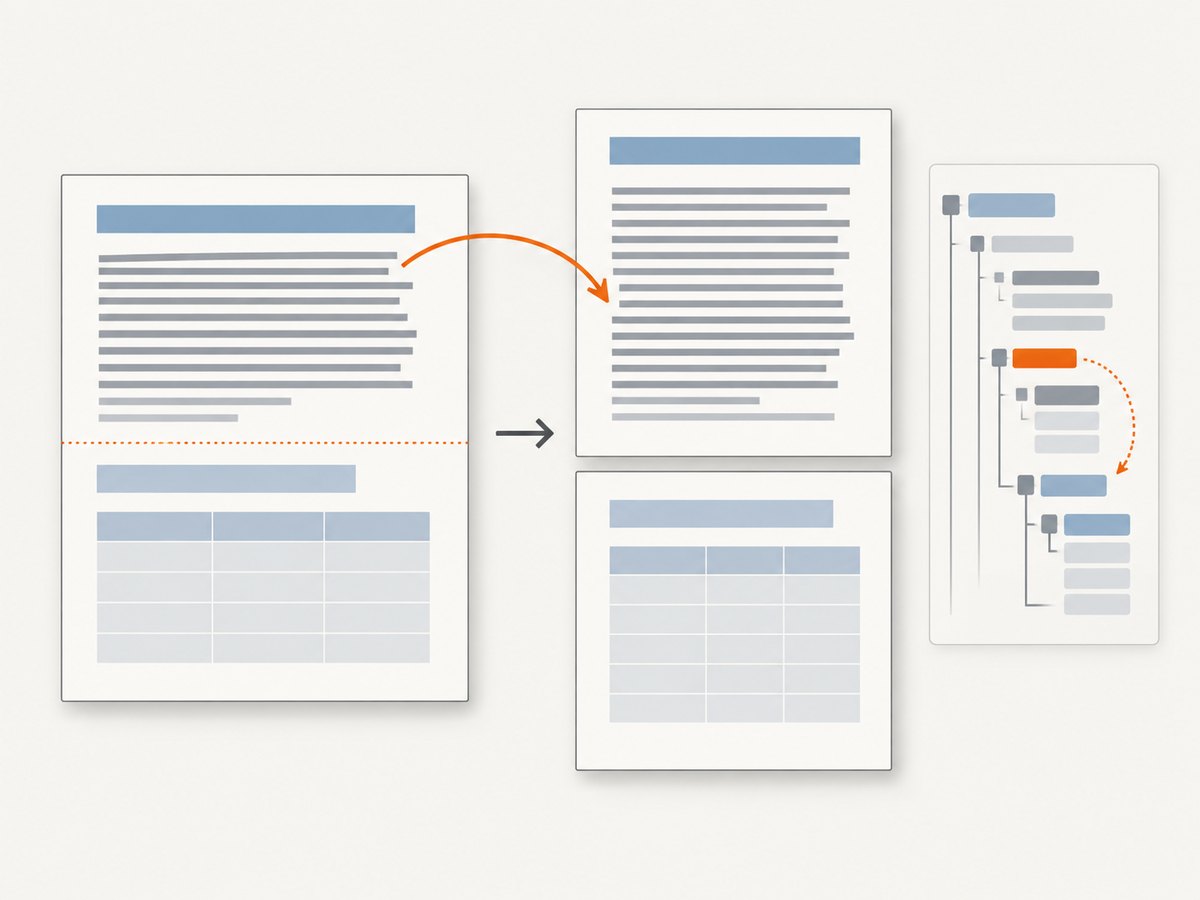
Microsoft’s guidance is direct: “Embedding custom fonts helps preserve layout and styling.” It also notes that embedding can help online conversion to PDF avoid font substitution. Font embedding is not a universal cure: licensing can limit embedding, and the final renderer still matters. [Microsoft Support: Benefits of embedding custom fonts]
When layout stability matters, specify a supported font set, verify font availability in the generation and conversion environments, and inspect the PDF produced by the actual export route. Treat a font change as a layout change that can require reviewing pagination and accessibility order.
5. Pagination and renderer differences are part of the product
Word’s layout is not a single universal rendering result. Word for the web and Word desktop have different feature support; Microsoft documents, for example, that Word for the web cannot open a PDF for editing and may save older formats as DOCX copies. The path a user takes to open or convert a file therefore affects what they can do with it. [Microsoft Support: Browser and desktop differences]
Do not validate only the first page or a single local file. Build representative fixtures: short and long content, long words and URLs, a table that spans pages, missing optional fields, images near page boundaries, and the fonts used in production. Check page breaks, repeated table headings where relevant, headers and footers, links, and reading order in the exported result.
6. Choose an implementation path
| Approach | Good fit | Trade-off |
|---|---|---|
| HTML to DOCX or HTML coercion | Simple text, headings, and basic tables | Limited control over Word-specific features and positioning |
| OOXML SDK or a DOCX library | Structured editable Word documents with richer features | More package and formatting details to manage |
| Office or server-side document conversion | Workflows tied to a known Office renderer | Environment, supported features, and operational setup matter |
| Generate PDF directly | Fixed-layout reports, invoices, or print output | Editing is limited; pagination and accessibility need explicit care |
| DOCX then PDF export | Users need both editable source and shareable final copy | Must validate the conversion renderer and both outputs |
These trade-offs follow from the format and export requirements; the right choice depends on the features your users need and the renderers you support.
A practical decision sequence
- Write the output contract. State whether the deliverable must remain editable, preserve a fixed page layout, meet accessibility needs, or provide both a source and a final export.
- List required features. Include tables, images, page numbers, headers, fields, links, branding, and any Word-specific editing behavior.
- Choose the simplest path that covers them. Use HTML for straightforward content; use OOXML or a document library when precise Word structures are required.
- Control fonts and conversion. Pin the fonts and renderer where possible, and record the environment used for export.
- Validate representative documents. Inspect both package validity and rendered output, including accessibility semantics for PDFs.
7. Runnable example: create a DOCX with the Open XML SDK
This minimal C# example creates a valid Word document with one paragraph. It demonstrates the package-building shape; a production document needs additional handling for styles, tables, images, errors, and the target output contract. Create a .NET project, add the DocumentFormat.OpenXml package, and use the following program:
using DocumentFormat.OpenXml;
using DocumentFormat.OpenXml.Packaging;
using DocumentFormat.OpenXml.Wordprocessing;

var path = "hello.docx";
using (var doc = WordprocessingDocument.Create(
    path, WordprocessingDocumentType.Document))
{
    var main = doc.AddMainDocumentPart();
    main.Document = new Document(
        new Body(
            new Paragraph(
                new Run(new Text("Hello from a generated DOCX.")))));
    main.Document.Save();
}

Console.WriteLine($"Wrote {path}");
The output is editable because it is a Word document. It is not a promise of exact pagination across machines: the sample does not define a page layout, select fonts, or create PDF/UA tags. Microsoft provides the SDK documentation and package validation guidance for expanding this starting point. [Create a word processing document; Validate a word processing document]
8. Export, accessibility, and quality checks
For PDF, decide whether you are exporting through Word, another Office application, a conversion service, or a direct PDF library. Each route has its own feature support and rendering behavior. Microsoft 365 can export Word, Excel, and PowerPoint files to PDF; the export process must also preserve semantic information where accessibility is required.
- Check that headings and lists retain meaningful structure.
- Confirm that reading order makes sense when read linearly.
- Check links, table headers, document language, and alternative descriptions for relevant content.
- Inspect pages with dense tables, footnotes, and page breaks.
- Compare the exported PDF visually and with an accessibility inspection workflow appropriate to your requirements.
Visual correctness and semantic correctness are separate acceptance criteria. A PDF can look polished while conveying little structure to assistive technology. Microsoft identifies PDF/UA tagging as a way to preserve semantic information. [Microsoft Learn: PDF export and PDF/UA tags]
9. When a screenshot or page capture is the better output
Some requests described as “make a PDF” are really “save what this web page looks like.” That is a capture problem, not a DOCX generation problem. A screenshot is appropriate for a visual record, a rendered page preview, or evidence of page appearance. It does not replace an editable Word document and does not automatically create a semantically tagged accessible PDF.
For a page capture, decide whether you need the viewport or entire page, whether dynamic content must settle, and whether cookie notices or overlays should appear in the result. For actual documents, keep the document-generation pipeline and validate its structure and export separately.
Or skip the browser setup
If the job is capturing a web page, ScreenshotNeo provides a screenshot API and MCP server. A single GET request returns PNG, JPEG, WebP, or PDF. Its API documentation is at ScreenshotNeo docs.
curl -G "https://api.screenshotneo.com/v1/shot" -d access_key=YOUR_API_KEY --data-urlencode url=https://stripe.com -o shot.webpimport requests
r = requests.get("https://api.screenshotneo.com/v1/shot", params={"access_key": "YOUR_API_KEY", "url": "https://stripe.com"}, timeout=90)
open("shot.webp", "wb").write(r.content)const q = new URLSearchParams({ access_key: 'YOUR_API_KEY', url: 'https://stripe.com' });
const res = await fetch(`https://api.screenshotneo.com/v1/shot?${q}`);- Cookie banners are accepted and removed before capture, along with supported newsletter popups and chat widgets; each cleanup step can be turned off.
- Bot checks, blank pages, timeouts, failed loads, and cache hits are not billed; response headers report the page verdict and billing status.
- An MCP server gives AI agents tools to take screenshots, get page information, and capture PDFs.
- The Free plan includes 1,000 screenshots a month with no card; paid plans start at $5 for 3,000.
Sign up free for 1,000 screenshots a month, with no card required.
10. Performance, reliability, and cost
Document generation cost is broader than the time to write a file. A minimal DOCX is cheap to construct, but richer templates add package operations, asset handling, conversion, and validation. PDF conversion may be the slow or variable stage because it depends on the renderer and its environment. Measure generation and export separately in your own workflow, especially for large tables, many images, and batch jobs.
For reliability, make generation deterministic where possible: use stable templates, known fonts, predictable locale and date formatting, and a controlled conversion path. Keep source data and generated artifacts traceable so a failed export can be reproduced. Validate after each template change. If output feeds a business process, handle conversion errors explicitly and avoid reporting a successful PDF merely because the DOCX package was written.
For cost, include library or service charges, compute, licensing, conversion infrastructure, and engineering time maintaining edge cases. Compare that total with the expected volume and fidelity requirements; there is no general benchmark that determines the cheapest route for every app.
11. Troubleshooting common document failures
| Symptom | Likely cause | Fix |
|---|---|---|
| DOCX opens with a repair warning | Malformed package XML, missing part, or broken relationship | Validate the package; check every referenced relationship and asset; reduce to the smallest failing document. |
| Text wraps differently on the server | Missing or substituted font, or a different renderer | Use available fonts consistently, consider permitted embedding, and validate with the production conversion environment. |
| PDF has an unexpected extra page | Small metric or spacing changes pushed content across a page boundary | Inspect the first changed line and nearby paragraph, table, and section settings; avoid brittle manual spacing. |
| HTML looks correct in a browser but not in Word | HTML and Word support different formatting and positioning behavior | Limit HTML conversion to supported structures; use OOXML for requirements that need Word-specific control. |
| Image is absent or broken | Image part or relationship was not added correctly | Check the media part, relationship target, and document markup together. |
| PDF looks right but is hard to navigate with assistive technology | Missing or incorrect semantic tags, reading order, or structure | Use an export path that supports tagging and inspect the resulting PDF for the accessibility contract. |
| Works in desktop Word but differs in browser | Feature support differs between environments | Test the target web and desktop workflows and avoid relying on unsupported browser behavior. |
12. Frequently asked questions
Should my app store DOCX, PDF, or both?
Store the editable source when users need revisions; produce PDF as a derived artifact when they need a stable share or print copy. Keep the relationship between source and export clear.
Can a PDF be made accessible after export?
Some remediation is possible, but it is easier to preserve structure during creation and export. Decide on accessibility requirements before selecting the pipeline.
Is Open XML the same as HTML?
No. HTML describes web content and layout behavior; OOXML is the package and markup model used for Office documents. Conversion between them can be useful, but it is not a lossless identity.
When should I use a screenshot API?
Use one when the required artifact is a rendered web page image or capture PDF. Use a document-generation library when the user needs an editable Word file or structured report.
Conclusion
Document generation becomes manageable when the output contract is explicit. DOCX requires a coherent editable package; PDF requires controlled page rendering and, when needed, semantic accessibility tags. Fonts and runtime differences affect both. Start with the required user experience, choose the narrowest implementation that supports it, and validate real examples in the final environment.


