Why Headless Chrome Takes Longer to Open URLs Than Headed Chrome
Headless Chrome is not inherently slower. Learn how to measure the right phase, reproduce the gap, and fix waits, startup, cache, DNS, and GPU issues.
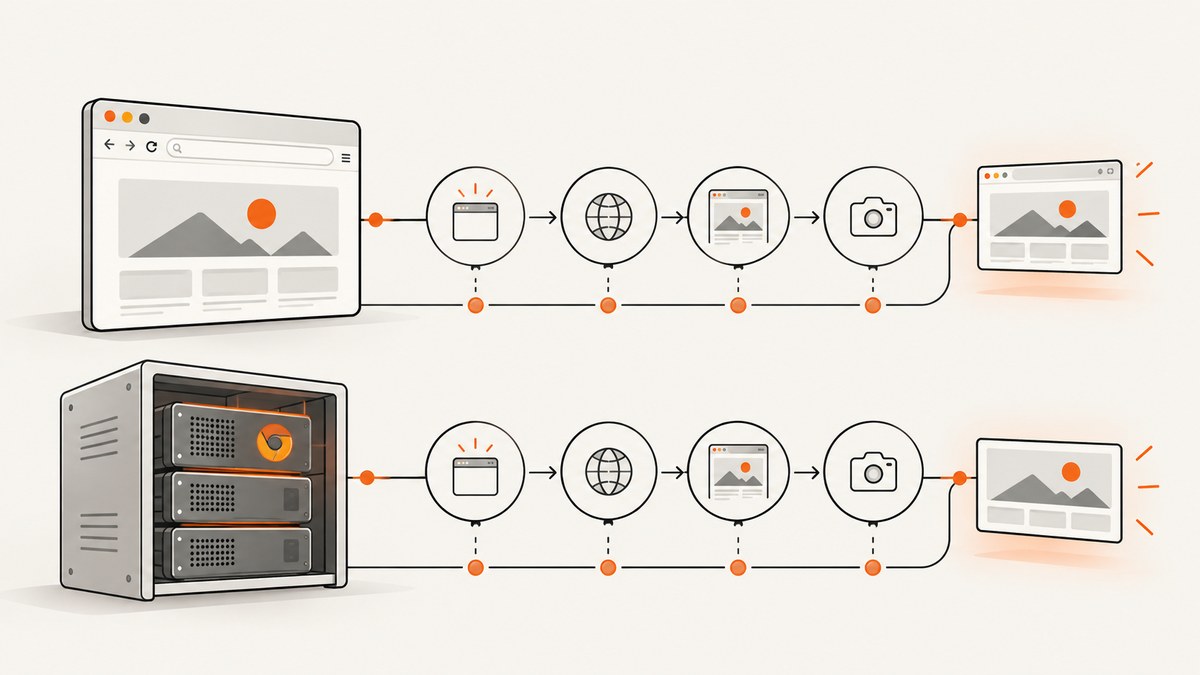
Short answer: modern regular Chrome Headless is not inherently slower at opening URLs than headed Chrome. Since Chrome unified the implementations, a difference usually comes from what you measure or wait for: process startup, browser reuse, DNS and cache state, navigation completion, selector readiness, JavaScript rendering, screenshots, PDF generation, or DOM serialization. First compare the same Chrome build, the same workload, and the same completion condition.
Chrome’s documentation describes “unified Headless and headful modes.” The older implementation is now a separate chrome-headless-shell binary beginning with Chrome 132.0.6793.0. Confirm which binary and mode you are actually comparing before changing flags. See the official Headless documentation.
What “opening a URL” can mean
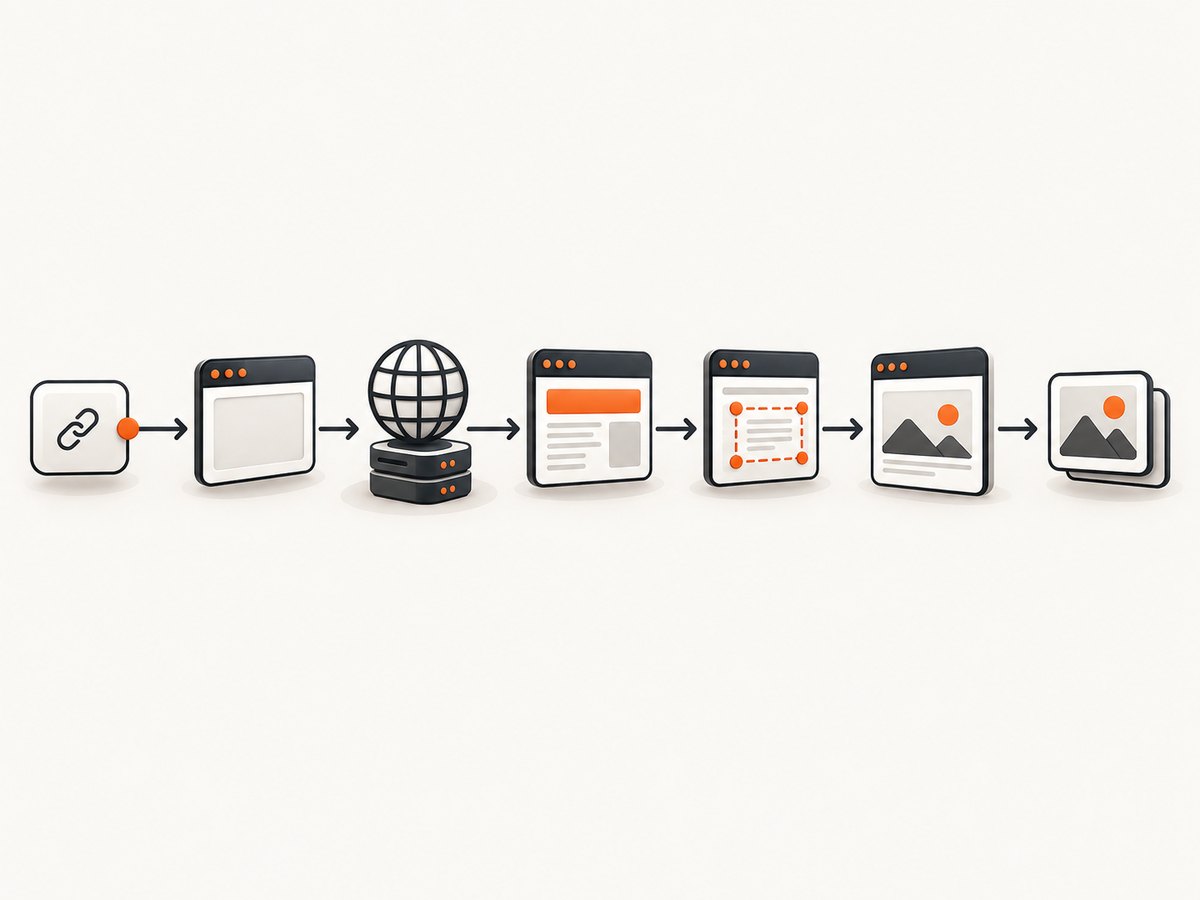
Automation APIs expose several milestones, and they do different amounts of work:
| Milestone | What it includes | Why comparisons go wrong |
|---|---|---|
| Process launch | Starting Chrome, loading a profile, and initializing services | A fresh headless process may be compared with a reused headed browser. |
| Page creation | Connecting to DevTools and creating a tab or context | Container startup and browser connection overhead can dominate small pages. |
| Navigation response | Request dispatch and the first response | This is not the same as a usable page. |
DOMContentLoaded |
HTML parsed and the event fired | Client-side applications may still be blank or incomplete. |
load |
Subresources required for the load event have completed | Images, fonts, and third-party resources can extend it. |
| Network idle | A quiet period with few or no active requests | Analytics, polling, WebSockets, and lazy loading can prevent or delay idle. |
| Selector readiness | A chosen element exists or is visible | Often the most useful application-level condition. |
| Render output | Screenshot, PDF, or DOM serialization | Layout, fonts, painting, and serialization add work after navigation. |
Puppeteer’s networkidle0 condition uses a 500 ms idle interval, and its documentation warns that lazy-loaded content can require additional waits. A headed window can appear visually ready while your headless script continues waiting for a stricter condition.
Build a fair headed-versus-headless comparison
- Record the browser identity. Log the Chrome version, executable path, automation library version, operating system, container image, and command-line arguments. Use regular
--headlesson one side and headed Chrome on the other; do not silently compare the legacy shell. - Use one script. Keep URL, viewport, user agent, locale, cookies, request interception, extensions, and page actions identical. Change only the headless/headed setting.
- Split the clock. Measure process launch, browser connection, page creation, navigation, readiness, and output separately.
- Choose one completion rule. Compare
loadwithload, or a specific application selector with the same selector. Do not compare “window appeared” withnetworkidle0. - Control cold and warm state. Run separate trials for a new browser/profile and a reused browser. Decide whether cache and DNS are retained, then apply that policy to both modes.
- Repeat runs. Report a range or distribution, not one result. Network, CPU contention, DNS, and server response time vary between runs.
A runnable Puppeteer timing script
Install Puppeteer with npm install puppeteer. This script runs both modes, logs each phase, and waits for an application selector rather than assuming that network idle means “ready.”
const puppeteer = require('puppeteer');

const target = process.argv[2] || 'https://example.com';

async function measure(headless) {
  const t0 = performance.now();
  const browser = await puppeteer.launch({ headless });
  const launched = performance.now();
  const page = await browser.newPage();
  const created = performance.now();
  await page.setViewport({ width: 1440, height: 900, deviceScaleFactor: 1 });

  const response = await page.goto(target, { waitUntil: 'domcontentloaded', timeout: 60000 });
  const domContentLoaded = performance.now();

  // Replace this with your app's real ready selector.
  await page.waitForSelector('body', { visible: true, timeout: 30000 });
  const ready = performance.now();

  await browser.close();
  return {
    headless,
    status: response && response.status(),
    launchMs: launched - t0,
    pageMs: created - launched,
    navigationMs: domContentLoaded - created,
    readyWaitMs: ready - domContentLoaded,
    totalMs: ready - t0
  };
}

(async () => {
  console.log(await measure(true));
  console.log(await measure(false));
})();
For a fair warm-browser test, launch once and create a fresh page for every trial. For a cold-start test, launch and close the browser inside each trial. Keep those results separate.
Why a headless run may look slower
Different waits and application behavior
The most common explanation is an unequal readiness target. A script may use waitUntil: 'networkidle0' in headless mode but only inspect the visible window in headed mode. Persistent analytics, advertisements, polling, service workers, lazy images, and WebSockets keep requests active. Use a selector that represents the page’s usable state, or wait for a bounded delay only when the application has no better signal.
Cold process, profile, cache, and DNS
Launching Chrome and creating a profile can cost more than navigation itself on a small page. A reused headed browser may already have a warm renderer, HTTP cache, service-worker state, and DNS information. Chromium’s DNS prefetch design document describes remembered-domain pre-resolution and reports average startup savings of 200 ms or more in that specific context. This is not a current headless-versus-headed benchmark; it shows why DNS state belongs in your experiment.
Record whether each run uses a new temporary profile, a persistent profile, a warmed cache, and a previously resolved hostname. Do not mix cold and warm samples in one average.
Graphics and rendering workload
Basic HTML navigation does not prove a GPU problem. Graphics can matter for WebGL, WebGPU, heavy compositing, full-page screenshots, canvas work, and PDF or image generation. A Chrome Developers Linux example found software-only or disabled graphics features and SwiftShader until compatible GPU drivers were installed. Inspect chrome://gpu in the same environment and verify the active renderer before changing flags. The example is environment-specific and does not establish a general navigation penalty.
Automation overhead
Headless services often do more work after navigation: block requests, set cookies, inject scripts, wait for fonts, scroll to trigger lazy loading, serialize the DOM, or capture an image. Headed manual browsing may stop as soon as pixels appear. Put timestamps around every awaited operation, including screenshot and PDF calls.
DOM dumping is not a network fetch
Chrome’s --dump-dom parses HTML, executes scripts that can mutate the document, and serializes the resulting DOM. Virtual time can advance timer-driven work without waiting the same wall-clock duration. If your benchmark uses DOM dumping, measure it as a rendering and serialization task rather than as URL opening.
Useful diagnostics
- Browser log: print Chrome version and the complete launch arguments.
- Navigation timing: collect
performance.getEntriesByType('navigation')[0]and resource entries inside the page. - Network log: record DNS, connection, response, transfer, and failed requests where your automation library exposes them.
- Trace: capture a DevTools or Puppeteer trace around the slow phase. Look for long scripts, layout, paint, image decoding, or idle waits.
- Server timing: expose backend render duration with the
Server-Timingresponse header so server work is not confused with browser work. - GPU status: inspect
chrome://gpufor graphics-heavy pages.
Python Selenium example with equivalent waits
Install Selenium with pip install selenium and ensure ChromeDriver is available through your environment. The only intended difference below is the headless argument.
import sys
import time
from selenium import webdriver
from selenium.webdriver.chrome.options import Options
from selenium.webdriver.common.by import By
from selenium.webdriver.support.ui import WebDriverWait

url = sys.argv[1] if len(sys.argv) > 1 else "https://example.com"

def run(headless):
    options = Options()
    if headless:
        options.add_argument("--headless=new")
    options.add_argument("--window-size=1440,900")
    start = time.perf_counter()
    driver = webdriver.Chrome(options=options)
    launched = time.perf_counter()
    try:
        driver.get(url)
        loaded = time.perf_counter()
        WebDriverWait(driver, 30).until(
            lambda d: d.find_element(By.TAG_NAME, "body").is_displayed()
        )
        ready = time.perf_counter()
        return {
            "headless": headless,
            "launch_ms": round((launched - start) * 1000),
            "navigation_ms": round((loaded - launched) * 1000),
            "ready_ms": round((ready - loaded) * 1000),
            "total_ms": round((ready - start) * 1000),
        }
    finally:
        driver.quit()

print(run(True))
print(run(False))
Fixes that match the evidence
- Replace an unnecessarily broad idle wait with the selector or event that means “ready” for your application.
- Reuse a browser process when process startup is the measured bottleneck, while keeping a separate cold-start measurement for deployment planning.
- Keep browser versions, profiles, viewport, and flags aligned.
- Remove only requests that are genuinely unnecessary for the output. Validate that fonts, images, API calls, and scripts required for the result still load.
- Use a compatible graphics driver for graphics-heavy workloads after confirming the GPU diagnosis.
- Cache deterministic screenshots or PDFs at the application layer. Include URL, viewport, device scale, locale, cookies, and relevant headers in the cache key.
- Set explicit timeouts and capture logs for timeout phase, URL, status, and outstanding requests.
Or skip the browser setup
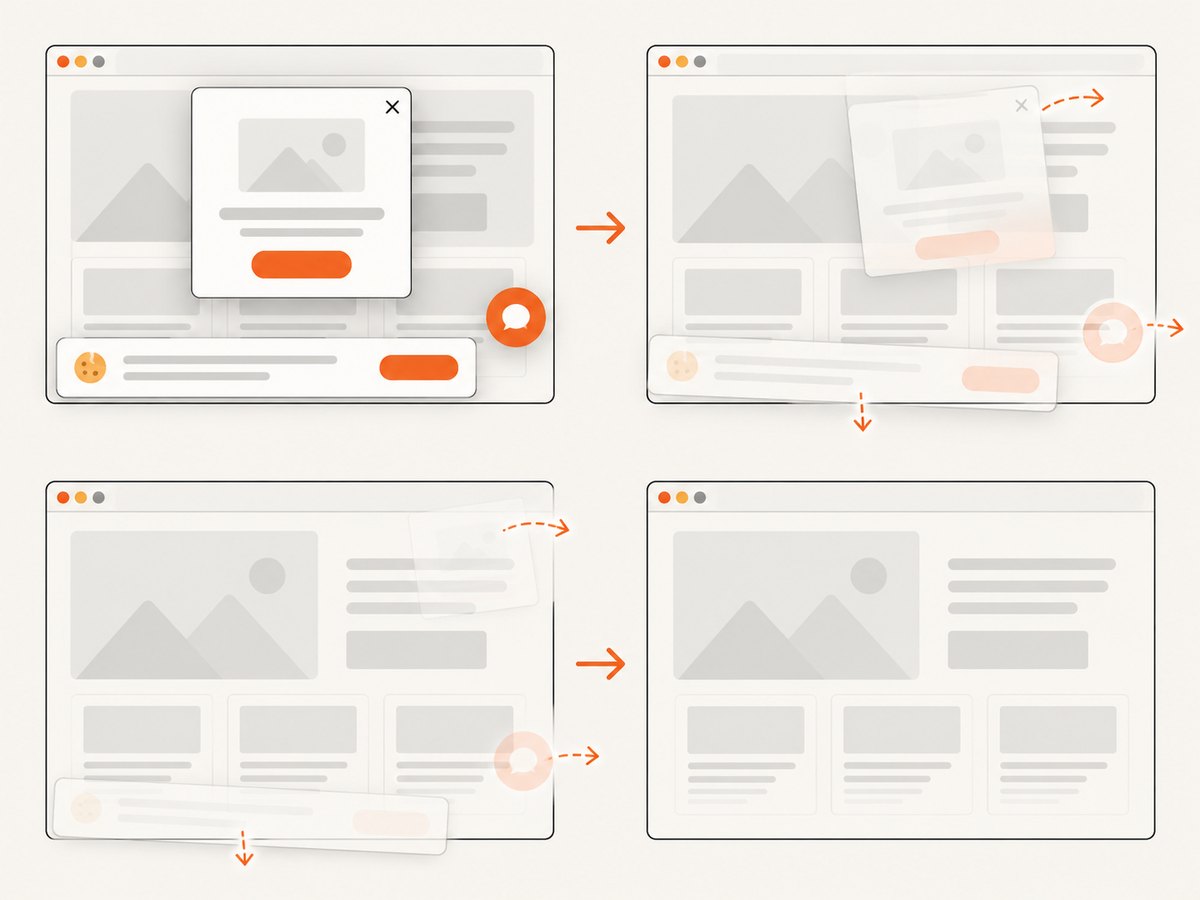
If your goal is a reliable screenshot rather than diagnosing Chrome itself, ScreenshotNeo provides a website screenshot API and MCP server. One GET request returns PNG, JPEG, WebP, or PDF. Cookie and consent banners are accepted and removed before capture, along with more than 60 known consent platforms, newsletter popups, and chat widgets; each step can be turned off. Bot checks, blank pages, timeouts, failed loads, and cache hits are not billed, and the response identifies the result with X-Page-Verdict and X-Billed headers.
Read the complete option reference in the ScreenshotNeo documentation. Available controls include full-page capture with lazy images loaded, CSS-selector element capture, dark mode, 12 device presets or any viewport, retina scale, PDF paper size/margins/landscape/page ranges, HTML/CSS-to-image, custom CSS and JavaScript, pre-capture clicks, hidden selectors, selector or delay or network-idle waits, ad/tracker/request/resource blocking, custom headers/cookies/user agent/Authorization, timezone and geolocation, transparent backgrounds, resizing, chosen cache TTL, signed links, asynchronous jobs with signed webhooks, bulk capture of up to 100 URLs per call, a usage API, and an OpenAPI specification.
cURL
curl -G "https://api.screenshotneo.com/v1/shot" \
  -d access_key=YOUR_API_KEY \
  --data-urlencode url=https://stripe.com \
  -o shot.webp
Python
import requests

r = requests.get(
    "https://api.screenshotneo.com/v1/shot",
    params={"access_key": "YOUR_API_KEY", "url": "https://stripe.com"},
    timeout=90,
)
r.raise_for_status()
open("shot.webp", "wb").write(r.content)
Node.js
const q = new URLSearchParams({ access_key: 'YOUR_API_KEY', url: 'https://stripe.com' });
const res = await fetch(`https://api.screenshotneo.com/v1/shot?${q}`);
if (!res.ok) throw new Error(`${res.status} ${res.statusText}`);
const fs = await import('node:fs/promises');
await fs.writeFile('shot.webp', Buffer.from(await res.arrayBuffer()));
ScreenshotNeo also includes an MCP server with take_screenshot, get_page_info, and capture_pdf tools for Claude, Cursor, and other MCP clients. The Free plan includes 1,000 shots per month with no card; Starter is $5 for 3,000, Growth $15 for 15,000, Pro $39 for 60,000, Scale $99 for 250,000, and Business $249 for 1,000,000. Yearly billing gives two months free, and every feature is available on every plan.
Create a free ScreenshotNeo account to try 1,000 screenshots each month without a card.
Troubleshooting checklist
| Symptom | Likely cause | Fix |
|---|---|---|
| Headless times out at network idle | Polling, analytics, WebSockets, or lazy loading | Wait for a specific ready selector, or define a bounded and justified idle strategy. |
| Headless is slow only on first run | Process, profile, font, cache, or DNS startup | Compare cold and warm runs separately; reuse the browser where appropriate. |
| Screenshot is slower than navigation | Painting, image decoding, scrolling, or full-page layout | Measure capture separately and reduce output work only if the visual result permits. |
| WebGL/WebGPU differs | Missing or incompatible Linux GPU driver | Inspect chrome://gpu and install a compatible driver; avoid blind flags. |
| Headed and headless show different content | Different viewport, user agent, cookies, profile, or automation path | Log and align all inputs before comparing speed. |
| DOM dump takes much longer | Scripts execute and the mutated DOM is serialized | Measure DOM dumping as a separate operation and use virtual-time controls when suitable. |
| Screenshot API response is not billed | Bot check, blank page, timeout, failed load, or cache hit | Read X-Page-Verdict and X-Billed; inspect the target and request options. |
Performance, reliability, and cost considerations
Optimize the phase that matters to your product. For an interactive test suite, browser reuse and a precise selector wait often matter most. For a capture service, total time also includes font loading, lazy images, layout, screenshot encoding, transfer, retries, and storage. Set a timeout for each phase, record failures with their phase, and retry only failures that are safe to repeat. A cache can reduce repeated rendering, but its key must include every input that changes pixels.
Do not infer reliability from one fast run. Use repeated cold and warm samples, retain traces for outliers, and monitor the page’s own response timing. If the cost of failed captures matters, ScreenshotNeo’s verdict and billing headers make clean-shot billing observable; cache hits and failed loads are not billed.
FAQ
Is headless Chrome always slower?
No. The reviewed official sources do not establish a universal speed advantage for either mode. A reported gap is specific to the mode, version, workload, environment, and timing boundary.
Should I add --disable-gpu?
Not as a general fix. First inspect graphics status and confirm that the workload is graphics-heavy. Disabling acceleration can change rendering behavior and may hurt the workload you care about.
Is networkidle0 the best wait?
Only when network quietness represents readiness for your page. Applications with polling, analytics, or lazy loading often need an explicit selector or application event.
Does a screenshot benchmark measure URL opening?
No. It measures navigation plus rendering and image encoding. Report those phases separately.
When should I use an API instead of managing Chrome?
Use an API when you need repeatable captures without maintaining browser binaries, drivers, profiles, consent handling, and rendering infrastructure. ScreenshotNeo adds an MCP path when an AI agent needs to request captures.


