BlogScreenshots on your device
Why Long Screenshots Fail and How to Fix Them
Long screenshots fail when scrolling, stitching, or page content interrupts capture. Learn the causes, fixes, browser methods, and reliable API workflow.
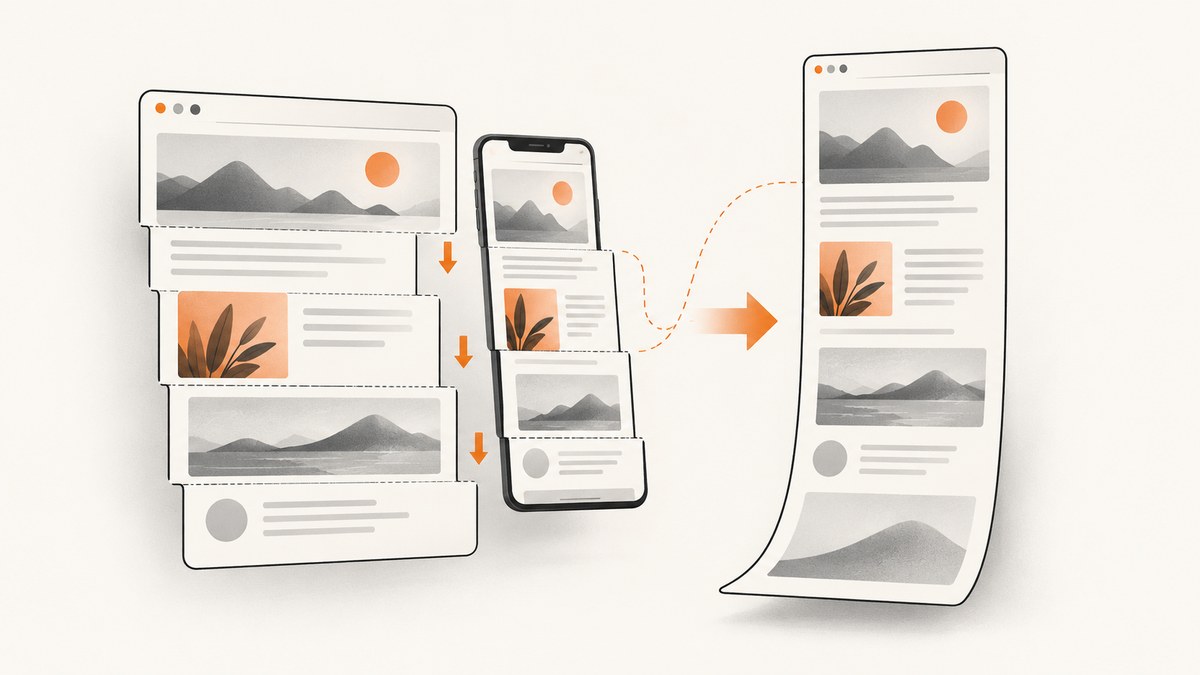
Long screenshots usually fail because the capture tool cannot maintain a clean, predictable relationship between consecutive screen positions. Automatic scrolling may be interrupted by extensions, floating controls, security software, unsupported apps, unusual zoom, dynamic content, or irregular scrolling. On phones, floating windows, refreshed content, repeated patterns, and device-specific height limits can stop stitching.
Make the capture easier to stitch: select only the useful content, keep the scrollbar outside the selection, disable floating controls, return zoom to 100%, scroll smoothly in one direction, and retry in a private window or another browser. For a webpage, a full-page browser capture or a screenshot API is often more reliable than stitching visible screen sections.
What a long screenshot is doing
A scrolling screenshot is not one very tall camera frame. Most tools capture several viewport-sized images while moving down the page, then align and merge them. The process can fail when:
- The page does not scroll in a regular, predictable way.
- Fixed headers, chat bubbles, cookie banners, or floating toolbars move between frames.
- Animations, lazy-loaded images, ads, or live data change between frames.
- The selected region includes a scrollbar, browser chrome, blank margins, or unrelated content.
- The browser, application, extension, security utility, or driver interferes with automated scrolling.
- The device or app imposes a maximum output height.
Some tools report the literal error “Scrolling Capture Failed.” TechSmith uses that wording in its Snagit macOS support material. The same underlying problem can appear as a timeout, an incomplete image, duplicated sections, a sudden stop, or a visibly misaligned seam.
Fix desktop scrolling capture step by step
- Prepare the target. Open the page or document in a maximized window. Close floating toolbars, chat panels, overlays, and other controls that can move while you scroll.
- Simplify the selection. Capture the content column instead of the entire desktop. Keep the scrollbar outside the selected area and exclude blank margins, ads, and unrelated panels.
- Restore default zoom. Use the application’s normal 100% zoom. Browser zoom and operating-system display scaling can change the geometry that the stitcher expects.
- Scroll in one direction. Move steadily from top to bottom. Avoid zigzags, pauses over interactive content, or manually dragging the scrollbar.
- Retry with extensions disabled. Use a private or incognito window. This often disables third-party extensions that inject controls or modify page scrolling.
- Try another browser or capture mode. Browser behavior varies with page content. If automatic scrolling fails, try a different supported browser or a panoramic/manual mode.
- Check interference. Third-party utilities, security software, unsupported applications, and hardware drivers can interfere with capture. Follow the relevant vendor’s guidance when testing security software, then restore normal protection.
When the page uses parallax or unusual scrolling
Parallax pages move layers at different speeds, so adjacent frames may not contain a stable overlap. A panoramic mode may still struggle. If the page is yours, temporarily disable parallax and animations, or use a DOM-based full-page capture that renders the document without repeatedly scrolling a viewport.
App-specific macOS cases
TechSmith documents several Snagit-on-macOS cases: the Mac App Store build may not show scrolling arrows; a Chrome change may require enabling “Allow JavaScript from Apple Events” for the documented workflow; and Mail’s arrows may disappear when the pointer moves from the message header to the message body. These details apply to the named products and versions, so verify the current menus before changing settings.
Fix scroll capture on a phone
First confirm that the phone and app support native scrolling capture. Labels differ by manufacturer and software version.
Android scroll capture
- Xiaomi: take a screenshot, tap Scroll, set the endpoint, and save. Xiaomi notes that Gallery Editor permissions may be needed to view and save the result.
- Samsung: supported Galaxy phones provide Scroll Capture after taking a screenshot. The exact toolbar and availability vary by model and software version.
- HONOR: Scrollshot can stop when floating windows, dynamically refreshed content, or large amounts of similar content interfere. HONOR documents an approximate 14,000-pixel height limit for its Scrollshot. Treat that as an HONOR-specific limit, not a universal phone limit.
If the result stops cleanly at the end of the document, it may have completed rather than failed. If it stops in the middle, look for a floating window, refreshed section, sticky control, repeated pattern, or device height limit.
Capture a full webpage in a browser
For a webpage rather than an arbitrary app window, use the browser’s full-page feature when available. Microsoft documents a full-webpage Screenshot tool in Edge, while noting that availability and functionality can vary by device, market, and browser version.
- Open the page and wait for its visible content to finish loading.
- Open the browser’s screenshot or web-capture command.
- Choose the full-page option rather than the visible-area option.
- Review the bottom of the output for missing lazy-loaded images or clipped fixed elements.
- If the result is incomplete, retry after disabling extensions and removing overlays.
Use Playwright for repeatable webpage captures
A browser automation script can avoid manual selection and can wait for the page to settle. This captures the document directly rather than stitching screenshots of a desktop selection.

import { chromium } from 'playwright';

const browser = await chromium.launch();
const page = await browser.newPage({
  viewport: { width: 1440, height: 900 },
  deviceScaleFactor: 1
});

await page.goto('https://example.com', { waitUntil: 'networkidle' });
await page.screenshot({ path: 'page.png', fullPage: true });
await browser.close();
Install Playwright with npm install playwright, then install its browser binaries with npx playwright install. For pages that lazy-load content, scroll the page before the final capture:
await page.evaluate(async () => {
  await new Promise(resolve => {
    let y = 0;
    const step = 600;
    const timer = setInterval(() => {
      window.scrollBy(0, step);
      y += step;
      if (y >= document.body.scrollHeight) {
        clearInterval(timer);
        window.scrollTo(0, 0);
        resolve();
      }
    }, 100);
  });
});
await page.screenshot({ path: 'page-loaded.png', fullPage: true });
Python Playwright
from playwright.sync_api import sync_playwright

with sync_playwright() as p:
    browser = p.chromium.launch()
    page = browser.new_page(viewport={"width": 1440, "height": 900})
    page.goto("https://example.com", wait_until="networkidle")
    page.screenshot(path="page.png", full_page=True)
    browser.close()
Make automation reliable
- Wait for a meaningful selector, not only a fixed delay.
- Hide sticky headers, chat widgets, and consent dialogs when they are not part of the page you need.
- Set a deterministic viewport, device scale factor, timezone, and locale.
- Use a longer timeout for slow pages, but stop retrying when the page is clearly blocked by a bot check.
- Save the HTML and a diagnostic screenshot when a capture fails so you can identify whether the problem is navigation, rendering, or stitching.
Or skip the browser setup
ScreenshotNeo returns a full-page PNG, JPEG, WebP, or PDF from one request. It loads lazy images, can capture one CSS-selected element, and supports custom CSS and JavaScript, waits, blocking rules, headers, cookies, user agents, authorization, timezone, geolocation, dark mode, device presets, retina scale, resizing, caching, signed links, asynchronous jobs, webhooks, bulk capture, and usage reporting. Each cleanup step can be turned off.
Cookie and consent banners, newsletter popups, and chat widgets are removed before the shot. Bot checks, blank pages, failed loads, timeouts, and cache hits are not billed, and the response identifies the result with X-Page-Verdict and X-Billed headers.
See the ScreenshotNeo API documentation for the complete option list.
cURL
curl -G "https://api.screenshotneo.com/v1/shot" -d access_key=YOUR_API_KEY --data-urlencode url=https://stripe.com -o shot.webpPython
import requests
r = requests.get("https://api.screenshotneo.com/v1/shot", params={"access_key": "YOUR_API_KEY", "url": "https://stripe.com"}, timeout=90)
open("shot.webp", "wb").write(r.content)
Node.js
const q = new URLSearchParams({ access_key: 'YOUR_API_KEY', url: 'https://stripe.com' });
const res = await fetch(`https://api.screenshotneo.com/v1/shot?${q}`);
ScreenshotNeo also has an MCP server with take_screenshot, get_page_info, and capture_pdf tools for Claude, Cursor, and other MCP clients. The free plan includes 1,000 screenshots per month with no card; paid plans start at $5 for 3,000 shots. Create a free ScreenshotNeo account.
Common errors and fixes
| Error or symptom | Likely cause | Fix |
|---|---|---|
| “Scrolling Capture Failed” | Unsupported app/browser, extension, security utility, or unstable scroll | Use a simpler selection, 100% zoom, private window, another browser, and smooth one-direction scrolling. |
| Repeated or missing sections | Insufficient overlap, dynamic content, or irregular scrolling | Disable animations and floating controls; use a DOM-based full-page capture or API. |
| Capture stops halfway on mobile | Floating window, refreshed content, repeated content, or device limit | Close overlays, wait for refreshes to finish, capture in smaller sections, or use a webpage capture method. |
| Blank or partly blank output | Page not loaded, bot check, lazy content, or blocked resources | Wait for a selector, load lazy content, inspect the page manually, and check whether access requires authentication. |
| Fixed header appears many times | Viewport stitching captured the sticky element in every frame | Hide the header with custom CSS or capture the document directly. |
| Images are missing near the bottom | Lazy loading was never triggered | Scroll through the page before capture or use a full-page tool that loads lazy images. |
| Output is too tall to open | Viewer or device cannot handle the resulting dimensions | Capture by sections, resize the result, or export a PDF. |
Performance, reliability, and cost considerations
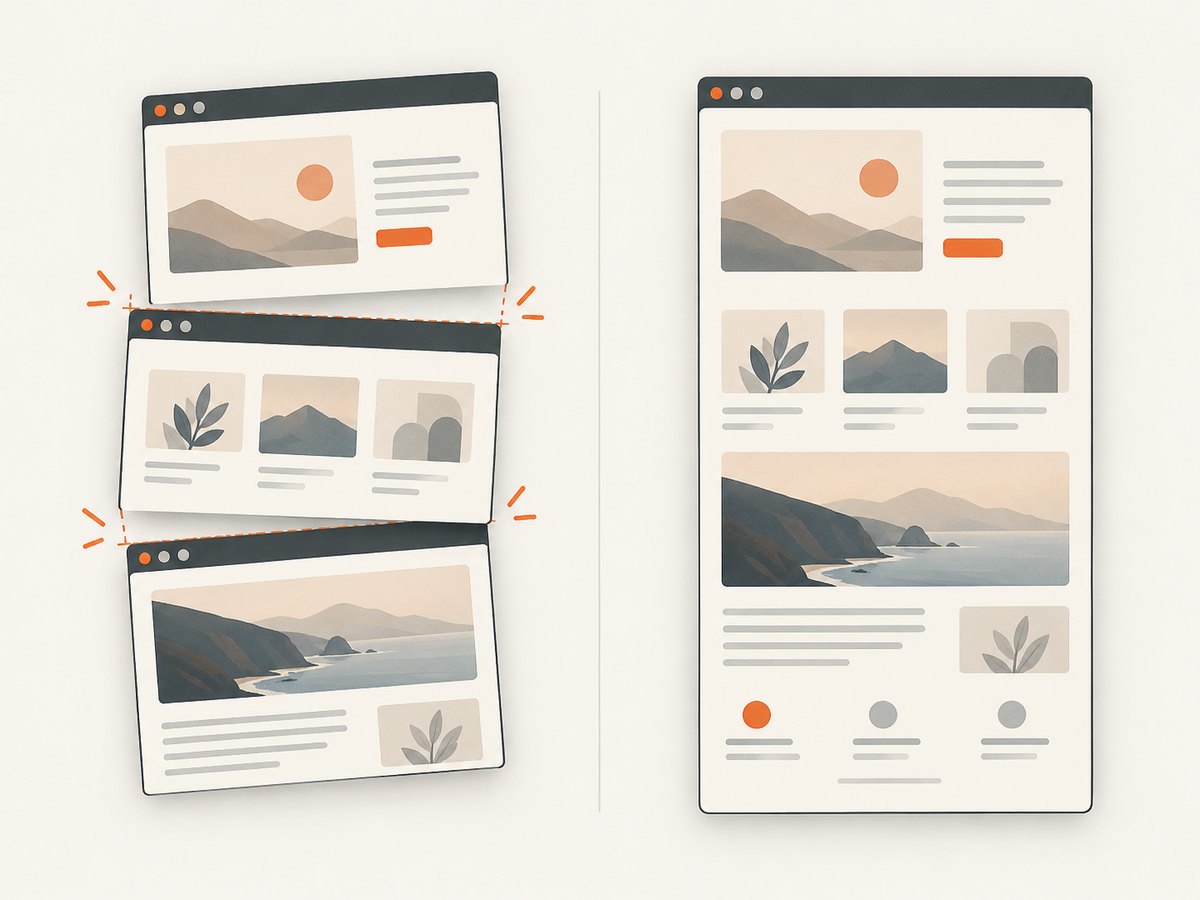
- Stitching versus document capture: stitching is sensitive to overlap and movement; full-page DOM capture is usually more repeatable for ordinary webpages.
- Dynamic pages: waiting for network idle does not guarantee that timers, ads, or live feeds have stopped changing. Wait for a specific stable selector when possible.
- Very long pages: memory use grows with output dimensions. Capture sections or use PDF when a single raster image becomes impractical.
- Retries: retry navigation failures with a bounded backoff. Do not blindly retry bot checks or authentication failures.
- API billing: ScreenshotNeo bills only clean shots. Bot checks, blank pages, timeouts, failed loads, and cache hits cost nothing, and the response headers state the verdict and billing result.
- Caching: use a TTL when repeated captures of the same URL are acceptable. Cache hits do not cost a shot in ScreenshotNeo.
Checklist before you capture
- Is the target a webpage, a document, or an arbitrary app window?
- Can you use a native full-page or scroll-capture feature?
- Are extensions, overlays, cookie banners, chat widgets, and floating controls disabled or removed?
- Is zoom set to 100% and the viewport deterministic?
- Has lazy content finished loading?
- Could the page be blocked by a bot check or require authentication?
- Would a full-page API capture be more reliable than viewport stitching?
FAQ
Why does scrolling capture work on one site but fail on another?
Capture depends on the page’s scroll behavior, fixed elements, dynamic updates, animations, and browser compatibility. A site with stable, ordinary document flow is easier to stitch than a parallax or live application.
Is a 14,000-pixel limit universal?
No. HONOR documents an approximate 14,000-pixel Scrollshot limit for its devices. Other phones, browsers, and apps have different limits.
Should I use a screenshot or PDF for a very long page?
Use a screenshot when pixel layout matters. Use PDF when the output is too large to view comfortably as one raster image or must be printed or paginated.
Can browser full-page capture capture any application window?
No. Browser full-page tools target webpages. Arbitrary desktop applications need their own supported capture workflow or a tool that can capture the application window.
How can I avoid paying for failed webpage captures?
Use ScreenshotNeo’s verdict and billing headers to inspect each response. Its stated policy excludes bot checks, blank pages, timeouts, failed loads, and cache hits from billing.


