BlogScreenshots on your device
How to Take a Screenshot in Windows 10 With Function Keys
Use Windows+Shift+S, PrtSc, Alt+PrtSc, or Windows+PrtScn to capture your screen in Windows 10—even when your keyboard uses Fn.

Quick answer: Press Windows+Shift+S to select an area. Press PrtSc (also labeled PrtScn or PrntScrn) to copy the entire screen. Press Alt+PrtSc to copy the active window. Press Windows+PrtScn to save the entire screen as a file in Pictures\Screenshots. If your keyboard has no Print Screen key, Microsoft documents Fn+Windows+Space for supported devices.
Which Windows 10 shortcut should you use?
| Shortcut | Capture | Result | Best for |
|---|---|---|---|
| Windows+Shift+S | A selected region or snip mode | Copied to the clipboard; opens in Snipping Tool for editing and saving | Cropping to part of the screen |
| PrtSc | Entire screen | Copied to the clipboard | Pasting a full-screen image into Paint, a document, or chat |
| Alt+PrtSc | Active window | Copied to the clipboard | Capturing one app without the rest of the desktop |
| Windows+PrtScn | Entire screen | Saved in Pictures\Screenshots |
Creating a file immediately |
| Fn+Windows+Space | Device-specific screenshot action | Screenshot result depends on the device | Keyboards without a PrtScn key |
Microsoft describes PrtSc as placing a static image of the entire screen in the clipboard. See Microsoft’s Snipping Tool guidance and its Windows keyboard shortcut reference.
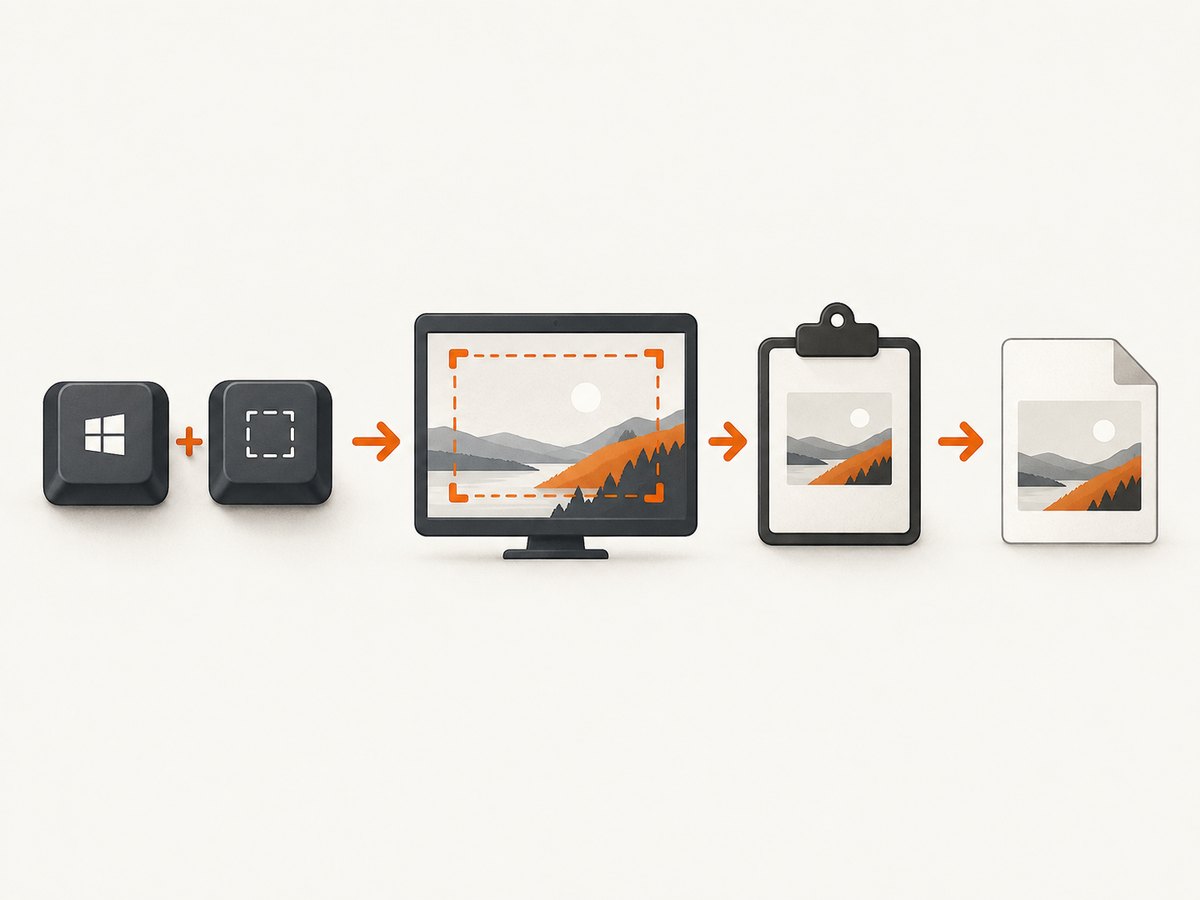
1. Capture a selected area with Windows+Shift+S
- Press Windows+Shift+S.
- When the snipping overlay appears, choose rectangular snip, freeform snip, window snip, or full-screen snip.
- Drag over the area you need, or select a window.
- The image is copied to the clipboard. Select the notification to open it in Snipping Tool, then annotate or save it.
Use Ctrl+V in Paint, Word, an email, or another app to paste the capture. This is the simplest built-in method when you need only part of the display.
2. Copy the entire screen with PrtSc
- Press PrtSc, PrtScn, or PrntScrn.
- Open Paint or another image-capable application.
- Press Ctrl+V to paste the screenshot.
- Use the app’s Save command to create a PNG or another image file.
PrtSc copies the full desktop, including all visible monitors in some multi-display arrangements. It does not automatically create a file.
3. Copy only the active window with Alt+PrtSc
- Click the window you want to capture so it has focus.
- Press Alt+PrtSc.
- Paste with Ctrl+V into Paint, a document, or another app.
- Save the pasted image.
This avoids cropping unrelated desktop content. Menus or dialogs that disappear when focus changes may require Windows+Shift+S instead.
4. Save the entire screen directly with Windows+PrtScn
- Press Windows+PrtScn.
- The screen may briefly dim while Windows captures it.
- Open File Explorer and go to
Pictures\Screenshots.
Microsoft lists the Pictures\Screenshots folder as the destination for this shortcut. If your Pictures folder is redirected to OneDrive, check the corresponding OneDrive Pictures folder.
5. What “function keys” means on a Windows 10 keyboard
Function keys normally means F1 through F12. The Fn key is a separate hardware modifier that activates alternate legends printed on laptop keys. Print Screen may be printed on another key, share a key with a function key, or require a manufacturer-specific combination.
Do not assume Fn+PrtSc works on every laptop. Microsoft documents Fn+Windows+Space for devices without a PrtScn button, while other combinations depend on the keyboard model. Check the key legends and the computer manufacturer’s manual. Microsoft’s Surface screenshot instructions demonstrate why methods vary by keyboard.
6. If your keyboard has no Print Screen key
- Look for a secondary “PrtSc,” “PS,” or camera-like legend on another key.
- Try Fn+Windows+Space if your device follows Microsoft’s documented no-PrtScn method.
- Use Windows+Shift+S, which does not require a Print Screen key.
- Check the device maker’s keyboard documentation for the exact Fn-layer combination.
An external keyboard with a clearly labeled Print Screen key is optional; software shortcuts usually solve the problem without buying hardware.
7. Troubleshooting checklist
The shortcut does nothing
Make sure the correct window has focus, hold modifier keys together, and try the on-screen snipping shortcut Windows+Shift+S. On a laptop, try the device’s Fn layer or toggle Fn Lock if the keyboard provides one.
I cannot find the screenshot file
PrtSc and Alt+PrtSc use the clipboard, so paste them into Paint and save manually. Files from Windows+PrtScn belong in Pictures\Screenshots; check OneDrive if your Pictures folder is synced or redirected.
The wrong window was captured
Click the target window before pressing Alt+PrtSc. For a precise rectangle, use Windows+Shift+S.
The screenshot is blank or missing a menu
Some menus close when focus changes. Open the snipping overlay first, then select the area, or use the app’s own export feature when protected content prevents capture.
My keyboard has different legends
Fn behavior is hardware-dependent. Read the manufacturer’s instructions rather than applying a universal Fn combination.
8. Clipboard, file, and image-quality considerations
- Clipboard workflow: PrtSc, Alt+PrtSc, and the selected-area snip are convenient when you immediately paste into another app.
- Saved-file workflow: Windows+PrtScn is faster when you need a file for upload or archiving.
- Multiple monitors: full-screen shortcuts can include the whole virtual desktop; select a region or window when you need one display.
- Privacy: inspect the image before sharing; full-screen captures can include notifications, account names, or confidential tabs.

Or skip the browser setup
If you need screenshots of web pages rather than your local Windows desktop, ScreenshotNeo returns a PNG, JPEG, WebP, or PDF from one request. It accepts consent banners before capture and removes more than 60 known consent platforms, newsletter popups, and chat widgets. Bot checks, blank pages, failed loads, timeouts, and cache hits are not billed, and response headers identify the page verdict and billing result.
See the ScreenshotNeo API documentation for all options. A basic request looks like this:
curl -G "https://api.screenshotneo.com/v1/shot" -d access_key=YOUR_API_KEY --data-urlencode url=https://stripe.com -o shot.webpimport requests
r = requests.get("https://api.screenshotneo.com/v1/shot", params={"access_key": "YOUR_API_KEY", "url": "https://stripe.com"}, timeout=90)
open("shot.webp", "wb").write(r.content)const q = new URLSearchParams({ access_key: 'YOUR_API_KEY', url: 'https://stripe.com' });
const res = await fetch(`https://api.screenshotneo.com/v1/shot?${q}`);You can also use full-page capture, CSS selectors, dark mode, device presets, custom CSS and JavaScript, waits, request blocking, headers and cookies, PDFs, signed links, asynchronous jobs, bulk capture, caching, and an MCP server with take_screenshot, get_page_info, and capture_pdf for AI agents. The Free plan includes 1,000 screenshots a month with no card; paid plans start at $5 for 3,000. Create a free ScreenshotNeo account.
FAQ
Can I screenshot without a Print Screen key?
Yes. Use Windows+Shift+S, or try Microsoft’s documented Fn+Windows+Space method on supported devices.
Does PrtSc automatically save a PNG?
No. It copies the image to the clipboard. Paste it into an image editor and save it.
Which shortcut captures one application?
Focus that application and press Alt+PrtSc.
Where does Windows+PrtScn save screenshots?
Microsoft lists Pictures\Screenshots; redirected or synced Pictures folders may place it under OneDrive.
Are Fn and F1–F12 the same thing?
No. F1–F12 are function keys; Fn is a hardware modifier whose behavior varies by keyboard.


