BlogScreenshots on your device
How to Take Screenshots from the Command Line in Windows 11
Windows 11 has no universal screenshot command. Use Sandbox, GDK, Snipping Tool URI, or a custom PowerShell script for your capture target.
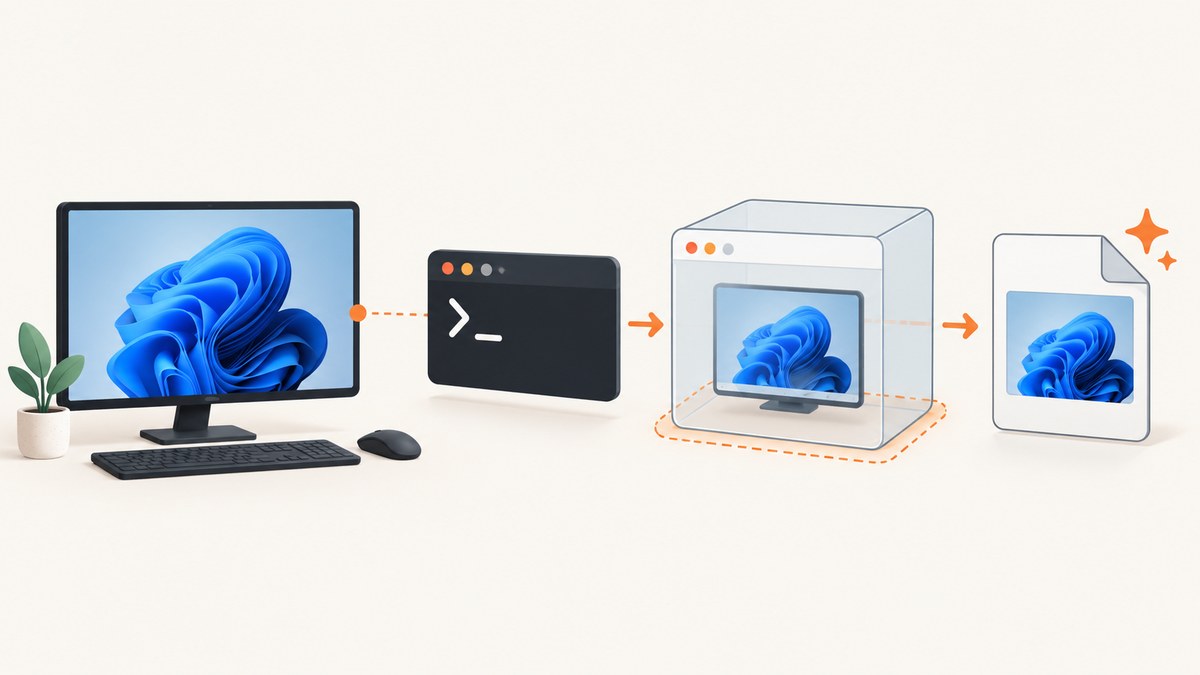
Short answer: Windows 11 does not provide one universal, built-in screenshot command for every desktop capture. The documented command-line routes are scoped to specific jobs: winapp target screenshot captures a Windows Sandbox guest, wdcapture screenshot belongs to Microsoft’s Game Development Kit (GDK), and a custom PowerShell script can call .NET’s Graphics.CopyFromScreen. Snipping Tool can also be launched through its ms-screenclip: URI, but that is an interactive app-integration protocol with packaging requirements.
Choose the route that matches what you need to capture:
| Need | Use | Important limitation |
|---|---|---|
| Windows Sandbox guest desktop | winapp target screenshot |
Captures the guest and writes the image on the host. |
| GDK development workflow | wdcapture screenshot |
Specialized GDK tooling; not guaranteed to be installed on Windows 11. |
| Host monitor or a selected rectangle | PowerShell plus Graphics.CopyFromScreen |
You assemble and maintain the script and its runtime dependencies. |
| Interactive rectangle, freeform, or window snip | ms-screenclip://capture/image |
Designed for app integration, not a general unattended save-to-file command. |
| Website screenshots in automation | ScreenshotNeo | Captures a URL rather than the local desktop; no browser setup is required. |
1. Capture a Windows Sandbox desktop with winapp
Microsoft documents this command for taking a screenshot of a Windows Sandbox guest desktop and saving it to the host:
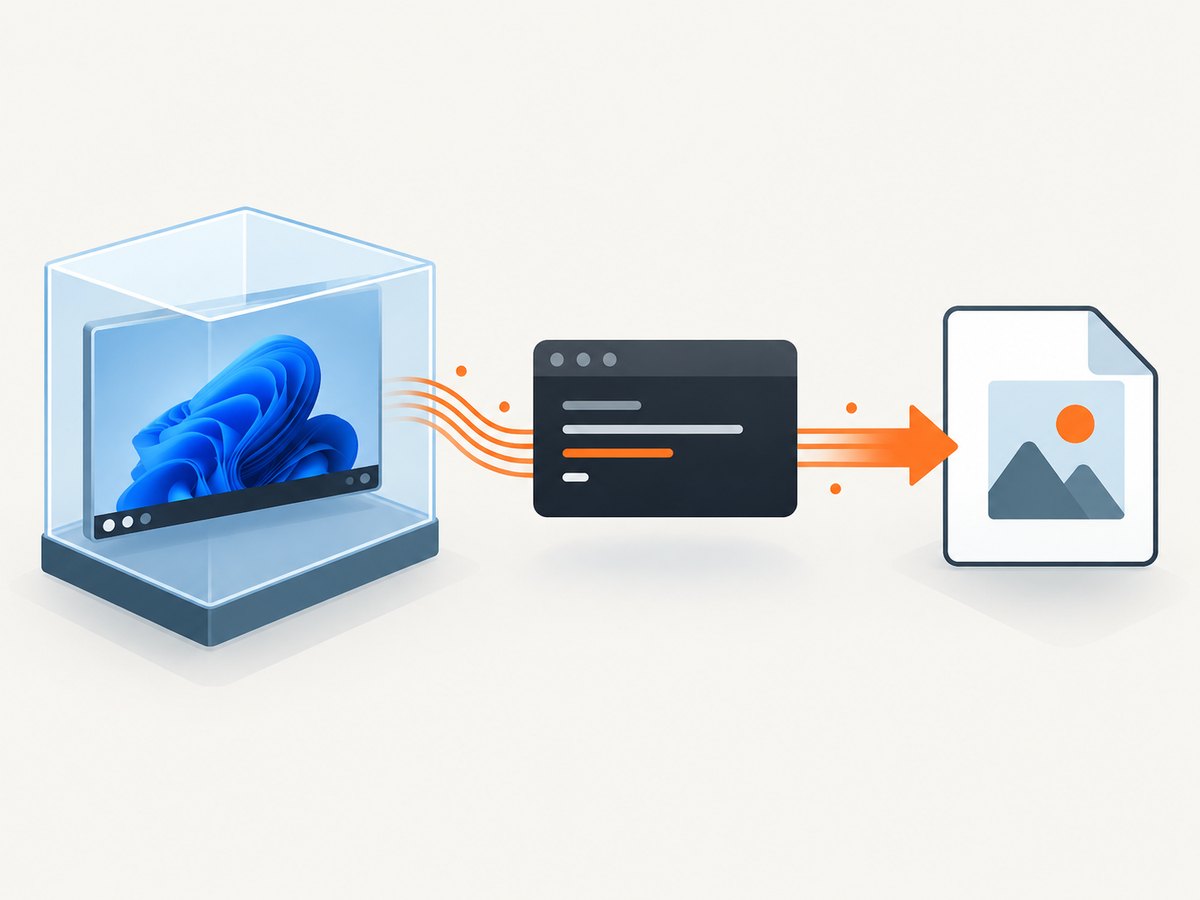
winapp target screenshot sandbox -o .\sandbox.pngIf you omit -o, the documented default output name is screenshot.png:
winapp target screenshot sandboxThe command waits for the guest UI turn without activating a window. Its output is unscaled and excludes the host Sandbox window’s title bar and borders. This is therefore useful for automated evidence from an isolated guest, not for capturing your normal Windows desktop.
See Microsoft’s Windows Sandbox execution documentation for the command’s scope and behavior.
2. Use wdcapture screenshot in a GDK workflow
wdcapture screenshot is Microsoft’s documented Game Development Kit command-line capture tool. It uses Windows Graphics Capture APIs and saves SDR captures as PNG or HDR captures as JXR. The documented prerequisite is Windows 10 or later with Windows Graphics Capture support.
wdcapture screenshotBecause this command is part of GDK tooling, do not assume it exists on a normal Windows 11 installation. Install and run it inside the development environment that supplies it, then consult the GDK command documentation for the available arguments and output behavior. Microsoft’s reference is Screen Capture (wdcapture.exe).
3. Build a host-screen screenshot command in PowerShell
For a regular monitor, .NET exposes System.Drawing.Graphics.CopyFromScreen. It copies pixels from a source screen rectangle to a drawing surface. Microsoft documents the API, but not a ready-made PowerShell screenshot executable, so the following is custom script built around that API.
Full virtual desktop script
param(
    [string]$Output = "$PWD\screen.png"
)

Add-Type -AssemblyName System.Drawing
Add-Type -AssemblyName System.Windows.Forms

$bounds = [System.Windows.Forms.SystemInformation]::VirtualScreen
$bitmap = New-Object System.Drawing.Bitmap(
    $bounds.Width,
    $bounds.Height,
    [System.Drawing.Imaging.PixelFormat]::Format32bppArgb
)

$graphics = [System.Drawing.Graphics]::FromImage($bitmap)
try {
    $graphics.CopyFromScreen(
        $bounds.Left,
        $bounds.Top,
        0,
        0,
        $bitmap.Size,
        [System.Drawing.CopyPixelOperation]::SourceCopy
    )
    $bitmap.Save($Output, [System.Drawing.Imaging.ImageFormat]::Png)
    Write-Output "Saved $Output"
}
finally {
    $graphics.Dispose()
    $bitmap.Dispose()
}
Save it as capture-screen.ps1 and run:
powershell.exe -ExecutionPolicy Bypass -File .\capture-screen.ps1 -Output .\desktop.pngVirtualScreen covers all attached monitors, including arrangements with negative coordinates. To capture one monitor or a rectangle, replace $bounds with a System.Drawing.Rectangle, for example:
$bounds = New-Object System.Drawing.Rectangle(0, 0, 1920, 1080)The API can throw a Win32Exception when the copy fails. Common causes include an unavailable interactive desktop, an invalid rectangle, a locked session, or graphics-driver limitations. The official API reference is Graphics.CopyFromScreen.
PowerShell capture checklist
- Run in the logged-in session whose pixels you want.
- Use a writable absolute output path when running from a scheduler.
- Confirm the output directory exists before saving.
- Use PNG for lossless text and UI; convert afterward if JPEG is required.
- On multi-monitor systems, test coordinates because the virtual desktop may start at a negative X or Y value.
- Do not expect this method to capture a secure desktop such as a UAC prompt or lock screen.
4. Launch Snipping Tool through its URI protocol
For an interactive capture UI, Microsoft documents the ms-screenclip://capture/image protocol:
start "" "ms-screenclip://capture/image?rectangle"The image path requires exactly one bare mode flag: rectangle, freeform, or window. Supplying none or more than one is invalid. The protocol also supports api-version, user-agent, enabledModes, and optional auto-save parameters.
The documented protocol version is 1.2, with 1.0, 1.1, and 1.2 listed as supported versions on Microsoft’s page. An integrating client should discover supported versions and pin one rather than assuming a future version. A callback response can include a one-time file-access-token; Microsoft says it expires after 14 days and each app is limited to 1,000 active tokens.
This is an app-integration interface. Microsoft states: “This protocol requires a packaged Windows app (MSIX).” An unpackaged Win32 caller cannot receive the response through redirect-uri. The protocol details, including callback and packaging constraints, are in Launch Snipping Tool.
5. Select the right method
| Question | Best fit |
|---|---|
| Do you need a person to select an area? | Snipping Tool URI or the normal Snipping Tool UI. |
| Do you need an unattended host capture? | Custom PowerShell using CopyFromScreen. |
| Do you need a Sandbox guest image on the host? | winapp target screenshot sandbox. |
| Are you building a GDK test or game workflow? | wdcapture screenshot. |
| Do you need repeatable screenshots of public web pages? | An HTTP screenshot API such as ScreenshotNeo. |
6. Or skip the browser setup
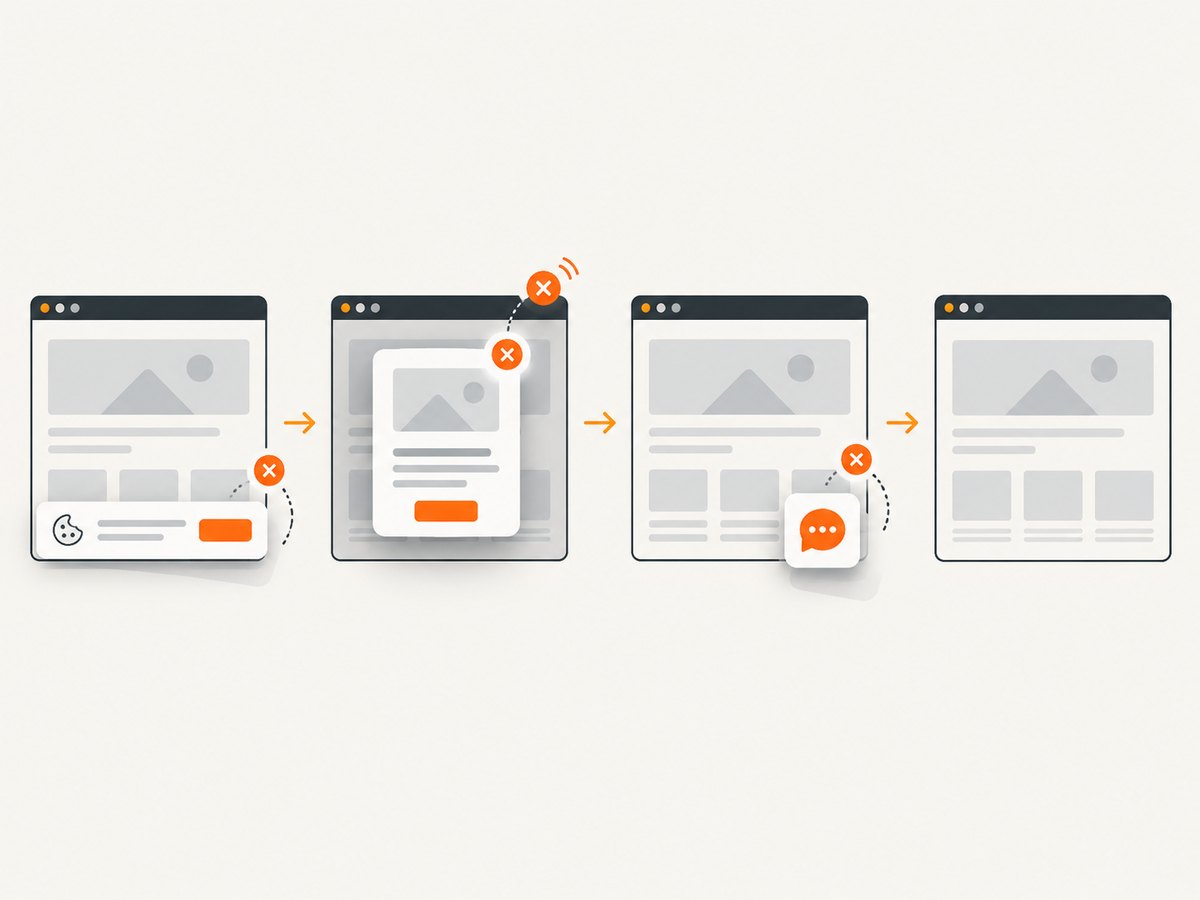
When the target is a website rather than your Windows desktop, ScreenshotNeo returns an image or PDF from one GET request. The API accepts PNG, JPEG, WebP, full-page capture, element selectors, device presets, custom headers and cookies, JavaScript, waits, blocking rules, caching, signed links, asynchronous jobs, bulk capture, and more. Its consent step removes cookie banners, newsletter popups, and chat widgets before the shot.
Only clean shots are billed. Bot checks, blank pages, failed loads, timeouts, and cache hits cost nothing, and responses identify the result with X-Page-Verdict and X-Billed headers. ScreenshotNeo also provides an MCP server with take_screenshot, get_page_info, and capture_pdf tools for Claude, Cursor, and other MCP clients.
See the ScreenshotNeo API documentation for all parameters.
cURL
curl -G "https://api.screenshotneo.com/v1/shot" \
  -d access_key=YOUR_API_KEY \
  --data-urlencode url=https://stripe.com \
  -o shot.webp
Python
import requests

r = requests.get(
    "https://api.screenshotneo.com/v1/shot",
    params={"access_key": "YOUR_API_KEY", "url": "https://stripe.com"},
    timeout=90,
)
r.raise_for_status()
open("shot.webp", "wb").write(r.content)
Node.js
const q = new URLSearchParams({ access_key: 'YOUR_API_KEY', url: 'https://stripe.com' });
const res = await fetch(`https://api.screenshotneo.com/v1/shot?${q}`);
if (!res.ok) throw new Error(`HTTP ${res.status}`);
const fs = await import('node:fs/promises');
await fs.writeFile('shot.webp', Buffer.from(await res.arrayBuffer()));
The Free plan includes 1,000 screenshots each month with no card. Paid plans start at $5 for 3,000 shots, and every feature is available on every plan. Create a free ScreenshotNeo account.
7. Troubleshooting
“The command is not recognized”
winapp and wdcapture are scoped tools, not guaranteed Windows 11 commands. Install the product that supplies the command, or use the PowerShell method for a host desktop.
The PowerShell script saves a blank or incorrect image
Check that it runs in the interactive user session, that the rectangle matches the virtual desktop, and that the session is unlocked. A scheduled task running without a desktop cannot capture the visible UI.
CopyFromScreen throws a Win32Exception
Verify the source coordinates and dimensions, output permissions, monitor availability, and graphics-driver state. Try a smaller known-good rectangle to isolate coordinate or display issues.
The Snipping Tool URI opens but no callback arrives
Callbacks through redirect-uri require a packaged Windows app identity. An unpackaged Win32 process should not rely on that response path; use the interactive UI or package the integration.
The Snipping Tool URI is rejected
Use exactly one of rectangle, freeform, or window, and query or pin a supported API version. Do not pass the mode names as key/value pairs.
The web screenshot is not the page you expected
For an API capture, add an explicit wait (selector, delay, or network idle), provide required cookies or authorization headers, and use full-page mode when content is below the fold. Inspect X-Page-Verdict and X-Billed to distinguish a clean result from a bot check, blank page, timeout, failed load, or cache hit.
8. Performance, reliability, and cost notes
- Desktop scripts: Capture time and file size increase with pixel dimensions and monitor count. PNG preserves UI detail but is larger than JPEG.
- Sandbox: The documented command captures the guest without activating a window and produces an unscaled image, which makes results predictable for automation.
- GDK: PNG is intended for SDR output; HDR output is JXR. Availability depends on the installed GDK environment.
- Snipping Tool: It is interactive and subject to user settings. Optional auto-save does not remove those settings from the workflow.
- Web automation: Wait for the page state you need, block unnecessary resources when appropriate, and use caching for repeated URLs. ScreenshotNeo charges only clean shots; failed or non-page outcomes and cache hits are not billed.
- Operational reliability: Save to a deterministic path, check exit status, validate that the file exists and has nonzero length, and retain logs with the capture timestamp and target.
9. FAQ
Is there a built-in screenshot command on every Windows 11 PC?
No universal command is established by the Microsoft documentation covered here. The documented commands have narrower scopes.
Can I capture the lock screen or a UAC secure desktop with PowerShell?
Normally no. CopyFromScreen captures the accessible interactive desktop, not protected secure desktops.
Which format should I use?
Use PNG for crisp text and interface screenshots, JPEG for smaller photographic images, and JXR when the GDK workflow requires HDR output.
Does the Snipping Tool protocol replace a command-line screenshot utility?
No. It launches an interactive capture experience and has app packaging and callback constraints.
Can ScreenshotNeo capture my Windows desktop?
ScreenshotNeo captures web URLs. Use the Windows-specific methods above for local desktop pixels; use ScreenshotNeo for repeatable website screenshots and PDFs.


