BlogScreenshots on your device
Windows 11 Screenshot Shortcuts: How to Capture Your Screen
Capture a region, window, or full screen in Windows 11. Learn where screenshots go, how to save clipboard captures, and what to do when PrtSc is missing.

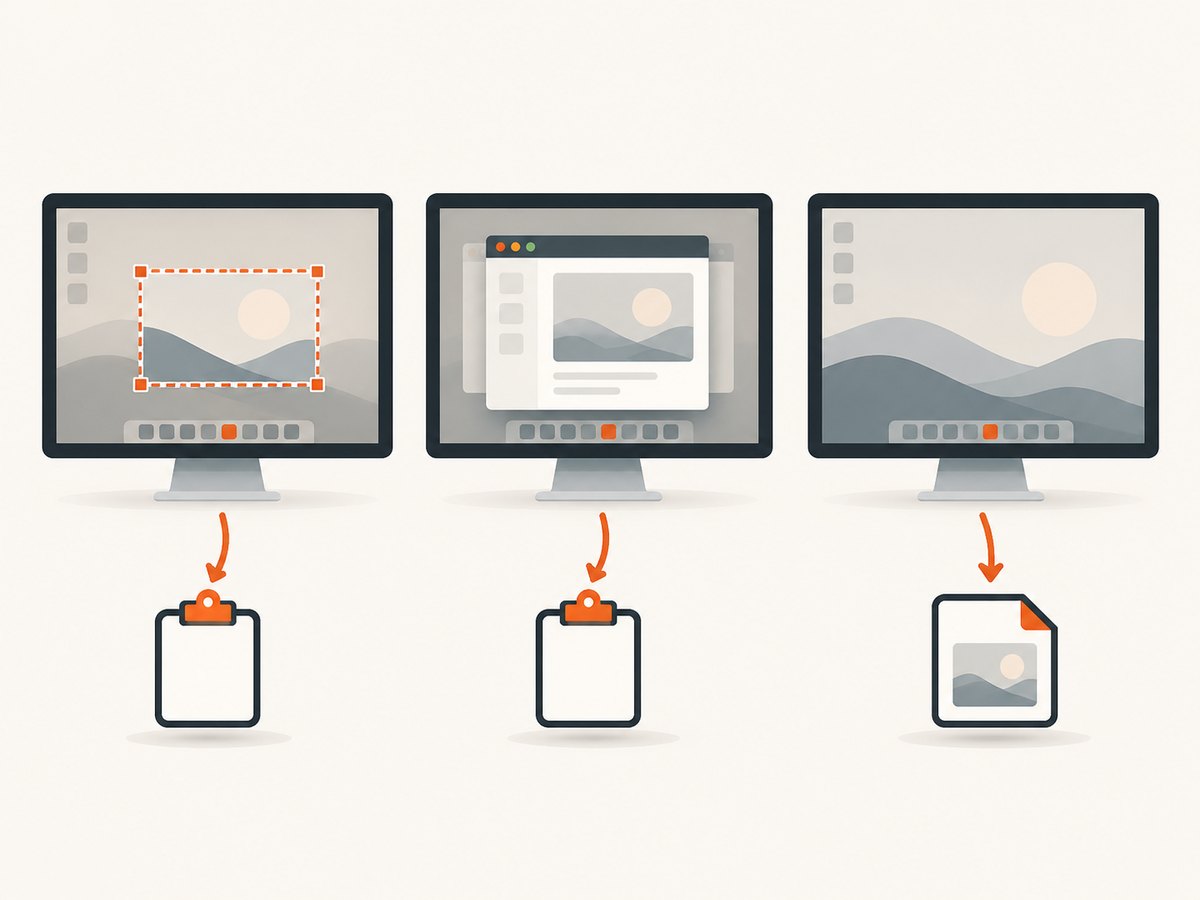
For a selected area in Windows 11, press Windows + Shift + S, choose a snipping mode, and select what to capture; the image is copied to the clipboard. For a full-screen screenshot saved as a file, press Windows + PrtScn. For only the active window, press Alt + PrtScn and paste with Ctrl + V.
These shortcuts have different results: some copy an image for you to paste, while Windows + PrtScn saves a file directly. The exact Print Screen behavior can also depend on a Windows setting and your keyboard. Microsoft documents the available shortcuts in its Snipping Tool guide, Windows keyboard shortcuts reference, and Print Screen instructions.
1. Windows 11 screenshot shortcuts at a glance
| What you want | Shortcut | What happens |
|---|---|---|
| Select part of the screen | Windows + Shift + S | Opens screen snipping. Choose a mode and select a region; the image is copied to the clipboard. |
| Save a full-screen screenshot | Windows + PrtScn | Captures the full screen and saves it in Pictures\Screenshots. |
| Copy the full screen | PrtScn | Usually copies a full-screen capture to the clipboard, unless the Print Screen setting changes its action to open screen snipping. |
| Copy the active window | Alt + PrtScn | Copies the active window. Paste it into an app with Ctrl + V. |
| Record a screen region | Windows + Shift + R | Opens Snipping Tool’s video capture overlay. Select an area and start recording. |
| Try a device-specific fallback | Fn + Windows + Space Bar | May capture the screen on some devices without a PrtSc key; support depends on the hardware. |
For the quickest region capture, use Windows + Shift + S. For a screenshot you can find as a file without pasting it elsewhere, use Windows + PrtScn. Microsoft’s instructions cover copying a window or screen and the different Snipping Tool modes.
2. Capture part of the screen with Windows + Shift + S
- Press Windows + Shift + S.
- When the snipping overlay appears, choose the capture mode: rectangle, freeform, window, or full screen.
- For rectangle or freeform mode, select the screen area you want. In window mode, select the target window; in full-screen mode, capture the screen.
- Paste the captured image into your destination app with Ctrl + V, or open the Snipping Tool notification to review, annotate, save, or share it.
A rectangular snip is useful for a precise region. Freeform lets you draw an outline. Window mode is suited to one app window, while full-screen mode captures the whole display. If the notification disappears, open Snipping Tool to work with the capture. Its settings include automatic saving and the default Screenshots folder; see Microsoft’s Snipping Tool guide for the current controls.
3. Capture the full screen or active window
Save a full-screen image directly
Press Windows + PrtScn. Windows saves the image in Pictures\Screenshots. Open File Explorer and browse to Pictures, then Screenshots. On a setup that redirects the Pictures folder, check that folder’s actual location.
Copy the full screen to paste somewhere
Press PrtScn to copy the screen capture, then switch to an app such as an image editor or document and press Ctrl + V. If PrtSc opens the snipping overlay instead, check the Windows setting described below.
Copy just the active window
Click the window you want so it is active, press Alt + PrtScn, then paste with Ctrl + V. This is handy when you want to share one app without capturing the rest of the desktop.
4. Clipboard capture or saved file?
A clipboard capture is held for pasting; it is not automatically a file you can find in a folder. After Windows + Shift + S or a clipboard-style PrtScn capture, use Ctrl + V in an app. To make a file, save the capture from Snipping Tool or the app where you pasted it. Windows + PrtScn is the direct shortcut for saving a full-screen image in Pictures\Screenshots.
| Capture action | Default destination | How to get a file |
|---|---|---|
| Windows + Shift + S | Clipboard | Open the Snipping Tool capture and save it, or paste into an app and save there. |
| PrtScn | Clipboard in its documented default behavior | Paste into an app and save; the setting may instead open snipping. |
| Alt + PrtScn | Clipboard, active window | Paste into an app and save. |
| Windows + PrtScn | Pictures\Screenshots |
Already saved as a file. |
5. Menus, delayed captures, and screen recording
To capture a menu that closes when you try to use the overlay, set up the menu first. Microsoft’s Snipping Tool guide describes using Ctrl + PrtScn to bring up the capture overlay while the menu is visible. Snipping Tool also has a delay option so you can give yourself time to open a menu or arrange the screen before capture.
If you need a video rather than a still image, press Windows + Shift + R, select a region, and start recording. The recording opens in Snipping Tool and can be saved; Microsoft’s guide also describes editing it in Clipchamp. This shortcut records a selected region, while the screenshot shortcuts above create still images.
6. What to do if your keyboard has no PrtSc key
First check the key legends for a secondary Print Screen function. On some keyboards, you may need to hold Fn to use it. Microsoft also lists Fn + Windows logo key + Space Bar as a possible fallback on some devices, but it is hardware-dependent and is not guaranteed on every laptop.
You can avoid the PrtSc key for a selected area by using Windows + Shift + S. To save a full-screen image, use the Snipping Tool interface and save the capture. If no shortcut behaves as expected, check your keyboard’s documentation for its Fn combinations.
7. Fix common screenshot problems
| Problem | Likely cause | What to try |
|---|---|---|
| PrtSc opens an overlay instead of copying the screen | The Print Screen accessibility setting is configured to open screen snipping. | Go to Settings > Accessibility > Keyboard and check Use the Print Screen button to open screen snipping. Turn it off if you want PrtSc to use its clipboard behavior. |
| I took a screenshot but cannot find a file | The shortcut copied the image to the clipboard instead of saving it. | Paste with Ctrl + V into an app, then save. Or use Windows + PrtScn for a full-screen file in Pictures\Screenshots. |
| Windows + PrtScn did not save where I expected | The Pictures folder may be redirected, or the key combination may not have registered on this keyboard. | Check the actual Pictures folder location. Try holding Fn with the keyboard’s PrtSc function, or use Snipping Tool and save the capture. |
| The no-PrtSc shortcut does nothing | Fn + Windows + Space Bar is supported only on some devices. | Use Windows + Shift + S or check the device documentation for the right hardware shortcut. |
| The screen capture is not in the app I expected | A clipboard capture needs an explicit paste action. | Click the destination app and press Ctrl + V. If you need a file, use the app’s save control. |
| A menu closes before I can capture it | Opening the overlay may dismiss the menu. | Set up the menu first, then use the documented Ctrl + PrtScn overlay path or Snipping Tool’s delay option. |
8. Or skip the browser setup
Windows shortcuts capture your local screen. If you need an image of a web page as it appears in a browser, ScreenshotNeo provides a screenshot API: one GET request returns a PNG, JPEG, WebP, or PDF. It accepts cookie or consent banners like a visitor and removes more than 60 known consent platforms, newsletter popups, and chat widgets before capture; each cleanup step can be turned off. Bot checks and CAPTCHAs, blank pages, timeouts, failed loads, and cache hits cost nothing, and the response identifies the page verdict and billing status in headers.

For example, this cURL request captures a web page to a WebP file:
curl -G "https://api.screenshotneo.com/v1/shot" -d access_key=YOUR_API_KEY --data-urlencode url=https://stripe.com -o shot.webpSee the ScreenshotNeo API documentation for request options. ScreenshotNeo also has an MCP server with take_screenshot, get_page_info, and capture_pdf tools for Claude, Cursor, and other MCP clients. The free plan includes 1,000 screenshots each month with no card; paid plans start at $5 for 3,000 screenshots. Learn about ScreenshotNeo or sign up for 1,000 free screenshots a month, no card required.
9. FAQ
How do I take a screenshot on Windows 11?
Use Windows + Shift + S to select an area, Windows + PrtScn to save a full-screen image, or Alt + PrtScn to copy the active window.
Where did my Windows screenshot go?
If you used Windows + PrtScn, look in Pictures\Screenshots. If you used Windows + Shift + S or a clipboard-style Print Screen action, paste it into an app or save it from Snipping Tool.
Can I screenshot only one app?
Yes. Make the app active, press Alt + PrtScn, and paste with Ctrl + V. You can also choose window mode in the Snipping Tool overlay.
Can Windows 11 capture video with a shortcut?
Yes. Windows + Shift + R opens Snipping Tool’s video capture overlay for recording a selected region.


