BlogScreenshots on your device
Windows 11 Screenshot Tools: Built-In Features and Shortcuts
Learn every built-in Windows 11 screenshot and recording shortcut, where files are saved, how to edit captures, and which method fits each task.
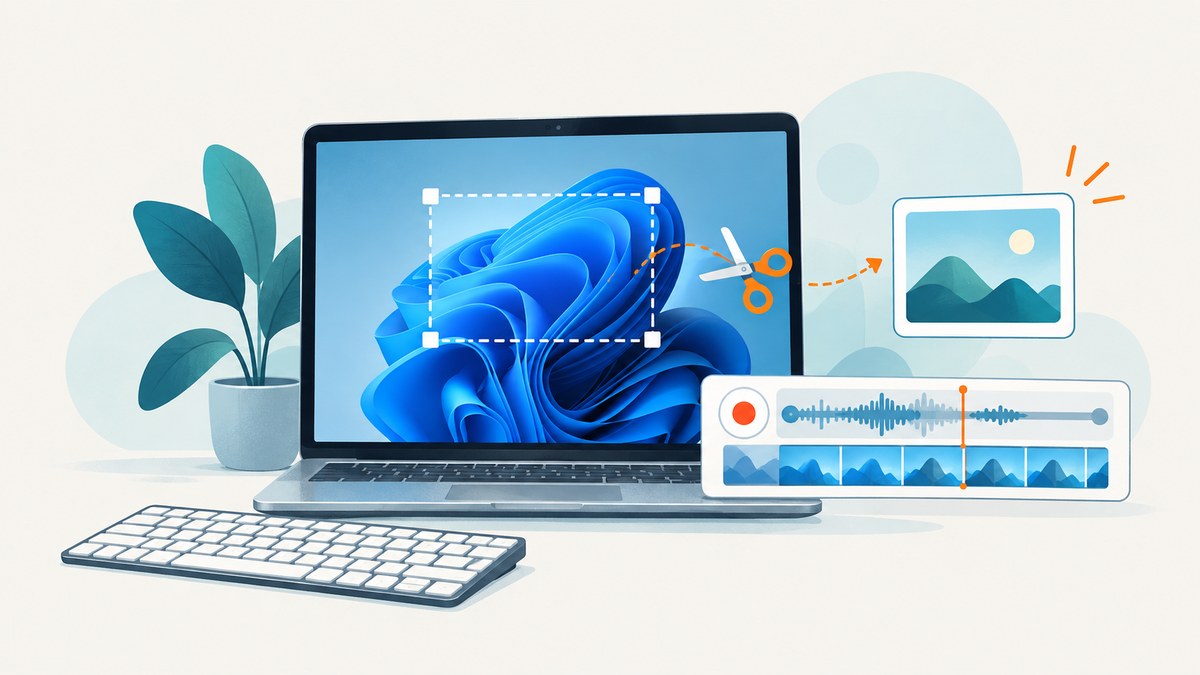
Windows 11 already includes tools for still screenshots and screen recordings. Use Windows+Shift+S for a selected area, Windows+PrtScn to save the full screen immediately, and Windows+Shift+R to record a selected region as an MP4. A device without a Print Screen key can use Fn+Windows+Space, depending on its hardware.
Quick shortcut guide
| Need | Shortcut | Output | Default location or behavior |
|---|---|---|---|
| Capture part of the screen | Windows+Shift+S | Still image | Opens the Snipping Tool overlay; the capture goes to the Snipping Tool workflow and clipboard |
| Save the entire screen | Windows+PrtScn | PNG still image | Pictures\Screenshots |
| Copy the entire screen | PrtSc | Still image in clipboard | Paste into an app; it does not automatically create a file |
| Copy the active window | Alt+PrtSc | Still image in clipboard | Paste into Paint, Word, an editor, or another app |
| Record a selected region | Windows+Shift+R | MP4 video | Videos\Screen Recordings |
| No Print Screen key | Fn+Windows+Space | Still screenshot | Hardware-dependent alternate shortcut |
Microsoft documents these shortcuts in its Windows keyboard shortcuts reference and its Snipping Tool guide.
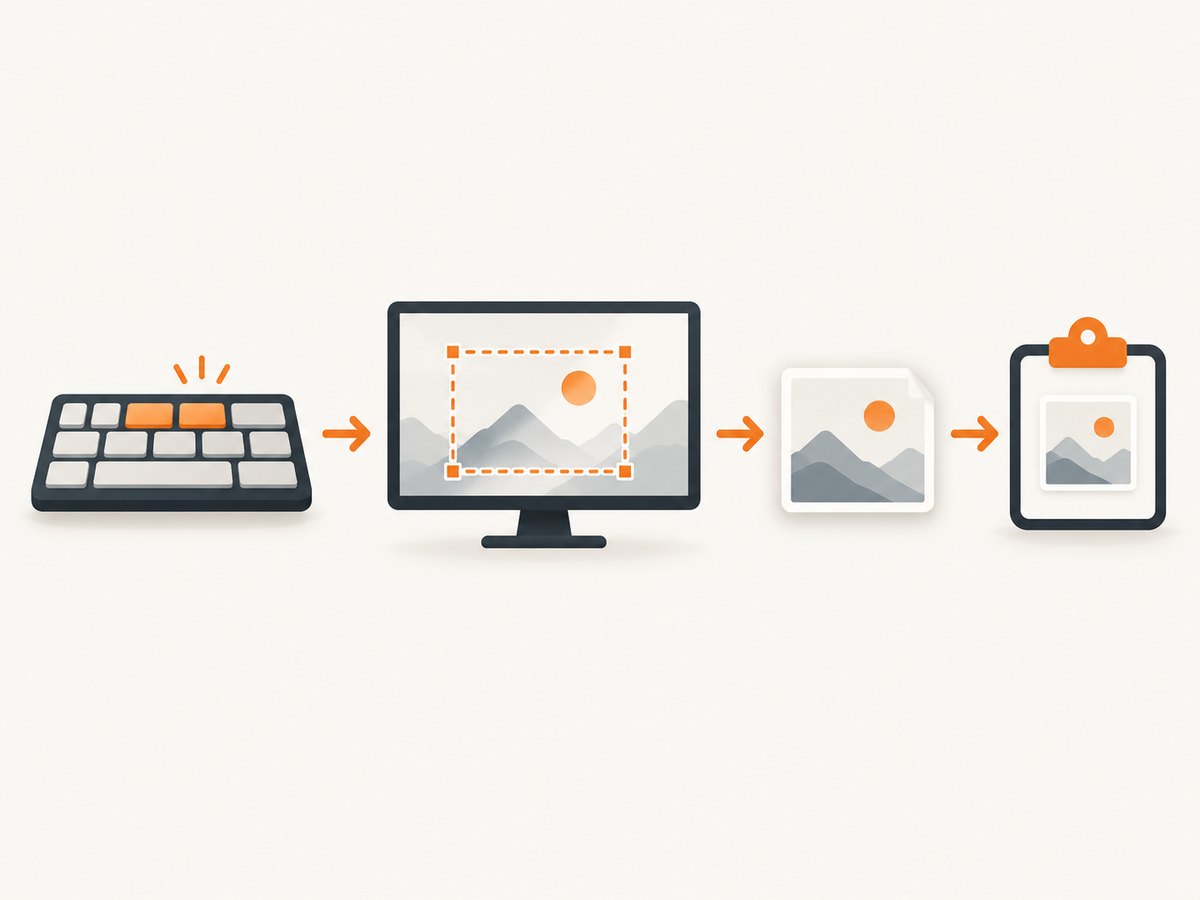
How to take a partial screenshot with Windows+Shift+S
- Press Windows+Shift+S.
- Choose a capture mode from the toolbar: rectangular, freeform, window, or full screen.
- Drag around the area, click a window, or select the full-screen option.
- Select the notification that appears to open the capture in Snipping Tool.
- Annotate, crop, copy, share, or save the image.
This is the best default shortcut when you need only part of a display. A rectangular snip is useful for a dialog or chart; freeform snipping follows an irregular shape; window snipping captures one application window; full-screen snipping captures all visible displays in the Snipping Tool workflow.
Editing and text actions
Snipping Tool includes pen and highlighter annotations, shapes, an eraser, crop, undo and redo, save, and share actions. Its text actions can extract words from an image, and Microsoft says this recognition runs locally on the device. Treat extracted text as editable content: review it when the source is blurry, uses unusual fonts, or contains tables.
How to save a full-screen screenshot directly
- Press Windows+PrtScn.
- Open File Explorer and choose Pictures.
- Open Screenshots.
- Open, rename, move, or share the image.
This shortcut saves the image without requiring a paste step. If OneDrive is managing your Pictures folder, the effective path may be inside your OneDrive Pictures directory; search for Screenshots in File Explorer if the local folder is empty.
How to copy the screen or active window
Copy the whole screen
Press PrtSc, then paste with Ctrl+V into Paint, an email, a document, or an image editor. The Print Screen key can be configured to open screen snipping instead of copying the full display.
Copy only the active window
Focus the window you need and press Alt+PrtSc. Paste the result into the destination app. This avoids including unrelated windows or the taskbar.
Change Print Screen behavior
Microsoft’s current documented path is Settings > Accessibility > Keyboard. Change Use the Print Screen button to open screen snipping. Windows updates can change wording or defaults, so search Settings for “Print Screen” if the label differs.
How to record your screen with Windows+Shift+R
- Press Windows+Shift+R.
- Drag over the region you want to record.
- Start the recording from the Snipping Tool video overlay.
- Stop when finished and save the clip.
- Find the MP4 under
Videos\Screen Recordings.
The video snip is for a selected rectangular region rather than an unrestricted recording of every monitor. You can keep the captured video as-is or open it in Clipchamp for editing, captions, and audio.

Where Windows 11 saves screenshots and recordings
| Capture method | What is produced | Where to look |
|---|---|---|
| Windows+Shift+S | Snipping Tool capture and clipboard entry | Save manually from Snipping Tool; paste from the clipboard |
| Windows+PrtScn | Saved still image | Pictures\Screenshots |
| PrtSc or Alt+PrtSc | Clipboard image | Paste into another application |
| Windows+Shift+R | Saved MP4 | Videos\Screen Recordings |
Clipboard history is separate from file saving. Press Windows+V to open it; Windows displays an enable prompt if clipboard history is off. Clipboard entries can be cleared or expire, so save anything you need to retain.
Choosing the right built-in method
| Situation | Use | Reason |
|---|---|---|
| One small area for a support ticket | Windows+Shift+S, rectangle | Fast selection and annotation |
| One application window | Windows+Shift+S, window mode, or Alt+PrtSc | Excludes surrounding content |
| Everything visible, saved automatically | Windows+PrtScn | Creates a file immediately |
| Text or arrows must be added | Snipping Tool | Built-in markup tools |
| A short demonstration of a UI action | Windows+Shift+R | Records a selected region as MP4 |
| Extract words from a screenshot | Snipping Tool text actions | Local text recognition |
Hardware and multi-monitor edge cases
- No PrtSc key: Try Fn+Windows+Space. Laptop layouts vary, so consult the keyboard manufacturer’s documentation if it does not respond.
- Function-lock mode: Some keyboards require Fn with PrtSc, while others expose PrtSc directly. Toggle Fn Lock if the shortcut appears unresponsive.
- Multiple displays: Full-screen methods can include all visible displays. Use window or rectangular snipping when only one monitor should appear.
- Protected video: Streaming services and secure applications may show a black or restricted frame. Windows shortcuts cannot remove application-level capture protection.
- Permissions: A managed work PC may disable screen capture or clipboard features through policy.
Copilot+ PC-only Snipping Tool features
Microsoft lists Perfect Screenshot and Color picker as features available only on Copilot+ PCs. Do not expect these controls on every Windows 11 computer. The standard capture modes, annotations, saving, sharing, and text actions are separate capabilities.
Troubleshooting
The shortcut does nothing
Check whether another utility has remapped the key, whether your keyboard needs Fn, and whether an organizational policy blocks capture. Open Snipping Tool from Start to confirm the app itself launches, then install pending Windows updates.
The screenshot is in the clipboard but no file exists
Windows+Shift+S, PrtSc, and Alt+PrtSc are clipboard-oriented workflows. Open the Snipping Tool notification and choose Save, or paste into Paint and save from there.
I cannot find a Windows+PrtScn image
Check Pictures\Screenshots, then check whether Pictures redirects to OneDrive. Search File Explorer for recent PNG files named “Screenshot.”
The recording is missing
Look in Videos\Screen Recordings. Ensure the recording was stopped normally and that the destination drive has free space. A canceled or failed capture may not produce an MP4.
Text extraction is inaccurate
Use a higher-resolution source, crop tightly around the text, and correct the result manually. Recognition quality falls with blur, compression, handwriting, and complex layouts.
The capture includes the wrong window
Use window snipping after focusing the target window, or select a rectangle manually. Full-screen shortcuts intentionally capture more content.
Performance, reliability, and file handling
- Speed: Keyboard shortcuts avoid launching a separate capture utility. Saving and clipboard operations still depend on disk and memory availability.
- Reliability: A direct file shortcut is safer for an image you must keep; clipboard captures can be replaced by the next copy operation.
- Storage: PNG preserves sharp text but creates larger files than JPEG. Delete temporary captures and move recordings off a nearly full drive.
- Privacy: Review the frame before sharing. Screenshots can include notifications, account names, browser tabs, and confidential data.
- Accessibility: If key combinations are difficult, launch Snipping Tool from Start and select a mode with the mouse or touch input.
Or skip the browser setup
Windows shortcuts are ideal for capturing your own desktop. For repeatable screenshots of public web pages, ScreenshotNeo provides a website screenshot API at screenshotneo.com. See the ScreenshotNeo API documentation for all options.
curl -G "https://api.screenshotneo.com/v1/shot" -d access_key=YOUR_API_KEY --data-urlencode url=https://stripe.com -o shot.webpimport requests
r = requests.get("https://api.screenshotneo.com/v1/shot", params={"access_key": "YOUR_API_KEY", "url": "https://stripe.com"}, timeout=90)
open("shot.webp", "wb").write(r.content)const q = new URLSearchParams({ access_key: 'YOUR_API_KEY', url: 'https://stripe.com' });
const res = await fetch(`https://api.screenshotneo.com/v1/shot?${q}`);Before the capture, ScreenshotNeo accepts cookie or consent banners and removes more than 60 known consent platforms, newsletter popups, and chat widgets; each step can be turned off. Bot checks, blank pages, timeouts, failed loads, and cache hits are not billed, and the response identifies the result with X-Page-Verdict and X-Billed headers. Its MCP server lets Claude, Cursor, and other MCP clients use take_screenshot, get_page_info, and capture_pdf. The free plan includes 1,000 screenshots per month with no card; paid plans start at $5 for 3,000. Create a free ScreenshotNeo account.
FAQ
What is the fastest Windows 11 screenshot shortcut?
Use Windows+Shift+S for a selected area, or Windows+PrtScn when you need the full screen saved immediately.
Does Windows+Shift+S save a file?
It opens the Snipping Tool workflow and places the capture in the clipboard. Save it manually from Snipping Tool.
What format is a screen recording?
Windows+Shift+R produces an MP4 in the Videos\Screen Recordings folder.
Can every Windows 11 PC use Perfect Screenshot?
No. Microsoft lists Perfect Screenshot and Color picker as Copilot+ PC features.
How do I screenshot without a Print Screen key?
Try Fn+Windows+Space. The exact behavior depends on the keyboard hardware.


