BlogScreenshots on your device
How to Take a Screenshot on Windows Using Fn Keys
Use the right Fn shortcut for your Windows device, save the capture, and fix common keyboard issues when Print Screen is missing.
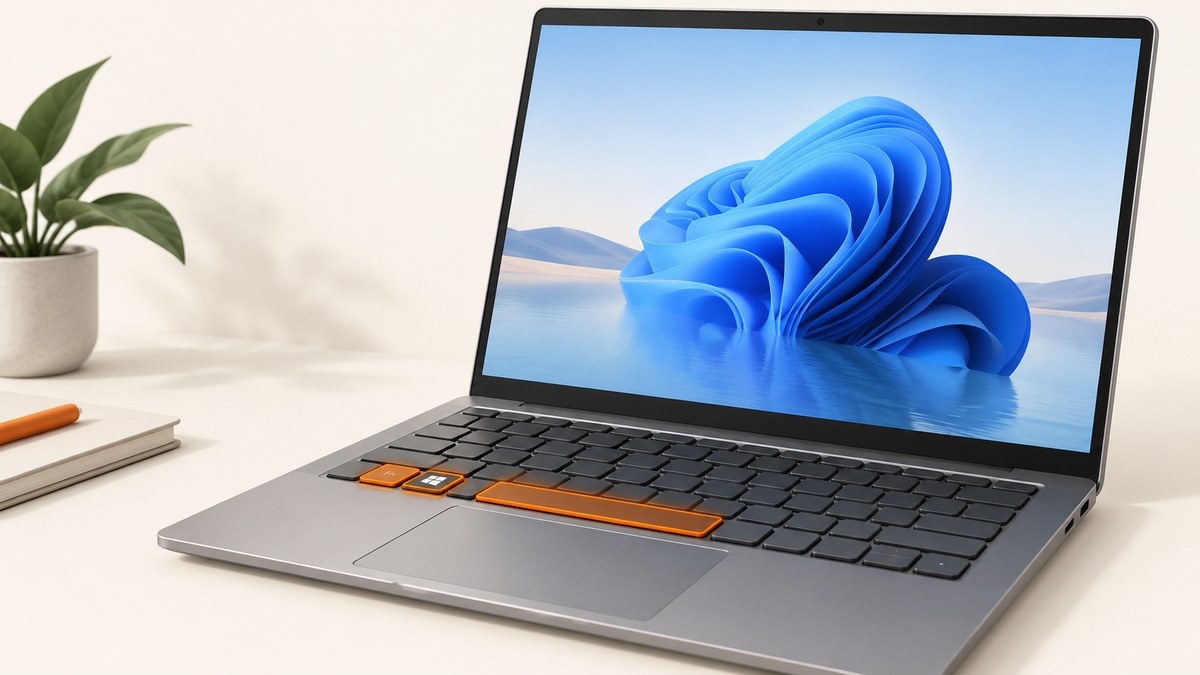
If your Windows keyboard has no dedicated Print Screen key, press Fn + Windows logo key + Space Bar. Microsoft documents this shortcut for Windows 10 and Windows 11 devices without a PrtScn button. The saved image is normally in Pictures > Screenshots.
For a selected region, window, or full screen, press Windows logo key + Shift + S to open Snipping Tool. The exact Fn behavior depends on your computer and keyboard, so a shortcut that works on one model may not work on another.
Which Windows screenshot shortcut should you use?
| Shortcut | Use it for | Result | Hardware notes |
|---|---|---|---|
| Fn + Windows + Space | Devices without a PrtScn key | Windows screenshot capture; look in Pictures > Screenshots | Microsoft’s documented substitute; verify your keyboard manual if it fails |
| Windows + PrtScn | Full-screen capture | Saved image in Pictures > Screenshots | Available only on hardware that supports the combination |
| Windows + Shift + S | A rectangle, freeform area, window, or full screen | Snip opens in Snipping Tool for editing, saving, and sharing | Does not require a dedicated PrtScn key |
Microsoft’s keyboard shortcut guidance says Windows + PrtScn depends on the device and gives Fn + Windows + Space as the option when PrtScn is absent. Its Snipping Tool guide documents the selectable capture modes.
Take a full-screen screenshot with Fn keys
- Find the Fn key, usually beside the Windows or Ctrl key.
- Hold Fn and the Windows logo key.
- While holding them, press Space Bar once.
- Release all keys and open File Explorer > Pictures > Screenshots.
- Open the newest image to confirm that the entire display was captured.
The shortcut may briefly dim the screen or produce a notification. If nothing happens, continue with the troubleshooting section because Fn mappings are set by the device manufacturer.
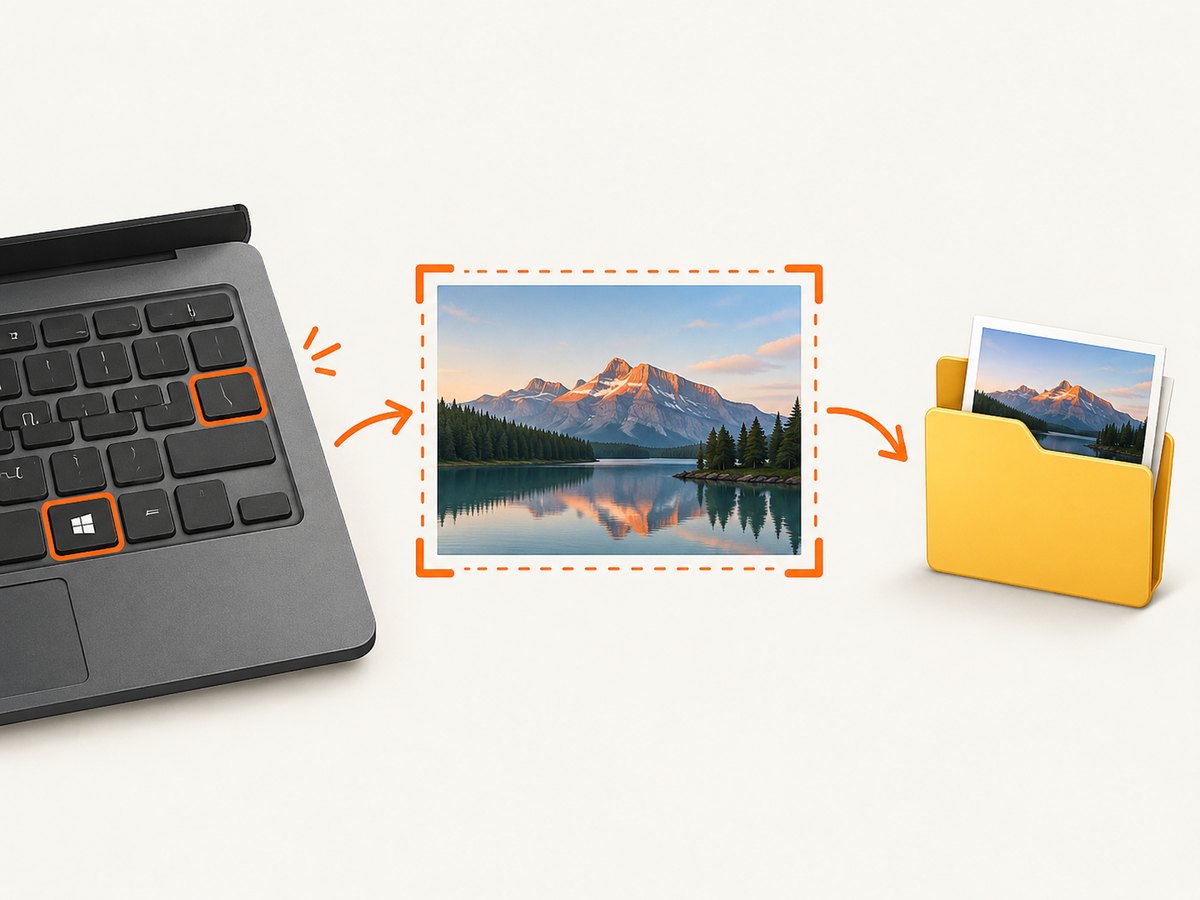
Use Windows + Shift + S for a selected area
- Press Windows + Shift + S.
- Choose Rectangular snip, Freeform snip, Window snip, or Full-screen snip from the overlay.
- Select the area or window.
- Click the Snipping Tool notification to annotate, save, or share the capture.
This is the most direct built-in method when you need only part of a screen. Snipping Tool’s automatic save behavior and destination can be changed in its settings.
Where Windows saves screenshots
For the Windows screenshot shortcuts, check Pictures > Screenshots in your user profile. If OneDrive manages your Pictures folder, the path may appear under your OneDrive folder instead. For Snipping Tool captures, open the app’s settings to review or change automatic saving and the destination.
Fn shortcuts on Microsoft Surface devices
Surface models have device-specific combinations. Microsoft’s Surface documentation lists Fn + Spacebar for a screen snip and Fn + Alt + Spacebar for an active-window screenshot copied to the clipboard on specified Surface families. These combinations are not universal Windows shortcuts. Check the manual for your exact Surface model before relying on them.
What to do when the Fn shortcut does not work
Confirm the keys and order
Use the Windows logo key, not Ctrl or Alt. Hold Fn and Windows together, then tap Space once. Try the shortcut with the keyboard’s Fn-lock state both enabled and disabled.
Check whether Fn Lock is changing the mapping
Many keyboards switch their function-layer behavior with an Fn-lock key or an Fn + Esc combination. The indicator and exact toggle vary by manufacturer. Consult the computer or keyboard manual rather than assuming one universal toggle.
Look for a hidden or alternate PrtScn label
The key may be labeled PrtSc, PrtScn, Print Scr, or share a secondary legend with another key. If it exists, try Windows + that key. Microsoft notes that Windows + PrtScn is hardware-dependent.
Use Snipping Tool as the fallback
Press Windows + Shift + S. This built-in overlay works even when the keyboard has no Print Screen key and lets you choose the capture area.
Check the device manual and keyboard software
Manufacturers can override Fn behavior through firmware or keyboard utilities. Search the exact model number in the manufacturer’s support documentation and install pending keyboard or chipset updates when appropriate.
Check whether another app intercepts the shortcut
Remote-desktop tools, gaming overlays, accessibility software, and keyboard managers can consume Windows shortcuts. Temporarily disable their hotkeys or capture from a local Windows session.
Check storage and permissions
If the shortcut appears to work but no file is visible, check the Pictures folder, OneDrive’s Pictures folder, available disk space, and whether your profile can write to that directory.
Clipboard versus saved-file captures
A shortcut that copies an image to the clipboard does not necessarily create a file. Open Paint, Snipping Tool, or another image editor and press Ctrl + V to paste a clipboard capture, then save it manually. A shortcut that saves automatically writes a file to the Screenshots folder.
Capture a website without using the desktop keyboard
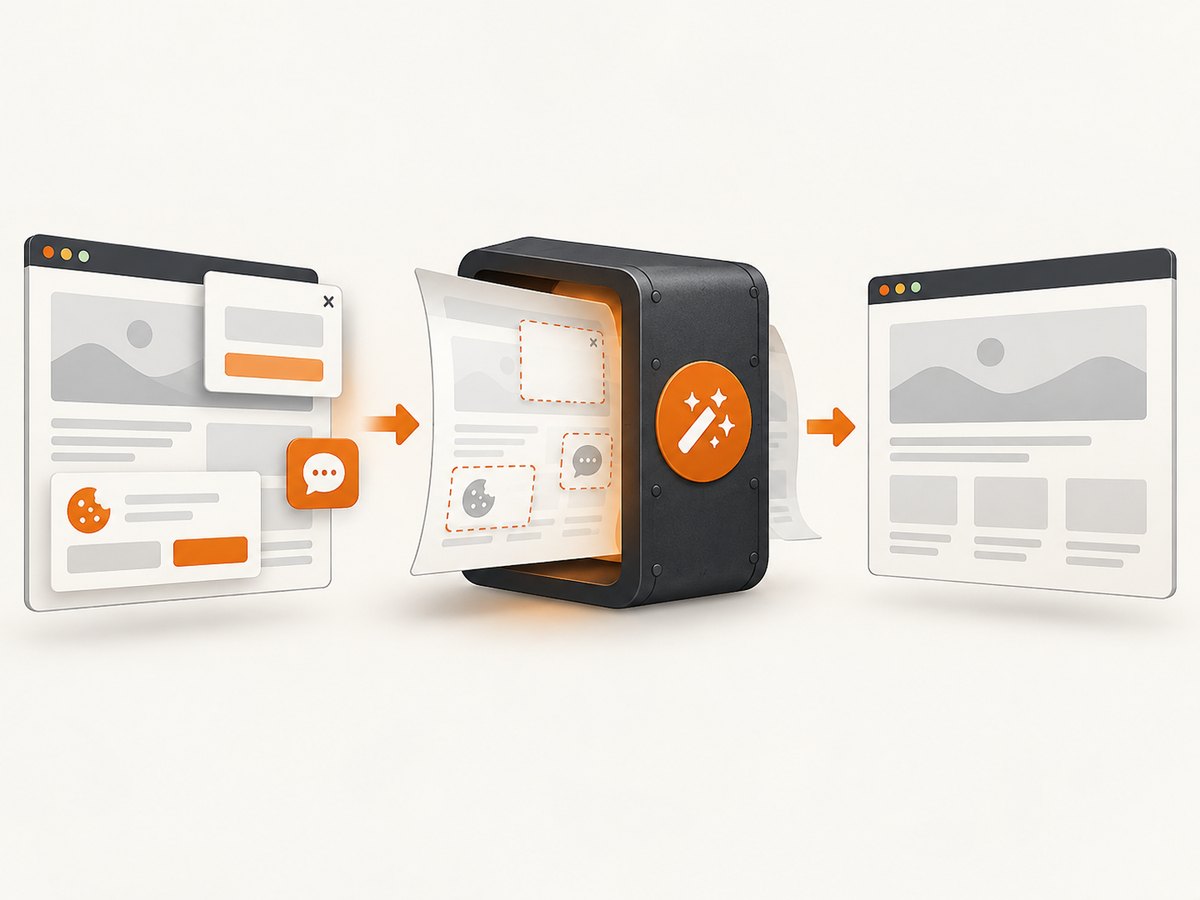
Fn shortcuts capture what is visible on your local display. For repeatable website images, a screenshot API can load the page at a chosen viewport and return an image or PDF. ScreenshotNeo is a website screenshot API and MCP server. It removes cookie banners, newsletter popups, and chat widgets before capture; bot checks, blank pages, failed loads, timeouts, and cache hits are not billed. Every response identifies the page verdict and billing status.
Or skip the browser setup
Use the one-call endpoint shown in the ScreenshotNeo documentation:
curl -G "https://api.screenshotneo.com/v1/shot" -d access_key=YOUR_API_KEY --data-urlencode url=https://stripe.com -o shot.webpimport requests
r = requests.get("https://api.screenshotneo.com/v1/shot", params={"access_key": "YOUR_API_KEY", "url": "https://stripe.com"}, timeout=90)
open("shot.webp", "wb").write(r.content)const q = new URLSearchParams({ access_key: 'YOUR_API_KEY', url: 'https://stripe.com' });
const res = await fetch(`https://api.screenshotneo.com/v1/shot?${q}`);- Cookie banners, popups, and chat widgets are removed before the shot.
- Bot checks, blank pages, and failed loads are never billed.
- An MCP server lets Claude, Cursor, and other AI agents take screenshots.
- Free usage includes 1,000 screenshots a month with no card; paid plans start at $5 for 3,000 shots.
Create a free ScreenshotNeo account and start with 1,000 screenshots each month at no charge.
Performance, reliability, and cost notes
- Fn and Snipping Tool captures are local and do not require an internet connection.
- For large pages or many URLs, an API avoids keeping a desktop session open and supports repeatable viewport settings.
- ScreenshotNeo supports full-page captures with lazy images loaded, element selectors, dark mode, device presets, custom viewports, retina scale, waits, custom CSS and JavaScript, headers, cookies, user agents, geolocation, caching, asynchronous jobs, bulk capture, and PDF output.
- Only clean ScreenshotNeo shots are billed. Responses include
X-Page-VerdictandX-Billedheaders so you can audit outcomes.
FAQ
What does Fn + Windows + Space do?
It is Microsoft’s documented screenshot shortcut for Windows devices without a PrtScn button.
Why does Windows + PrtScn work on one keyboard but not another?
Microsoft marks that shortcut as hardware-dependent; keyboard firmware and Fn mappings differ by model.
Can I capture only one window?
Yes. Press Windows + Shift + S and select Window snip.
Where is my screenshot if I used Snipping Tool?
Open Snipping Tool settings to see its automatic-save behavior and destination. The standard Windows screenshot folder is Pictures > Screenshots.
Does Fn + Windows + Space work on every laptop?
No. It is the documented general shortcut for devices without PrtScn, but manufacturer-specific mappings can override it. Check the exact model manual if it fails.


