BlogScreenshots on your device
How to Take a Screenshot in Windows With JNA
Capture a Windows window in Java with JNA, handle HWND and GDI errors, save PNGs, and understand when direct BitBlt code is necessary.
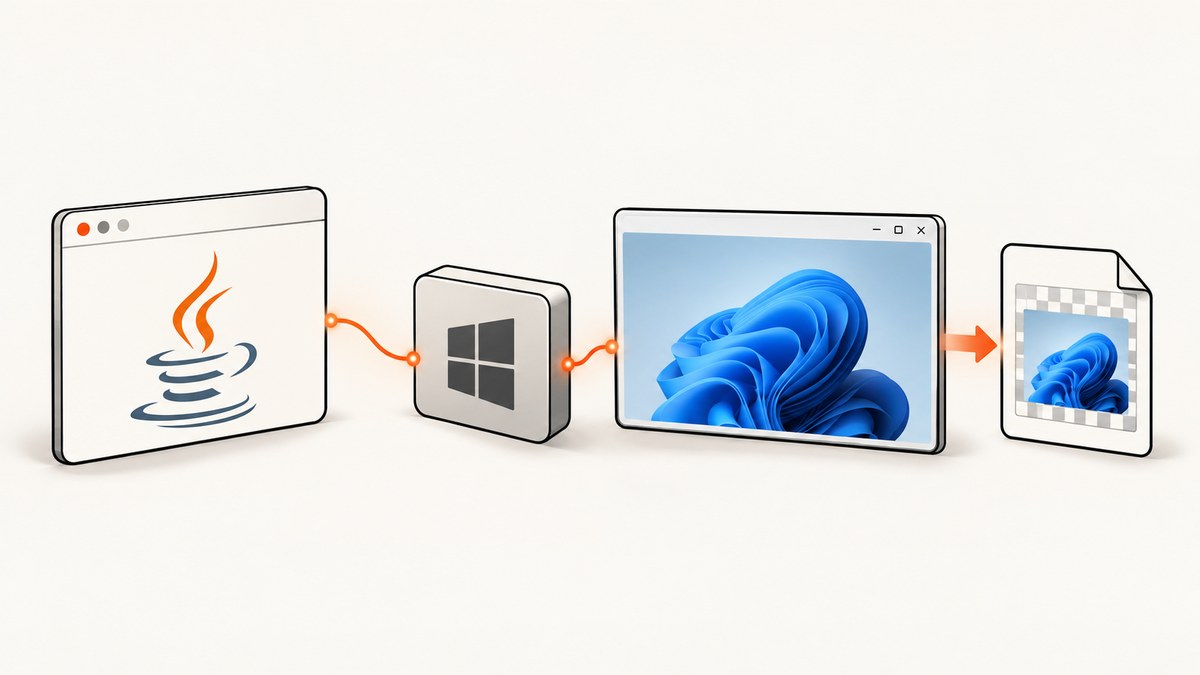
Use JNA Platform’s GDI32Util.getScreenshot(HWND) when you need an image of a specific Windows window. It returns a BufferedImage. Check for null, and handle the documented IllegalStateException cases for zero-sized windows and failed device-context release. For lower-level control, use Win32 GDI device contexts, a compatible bitmap, and BitBlt with SRCCOPY.
1. Add JNA Platform
The helper is in the com.sun.jna.platform.win32 package. This Maven example uses the JNA 5.18.0 artifacts documented in the current API reference; keep the JNA and JNA Platform versions identical.
<dependency>
  <groupId>net.java.dev.jna</groupId>
  <artifactId>jna</artifactId>
  <version>5.18.0</version>
</dependency>
<dependency>
  <groupId>net.java.dev.jna</groupId>
  <artifactId>jna-platform</artifactId>
  <version>5.18.0</version>
</dependency>
See the GDI32Util API reference before upgrading versions.
2. Capture a window by title
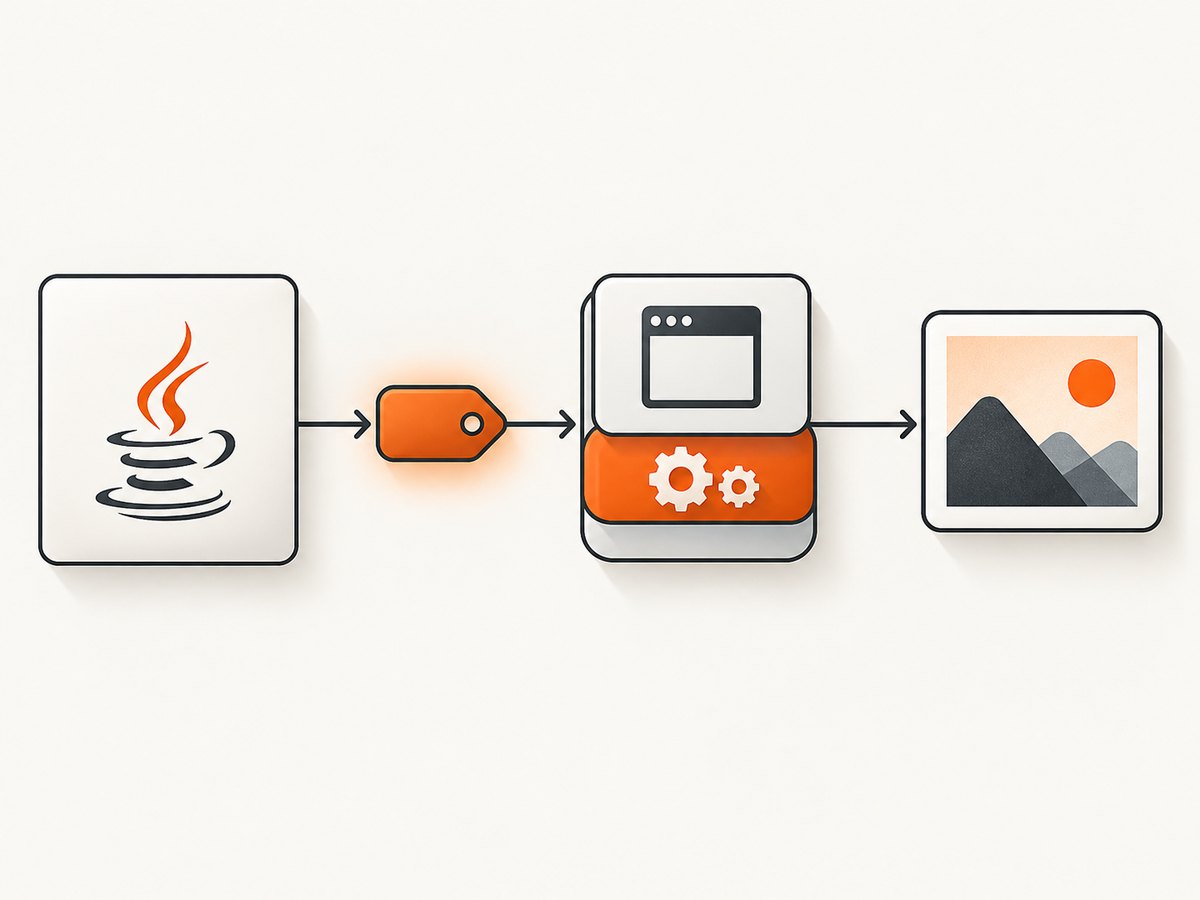
Windows APIs identify windows with an HWND. The example below finds a top-level window by its exact title, captures it, and writes a PNG.
import com.sun.jna.platform.win32.GDI32Util;
import com.sun.jna.platform.win32.User32;
import com.sun.jna.platform.win32.WinDef.HWND;

import javax.imageio.ImageIO;
import java.awt.image.BufferedImage;
import java.io.File;

public final class WindowScreenshot {
    public static void main(String[] args) throws Exception {
        String windowTitle = args.length > 0 ? args[0] : "Calculator";
        File output = new File(args.length > 1 ? args[1] : "window.png");

        HWND hwnd = User32.INSTANCE.FindWindow(null, windowTitle);
        if (hwnd == null) {
            throw new IllegalArgumentException("No top-level window found with title: " + windowTitle);
        }

        BufferedImage image = GDI32Util.getScreenshot(hwnd);
        if (image == null) {
            throw new IllegalStateException("Windows could not construct an image for the window");
        }

        if (!ImageIO.write(image, "png", output)) {
            throw new IllegalStateException("No PNG writer is available");
        }
        System.out.printf("Saved %dx%d image to %s%n",
                image.getWidth(), image.getHeight(), output.getAbsolutePath());
    }
}
Run it on Windows with the exact visible title:
mvn -q compile exec:java \
  -Dexec.mainClass=WindowScreenshot \
  -Dexec.args='"Calculator" calculator.png'
FindWindow returns only a matching top-level window. If several windows share a title, enumerate windows and choose the correct handle instead of relying on a title lookup.
3. Save JPEG or another format
GDI32Util returns a normal BufferedImage, so Java’s ImageIO can encode it.
BufferedImage image = GDI32Util.getScreenshot(hwnd);
if (image == null) {
    throw new IllegalStateException("Capture returned no image");
}
ImageIO.write(image, "jpg", new File("window.jpg"));
ImageIO.write(image, "png", new File("window.png"));
PNG preserves lossless pixels and transparency where the returned image contains it. JPEG is smaller for photographic content but introduces compression artifacts. The capture API itself does not select a quality level; encoding does.
4. Handle documented failure cases
| Condition | What to do |
|---|---|
FindWindow returns null |
Verify the title, process state, desktop/session, and that the window is top-level. |
getScreenshot returns null |
Treat the capture as failed and record the window handle and dimensions for diagnosis. |
IllegalStateException for zero width or height |
Wait until the window is created and laid out, then retry. A minimized or transitioning window can have an unusable rectangle. |
IllegalStateException while releasing a device context |
Retry only after investigating the native-resource condition; do not hide the exception or continue using partially initialized native objects. |
These return and exception behaviors are documented in the JNA GDI32Util documentation.
5. Lower-level capture with BitBlt
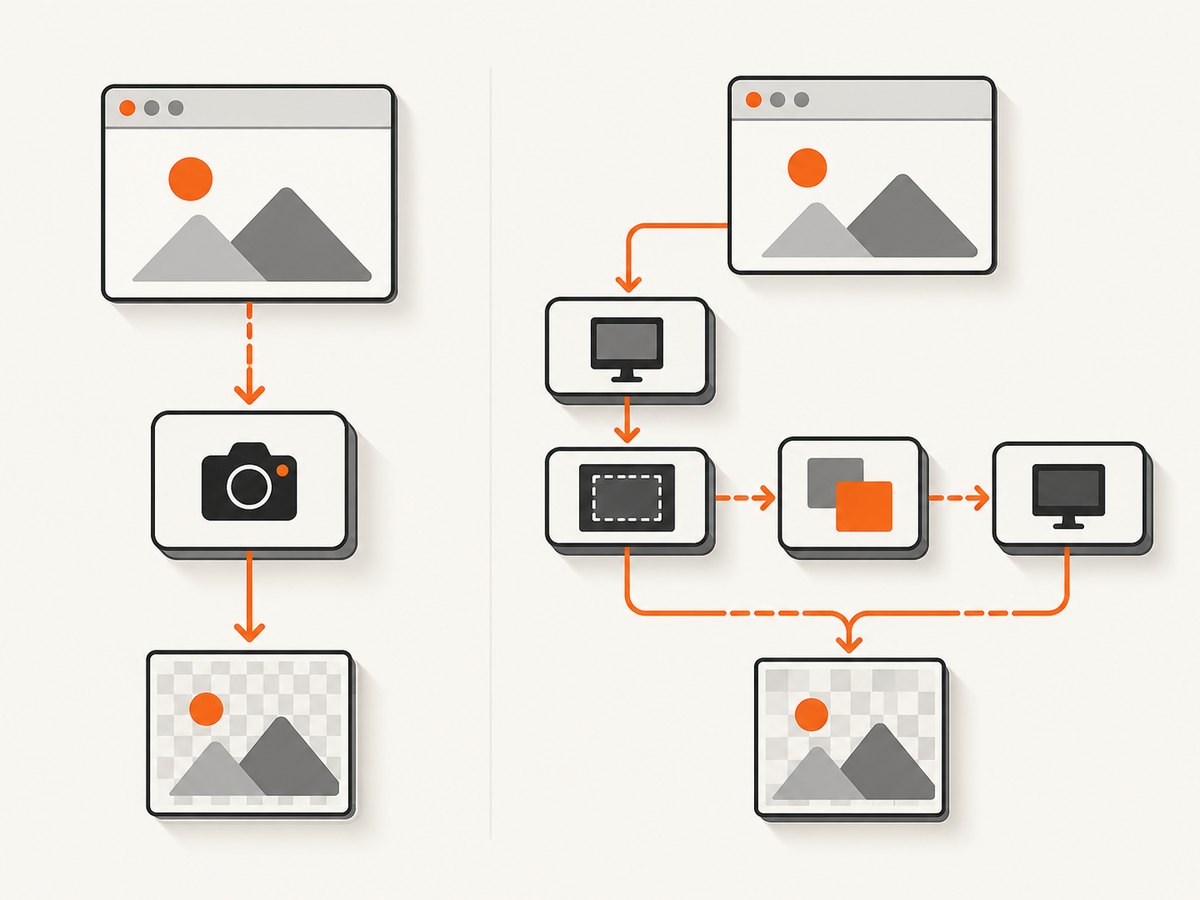
Use direct GDI calls when you need control over the device contexts and bitmap lifecycle. Microsoft describes the workflow as creating a compatible bitmap, selecting it into a memory device context, and copying pixels with BitBlt. JNA maps that operation through GDI32; SRCCOPY copies source pixels to the destination.
import com.sun.jna.platform.win32.GDI32;
import com.sun.jna.platform.win32.User32;
import com.sun.jna.platform.win32.WinDef.HDC;
import com.sun.jna.platform.win32.WinDef.HWND;
import com.sun.jna.platform.win32.WinDef.RECT;
import com.sun.jna.platform.win32.WinGDI.BITMAPINFO;
import com.sun.jna.platform.win32.WinGDI.BITMAPINFOHEADER;
import com.sun.jna.platform.win32.WinGDI.HBITMAP;
import com.sun.jna.ptr.IntByReference;

// Sketch of the native sequence; production code must check every handle
// and release every acquired object in finally blocks.
HWND hwnd = /* obtain the target HWND */ null;
RECT rect = new RECT();
if (!User32.INSTANCE.GetWindowRect(hwnd, rect)) {
    throw new IllegalStateException("GetWindowRect failed");
}
int width = rect.right - rect.left;
int height = rect.bottom - rect.top;
if (width <= 0 || height <= 0) {
    throw new IllegalArgumentException("Window has no drawable area");
}

HDC source = User32.INSTANCE.GetWindowDC(hwnd);
HDC memory = GDI32.INSTANCE.CreateCompatibleDC(source);
HBITMAP bitmap = GDI32.INSTANCE.CreateCompatibleBitmap(source, width, height);
// Select bitmap into memory, call BitBlt(memory, 0, 0, width, height,
// source, 0, 0, GDI32.SRCCOPY), read pixels, then restore and delete
// the selected bitmap, delete the memory DC, and release the window DC.
The complete native path is more error-prone because every acquired DC, selected bitmap, and GDI object must be released in the correct order. Microsoft’s Capturing an Image guide explains the corresponding Win32 lifecycle, and the JNA GDI32 reference documents the BitBlt binding.
6. What this method captures
- The documented helper accepts an
HWND, so its scope is a target window. - The supplied references do not establish guarantees for whole-desktop capture, all monitors, minimized or occluded windows, layered overlays, cursor inclusion, or DPI scaling.
- Virtual-screen metric constants exist in JNA’s User32 mappings, but multi-monitor coordinate and DPI behavior requires an implementation-specific design and verification.
If you need desktop-wide or multi-monitor screenshots, define the coordinate space, DPI-awareness mode, monitor selection, and behavior for windows outside the virtual-screen bounds before choosing the capture API.
7. Reliability and performance checklist
- Find the
HWNDonly after the target process has created its window. - Check the window rectangle and retry after transitions such as restore, resize, or navigation.
- Keep capture and image encoding separate so a slow disk or JPEG encoder does not look like a native capture failure.
- Release native GDI resources immediately when using direct calls; leaked DCs and bitmaps can exhaust the process or desktop GDI quota.
- Record dimensions, window title, process identity, exception type, and elapsed time for failed captures.
- Do not claim a fixed latency or image-quality level without measuring on your target Windows versions, display scaling, and window types.
Capturing an already-created window avoids browser startup cost, but the native path still depends on the window’s state and the cost of encoding and writing the image. There is no per-capture service cost for local JNA; operational cost comes from the Java process, memory, disk, and any infrastructure running it.
8. Troubleshooting
“No window found”
The title may differ from what is displayed, may change dynamically, or may belong to a child window. Enumerate top-level windows and inspect their class names and process IDs when title matching is unreliable.
The image is blank or the size is zero
Capture after the window has been laid out and restored. Check the rectangle before calling the helper. The documented helper can throw for zero width or height.
The screenshot is from the wrong window
Titles are not unique identifiers. Resolve the handle using the owning process, window class, or an enumeration callback, then pass that handle to getScreenshot.
Native resources appear to leak
This usually indicates direct GDI code that failed to restore a selected bitmap or release a DC. Put cleanup in finally blocks and preserve the original native handles.
It works on one monitor but not another
Do not assume logical coordinates equal physical pixels. Verify DPI-awareness settings and virtual-screen coordinates for the target Windows configuration; the cited references do not provide a complete multi-monitor recipe.
9. Or skip the browser setup
If your actual goal is a URL screenshot rather than a native Windows application window, ScreenshotNeo provides one GET request for a PNG, JPEG, WebP, or PDF. Its API accepts the URL and returns the rendered result; the API documentation lists all options.
curl -G "https://api.screenshotneo.com/v1/shot" -d access_key=YOUR_API_KEY --data-urlencode url=https://stripe.com -o shot.webpimport requests
r = requests.get("https://api.screenshotneo.com/v1/shot", params={"access_key": "YOUR_API_KEY", "url": "https://stripe.com"}, timeout=90)
open("shot.webp", "wb").write(r.content)const q = new URLSearchParams({ access_key: 'YOUR_API_KEY', url: 'https://stripe.com' });
const res = await fetch(`https://api.screenshotneo.com/v1/shot?${q}`);Cookie banners, newsletter popups, and chat widgets are removed before the shot. Bot checks, blank pages, failed loads, timeouts, and cache hits are not billed, and response headers identify the page verdict and billing result. An MCP server lets Claude, Cursor, and other MCP clients call take_screenshot, get_page_info, and capture_pdf. The Free plan includes 1,000 screenshots each month with no card; paid plans start at $5 for 3,000.
Create a free ScreenshotNeo account and start with 1,000 screenshots per month at no charge.
10. FAQ
Does JNA capture an entire monitor?
GDI32Util.getScreenshot is documented for an HWND. A desktop or multi-monitor implementation needs separate geometry and DPI decisions.
Can I capture a window without knowing its title?
Yes. Enumerate top-level windows and select one by process ID, class name, visibility, or another property, then pass its HWND to the helper.
Should I use the helper or BitBlt directly?
Use the helper for a straightforward window capture. Use direct GDI calls only when you need control over bitmap creation, pixel transfer, or resource handling.
Does the helper include the mouse cursor?
The supplied documentation does not establish cursor-inclusion behavior, so treat it as implementation-specific and verify it for your application.


