WOFF Font Support in Website Screenshots
Learn why screenshots use fallback fonts, how WOFF and WOFF2 differ, and how to wait for web fonts before capturing pages.
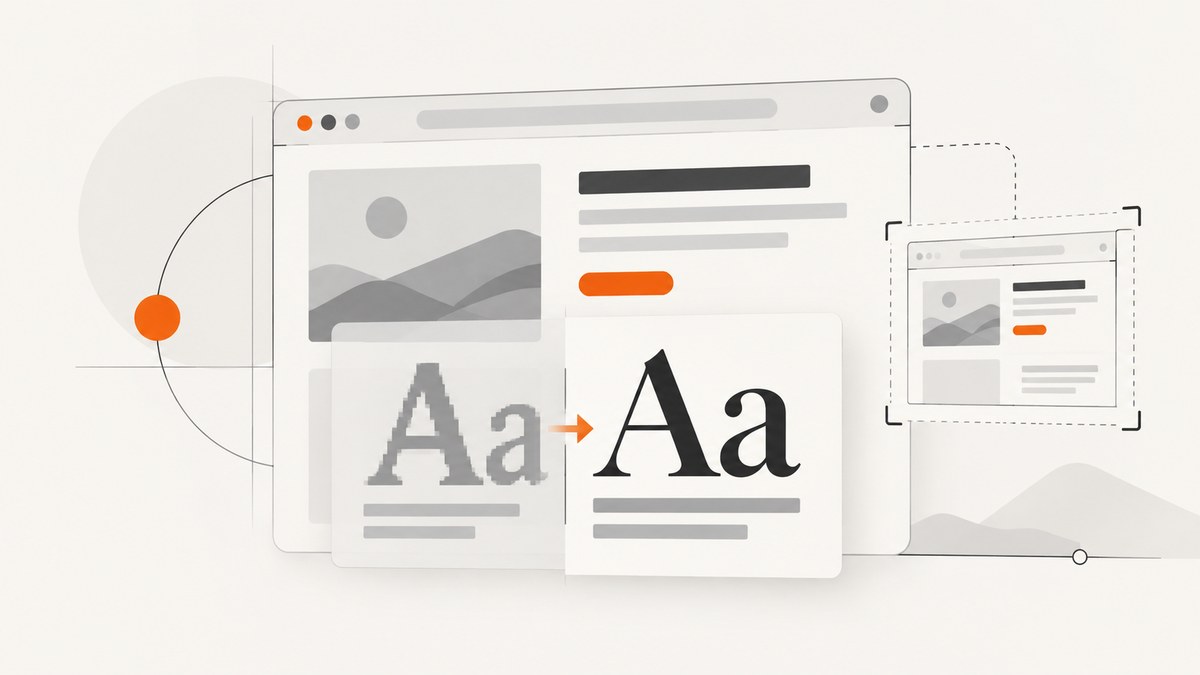
Short answer: WOFF and WOFF2 work in modern Chrome, Firefox, Safari, Edge, and other current browsers when the font request succeeds and the CSS mapping is correct. A screenshot captures the pixels that the browser has rendered at that moment. If capture happens before the font is ready, if the request is blocked, or if the browser cannot decode the format, the image contains a fallback font.
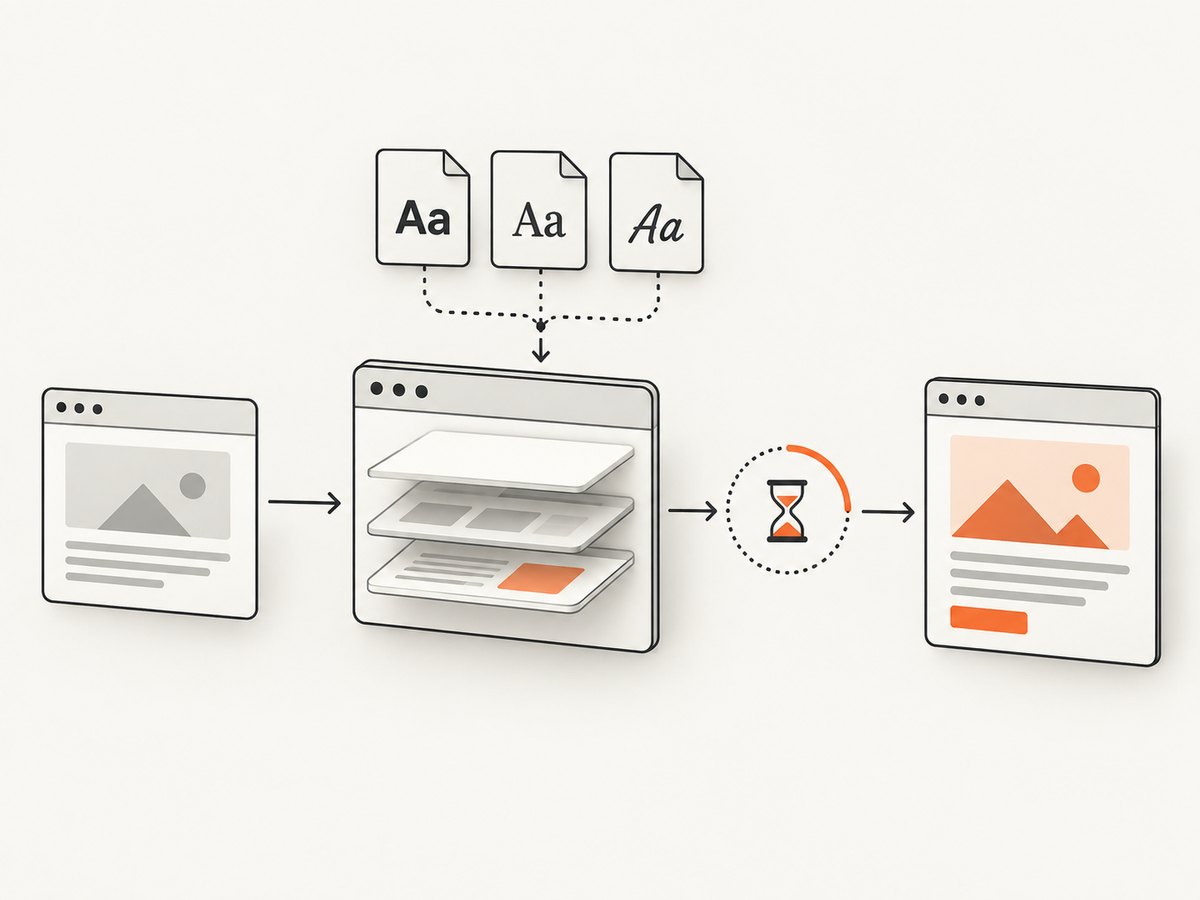
The reliable workflow is to declare a WOFF2 source with a WOFF fallback, verify the request in the same browser used for capture, wait for document.fonts.ready and any application-specific font signal, then keep the browser, operating system, viewport, device scale, and font files fixed for every comparison run.
What WOFF and WOFF2 mean
WOFF is a web-font packaging format. The W3C WOFF specification says its primary purpose is to package fonts linked to web documents through CSS @font-face rules. The browser decodes the packaged data and sends it to its font-rendering APIs; a WOFF file is not an installable desktop font.
WOFF2 serves the same web-delivery role with more efficient compression. The W3C WOFF2 specification describes it as a format for efficiently packaging fonts referenced by CSS @font-face. MDN documents the format('woff') and format('woff2') declarations. Current browsers generally support both formats. Can I Use reports 97.02% global WOFF2 support for August 2026, while Internet Explorer and several older Chrome, Firefox, and Safari versions do not support it or only support it partially.
| Question | WOFF | WOFF2 |
|---|---|---|
| Purpose | Compressed web-font package | Newer, more efficient compressed web-font package |
| CSS declaration | format('woff') |
format('woff2') |
| Modern browser support | Broad | Broadest current support |
| Legacy fallback value | Useful when an older engine must work | Preferred first source for modern engines |
| Screenshot implication | Correct pixels only after download and font activation | Same requirement; compression does not remove the need to wait |
Declare both formats correctly
Put WOFF2 first and WOFF second when you need legacy coverage. Use the same family name and provide every weight and style that your page actually uses.
@font-face {
  font-family: 'Acme Sans';
  src: url('/fonts/acme-sans.woff2') format('woff2'),
       url('/fonts/acme-sans.woff') format('woff');
  font-weight: 400;
  font-style: normal;
  font-display: swap;
}

@font-face {
  font-family: 'Acme Sans';
  src: url('/fonts/acme-sans-bold.woff2') format('woff2'),
       url('/fonts/acme-sans-bold.woff') format('woff');
  font-weight: 700;
  font-style: normal;
  font-display: swap;
}

body { font-family: 'Acme Sans', system-ui, sans-serif; }
A screenshot can still show a fallback if the page asks for font-weight: 600 but only defines 400 and 700, or if it uses a different family spelling. Match the requested weight, style, and stretch to an actual face whenever possible.
Wait for fonts before taking a screenshot
Waiting for the network response is not enough. The browser must download, decode, and activate the face for layout and painting. The CSS Font Loading API exposes that state through document.fonts.
Playwright example
import { chromium } from 'playwright';

const browser = await chromium.launch({ headless: true });
const page = await browser.newPage({
  viewport: { width: 1440, height: 900 },
  deviceScaleFactor: 1
});

await page.goto('https://example.com', { waitUntil: 'domcontentloaded' });

// Wait for every font currently known to the document.
await page.evaluate(() => document.fonts.ready);

// Optional: verify the exact face used by a representative element.
const fontState = await page.evaluate(() => {
  const element = document.querySelector('h1');
  if (!element) return { exists: false };
  const style = getComputedStyle(element);
  return {
    exists: true,
    family: style.fontFamily,
    weight: style.fontWeight,
    status: document.fonts.status,
    loaded: document.fonts.check(`${style.fontWeight} 32px ${style.fontFamily}`)
  };
});
console.log(fontState);

await page.screenshot({ path: 'page.png', fullPage: true });
await browser.close();
If your app loads a route, component, or editor font after initial navigation, expose a page-level signal and wait for it too:
await page.waitForFunction(() => window.appFontsReady === true);
await page.evaluate(() => document.fonts.ready);
For visual regression tests, Playwright’s screenshot assertions wait until two consecutive screenshots produce the same result before comparing the final image. See the Playwright snapshot documentation for the assertion behavior and configuration.
Why the browser looks right but the screenshot does not
- Capture raced the font load. Your interactive browser session had time to finish while the automation took its shot immediately after navigation.
- The request failed. A wrong path, 404 response, blocked cross-origin request, incorrect MIME type, certificate problem, or authentication requirement can leave the page on its fallback.
- The engine is old. An old browser may not decode WOFF2. Keep a WOFF source if those engines are in scope.
- The CSS mapping is wrong. A family name, weight, style, or stretch mismatch causes synthetic styling or fallback selection even when the file downloaded.
- The environments differ. Browser version, operating system text rasterization, device scale, headless mode, hardware, and power conditions can change glyph metrics and pixels. Playwright documents these differences and recommends separate baselines when platforms differ.
Diagnose a fallback font systematically
- Open the capture browser’s network log and filter for
.woffand.woff2. Confirm a successful response, expected content type, and the correct URL. - Inspect the response and page policy for CORS or content-security restrictions. The font must be permitted from the origin serving the page.
- Run
document.fonts.check('400 16px Acme Sans')in the capture page. A false result means the requested face is not usable. - Read
getComputedStyle(element).fontFamily,fontWeight, andfontStyleon a visible element. Compare them with your@font-facedeclarations. - Capture a diagnostic page after
document.fonts.readyand save the browser version, operating system image, viewport, scale factor, and font asset hashes beside the image. - Compare a screenshot taken with web fonts disabled and one taken after the wait. If both are identical, the font may not be applied even though its request succeeded.
Browser and version coverage
The W3C implementation report lists WOFF2 support beginning around Chrome 36, Firefox 39, Edge 14, Safari 10, and iOS Safari 10.2. Can I Use still marks Internet Explorer 5.5 through 11 and several older browser releases as unsupported. Safari 10 through 11.1 is shown as partial in its compatibility table. Treat these as historical compatibility boundaries, not as a guarantee that every embedded or vendor-modified browser behaves identically.
If your screenshot service controls the browser, document that engine and upgrade it deliberately. If your users include legacy engines, retain the WOFF fallback and test an actual representative version. A screenshot from a current Chromium process cannot prove that an old browser will render the same face.
Make visual comparisons reproducible
- Pin the browser version and operating system image.
- Keep viewport dimensions and device scale factor constant.
- Use the same font files, CSS, locale, timezone, and text content.
- Wait for
document.fonts.readyand late-loading application fonts. - Record font asset versions with each baseline.
- Run comparisons on the same headless or headed mode and hardware class.
- Allow for platform-specific baselines when the operating system’s text rasterizer differs.
These controls address two separate problems: a wrong face caused by readiness or loading, and legitimate pixel differences caused by the rendering environment.
Performance, reliability, and cost considerations
WOFF2 normally reduces transfer size, which can shorten the time before document.fonts.ready, but decode time and network latency still matter. Preload only the faces needed above the fold, subset large families, and avoid requesting dozens of unused weights. Do not replace a readiness wait with a fixed delay: a delay can be too short on a slow run and unnecessarily long on a fast one.

For reliable pipelines, fail the capture or mark it inconclusive when required fonts never become available. A screenshot with a fallback face may look valid while silently invalidating a visual comparison. Cache immutable font files with long-lived headers and version their URLs when the bytes change.
Or skip the browser setup
ScreenshotNeo is a website screenshot API and MCP server. It handles the browser capture and returns PNG, JPEG, WebP, or PDF. Its clean-shot flow accepts cookie and consent banners like a visitor, then removes more than 60 known consent platforms, newsletter popups, and chat widgets before capture; each step can be turned off. Bot checks, CAPTCHAs, blank pages, timeouts, failed loads, and cache hits are not billed, and the response identifies the result with X-Page-Verdict and X-Billed headers. See the ScreenshotNeo API documentation for all options.
cURL
curl -G "https://api.screenshotneo.com/v1/shot" \
  -d access_key=YOUR_API_KEY \
  --data-urlencode url=https://example.com \
  -o shot.webp
Python
import requests

r = requests.get(
    "https://api.screenshotneo.com/v1/shot",
    params={"access_key": "YOUR_API_KEY", "url": "https://example.com"},
    timeout=90,
)
r.raise_for_status()
open("shot.webp", "wb").write(r.content)
print(r.headers.get("X-Page-Verdict"), r.headers.get("X-Billed"))
Node.js
const q = new URLSearchParams({
  access_key: 'YOUR_API_KEY',
  url: 'https://example.com'
});
const res = await fetch(`https://api.screenshotneo.com/v1/shot?${q}`);
if (!res.ok) throw new Error(`Screenshot failed: ${res.status}`);
const bytes = new Uint8Array(await res.arrayBuffer());
await Bun.write('shot.webp', bytes);
console.log(res.headers.get('X-Page-Verdict'), res.headers.get('X-Billed'));
ScreenshotNeo supports full-page captures with lazy images loaded, element selection, dark mode, device presets or custom viewports, retina scale, custom CSS and JavaScript, click actions, selector waits, delays, network-idle waits, custom headers and cookies, user agents, authorization, timezone and geolocation, request blocking, transparency, resizing, cache TTLs, signed links, asynchronous jobs with signed webhooks, bulk capture of up to 100 URLs per call, a usage API, and an OpenAPI specification. Its MCP server exposes take_screenshot, get_page_info, and capture_pdf to Claude, Cursor, and other MCP clients.
The free plan includes 1,000 shots per month with no card. Paid plans start at $5 for 3,000 shots; yearly billing gives two months free, and every feature is available on every plan. Create a free ScreenshotNeo account to start with 1,000 screenshots a month and no card.
Troubleshooting checklist
| Symptom | Likely cause | Fix |
|---|---|---|
| Fallback appears intermittently | Capture races font activation | Await document.fonts.ready and an app-specific ready signal. |
| WOFF2 request is 200 but unused | Family, weight, or style mismatch | Compare computed styles with each @font-face declaration. |
| Font request is blocked | CORS, CSP, authentication, or wrong URL | Fix policy and URL, then inspect the same capture browser’s network log. |
| Only old browsers fail | No WOFF fallback or unsupported WOFF2 engine | Declare WOFF2 first and WOFF second; test the target legacy engine. |
| Text wraps differently between machines | OS, browser, scale, or rasterization difference | Pin the environment or maintain platform-specific baselines. |
| Fixed sleep makes jobs slow | Delay is longer than necessary | Use font readiness and selector or network-idle conditions instead. |
FAQ
Is WOFF2 always better than WOFF?
For current browsers, WOFF2 is usually the preferred source because it compresses more efficiently. Keep WOFF when legacy browser coverage or a constrained embedded engine requires it.
Does a successful font download prove the screenshot uses the font?
No. The face can download but fail CSS matching, remain inactive when capture occurs, or be replaced by a different weight or style.
Should I wait a fixed number of seconds?
No. Wait for document.fonts.ready plus any application signal. A fixed delay cannot adapt to network and rendering conditions.
Can screenshots from different operating systems be pixel identical?
Not reliably. Font rasterization and glyph metrics can vary by browser, operating system, device scale, and headless settings. Use controlled environments or separate baselines.
Can an API remove font problems entirely?
An API can standardize the capture browser and provide readiness controls, but the target page still needs valid font URLs, policies, and CSS mappings. Validate those inputs when a custom face is required.


