BlogScreenshots on your device
How to Create a WPF Window Thumbnail and Persist It as Bytes in C#
Render a WPF visual to PNG bytes in C#, choose the right encoder, handle DPI and layout, and distinguish app images from taskbar thumbnails.
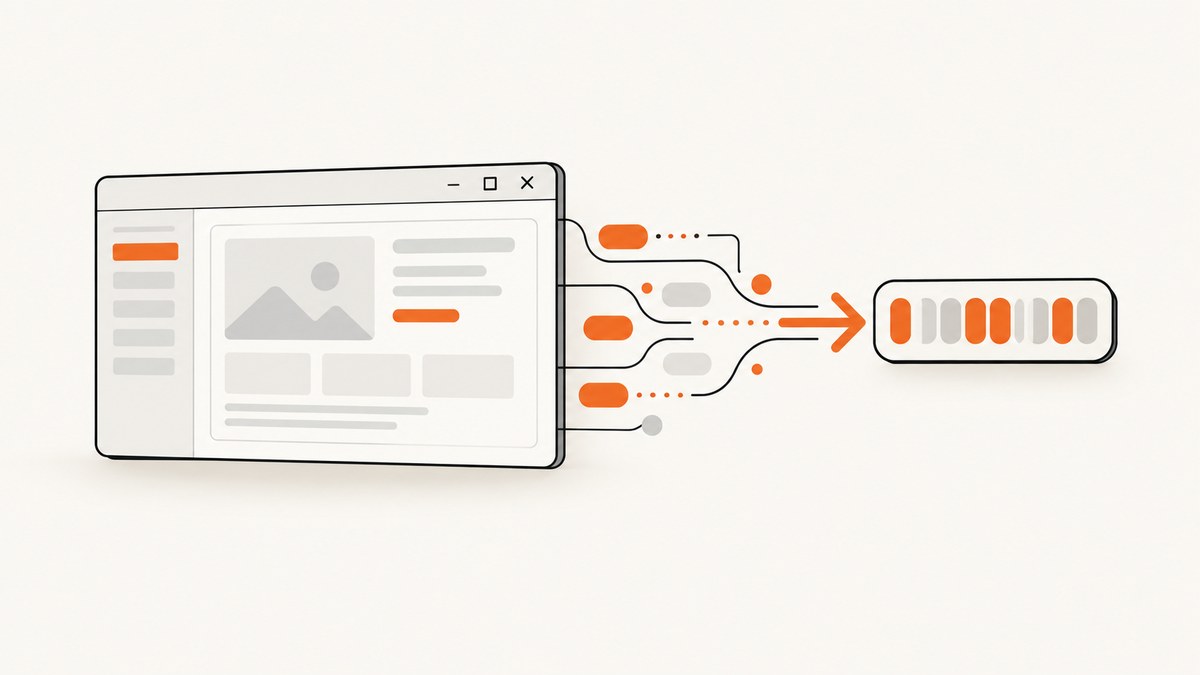
To create an image thumbnail from a WPF window and persist it as bytes, render the WPF Visual with RenderTargetBitmap, encode that bitmap with PngBitmapEncoder, save the encoder to a MemoryStream, and call ToArray(). The result is a complete PNG file in a byte[], suitable for a database, HTTP upload, cache, or message queue.
This captures application content. A Windows taskbar thumbnail is a different feature that uses an HWND and Desktop Window Manager (DWM) APIs; that case is covered separately below.
1. Capture a WPF element as PNG bytes
The following method captures any laid-out FrameworkElement. It uses the element’s actual rendered size, 96 DPI, and 32-bit premultiplied BGRA pixels before PNG encoding.
using System;
using System.IO;
using System.Windows;
using System.Windows.Media;
using System.Windows.Media.Imaging;

public static class WpfCapture
{
    public static byte[] CapturePng(FrameworkElement element)
    {
        if (element == null)
            throw new ArgumentNullException(nameof(element));

        int width = (int)Math.Ceiling(element.ActualWidth);
        int height = (int)Math.Ceiling(element.ActualHeight);

        if (width <= 0 || height <= 0)
            throw new InvalidOperationException(
                "The element must be loaded and laid out before capture.");

        var bitmap = new RenderTargetBitmap(
            width,
            height,
            96,
            96,
            PixelFormats.Pbgra32);

        bitmap.Render(element);

        var encoder = new PngBitmapEncoder();
        encoder.Frames.Add(BitmapFrame.Create(bitmap));

        using var stream = new MemoryStream();
        encoder.Save(stream);
        return stream.ToArray();
    }
}
Call it after layout has completed, such as from the window’s ContentRendered event or after the element has been loaded:
private void Window_ContentRendered(object sender, EventArgs e)
{
    byte[] pngBytes = WpfCapture.CapturePng(MainGrid);
    // Store pngBytes, upload it, or pass it to another component.
}
These are encoded PNG bytes, not raw pixels. You can write them directly to a file:
File.WriteAllBytes("thumbnail.png", pngBytes);2. Why RenderTargetBitmap is not already a PNG
RenderTargetBitmap contains the rendered bitmap in memory. It does not contain a PNG file representation. The encoder performs the file-format conversion:
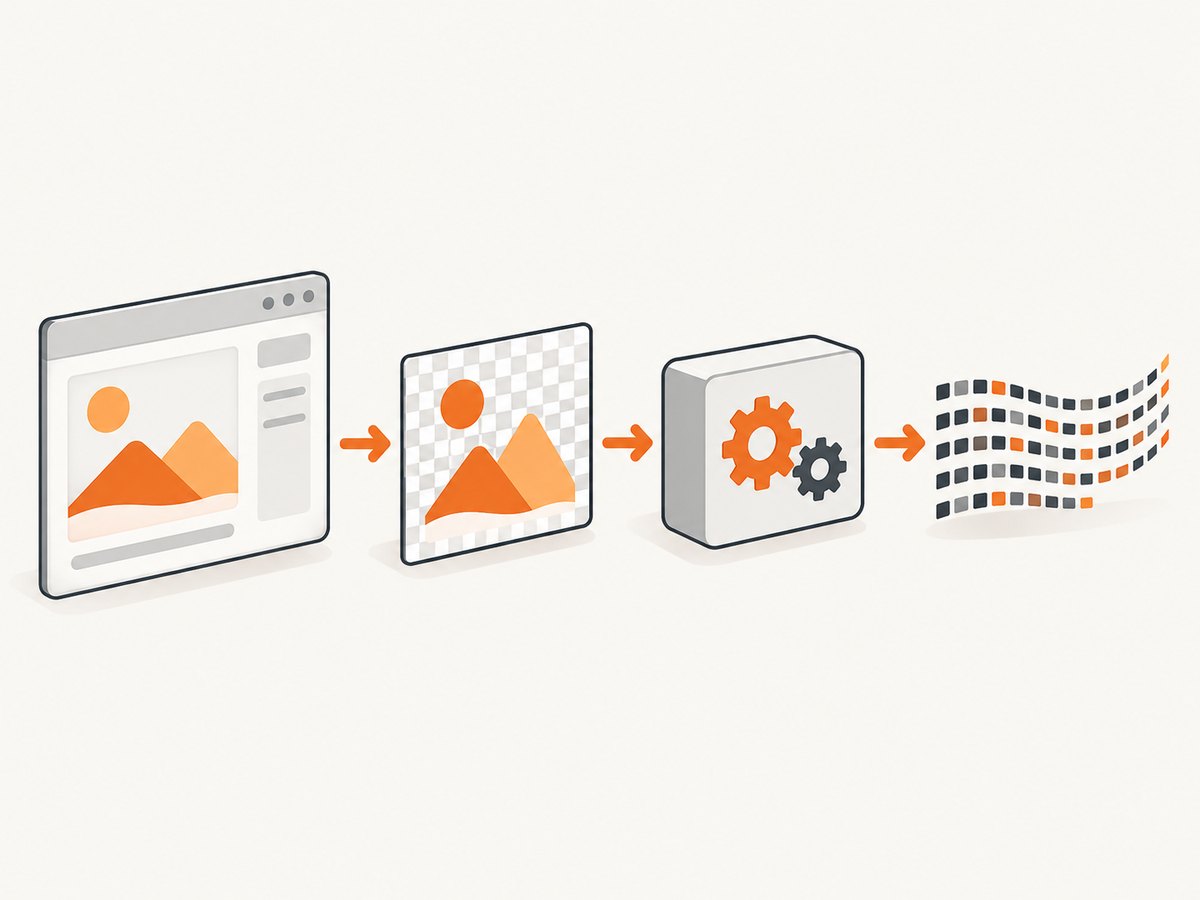
RenderTargetBitmap.Render(visual)renders the selected WPF visual.BitmapFrame.Create(bitmap)wraps the bitmap as an encodable frame.PngBitmapEncoderconverts the frame to PNG format.encoder.Save(stream)writes PNG bytes to the stream.stream.ToArray()copies the complete encoded file into a durablebyte[].
Microsoft documents this rendering and encoding pattern in its WPF visual encoding example. Replacing its file stream with a memory stream gives an in-memory result. The WPF imaging overview lists the available bitmap encoders.
3. Capture a Window, Grid, or another Visual
A Window is a Visual, so you can capture it directly. Capturing a child element is often preferable because it excludes window chrome and captures only the content you intend to show.
public static byte[] CaptureWindow(Window window)
{
    if (window == null)
        throw new ArgumentNullException(nameof(window));

    int width = (int)Math.Ceiling(window.ActualWidth);
    int height = (int)Math.Ceiling(window.ActualHeight);
    if (width <= 0 || height <= 0)
        throw new InvalidOperationException("The window has no laid-out size.");

    var bitmap = new RenderTargetBitmap(
        width, height, 96, 96, PixelFormats.Pbgra32);
    bitmap.Render(window);

    var encoder = new PngBitmapEncoder();
    encoder.Frames.Add(BitmapFrame.Create(bitmap));
    using var stream = new MemoryStream();
    encoder.Save(stream);
    return stream.ToArray();
}
For reusable code, accept a Visual and explicit dimensions. This avoids depending on a particular control type and lets you capture a selected region or component.
public static byte[] CaptureVisualPng(Visual visual, int pixelWidth, int pixelHeight)
{
    if (visual == null) throw new ArgumentNullException(nameof(visual));
    if (pixelWidth <= 0 || pixelHeight <= 0)
        throw new ArgumentOutOfRangeException();

    var bitmap = new RenderTargetBitmap(
        pixelWidth, pixelHeight, 96, 96, PixelFormats.Pbgra32);
    bitmap.Render(visual);

    var encoder = new PngBitmapEncoder();
    encoder.Frames.Add(BitmapFrame.Create(bitmap));
    using var stream = new MemoryStream();
    encoder.Save(stream);
    return stream.ToArray();
}
4. Layout, dimensions, DPI, and scaling
Layout must be complete
If ActualWidth or ActualHeight is zero, the visual has not received a useful layout pass. Capture from ContentRendered, Loaded after layout, or a later dispatcher callback.
Dispatcher.BeginInvoke(new Action(() =>
{
    byte[] bytes = WpfCapture.CapturePng(MainGrid);
}), System.Windows.Threading.DispatcherPriority.Render);
If the visual is not attached to a visible window, explicitly measure and arrange it first:
element.Measure(new Size(double.PositiveInfinity, double.PositiveInfinity));
element.Arrange(new Rect(element.DesiredSize));
element.UpdateLayout();
byte[] bytes = WpfCapture.CapturePng(element);
Choose output pixels deliberately
Using ActualWidth and ActualHeight produces a one-pixel-per-device-independent-unit image at 96 DPI. For a larger thumbnail, multiply dimensions and DPI consistently:
double scale = 2.0;
int width = (int)Math.Ceiling(element.ActualWidth * scale);
int height = (int)Math.Ceiling(element.ActualHeight * scale);
var bitmap = new RenderTargetBitmap(width, height, 96 * scale, 96 * scale,
                                    PixelFormats.Pbgra32);
bitmap.Render(element);
High-DPI displays can make screen pixels differ from WPF device-independent units. Decide whether your consumer needs a fixed pixel size or a physical DPI value. For web thumbnails, fixed pixel dimensions are usually easier to reason about.
Clipping and transforms
RenderTargetBitmap renders the visual’s WPF composition. Transforms, opacity, clipping, effects, and child controls can therefore affect the result. If you need a specific crop, put the visual in a container with the desired size and Clip, or render a dedicated thumbnail view.
5. PNG, JPEG, GIF, TIFF, and transparency
Use PNG when you need lossless output, sharp text, or transparency. WPF also provides encoders for BMP, JPEG, TIFF, WDP, and GIF formats through the imaging APIs.
| Format | Use when | Trade-off |
|---|---|---|
| PNG | Text, diagrams, UI, transparency | Often larger than JPEG for photographic content |
| JPEG | Photos or small opaque previews | Lossy and does not preserve transparency |
| GIF | Simple indexed-color images or compatibility needs | Limited color range |
| TIFF | Document or archival workflows that require it | Usually larger and less convenient for web delivery |
A JPEG encoder lets you select quality:
var encoder = new JpegBitmapEncoder { QualityLevel = 85 };
encoder.Frames.Add(BitmapFrame.Create(bitmap));
using var stream = new MemoryStream();
encoder.Save(stream);
byte[] jpegBytes = stream.ToArray();
Do not describe the output as raw pixel bytes unless you intentionally copy pixels from a bitmap buffer. Encoded bytes include the image-file headers and compression needed for later decoding.
6. Persist the bytes safely
Database storage
Use a binary column such as SQL Server varbinary(max) rather than converting the image to a Base64 string. Base64 is useful for JSON transport but increases payload size and adds encoding work.
using var command = connection.CreateCommand();
command.CommandText = "insert into Thumbnails (Id, PngData) values (@id, @data)";
command.Parameters.AddWithValue("@id", id);
command.Parameters.Add("@data", System.Data.SqlDbType.VarBinary, pngBytes.Length)
                 .Value = pngBytes;
command.ExecuteNonQuery();
HTTP upload
using var content = new ByteArrayContent(pngBytes);
content.Headers.ContentType = new System.Net.Http.Headers.MediaTypeHeaderValue("image/png");
using var response = await httpClient.PostAsync(uploadUri, content);
response.EnsureSuccessStatusCode();
Lifetime and memory
MemoryStream.ToArray() returns an independent array, so the stream can be disposed immediately. Large captures temporarily exist as the rendered bitmap, encoded stream, and returned array. Release references promptly and avoid retaining many full-size arrays in memory.
7. Capture on the UI thread
WPF visuals are dispatcher-affine. Capture a live visual on the dispatcher that owns it. If a background operation needs the result, perform rendering on the UI thread and then pass the completed byte[] to the worker.
byte[] pngBytes = await Dispatcher.InvokeAsync(
    () => WpfCapture.CapturePng(MainGrid));
Do not update controls from a worker thread just to make a capture possible. Build a separate thumbnail visual on the dispatcher when the original window is not available.
8. App image versus Windows taskbar thumbnail
There are two meanings of “window thumbnail”:
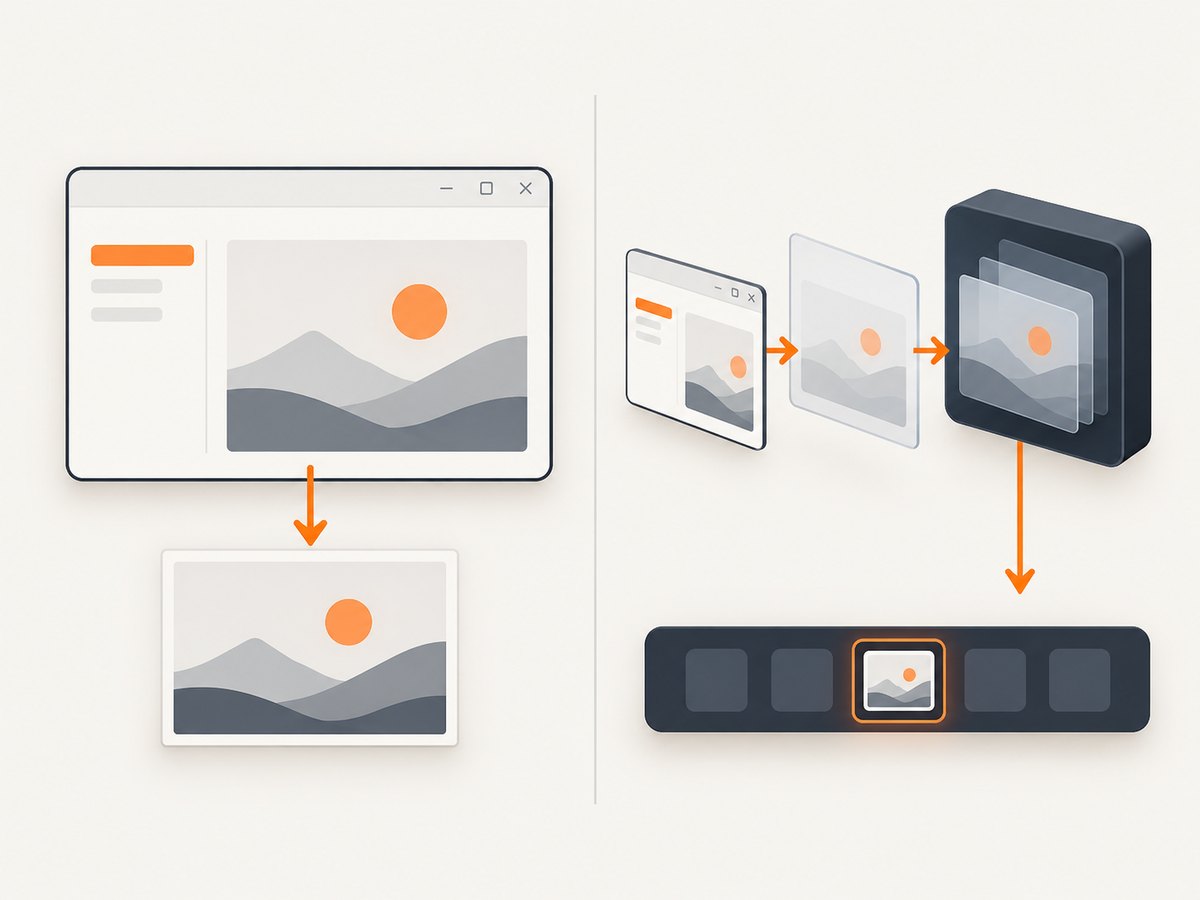
- Application image: a PNG, JPEG, or other encoded image that your code stores or sends. Use
RenderTargetBitmapand an encoder. - Taskbar iconic thumbnail: the representation Windows requests for a window or tab. Use the window’s native HWND and DWM APIs.
WindowInteropHelper exposes the HWND associated with a WPF window; see the Microsoft API documentation. For the taskbar path, Windows sends WM_DWMSENDICONICTHUMBNAIL when it needs the image. The application must enable the appropriate iconic representation attributes, provide a 32-bit bitmap within the requested maximum dimensions, and manage native bitmap resources. DwmSetIconicThumbnail sets a static iconic bitmap, while the WM_DWMSENDICONICTHUMBNAIL documentation describes the request message.
That native workflow does not replace PNG persistence. If you need both, keep the WPF encoder method for storage and implement the DWM message flow separately.
9. Common errors and fixes
| Symptom | Cause | Fix |
|---|---|---|
| Width or height is zero | The element has not been measured or arranged. | Capture after Loaded/ContentRendered, or call Measure, Arrange, and UpdateLayout. |
| Blank or incomplete image | Capture happened before rendering finished, or content loads asynchronously. | Capture at render priority after data and images are ready. |
| Cross-thread exception | The visual belongs to another dispatcher. | Invoke capture on the visual’s dispatcher. |
| PNG will not open | The stream was read before encoding completed, or raw pixels were mislabeled as PNG. | Call encoder.Save, then ToArray(); use the returned encoded array. |
| Text looks soft | Output dimensions or DPI are too low. | Render at a larger pixel size and choose DPI deliberately. |
| Transparent areas become black | The selected format or consumer does not preserve alpha. | Use PNG and verify the downstream decoder supports transparency. |
| Window chrome is missing | You captured a child element rather than the window. | Capture the Window or create a visual that includes the desired chrome. |
| Taskbar preview does not change | The taskbar path requires DWM messages and an HWND. | Implement the documented iconic-thumbnail workflow; RenderTargetBitmap alone only creates app-owned image data. |
10. Performance, reliability, and cost considerations
- Render only the visual and pixel dimensions you need. Memory usage rises with width, height, pixel format, and concurrent captures.
- PNG encoding is lossless but can cost more CPU and produce larger files for photographic windows. JPEG can reduce size when quality loss and missing alpha are acceptable.
- Reuse a dedicated thumbnail visual when the full window contains expensive controls or animations.
- Capture after content is stable. Animations, delayed bindings, and asynchronous images can produce different results from one capture to the next.
- Store the format alongside the bytes, for example as
image/png, so consumers do not have to guess. - For database workloads, measure your own image sizes and retention requirements; there is no universal byte-size or speed figure for every WPF visual.
11. Or skip the browser setup
If the source is a website rather than a WPF visual, ScreenshotNeo returns a screenshot or PDF from one HTTP request. It removes cookie and consent banners, newsletter popups, and chat widgets before capture. Bot checks, blank pages, timeouts, failed loads, and cache hits are not billed, and response headers identify the page verdict and billing result.
See the ScreenshotNeo API documentation for all options. A minimal request looks like this:
curl -G "https://api.screenshotneo.com/v1/shot" -d access_key=YOUR_API_KEY --data-urlencode url=https://stripe.com -o shot.webpimport requests
r = requests.get("https://api.screenshotneo.com/v1/shot", params={"access_key": "YOUR_API_KEY", "url": "https://stripe.com"}, timeout=90)
open("shot.webp", "wb").write(r.content)const q = new URLSearchParams({ access_key: 'YOUR_API_KEY', url: 'https://stripe.com' });
const res = await fetch(`https://api.screenshotneo.com/v1/shot?${q}`);ScreenshotNeo also provides an MCP server for AI agents, including Claude and Cursor, with take_screenshot, get_page_info, and capture_pdf tools. The free plan includes 1,000 screenshots per month with no card; paid plans start at $5 for 3,000. Create a free ScreenshotNeo account.
12. FAQ
Does RenderTargetBitmap return a byte array?
No. It returns a WPF bitmap source. Encode it with PngBitmapEncoder or another encoder and call MemoryStream.ToArray().
Can I save the bytes in a database?
Yes. Store the encoded array in a binary column and retain its MIME type and dimensions as metadata.
Can I capture a hidden WPF window?
A hidden or unlaid-out window may have zero dimensions or incomplete content. Create and arrange a dedicated visual, then capture it after layout.
How do I customize the Windows taskbar preview?
Use the HWND from WindowInteropHelper and the DWM iconic-thumbnail messages and functions. The PNG byte-array method is for application-owned images.
Should thumbnails be PNG or JPEG?
Choose PNG for UI text, sharp edges, or transparency. Choose JPEG for opaque photographic content when a smaller lossy file is acceptable.


