How to Add a Screenshot to Microsoft Word
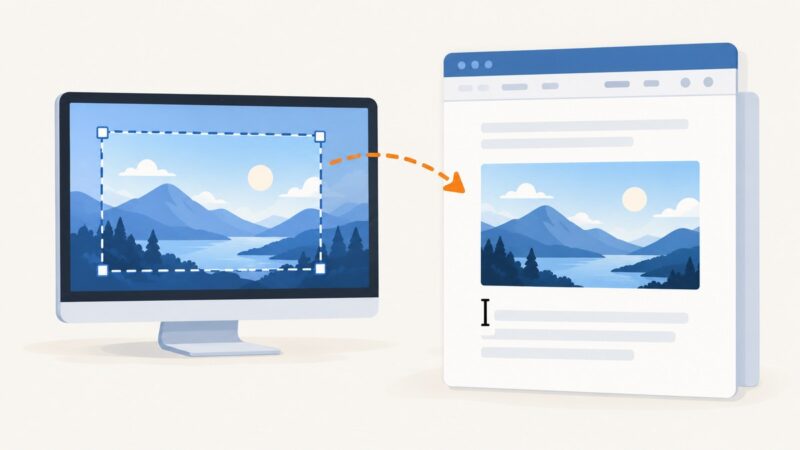
Learn how to insert full-window or partial screenshots in Word on Windows and Mac, fix common problems, and automate captures with ScreenshotNeo.
Blog
How to take clean screenshots, turn HTML into images and PDFs, run headless browsers, and give AI agents eyes. Written by the team that builds ScreenshotNeo.
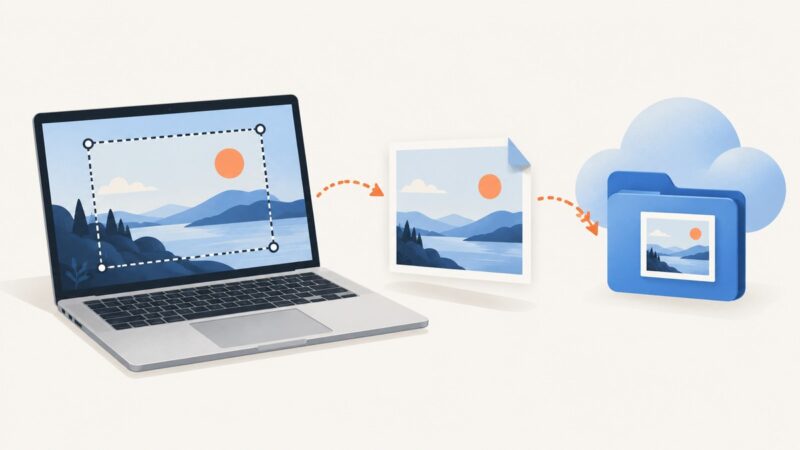
Learn how to insert full-window or partial screenshots in Word on Windows and Mac, fix common problems, and automate captures with ScreenshotNeo.
Learn when to embed an image and when to rebuild a screenshot as HTML, with runnable JavaScript for file previews, canvas exports, and common errors.
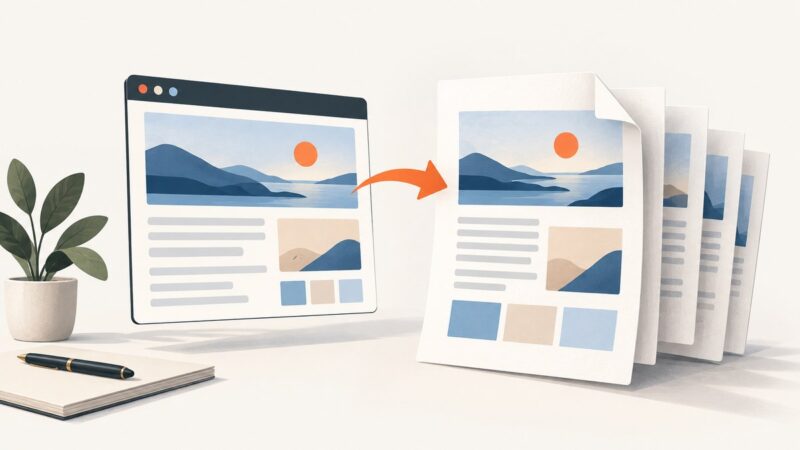
Convert an open webpage with Acrobat’s browser extension, or use Acrobat desktop to capture a URL, local HTML file, or linked pages with more control.
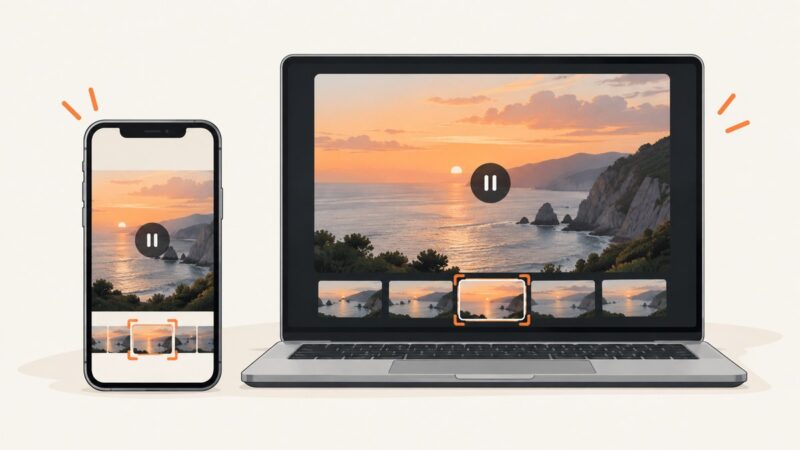
Pause the video on X, use your device’s built-in screenshot tool, and crop the frame cleanly on Windows, iPhone, or Android.
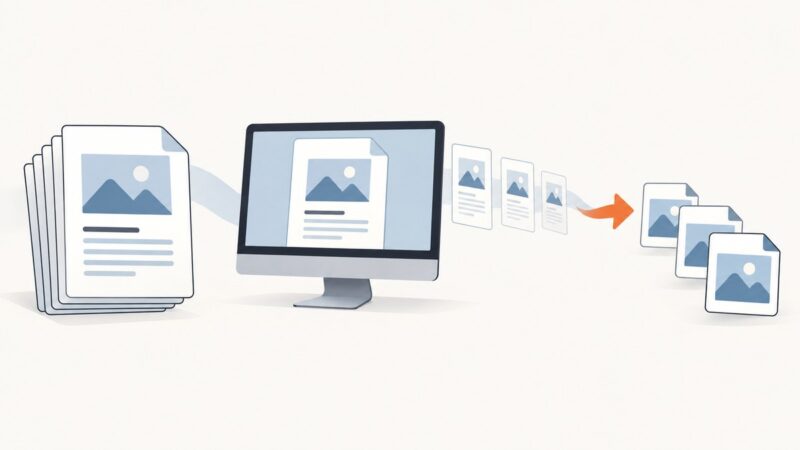
Learn what “screenshot an entire PDF” means, how to capture a page or screen, and when to export every page as images or a new PDF.
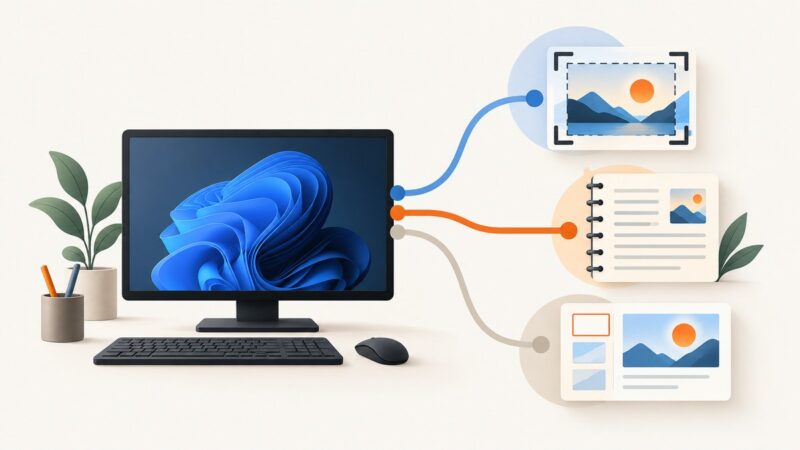
For most Windows 11 users, Snipping Tool is the best screenshot app. Choose OneNote or a Microsoft 365 app when where the image needs to go matters more.
Convert HTML to PNG with headless Chrome, or render PDF pages with Poppler and Python. Choose the right dimensions, DPI, and workflow for reliable output.
Capture just the active window with Alt+Print Screen, or select a window in Snipping Tool. Learn how to paste, edit, save, and troubleshoot the result.
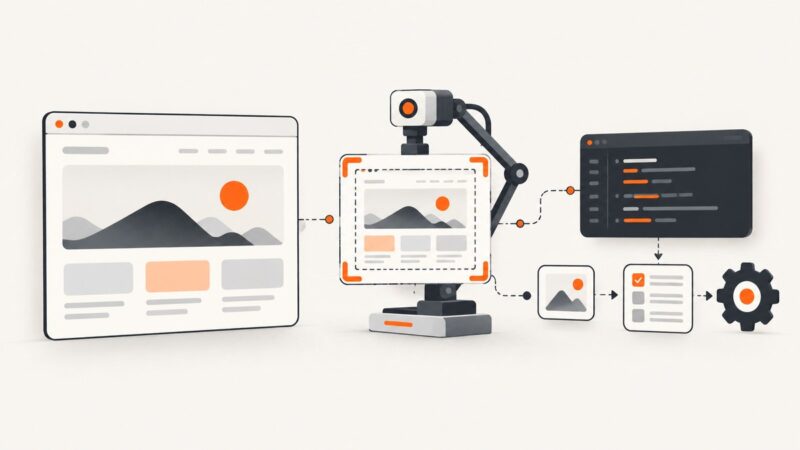
Render an HTML file in a real browser and capture a viewport, full page, or element with Playwright, Puppeteer, Python, cURL, or ScreenshotNeo.
Capture an X post as an image for Instagram, or share a public post straight to an Instagram Story with X’s iOS sticker option.
A screenshot saves one moment; screen capture can mean a still image or a recording. Learn which to use on Mac, Android, Windows, and in code.
Google Drive stores screenshots; your device captures them first. Learn how to capture a Chromebook screenshot and upload it to Drive on desktop or Android.
Capture the active Selenium tab, window, or element with runnable Python, JavaScript, and Java examples, plus troubleshooting and an API alternative.
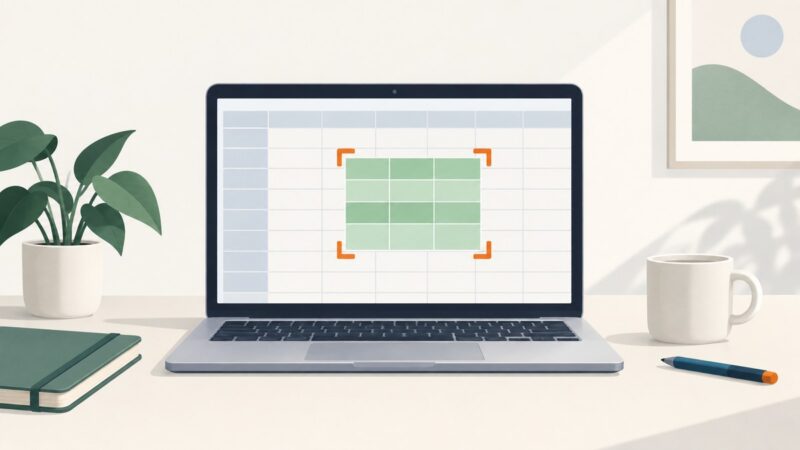
Capture a visible Google Sheets view, save selected cells as an image, or create a clean PDF. Choose the right workflow for your device and goal.
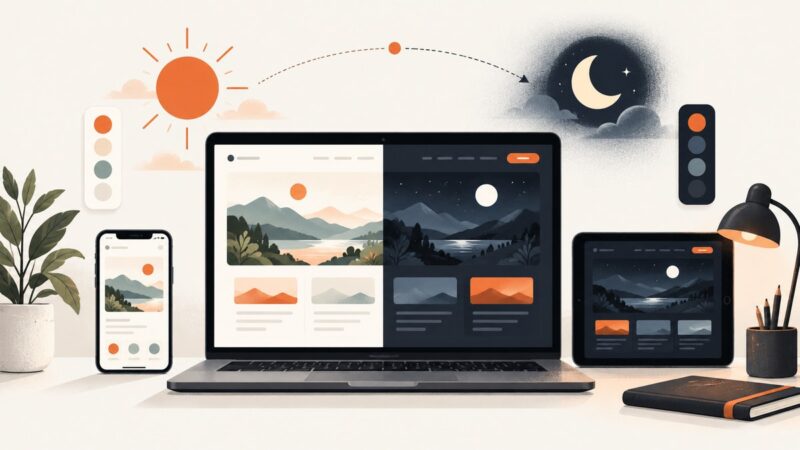
Learn how to add system-aware dark mode, a persistent toggle, accessible colors, testing, and screenshot automation to any website.
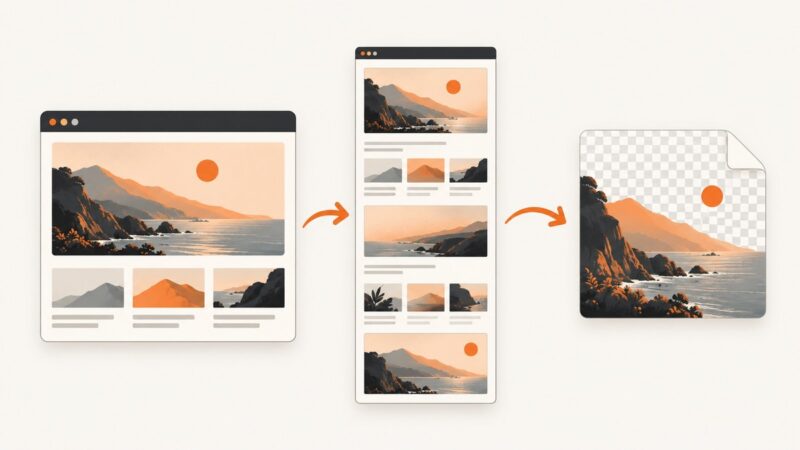
Save an individual image or an entire webpage as a real PNG, preserve transparency, convert WebP correctly, and automate captures with an API.
Install Puppeteer and its matching browser on a DigitalOcean VPS, keep Chrome sandboxed, and diagnose common launch failures with a repeatable Node.js setup.
Find Screen Options in WordPress, show hidden fields and columns, fix missing tabs, and automate admin screenshots when needed.