How to Take a Website Screenshot With Power Automate Desktop
Capture a full webpage or one element with Power Automate Desktop. Set up the browser, save the image, and fix common screenshot errors.
Taking screenshots on Windows, Mac, iPhone, Android and in the browser.
Capture a full webpage or one element with Power Automate Desktop. Set up the browser, save the image, and fix common screenshot errors.
Capture an entire webpage on Mac with a browser extension, save a Safari archive, or use a Mac app for scrolling content in documents and other windows.
Find Snagit screenshots on Windows and Mac, distinguish Library files from exports, and recover captures from older Snagit versions.
Capture your full screen, a window, or a selected area on Windows and Mac, then save the image or copy it to the clipboard.
Learn every Greenshot capture shortcut, how to grab menus and windows, annotate images, choose destinations, fix shortcut problems, and automate web screenshots.
Learn every Greenshot shortcut for regions, windows, full screens and context menus, plus saving, annotating and troubleshooting on Windows.
Fix missing CorelDRAW CDR thumbnails in Windows Explorer by checking associations, the shell extension, policies, cache, storage location, and the file itself.
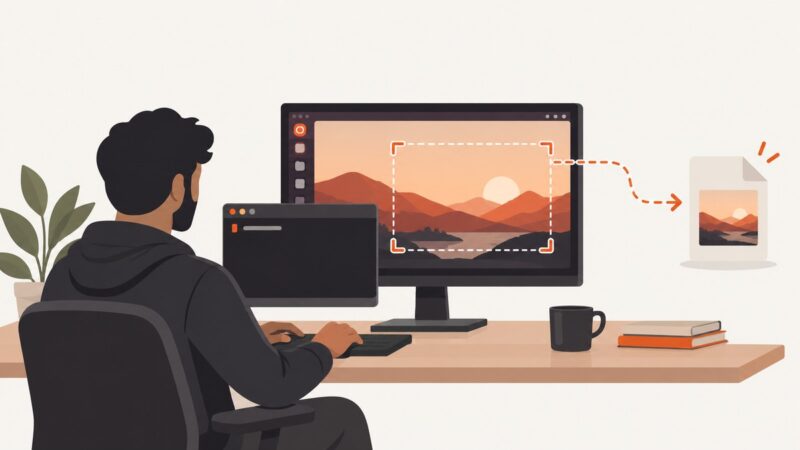
Capture the full screen, active window, or a selected area from Ubuntu’s terminal. Learn where files go, which options to check, and how desktop sessions affect capture.
Learn how Windows resolution, scaling, Snipping Tool and Print Screen affect screenshot quality, plus reliable ways to capture sharper images.
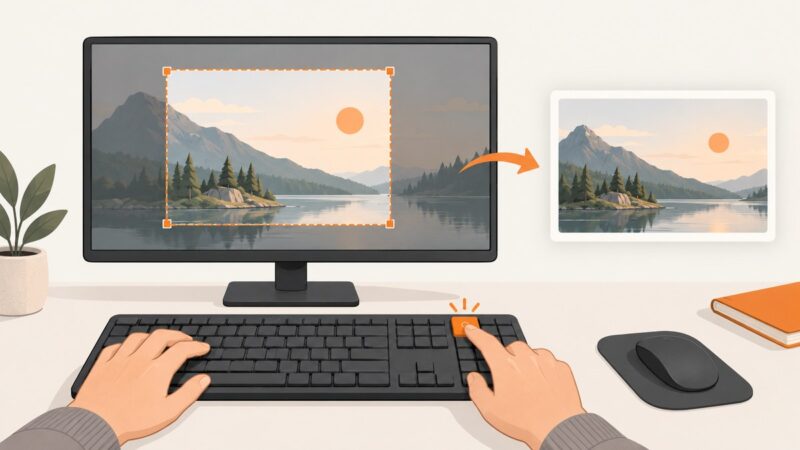
Use Windows+Shift+S to capture a selected area, or Windows+Print Screen to save the whole screen. Here’s how each shortcut works and where your screenshots go.
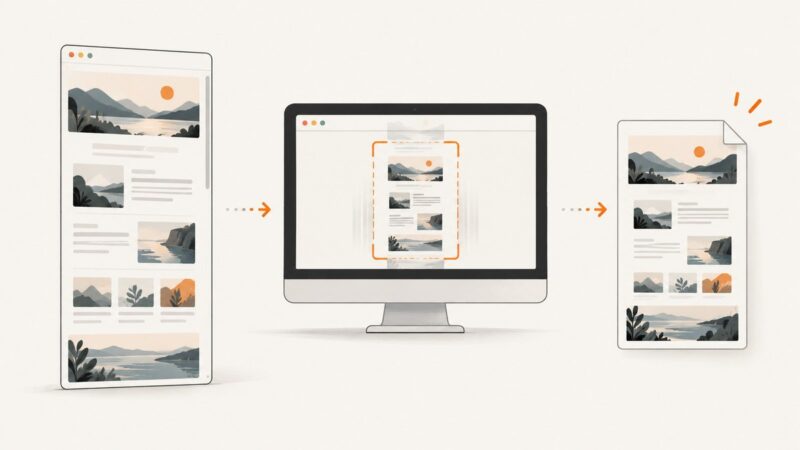
Learn the difference between a full-display and full-page screenshot in Chrome, with exact DevTools, Chromebook, Windows, and API steps.
Capture an entire webpage in Edge or the whole monitor with Windows Snipping Tool. Learn which method fits, how to save the image, and what to try when capture options are missing.
Capture every pixel on your Mac with Shift-Command-3, use Screenshot for options, copy to the Clipboard, and fix common problems.
Capture the full screen, a window, or a selected area on GNOME and KDE. Find the saved file, copy it, or troubleshoot shortcuts and Wayland permissions.
Pause the video, use Windows+Shift+S, and save the frame with Snipping Tool. Learn the other capture shortcuts, fixes for black screens, and when to use an API.
Record an Edge window, tab, or full screen with Xbox Game Bar or Clipchamp, including audio, permissions, fixes, and an API alternative.
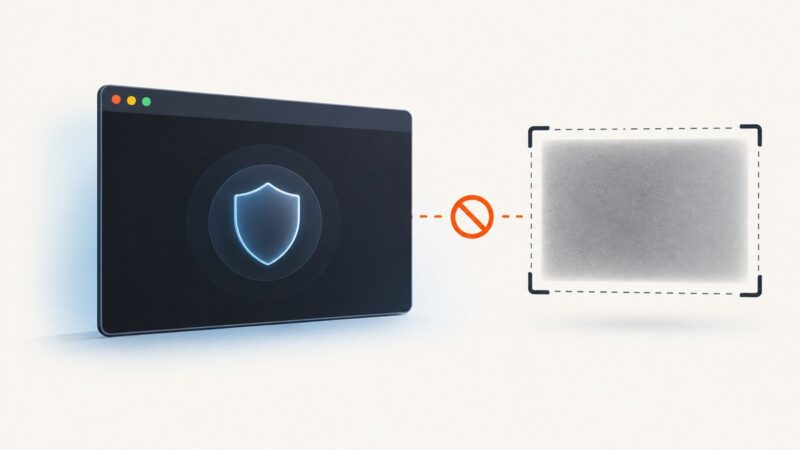
Use Electron’s BrowserWindow.setContentProtection(true) to exclude a window from capture where supported. Platform limits mean it cannot block every screenshot or recording.
Press Shift-Command-3 to capture your whole Mac screen, or use Shift-Command-4 for a selection. Learn how to capture a window, copy, save and troubleshoot screenshots.