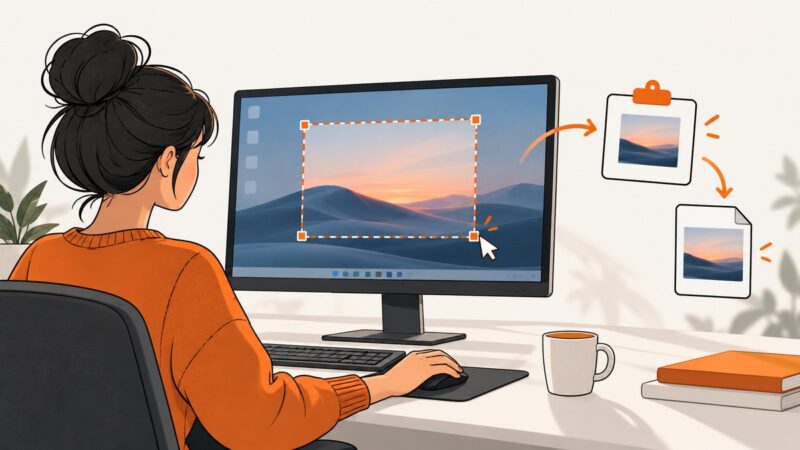
Easiest Way to Screenshot on PC
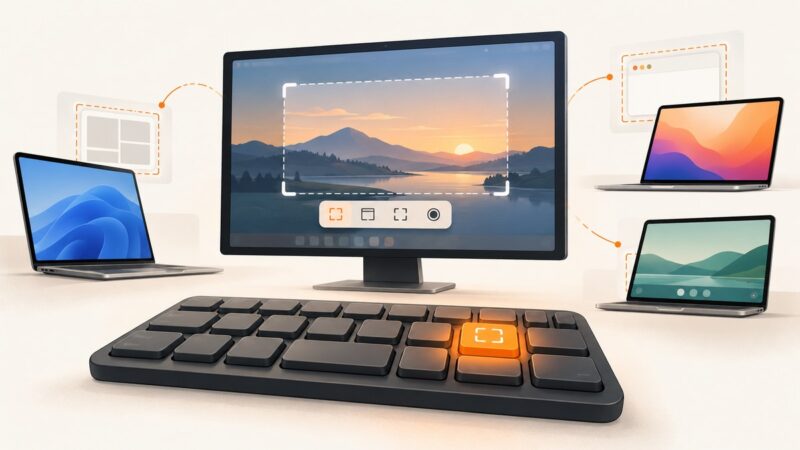
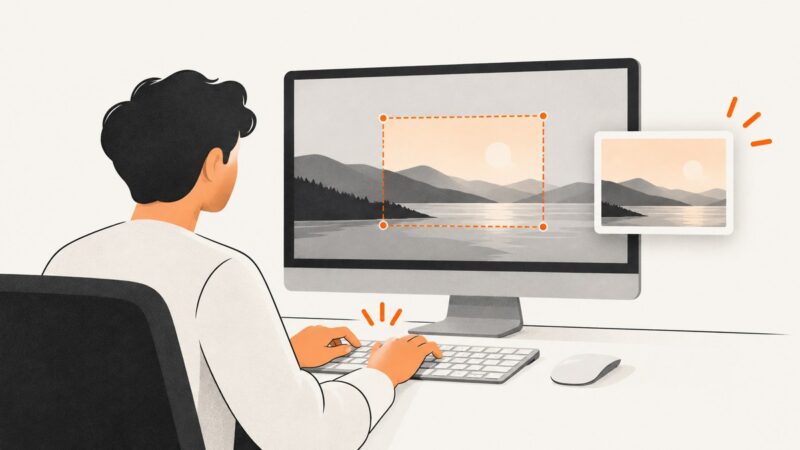
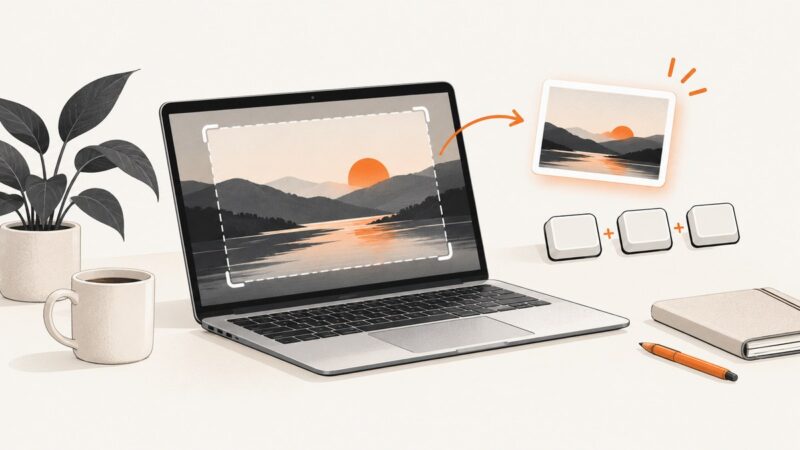
Use Windows+Shift+S to capture part of your screen, or choose a shortcut for a full-screen or active-window shot. Learn how to save, paste, and troubleshoot screenshots.
Taking screenshots on Windows, Mac, iPhone, Android and in the browser.
Use Windows+Shift+S to capture part of your screen, or choose a shortcut for a full-screen or active-window shot. Learn how to save, paste, and troubleshoot screenshots.
Use the right keyboard shortcut to capture your screen on Windows, Mac, Chromebook, iPhone, or Android—and find the saved image.
Use the right whole-screen shortcut for Windows, Mac or Chromebook, fix common failures, and automate webpage captures with ScreenshotNeo.
Use Shift-Command-3 for the whole screen, Shift-Command-4 for a selection, or Shift-Command-5 for capture controls. Here’s how to save, copy, and troubleshoot screenshots.
Find missing Mac screenshots fast: check the Desktop, Screenshot settings, Clipboard, filename patterns, formats, and common capture problems.
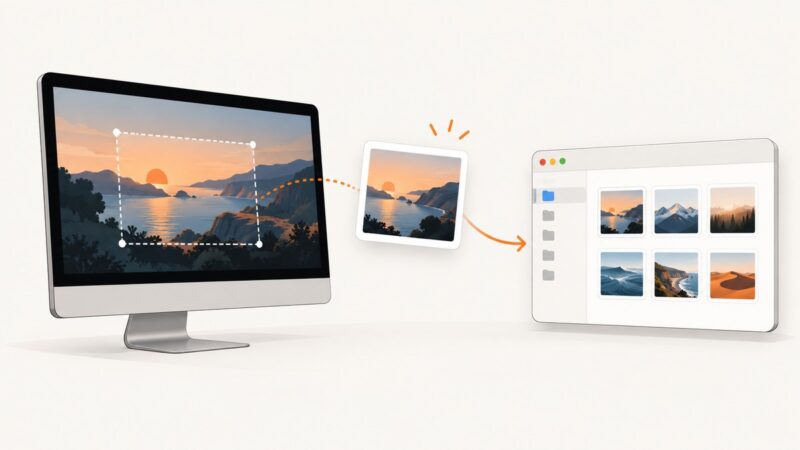
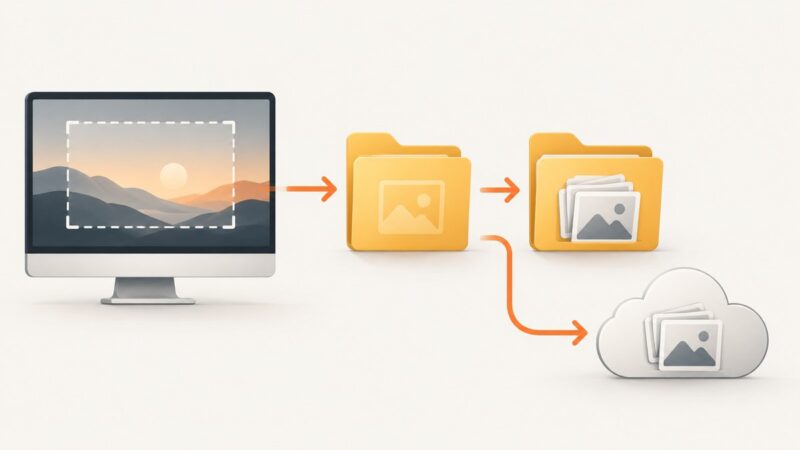
Windows + Print Screen saves to Pictures\Screenshots. Learn where every screenshot shortcut stores images, how OneDrive changes the path, and how to recover missing captures.
Learn Opera’s built-in screenshot and PDF options, when to install an extension, and how to capture reliable full-page images with ScreenshotNeo.
Chrome has screenshot tools, but the steps differ between desktop Chrome and ChromeOS. Learn how to capture areas, viewports, full pages, and more.
Learn every built-in MacBook Air screenshot shortcut, where captures go, how to copy them, and when to use ScreenshotNeo for web pages.
Capture an entire webpage in Windows 11 with Edge or Firefox, understand Snipping Tool limits, fix missing content, and automate shots with ScreenshotNeo.
Use Snipping Tool’s Delay setting to capture a menu or screen after a countdown. Here are the steps, shortcuts, fixes, and a browser screenshot option for developers.
Capture an entire webpage on an HP computer with Edge or Firefox, understand Windows shortcuts, fix common problems, or automate it with ScreenshotNeo.
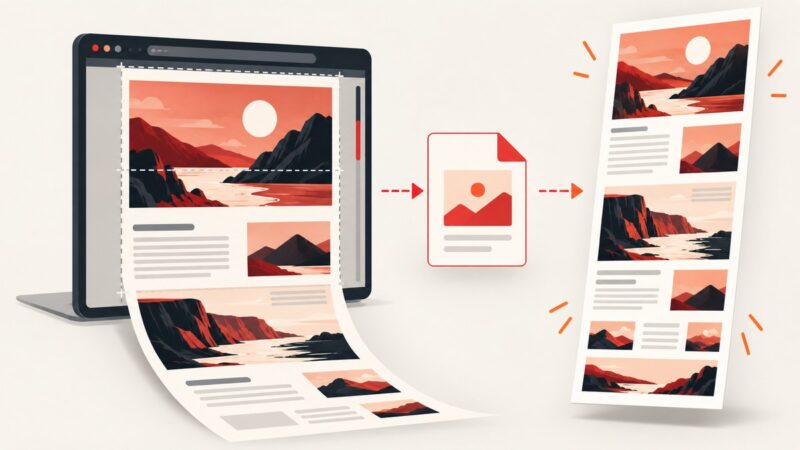
Capture an entire webpage on Windows with built-in tools in Edge or Firefox, a Chrome extension, or a screenshot API. Includes steps, options, and fixes.
Learn the difference between desktop and web-page screenshots, then capture either one reliably with PHP, Chromium, Playwright, or ScreenshotNeo.
Learn how to load a page, wait for QWebKit, render QWebFrame into QImage, save full-page screenshots, troubleshoot timing, and migrate legacy code.
Learn how to capture full pages, selected areas, PDFs, and annotations in Microsoft Edge, plus when an API is a better fit.
Learn Greenshot’s Internet Explorer full-page workflow, current browser alternatives, troubleshooting, and an API option for automated captures.
Capture a full webpage in desktop Chrome with DevTools, or save a long screenshot in Chrome for Android. Learn what each method captures and how to troubleshoot it.