How to Save a Website in Chrome
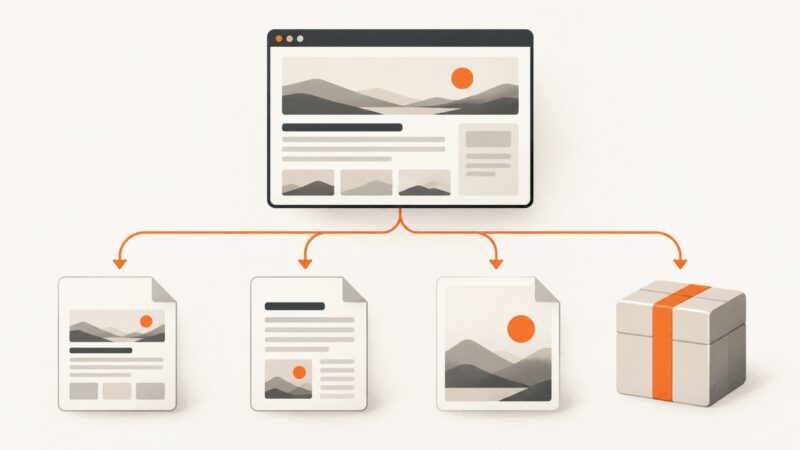
Save a website in Chrome as a bookmark, an offline page, or a file. Follow the right steps for your device and learn what each option preserves.
Save a website in Chrome as a bookmark, an offline page, or a file. Follow the right steps for your device and learn what each option preserves.
Capture Playwright screenshots only when tests fail, attach them to reports, and control where artifacts go. Includes retries, hooks, and troubleshooting.
Save a web page in Chrome for offline reading, download one on Android, or mirror multiple pages with a separate tool. Learn what each method captures and where it falls short.
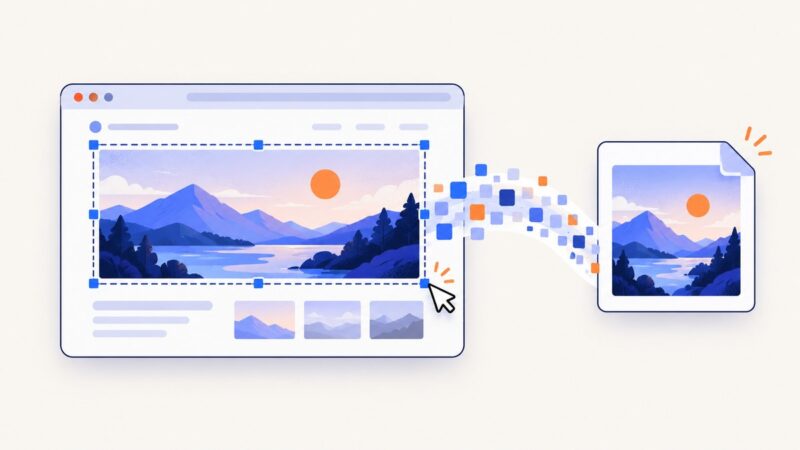
Save the original image, capture one rendered element, or screenshot a full page with browser tools and ScreenshotNeo.
Convert local files, remote images, and canvas pixels to data URLs in JavaScript, with CORS, Base64, memory, format, and troubleshooting guidance.
Capture one DOM element or a full webpage with Chrome and Firefox DevTools, then automate the same workflow with code.
Capture a visible screen or an entire webpage on desktop and mobile, save it as an image or PDF, and avoid common full-page capture problems.
Learn how to reveal a link’s real destination on desktop and mobile, inspect domains safely, and preview pages without exposing your credentials.
Learn how to install a web SDK, capture intentional events and clicks, handle consent, debug delivery, and protect user data.
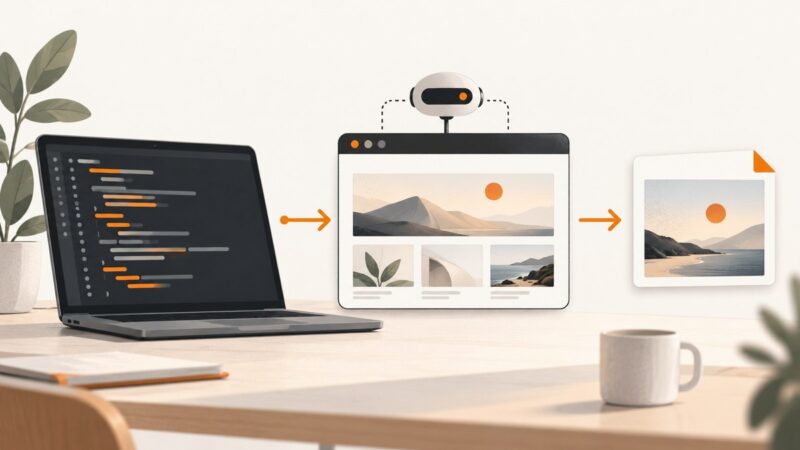
Capture a website with npm-installed Playwright or Puppeteer. Learn viewport and full-page screenshots, image formats, element capture, and reliable automation.
Upload a screenshot, choose the right kind of share link, and check who can access it. Learn how direct image URLs differ from file and album links.
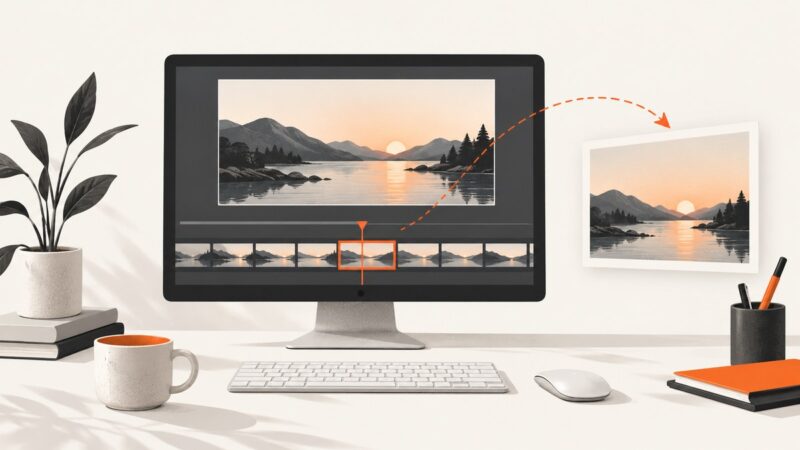
Capture a still from a YouTube video, compare frame tools, and learn how to turn a frame into a thumbnail that meets YouTube’s upload requirements.
Learn how to capture reliable website screenshots in Python with Playwright, CI-ready settings, troubleshooting, and a no-browser API option.
Save any webpage as a PDF on Windows, Mac, Android, or iPhone, with browser settings, troubleshooting, and an automated ScreenshotNeo option.
Capture social posts with identity, context, timestamps, and notes so screenshots remain useful when pages change or disappear.
Capture a website with Playwright or Puppeteer, choose viewport or full-page output, and decide when a hosted screenshot API fits better.
Save one page for offline reading, archive a collection, or record an interactive site. Choose the right format and avoid common capture problems.
Learn how to capture viewport and full-page website screenshots with Firecrawl, wait for dynamic content, automate interactions, and handle failures.